How To Reset Smart Home Devices: Easy Fix Guide
Resetting smart home devices usually means using the app, button, or power cycle to restore normal setup and fix glitches.
If you have ever watched a smart speaker ignore you, a camera go offline, or a light bulb refuse to reconnect, you know how frustrating it can feel. I’ve worked with enough smart home gear to know that a good reset is often the fastest way to solve setup issues, Wi-Fi problems, and random bugs. In this guide, I’ll walk you through how to reset smart home devices the right way, when to use each reset method, and what to do afterward so you do not lose more time than you need to.

What It Means to Reset Smart Home Devices
Resetting smart home devices is not just one thing. It can mean a soft reset, a reboot, a factory reset, or a network reset, depending on the device and the problem you are trying to fix.
A soft reset usually refreshes the device without erasing settings. A factory reset wipes the device and sends it back to its original state. In my experience, many people jump straight to a full reset when a simple reboot would have worked better.
Here is the easy way to think about it:
- Soft reset: Like taking a short nap
- Power cycle: Like unplugging and plugging the device back in
- Factory reset: Like starting over with a blank notebook
Knowing the difference matters because the wrong reset can erase routines, Wi-Fi links, and device names you already set up.

When You Should Reset a Smart Home Device
You should reset smart home devices only when there is a clear reason. Most problems are small and can be fixed without wiping everything.
Common reasons to reset include:
- The device will not connect to Wi-Fi
- The app keeps showing the device as offline
- Voice assistants cannot find the device
- The device freezes, lags, or responds slowly
- You are selling, giving away, or moving the device to a new home
- The device was linked to the wrong account
I have seen a lot of cases where people reset too early. That can turn a 2-minute fix into a 20-minute setup task. First, try the simplest fix: check power, restart the app, and confirm the internet is working.
Before You Reset Smart Home Devices
Before you reset smart home devices, take a minute to prepare. This saves a lot of stress later.
Do these things first:
- Write down the device name and location
- Save any important automations or routines
- Check whether the device uses a companion app
- Make sure you know your Wi-Fi name and password
- Remove old network settings if the app gives you that option
- Look for the user manual or support page for the exact model
This step is especially important for devices like smart plugs, cameras, thermostats, and hubs. Some products are easy to re-add, but others need extra steps like QR scans, bridge pairing, or account login.
How to Reset Smart Home Devices the Right Way
The reset process depends on the device brand and type, but the general steps are often the same. I usually tell people to start small and move up only if the problem stays.
1. Try a soft restart first
If the device is acting up, unplug it or turn it off for 30 seconds. Then power it back on and give it a minute or two to reconnect.
This works well for:
- Smart bulbs
- Smart plugs
- Speakers
- Routers
- Cameras
A simple restart can clear temporary memory issues. Think of it like refreshing a frozen app on your phone.
2. Use the app reset if available
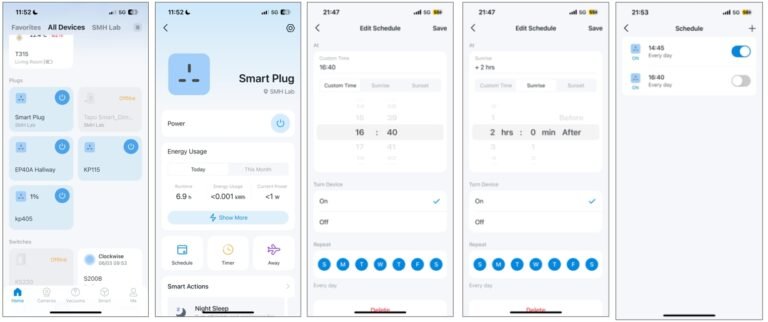
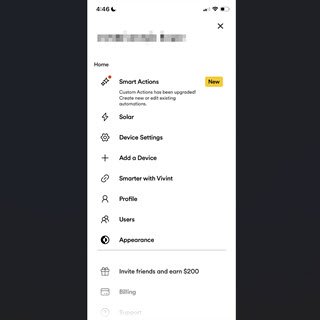
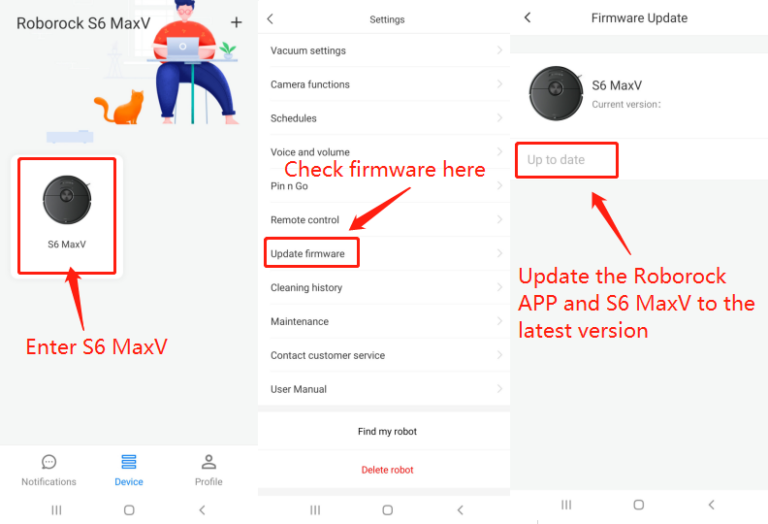
Many smart home apps have a reset or remove device option. This is often the cleanest way to disconnect the device before pairing it again.
Typical steps include:
- Open the device app
- Select the device
- Tap settings or device info
- Choose remove, unlink, or reset
- Follow the on-screen steps
This is often better than holding buttons at random. If the app still works, use it first.
3. Do a factory reset when needed
A factory reset should be your last step if the device still will not work. This erases stored settings and returns the device to its original state.
Common factory reset methods include:
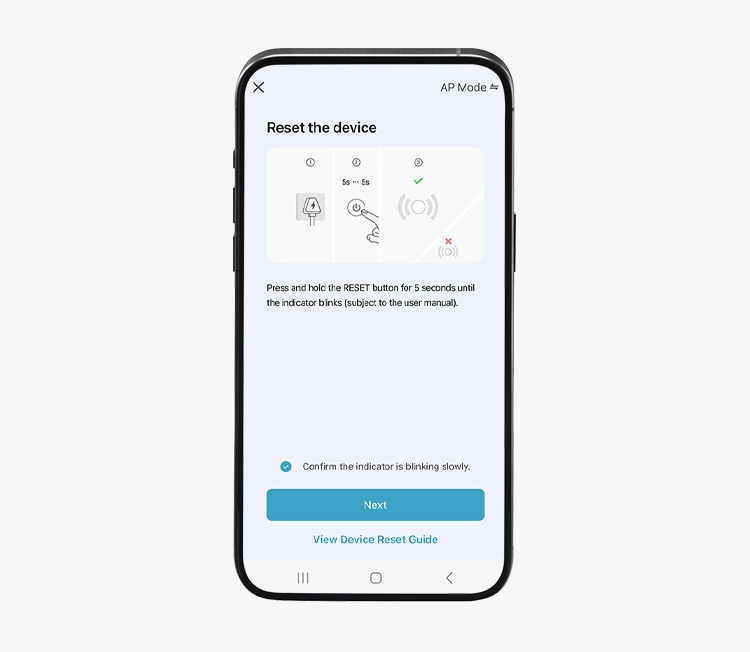
- Pressing and holding a reset button
- Holding the power button for a set time
- Tapping a sequence of buttons
- Using the app plus a physical button together
For example, many smart speakers use a long press on a button, while some smart bulbs need a power toggle pattern. Always check the exact model instructions because the method can vary a lot.
4. Re-add the device to your home system
After the reset, add the device back through the app. Make sure your phone is on the correct Wi-Fi network and that Bluetooth, location, or permissions are enabled if the app requires them.
If pairing fails:
- Move the device closer to the router
- Restart the router
- Confirm the device supports the Wi-Fi band you are using
- Update the app
- Try setting it up again from scratch
I have found that pairing problems often come from a simple mismatch, like trying to connect a 2.4 GHz-only device to a 5 GHz network.

Reset Methods by Smart Home Device Type
Different devices reset in different ways. That is one reason people get stuck. The good news is that most smart home devices follow a few common patterns.
Smart speakers
Smart speakers often use button holds, app resets, or voice assistant settings. If the speaker is still responding, try removing it from the app before doing a full reset.
Useful tips:
- Keep the device plugged in during setup
- Wait for the light ring or indicator to show pairing mode
- Reconnect it to the same account if you want old routines to work again
Smart bulbs
Smart bulbs often reset through power toggling. You may need to turn the bulb on and off several times in a row until it flashes or changes color.
Helpful tips:
- Use the wall switch, not the app, if the bulb is unresponsive
- Reset one bulb at a time if you have a group
- Be patient, since some bulbs need a very exact timing pattern
Smart plugs
Smart plugs usually have a tiny reset button or need a press-and-hold sequence. Some also enter pairing mode after several fast power cycles.
Helpful tips:
- Check that the plug is not overloaded
- Plug in a simple device like a lamp during testing
- Make sure the plug and app are on the same account
Smart cameras
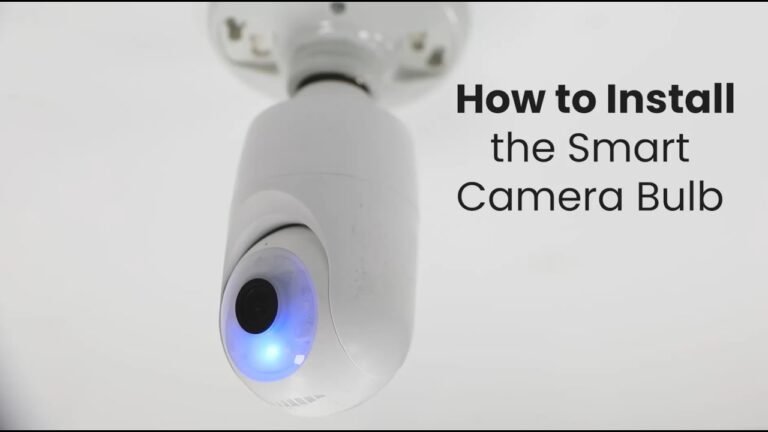
Smart cameras often need a reset pin, button, or app unpairing before they can be re-added. Cameras can be tricky because some also store local video settings or cloud connections.
Helpful tips:
- Keep the QR code or setup code handy
- Make sure the camera is close to the router during setup
- Confirm that the firmware is up to date after setup
Smart thermostats
Smart thermostats may offer a restart, reset network settings, or full factory reset option. Since thermostats control heating and cooling, be careful and follow the maker’s guide closely.
Helpful tips:
- Take a photo of the current wiring before removing anything
- Note your schedule and temperature preferences
- Restore the system settings after reset
Smart hubs and bridges
Smart hubs and bridges often need a full reset if they stop talking to connected devices. Since they act as the center of the system, resetting them can affect many products at once.
Helpful tips:
- Back up automations if the app allows it
- Reset only when necessary
- Reconnect the hub before adding other devices back
Common Reasons Smart Home Devices Fail After a Reset
Sometimes a reset does not fix the problem right away. That usually means the issue is elsewhere.
Common causes include:
- Weak Wi-Fi signal
- Wrong password
- Router band mismatch
- Outdated firmware
- App permissions not enabled
- Account sync problems
- Device hardware failure
One mistake I made early on was assuming every connection issue came from the device. More than once, the real problem was the router settings. A smart home is a team effort, and the router is often the quiet troublemaker.
Best Practices to Avoid Losing Settings
Resetting smart home devices is easier when you plan ahead. A little prep can save hours later.
Try these habits:
- Keep a list of your devices and model numbers
- Screenshot app settings before changes
- Use a password manager for Wi-Fi credentials
- Update firmware regularly
- Label devices in the app clearly
- Test devices after any router change
These small steps make a big difference. If you ever need to reset smart home devices again, you will be glad you stayed organized.
Benefits and Limits of Resetting Smart Home Devices
Resetting smart home devices has real benefits, but it is not magic. It is a repair step, not a cure-all.
Benefits include:
- Fixing connection errors
- Clearing temporary bugs
- Reconnecting to a new Wi-Fi network
- Removing old account links
- Preparing a device for resale
Limits include:
- It does not fix broken hardware
- It can erase schedules and automations
- It may not solve router problems
- Some devices are slow to pair again
In other words, reset smart home devices when the reset is the right tool, not just the easiest one.

Expert Tips from Real-World Use
After setting up and resetting a lot of smart home gear, I have learned a few practical lessons the hard way. The biggest one is this: slow down before you reset smart home devices.
Here are the tips I trust most:
- Restart the router first if multiple devices are failing
- Reset one device at a time so you do not confuse the setup process
- Keep the device close to the router during pairing
- Use the same phone and the same account if possible
- Wait for confirmation lights before moving to the next step
A reset is a lot like restarting a conversation. If you rush it, the device may hear the wrong signal. If you do it carefully, the whole system usually settles down faster.
Frequently Asked Questions of How to Reset Smart Home Devices
How often should I reset smart home devices?
You should only reset smart home devices when there is a clear issue or when you are transferring ownership. Frequent resets are not needed and can make setup more confusing.
Will resetting delete all my settings?
A factory reset usually deletes saved settings, Wi-Fi details, and automation links. A soft reset or restart may not erase anything, so it is worth trying first.
Why won’t my smart device reconnect after a reset?
The most common causes are wrong Wi-Fi details, weak signal, or using the wrong network band. Restarting the router and rechecking app permissions often helps.
Can I reset smart home devices without the app?
Yes, many devices have a physical reset button or a power-cycle method. That said, the app is often easier if it is still working properly.
Should I reset the router too?
If several smart devices are failing, resetting or restarting the router can help. If only one device has trouble, start with that device first.
Conclusion
Resetting smart home devices does not have to be stressful. Once you understand the difference between a restart, a network reset, and a factory reset, the process becomes much easier to manage.
The best approach is simple: start with the smallest fix, protect your settings, and use the exact reset method for each device type. That saves time, protects your smart home setup, and helps you avoid the common mistakes that trip people up.
If this guide helped, bookmark it for later, share it with someone fixing a stubborn device, or leave a comment with the smart home product you want help resetting next.