How To Connect A Soundbar: Easy Setup Guide
Connecting a soundbar is usually simple: match the right port, choose the right cable, then set the TV audio output correctly.
If you want cleaner dialogue, deeper bass, and a more cinematic sound without the hassle of a full home theater, learning how to connect a soundbar is one of the smartest upgrades you can make. I’ve set up plenty of soundbars over the years, and the same truth comes up again and again: the best setup is not always the fanciest one, but the one that matches your TV, your room, and the way you watch.
What You Need Before Connecting a Soundbar
Before you plug anything in, take a minute to look at the ports on both your TV and soundbar. This small step saves a lot of frustration later. Most connection problems start because people use the wrong cable or pick a port that does not support sound output.
Here’s what to check first:
• TV audio ports, especially HDMI ARC, HDMI eARC, optical audio, AUX, or Bluetooth support
• Soundbar input options, such as HDMI ARC, optical, 3.5 mm AUX, USB, or wireless pairing
• The included cable in the box, because many soundbars ship with the best cable for basic setup
• Your TV settings, since the sound often still plays through the TV speakers until you change the output
In my experience, the fastest installs happen when you read the labels on both devices before you connect anything. A lot of people skip that step and end up switching cables three times. Think of it like matching puzzle pieces: the right fit makes the whole picture easier.
The Main Ways to Connect a Soundbar
There are several ways to connect a soundbar, and the right one depends on your equipment. Some methods deliver better sound and easier control than others. If your TV supports HDMI ARC or eARC, that is usually the best place to start.
1. Connect a Soundbar with HDMI ARC or eARC
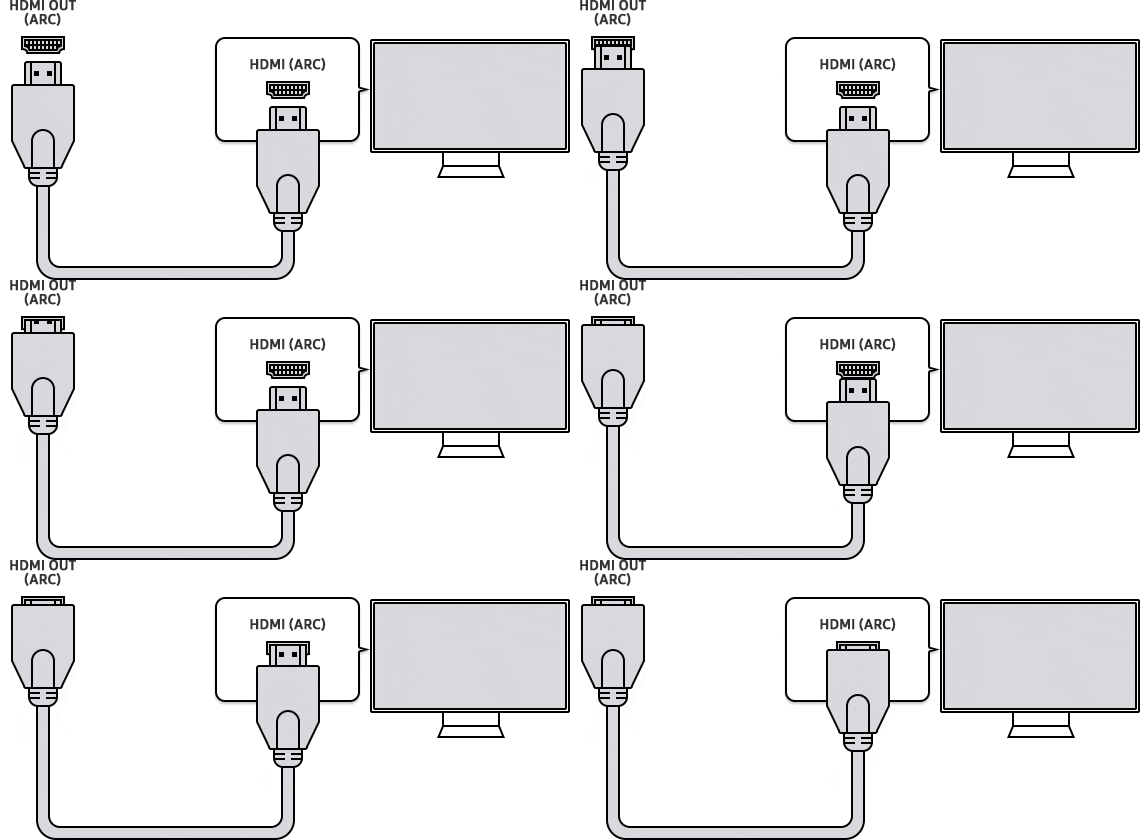
HDMI ARC, which stands for Audio Return Channel, lets your TV send audio to the soundbar through one HDMI cable. eARC is the newer version and supports higher quality audio. It is the cleanest setup for most modern TVs.
Follow these steps:
- Find the HDMI port on your TV labeled ARC or eARC
- Plug one end of the HDMI cable into that port
- Plug the other end into the HDMI ARC or TV ARC port on the soundbar
- Turn on both devices
- Open the TV audio settings and choose HDMI ARC, External Speaker, or Audio System
- If needed, turn on CEC so the TV remote can control the soundbar volume
This is the method I recommend most often. It reduces cable clutter and usually lets you control volume with one remote. It also tends to be more stable than Bluetooth.
2. Connect a Soundbar with Optical Cable
An optical cable is a strong backup option when HDMI ARC is not available. It sends digital audio from the TV to the soundbar and does a good job with clarity, especially for voice-heavy content.
To connect it:
- Remove the small plastic caps from both ends of the optical cable
- Insert one end into the TV optical output
- Insert the other end into the soundbar optical input
- Go to TV audio settings and select Optical or Digital Audio Out
- Set the soundbar to the optical input mode
Optical is reliable, but it has limits. It usually does not support advanced formats as well as eARC. Still, for many homes, it is more than enough for better TV sound.
3. Connect a Soundbar with Bluetooth
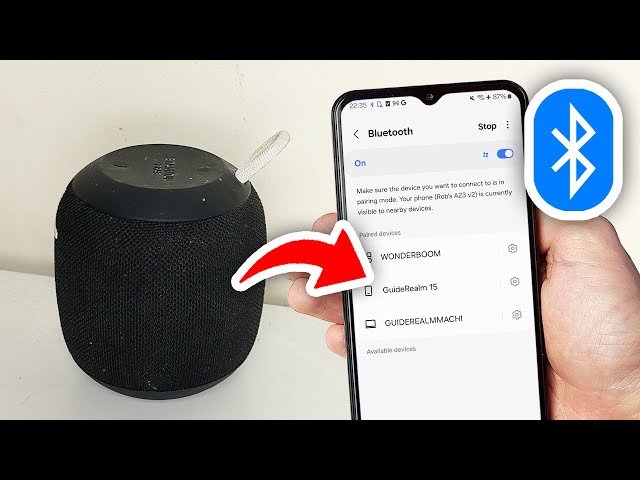
Bluetooth is the easiest wireless option. It works well when you want a clean setup and do not want to run cables across the room. I often suggest it for smaller spaces or quick temporary setups.
Here’s how to do it:
- Put the soundbar in Bluetooth pairing mode
- Open the Bluetooth settings on your TV, phone, or tablet
- Select the soundbar from the list of available devices
- Confirm the pairing if prompted
- Play audio and test the sound
Bluetooth is convenient, but it is not perfect. You may notice slight audio delay, especially with lip sync during movies. For casual listening, that is fine. For a movie-first setup, HDMI ARC is usually better.
4. Connect a Soundbar with AUX or 3.5 mm Cable
Some older TVs and smaller soundbars still use AUX input. This method is straightforward and can be useful when no digital ports are available.
To connect:
- Plug one end of the 3.5 mm cable into the TV or source device
- Plug the other end into the soundbar AUX input
- Set the soundbar to AUX mode
- Adjust the TV volume and soundbar volume to a comfortable level
AUX works, but the sound quality is usually not as strong as HDMI or optical. I treat it like a backup lane on a busy road: useful when needed, but not the best long-term route.
5. Connect a Soundbar to a Streaming Device or Game Console
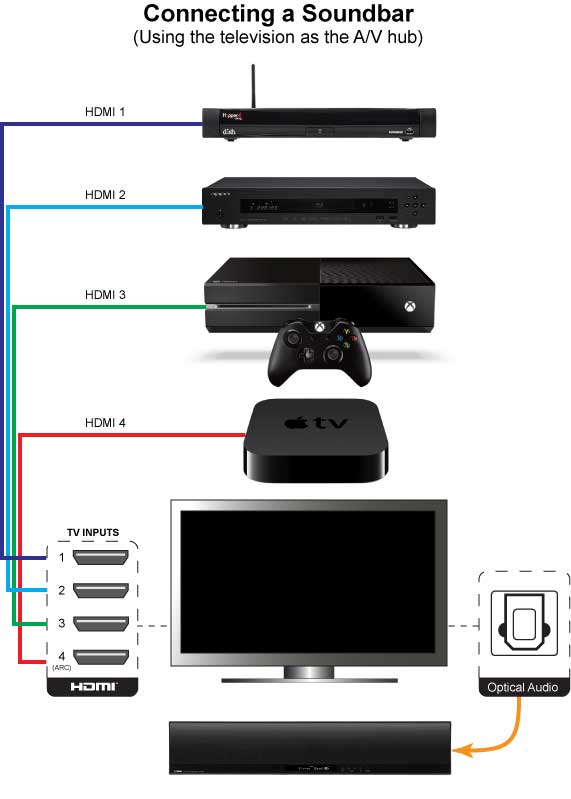
Some soundbars can connect through a TV, while others may connect through a streaming box or console depending on the setup. In most cases, the easiest path is still to connect the soundbar to the TV, then let the TV pass the sound through.
This approach works well if you use:
• Roku, Fire TV, Apple TV, or Chromecast
• PlayStation, Xbox, or Nintendo Switch
• Cable boxes or satellite receivers
For best results, set the device to send audio through the TV and let the TV handle the soundbar output through HDMI ARC or optical. That keeps things simple and avoids double audio routing.

How to Set Up the Soundbar Step by Step
Once you choose the connection method, the rest is about setup and testing. A good setup is part wiring, part settings, and part patience. I always tell people not to judge the soundbar until both the TV and soundbar audio menus are checked.
Use this simple process:
- Place the soundbar below the TV, ideally centered
- Connect the soundbar using HDMI ARC, optical, Bluetooth, or AUX
- Turn on the TV and soundbar
- Select the correct input on the soundbar
- Open the TV sound settings and switch audio output away from TV speakers
- Test with a movie, news channel, or music track
- Raise or lower the soundbar volume until voices sound clear
A common mistake is leaving the TV on internal speakers while the soundbar is connected. Another one is forgetting to choose the correct soundbar input. It happens all the time, even to people who are usually great with tech.
Best Settings for Better Sound
Once you connect a soundbar, the next step is tuning it for your space. A soundbar can sound dull or too loud if the settings are not matched to the room. Small changes often make a huge difference.
Here are the settings I check first:
• Sound mode: Try Movie, Standard, Voice, or Night mode depending on what you watch
• Bass level: Increase it slowly if explosions or music feel thin
• Treble level: Raise it a little if dialogue sounds muddy
• Virtual surround: Use it carefully, since too much can make sound feel artificial
• Lip sync adjustment: Use this if voices do not match the picture
If your soundbar includes a subwoofer, place it near a wall or in a corner for stronger bass. Just do not press it into a tight cabinet. Sound needs room to breathe, even when the system is compact.
Common Problems When Connecting a Soundbar
Even a simple soundbar setup can run into trouble. The good news is that most issues are easy to fix once you know where to look. I have seen people replace cables when the real issue was just the wrong setting.
Common problems include:
• No sound at all, often caused by the wrong TV output or soundbar input
• Sound but no picture, usually from a loose HDMI connection or wrong input choice
• Delayed audio, which is common with Bluetooth
• Low volume, sometimes caused by both TV and soundbar volume being set too low
• Remote control conflict, often fixed by enabling HDMI CEC
Try these quick fixes:
- Recheck the cable ends and make sure they are fully inserted
- Confirm the soundbar input matches the connection type
- Change the TV audio output to External Speaker, HDMI ARC, or Optical
- Restart both the TV and soundbar
- Update firmware if the manufacturer offers it
I’ve found that a simple power reset solves more problems than people expect. Unplugging both devices for a minute can clear small handshake issues between the TV and soundbar.
How to Connect a Soundbar to Different Devices
The phrase how to connect a soundbar can mean different things depending on the room. Some people want TV sound. Others want music from a phone, a laptop, or a gaming system. The basic idea stays the same, but the route changes.
Connect a Soundbar to a Smart TV
This is the most common setup. Use HDMI ARC if you can, optical if you need a backup, and Bluetooth only if wireless is the priority. Then set the TV audio output to external speakers.
Connect a Soundbar to a Laptop or Desktop
You can connect with Bluetooth, AUX, or sometimes HDMI if the soundbar supports it. For simple music or video playback, Bluetooth is fine. For lower delay during editing or gaming, wired options are usually better.
Connect a Soundbar to a Phone or Tablet
Bluetooth is the easiest choice here. Pair the device once, then reconnect when needed. This is handy for music, podcasts, and casual streaming.
Connect a Soundbar to a Gaming Console
For gaming, the best route is usually console to TV, then TV to soundbar through HDMI ARC or optical. That keeps the setup clean and lets the TV manage the audio path. It also helps reduce input confusion when you switch between games and shows.
How to Choose the Best Connection Method
If you are deciding how to connect a soundbar, the best method depends on three things: sound quality, convenience, and compatibility. There is no perfect answer for every home, but there is usually one best fit.
Choose HDMI ARC or eARC if you want:
• Better sound quality
• One remote control experience
• A cleaner setup with fewer cables
Choose optical if you want:
• Solid digital sound
• Reliable compatibility with older TVs
• A simple wired connection
Choose Bluetooth if you want:
• Fast wireless pairing
• Fewer cables
• Easy use with phones and tablets
Choose AUX if you want:
• A basic fallback option
• Compatibility with older gear
• A quick way to get sound working
From my own setup work, I’ve learned that people often choose Bluetooth because it feels easy, then later switch to HDMI ARC because they want smoother movie playback. That upgrade usually feels worth it.
Benefits of Connecting a Soundbar the Right Way
When you connect a soundbar correctly, the difference is immediate. Dialogue becomes easier to hear. Movie sound gets fuller. Music feels more alive. It is a small change that can make a room feel brand new.
Main benefits include:
• Clearer voices in TV shows and movies
• Better bass and fuller audio
• Less need to crank up the TV volume
• Easier control with one remote when using HDMI ARC
• A cleaner entertainment setup
The biggest benefit is not just louder sound. It is better sound. That matters more than many people expect, especially if you watch a lot of dialogue-heavy content.
FAQ About How to Connect a Soundbar
Frequently Asked Questions of How to Connect a Soundbar
What is the easiest way to connect a soundbar?
The easiest way is usually Bluetooth, but the simplest wired option is often optical. If your TV and soundbar support HDMI ARC, that is usually the best mix of easy and high quality.
Why is my soundbar connected but no sound is coming out?
This usually means the TV is still sending audio to its built-in speakers or the soundbar is on the wrong input. Check the TV sound output setting and make sure the soundbar is set to the same connection type you used.
Is HDMI ARC better than optical?
Yes, in most modern setups HDMI ARC is better because it offers easier control and can support more advanced audio features. Optical is still reliable, though, and works well if your TV does not support ARC.
Can I connect a soundbar without a TV?
Yes, many soundbars can connect directly to a phone, tablet, laptop, or streaming device through Bluetooth or AUX. Some models also support USB or HDMI input, depending on the design.
Why does my soundbar lag behind the video?
Audio lag is common with Bluetooth connections. If that happens, try HDMI ARC, optical, or a lip sync setting in your TV menu to reduce the delay.
Do I need to change settings on both the TV and soundbar?
Usually yes. The TV must send audio to the soundbar, and the soundbar must be on the correct input. If either one is wrong, you may get no sound or poor sound quality.
Conclusion
Learning how to connect a soundbar is mostly about choosing the right connection, checking the settings, and giving yourself a few minutes to test everything. Once it is set up properly, even an average TV can sound far better, with clearer speech and richer audio that makes shows and movies more enjoyable.
If you want the smoothest setup, start with HDMI ARC or eARC. If that is not available, optical is a strong next choice, and Bluetooth is great for fast wireless use. Take your time, test the sound, and adjust the settings until it feels right for your room. If this guide helped, explore more home audio tips or leave a comment with your setup question.