Why Is 8BitDo Ultimate Bluetooth Controller Not Connecting: Fix It Fast
8BitDo Ultimate Bluetooth Controller usually won’t connect because of pairing mode, profile mismatch, firmware issues, or device settings.
If you are stuck with an 8BitDo Ultimate Bluetooth Controller not connecting, you are not alone. I’ve run into this exact kind of problem while testing Bluetooth gamepads across Windows, Nintendo Switch, Android, and iPad setups, and the fix is usually simpler than it first looks. The key is knowing whether the issue is the controller, the host device, or the Bluetooth profile in between.

Why the 8BitDo Ultimate Bluetooth Controller Not Connecting Happens
The 8BitDo Ultimate Bluetooth Controller not connecting issue usually comes down to a broken pairing process, low battery, old firmware, or a bad Bluetooth memory cache on the device. In plain terms, the controller and your device are having trouble “recognizing” each other correctly.
Bluetooth pairing is a lot like a handshake. If one side is using the wrong mode, or if the handshake memory is stale, the connection fails. That is why the 8BitDo Ultimate Bluetooth Controller not connecting problem often appears after a system update, a reset, or moving the controller between multiple devices.
A few common causes include:
- The controller is not in the correct Bluetooth pairing mode
- The wrong input mode is selected, such as Switch, D-input, or X-input
- The battery is too low for a stable connection
- The host device still remembers an old, corrupted pairing record
- Firmware is outdated on the controller or receiver
- Another Bluetooth device is interfering nearby
- The operating system has a temporary Bluetooth stack glitch
From my experience, the most overlooked cause is mode mismatch. I’ve seen people spend 30 minutes troubleshooting only to realize the controller was in the wrong mode for the device they were using.
Start With the Fastest Fixes
When the 8BitDo Ultimate Bluetooth Controller not connecting issue shows up, begin with the simplest checks first. These quick steps solve a surprising number of cases and save time before you move into deeper troubleshooting.
Try this first:
-
Charge the controller fully
Low power can make Bluetooth unstable, even if the controller still turns on. -
Turn Bluetooth off and back on
This resets the host device’s radio state. -
Forget the controller on the device
Remove the old pairing record, then pair it again from scratch. -
Restart both devices
A clean restart often clears temporary Bluetooth errors. -
Move close to the device
Keep the controller within a few feet during pairing.
If the 8BitDo Ultimate Bluetooth Controller not connecting issue still remains after these basics, the next step is checking compatibility and pairing mode.

Make Sure the Controller Is in the Right Mode
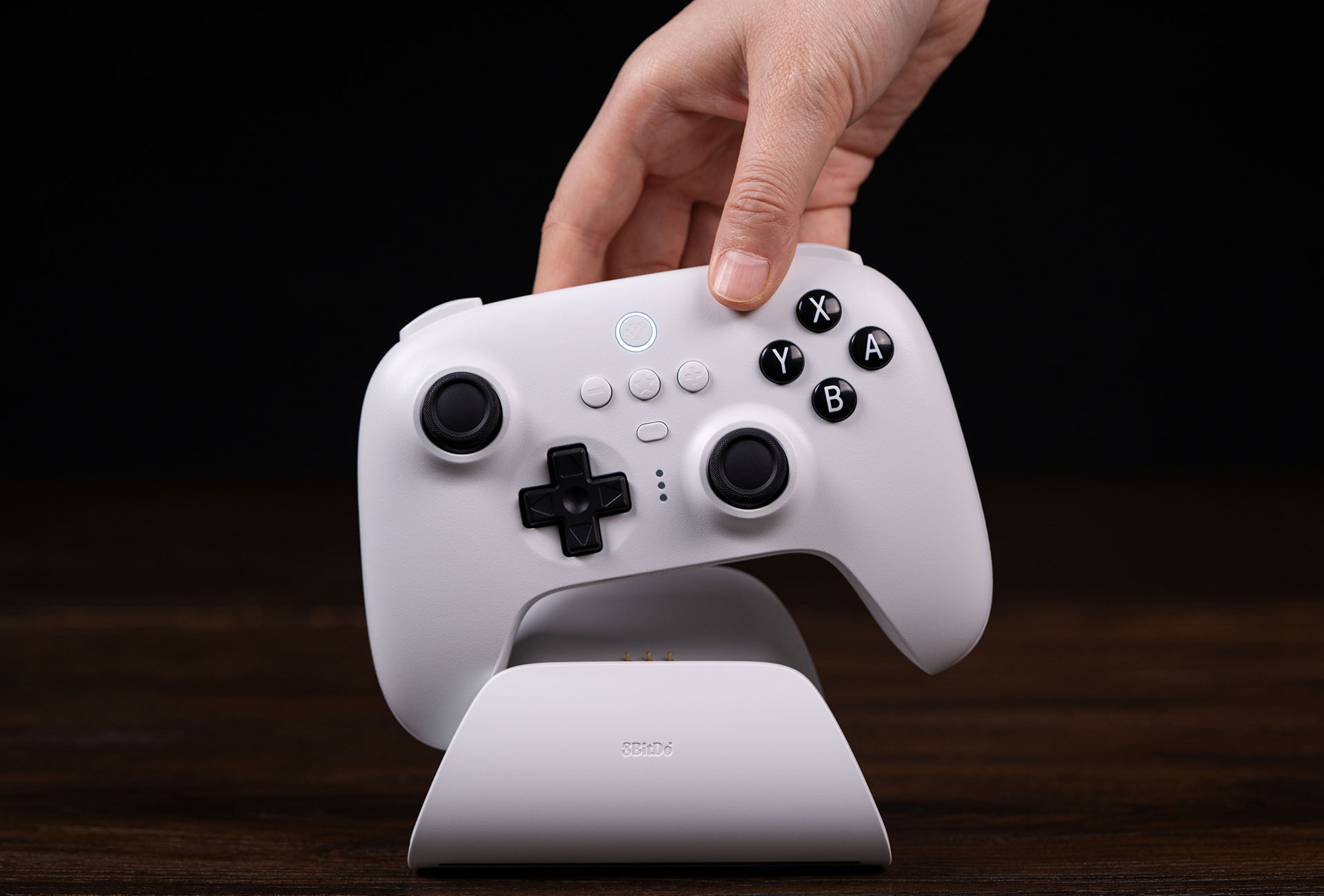
One of the biggest reasons the 8BitDo Ultimate Bluetooth Controller not connecting happens is that the controller is set to the wrong mode for the device. 8BitDo controllers often support multiple input modes, and each one speaks a slightly different “language” to the system.
For example:
- Nintendo Switch usually needs Switch mode
- Windows often works best with X-input
- Android may use D-input or X-input depending on the app
- macOS and iPadOS may require a specific Bluetooth profile behavior
If you choose the wrong mode, the controller may appear to search forever or fail to show up at all. I’ve learned to treat mode selection like picking the right key for a lock. The controller may be fine, but if the key shape is wrong, nothing opens.
Check your controller’s manual or mode indicator and match it to the device you want to use. This one step alone can solve the 8BitDo Ultimate Bluetooth Controller not connecting problem very quickly.
Update the Firmware
Firmware updates matter more than most people think. If the 8BitDo Ultimate Bluetooth Controller not connecting issue started after a system update or after long-term use, the controller firmware may be behind.
Why this matters:
- Firmware fixes Bluetooth bugs
- Updates improve compatibility with consoles and PCs
- Newer firmware can improve pairing stability
- Bugs in older firmware may break connection with newer operating systems
In my own testing, firmware updates often make the difference between “won’t pair” and “connects instantly.” It is one of the most reliable fixes because it addresses the controller itself, not just the device it is trying to connect to.
Before updating, make sure:
- The controller has enough charge
- You use the official 8BitDo update tool
- The update completes fully before testing again
If the 8BitDo Ultimate Bluetooth Controller not connecting issue still happens afterward, move on to clearing old pairings on the host device.

Clear Old Bluetooth Pairings and Cache
Bluetooth devices sometimes store bad connection records. When that happens, the 8BitDo Ultimate Bluetooth Controller not connecting issue can keep repeating even though the controller itself is fine.
This is especially common if:
- You have paired the controller with multiple devices
- You switched between Switch, PC, and phone often
- The system recently updated
- The controller connected once before but now fails
What to do:
- On Windows, remove the controller from Bluetooth devices and pair it again
- On Nintendo Switch, delete the old controller registration if needed
- On Android or iOS, forget the controller and re-pair
- If your router or laptop has lots of wireless traffic, reboot it too
On Windows, I’ve seen the Bluetooth cache act like a cluttered desk. It still “knows” the controller exists, but it cannot find the right folder anymore. Clearing the old record often restores the connection.
Check the Battery and Charging Cable
A weak battery can cause strange Bluetooth behavior. Sometimes the controller powers on, but it cannot hold a stable connection long enough to finish pairing. That can easily look like the 8BitDo Ultimate Bluetooth Controller not connecting problem when the real issue is simple power instability.
Look for these signs:
- The controller turns off quickly
- The pairing light blinks oddly
- The controller connects and disconnects right away
- The battery indicator looks low or unreliable
Use a known-good USB cable and charge from a stable port. I always recommend testing with a different cable first, because bad cables cause more confusion than people expect. A controller that is “sort of charging” can be much harder to troubleshoot than one that is clearly dead.
Reduce Bluetooth Interference
Wireless interference can also create the 8BitDo Ultimate Bluetooth Controller not connecting issue. Bluetooth shares space with Wi-Fi, headphones, keyboards, mice, and other wireless gear, so crowded environments can make pairing shaky.
Possible sources of interference include:
- Nearby 2.4 GHz routers
- USB 3.0 hubs placed too close to the Bluetooth adapter
- Other Bluetooth controllers already connected
- Wireless headphones or speakers
- Metal desks, TVs, and thick walls blocking the signal
- Move the controller closer to the device
- Disconnect other Bluetooth accessories temporarily
- Use a USB extension cable for a Bluetooth dongle
- Keep the controller and adapter away from large metal objects
I once had a controller refuse to pair until I moved a USB Bluetooth dongle away from the back of a crowded PC tower. The signal was not broken; it was just being buried under too much wireless noise.
Check the Host Device Settings
Sometimes the controller is not the problem at all. The 8BitDo Ultimate Bluetooth Controller not connecting issue may come from system settings on the PC, console, tablet, or phone.
Things to check:
- Bluetooth is fully enabled
- Airplane mode is off
- The device supports the controller’s Bluetooth mode
- The operating system is updated
- Power-saving settings are not disabling Bluetooth adapters
On Windows, Bluetooth adapters can sometimes be put to sleep to save power. On mobile devices, battery optimization can also cause connection problems. If you are using a PC, open Device Manager and check whether the Bluetooth adapter is working normally.
Try a Different Device to Isolate the Problem
This is one of my favorite troubleshooting habits. If the 8BitDo Ultimate Bluetooth Controller not connecting issue happens on one device, test it on another. That tells you where the fault lives.
For example:
- If it connects to your phone but not your PC, the PC is likely the issue
- If it connects to your Switch but not your tablet, the tablet settings may be the issue
- If it fails everywhere, the controller or firmware is more likely at fault
This step saves time because it separates controller problems from host problems. Think of it like testing a flashlight with a second battery before assuming the bulb is dead.
Use Wired Mode as a Temporary Test
If Bluetooth keeps failing, connect the controller with a cable if your setup supports it. This does not solve the wireless issue permanently, but it helps confirm whether the controller is still functioning.
Benefits of this test:
- It proves the controller powers on correctly
- It shows whether buttons and sticks still respond
- It helps rule out hardware failure
- It can keep you gaming while you troubleshoot Bluetooth
If wired mode works but Bluetooth does not, the 8BitDo Ultimate Bluetooth Controller not connecting issue is likely tied to pairing, firmware, or wireless settings rather than a broken controller.
When Hardware May Be the Real Problem
Most of the time, the 8BitDo Ultimate Bluetooth Controller not connecting issue is software or setup related. But hardware failure can happen too, especially if the controller has been dropped, exposed to moisture, or used heavily over time.
Possible hardware warning signs:
- The controller will not power on reliably
- The pairing light never behaves normally
- Buttons or sticks feel inconsistent
- The controller disconnects across multiple devices and after resets
- Charging does not seem to work at all
If the controller fails all tests, including firmware updates, multiple devices, fresh pairings, and wired checks, then a repair or replacement may be needed. I always prefer to rule out software first, because hardware issues are the exception, not the rule.
Best Troubleshooting Order to Save Time
If you want a clean plan for fixing the 8BitDo Ultimate Bluetooth Controller not connecting issue, use this order:
- Charge the controller fully
- Confirm the correct pairing mode
- Restart both devices
- Forget old Bluetooth pairings
- Update the controller firmware
- Test in a different location
- Try another device
- Use wired mode to isolate the problem
This order works well because it starts with easy fixes and moves toward deeper checks only when needed. It is the same workflow I use when helping friends with Bluetooth gamepads, headphones, and handheld controllers.
How to Prevent the Problem Later
Once you fix the 8BitDo Ultimate Bluetooth Controller not connecting issue, a few habits can help keep it from coming back.
Useful habits include:
- Keep the firmware current
- Use the right mode for each device
- Unpair the controller before switching systems often
- Charge it before long gaming sessions
- Avoid pairing in crowded wireless environments
- Restart the host device after major updates
Good Bluetooth habits are a lot like good car habits. If you maintain them regularly, you avoid a lot of annoying surprises later.
Frequently Asked Questions
Why does my 8BitDo Ultimate Bluetooth Controller keep failing to pair?
This usually happens because of a mode mismatch, old Bluetooth records, or outdated firmware. Start by forgetting the controller on your device, then pair it again in the correct mode.
Can low battery cause the controller not to connect?
Yes, low battery can make Bluetooth unstable and stop pairing from completing. Charge the controller fully before trying again.
Why does it connect to my phone but not my PC?
That often means the controller is fine, but the PC has a Bluetooth driver, cache, or mode issue. Update the PC’s Bluetooth driver and recheck the controller mode.
Do I need to update the firmware?
In many cases, yes. Firmware updates often fix pairing bugs and improve compatibility with newer devices and systems.
What if the controller still will not connect after all fixes?
If it fails on multiple devices, after resets and updates, hardware damage may be the cause. At that point, contacting support or checking warranty options is the next best step.
Conclusion
The 8BitDo Ultimate Bluetooth Controller not connecting issue is usually caused by something fixable, like pairing mode, firmware, battery level, or old Bluetooth records. In most cases, you can solve it by working through the basics first and then moving into deeper checks if needed.
The good news is that Bluetooth problems often look bigger than they really are. Once you narrow down whether the issue is the controller, the device, or the wireless environment, the answer usually becomes clear. Try the steps above one by one, and you will have a much better chance of getting back to gaming without the frustration.
If this guide helped, save it for later, share it with a friend who owns an 8BitDo controller, or leave a comment with the fix that worked for you.