Hp Envy Inspire 7955E Troubleshooting: Quick Fix Guide
Most HP ENVY Inspire 7955e problems come from paper, Wi-Fi, ink, or driver issues.
If you have used the HP ENVY Inspire 7955e for any length of time, you already know it can be a reliable all-in-one printer, but like any smart device, it can also act up in very ordinary ways. HP ENVY Inspire 7955e Troubleshooting usually comes down to a few repeat offenders: connection glitches, paper feed errors, print quality issues, and setup problems after updates or cartridge changes. In this guide, I’ll walk you through the fixes I would use myself, with simple steps, practical tips, and a clear path to getting your printer back on track.

Common HP ENVY Inspire 7955e troubleshooting issues and what they usually mean
When people search for HP ENVY Inspire 7955e troubleshooting, they are often dealing with one of a handful of symptoms. The good news is that most of them are fixable without special tools or a service call.
Here are the issues I see most often:
- Printer not printing: The job is stuck, the printer is offline, or the wrong device is selected.
- Wi-Fi connection failure: The printer cannot join the network or keeps dropping off.
- Paper jams: Sheets are misfed, curled, or loaded incorrectly.
- Poor print quality: Faded text, streaks, missing colors, or blurry output.
- Cartridge errors: The printer does not detect an ink cartridge or says ink is empty too soon.
- Scanner not working: The app, driver, or local network is blocking scan jobs.
In my experience, the mistake many people make is jumping straight to advanced fixes. I always start with the basics first, because printers are a lot like cars with a loose gas cap: one small thing can trigger a bigger-looking problem.
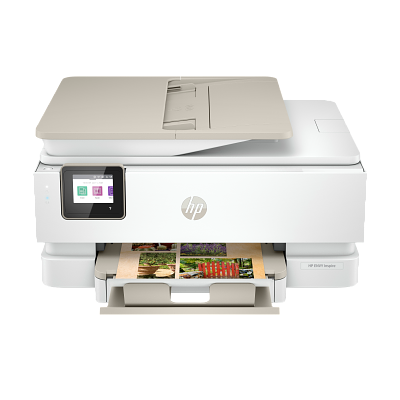
Start with the fastest checks
Before you dig deep into HP ENVY Inspire 7955e troubleshooting, do the simple checks. These often solve the issue in minutes.
Try this first:
- Restart the printer and computer or phone.
- Check that the power cord is firmly plugged in.
- Confirm the printer is turned on and not asleep.
- Make sure paper is loaded correctly in the tray.
- Look for any error lights or messages on the display.
- Verify that the correct printer is selected on your device.
A full power cycle can clear temporary memory glitches. I have seen printers that looked “dead” come back instantly after being unplugged for 60 seconds and restarted the right way. It sounds almost too easy, but it works more often than people expect.
Fix HP ENVY Inspire 7955e not printing
If your HP ENVY Inspire 7955e is connected but nothing prints, the problem is usually in the queue, the network path, or the selected printer.
Try these steps:
- Open the print queue and cancel all pending jobs.
- Make sure the printer is set as the default printer.
- Check whether the printer shows as offline.
- Close and reopen the app or document you are printing from.
- Restart both the printer and your computer.
- Try printing a test page from another app.
If the printer still does not respond, print from a different device. That helps you figure out whether the issue is with the printer itself or with one computer or phone. When I troubleshoot HP ENVY Inspire 7955e printing issues, I always isolate the problem this way before changing anything else.
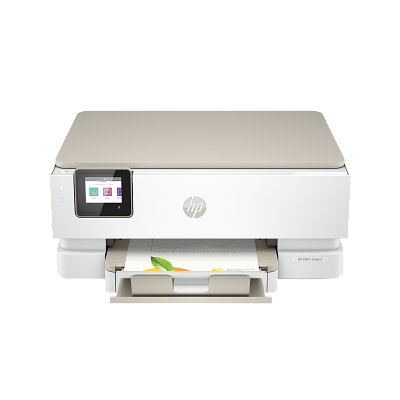
Fix Wi-Fi and connection problems
Wireless issues are one of the most common parts of HP ENVY Inspire 7955e troubleshooting. This printer depends on a stable network, and even small router changes can break the connection.
Common causes include:
- Weak Wi-Fi signal
- Wrong Wi-Fi password
- Router changes after a reset
- Printer connected to the wrong band
- VPN or firewall interference
- Network congestion
To fix it:
- Move the printer closer to the router if possible.
- Restart your router, printer, and device.
- Reconnect the printer to Wi-Fi through the setup menu.
- Use the HP Smart app or printer setup flow to reconnect.
- Make sure your phone or computer is on the same Wi-Fi network.
- Avoid guest networks, which often block printer communication.
A good rule I learned the hard way: if the printer was working yesterday and stopped today, the network changed before the printer did. That could mean a router reboot, a password update, or a band switch from 2.4 GHz to 5 GHz.

Fix paper jams and paper feed problems
Paper jams can feel annoying, but they are usually a paper handling issue, not a serious hardware failure. For HP ENVY Inspire 7955e troubleshooting, paper path care matters a lot.
Check for these common causes:
- Overfilled paper tray
- Bent or damp paper
- Mixed paper sizes in one stack
- Paper guides set too loose
- Small scraps left inside the feed area
Follow these steps:
- Turn off the printer.
- Remove the paper tray.
- Gently pull jammed paper out in the direction of the paper path.
- Check inside the rear access area and output tray.
- Fan the paper stack before reloading it.
- Adjust the paper guides so they touch the paper edges lightly.
I have seen more jams caused by damp paper than by broken parts. If paper feels curled or has sat in a humid room, replace it. A fresh stack is often the easiest fix.
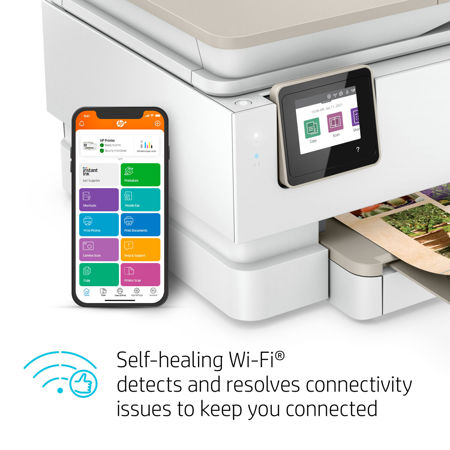
Improve print quality on the HP ENVY Inspire 7955e
If your prints look faded, streaky, or uneven, the issue may be ink, alignment, or clogged printheads. This is a big part of HP ENVY Inspire 7955e troubleshooting because print quality problems can sneak up slowly.
Try these fixes:
- Check ink levels in the HP Smart app or printer display.
- Remove and reseat the ink cartridges.
- Run a printhead cleaning or alignment tool.
- Use plain, clean paper for test prints.
- Confirm that the correct paper type is selected in print settings.
- Avoid very old or low-quality paper.
If the printer has been sitting idle for a while, dried ink can clog the nozzles. I once helped a user who thought the cartridge was dead, but one cleaning cycle and an alignment brought the output back almost perfectly. That said, repeated cleaning can waste ink, so use it carefully and only as needed.
Handle cartridge errors and ink detection issues
Cartridge alerts can be frustrating because they often appear even when the ink is not truly empty. HP ENVY Inspire 7955e troubleshooting for cartridge problems usually starts with the physical connection.
Check the following:
- Remove the cartridge and reinstall it firmly.
- Make sure protective tape was fully removed.
- Clean the copper contacts gently with a lint-free cloth.
- Use genuine or compatible cartridges that match the model.
- Look for damaged cartridges or bent contacts.
- Restart the printer after reinstalling the cartridge.
Sometimes the printer needs a fresh read of the cartridge chips after a reset. If you recently changed ink and the message started right away, the cartridge may not be seated correctly. In my experience, a careful reinstall solves more ink errors than most users expect.

Solve scanner and copy issues
The scan function depends on both hardware and software, so HP ENVY Inspire 7955e troubleshooting here may involve the printer, the app, or your device. If copying works but scanning does not, the issue is often in the software layer.
Check these points:
- Confirm the scanner lid is closed properly.
- Restart the printer and the scanning device.
- Update the HP Smart app.
- Reinstall the printer software if scans fail repeatedly.
- Make sure firewall settings are not blocking the scan app.
- Test scanning to a different folder or email destination.
If the scanner glass has dust or fingerprints, clean it with a soft microfiber cloth. Even a small smudge can affect scan clarity, especially for photos or fine text.

Update drivers, firmware, and software
Old drivers and firmware can cause strange problems that look like hardware failure. For HP ENVY Inspire 7955e troubleshooting, updates are worth checking when basic fixes fail.
Why updates matter:
- They improve wireless stability
- They fix known bugs
- They improve compatibility with new operating systems
- They can resolve ink or detection errors
Do this:
- Open the printer management app or system settings.
- Check for firmware updates.
- Update the printer driver on your computer.
- Restart the printer after installing updates.
- Test printing and scanning again.
One thing I always tell people: do not update in the middle of an urgent print job. Updates are helpful, but they can also take time and occasionally require a restart. Plan them when you are not under pressure.
Reset the printer when problems keep coming back
If you have tried the usual fixes and the issue keeps returning, a reset may help. This is a stronger step in HP ENVY Inspire 7955e troubleshooting, so use it when simpler options do not work.
Consider these reset types:
- Restart: Turn the printer off and back on.
- Power reset: Unplug the printer for about 60 seconds.
- Network reset: Clear Wi-Fi settings and reconnect.
- Factory reset: Return the printer to default settings.
A network reset is often the best middle-ground fix for Wi-Fi trouble. It clears stale settings without wiping everything on the printer. I usually recommend this before a full factory reset, since the factory option takes more time to set up again afterward.
Prevent future HP ENVY Inspire 7955e problems
Good maintenance makes troubleshooting much easier later. If you want fewer surprises, a few small habits can keep the HP ENVY Inspire 7955e running smoothly.
Use these habits:
- Print something at least once every week or two.
- Keep paper in a dry place.
- Use the correct paper size and type settings.
- Update software when needed.
- Keep the printer close enough to the router for a stable signal.
- Replace ink before it runs completely dry if possible.
Think of printer care like brushing your teeth. A few regular habits prevent bigger problems later. Most long-term HP ENVY Inspire 7955e troubleshooting headaches come from neglect, not from sudden failure.
Frequently Asked Questions of HP ENVY Inspire 7955e Troubleshooting
Why is my HP ENVY Inspire 7955e showing offline?
This usually means the printer lost its network connection or your device is sending the job to the wrong printer. Restart the printer, check Wi-Fi, and confirm the correct device is selected in the print settings.
How do I clear a paper jam in the HP ENVY Inspire 7955e?
Turn off the printer, remove the paper tray, and gently pull out any stuck paper in the direction of the paper path. Also check for small scraps inside the rear area or input tray, since tiny pieces can cause repeat jams.
Why does my HP ENVY Inspire 7955e print faded pages?
Faded pages often point to low ink, clogged nozzles, or the wrong print settings. Run a cleaning cycle, reseat the cartridges, and make sure your paper type and print quality settings are correct.
How do I reconnect my HP ENVY Inspire 7955e to Wi-Fi?
Use the printer’s wireless setup option or the HP Smart app to start a new network connection. Make sure your phone or computer is on the same Wi-Fi network and that your router is broadcasting a stable signal.
Why won’t my HP ENVY Inspire 7955e scan?
Scanning issues are often caused by app problems, driver issues, or a weak network connection. Restart both devices, update the app or driver, and test scanning to a different folder or destination.
Conclusion
HP ENVY Inspire 7955e troubleshooting becomes much easier once you know where to look first. Most problems come down to paper handling, ink cartridges, Wi-Fi stability, or outdated software, and the right simple fix can save a lot of time.
If your printer is still acting up, work through the steps in order and keep notes on what changes help. That makes the next round of troubleshooting faster and less frustrating. Try the tips above, stay patient with the process, and if this guide helped, leave a comment or explore more printer setup resources for the next step.