Why Is Wyze Cam V4 Not Detecting Motion: Fix Guide
Wyze Cam v4 motion issues usually come from settings, placement, lighting, or app sync problems.
If your Wyze Cam v4 is not detecting motion, you are not alone. I have seen this happen many times with smart cameras, and most of the time the fix is simpler than people expect. The good news is that Wyze Cam v4 motion detection is usually reliable once the camera is set up the right way, so this guide will help you pinpoint what is going wrong and get alerts working again.
Why Wyze Cam v4 Stops Detecting Motion
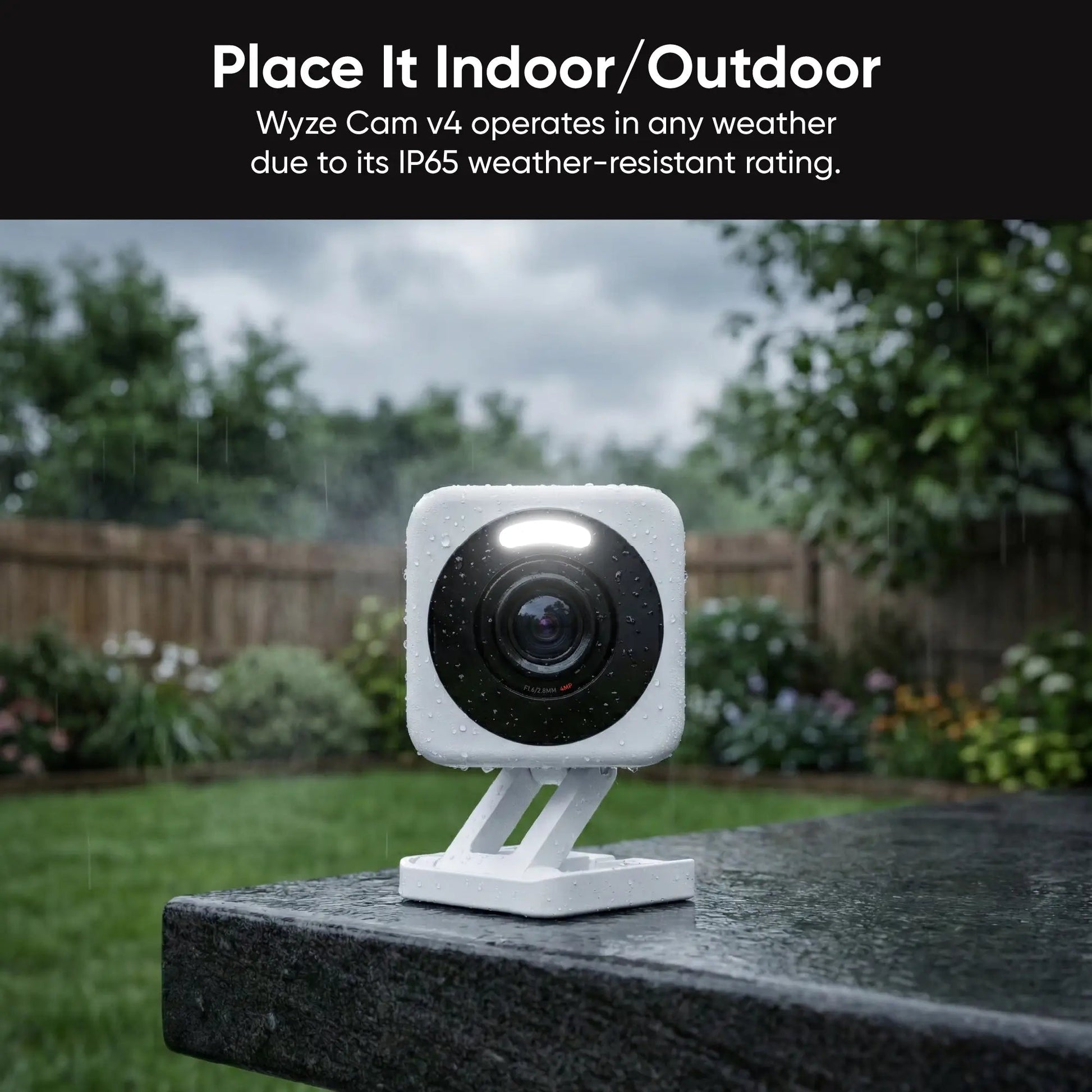
Motion detection depends on a few things working together at the same time. The camera needs a clear view, the correct sensitivity, strong enough Wi-Fi, and the right detection mode in the app.
When one of those pieces slips, Wyze Cam v4 may record video but fail to send motion alerts. I have found that most users assume the camera is broken, but the real issue is often a setting mismatch or a scene the camera cannot read well.
Here are the most common reasons Wyze Cam v4 is not detecting motion:
- Motion Detection is turned off in the app
- Detection sensitivity is set too low
- The camera view is blocked or poorly angled
- Bright sunlight, shadows, or low light confuse the sensor
- The subject is too far away or moving too fast
- Wi-Fi is unstable, causing alert delays or missed events
- Firmware is outdated
- Cam Plus or detection zones are misconfigured
- Privacy settings, schedules, or notifications are silencing alerts

How Wyze Cam v4 Motion Detection Works
Wyze Cam v4 uses video-based motion detection, not a traditional PIR sensor like some security cameras. That means it watches for pixel changes in the frame and then decides whether something moved.
That design is useful because it can detect more than body heat, but it also means the camera can be fooled by lighting changes, tree shadows, rain, or reflections. In real use, I have noticed that a camera facing a busy street often needs more tuning than one aimed at a porch or doorway.
This system works best when:
- The camera has a stable, centered view
- The motion passes across the frame instead of only at the edge
- Lighting stays fairly consistent
- Detection zones are set to match the area you care about
Common Reasons Wyze Cam v4 Is Not Detecting Motion
1. Motion Detection Is Disabled
This sounds basic, but it happens often after an app update, reset, or device change. If motion detection is off, the camera may still record, but it will not send alerts the way you expect.
Check the camera settings in the Wyze app and confirm motion detection is enabled. Also make sure notification permissions are allowed on your phone.
2. Sensitivity Is Too Low
If sensitivity is too low, the camera may ignore smaller or slower movement. This is common when the camera is set up to avoid false alerts from pets, traffic, or curtains.
A good test is to raise the sensitivity a little, then walk through the camera’s view. If motion starts working after that, you have likely found the issue.
3. Detection Zones Are Set Wrong
Detection zones are helpful, but they can also block the exact area where motion happens. I have seen people draw zones too tight and accidentally exclude the doorway, driveway, or hallway they want to watch.
If motion is not being detected, temporarily remove the detection zone and test again. If alerts return, rebuild the zone more carefully.
4. Camera Placement Is Not Ideal
Placement matters more than many people think. If the camera points too high, too low, or at an angle with heavy glare, motion detection becomes much less accurate.
Try placing the camera so movement crosses the screen from side to side. That gives the camera a better chance to notice change in the image.
5. Lighting Is Causing Problems
Wyze Cam v4 can struggle when light changes fast. Sudden sun shifts, headlights, shadows, and night glare can all affect detection.
I once tested a camera aimed at a front window, and it missed people during the day because the bright background kept shifting. Moving the camera a few feet solved the problem right away.
6. Wi-Fi Connection Is Weak
A weak or unstable Wi-Fi signal can delay motion alerts or stop them from arriving at all. The camera may still appear online, which makes the issue confusing.
If the camera is far from the router, try:
- Moving it closer to the router
- Using a stronger 2.4 GHz signal
- Restarting the router
- Reducing interference from walls, appliances, or mesh node gaps
7. Firmware Is Out of Date
Firmware updates often improve motion detection performance and fix bugs. If your camera has not been updated in a while, that can easily explain missed motion events.
Open the Wyze app and check for firmware updates. After updating, restart the camera and test motion again.
8. Notifications Are Blocked
Sometimes Wyze Cam v4 is detecting motion, but your phone is not showing alerts. That makes it feel like motion detection failed, when the real problem is notification settings.
Check:
- In-app notification settings
- Phone notification permissions
- Do Not Disturb mode
- Battery optimization settings
- Scheduled quiet hours
Best Ways to Fix Wyze Cam v4 Not Detecting Motion
Adjust the Motion Settings
Start with the simplest fix first. Open the camera settings and raise motion sensitivity a bit at a time.
A practical routine is:
- Set sensitivity to a middle level
- Test with someone walking through the area
- Increase sensitivity if the camera still misses motion
- Lower it slightly if alerts become too frequent
Review the Detection Zone
If you use detection zones, delete them and test the camera with no zone at all. This helps you see whether the zone is blocking the motion event.
Once the camera works, rebuild the zone around the most important part of the scene. Keep it wide enough so motion has room to enter the frame.
Reboot the Camera and App
A simple reboot often clears hidden glitches. Unplug the camera for 10 to 20 seconds, plug it back in, and reopen the app.
If that does not help, log out of the Wyze app and sign back in. This can refresh the sync between the camera and your account.
Check the Video Feed for Clues
The live feed can tell you a lot. Watch for glare, flicker, washed-out daylight, or motion that is too small to notice.
If the camera sees the area clearly but still misses movement, the issue is probably settings. If the picture is messy or dim, the issue may be placement or lighting.
Move the Camera to a Better Spot
Sometimes the fix is physical, not digital. Move the camera a few feet and test again.
Good spots usually have:
- A straight view of the target area
- Less glare
- Less direct sunlight
- Fewer reflections from glass
- Movement crossing the frame
Update Firmware and App Version
Keep both the camera firmware and the mobile app current. Older versions can cause syncing issues, detection bugs, or poor alert behavior.
After updating, I recommend testing motion with a simple walk-through. That gives you a clean baseline.
Reset the Camera if Nothing Else Works
If you have tried everything and Wyze Cam v4 is still not detecting motion, a factory reset may help. This is best done after you back up your settings and are ready to set the camera up again.
Use reset only when needed, since it will erase custom settings. In my experience, reset is a last-resort fix, but it often clears stubborn software problems.
Smart Setup Tips to Improve Motion Detection Accuracy
Getting motion alerts right is a bit like tuning a radio. Small changes can make a big difference.
Here are a few setup habits that usually improve results:
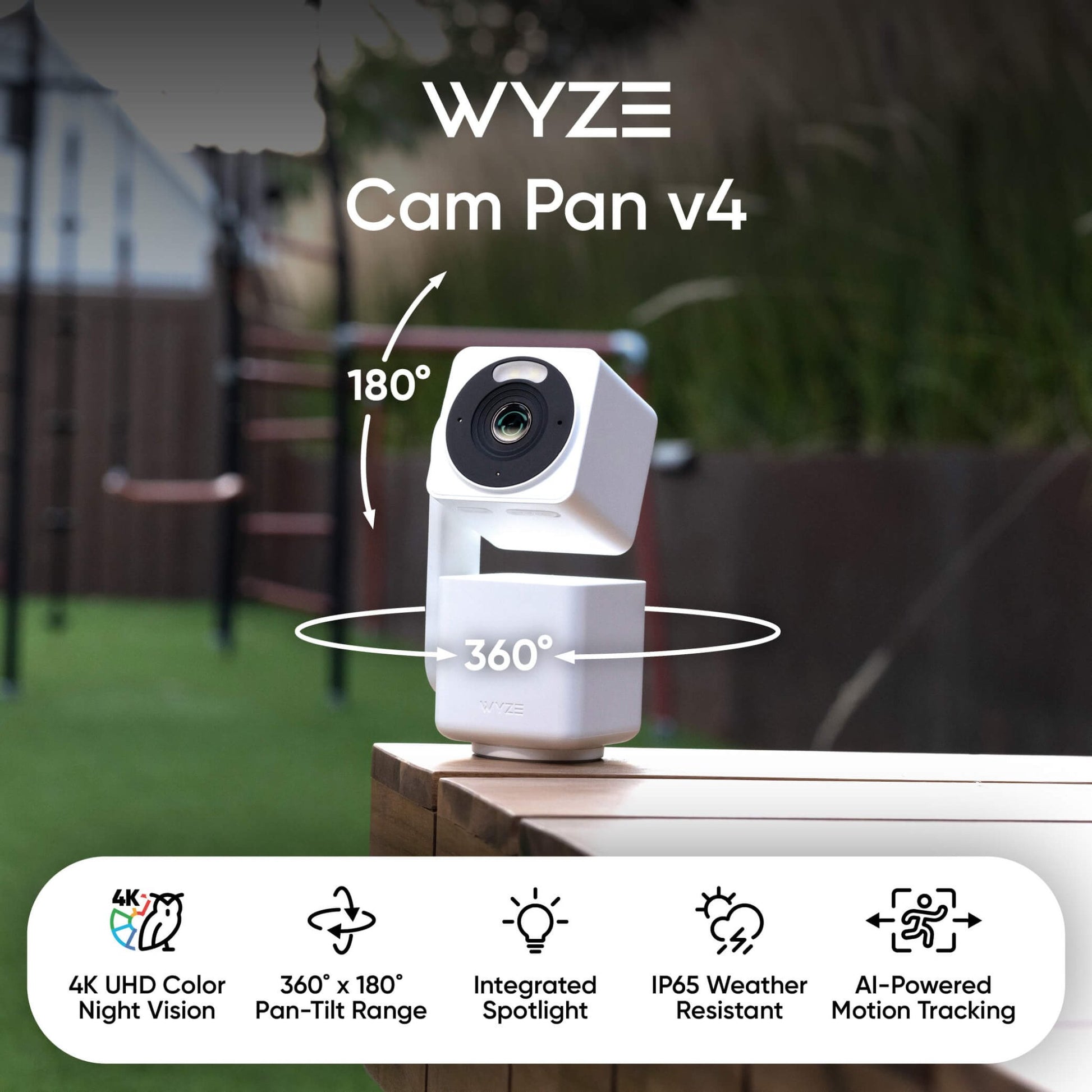
- Mount the camera at a steady angle, not tilted too far down
- Avoid pointing it directly at windows or shiny surfaces
- Keep moving plants, curtains, and fans out of the frame when possible
- Use consistent lighting near the monitored area
- Test motion both day and night
- Revisit sensitivity after changing the camera position
- Keep the camera connected to a stable 2.4 GHz Wi-Fi network
If you want fewer false alerts and better detection, think of the camera as a pair of eyes that needs a clean, simple scene. The less visual noise it has to process, the better it performs.
When Wyze Cam v4 Motion Detection May Still Miss Events
Even after setup, no camera is perfect. Wyze Cam v4 can still miss motion in a few situations, especially if the object is small, distant, or moving oddly.
Common edge cases include:
- A person walking far from the camera
- Motion happening only at the edge of the frame
- Fast movement that passes by too quickly
- Low contrast scenes, like dark clothing at night
- Heavy weather, such as rain or fog
- Strong backlight from doors or windows
This is normal for video-based motion detection. The goal is not perfection, but a setup that works reliably for your space.
What I Learned After Testing Motion Detection in Real Use
One thing I learned early on is that users often blame the camera when the environment is the real issue. A camera aimed at a busy sidewalk, for example, needs a different setup than one pointed at a quiet porch.
I also learned that patience matters. Making one change at a time is the best way to find the problem. If you change sensitivity, zones, placement, and Wi-Fi all at once, you lose the trail.
My best advice is to test like a detective:
- Change one setting
- Test motion
- Watch the result
- Repeat until you isolate the cause
That simple process saves a lot of time and frustration.
Frequently Asked Questions
Why is Wyze Cam v4 detecting video but not motion alerts?
This usually means the camera is recording fine, but motion notifications are blocked by settings, sensitivity, or phone permissions. Check motion detection, notification access, and any quiet hours or schedules first.
Does Wyze Cam v4 need Cam Plus to detect motion?
Wyze Cam v4 can still detect motion without Cam Plus, but advanced AI event features may require a subscription. If basic motion is not working, the issue is more likely a setup or signal problem than a subscription issue.
Why does Wyze Cam v4 miss motion at night?
Night vision can be affected by glare, glass reflections, poor placement, or infrared bounce. Try moving the camera away from windows and make sure there is enough clear contrast in the scene.
How do I test if motion detection is working?
Walk through the camera’s field of view while watching the live feed and checking event history. If the camera sees movement but does not log or alert, the problem is likely in the app settings or notifications.
Can weather affect motion detection on Wyze Cam v4?
Yes, rain, snow, fog, and moving shadows can all affect motion detection. These conditions may create false alerts or hide real motion, especially if the camera is outdoors.
What should I do if motion detection still fails after troubleshooting?
If the camera still misses motion after checking settings, Wi-Fi, firmware, and placement, try a factory reset. If the issue continues after reset, it may be time to contact support or test the camera in a different location.
Conclusion
When Wyze Cam v4 is not detecting motion, the cause is usually simple once you break it down. The most common fixes are checking motion settings, improving placement, adjusting sensitivity, reviewing detection zones, and making sure Wi-Fi and firmware are up to date.
The big takeaway is this: treat motion detection like a system, not a single setting. A small change in angle, lighting, or app configuration can completely change the result. Start with the easiest fixes, test one step at a time, and you will usually get the camera working the way you want.
If this guide helped, try the troubleshooting steps on your own camera, then share your results or questions in the comments so others can learn from your experience.

Similar Posts