Epson EcoTank ET-15000 Troubleshooting: Quick Fixes
Epson EcoTank ET-15000 troubleshooting usually comes down to ink flow, connectivity, paper handling, or print settings.
If you own this printer, you already know it is a workhorse when it runs well. I have spent enough time with EcoTank models to see the same pain points show up again and again, and the good news is that most Epson EcoTank ET-15000 troubleshooting fixes are simple once you know where to look. Let’s walk through the real causes, the best fixes, and the small habits that keep the ET-15000 running smoothly.
Understanding the Epson EcoTank ET-15000 Troubleshooting Process
The Epson EcoTank ET-15000 is built for high-volume printing, scanning, copying, and wireless use. That also means it has more moving parts in the user experience than a basic printer, so Epson EcoTank ET-15000 troubleshooting often starts with narrowing the problem into one of four areas: ink, paper, connection, or software.
In my experience, the biggest mistake people make is assuming the printer is “broken” when it is often reacting to a small setup issue. A loose cartridge cap, a clogged nozzle, or a weak Wi-Fi signal can create a problem that looks serious but is usually easy to fix. That is why a step-by-step approach saves time and stress.
Common Epson EcoTank ET-15000 Troubleshooting Problems and Fixes
1. Printer Will Not Power On
If your ET-15000 will not turn on, start with the basics. Check the power cord, wall outlet, and power button, then make sure the printer is not plugged into a faulty surge protector.
Try these steps:
- Plug the printer directly into a known working outlet
- Press the power button firmly for a few seconds
- Look for any flicker on the display panel
- Unplug the printer for 60 seconds, then reconnect it
From what I have seen, power issues are often external rather than internal. A worn outlet or loose cable can make the printer seem dead when it is not.
2. Printer Is Not Printing
When the printer turns on but nothing comes out, Epson EcoTank ET-15000 troubleshooting usually points to queue issues, communication errors, or low ink flow. First, confirm that the correct printer is selected on your computer or mobile device.
Then check the following:
- Cancel stuck print jobs in the queue
- Restart both the printer and the device sending the job
- Make sure the paper tray is loaded correctly
- Confirm the printer is online, not paused
One common real-world issue is a job that looks sent but is silently stuck in the queue. I have seen this happen after a Wi-Fi drop, and clearing the queue almost always fixes it.
3. Print Quality Is Poor
Faded text, streaks, banding, or missing colors are usually ink delivery or nozzle problems. With EcoTank printers, this can happen if the printer sits unused for too long or if air gets into the ink lines.
Try these fixes:
- Run a nozzle check from the printer menu
- Perform a print head cleaning cycle
- Print a test page after each cleaning
- Use genuine or compatible ink that matches the printer’s specs
If the print looks uneven after one cleaning, do not rush into many more. Multiple cleanings in a row can waste ink fast. In my experience, one or two cycles followed by a nozzle check is the smarter path.
4. Paper Jams Keep Happening
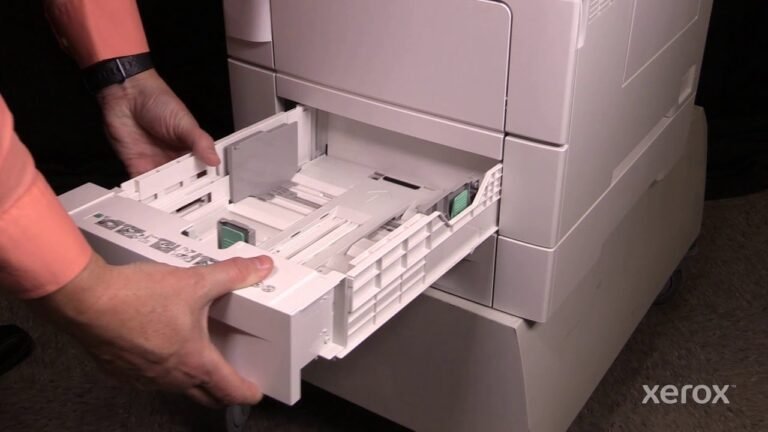
Paper jams are frustrating, but they are usually caused by paper type, tray loading, or worn sheets. The ET-15000 is sensitive to paper that is curled, damp, or overloaded.
Check these points:
- Fan the paper before loading it
- Use the correct paper size and weight
- Do not overfill the tray
- Remove any torn scraps from the paper path
A lot of users forget that old paper can behave badly. Paper that sat in a humid room can stick together like wet playing cards, and that is enough to trigger a jam.
5. Wireless Printing Is Unstable
Wi-Fi issues are among the most common Epson EcoTank ET–15000 troubleshooting complaints. If the printer drops off the network, prints slowly, or disappears from devices, the cause is often signal strength or router settings.
Start here:
- Move the printer closer to the router if possible
- Restart the router and printer
- Reconnect the printer to the correct Wi-Fi network
- Make sure the network band and password are entered correctly
A small but important tip: if your home or office uses both 2.4 GHz and 5 GHz networks, double-check which one the printer supports best in your setup. Many wireless problems come from mismatched network expectations.
6. Scanner Not Working
If the scanner does not respond, the issue may be software, driver, or connection related. Sometimes the printer works fine for printing but the scanner software fails to recognize the device.
Try this:
- Make sure the scanner lid is closed properly
- Reinstall the Epson scanning software or drivers
- Check that the device and printer are on the same network
- Test scanning from the printer screen, not just the computer
This is one of those problems that feels bigger than it is. I have fixed scanner issues simply by updating the software or restarting the PC, which tells you how often the issue lives outside the machine itself.
7. Ink Is Not Coming Out Properly
EcoTank systems are efficient, but they depend on steady ink flow. If a tank is empty, a line has air, or the print head is clogged, ink may not reach the page.
Do this carefully:
- Confirm each ink tank has enough ink
- Check that all tank caps are closed correctly
- Run a nozzle check and cleaning cycle
- Avoid shaking the printer or moving it while printing
One lesson I learned early: after refilling, always give the printer time to settle before heavy printing. That pause can help ink flow stabilize and prevent bad first prints.
Step-by-Step Epson EcoTank ET-15000 Troubleshooting Checklist
When you are not sure where to begin, use a simple order of operations. This helps you avoid random fixes and gives you a clear path.
- Restart the printer
- Restart the computer or phone
- Check paper and ink levels
- Clear the print queue
- Run a nozzle check
- Reconnect Wi-Fi if needed
- Update drivers and printer software
- Test with a local print job
I like this checklist because it removes guesswork. Think of it like checking the lights, fuel, and tires before blaming the engine.

Advanced Epson EcoTank ET-15000 Troubleshooting Tips
Update Drivers and Firmware
Outdated software can create problems that look like hardware failures. Epson often releases updates that improve stability, compatibility, and wireless performance.
Make sure to:
- Install the latest printer driver
- Update the scanning utility
- Check for firmware updates through the printer or computer
- Restart after updates finish
Firmware updates are not exciting, but they can solve strange issues that keep returning. If a printer acts random, software is often part of the story.
Clean the Print Head the Right Way
Print head cleaning is useful, but it should be used with care. Too many cleanings can waste ink and fill the maintenance box faster than expected.
Best practice:
- Run a nozzle check first
- Clean only when you see gaps or missing lines
- Print a test page after cleaning
- Stop if quality does not improve after a few tries
I have seen users over-clean and make the problem worse by burning through ink. A measured approach is better and cheaper.
Check for Air in the Ink Lines
Air bubbles can interrupt flow in EcoTank systems. This often happens after a refill, heavy movement, or if a tank was run too low.
To reduce this issue:
- Keep the printer level
- Refill before tanks are completely empty
- Avoid tilting or moving the unit while in use
- Watch for inconsistent printing after refills
This is one of those hidden issues that people do not always notice right away. The printer may still print, but the first signs are often faded lines or missing colors.
How to Prevent Epson EcoTank ET-15000 Problems
Good maintenance is the easiest way to avoid repeated Epson EcoTank ET-15000 troubleshooting. Small habits make a big difference over time.
Here are the habits I recommend:
- Print at least once every week or two
- Keep the printer in a dry, clean space
- Use the right paper for the job
- Refill ink before it gets too low
- Keep the firmware and drivers updated
- Shut the printer down properly
If you treat the printer like a regular tool instead of something you only notice when it fails, it tends to stay healthier. That is true for most inkjet printers, but especially for tank systems.
When the Problem May Need Professional Help
Some issues go beyond normal Epson EcoTank ET-15000 troubleshooting. If the printer shows repeated errors after resets, fails to power on, or the print head appears permanently damaged, it may need service.
You should consider support if:
- Error codes keep returning
- The printer makes unusual mechanical noises
- Print quality does not improve after cleaning and checks
- The display does not respond normally
- The scanner or internal components fail repeatedly
At that point, the issue may be mechanical or electrical rather than user-fixable. It is better to pause than to keep forcing the machine and risking more damage.
Frequently Asked Questions of Epson EcoTank ET-15000 Troubleshooting
Why is my Epson EcoTank ET-15000 not printing even though it has ink?
This usually happens because of a stuck print queue, a connection issue, or clogged nozzles. Check the print queue first, then run a nozzle check and clean the print head if needed.
How do I fix Epson EcoTank ET-15000 paper jams?
Remove the paper gently, then inspect the tray and paper path for torn pieces. Use clean, dry paper and do not overload the tray, since curled or damp sheets often cause repeat jams.
Why does my ET-15000 print faded or streaky pages?
Faded or streaky output often points to a clogged nozzle or weak ink flow. Run a nozzle check and cleaning cycle, then print a test page to see if the pattern improves.
Why does my Epson EcoTank ET-15000 keep disconnecting from Wi-Fi?
This usually happens because of weak signal, router changes, or network mismatch. Restart the printer and router, then reconnect the printer to the correct wireless network.
How often should I clean the print head on the ET-15000?
Only clean the print head when print quality shows a real issue, such as missing lines or faded sections. Cleaning too often can waste ink without solving the root problem.
Conclusion
Epson EcoTank ET-15000 troubleshooting becomes much easier when you focus on the basics first: power, paper, ink, software, and Wi-Fi. Most problems have simple causes, and a calm step-by-step check usually gets the printer back on track fast.
If you keep up with light maintenance, use the right paper, and update the software when needed, the ET-15000 can stay reliable for a long time. Try the fixes above, keep notes on what worked, and share your results if you want to help others avoid the same headaches.