Canon Pixma Ts3522 Troubleshooting: Fast Fixes Guide
Canon PIXMA TS3522 troubleshooting is usually fixed by checking power, paper, ink, Wi‑Fi, and driver settings first.
The Canon PIXMA TS3522 is a simple home printer, but like most inkjets, it can act up in small, annoying ways. I have seen this model stall on paper feeds, refuse Wi‑Fi connections, and throw error lights that look worse than they are. The good news is that Canon PIXMA TS3522 troubleshooting is usually straightforward once you know where to look, and this guide walks you through the most common fixes with clear steps you can use right away.

Common Canon PIXMA TS3522 Problems and What They Usually Mean
Canon PIXMA TS3522 troubleshooting starts best with the symptoms. Most issues fall into a few familiar buckets: power, paper handling, ink, connection, or software.
A printer is a bit like a kitchen appliance. When one small part is off, the whole process can stop. The TS3522 is no different, and the error usually points you toward the right area.
Here are the most common problems people run into:
- The printer will not turn on
- The orange or blinking light stays on
- Paper will not feed
- Prints come out blank, faded, or streaky
- Wi‑Fi setup fails
- The printer shows offline on a computer
- A driver or print queue issue blocks printing
In my experience, many users jump straight to reinstalling software when the real issue is much simpler. I once spent too long chasing a network problem only to find a small paper jam near the rear path. That kind of mistake is common, which is why a step-by-step approach works best.
Canon PIXMA TS3522 Troubleshooting: Start with the Basics
Before changing settings or downloading anything, check the basic hardware. These quick checks solve a surprising number of Canon PIXMA TS3522 troubleshooting cases.
1. Check the power connection
Make sure the power cord is fully seated in both the printer and the wall outlet. If the printer is connected through a power strip, try plugging it directly into the wall.
If the printer still does not power on:
- Try a different outlet
- Inspect the cord for bends or damage
- Hold the power button for a few seconds
- Unplug the printer for 60 seconds, then reconnect it
2. Look for error lights
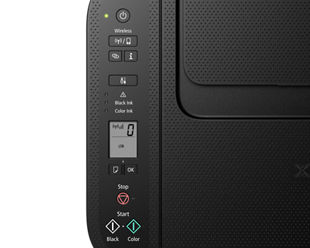
The TS3522 uses indicator lights to signal trouble. A blinking light usually means the printer needs attention, often because of paper, ink, or a cover issue.
Check these areas:
- Front cover
- Paper tray
- Output tray
- Ink cartridge access area
A loose cover can stop the printer just as quickly as a real hardware fault.
3. Restart the printer and device
A simple restart clears temporary glitches. Turn off the printer, restart your computer or phone, and then power the printer back on.
This helps reset communication between devices. I have seen this fix print jobs that seemed stuck for no clear reason.
Fixing Paper Jam and Paper Feed Issues
Paper jams are one of the most common Canon PIXMA TS3522 troubleshooting problems. Even a tiny torn piece of paper can confuse the sensor.
How to clear a paper jam safely
Follow these steps carefully:
- Turn off the printer.
- Open the paper output area and rear access area if needed.
- Gently remove visible paper without forcing it.
- Check for small scraps inside the rollers.
- Close all covers and restart the printer.
Do not pull hard on jammed paper. That can tear it and make the jam worse.
If the printer says paper is loaded but does not pick it up
This is often a feed issue, not a full jam. Try these fixes:
- Fan the paper stack before loading it
- Use plain letter-size paper
- Avoid curled, damp, or wrinkled sheets
- Do not overload the tray
- Adjust the paper guides so they touch the paper lightly
Paper that is too glossy, too thick, or uneven can slip through the rollers. Think of it like trying to stack cards that keep sticking together.
Clean the feed rollers
Dust can build up on the rollers over time. If the TS3522 keeps missing paper, cleaning the rollers can help.
Use a lint-free cloth lightly dampened with water. Wipe the rollers gently and let them dry before use.

Canon PIXMA TS3522 Troubleshooting for Ink, Print Quality, and Blank Pages
Print quality problems often point to ink issues, clogged nozzles, or low ink. This is a major part of Canon PIXMA TS3522 troubleshooting because inkjets depend on tiny nozzles that clog easily.
Why prints come out blank or faded
Common causes include:
- Empty or low ink cartridges
- Protective tape left on a new cartridge
- Clogged print head nozzles
- Incorrect paper type selected in settings
- Draft mode or low-quality print mode
If you just installed a cartridge, double-check that all packaging tape and protective material has been removed. I have seen this happen more than once, and it feels silly until it happens to you.
Run a nozzle check or cleaning cycle
If the printer supports a maintenance or cleaning function through the printer software, use it. A nozzle check helps you see whether one color is missing.
If lines are broken or missing:
- Run one cleaning cycle
- Print a test page
- If needed, run a second cleaning cycle
Do not overdo cleaning. Too many cycles can waste ink fast.
Replace the cartridge if needed
If cleaning does not help, the cartridge may be empty or faulty. Use genuine Canon cartridges when possible, since third-party cartridges can sometimes trigger recognition or quality issues.
When replacing a cartridge:
- Open the access cover
- Remove the old cartridge
- Insert the new one firmly
- Close the cover
- Wait for the printer to recalibrate
Match the paper settings to the job
Wrong settings can make prints look weak or smeared. In the print dialog, check:
- Paper size
- Paper type
- Color mode
- Print quality
A photo print on plain paper will never look right, no matter how good the printer is.
Canon PIXMA TS3522 Troubleshooting for Wi‑Fi and Wireless Setup
Wireless problems are a huge part of Canon PIXMA TS3522 troubleshooting. The printer may be fine, but the network path is blocked.
Why the TS3522 may not connect to Wi‑Fi
Common causes include:
- Wrong Wi‑Fi password
- Router is using a band or mode the printer does not like
- Printer is too far from the router
- Network settings changed after setup
- Router security settings conflict with the printer
Best ways to reconnect the printer
Try this approach:
- Move the printer closer to the router.
- Restart the router and printer.
- Re-enter the Wi‑Fi password carefully.
- Make sure your phone or computer is on the same network.
- If needed, reset the printer’s wireless settings and set them up again.
Small typing mistakes matter here. A single wrong character in the password can waste a lot of time.
If the printer keeps dropping offline
This often means the printer lost its network lease or the device is talking to the wrong printer profile.
Try the following:
- Remove the printer from your device
- Add it again
- Restart the router
- Keep the printer on the same Wi‑Fi band when possible
- Avoid placing it too far from the router
If your router has both 2.4 GHz and 5 GHz bands, the TS3522 may work more reliably on the 2.4 GHz band, depending on your setup. Many home printers behave better there because the signal travels farther.
Canon PIXMA TS3522 Troubleshooting for Printer Offline Errors
The printer offline message is one of the most frustrating Canon PIXMA TS3522 troubleshooting issues because the printer may be powered on and ready.
What offline usually means
This message often means one of three things:
- The computer is not communicating properly with the printer
- The wrong printer is selected
- The print queue is stuck
How to fix it
Try these steps:
- Make sure the TS3522 is set as the default printer
- Cancel stuck print jobs
- Restart both the printer and computer
- Disconnect and reconnect the printer in system settings
- Confirm the printer is on the same network as the device
On Windows, the print spooler can also cause trouble. Clearing the queue often helps when nothing seems to print.
When to reinstall the printer
If the offline status keeps returning, remove the printer from your device and add it again. This refreshes the connection profile and often clears hidden conflicts.
I usually save this step for after the basic checks, because uninstalling and reinstalling can be more work than needed if the issue is just a stale queue.
Driver, App, and Software Problems
Software issues can look like hardware failure, which is why they matter in Canon PIXMA TS3522 troubleshooting. The printer may work with one device but not another.
Signs of a software problem
Look for these clues:
- The printer works from one app but not another
- The device says driver missing or unavailable
- Print jobs vanish without printing
- The printer shows up, but nothing happens after you click Print
How to fix driver issues
Use these steps:
- Check that the printer driver is installed correctly
- Update the driver if it is outdated
- Restart the computer after updates
- Remove old printer profiles if needed
- Reinstall the Canon print software if the problem continues
Drivers act like translators between your device and printer. If the translation is broken, the message never gets through.
Mobile printing issues
If you print from a phone or tablet, make sure the printer and mobile device are on the same Wi‑Fi network. Also confirm that the printing app has the right permissions.
If the app still fails:
- Force close the app
- Restart the phone
- Re-add the printer
- Check for app updates
How to Reset the Canon PIXMA TS3522
Sometimes a reset is the cleanest way forward in Canon PIXMA TS3522 troubleshooting. It can clear stubborn settings and restore normal behavior.
Soft reset
A soft reset means power cycling the printer:
- Turn the printer off
- Unplug it from power
- Wait 60 seconds
- Plug it back in
- Turn it on again
This is the first reset I recommend because it is safe and easy.
Network reset
If Wi‑Fi remains unstable, reset the wireless settings and set them up again from scratch. This removes old network data that may be causing conflicts.
Use this when:
- The router changed
- The password changed
- The printer keeps joining the wrong network
- Setup gets stuck halfway
Factory reset considerations
A full reset can help, but use it carefully. It may erase saved preferences and network settings.
Only use it after basic fixes fail, and make sure you have your Wi‑Fi information ready before you start.
Maintenance Tips to Prevent Future Problems
Good habits reduce the need for repeated Canon PIXMA TS3522 troubleshooting. A little care goes a long way.
Keep the printer in a good environment
Place it in a clean, dry area away from direct sun, dust, and extreme heat. Humidity and dust are rough on inkjets.
Use the printer regularly
Printers that sit too long can develop clogged nozzles. Printing a test page every week or two helps keep ink flowing.
Use proper paper and ink
Always use paper that matches the job and cartridges that fit the model. Cheap supplies can cause feed problems, streaks, and recognition errors.
Update software when needed
Occasional updates help keep the printer stable. Just avoid installing random software from unknown sites.
Be gentle with the tray and cover
Most damaged tray and latch issues come from forcing parts that should move easily. If something resists, stop and check alignment first.
When to Contact Canon Support or a Technician
Not every issue should be handled at home. If Canon PIXMA TS3522 troubleshooting does not solve the problem after several attempts, professional help may be the right move.
Contact support or a technician if:
- The printer will not power on after testing outlets and cords
- Repeated error lights persist
- The printer makes grinding or clicking noises
- You suspect internal hardware damage
- The print head or rollers appear faulty
- The same issue returns after resets and reinstallations
A printer can only be pushed so far before it needs a deeper repair. At that point, chasing one more setting usually wastes time.
Frequently Asked Questions of Canon PIXMA TS3522 Troubleshooting
Why is my Canon PIXMA TS3522 not printing anything?
This usually happens because of a paper, ink, queue, or connection issue. Check the cartridges, clear the print queue, and confirm the printer is online before moving to software fixes.
Why does my Canon PIXMA TS3522 keep blinking orange?
A blinking orange light usually means the printer needs attention. It may be signaling a paper jam, open cover, ink problem, or another status error.
How do I reconnect my Canon PIXMA TS3522 to Wi‑Fi?
Restart the router and printer, then run the wireless setup again with the correct password. If it still fails, move the printer closer to the router and make sure both devices are on the same network.
Why are my prints coming out faded or streaky?
Faded or streaky prints usually mean low ink or clogged nozzles. Run a cleaning cycle, check your ink levels, and confirm the paper settings match the print job.
How do I fix the printer offline error on the Canon PIXMA TS3522?
Remove the printer from your device, restart both devices, and add the printer again. Also clear any stuck print jobs and make sure the printer is connected to the correct network.
Can I use third-party ink cartridges in the TS3522?
Some third-party cartridges may work, but they can also cause recognition or quality issues. Genuine Canon cartridges are usually the safer choice if you want fewer troubleshooting problems.
Conclusion
Canon PIXMA TS3522 troubleshooting is much easier when you work from the basics and move step by step. Most problems come down to power, paper, ink, Wi‑Fi, or software, and each one has a practical fix you can try at home.
The biggest lesson is to stay patient and test one change at a time. That keeps you from chasing the wrong problem and helps you spot the real cause faster. If this guide helped, try the steps on your printer, share your results, or explore more printing tips to keep your TS3522 running smoothly.