Brother MFC-J4535DW Troubleshooting: Fix Printer Issues Fast
Brother MFC-J4535DW troubleshooting usually comes down to paper, ink, Wi-Fi, drivers, or a simple reset.
If you use the Brother MFC-J4535DW every day, you already know how much frustration a small printer issue can cause. I’ve worked through enough printer problems to know that most of them look bigger than they are at first glance. The good news is that Brother MFC-J4535DW troubleshooting is usually very manageable once you know where to look and what to test first.
Common Brother MFC-J4535DW Problems and What They Usually Mean
When I troubleshoot the Brother MFC-J4535DW, I start by separating the issue into one of five buckets: paper path, ink system, connectivity, software, or hardware. That simple habit saves a lot of time because the symptoms often point to the real cause. For example, a printer that powers on but will not print is usually dealing with a connection or driver issue, while streaky pages often point to ink or cleaning problems.
The Brother MFC-J4535DW is a smart inkjet all-in-one, so it depends on clean print heads, stable network access, and proper media handling. If one of those pieces slips, you may see paper jams, blank pages, slow printing, or failed scan jobs. The rest of this guide walks through the most useful fixes in a clear order, from the fastest checks to the more advanced steps.
Brother MFC-J4535DW Troubleshooting for Paper Jams and Feeding Issues
Paper jams are one of the most common Brother MFC-J4535DW troubleshooting problems, and they often happen for simple reasons. Bent paper, mixed paper sizes, or overfilled trays can throw the feed rollers off track. In my experience, people often blame the printer when the real issue is the paper stack.
Start by turning the printer off and removing the paper tray. Check for torn bits of paper in the front, back, and duplex path if the page got stuck halfway through. Then reload plain, clean paper and make sure the guides are snug but not too tight.
Helpful checks:
• Use fresh paper from a dry place, since damp sheets stick together
• Fan the stack before loading it
• Do not mix paper types in the same tray
• Keep the tray within the supported paper limit
• Clean the feed rollers if jams happen often
If the printer keeps pulling multiple sheets, the rollers may be dusty or worn. A soft lint-free cloth lightly dampened with water can help clean accessible rollers, but let everything dry fully before using the printer again. If the problem keeps returning after that, the paper path may need service.
Brother MFC-J4535DW Troubleshooting for Print Quality Problems
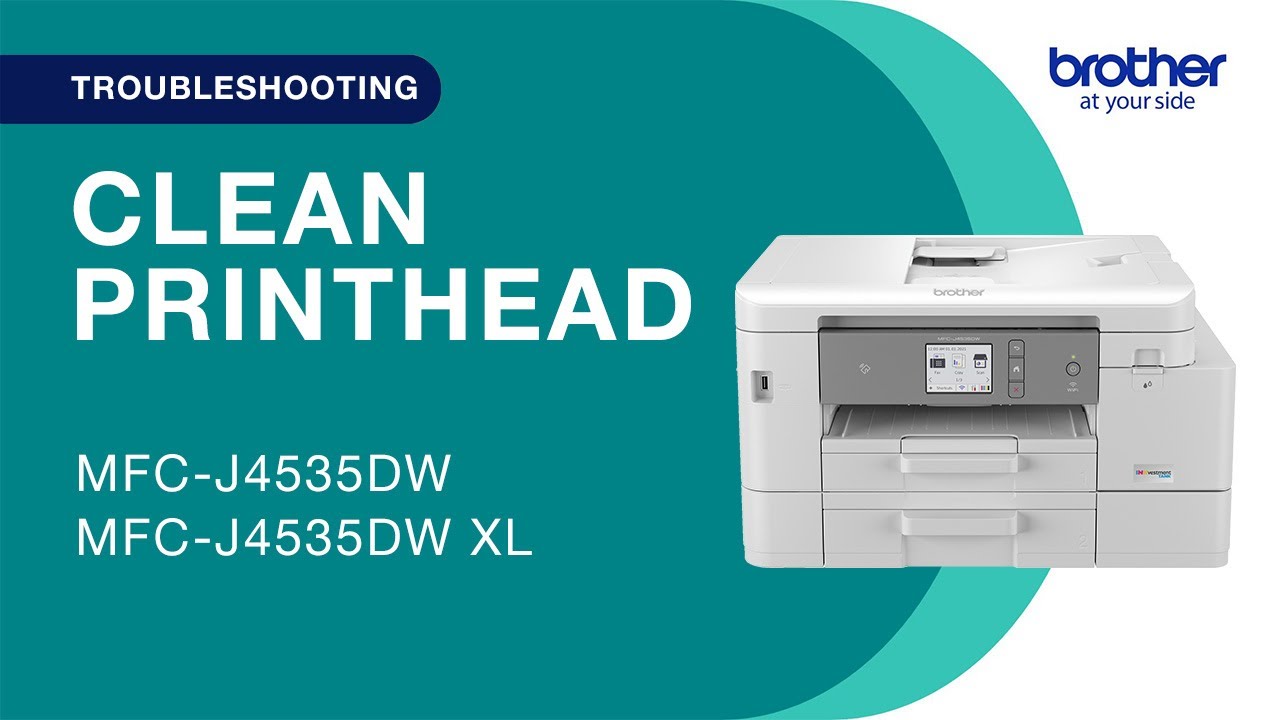
Poor print quality is another area where Brother MFC-J4535DW troubleshooting becomes very practical. Blank pages, faded text, streaks, and missing colors usually point to ink flow or print head issues. I’ve seen many users replace ink too quickly when a cleaning cycle would have fixed the problem.
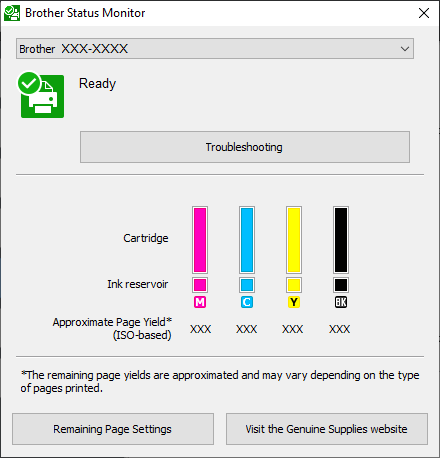
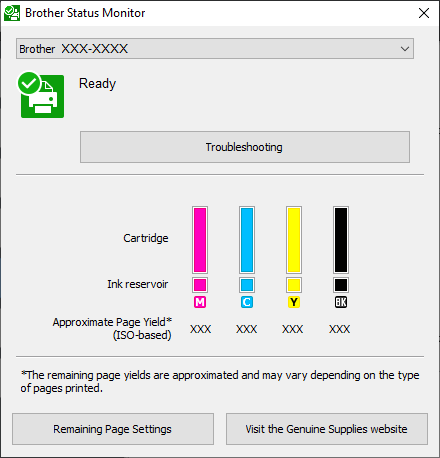
First, check the ink levels in the display or Brother app. Low ink can cause weak output, but even full cartridges can print badly if the nozzles are clogged. Run a nozzle check or print quality test from the maintenance menu, then inspect the pattern for broken lines or missing blocks.
If the output looks bad, try these steps:
• Run a print head cleaning cycle once
• Print the nozzle check again
• Run another cleaning only if needed
• Avoid repeated cleanings back to back, since they waste ink
• Use genuine or well-matched replacement ink
I also recommend checking your paper type setting. If the printer thinks you loaded photo paper when you actually loaded plain paper, the output can look too dark or uneven. Small settings mistakes like that are easy to miss and easy to fix.
Brother MFC-J4535DW Troubleshooting for Wi-Fi and Network Connection Issues
Wireless problems are a big part of Brother MFC-J4535DW troubleshooting because the printer often depends on a stable Wi-Fi connection for daily use. If the printer disappears from your computer, prints go to the wrong device, or the setup keeps failing, the network is usually the first thing to check. Weak signal, router changes, and band conflicts are common causes.
Start by confirming that the printer and computer are on the same network. If your router has separate 2.4 GHz and 5 GHz bands, the Brother MFC-J4535DW may connect more reliably on the 2.4 GHz band in some homes. I’ve also seen printers lose connection after a router reboot, especially when the network name or password changed even slightly.
Try these network fixes:
• Restart the printer, router, and computer
• Move the printer closer to the router for testing
• Reconnect the printer using the setup menu
• Update the wireless password if it changed
• Print a network configuration page to confirm the IP address
If the printer has an IP conflict, it may seem connected but still refuse to print. In that case, assigning a fresh IP address through the router or reinstalling the printer on the computer often clears the issue. This is one of those problems that feels random but is really just a network address mismatch.
Brother MFC-J4535DW Troubleshooting for Driver and Software Problems
Sometimes the printer is fine, but the computer is the part that needs help. Driver errors, old software, and bad printer queues can block printing even when the Brother MFC-J4535DW is powered on and connected. This is especially common after a Windows update or a new Mac setup.
If jobs get stuck in the queue, clear the queue first. Then remove the printer from your system and reinstall the latest Brother software or the built-in driver recommended for your operating system. I’ve had cases where a simple reinstall fixed weeks of frustration in under 10 minutes.
Use this order:
• Cancel stuck print jobs
• Restart the computer
• Remove and re-add the printer
• Install the latest driver or full software package
• Test with a simple document, not a complex PDF
If one app prints and another does not, the issue may be inside the document file rather than the printer. Large image-heavy PDFs can fail where plain text pages work fine. That clue helps narrow the problem fast.
Brother MFC-J4535DW Troubleshooting for Scanning and Copying Issues
Scanning and copying problems often feel separate, but they usually share the same basic causes. A dirty scanner glass, incorrect app setting, or weak network connection can stop the Brother MFC-J4535DW from scanning properly. If copies look fine but scans do not, the software path is likely the issue.
Clean the scanner glass and the narrow strip beside it with a soft, dry cloth. Even a small smudge can create lines on scanned files. If the scanner sends no file at all, check the scan destination, the chosen scan profile, and whether the computer still recognizes the device.
Common scan fixes:
• Clean the glass and lid area
• Confirm the correct scan destination folder or app
• Reconnect the printer to the network if scanning wirelessly
• Reinstall Brother scanning software if it stopped working
• Test both flatbed scanning and ADF scanning if your model uses it
If the automatic document feeder misses pages, check for tiny bits of paper, staple marks, or curled sheets. Feeders are like careful hands: they work well when the paper is neat and dry, but they struggle when pages are damaged or stacked badly.
Brother MFC-J4535DW Troubleshooting for Blank Display, Error Codes, and Freezing
If the Brother MFC-J4535DW freezes, shows an error code, or acts unresponsive, do not jump straight to a factory reset. A power cycle often solves temporary software hiccups. I’ve seen printers get “stuck” after a power outage or a failed job and recover completely after a full restart.
Turn the printer off, unplug it for at least 60 seconds, and plug it back in. This clears temporary memory and can reset the internal state. If an error code appears, write it down exactly before changing anything, because the code usually points to the problem area.
If the printer still freezes:
• Check for paper jams again
• Make sure all doors and covers are closed
• Confirm the ink cartridges are seated correctly
• Remove and reload the paper tray
• Perform a reset only if basic steps fail
Factory resets can help, but they should be a last step. They may erase custom network settings and preferences, which means you will need to set the printer up again. That is useful in some cases, but it is not the first move.
Best Preventive Habits for Brother MFC-J4535DW Troubleshooting
The best Brother MFC-J4535DW troubleshooting plan is the one you do before a problem starts. Regular care keeps the printer from building up small issues that turn into big ones. In my own work, I’ve found that a few simple habits prevent most urgent service calls.
Keep the printer in a dry, dust-free area and use it at least once a week if possible. Inkjet printers do better when they stay active because long idle periods can let the nozzles dry out. Also, keep firmware and drivers current, since updates often improve stability and compatibility.
Good maintenance habits:
• Print a test page every one to two weeks
• Use proper paper storage
• Clean the scanner glass regularly
• Check ink levels before they run too low
• Update printer software when needed
Think of the printer like a car. If you only notice it when something breaks, you’ll spend more time fixing than using it. A little maintenance keeps the whole machine smoother and quieter.
When Brother MFC-J4535DW Troubleshooting Is Not Enough
There is a point where troubleshooting stops being useful and repair becomes the smarter move. If the printer repeatedly jams after you’ve cleaned the rollers, or if print quality stays poor after multiple cleaning cycles, the issue may be mechanical. That can include worn rollers, a failing print head, or sensor damage.
If you smell burning, hear grinding, or see a persistent hardware error, stop using the printer and inspect it carefully. Repeatedly forcing a failing unit can make the damage worse. When the cost of repair starts nearing the cost of replacement, compare both options before investing more time.
A good rule I follow is simple: if the same problem returns after three careful repair attempts, it deserves deeper inspection. That approach saves money and stress. It also keeps you from chasing the same symptom forever.
Frequently Asked Questions of Brother MFC-J4535DW Troubleshooting
Why is my Brother MFC-J4535DW not printing even though it is connected?
This usually means the connection is only part of the story. The problem may be a stuck print queue, the wrong driver, or an IP address conflict on the network.
How do I fix faint or streaky prints on the Brother MFC-J4535DW?
Run a nozzle check first, then use the print head cleaning feature if the pattern is broken. Also confirm that the paper type setting matches the paper you loaded.
Why does my Brother MFC-J4535DW keep showing paper jams?
Most repeated jams come from worn rollers, poor paper quality, or paper that is damp or curled. Reload fresh paper and check the feed path for tiny scraps that may be stuck inside.
What should I do if the Brother MFC-J4535DW will not connect to Wi-Fi?
Restart the printer and router, then reconnect the device to the correct network. If that fails, check the router band, password, and printer IP address.
How do I reset the Brother MFC-J4535DW safely?
Start with a normal power cycle by turning the printer off and unplugging it for one minute. Use a factory reset only if basic fixes do not work and you are ready to set up the printer again.
Conclusion
Brother MFC-J4535DW troubleshooting gets much easier when you follow a simple path: check paper, ink, connection, drivers, and then hardware. Most problems are not serious at first glance, and many can be fixed with a careful restart, a clean feed path, or a fresh network setup. The key is to move step by step instead of guessing.
If you use the tips in this guide, you can solve many common issues faster and with less frustration. Try the basic checks first, keep your printer maintained, and note any repeated error patterns so you can catch problems early. If you found this helpful, keep exploring printer tips, share your experience, or leave a comment with the issue you want to solve next.

Similar Posts