Canon Imageclass Mf753Cdw Troubleshooting: Quick Fixes
Most Canon imageCLASS MF753Cdw issues come from paper, network, toner, or firmware problems.
If you are dealing with Canon imageCLASS MF753Cdw Troubleshooting, you are not alone. This printer is reliable, but like any busy office machine, it can act up when small things pile up. In this guide, I’ll walk you through the most common problems, the real causes behind them, and the fixes that usually work best in day-to-day use.
Canon imageCLASS MF753Cdw Troubleshooting Basics
Before digging into specific errors, it helps to think about the Canon imageCLASS MF753Cdw Troubleshooting process like tuning a car. If one part is off, the whole machine can feel broken, even when the fix is simple.
In my experience, most users jump straight to the most complex fix first. That usually wastes time. The smarter path is to check the basics first, then move toward software, firmware, and hardware causes.
The most common problem areas are:
- Paper feed and jams
- Wireless and Ethernet connection issues
- Toner recognition and print quality
- Scan and fax failures
- Error codes and stuck jobs
- Firmware or driver mismatches
A calm, step-by-step approach saves time and prevents unnecessary service calls. It also helps you spot patterns, which is often the fastest route to a real fix.
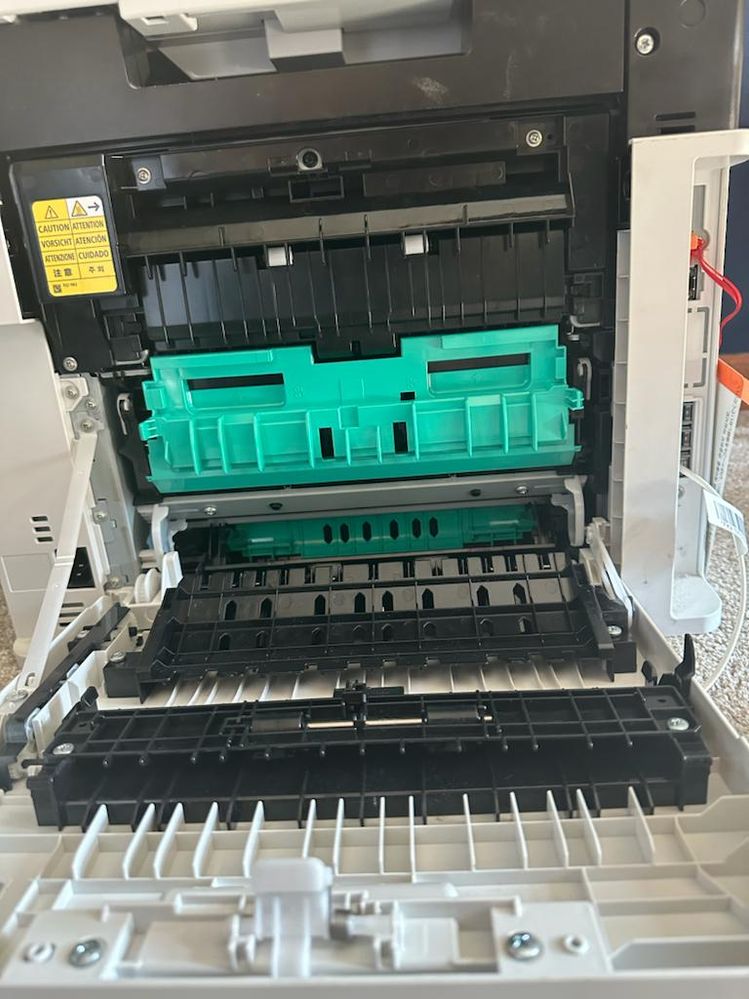
Common Canon imageCLASS MF753Cdw Problems and What They Usually Mean
The Canon imageCLASS MF753Cdw Troubleshooting process starts with identifying the symptom clearly. A printer that will not print is not always the same as a printer that prints blank pages. Each clue points to a different cause.
Paper jams and misfeeds
Paper jams often happen because of worn paper, incorrect tray settings, or debris inside the paper path. I have seen many users blame the printer when the real issue was curled paper sitting in a humid room.
Check for:
- Torn paper scraps inside the tray or rear cover
- Paper that is bent, damp, or overloaded
- Wrong paper size selected in the print driver
- Paper guides that are too tight or too loose
If jams happen often, test with a fresh stack of plain paper. That one change has solved more problems for me than many people expect.
Printer not connecting to Wi-Fi or network
Wireless problems are very common in Canon imageCLASS MF753Cdw Troubleshooting. The printer may be connected yesterday and invisible today because of router changes, weak signal, or IP address conflicts.
Look for:
- Router reboot or password change
- Signal interference from walls or other devices
- DHCP address changes
- Wrong network selected on the printer
- Driver using the wrong port on the computer
A wired Ethernet test can help separate printer problems from Wi-Fi problems fast. If Ethernet works and Wi-Fi does not, the printer is usually fine.
Toner, print quality, and smudges
If pages come out faded, streaky, or blotchy, toner is often involved. But the cartridge is not always the only cause. I have seen dirty rollers, humidity, and low fuser performance create the same symptoms.
Common signs include:
- Light print that improves when you shake the toner
- Repeating spots or lines
- Smearing after printing
- Uneven color or blank patches
Always inspect the cartridge first, but do not stop there. Print quality issues often come from a mix of supplies and internal wear.
Scan, copy, or fax problems
Scan failures can come from software permissions, network settings, or driver conflicts. Fax issues are often tied to phone line setup or the wrong send mode.
Check:
- Scanner software on the computer
- Firewall or antivirus blocks
- Incorrect email or folder destination for scan to email or scan to folder
- Fax line connection and dial settings
- Document feeder rollers and glass cleanliness
These are the kinds of issues that feel mysterious at first. Once you break them down, they usually become manageable.
Step-by-Step Canon imageCLASS MF753Cdw Troubleshooting Checklist
A checklist makes Canon imageCLASS MF753Cdw Troubleshooting much easier. I like to start with the least disruptive steps first. That way, you avoid resetting things that did not need to be reset.
1. Power cycle the printer
Turn the printer off, unplug it, wait 30 seconds, and plug it back in. This clears small memory glitches and can fix frozen jobs or connection hiccups.
This sounds basic, but it works surprisingly often. A printer is like a tired worker sometimes; a short reset helps it get back on track.
2. Check the display for error codes
The display often gives you the best clue. Write down the error code or message before pressing more buttons.
Useful habits:
- Read the full message on the screen
- Note whether the issue appears during print, scan, or fax
- Check if the error repeats after restart
- Confirm whether the issue happens from every device or just one
This saves time when you later need support or warranty help.
3. Inspect paper and trays
Open the trays and make sure the paper is aligned and supported. Adjust the side guides so they touch the paper lightly.
Also check:
- Paper size setting matches the tray
- Paper type matches the job
- No more than the tray limit is loaded
- Old paper is replaced with fresh paper
Paper is more sensitive than many people think. Small changes in humidity can affect feeding.
4. Verify toner and consumables
Check the toner level and cartridge fit. Remove the cartridge and reinstall it if necessary.
Also look for:
- Protective seals not fully removed
- Cartridge locking properly in place
- Drum or consumable warnings
- Toner dust around the cartridge bay
If a new cartridge causes problems, it may be defective or not fully seated.
5. Confirm the computer driver and print settings
Many printing problems are driver problems in disguise. Open the print dialog and confirm that the Canon imageCLASS MF753Cdw is selected, not a virtual printer or offline copy.
Then review:
- Paper size
- Paper source
- Duplex setting
- Color versus black and white
- Secure print or hold print settings
I have seen users waste an hour on “printer issues” that were really caused by a document sent to the wrong tray size.
6. Test from another device
Print or scan from a different computer, phone, or tablet. If it works there, the printer is likely fine and the issue is local to the first device.
This is one of the fastest ways to narrow the problem. It separates printer-side problems from software-side problems.
Fixing Paper Jams on the Canon imageCLASS MF753Cdw
Paper jams are one of the top reasons people search for Canon imageCLASS MF753Cdw Troubleshooting. The good news is that most jams are avoidable.
Clean removal steps
When clearing a jam, always pull paper in the direction the printer normally feeds it. If you yank it backward, you may tear it and leave scraps behind.
Follow these steps:
- Turn the printer off
- Open the necessary covers slowly
- Remove jammed paper with both hands if needed
- Check the output path, tray, and rear area
- Look for tiny torn pieces before closing the cover
A tiny scrap can cause a big headache. That is why I always inspect the paper path twice.
Preventing future jams
Prevention is easier than repeated fixes. A few simple habits reduce jams a lot.
Try this:
- Store paper in a dry place
- Fan the stack before loading
- Do not mix paper types in one tray
- Keep tray guides snug but not tight
- Replace worn or curled paper
Also clean the pickup rollers if the printer starts grabbing multiple sheets. That is often a sign of roller wear or dust buildup.
Solving Network and Wi-Fi Problems
Network issues are a major part of Canon imageCLASS MF753Cdw Troubleshooting because this model is often used in home offices and busy shared spaces. When the connection fails, people assume the printer is dead. Usually, it is just a network mismatch.
Check the printer’s IP address
If the printer disappears from computers, the IP address may have changed. This happens after router reboots or network updates.
You can:
- Print a network status page
- Check the IP on the printer display
- Compare it with the address stored in your computer settings
- Re-add the printer if needed
A static IP can help in stable office setups. In homes, DHCP can work fine as long as the connection stays consistent.
Reconnect Wi-Fi the right way
If the wireless setup fails, remove the old network settings and reconnect from scratch. Using the correct SSID and password matters more than people realize.
Helpful checks:
- Make sure the router uses a supported band and security mode
- Keep the printer within a reasonable signal range
- Avoid placing it beside thick walls or metal shelves
- Restart both the router and the printer
In one office I worked with, the printer sat next to a microwave and a metal filing cabinet. Moving it two feet fixed the issue. Sometimes the problem is not logic; it is location.
Fix printing from a computer
If the printer is connected but will not print, the issue may be on the computer side.
Try:
- Removing and reinstalling the printer
- Updating the Canon driver
- Clearing the print queue
- Disabling “Use printer offline”
- Rebooting the computer and printer
A stuck queue can block every new job until it is cleared. It is like a traffic jam in a one-lane road.
Improving Print Quality
Print quality complaints are a big part of Canon imageCLASS MF753Cdw Troubleshooting. Users often notice faded text, streaks, or dull color and worry the printer is failing. In many cases, the fix is simple.
Faded or light prints
Light print can mean low toner, but it can also mean toner that is not fully distributed. Gently remove and reinstall the cartridge, then print a test page.
Also check:
- Toner level
- Eco or toner-save mode
- Density settings
- Paper type setting in the driver
If the printer is set to a rough or heavy stock mode by mistake, output quality can suffer.
Streaks, spots, or smudges
Streaks often point to a dirty drum area, a worn cartridge, or internal contamination. Smudges may show up when the paper type setting does not match the actual paper.
Try these steps:
- Use plain, fresh paper for testing
- Clean the scanner glass and feeder
- Check for toner dust inside the machine
- Replace suspicious cartridges
If the problem repeats across multiple cartridges, the issue may be inside the printer rather than the supply itself.
Colors do not look right
If colors look off, the cause may be calibration, driver settings, or a cartridge issue. Color shifts can also appear after long periods of inactivity.
Check:
- Color mode settings
- Driver profile
- Image adjustment options
- Cartridge condition
A test print from the printer menu helps isolate whether the problem is the printer or the computer.
Troubleshooting Scan, Copy, and Fax Functions
The Canon imageCLASS MF753Cdw Troubleshooting process often gets more confusing when print works but scan or fax does not. That usually means the engine is fine, but one function path is blocked.
Scan not working
For scan issues, start with the destination. If scanning to a folder, email, or app fails, the problem may be with permissions or setup.
Check:
- Scanner driver installed correctly
- Firewall allows Canon scan traffic
- Destination folder is shared and accessible
- Email settings are correct
- Document feeder and scanner glass are clean
A scanner can look broken when the destination path is the real issue.
Copy quality problems
If copies are blurry, uneven, or have lines, the glass may be dirty or the document feeder rollers may need cleaning. Small marks on the glass can show up like giant shadows on the copy.
Clean:
- Main scanner glass
- Small glass strip for the feeder
- White backing area in the lid
This is one of those maintenance tasks that feels small but makes a big difference.
Fax not sending or receiving
Fax issues often come from setup, not hardware failure. Check the phone line, dial prefix, and fax mode first.
Review:
- Line connected to the correct port
- Tone versus pulse settings
- Auto answer setting
- Speed-dial entries
- Noise on the phone line
If the line is shared with a phone, make sure the wiring is correct. A loose cable can cause repeated failures that look random.
Firmware, Drivers, and Software Updates
Software mismatches are a quiet cause of Canon imageCLASS MF753Cdw Troubleshooting. The printer may seem fine, but old drivers or firmware can create odd behavior.
Why updates matter
Updates can improve stability, fix bugs, and support newer operating systems. They are not just optional extras.
They help with:
- Security improvements
- Better compatibility
- Fewer connection errors
- More stable print and scan behavior
I always tell readers to update carefully, not blindly. But avoiding updates for too long can create a bigger mess later.
Safe update habits
Before updating:
- Confirm the exact model
- Save current settings if possible
- Do not interrupt power during firmware updates
- Use the correct driver for your operating system
- Restart after installation
A bad update process can create more trouble than the update itself. Slow and steady is best.
When to Reset the Printer
A reset can help when settings become tangled or a hidden error keeps returning. But do not rush into a full reset too early.
When a reset makes sense
Reset options may help if:
- Network settings are corrupted
- Printing works only sometimes
- Scan settings no longer save correctly
- The control panel behaves strangely
A partial reset is often safer than a full factory reset. Start small and see what changes.
What to know before resetting
A reset may remove saved Wi-Fi settings, address book entries, or custom preferences. That is why I always recommend checking what will be erased first.
Before you reset:
- Write down network details
- Save scan destinations
- Record any custom settings
- Make sure you know the admin password if one is set
Think of it like cleaning a messy desk. It helps, but you should know where your important papers are first.
Best Maintenance Tips to Avoid Future Problems
The best Canon imageCLASS MF753Cdw Troubleshooting strategy is prevention. A little care now saves a lot of repair time later.
Use these habits:
- Keep the printer in a dry, dust-free area
- Use good-quality paper
- Clean the scanner glass regularly
- Update firmware and drivers when needed
- Replace toner before it runs too low
- Avoid overloading trays
In busy offices, I have seen simple maintenance cut support calls in half. That is not magic. It is just consistency.
Frequently Asked Questions of Canon imageCLASS MF753Cdw Troubleshooting
Why does my Canon imageCLASS MF753Cdw keep showing paper jams?
Repeated jams usually mean there is a tray issue, dirty rollers, or paper that is curled or too thick. Check the paper path carefully and try a fresh stack of plain paper first.
Why won’t my Canon imageCLASS MF753Cdw connect to Wi-Fi?
This usually happens after a router change, weak signal, or wrong network password. Reconnect the printer from scratch and confirm the router settings match the printer’s wireless setup.
Why are my prints faded on the Canon imageCLASS MF753Cdw?
Faded prints can come from low toner, toner-save mode, or incorrect print density settings. Remove and reinstall the cartridge, then test with a new page using standard print settings.
Why does my scanner work on one computer but not another?
That usually points to a driver, permission, or firewall issue on the problem computer. Reinstall the scan software and confirm the destination folder or app is set up correctly.
How do I clear a stuck print job on the Canon imageCLASS MF753Cdw?
Clear the printer queue on the computer and restart both the printer and the device sending the job. If the job still stays stuck, remove the printer from the system and add it again.
Should I reset the Canon imageCLASS MF753Cdw if nothing works?
A reset can help if settings are corrupted, but it should not be your first step. Save your network and scan settings first, because some reset options can erase custom setup data.
Conclusion
Canon imageCLASS MF753Cdw Troubleshooting becomes much easier when you start with the basics and work step by step. Most issues come down to paper, network, toner, drivers, or small setup mistakes rather than serious hardware failure.
The biggest lesson is this: stay calm, isolate the symptom, and test one change at a time. That simple method saves time, lowers frustration, and helps you avoid unnecessary repairs.
If this guide helped, keep it handy the next time your printer acts up. You can also share your own fix in the comments or explore more printer support tips to stay ahead of future problems.