Brother Hl-L2405W Troubleshooting: Fast Fix Guide
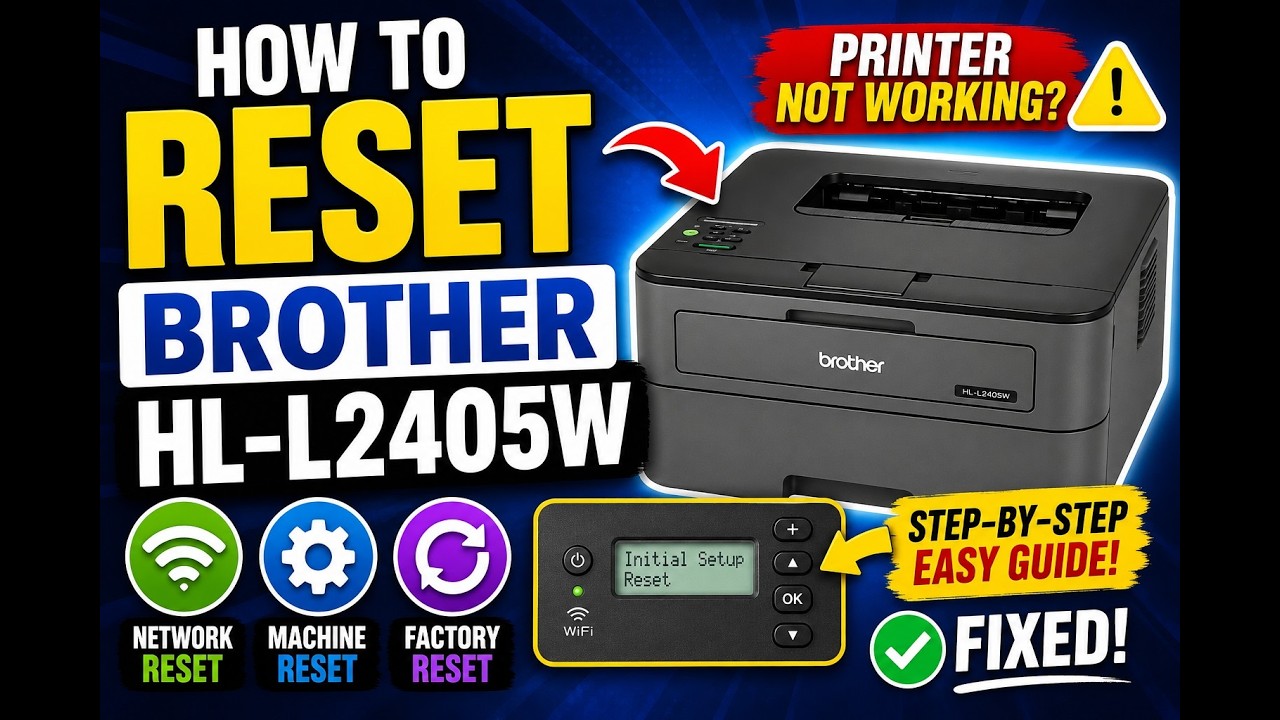
Brother HL-L2405W troubleshooting usually comes down to power, Wi-Fi, paper, toner, or driver issues.
If your Brother HL-L2405W is acting up, you are not alone. I have seen this model handle everyday home and small office printing well, but like any wireless laser printer, it can get stuck on simple things such as weak Wi-Fi, bad paper feed, or a driver glitch. In this guide, I’ll walk you through Brother HL-L2405W troubleshooting in a clear, practical way so you can fix the problem fast and avoid the same headache later.

Common Brother HL-L2405W troubleshooting basics
The best place to start with Brother HL-L2405W troubleshooting is the simple stuff. Most printer issues look serious at first, but they often come from one small cause.
Here is the fast checklist I use first:
- Make sure the printer has power and the display lights are on.
- Check that the paper is loaded correctly and not curled.
- Confirm the toner and drum are installed properly.
- Restart the printer, your computer, and your Wi-Fi router.
- Make sure the printer is connected to the same network as your device.
I learned this the hard way while helping a friend whose HL-L2405W kept showing as offline. The real issue was not the printer at all. The laptop had switched to a guest Wi-Fi network, so the printer and computer could not “see” each other.
If you want the quickest win, always begin with a full power reset:
- Turn off the printer.
- Unplug it from power.
- Wait 30 seconds.
- Plug it back in.
- Turn it on again.
That simple reset clears many temporary errors. It is like letting the printer take a deep breath.
Brother HL-L2405W not printing
When the Brother HL-L2405W does not print, the cause is often a communication problem rather than a hardware failure. The printer may be ready, but the computer may be sending jobs to the wrong device or holding them in the queue.
Try these fixes in order:
- Check the print queue on your computer.
- Cancel any stuck jobs.
- Try printing a fresh test page.
- Set the HL-L2405W as the default printer.
- This matters if you have used other printers before.
- Make sure the printer is online.
- On Windows, the printer may be marked “Use Printer Offline.”
- Reinstall or update the printer driver.
- A bad driver can block printing even when everything else looks normal.
In my experience, stuck print jobs are one of the most common causes of Brother HL-L2405W troubleshooting calls. One failed document can clog the whole queue like a traffic jam on a one-lane road. Clearing the queue and restarting both sides usually gets things moving again.
If the printer still will not print, run a test page from the printer itself. If the test page works, the printer hardware is fine and the issue is likely on the computer side.
Brother HL-L2405W Wi-Fi problems
Wireless setup is where many users need help with Brother HL-L2405W troubleshooting. The HL-L2405W is built for Wi-Fi convenience, but wireless networks can be picky.
If the printer will not connect, check these points:
- Use the 2.4 GHz network if your router separates bands.
- Many printers do not connect well to 5 GHz only networks.
- Enter the Wi-Fi password carefully.
- Even one wrong character will stop the setup.
- Keep the printer close to the router during setup.
- Weak signal can interrupt pairing.
- Restart the router and printer.
- This clears stale network data.
- Confirm that MAC filtering or access control is not blocking the printer.
- Some routers block new devices by default.
I once spent nearly an hour chasing a “broken printer” that turned out to be a router setting. The printer was fine. The router had a device limit set too low, so the HL-L2405W never got a chance to join the network.
If you use the WPS button method, press the router’s WPS button first, then the printer’s WPS option within the setup window. If WPS fails, use the Brother setup app or the manual network setup from the printer menu.
Brother HL-L2405W offline issue
The offline message is one of the most frustrating parts of Brother HL-L2405W troubleshooting because everything may look connected. Still, the computer thinks the printer is unavailable.
Try the following:
- Make sure the printer is powered on and idle.
- Reconnect the printer to Wi-Fi if the network changed.
- Remove the printer from your device list and add it again.
- Check that the correct IP address is being used.
- Restart the print spooler on Windows if jobs are stuck.
A printer can show offline after a router reboot because its IP address changes. That is common with home networks. Setting a reserved IP address in the router can help prevent this problem in the future.
If you print often, I recommend checking the printer status page now and then. It gives you the IP address, connection state, and signal info. That one page can save a lot of guesswork.
Brother HL-L2405W paper jam and paper feed issues
Paper jams are another big part of Brother HL-L2405W troubleshooting. The good news is that most jams are easy to fix if you do not rush.
Common causes include:
- Paper loaded too tightly in the tray
- Damp or curled paper
- Wrong paper size settings
- Dust or scraps inside the paper path
- Worn pickup rollers over time
Here is the safest way to clear a jam:
- Turn off the printer.
- Open the front cover.
- Remove the toner and drum unit carefully.
- Pull jammed paper slowly in the direction of the paper path.
- Check for tiny torn bits left inside.
- Reinstall the toner and drum unit.
- Reload fresh paper and test again.
I have seen many users yank paper out too fast. That often tears the sheet and leaves a small piece behind, which becomes the next jam. Slow and steady works better here.
For feed problems, fan the paper before loading it and do not overfill the tray. Also, store paper in a dry place. Humidity can make paper stick together and feed unevenly.
Brother HL-L2405W toner and drum problems
If your prints look faded, streaky, or patchy, Brother HL-L2405W troubleshooting should focus on the toner and drum. These parts do different jobs, and both matter for print quality.
Watch for these signs:
- Light or faded print
- Repeated black marks
- Vertical streaks
- Gray background on the page
- Toner low or toner replace messages
Try these fixes:
- Gently rock the toner cartridge side to side a few times.
- This spreads toner more evenly.
- Check that the drum and toner are seated properly.
- Clean the corona wire if your model instructions allow it.
- Run a test print to see if the issue repeats in the same spot.
From real-world use, faded print often happens when the toner is low but not fully empty. People sometimes assume the printer is failing, when it just needs a cartridge replacement. If print quality drops suddenly after a cartridge change, double-check that the protective seal was removed.
Keep in mind that the drum unit has a service life too. If streaks keep showing up after replacing toner, the drum may be the real cause.
Brother HL-L2405W driver and software issues
Driver problems can make Brother HL-L2405W troubleshooting feel confusing because the printer seems fine, but the computer cannot talk to it properly. This is common after a system update or a new device setup.
Helpful steps include:
- Remove old printer drivers from your computer.
- Install the latest Brother driver for your operating system.
- Restart the computer after installation.
- Use the correct connection type when adding the printer.
- Wireless, USB, or network setup must match your actual connection.
I have seen old drivers cause strange behavior like repeated “printer not responding” errors. A clean reinstall usually fixes that faster than changing every other setting one by one. If you recently upgraded Windows or macOS, driver refresh should be high on your list.
Also, avoid mixing multiple printer software packages if you do not need them. Too many helper apps can create confusion and send jobs to the wrong queue.
Brother HL-L2405W print quality troubleshooting
Good print quality is part of the Brother HL-L2405W experience, so poor output deserves attention. If the text is fuzzy, light, or uneven, the issue may be mechanical, consumable-related, or settings-based.
Check these items:
- Print density settings
- Toner condition
- Drum condition
- Paper type setting
- Resolution or eco mode settings
Simple fixes often help:
- Switch off toner save mode for darker prints.
- Match the paper type in the driver to the paper in the tray.
- Replace old or damaged paper.
- Clean dust from the inside of the printer.
A useful tip from my own testing: do not judge print quality from one page only. Print a second test page after one full restart. Sometimes the first page after a long idle period looks weak, then the next page is normal. That can help you avoid replacing parts too early.
If print defects repeat in the same place on each page, that often points to the drum or internal rollers rather than the toner alone.
Brother HL-L2405W control panel and status light meanings
The lights on the HL-L2405W can tell you a lot during Brother HL-L2405W troubleshooting. If you learn the patterns, you can often narrow the issue in seconds.
Look for these signals:
- Solid ready light
- The printer is usually ready.
- Flashing light
- The printer may be processing, connecting, or waiting.
- Error light
- Check paper, cover, toner, or jam status.
When the light pattern is unclear, power cycling is still a smart first step. If the error remains, open each access door and close it again firmly. A slightly unlatched cover can trigger an error that looks more serious than it is.
One thing I always suggest is checking the manual for the exact status light pattern. Manufacturers design those lights like a code, and once you read them correctly, troubleshooting gets much faster.
How to prevent future Brother HL-L2405W problems
Good Brother HL-L2405W troubleshooting is not only about fixing problems. It is also about stopping them from coming back.
These habits help a lot:
- Keep the printer on a stable Wi-Fi network.
- Use fresh, dry paper.
- Update printer drivers after major OS updates.
- Clean dust from the tray and output area.
- Replace toner and drum before print quality drops too far.
- Restart the printer once in a while if it stays on all the time.
I like to think of printer care like basic car care. You do not wait for smoke before checking the oil. A few small checks now and then save time, money, and stress later.
For home offices, I also recommend printing at least one page every week or two. That helps keep the toner moving and can reduce issues caused by long idle periods.
Frequently Asked Questions of Brother HL-L2405W Troubleshooting
Why is my Brother HL-L2405W connected to Wi-Fi but not printing?
This usually means the printer is on the network, but your computer is using the wrong driver, wrong IP address, or a stuck print queue. Remove the printer, restart both devices, and add it again with the correct wireless connection.
How do I reset my Brother HL-L2405W?
A full reset starts with turning the printer off, unplugging it for about 30 seconds, and plugging it back in. If you need a network reset, check the printer menu for network reset or wireless reset options.
Why does my Brother HL-L2405W keep going offline?
A changing IP address, weak Wi-Fi, or an outdated driver can cause the offline status. Restart the router, reconnect the printer, and consider reserving a fixed IP address in your router settings.
What should I do if my HL-L2405W prints faded pages?
Start by checking toner levels, toner seating, and print density settings. If the problem continues, the drum unit may need attention, especially if the fading or streaks repeat in the same place.
Can I use the Brother HL-L2405W with both Wi-Fi and USB?
Yes, but it is best to use one connection method at a time during setup and troubleshooting. Mixing both can confuse the computer and create duplicate printer entries.
Conclusion
Brother HL-L2405W troubleshooting becomes much easier when you work through the basics in a calm order. Power, Wi-Fi, paper, toner, drum, and driver issues solve most problems without needing repair help. Once you know how each part behaves, the printer starts to feel a lot less mysterious.
The main lesson is simple: start small, test one change at a time, and do not assume the worst too soon. That approach saves time and keeps you from replacing parts that are still fine. If this guide helped, try these steps on your printer today, and share your own fix or question in the comments so others can learn from it too.