Kyocera ECOSYS M2640idw Troubleshooting: Quick Fixes Guide
Most Kyocera ECOSYS M2640idw problems come from paper paths, toner, network settings, drivers, or routine maintenance.
Kyocera ECOSYS M2640idw troubleshooting is much easier when you check the simple causes first. This multifunction printer can print, copy, scan, and fax, but each function has its own set of possible faults. A clear, step-by-step process can often restore normal operation without a service visit.
This guide explains practical Kyocera ECOSYS M2640idw troubleshooting methods for paper jams, print quality, scanning, Wi-Fi, error messages, toner, slow printing, and more. The steps follow common service practices and the safety guidance used for business laser printers.

Start With These Basic Kyocera ECOSYS M2640idw Troubleshooting Steps
Before changing settings or replacing parts, check the printer’s basic condition. Many faults are caused by a loose cable, an open cover, the wrong paper size, or a temporary software error.
Follow these steps:
- Turn off the printer with the power button.
- Unplug it for about 60 seconds.
- Check the power cord and wall outlet.
- Remove any loose paper from the input tray.
- Close every cover firmly.
- Confirm that the toner cartridge is installed correctly.
- Turn the printer on and wait until it reaches the ready screen.
- Print a status page or configuration page.
Do not pull paper hard from the printer. A torn piece may remain inside the paper path and cause repeated jams. Also, avoid touching the green or blue surface of the drum unit, since fingerprints can affect print quality.
If the printer shows an error code, write it down before restarting. A restart may clear a temporary error, but the code can help identify a deeper problem if the issue returns.
Kyocera ECOSYS M2640idw Paper Jam Solutions
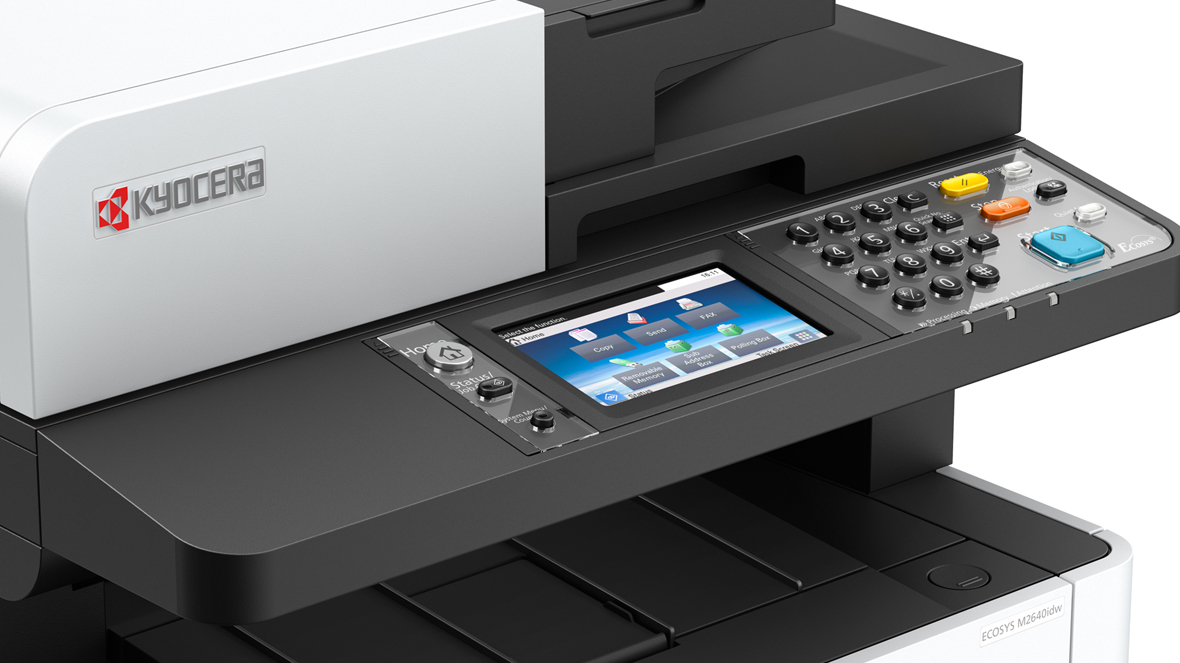
Paper jams are among the most common Kyocera ECOSYS M2640idw troubleshooting issues. The printer may show a jam inside the cassette, multipurpose tray, rear cover, or automatic document feeder.
Open the areas shown on the printer screen. Remove paper slowly, pulling in the direction of normal paper travel. Check for small scraps near rollers and sensors.
Common jam locations include:
Paper cassette
Remove the cassette and check whether the paper stack is too high. Adjust the paper guides so they touch the edges of the paper without bending it.
Use flat, dry paper that matches the selected media type. Damp or curled paper can feed poorly and may stick together.
Multipurpose tray
Make sure the paper sits below the tray’s limit mark. Do not mix envelopes, labels, and plain paper in the same stack.
Select the correct media type in the print driver. For example, thick paper may need a slower feed setting than standard office paper.
Rear cover and duplex unit
Open the rear cover if the display indicates a jam in the back. Use care because internal parts may be hot after printing.
If duplex printing causes repeated jams, test the same document in one-sided mode. This helps determine whether the problem comes from the duplex path or from the paper itself.
Automatic document feeder
For scan or copy jams, lift the feeder cover and remove the document carefully. Use clean, straight pages and avoid stapled, folded, or heavily curled sheets.
If paper jams continue after the path is clear, worn feed rollers or a dirty paper sensor may be responsible. At that point, professional service may be safer than repeated forceful removal.
Fixing Poor Print Quality
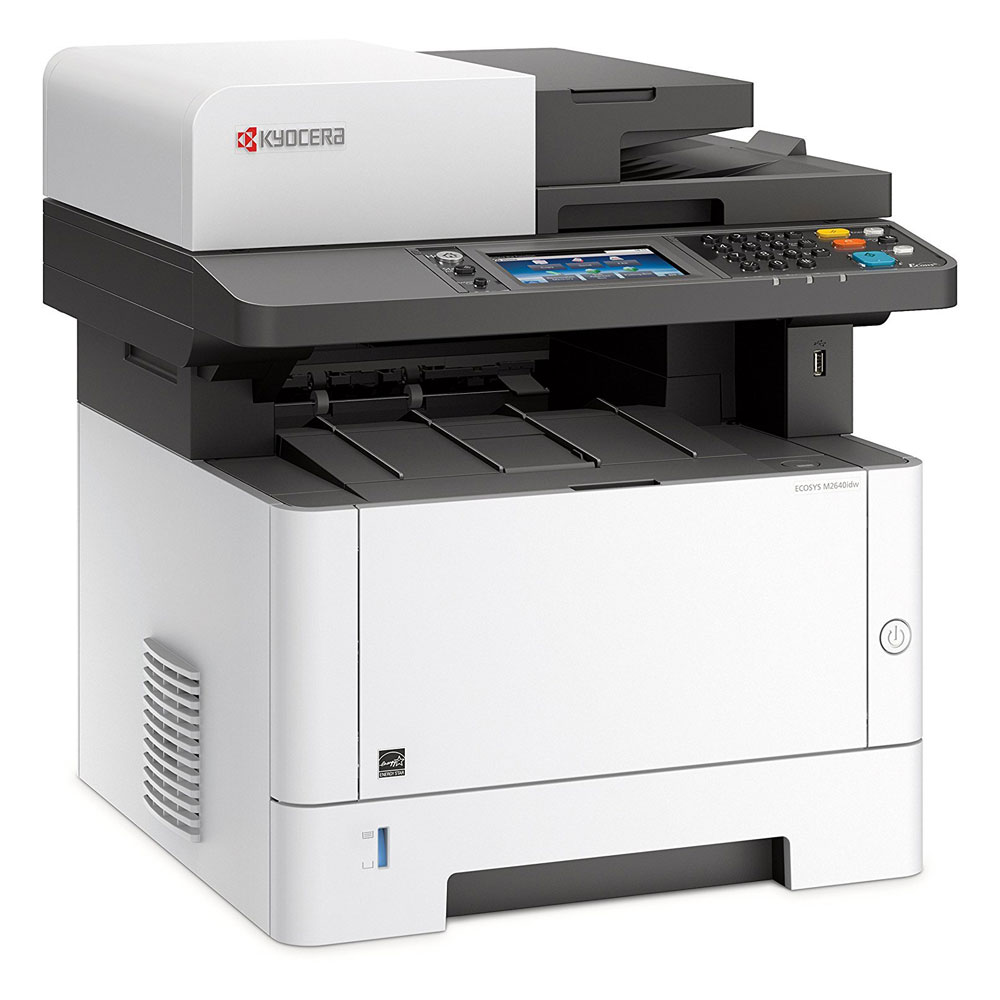
Print quality problems may appear as light text, dark bands, spots, streaks, or repeated marks. Good Kyocera ECOSYS M2640idw troubleshooting starts by identifying whether the fault affects every page or only certain documents.
Print a status page from the printer control panel. If the test page also looks poor, the issue is likely inside the printer. If the test page looks normal, check the computer document, driver, or application.
Try these solutions:
• Check the toner level and reseat the toner cartridge.
• Shake a nearly empty toner cartridge gently from side to side, but do not shake it aggressively.
• Confirm that the selected paper type matches the paper in the tray.
• Clean the document glass if copies or scans show lines.
• Print several pages if the printer has been unused for a long time.
• Replace damaged or incorrect media.
Light printing can result from low toner, an unsuitable paper setting, or a developing cartridge problem. Black lines may point to contamination, a damaged drum, or a dirty charge section.
Repeated marks at regular intervals often suggest a rotating component. Because the spacing can help identify the affected part, record the distance between marks and contact a qualified technician if the problem remains.
Never use household cleaners inside the printer. Use only cleaning methods recommended in the official user documentation.
Kyocera ECOSYS M2640idw Not Printing
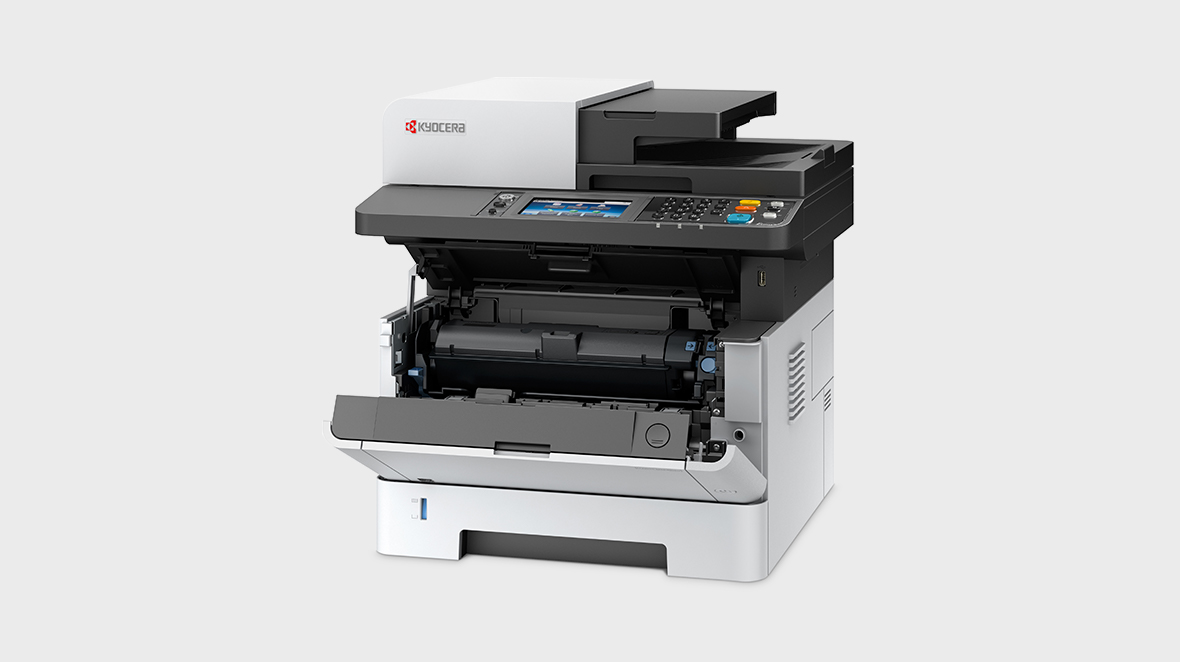
When the Kyocera ECOSYS M2640idw receives a job but does not print, begin with the printer status and print queue.
Check the following:
• Confirm that the display says Ready.
• Make sure the printer is not paused or offline on the computer.
• Open the print queue and cancel old or stuck jobs.
• Select the correct Kyocera printer in the application.
• Check the USB or network connection.
• Print a test page from the operating system.
A stuck queue can block every later document. Canceling the queue and restarting both the computer and printer often resolves this issue.
If you use Windows, remove duplicate printer entries and confirm that the correct driver is selected. If you use macOS, check the printer list and remove an old device that has the same name.
For network printing, print a configuration page and confirm the printer’s IP address. If the address has changed, the computer may still be sending jobs to the old address.
A useful test is to print directly from the printer control panel. If an internal page prints correctly, the hardware is probably working, and the fault is more likely related to the driver, network, or application.

Solving Wi-Fi and Network Problems
Wireless printing depends on several connected settings. The printer, router, computer, and driver must all use a valid network path.
For Kyocera ECOSYS M2640idw troubleshooting on a network, use this order:
- Restart the printer and router.
- Confirm that the printer is connected to the correct wireless network.
- Print the network status page.
- Check whether the printer has an IP address.
- Test the printer from a computer on the same network.
- Reinstall or update the printer driver if needed.
Avoid connecting the printer to a guest network. Guest networks often block communication between devices, even when the internet works normally.
A fixed or reserved IP address can improve reliability in a small office. Without one, the router may assign a new address after a restart, causing the computer to lose contact with the printer.
Security settings can also block printing. A firewall, VPN, or wireless isolation feature may prevent the computer from reaching the printer. Test the printer while temporarily disconnecting from a VPN, then restore the security setting after testing.
For business networks, ask the administrator before changing IP, DNS, wireless encryption, or firewall settings. Incorrect network changes can affect other devices.
Scanning and Scan-to-Email Troubleshooting
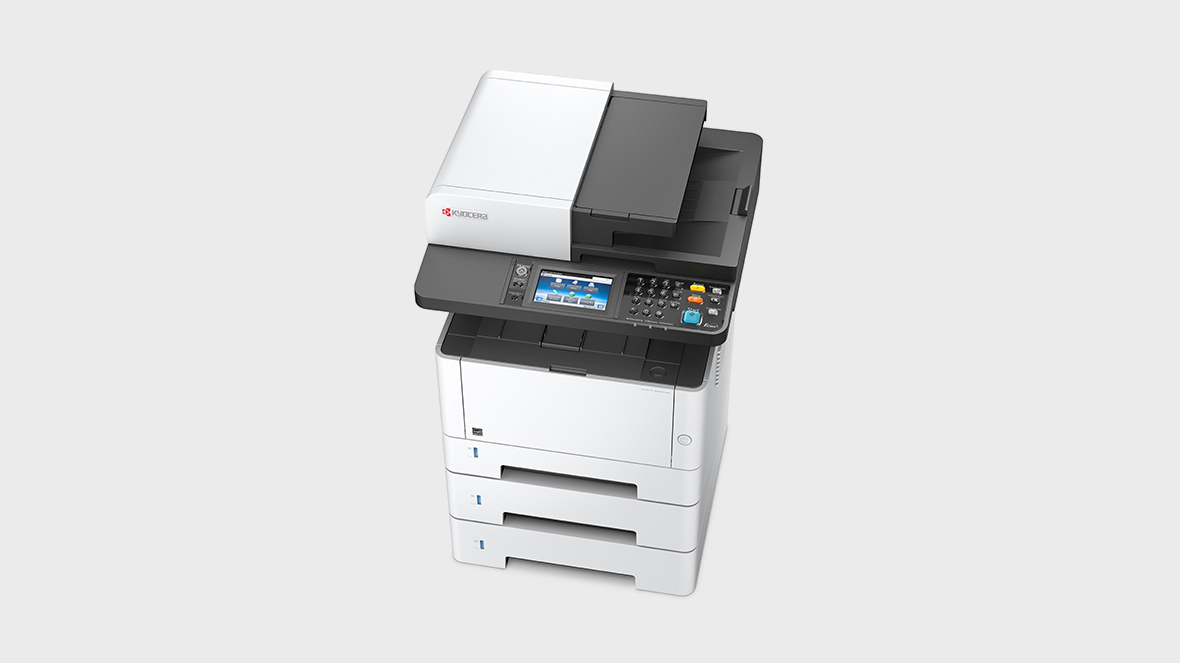
The Kyocera ECOSYS M2640idw supports document scanning through the automatic document feeder and flatbed glass. If scanning fails, first decide whether the problem affects local computer scanning or scan-to-email.
For local scanning:
• Confirm that the scanner driver or scanning software is installed.
• Check whether the computer detects the printer.
• Test the flatbed glass with one page.
• Test the automatic document feeder with a small stack.
• Close other scanning programs that may be using the device.
For scan-to-email problems, verify the destination address, SMTP server, port, encryption, and login details. Many email providers now require stronger authentication than older printer settings support.
A failed scan-to-email setup may show a connection or authentication error. This does not always mean the printer is defective. It may mean that the mail provider changed its security rules or blocked basic sign-in methods.
Keep the document glass clean. A thin line on the glass can create a dark streak on every scanned page. Clean the glass with a soft, lint-free cloth and a suitable glass-cleaning method, keeping liquid away from the printer.

Fax Problems and Clear Transmission Errors
Fax issues can come from the telephone line, connection method, destination number, or fax settings. Confirm that the telephone cable is connected to the correct line port on the printer.
Check these points:
• Use a direct analog phone line when possible.
• Remove splitters and unnecessary adapters during testing.
• Confirm the destination number and area code.
• Check whether the receiving fax is available.
• Try a lower transmission speed if the line is noisy.
• Look for a dial tone before sending.
Internet phone services may not support fax reliably. Voice compression, delays, and network changes can interrupt fax signals.
If the printer can send but cannot receive, check the receive mode, memory status, and paper supply. A full memory or empty paper tray may prevent incoming documents from printing.
Keep the fax report after a failed transmission. It may show whether the failure happened during dialing, connection, image transfer, or confirmation.
Toner, Cartridge, and Maintenance Advice
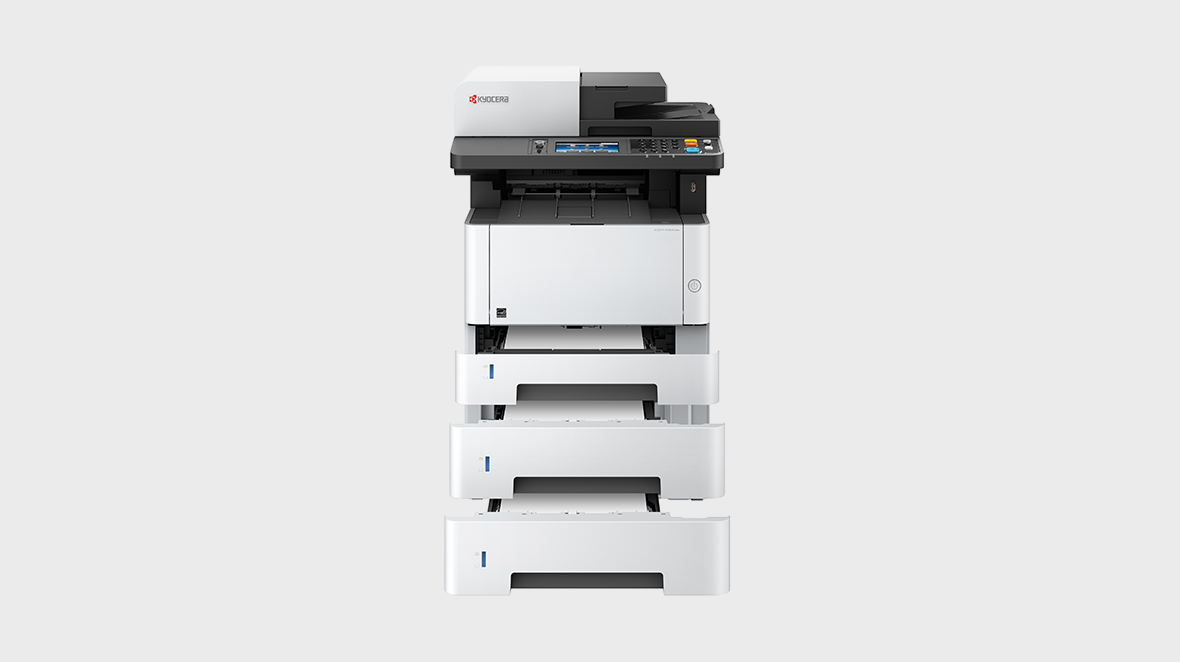
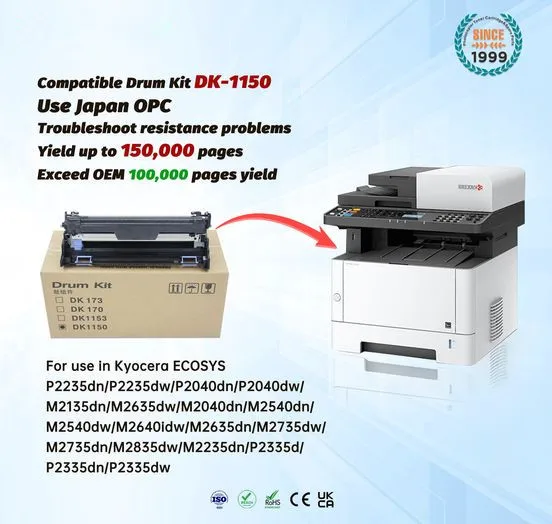
The Kyocera ECOSYS M2640idw uses a toner cartridge and a separate drum-based imaging system. This design can reduce waste, but it still requires correct handling and timely maintenance.
Use the toner model specified for this exact printer and region. A cartridge that physically fits may still produce poor results or trigger a compatibility message.
When replacing toner:
- Open the toner cover.
- Remove the old cartridge carefully.
- Prepare the new cartridge as directed.
- Insert it fully until it locks in place.
- Close the cover.
- Allow the printer to initialize.
Do not expose toner to high heat. If toner spills, avoid using a normal household vacuum, since fine toner particles may pass through the filter. Follow the cartridge maker’s cleanup guidance.
Regular maintenance improves reliability:
• Keep the printer in a cool, dry, well-ventilated area.
• Do not block the cooling vents.
• Remove paper dust from accessible areas.
• Use good-quality paper.
• Replace maintenance parts when the printer requests service.
A common mistake is replacing toner when the real problem is incorrect paper settings or a dirty scanner glass. Test the printer before buying parts.
Error Messages, Slow Printing, and Strange Noise
A printer error message is a clue, not always a final diagnosis. Read the full message and follow the on-screen instructions before resetting the device.
If the printer becomes slow, check whether it is processing a large image, a high-resolution scan, or a complex PDF. Secure print, duplex printing, and multiple copies can also increase processing time.
Slow output may result from:
• A weak network connection.
• A large print job.
• An outdated driver.
• Low printer memory for complex files.
• A document with many images or fonts.
Strange sounds deserve attention. Grinding, clicking, or repeated squealing may indicate a foreign object, worn roller, or drive problem. Stop the printer if the noise is loud or sudden. Continuing to print can turn a small mechanical issue into a larger repair.
Do not open high-voltage areas or attempt electrical repairs. The printer contains hot and energized parts, even after it has been switched off.
When to Reset the Kyocera ECOSYS M2640idw
A restart is useful for temporary faults, but a factory reset is more serious. It can erase network settings, address books, user settings, and other stored data.
Use a reset only after recording important settings. Before doing so, try less disruptive steps:
• Restart the printer.
• Clear the print queue.
• Reseat the toner cartridge.
• Restore only the affected network or fax setting.
• Update the driver or firmware when appropriate.
A factory reset may help after corrupted configuration changes, but it will not repair a worn roller, damaged drum, broken sensor, or failed power component.
If the printer is used in an office, ask the system administrator before resetting it. The safest approach is to document the IP address, scan destinations, wireless details, and custom settings first.
A Practical Troubleshooting Workflow
The most efficient Kyocera ECOSYS M2640idw troubleshooting method moves from simple checks to deeper tests.
Use this workflow:
- Identify the exact symptom.
- Check the printer display for an error.
- Print an internal status page.
- Test printing, copying, and scanning separately.
- Inspect paper, toner, cables, and covers.
- Test with a simple one-page document.
- Check the driver and network connection.
- Restart the printer and computer.
- Record repeated error codes.
- Contact service if the fault is mechanical, electrical, or persistent.
This process prevents guesswork. For example, if copying works but computer printing fails, the printer engine is likely fine. Focus on the driver, queue, USB cable, or network.
In office support work, one of the most useful lessons is to change only one thing at a time. If you replace toner, reset settings, update the driver, and move the printer all at once, you may not know which action solved or caused the problem.
Safety and Service Limits
Basic Kyocera ECOSYS M2640idw troubleshooting is suitable for paper jams, driver problems, connection checks, toner replacement, and cleaning accessible surfaces. Internal repairs require more care.
Contact an authorized technician when:
• The printer smells hot or electrical.
• Smoke appears.
• The power cord becomes warm or damaged.
• A mechanical noise continues.
• The same hardware error returns after a restart.
• Print quality remains poor with correct paper and a suitable toner cartridge.
• The printer shows a service or maintenance error.
Keep the printer’s serial number, error code, page count, and recent maintenance details ready. These facts help a technician diagnose the problem faster.
Manufacturer manuals are the best reference for exact menus, consumables, safety steps, and firmware procedures. Menu names can vary by firmware version and region, so avoid relying on instructions for a similar Kyocera model.
Frequently Asked Questions About Kyocera ECOSYS M2640idw Troubleshooting
Why is my Kyocera ECOSYS M2640idw not printing?
Check the printer status, paper supply, toner, cable, and print queue. If an internal status page prints but computer documents do not, inspect the driver, selected printer, and network connection.
How do I clear a paper jam on the Kyocera ECOSYS M2640idw?
Open the area shown on the display and remove the sheet slowly in the normal feed direction. Check for small torn pieces near rollers and sensors before closing all covers.
Why is the Kyocera ECOSYS M2640idw printing lightly?
Light output can result from low toner, incorrect paper settings, unsuitable paper, or an imaging problem. Reseat the toner cartridge, confirm the media setting, and print a status page to compare results.
How can I connect the printer to Wi-Fi?
Open the printer’s network or wireless settings and select the correct wireless network. Enter the password carefully, then print a network status page to confirm that the printer received an IP address.
Why does scan-to-email fail?
Check the email address, SMTP server, port, encryption, and authentication details. Modern email services may block older sign-in methods, so the printer may need updated settings or an approved mail relay.
Should I reset the Kyocera ECOSYS M2640idw?
Use a factory reset only when simpler steps fail and important settings have been recorded. A reset can remove wireless details, address books, and custom device settings.
When should I call a printer technician?
Call a technician for smoke, electrical smells, repeated service codes, serious mechanical noise, or faults that remain after basic checks. Avoid opening high-voltage sections or repairing internal parts without proper training.
Conclusion
Kyocera ECOSYS M2640idw troubleshooting works best when you follow a calm, logical order. Start with paper, toner, covers, cables, the print queue, and the printer’s internal test page. Then move to drivers, network settings, scan options, fax settings, and maintenance parts.
Many common problems are simple to fix, but repeated hardware errors, heat, smoke, and unusual sounds require professional help. Save error codes and device settings before making major changes, and use the official manual for model-specific instructions. Try these steps today, then explore additional printer maintenance resources or share your experience with the Kyocera ECOSYS M2640idw.