Pantum P2502W Troubleshooting: Easy Fixes That Work
Pantum P2502W troubleshooting starts with checking power, paper, toner, drivers, Wi-Fi, and print settings in order.
The Pantum P2502W is a compact black-and-white laser printer, but even a reliable printer can stop, slow down, or refuse a wireless job. This guide explains Pantum P2502W troubleshooting in a clear order, based on common home and small-office issues. You will learn how to fix connection errors, paper jams, faded pages, driver problems, and print queue failures without wasting toner or time.

Start with a Basic Pantum P2502W Check
Before changing software or opening the printer, check the simple things first. Many printer faults come from a loose cable, a poor Wi-Fi signal, or paper that is not seated correctly.
Follow these steps:
- Turn off the Pantum P2502W.
- Unplug it for about 60 seconds.
- Check that the power cord fits firmly.
- Remove loose paper from the input tray.
- Reload fresh, flat paper.
- Turn the printer on again.
- Wait until the printer stops making startup sounds.
- Try printing a simple test page.
If the printer has no lights, no sound, and no response, test the wall outlet with another device. Avoid using a damaged power strip. If the printer still stays off, the issue may involve the power adapter, internal board, or fuse. That type of fault needs qualified service.
A useful lesson from printer support work is to avoid changing several things at once. If you replace the driver, move the printer, and reset Wi-Fi together, you may not know which action solved the problem.

Pantum P2502W Will Not Turn On
A printer that will not power on needs a power check before any software troubleshooting. The computer cannot detect a printer that has no active power.
Check the following:
• Confirm the power button is pressed fully.
• Test a different wall outlet.
• Inspect the power cord for cuts, bent pins, or loose ends.
• Remove the printer from an overloaded extension strip.
• Make sure the printer is not in a protection state after a power surge.
Do not open the printer while it is connected to power. Laser printers contain electrical parts that can hold a charge. If you smell burning plastic, see smoke, or hear repeated electrical clicks, unplug the unit and stop using it.
If the printer turns on but freezes during startup, disconnect the USB cable and restart it. A faulty USB cable or computer port can sometimes interrupt communication. You can reconnect the cable after the printer reaches its ready state.

Pantum P2502W Is Not Printing
When the printer appears ready but does not print, the print queue is often the cause. A stuck job can block every document behind it, much like one car blocking a narrow driveway.
Try this order:
- Open your computer’s printer settings.
- Select Pantum P2502W.
- Open the print queue.
- Cancel every pending document.
- Set the printer as the default printer.
- Confirm that “Use Printer Offline” is not selected.
- Send a one-page test document.
On Windows, restarting the Print Spooler service can clear a locked queue. On macOS, removing and adding the printer again often rebuilds the connection. Restarting the computer after clearing the queue can also help.
Check the application you are printing from. If a test page prints but a document does not, the problem may be the file, font, page size, or application. Save the document as a PDF and print the PDF as a test.
During Pantum P2502W troubleshooting, always test with a basic one-page document. A complex file can create a false impression that the printer itself is broken.

Fix Pantum P2502W Wi-Fi Connection Problems
Wireless setup is one of the most common parts of Pantum P2502W troubleshooting. The printer and computer must use the same local network. A printer connected to a guest network may not communicate with a computer on the main network.
Use these checks:
• Confirm that your router is on and connected to the internet.
• Place the printer within a reasonable range of the router.
• Avoid setting up the printer near thick concrete walls or large metal objects.
• Check that your computer or phone uses the same Wi-Fi name as the printer.
• Restart the router, printer, and computer.
• Reinstall the Pantum wireless setup tool if the printer is not found.
Many compact wireless printers work best with a 2.4 GHz network during setup. Some newer routers combine 2.4 GHz and 5 GHz bands under one network name. If setup fails, temporarily separate the bands or connect the setup device to the 2.4 GHz band.
A hidden Wi-Fi name, captive portal, enterprise network, or aggressive firewall can also block setup. Public Wi-Fi in hotels, schools, and offices may prevent printer discovery. In those cases, ask the network administrator for a permitted local connection.

Reset the Pantum P2502W Wireless Settings
A wireless reset helps when the printer remembers an old router or incorrect password. It is also useful after changing your internet provider.
The exact button sequence can vary by firmware version, so check the printer’s current user guide before resetting. In general, the process involves holding the wireless or cancel button for several seconds until the network indicator changes or the printer prints a configuration page.
After the reset:
- Restart the router.
- Start the Pantum wireless setup process.
- Select the correct Wi-Fi name.
- Enter the password carefully.
- Wait for the connection confirmation.
- Print a network configuration or test page.
Avoid pressing reset buttons repeatedly. A network reset removes saved wireless details, but it does not usually repair a weak router signal or an incorrect computer driver.
If the printer connects but disappears later, check whether the router assigns changing IP addresses. Adding the printer again through its current network address may provide a more stable connection. A reserved IP address can help in busy home or office networks.
Pantum P2502W Driver and Software Problems
A wrong, damaged, or outdated driver can cause blank jobs, incorrect paper sizes, missing print options, or a printer that shows as offline. Download the driver made for your operating system and printer model. Avoid random driver websites because they may bundle unsafe software.
For clean Pantum P2502W troubleshooting, use this process:
- Remove old Pantum printer software.
- Delete the printer from system settings.
- Restart the computer.
- Download the correct driver package.
- Install the driver with administrator permission.
- Add the printer when prompted.
- Print a test page.
Do not install a driver for a similar model just because the name looks close. Small model differences can affect wireless tools, toner status, paper settings, and firmware support.
If the printer works through USB but not Wi-Fi, the driver may be using the wrong printer port. Remove the old printer entry and add the wireless printer again. If it works through Wi-Fi but not USB, test another USB port and a short, good-quality USB cable.
Security software can also block printer discovery. Instead of disabling protection for a long period, allow the official printer setup program through the firewall and turn protection back on after installation.

Fix Paper Jams and Paper Feed Errors
Paper jams usually happen because of curled paper, an overloaded tray, a damaged sheet, or a small scrap left inside the paper path. The printer may show a jam message even when the visible sheet has already been removed.
Use care when clearing a jam:
- Turn off the printer and let hot internal parts cool.
- Remove paper from the input tray.
- Open the access cover.
- Pull the sheet slowly in the direction of the paper path.
- Check for torn pieces.
- Close every cover firmly.
- Reload a small stack of clean paper.
- Print one page.
Never yank paper upward with force. A torn corner can remain inside and cause repeated jams. Do not use sharp tools, scissors, or metal objects near rollers and sensors.
Keep the paper dry and store it in a closed package. Fan the stack before loading it, but do not bend the sheets. Adjust the paper guides so they touch the stack without squeezing it.
If the printer pulls several sheets at once, reduce the stack size and clean the feed area with a dry, lint-free cloth. Persistent multi-feed errors may point to worn pickup rollers or a worn separation pad.

Improve Faded, Gray, or Uneven Print Quality
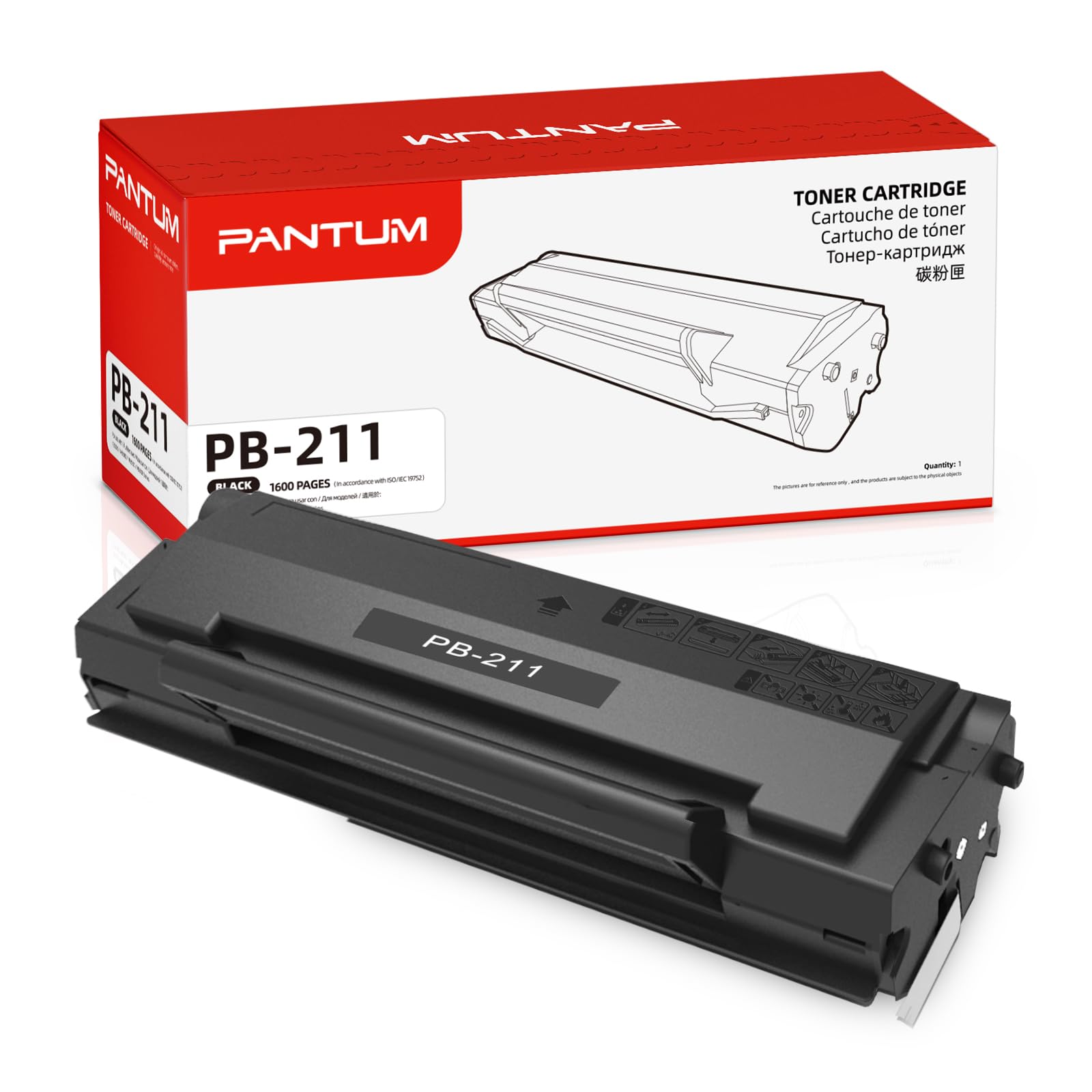
Faded text often means low toner, an uneven toner distribution, a poor-quality page, or a print-density setting that is too light. Laser toner can settle after storage, so gently remove and level the toner cartridge as directed by the cartridge instructions. Do not shake it hard, because toner dust can escape.
Check these print quality symptoms:
• Faded page: Check toner level and density settings.
• Gray background: Use suitable paper and inspect the cartridge seal area.
• Repeated marks: Look for damage on the drum or cartridge.
• White vertical lines: The toner may be low or uneven.
• Black spots: A damaged cartridge or dirty internal path may be involved.
• Crooked text: Check paper guides and tray loading.
Use paper designed for laser printers. Damp, rough, or heavily textured paper can produce poor results and may increase jams. Avoid printing on labels or special media unless the printer guide supports that media type.
A practical mistake I often see is cleaning the inside with a household vacuum. Fine toner can pass through some vacuums and spread through the room. Use the cleaning method approved for laser printers, and avoid touching the drum surface with your fingers.
If a new cartridge produces streaks, confirm that all protective packaging and seals were removed. Also verify that the cartridge is made for the P2502W and is seated correctly.
Pantum P2502W Prints Blank Pages
Blank pages can result from an empty cartridge, a cartridge that is not seated, a removed toner seal, or a software issue. First, print an internal test page if the printer supports one. This separates a printer problem from a computer problem.
Then check:
- Remove and reinstall the toner cartridge.
- Confirm that the protective strip is removed.
- Inspect the cartridge for damage.
- Print a test page from another application.
- Check that the selected document contains visible text.
- Reinstall the printer driver if internal pages work but computer pages do not.
If internal pages are also blank, focus on the toner cartridge, drum, transfer system, or high-voltage components. Those parts may need replacement or professional service.
If only certain documents print blank, check whether the text color is white, the page contains transparent objects, or the application is using an unsupported print mode. A PDF test is helpful because it reduces application-specific variables.
Solve Slow Printing and Repeated Disconnects
The Pantum P2502W is designed for routine monochrome printing, but the first page may take longer while the printer warms up and processes the job. Large PDFs, images, and documents with complex fonts can also take more time.
To improve performance:
• Print in black-and-white rather than color simulation modes.
• Use a standard print quality setting for drafts.
• Reduce document size before printing large PDFs.
• Keep the computer and printer on a stable network.
• Move the printer closer to the router during testing.
• Clear old print jobs.
• Avoid sending many jobs from several devices at once.
A wireless printer that disconnects often may have a weak signal, router compatibility issue, changing IP address, or power-saving behavior. Test the printer through USB. If USB stays reliable, focus on the network rather than the printer engine.
Firmware updates can improve compatibility, but install them only when the update matches the exact model. Do not turn off the printer during a firmware update. An interrupted update can create a more serious fault than the original connection problem.
When to Replace the Toner or Seek Service
Toner replacement is reasonable when pages are consistently pale, text fades across the page, or the printer reports a low cartridge. Use a cartridge designed for the P2502W and follow the installation instructions closely.
Professional service is safer when:
• The printer smells burned.
• The printer makes grinding or repeated clicking sounds.
• Paper jams occur inside the fuser area.
• The printer shows a hardware error after a restart.
• New cartridges do not improve print quality.
• The machine powers off during printing.
• The printer has liquid damage.
The P2502W is a small office printer, so repair costs should be compared with the cost of a replacement unit. A simple cartridge or roller issue may be worth fixing. A failed control board or fuser may not be economical.
Keep the printer clean, use suitable paper, and avoid forcing covers or trays. Preventive care is often cheaper than emergency repair.
A Reliable Pantum P2502W Troubleshooting Order
When you want the fastest path to a solution, use this checklist:
- Check power and indicator lights.
- Confirm paper is loaded correctly.
- Look for a paper jam.
- Check the toner cartridge.
- Clear the computer print queue.
- Confirm the correct printer is selected.
- Test with USB.
- Test the Wi-Fi connection.
- Reinstall the correct driver.
- Reset network settings only when needed.
- Test an internal or basic page.
- Contact service for hardware faults.
This sequence works because it moves from simple causes to deeper causes. It also prevents unnecessary resets and software changes.
For example, if the printer cannot print a test page without a computer, the driver is not the main issue. If the test page works but a laptop cannot find the printer, focus on Wi-Fi, firewall rules, or the printer port.
The best Pantum P2502W troubleshooting habit is to change one variable at a time and test after each change. That small habit saves hours.
Frequently Asked Questions of Pantum P2502W Troubleshooting
Why is my Pantum P2502W offline?
The printer may be disconnected from Wi-Fi, assigned a new network address, or paused in the computer’s print settings. Restart the printer and router, clear the queue, and remove and add the printer again if needed.
How do I connect the Pantum P2502W to Wi-Fi?
Use the official wireless setup process, select your home network, and enter the Wi-Fi password carefully. During setup, a 2.4 GHz network often provides better compatibility than a 5 GHz-only network.
Why does my Pantum P2502W print blank pages?
Check that the toner cartridge is installed correctly and that its protective seal has been removed. If internal test pages are blank too, the cartridge or printer hardware may need attention.
How do I clear a paper jam in the Pantum P2502W?
Turn off the printer, let hot parts cool, and pull the paper slowly along the normal paper path. Check for small torn pieces before closing the covers and reloading a smaller stack.
Why is my Pantum P2502W printing faded text?
Low toner, unsuitable paper, an incorrect print-density setting, or a damaged cartridge can cause faded output. Replace or reseat the cartridge and test with fresh laser-printer paper.
Can I use the Pantum P2502W with a USB cable?
Yes, the printer can be tested through USB when wireless printing fails. USB testing is useful because it shows whether the main problem is the network or the printer and driver.
Should I reset my Pantum P2502W?
Reset the wireless settings when the printer remembers an old router or incorrect Wi-Fi details. Do not reset repeatedly, because a reset removes saved network information but cannot repair hardware damage.
Conclusion
Pantum P2502W troubleshooting is easier when you follow a calm, step-by-step process. Start with power, paper, toner, and the print queue, then test USB and Wi-Fi before reinstalling drivers or resetting network settings.
Most everyday problems come from a stuck queue, weak wireless signal, incorrect driver, paper feed issue, or poorly seated toner cartridge. Work through one change at a time, use safe cleaning methods, and seek service for electrical faults or damaged internal parts.
Save this guide for the next printer problem, and share your own Pantum P2502W troubleshooting experience in the comments.