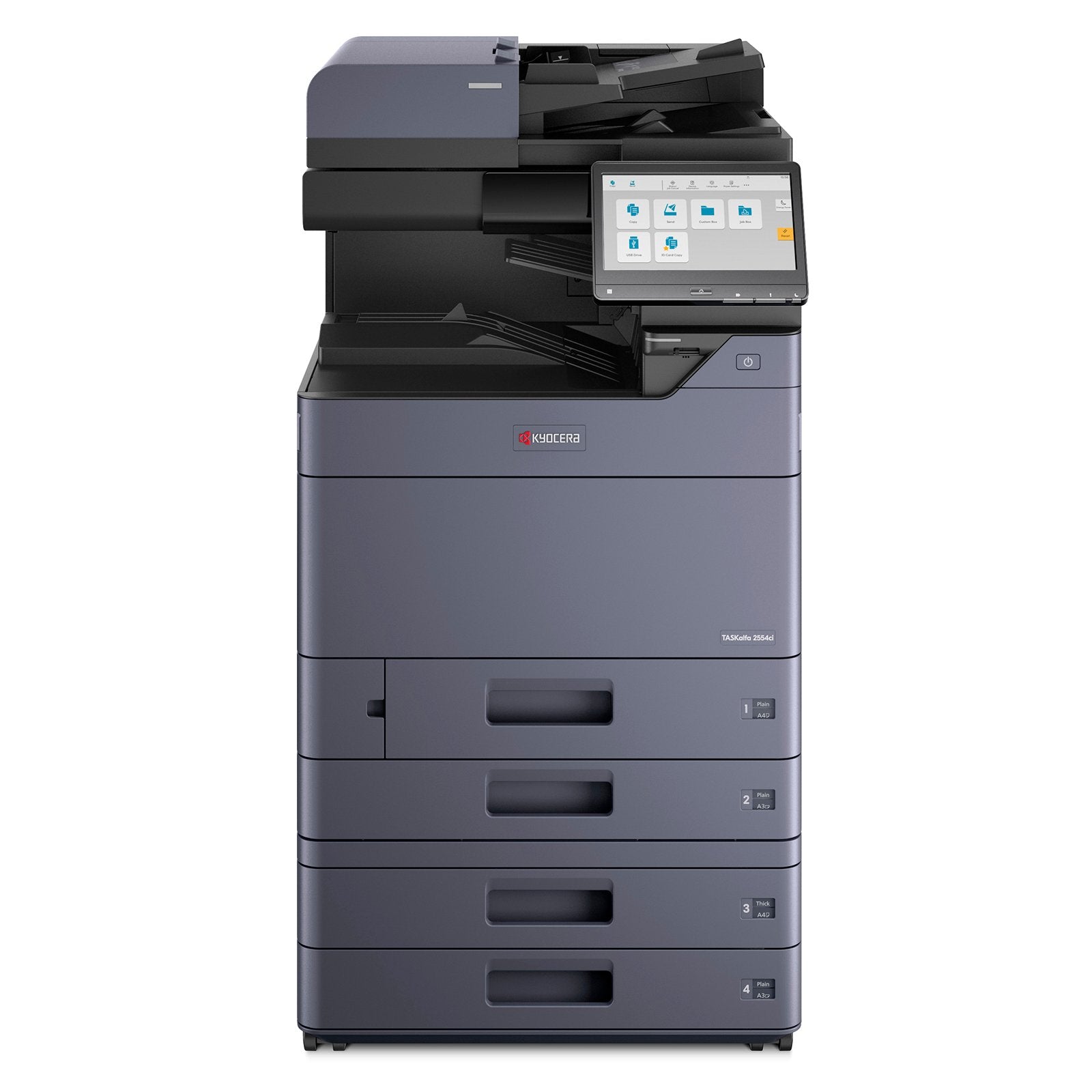
Kyocera TASKalfa 2554ci Troubleshooting: Quick Fixes

Most Kyocera TASKalfa 2554ci problems come from paper paths, toner, network settings, or simple maintenance issues.
Kyocera TASKalfa 2554ci Troubleshooting is easier when you check the machine in a set order. Start with the screen message, then inspect paper, supplies, connections, and settings. This guide explains common errors, safe fixes, service tips, and ways to prevent repeat faults without guessing or replacing parts too soon.
Start With a Safe Troubleshooting Check
Before you begin Kyocera TASKalfa 2554ci Troubleshooting, read the full message on the control panel. The message may show a paper size, tray number, cover location, or maintenance code. That detail can save time.
Use this basic check:
- Press the status or notification area on the touch screen.
- Note the exact error message or code.
- Check whether the problem affects printing, copying, scanning, or all functions.
- Check the paper trays, document feeder, and output area.
- Restart the machine only after you clear loose paper and close all covers.
- Test one simple black-and-white page.
Do not force a cover, roller, or paper sheet. A small torn piece can cause a second jam later. Also, avoid touching the drum, transfer belt, or internal electrical parts.
Turn off the main power and unplug the copier before cleaning inside areas that are not designed for user access. Fuser parts can stay very hot after shutdown. If you see smoke, a burning smell, exposed wires, or repeated electrical faults, stop using the device and contact an authorized technician.

Kyocera TASKalfa 2554ci Paper Jam Troubleshooting
Paper jams are among the most common reasons people search for Kyocera TASKalfa2554ci Troubleshooting. Most jams begin with poor paper storage, an incorrect tray setting, worn rollers, or a small piece of paper left inside the machine.
Follow the paper path shown on the control panel. Open only the covers named in the message. Remove paper slowly in the direction of normal travel. Pulling hard in the opposite direction may damage a sensor or leave scraps behind.
Check these areas:
• The selected paper tray
• The manual or multipurpose feed tray
• The duplex path
• The document processor
• The rear output area
• The fuser exit path
• The area below the toner or imaging section
Fix Paper That Feeds Poorly
Use clean, dry paper made for laser printers and copiers. Damp paper can stick together or curl inside the machine. Store unopened paper packs flat in a dry room.
Fan a new stack before loading it. Do not overfill the tray. Keep the side guides close to the paper, but do not press them tightly against the stack.
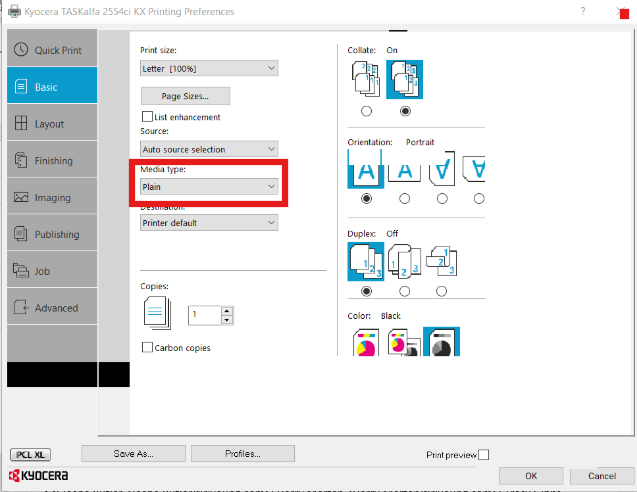
Confirm that the paper size and media type match the tray settings. For example, if the tray contains letter paper but the machine is set to A4, the copier may stop or feed incorrectly.
Fix Repeated Duplex Jams
Duplex printing uses a longer path. Paper with heavy moisture, strong curl, or a rough surface may jam when it turns over. Test with fresh plain paper and disable duplex printing for one job.
If one-sided pages work but duplex pages jam often, inspect the duplex path and rollers. Repeated duplex jams after cleaning may indicate worn rollers, a sensor issue, or a mechanical alignment problem.
Lessons From Service Calls
A common mistake is removing the visible sheet and pressing Start again. The machine may still have a small scrap near a sensor. Always follow the full path on the screen and inspect the exit area with a flashlight.
If jams occur in the same place with fresh paper and correct settings, stop treating the problem as a paper problem. At that point, the feed roller, separation pad, sensor, or drive system may need service.
Solving Print Quality Problems
Good Kyocera TASKalfa 2554ci Troubleshooting also includes print quality checks. A faded page, dark streak, color shift, or repeating mark can point to different parts of the print system.
First, print an internal status or quality page. Then compare the result with a test page from a computer. This helps show whether the issue comes from the copier or from the print driver and document.
Faded or Light Prints
Light output may result from low toner, an unsuitable media setting, an economy mode, or a problem with the imaging system. Check the toner level and confirm that the correct paper type is selected.
Try these steps:
• Print a black-and-white test page.
• Print a color test page.
• Check whether only one color is light.
• Review toner-saving or draft settings.
• Confirm that the paper is approved for the machine.
• Run the recommended image or color adjustment from the device menu.
Do not shake toner cartridges aggressively. A gentle movement may help distribute toner, but force can cause leaks.
Streaks, Lines, or Repeating Marks
A vertical line may come from dirt on a scanner glass strip, document feeder glass, drum area, or transfer system. If the line appears only when copying through the document feeder, clean the narrow glass strip beside the main glass.
A mark that repeats at equal spaces often points to a rotating part. The spacing can help a trained technician identify the likely roller, drum, or fuser area. Do not use liquid inside the machine unless the service instructions specifically allow it.
Wrong Colors or Uneven Color
Color problems may come from toner, calibration, driver settings, or the original document. Check whether the issue appears in copies, prints, or both.
If copies look wrong but computer prints look normal, clean the scan glass and check copy density and color balance. If both copies and prints show the same color fault, check toner and run the machine’s color adjustment routine.
Poor Image Registration
If text or color blocks do not line up, check paper size, media type, and paper curl. Run the automatic registration or calibration function available in the user menu. Persistent registration errors may require technician adjustment.

Kyocera TASKalfa 2554ci Toner and Supply Issues
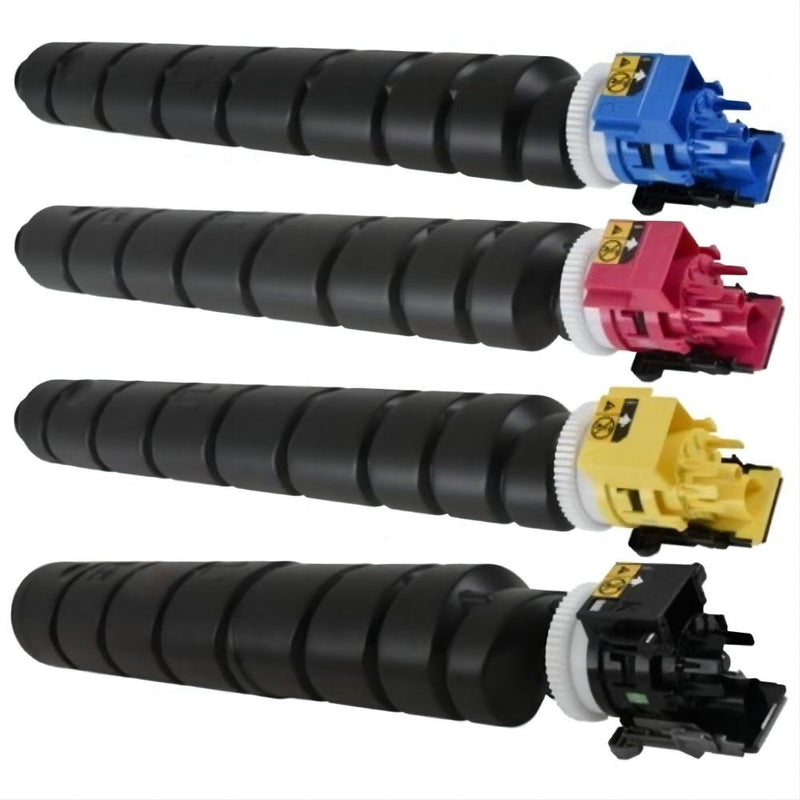
Toner warnings are a key part of Kyocera TASKalfa 2554ci Troubleshooting. Use the correct Kyocera-compatible supply listed for your exact regional model. A cartridge made for a similar model may fit poorly or produce weak output.
When replacing toner:
- Check the color shown on the screen.
- Prepare the new cartridge before removing the old one.
- Open the correct cover.
- Remove the old cartridge without forcing it.
- Install the new cartridge in the matching position.
- Close the cover fully.
- Allow the machine to complete its supply check.
If the machine says toner is missing after replacement, remove and reinstall the cartridge. Check for packaging material, a protective seal, or a cover that is not fully closed.
Toner Leaks
Toner dust can appear after a damaged cartridge, rough handling, or an internal supply problem. Do not use a household vacuum unless it is designed for fine toner particles. Some vacuums can spread toner or create static.
Use a soft, dry, lint-free cloth on accessible surfaces. If toner has spread inside the machine, arrange professional cleaning. Toner near the fuser can create odor or image defects.
“Replace Waste Toner Box” or Similar Warnings
A waste toner container collects excess toner from the print process. When it is full, the machine may stop to prevent spills. Replace it as directed and avoid tipping the container.
Never empty and reuse a disposable waste toner container unless the manufacturer specifically approves that process. A spill can contaminate sensors, paper paths, and nearby components.
Avoid Unnecessary Supply Replacement
A low-quality page does not always mean the toner is empty. Replacing all four color cartridges can waste money and hide the real cause. Test the output, check the displayed supply status, and replace only the affected item when appropriate.
Kyocera TASKalfa 2554ci Network and Printing Problems
Network errors are another major part of Kyocera TASKalfa 2554ci Troubleshooting. A copier can be powered on and still fail to print because of an IP address change, driver issue, print queue fault, or network rule.
Start with the simplest test: make a local copy. If copying works, the print engine is likely operating. The problem may be between the computer, print server, and device.
Check the Network Connection
Confirm that the network cable is connected and that the link lights are active where applicable. On the device, print or view the network status page. Look for the IP address, subnet information, and connection status.
From a computer on the same network, test whether the device responds to its IP address. If it does not respond:
• Check the cable and network port.
• Confirm that the copier is on the correct network.
• Check for a changed IP address.
• Review DHCP or reserved address settings.
• Ask the network administrator to check access rules.
Do not change network settings at random. A wrong gateway, subnet mask, or DNS setting can create more problems.
Fix Print Queue Errors
A stuck queue can make every later job wait. Open the printer queue and cancel old jobs. Then restart the print spooler or restart the computer if needed.
If only one computer has the problem, reinstall or update the correct driver. If every computer fails, inspect the print server, network connection, and device status.
Use a driver that matches the operating system and the printer language selected by your organization. Generic drivers may print basic pages but fail with finishing, paper selection, color, or accounting features.
Secure Printing and User Codes
Some offices use department codes, user authentication, or secure print release. If a job disappears without printing, check whether the device is waiting for a code or release action.
Ask the administrator to verify:
• User permissions
• Department code settings
• Secure print storage
• Print release rules
• Device address book or authentication settings

Scan, Copy, and Document Feeder Troubleshooting
When Kyocera TASKalfa 2554ci Troubleshooting involves scanning, separate the problem into copy, scan-to-email, scan-to-folder, and document feeder tests.
Place one page on the main glass and make a copy. Then test the document feeder. If the glass copy works but the feeder copy has lines or skew, clean the feeder glass strip and check the guides.
Skewed or Misfed Originals
Make sure the originals are within the feeder’s supported size and weight range. Remove clips, staples, folded corners, and damaged pages. Align the pages before loading them.
Do not overload the document feeder. A smaller stack often reveals whether the issue is caused by paper condition or by the feeder mechanism.
Scan-to-Email Errors
Scan-to-email depends on network access, SMTP settings, authentication, encryption, and sometimes modern security rules. A copier may scan correctly but fail when sending the file.
Check the exact error message. Ask the email or network administrator to verify the outgoing mail server, port, account permission, certificate requirements, and file size limit.
Avoid changing security settings without approval. Older email settings may be blocked by current cloud services.
Scan-to-Folder Errors
For scan-to-folder, confirm the server name, folder path, user name, password, and access rights. Test the same account from a computer if permitted.
A password change can break scanning even when the copier itself has not changed. Keep service accounts documented and use secure password practices.

Error Codes, Warnings, and Restart Steps
A clear error code makes Kyocera TASKalfa 2554ci Troubleshooting faster. Write down the full code, not only the first few characters. Also record what happened before the error appeared.
Use this process:
- Read the on-screen instructions.
- Clear the stated paper or cover issue.
- Close every cover firmly.
- Wait for the machine to finish its internal check.
- Restart from the normal power control if the message remains.
- Run one test copy.
- Record the code if it returns.
A restart can clear a temporary communication or control error. It will not repair a failed motor, sensor, fuser, or power board. Repeated errors after a restart are useful evidence for a technician.
Do not enter hidden service modes or reset maintenance counters unless you have the correct service procedure. An incorrect adjustment can affect image quality, safety controls, or error reporting.
When contacting support, provide:
• Exact model name
• Serial number
• Error code
• Date and time of the failure
• Recent toner or maintenance changes
• Paper size and type
• Whether copying and printing both fail
• Photos of the message, if allowed

Maintenance That Prevents Repeat Problems
Preventive care makes Kyocera TASKalfa 2554ci Troubleshooting less frequent. The best routine is simple: clean accessible glass, use good paper, replace supplies correctly, and respond to warnings early.
Daily or Weekly Checks
• Wipe the main scan glass with a suitable lint-free cloth.
• Clean the narrow document feeder glass strip.
• Remove scraps from the output area.
• Check that paper guides sit correctly.
• Keep the top and side vents clear.
• Review recurring warning messages.
Never spray cleaner directly onto the glass or control panel. Apply a small amount to the cloth instead, and keep moisture away from openings.
Use the Right Paper
Paper affects feeding, fusing, color, and duplex performance. Keep paper sealed until needed. Avoid paper that is curled, damp, dusty, or stored beside a heat source.
Set the tray’s paper type correctly. Thick paper, labels, envelopes, and coated media need different handling than standard office paper.
Track Repeat Faults
A simple log can reveal patterns. Record the date, error, paper type, tray, job type, and action taken. For example, jams only during duplex printing on one tray suggest a different cause than jams during every job.
This record also helps support staff avoid repeating tests. Good notes are often as valuable as a replacement part.

When to Call a Kyocera Service Technician
Some problems are safe for an office user. Others need trained service support. Call a qualified technician when the machine has repeated fuser errors, electrical smells, unusual grinding, persistent image defects, or a fault that returns after correct basic checks.
Professional service may be needed for:
• Damaged rollers or gears
• Fuser replacement
• Drum or transfer system faults
• Internal sensor errors
• High-voltage or power problems
• Repeated paper jams in one internal location
• Mechanical noise
• Persistent color registration problems
Before service, save any important settings or address book information according to your organization’s policy. Do not open sealed electrical sections or bypass safety switches.
A good technician should explain the suspected cause, the required part, the expected downtime, and the difference between repair and preventive replacement. Ask for the error code and test result to be included in the service record.
Common Mistakes to Avoid
Effective Kyocera TASKalfa 2554ci Troubleshooting is less about doing more and more about doing the right step. These mistakes can turn a small fault into a costly repair.
• Pulling jammed paper with excessive force
• Using damp or unsuitable paper
• Mixing paper sizes in one tray
• Replacing every toner cartridge without testing
• Ignoring a repeated warning
• Spraying cleaner inside the machine
• Changing network settings without recording the old values
• Resetting counters without replacing the related maintenance part
• Continuing to operate the copier after a burning smell
• Installing a random driver from an untrusted website
When in doubt, pause and document the problem. A careful five-minute check is better than a rushed repair.
Frequently Asked Questions About Kyocera TASKalfa 2554ci Troubleshooting
Why does the Kyocera TASKalfa 2554ci keep showing a paper jam?
The machine may still contain a small paper scrap, or a sensor may not have reset. Check the complete paper path, confirm the covers are closed, and test with fresh paper loaded to the correct level.
How do I fix faint printing on the Kyocera TASKalfa 2554ci?
Check the toner level, paper type, and toner-saving settings first. If only one color is faint or the issue remains after a correct supply replacement, the imaging or transfer system may need service.
Why is my Kyocera TASKalfa 2554ci not printing over the network?
Check the device IP address, network cable, print queue, and driver. If the copier can make local copies but several computers cannot print, ask the network administrator to check the print server and access rules.
What should I do when the copier says toner is not installed?
Open the correct toner cover and reinstall the cartridge. Check for packing seals and make sure the cartridge color matches the position shown on the machine.
Why do copies have a black line?
Clean the main scan glass and the narrow glass strip used by the document feeder. If the line appears on both copies and computer prints, the issue may be inside the print engine and should be checked by a technician.
Can I restart the Kyocera TASKalfa 2554ci to clear an error?
A normal restart may clear a temporary control or communication fault. It will not fix a damaged roller, failed sensor, fuser problem, or recurring mechanical error.
When should I stop troubleshooting the copier myself?
Stop when you notice smoke, a burning odor, exposed wires, repeated electrical errors, or internal parts that require force to access. These conditions need qualified service support.
Conclusion
Kyocera TASKalfa 2554ci Troubleshooting works best when you follow a calm, logical order. Read the message, check the paper path, test supplies and settings, separate local copy faults from network faults, and record any repeated error.
Simple care can prevent many problems. Use dry paper, clean the glass, protect the ventilation areas, and replace supplies correctly. When a fault returns or involves heat, power, or internal mechanics, contact a qualified Kyocera technician instead of guessing.
Use this guide as your first check, then explore the machine’s official user documentation or share your troubleshooting results with your support team.

Similar Posts