Zebra ZD421 Troubleshooting: Quick Fixes
Most Zebra ZD421 problems come from incorrect media loading, poor calibration, connection errors, or outdated printer settings.
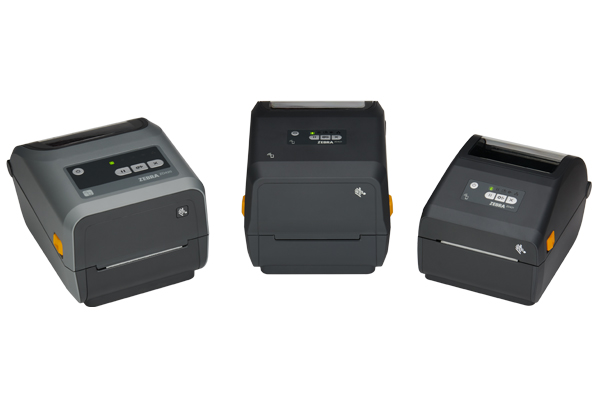
Zebra ZD421 troubleshooting is much easier when you treat the printer like a system, not just a box that prints labels. Media sensors, printhead pressure, drivers, network settings, and label software all work together. This guide explains the most common Zebra ZD421 issues, clear fixes, and practical checks that can restore reliable printing without guesswork.
Zebra ZD421 Troubleshooting: Start With the Basics
Before changing advanced settings, check the simple causes. Many Zebra ZD421 problems come from a loose cable, an open printhead, an empty roll, or labels that do not match the selected media type.
Follow this basic inspection:
- Turn the printer off.
- Remove any jammed labels or torn liner.
- Check that the media roll sits straight on the holder.
- Confirm that the labels pass under the media guides.
- Close the printhead firmly.
- Check the power adapter and wall outlet.
- Reconnect the USB, Ethernet, or Wi-Fi connection.
- Turn the printer on and wait for it to finish starting.
The printer should sit on a stable surface with enough space for the media cover to open. Dust, heat, and direct sunlight can also affect sensor readings and print quality.
A useful rule from hands-on printer support is to change one thing at a time. If you change the media, driver, darkness, and connection together, you may fix the issue without knowing why. That makes the next failure harder to solve.

Zebra ZD421 Status Light and Error Symptoms
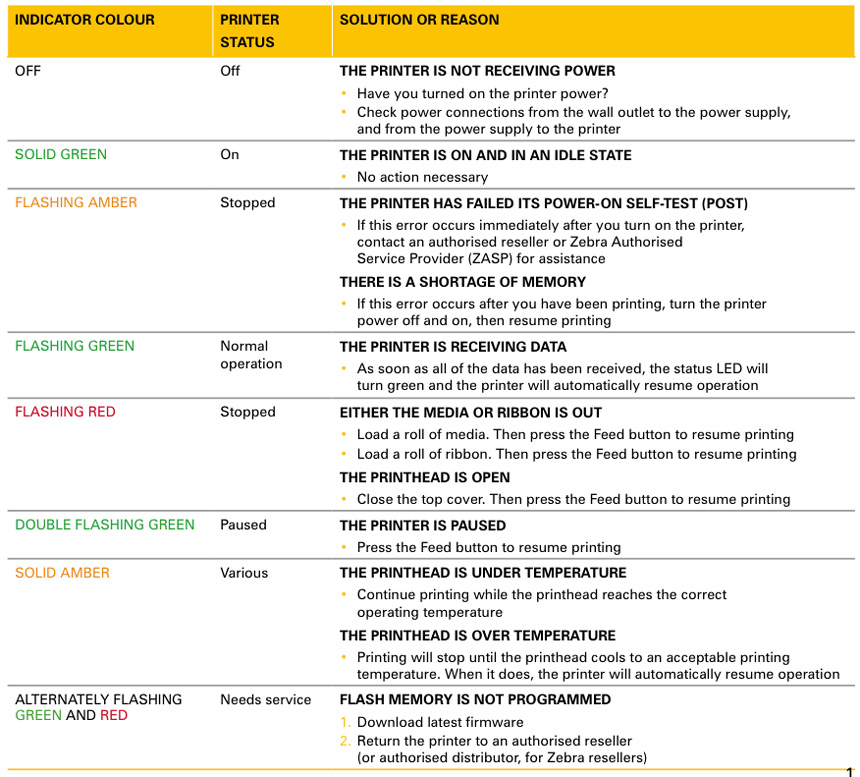
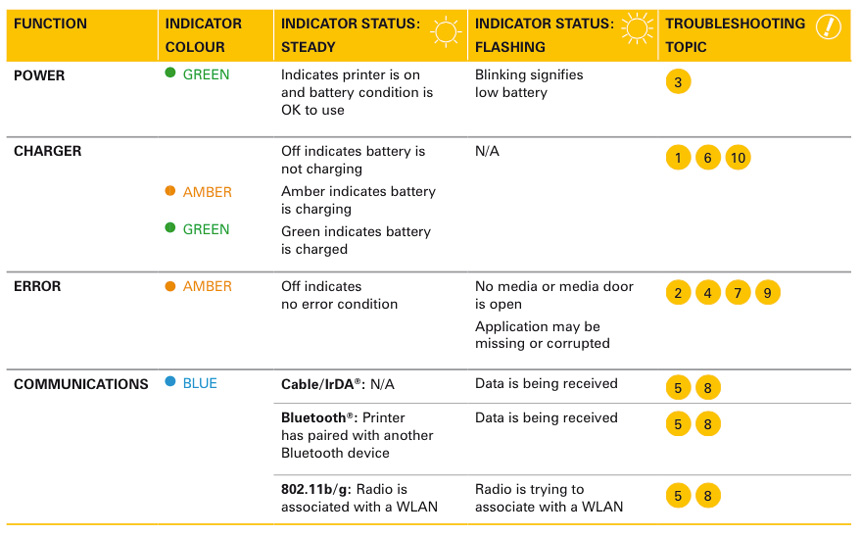
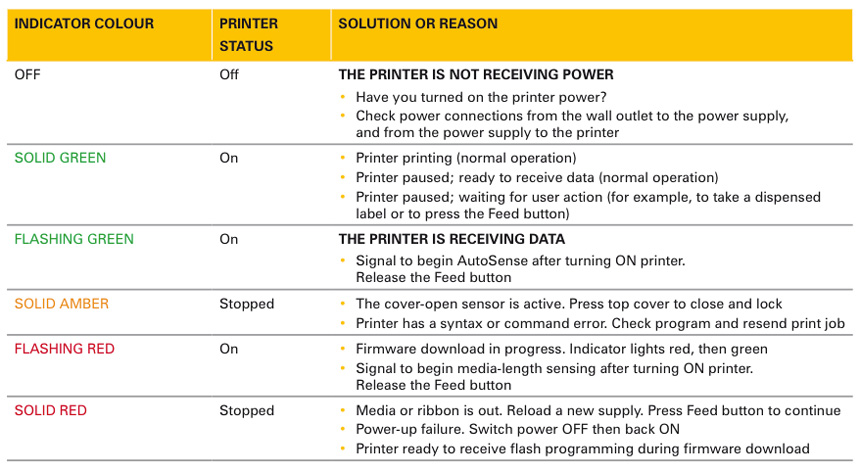
The status light gives you the first clue. Its color and pattern can point to a media issue, a cover problem, a paused print job, or a communication fault. The exact behavior can vary by model and firmware, so use the printer’s control panel guide for confirmation.
Common symptoms include:
• A steady green light usually means the printer is ready.
• A flashing green light may indicate data activity, startup, or a printer state that needs attention.
• An amber or yellow light often points to a pause, warning, open cover, or media problem.
• A red light usually signals an error that needs correction.
• No light may mean the printer has no power or the power supply is not connected correctly.
Do not assume a red light means the printer is broken. In many cases, the printer is protecting the printhead because it cannot detect media or because the printhead is not fully closed.
For better Zebra ZD421 troubleshooting, check the computer or mobile app too. A print queue may show a more specific message, such as “media out,” “paused,” “printer offline,” or “printhead open.”
Zebra ZD421 Not Printing
When the Zebra ZD421 does not print, first determine whether the problem is the printer or the device sending the job. Print a configuration label or a printer test label if your model and control method support it.
If the printer can produce a self-test label, the hardware is likely working. Focus on the driver, label software, cable, network, or print queue.
Try these steps:
- Cancel all stuck jobs in the operating system print queue.
- Restart the printer and the computer.
- Confirm that the correct Zebra ZD421 driver is selected.
- Check that the printer port matches the active connection.
- Set the printer as the default printer for a quick test.
- Print from a simple program before testing complex label software.
- Check whether the printer is paused or marked offline.
- Send one label at a time instead of a large batch.
For USB models, try another USB port and avoid an unpowered hub. For Ethernet models, inspect the network cable and link lights. For Wi-Fi models, confirm that the printer is connected to the same network as the computer or mobile device.
A common mistake is installing a driver for a similar Zebra model. The ZD421 and older desktop printers may look alike, but their driver settings and supported features can differ. Remove duplicate printer entries and keep one clearly named, active queue.
Zebra ZD421 Prints Blank Labels
Blank labels usually mean the printer cannot detect the printable surface or the wrong printing method is selected. This problem is especially common when direct thermal labels are used with a thermal transfer configuration.
Check the following:
• Confirm that the labels are thermal-sensitive if you are using direct thermal printing.
• Scratch the label surface gently with a fingernail. A dark mark suggests direct thermal media.
• If you use ribbon, confirm that the ribbon is installed correctly and is compatible with the media.
• Check the driver setting for direct thermal or thermal transfer mode.
• Make sure the label side faces upward toward the printhead.
• Clean the printhead with an approved cleaning pen or wipe.
If the label turns black across the full surface, the printhead may be too hot, the media may be wrong, or the print mode may not match the supplies. Reduce print darkness and speed before assuming the printhead has failed.
In my experience with Zebra ZD421 troubleshooting, users often replace the labels first. That can waste money. A quick scratch test and a print-method check often identify the real issue in less than a minute.
Zebra ZD421 Skips Labels or Prints in the Wrong Position
The ZD421 must know where one label ends and the next begins. If the media sensor does not detect the gap, notch, or black mark, the printer may skip labels, print across gaps, or stop with a media error.
Start with the media type:
• Gap or web media has spaces between labels.
• Black-mark media uses dark marks on the liner.
• Continuous media has no fixed label gaps.
Select the correct media type in the printer driver or label software. Then run a media calibration. Calibration teaches the printer the label length, gap size, and sensing position.
A basic calibration process may include:
- Load the media correctly.
- Close the printhead.
- Press and hold the appropriate feed or pause control according to the model instructions.
- Release it when the printer begins measuring the media.
- Allow the printer to feed several labels.
- Print a test label.
Calibration controls differ by firmware and printer configuration. Use the official ZD421 user guide if the standard feed method does not work.
Also inspect the sensor area. Adhesive, dust, or a curled liner can block the sensor. Make sure the adjustable sensor is aligned with the gap or black mark rather than sitting between detection points.
Zebra ZD421 Poor Print Quality
Poor print quality can appear as light text, dark edges, missing lines, streaks, or uneven barcodes. The printhead, platen roller, media, print speed, and darkness setting all affect the result.
Use this order:
- Clean the printhead.
- Clean the platen roller.
- Check that the media is not damp, old, or damaged.
- Lower the print speed.
- Adjust darkness in small steps.
- Confirm that the label design does not use an unsuitable resolution.
- Inspect the printhead for broken or dirty elements.
Use a Zebra-approved cleaning pen or a lint-free method recommended for the printer. Turn the printer off and allow the printhead to cool before cleaning. Never scrape the printhead with a blade, screwdriver, or metal tool.
If a thin white line remains in the same place on every label, one or more printhead elements may be damaged. A dirty printhead can cause a similar symptom, so clean it first. If the line remains, contact a qualified service provider.
High darkness is not always better. Excess heat can wear the printhead faster and create dark, blurry output. The best setting is the lowest darkness that produces clear text and scannable barcodes.
Zebra ZD421 Barcode Problems
A barcode that looks acceptable to the eye may still fail to scan. Barcode problems often result from low contrast, incorrect size, excessive speed, or a damaged printhead.
Improve barcode reliability by checking these points:
• Use suitable label stock with a clean, smooth surface.
• Print at a moderate speed.
• Set darkness high enough for solid bars, but avoid bleeding.
• Keep quiet zones around the barcode clear.
• Avoid stretching a barcode beyond its intended proportions.
• Test the printed label with the same scanner used in daily work.
• Confirm that the barcode data does not include hidden spaces or invalid characters.
If only one barcode type fails, inspect the label template and its data. If every barcode fails in the same vertical area, inspect the printhead and platen roller.
For regulated work, such as healthcare or shipping, validate the barcode after every major change. A good-looking label is not proof that the data is correct or scannable.

Zebra ZD421 Labels Keep Jamming
Label jams usually begin with poor alignment, adhesive buildup, damaged media, or a printhead that is not fully closed. Do not pull a jammed label sharply. A torn liner can leave adhesive inside the media path and create more problems.
Clear a jam safely:
- Pause or turn off the printer.
- Open the media cover.
- Wait for the printhead to cool.
- Remove loose labels slowly.
- Check the platen roller and guides.
- Remove adhesive residue with an approved cleaning method.
- Reload a fresh section of media.
- Close the printhead and run a test feed.
Avoid using a roll with crushed edges or a liner that curls toward the printhead. Store labels in a dry area at a stable room temperature. Extreme humidity can change how the adhesive and liner behave.
If the jam returns at the same point, check whether the label width matches the printer and the label design. A label that is too wide, too thick, or poorly wound can move sideways during printing.
Zebra ZD421 Calibration and Media Setup
Correct media setup is one of the most important parts of Zebra ZD421 troubleshooting. The printer needs accurate information about label width, length, sensor type, and print method.
Before calibration, verify:
• The media is centered on the roll holder.
• The guides touch the media without squeezing it.
• The label path is straight.
• The correct sensor position is selected.
• The cover and printhead are fully closed.
• The media type matches the actual roll.
If calibration repeatedly fails, try a small roll of known-good labels. This separates a printer problem from a supply problem. Some third-party media has gaps or black marks that are too small, irregular, or faint for reliable detection.
You should also check the label format. If the software sends a label length that differs from the physical label, the printer may appear to calibrate correctly but still print out of position. The physical media and digital template must agree.
Zebra ZD421 Connectivity and Network Troubleshooting
A ZD421 can print locally but fail over a network. This usually points to an IP address, port, driver, Wi-Fi, or queue issue rather than a print mechanism problem.
For USB connections:
• Use a short, good-quality cable.
• Test another USB port.
• Avoid hubs during diagnosis.
• Reinstall or update the printer driver if the device is not detected.
For Ethernet connections:
• Check the cable and network link lights.
• Confirm the printer’s current IP address.
• Make sure the computer uses the correct TCP/IP port.
• Check whether the IP address changed after a restart.
For Wi-Fi connections:
• Confirm the wireless network name and password.
• Check signal strength near the printer.
• Ensure the printer is allowed on the network.
• Confirm that security settings match the network.
• Test with a simple print job after reconnecting.
A printer can show as “online” while still using the wrong port. This is a common source of confusion. Remove old queues and verify the active IP address before changing advanced network settings.
Zebra ZD421 Driver and Label Software Issues
The driver translates a label design into commands the printer understands. If the driver uses the wrong stock size, orientation, resolution, or print method, the printer may produce cut-off labels or unexpected output.
Review these settings:
- Label width and height.
- Portrait or landscape orientation.
- Direct thermal or thermal transfer mode.
- Print speed and darkness.
- Gap, mark, or continuous media.
- Correct printer model and connection port.
- Cutter, peeler, or dispenser settings, if installed.
Print a basic test label from the operating system. If that label works but the business application fails, focus on the application template, page size, margins, and printer mapping.
Do not use a standard letter-size page setting for a small label. The software may send a large blank page or position the label incorrectly. Set the document size to match the physical label.
Firmware updates can improve compatibility, but they should be planned. Record the current settings first, confirm the correct firmware for the exact model, and avoid interrupting power during an update.
How to Reset a Zebra ZD421
A reset can clear temporary settings, but it may also remove network information, calibration data, or custom printer preferences. Save important settings before using a factory reset.
Try a simple restart first:
- Cancel print jobs.
- Turn the printer off.
- Wait about 30 seconds.
- Turn it on again.
- Send one test label.
If the problem continues, use the reset method listed for your ZD421 model and firmware. Physical button combinations can differ between configurations, so avoid guessing from instructions for another Zebra printer.
After a factory reset, you may need to:
• Reconnect the printer to the network.
• Select the correct media type.
• Recalibrate the sensors.
• Reinstall or reconfigure the driver.
• Restore darkness, speed, and label dimensions.
Resetting should be a last step, not the first. It removes clues that could help identify the original problem.
Zebra ZD421 Maintenance Tips
Regular care prevents many failures and extends printhead life. A small cleaning routine is often more valuable than repeated emergency fixes.
Use this maintenance plan:
• Clean the printhead when changing a roll or when print quality drops.
• Clean the platen roller and media path on a regular schedule.
• Keep the printer covered when it is not in use.
• Use media that matches the printer’s specifications.
• Avoid touching the printhead with bare fingers.
• Store labels away from heat, moisture, and direct sunlight.
• Keep firmware and drivers documented.
• Record recurring errors and the conditions that cause them.
Printhead wear is a consumable issue. It may result from high darkness, high speed, abrasive media, dust, or heavy daily use. If the printer works after cleaning but the same defect soon returns, plan for professional inspection or printhead replacement.
When to Contact Zebra Support or a Technician
You can solve many Zebra ZD421 issues with loading, calibration, cleaning, and driver checks. Professional help is more suitable when the printer shows repeated hardware errors or fails basic self-tests.
Contact qualified support when:
• The printer will not power on with a known-good outlet and adapter.
• A permanent white line remains after cleaning.
• The platen roller is damaged or worn.
• The printhead latch will not close.
• The printer repeatedly loses settings.
• Network hardware fails after correct configuration.
• The printer overheats, smells unusual, or shows signs of electrical damage.
Do not open the power supply or attempt board-level repairs. Those repairs can create a safety risk and may void warranty coverage. Take a photo of the error light, note the media type, and record what changed before the failure. Good notes speed up service.
Frequently Asked Questions About Zebra ZD421 Troubleshooting
Why is my Zebra ZD421 not printing?
Check the power, media, printhead latch, status light, driver, and print queue. If the printer can print a self-test label, the issue is likely related to the computer, connection, driver, or label software.
How do I fix Zebra ZD421 calibration problems?
Load the media straight, select the correct gap or mark setting, clean the sensor area, and run the printer’s media calibration process. If calibration still fails, test a roll of known-good media.
Why does my Zebra ZD421 print blank labels?
The media may not be thermal-sensitive, the print method may be wrong, or the label may be loaded upside down. Check the direct thermal or thermal transfer setting and test the label surface with a gentle scratch.
How do I clean a Zebra ZD421 printhead?
Turn off the printer and let the printhead cool. Use an approved cleaning pen or recommended lint-free cleaning method, and never use a sharp tool or abrasive material.
Why does my Zebra ZD421 skip labels?
The sensor may not detect the label gap or black mark correctly. Confirm the media type, align the sensor, remove dust or adhesive, and recalibrate the printer.
How can I fix light or faded Zebra ZD421 printing?
Clean the printhead and platen roller first. Then lower the print speed or increase darkness slightly, while avoiding excessive heat that can shorten printhead life.
Should I factory reset my Zebra ZD421?
Use a factory reset only after basic checks fail and after saving important settings. A reset may erase network details, calibration values, and custom print preferences.
Conclusion
Effective Zebra ZD421 troubleshooting starts with the basics: inspect the media path, close the printhead, confirm the print method, calibrate the sensors, and check the driver and connection. Clean supplies and correct label settings solve many issues before hardware repair is needed.
Work in a steady order and change one setting at a time. That approach saves labels, reduces downtime, and makes recurring faults easier to track. Use the steps in this guide during your next printer issue, then explore the official user documentation or share your experience in the comments.