How To Pair A Smart Scale: Easy Setup Guide
Pair a smart scale by installing its app, enabling Bluetooth, and following the in-app setup steps.
Learning how to pair a smart scale is usually simple, but small details can make the process smooth or frustrating. The scale, phone, app, Bluetooth connection, and user profile must all work together. This guide explains the full setup, common errors, privacy tips, and ways to get more reliable readings from your device.
What You Need Before Pairing a Smart Scale
Before you learn how to pair a smart scale, prepare the basic items. Most smart scales use Bluetooth, Wi-Fi, or both. Some models need your phone nearby during setup, while others connect directly to your home network.
Check these points first:
• Your smart scale has fresh batteries or a full charge.
• Your phone runs a supported version of iOS or Android.
• You installed the official scale app from the Apple App Store or Google Play.
• Bluetooth is turned on.
• Wi-Fi is available if your scale supports Wi-Fi syncing.
• You know your home Wi-Fi password.
• The scale is on a hard, flat floor.
Avoid placing the scale on carpet during setup. A soft floor can affect both pairing and weight readings. Keep your phone within a few feet of the scale until the connection is complete.
In my experience, the most common setup mistake is opening the app before turning on Bluetooth or waking the scale. Step onto the scale briefly, or press its pairing button if it has one. This makes the device visible to the app.
How to Pair a Smart Scale Step by Step
The exact menu names may differ by brand, but the basic process is nearly the same. Follow these steps in order.
1. Install the correct app
Find the app listed in your scale’s manual or on the product box. Avoid pairing through the phone’s normal Bluetooth settings first unless the manufacturer specifically tells you to do so.
Many smart scales pair inside the brand’s app. The app may also create your profile, save measurements, and connect with Apple Health, Google Health Connect, Fitbit, or another fitness platform.
2. Create or sign in to your account
Open the app and make an account if needed. Enter your age, height, sex, and other requested details with care.
These details help the app estimate body mass index, body fat, muscle mass, and related measurements. They do not change your actual weight, but incorrect data can make the estimates less useful.
3. Turn on Bluetooth and permissions
Go to your phone settings and turn on Bluetooth. On some Android phones, the app also needs permission to find nearby devices or access location during Bluetooth scanning.
Location access does not always mean the scale tracks your location. In many cases, Android uses this permission to allow nearby-device discovery. You can review or change app permissions after setup.
4. Add the scale in the app
Look for an option such as:
• Add device
• Set up device
• Pair a new scale
• Connect scale
Select the correct model from the list. If the app asks you to choose a connection type, select Bluetooth or Wi-Fi as directed.
5. Wake the scale
Step on the scale with bare feet, or tap it gently with your foot. Some models have a small pairing button in the battery compartment.
Wait while the app searches for the scale. This may take a few seconds. Do not close the app or move far away during this step.
6. Connect to Wi-Fi if required
Wi-Fi models often ask for your home network and password. Use a compatible network, since some devices support only 2.4 GHz Wi-Fi during setup.
If your router combines 2.4 GHz and 5 GHz under one network name, the scale may still connect. If it fails, temporarily connect your phone to the 2.4 GHz band or check the scale’s manual for network requirements.
7. Complete a test weigh-in
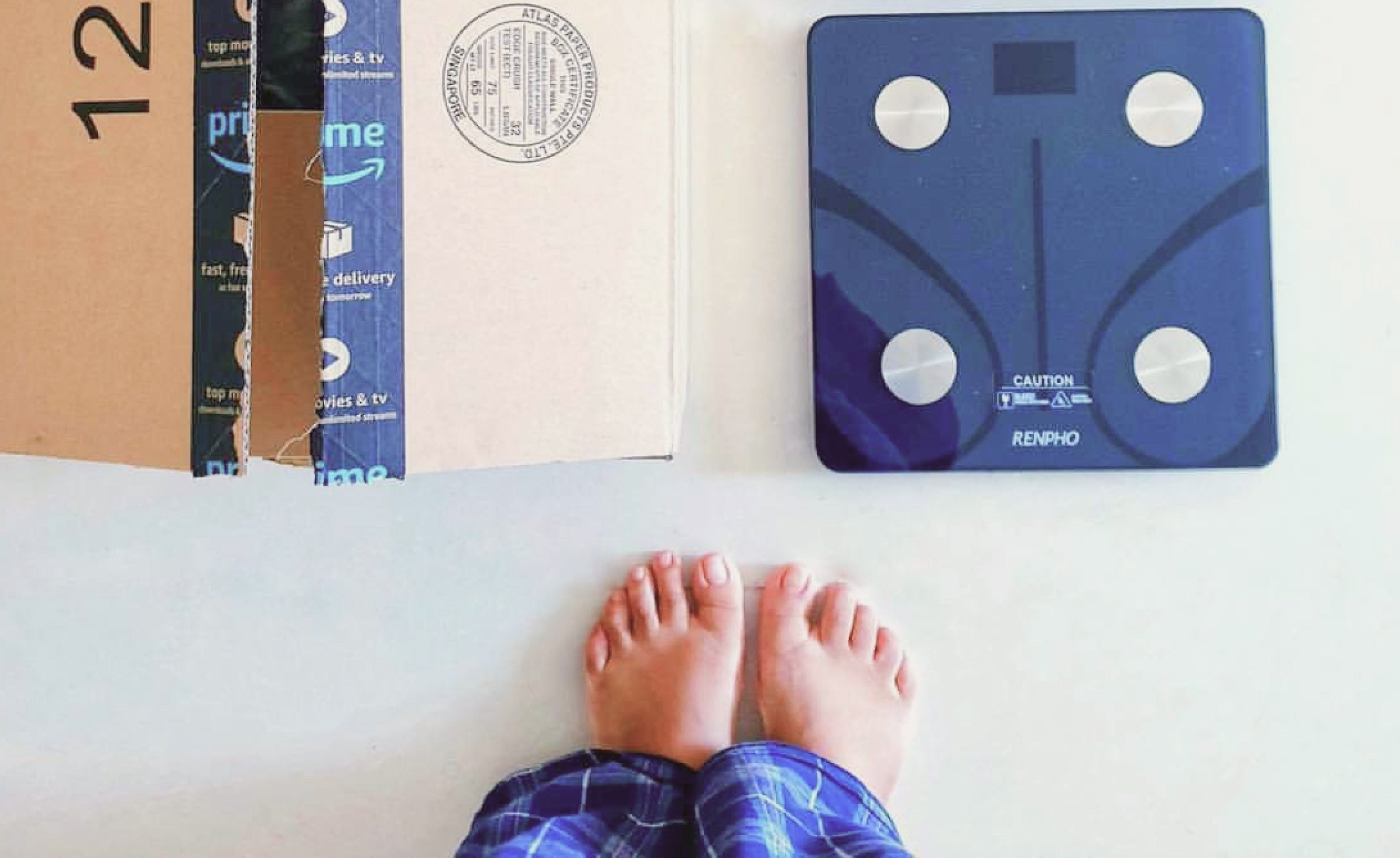
Stand still on the scale with your feet placed on the metal sensors. Wait until the number stops changing.
The app should show your weight and may ask you to confirm the user profile. This test confirms that the scale and app are communicating correctly.
8. Check data syncing
Close and reopen the app. Look for the new measurement in your history.
If the reading appears only when your phone is nearby, the scale may use Bluetooth rather than Wi-Fi. That is normal for many models. With Wi-Fi support, the scale may upload readings even when your phone is in another room.
How to Pair a Smart Scale With Bluetooth
Bluetooth pairing is often the fastest method. It works well for people who weigh themselves with their phone nearby.
Keep these tips in mind:
• Pair inside the scale’s app instead of the phone’s Bluetooth menu.
• Keep the phone within 3 to 10 feet of the scale.
• Wake the scale before searching for it.
• Close other fitness apps that may be trying to connect to the same device.
• Turn Bluetooth off and on if the app cannot find the scale.
Some scales do not appear in the regular Bluetooth device list. This does not mean the scale is broken. The manufacturer may use a special connection process that happens only through the app.
One lesson I learned while testing connected devices is to avoid repeated pairing attempts without resetting anything. A phone can remember a failed connection and keep trying to use it. If the app cannot find the scale, remove the old connection in the app, restart Bluetooth, and try again.

How to Pair a Smart Scale With Wi-Fi
Wi-Fi pairing gives a smart scale a wider connection range. Once connected, the scale can often send readings to your account without keeping your phone next to it.
To pair a Wi-Fi smart scale:
Open the official app.
Choose the scale from your device list.
Select Wi-Fi setup.
Enter your home network password.
Keep the scale near the router during setup.
Wait for the confirmation message.
Move the scale to its final location and complete a test reading.
A weak signal can interrupt setup. Thick walls, metal appliances, and a distant router may cause trouble. If the scale connects near the router but not in your bathroom, the problem is likely signal strength rather than the scale itself.
Some older models support only 2.4 GHz networks. Guest networks, hotel networks, and networks that require a web sign-in page may not work. Check the product instructions before changing router settings.
How to Pair a Smart Scale With Apple Health or Android Apps
Pairing the scale with a health platform is a separate step from connecting the scale to your phone. First, make sure the scale works in its own app. Then connect the health platform.
In the scale app, look for settings such as:
• Connected apps
• Health integrations
• Data sharing
• Apple Health
• Google Health Connect
Choose the data types you want to share. These may include weight, body fat percentage, BMI, and other measurements.
Review the permissions carefully. You may allow weight data to sync while blocking other categories. Syncing can also create duplicate entries if more than one app writes the same measurement.
Health platforms can help you view long-term trends, but do not treat every number as a diagnosis. Home smart scales estimate body composition through bioelectrical impedance. Hydration, food, exercise, skin contact, and foot placement can affect these estimates.
How to Pair a Smart Scale for Multiple Users
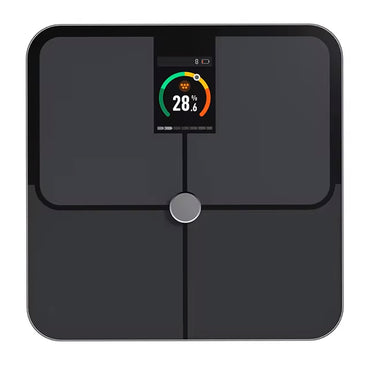
Many smart scales support several profiles. Each person should create a separate profile with accurate information.
The scale usually identifies users by weight history, body measurements, or a combination of both. Some models ask users to confirm their identity in the app. If two people have similar weights, automatic recognition may fail.
For better results:
• Give each user a unique profile.
• Stand still during the reading.
• Confirm the correct profile in the app.
• Keep the app updated.
• Check the history after each weigh-in.
Do not create duplicate profiles for the same person. Duplicate profiles can split your history and make progress trends hard to follow.
Privacy also matters in a shared home. Use individual accounts when possible, and check whether the app allows other household members to view your measurements.

Smart Scale Pairing Problems and Fixes
If your smart scale will not pair, work through the problem one step at a time. Most connection failures come from Bluetooth, permissions, weak Wi-Fi, low battery, or an old saved connection.
The app cannot find the scale
Try these steps:
• Turn Bluetooth off, wait ten seconds, and turn it on again.
• Wake the scale before searching.
• Move your phone closer.
• Close and reopen the app.
• Restart your phone.
• Replace the batteries.
• Confirm that the app has nearby-device permissions.
If another phone is connected to the scale, disconnect it first. Many scales allow only one active setup connection at a time.
The scale appears but will not connect
Remove the scale from the app and start the setup again. If the scale appears in your phone’s Bluetooth settings, select “Forget This Device” or “Unpair,” then reconnect through the official app.
Avoid pressing the reset button unless the manual recommends it. A factory reset may erase Wi-Fi details, user profiles, and stored readings.
Wi-Fi setup keeps failing
Confirm the network name and password. Watch for extra spaces, capital letters, and special characters.
Move the scale close to the router. If the setup still fails, check whether the scale supports your Wi-Fi band. A temporary 2.4 GHz connection often solves this issue for older models.
Measurements do not sync
Open the app and pull down on the history screen to refresh it. Make sure you are signed in to the correct account.
Also check whether the scale is connected to a different phone. Some devices store readings locally and upload them later. Give the app time to sync before repeating the weigh-in.
How to Get Accurate Smart Scale Readings
Pairing a smart scale is only the first step. Consistent use matters more than chasing one perfect number.
For more stable readings:
• Use the scale at the same time each day.
• Place it on a hard, level surface.
• Weigh yourself with bare, clean feet when using body composition features.
• Stand still and look straight ahead.
• Avoid weighing immediately after a large meal or intense workout.
• Keep the scale dry.
• Follow the same routine from one measurement to the next.
Weight naturally changes during the day because of food, fluids, clothing, and waste. Body fat estimates can change even more. Focus on trends over several weeks instead of one result.
Smart scales are useful for tracking patterns. They are not a replacement for clinical equipment or professional medical advice. People with implanted electronic medical devices should follow their clinician’s advice before using body composition functions, because some scales send a small electrical current through the body.
Smart Scale Privacy and Security Tips
A connected scale collects personal health information. Treat the account like any other important digital account.
Use a strong, unique password for the scale app. Turn on two-factor authentication if the app offers it. Keep the app, phone, and scale firmware updated.
Before enabling data sharing, read the permission screen. Understand which data the app collects, where it sends information, and whether you can delete your account or export your records.
Do not connect a personal scale to an unknown public Wi-Fi network. A private home network is safer and more reliable. If you sell or give away the scale, remove your account and perform a factory reset.
Common Mistakes to Avoid When Pairing a Smart Scale
Small setup errors can create large headaches. Avoid these common mistakes:
• Using a third-party app that does not support your model.
• Pairing through Bluetooth settings when the app requires in-app setup.
• Trying to connect while the scale has low battery power.
• Setting up the scale on carpet.
• Entering the wrong Wi-Fi password.
• Ignoring app permissions.
• Pairing the scale with several phones at once.
• Creating multiple profiles for one person.
• Assuming body fat readings are as precise as clinical tests.
• Resetting the scale before checking simpler fixes.
When I help people troubleshoot home health devices, I start with power, distance, permissions, and updates. These four checks solve many problems without deleting useful data.
How Long Does Smart Scale Pairing Take?
Most smart scale setups take about five to ten minutes. Wi-Fi setup may take longer if the app needs a firmware update or the network has compatibility issues.
If pairing takes more than 15 minutes, stop and restart the process. Check the battery, app permissions, Wi-Fi band, and saved Bluetooth connections before trying again.
Can I pair a smart scale without the app?
Some basic scales work without an app, but most smart features require the manufacturer’s app. Without the app, you may see weight on the display but miss history, trend charts, and body composition data.
Why does my smart scale keep disconnecting?
The cause may be low battery, weak Bluetooth range, poor Wi-Fi signal, or an outdated app. Move the scale closer to the router or phone, update the software, and reconnect it through the app.
Can two phones use the same smart scale?
Often, yes, but the process varies by model. Both phones may need the same account, or each person may need a separate account with shared access.
Frequently Asked Questions About How to Pair a Smart Scale
How do I put a smart scale into pairing mode?
Open the scale’s official app and choose the option to add a new device. Then wake the scale by stepping on it or pressing its pairing button, depending on the model.
Why is my phone not finding my smart scale?
Make sure Bluetooth is on, the app has nearby-device permission, and the scale has working batteries. Keep the phone close, close other fitness apps, and restart the pairing process inside the official app.
Do I need Wi-Fi to pair a smart scale?
Not always. Bluetooth-only scales can pair with a phone without Wi-Fi, while Wi-Fi models need a compatible home network for remote syncing and some advanced features.
How do I reset a smart scale before pairing it again?
Check the manual for the reset method, since it may involve a button or removing the batteries. A factory reset can delete saved network details and profiles, so try forgetting the device in the app first.
Can I use a smart scale with Apple Health or Android health apps?
Many smart scales support Apple Health, Google Health Connect, Fitbit, or similar services. Enable the connection in the scale app and choose which measurements you want to share.
Why does my smart scale show the wrong user?
Automatic user recognition can fail when people have similar weights. Confirm the correct profile in the app, avoid duplicate profiles, and check each reading after weighing.
Conclusion
Pairing a smart scale usually involves five main steps: install the correct app, enable Bluetooth, add the scale, connect Wi-Fi if needed, and complete a test weigh-in. A hard floor, fresh batteries, accurate profile details, and consistent routines will make the experience much easier.
If the connection fails, do not panic. Check power, distance, permissions, saved connections, and network compatibility before performing a full reset. Set up your smart scale today, review its privacy controls, and use the data to understand long-term trends rather than one isolated number.

Similar Posts