How To Reset Oral B Electric Toothbrush

So you're hunting for how to reset your Oral B electric toothbrush, and honestly, that's the right first move. A blinking light, a brush that buzzes at 3 a.m., or a handle that won't reconnect to your phone can feel broken. Usually it's not.
The handle just needs a full reboot. The catch is that Oral B doesn't use one universal reset method.
As of 2026, the brand has roughly a dozen active handle families, and each one handles resets differently. A single-button Vitality works differently from a dual-button Genius, and the touchscreen iO line goes through the app. Manufacturer specs confirm the same fact: model number first, everything else second.
So before you hold any buttons, let's find out exactly which brush you own.
Quick Answer
The reset method depends entirely on the model. For a basic single-button handle, press and hold the power button for about five seconds. For a dual-button handle, press and hold the power and mode buttons together for ten seconds.
For an iO model, use the Oral B app. Always check the model number printed on the handle first.
Image source: Bing (Web (fair-use with source credit))
The Model Number Problem
The biggest mistake we see in our research is people guessing their model by looks. A Vitality, a Pro 2000, and a Smart 5000 can look nearly identical at a glance. But the reset procedures are different, and using the wrong one just wastes time.
Flip the toothbrush over. Near the bottom of the handle, you'll find a printed label with the model number, serial number, and sometimes the model name. It's usually tiny, but it's there.
Look for something like "Pro 2 2500" or "Smart 5 5000." That label is the only trustworthy way to know what you're dealing with.
Image source: Bing (Web (fair-use with source credit))
Once you have that number, you can classify the handle into one of three reset groups:
- Single-button models: Vitality, Pro 1000, Pro 1000X, and a few older Triumph models
- Dual-button models: Pro 2000 and above, Smart 4, Smart 5, Smart 6, Genius 8000/9000, iO Series S and L with physical buttons
- Touchscreen / app-heavy models: most iO brushes, where reset happens through the Oral B app
Most people don't know that the brush head reminder uses a separate, simpler reset. That's the small red or green light that tells you to change the brush head. That one can usually be cleared with a three-second press of the power button, no mode button needed.
It's easy to mistake this for a full factory reset. The full reset clears Bluetooth, timer settings, pressure sensor settings, and paired profiles.
If your handle has a companion app connection, a factory reset also clears the pairing data. That means after the reset, you'll need to put the brush back into Bluetooth pairing mode and re-sync it in the Oral B app.
How to Reset Your Oral B: Decision Tree
Find your handle group below, follow that branch, and stop. If you're between groups, err on the side of the model number printed on the label.
Branch 1: Single-Button Models
If your handle has only one button, this covers Vitality models and the Pro 1000 series.
- Turn the toothbrush on with the power button.
- Press and hold the power button for about five seconds.
- Watch the green or red LED near the power symbol.
- When the light flashes or blinks, release the button.
- Turn the brush off, then back on to test.
If that didn't trigger a reset, try holding the power button for ten seconds. Sometimes the first press just wakes the brush from sleep. If nothing happens after ten seconds, you can still reset the brush head reminder with a three-second press.
The factory reset on basic models is limited. If the brush is completely unresponsive, it may be a battery or charging problem.
Branch 2: Dual-Button Models
The dual-button group includes Pro 2000, Pro 3000, Smart 4, Smart 5, Smart 6, Genius 8000, and Genius 9000. These brushes have both a power button and a mode button.
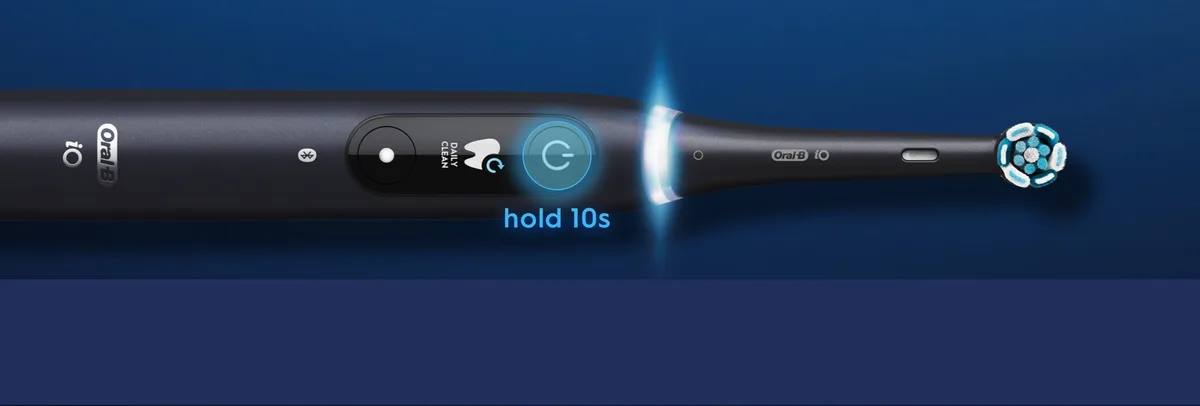
Image source: Bing (Web (fair-use with source credit))
- Make sure the brush is off and not plugged in.
- Press and hold the power button and the mode button at the same time.
- Keep holding both for ten seconds.
- All of the LEDs should flash a few times or the brush will emit a longer beep.
- Release both buttons.
- Turn the brush on to confirm it works.
If you used to see a battery indicator or smart pressure light, those should reset to their default states. Bluetooth pairing is also cleared. On some models, the LED light ring flashes red and green when the reset finishes.
Branch 3: iO Models
The iO line is different because much of the control lives in the app. If you can still use the toothbrush, the safest reset path is:
- Open the Oral B app.
- Pair the brush if you haven't already.
- Go into toothbrush settings.
- Look for "Reset toothbrush" or "Factory reset."
- Confirm the action.
If the brush is unresponsive and won't pair, press and hold the power button for 20 seconds. That's a forced reboot. It clears temporary glitches but doesn't wipe saved data.
For a complete iO factory reset, you'll need a successful app connection. If the brush won't pair at all, contact Oral B support.
Mistakes That Kill the Reset
Most reset failures come down to five avoidable mistakes.
Low battery. A toothbrush with almost no charge may light up but can't complete a reset. Charge it for at least five minutes before trying again. A dead lithium-ion cell can cause the button logic to misbehave.
Mixing up travel lock and reset. Travel lock is activated by holding the power button for a set time. It locks the brush to stop it running in a carry case. The symptom is a brush that turns on the power LED but won't vibrate.
Hold the power button for three seconds to unlock before you reset.
Holding the mode button alone. On dual-button models, holding only the power button or only the mode button does nothing. It has to be both buttons simultaneously.
Letting go too early. A quick tap isn't a reset. The procedure demands a long sustained press, ten seconds or more. If the LED doesn't flash, you let go too early.
Repeat the full duration.
Forgetting to disconnect from the app. On Bluetooth models, the app may trigger a low-power mode or keep the handle in standby. Turn off Bluetooth or disconnect the brush in the app before attempting a factory reset. This prevents the app from interfering.
One more thing: don't submerge the handle while pressing buttons. The toothpaste and water can make the buttons stickier. If your brush is old and the buttons feel stiff, try cleaning the seams with a dry toothpick before you blame the software.
What If the Reset Doesn't Work
Sometimes the reset works, and the brush still misbehaves. Work through these steps in order.
Recharge the brush fully. Put it on the induction charger and leave it for 24 hours. A fully depleted battery can take hours to wake up. If the brush is warm after charging, that's a good sign.
Remove the brush head. Pull it off and wipe the metal shaft down. Water can creep behind the brush head and confuse the electronics. Let the whole handle dry for a day.
Try the reset again on a dry handle.
Check the charger. Use the original Oral-B charger if you can. Generic chargers may not supply enough voltage to power the reset logic. The official spec still suggests using the included charging base.
Inspect the buttons. Over years of use, tiny particles get under the rubber coating. A compressed air can or a soft toothbrush can clear the gaps. If the buttons feel mushy or stick, the reset may not trigger even if you press correctly.
Look up your exact model on the Oral B support site. Different regions sometimes have different firmware behavior, and the printed model number might lead you to the exact user manual. The Oral-B support page lets you search by handle model.
If you've done all of this and the brush still won't turn on, buzzes without stopping, or flashes an error pattern, the issue is likely hardware. Reset procedures can't fix a failed motor, a swollen battery, or a cracked control board. At that point, the handle is probably beyond a clean software fix.

Similar Posts