Why Is Apple Magic Keyboard Not Connecting: Easy Fixes
Apple Magic Keyboard usually fails to connect because of low battery, Bluetooth issues, or pairing glitches.
If you’ve ever sat there staring at your screen while your Apple Magic Keyboard refuses to wake up, you know how frustrating it feels. I’ve run into this more than once while helping set up Macs and iPads, and the good news is that most connection problems are simple to fix once you know where to look. In this guide, I’ll walk you through the real reasons why Apple Magic Keyboard not connecting happens and the best ways to get it working again.

Why Is Apple Magic Keyboard Not Connecting?
When Apple Magic Keyboard not connecting becomes the problem, it usually points to one of a few common causes. The keyboard may be out of battery, not in pairing mode, too far from the device, or stuck on an old Bluetooth connection. Sometimes the issue is not the keyboard at all, but the Mac, iPad, or iPhone that needs a quick reset or software update.
From experience, the biggest mistake people make is assuming the keyboard is broken right away. In many cases, the keyboard is fine, and the problem is a small communication issue between the keyboard and the device. That is why a calm, step-by-step check almost always saves time and stress.
Common Reasons Apple Magic Keyboard Not Connecting Happens
There are several likely reasons Apple Magic Keyboard not connecting shows up in the first place. Knowing the cause helps you fix it faster instead of guessing.
Low or dead battery
A Magic Keyboard with a weak battery may still look normal, but it can fail to pair or keep disconnecting. Even if it worked earlier, battery drain can happen quietly in the background.
Bluetooth is turned off or unstable
Apple Magic Keyboard depends on Bluetooth, so if Bluetooth is off, overloaded, or glitching, the keyboard may not appear. I’ve seen this happen after system updates or when a device has too many Bluetooth accessories saved.
The keyboard is already paired to another device
If the keyboard was last used with a different Mac or iPad, it may try to reconnect there first. This is common if you use the same keyboard across multiple Apple devices.
The keyboard is too far away
Bluetooth range is limited. If the keyboard is far from the device, behind metal objects, or near wireless interference, the connection may fail.
Software or firmware issues
Outdated macOS, iPadOS, or firmware can cause pairing problems. Apple devices are usually reliable, but updates sometimes fix hidden Bluetooth bugs.
Physical damage or internal fault
If the keyboard has been dropped, exposed to liquid, or used heavily for years, the internal hardware may be the issue. This is less common than battery or Bluetooth problems, but it does happen.
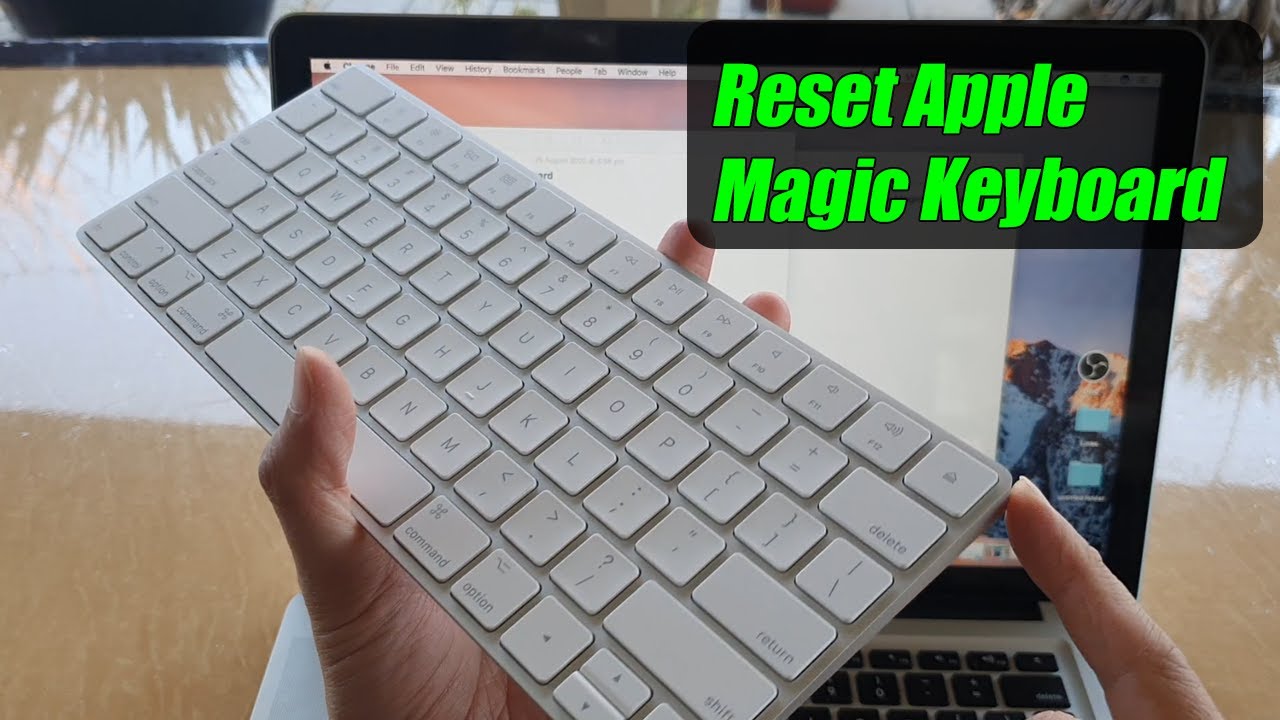
How to Fix Apple Magic Keyboard Not Connecting
The best way to fix Apple Magic Keyboard not connecting is to start with the simplest steps first. That approach is faster, and it avoids making the problem worse.
1. Charge the keyboard fully
Plug the Magic Keyboard into a power source and let it charge for at least 15 to 30 minutes. If the battery is empty, it may need time before it can reconnect.
2. Turn Bluetooth off and back on
On your Mac, iPad, or iPhone, open Bluetooth settings and toggle Bluetooth off, then back on. This refreshes the wireless connection and often clears a temporary glitch.
3. Restart the device
A simple restart can solve a surprising number of pairing problems. This clears temporary system errors that may block the keyboard from connecting.
4. Forget and re-pair the keyboard
If the keyboard appears in Bluetooth settings, remove it and pair it again.
Use these steps:
- Open Bluetooth settings.
- Find the Magic Keyboard in the device list.
- Select Forget This Device or Remove.
- Turn the keyboard off and back on.
- Put it near the device and pair again.
5. Move the keyboard closer
Keep the keyboard near the Mac or iPad during pairing. I usually recommend staying within a few feet during setup because weak signals can cause pairing to fail.
6. Disconnect other Bluetooth devices
Too many Bluetooth accessories can sometimes create confusion. Try turning off other nearby wireless devices, especially if they are already connected to the same computer.
7. Check for software updates
Install the latest macOS, iPadOS, or iOS updates. Apple often includes Bluetooth and accessory fixes in these releases.
8. Clean the keyboard and inspect the port
Dust, dirt, or debris around the charging port can interfere with charging. Use a soft, dry cloth and inspect for visible damage.
9. Reset Bluetooth settings if needed
If the issue keeps coming back, you may need a deeper Bluetooth reset. On some devices, signing out and back in, restarting Bluetooth services, or resetting network settings can help.
10. Test the keyboard on another Apple device
If the keyboard connects to another device, the problem is likely with your original Mac or iPad. If it fails everywhere, the keyboard itself may need repair.
Apple Magic Keyboard Not Connecting on Mac
Apple Magic Keyboard not connecting on Mac is often tied to Bluetooth or login-screen behavior. Sometimes the Mac is waiting for the keyboard to wake up, but the keyboard is not responding fast enough.
Try these Mac-specific fixes:
• Make sure the keyboard is charged and turned on
• Open System Settings and confirm Bluetooth is active
• Remove the keyboard from the device list and pair it again
• Restart the Mac in case macOS Bluetooth services are stuck
• If you use a USB receiver or other wireless gear, disconnect it temporarily
I’ve found that Macs can be picky right after sleep or updates. If your keyboard works after a restart but not before, that usually points to a software side issue rather than a broken keyboard.
Apple Magic Keyboard Not Connecting on iPad
Apple Magic Keyboard not connecting on iPad can feel extra annoying because many people use the keyboard for quick work, notes, or travel. The iPad may not always show a clear error, so the problem can seem mysterious.
Try this:
• Check that Bluetooth is on in Settings
• Make sure the iPad is updated
• Keep the keyboard close during pairing
• Remove any old pairing record
• Restart the iPad and try again
If the keyboard connects but then drops later, the issue may be battery-related or caused by signal interference. In my experience, iPads sometimes need a fresh Bluetooth handshake after OS updates, especially if multiple accessories were used before.
How to Tell Whether the Problem Is the Keyboard or the Device
When Apple Magic Keyboard not connecting happens, it helps to separate keyboard problems from device problems. This saves time and keeps you from replacing something that still works.
Look for these signs:
• The keyboard will not power on at all, which may mean battery or hardware trouble
• The keyboard connects to another device, which points to a problem with your Mac or iPad
• Bluetooth works with other accessories, which suggests the keyboard may be the issue
• The keyboard connects only after restart, which suggests software instability
A good test is to pair the keyboard with a second Apple device. If it connects there immediately, the keyboard is probably fine.
Best Practices to Prevent Connection Problems
Once you fix Apple Magic Keyboard not connecting, it is smart to reduce the chance it happens again. A few habits can make a big difference.
• Keep the keyboard charged regularly
• Update your Apple devices when new software is available
• Avoid storing the keyboard near strong wireless interference
• Remove old Bluetooth devices you no longer use
• Restart your device occasionally to keep Bluetooth fresh
I also recommend charging the keyboard before long trips or meetings. It sounds basic, but a low battery often shows up at the worst possible time, like a cable disappearing right before a deadline.
When to Contact Apple Support
If Apple Magic Keyboard not connecting continues after all the basic steps, the keyboard may need professional help. Hardware issues, charging port damage, or internal Bluetooth faults are harder to diagnose at home.
Contact support if:
• The keyboard never powers on
• It will not charge even with known-good cables and power sources
• It fails on multiple devices
• You see visible damage or liquid exposure
• The problem returns after every reset and re-pair attempt
Apple Support can help confirm whether the issue is repairable or whether replacement is the better option.
Frequently Asked Questions about Why Is Apple Magic Keyboard Not Connecting?
Why is my Apple Magic Keyboard not showing up in Bluetooth?
This often happens when the keyboard is low on battery, too far from the device, or already connected elsewhere. Turning Bluetooth off and on again can also help refresh the list.
Why does my Magic Keyboard connect and then disconnect?
A weak battery, unstable Bluetooth signal, or software bug is usually the cause. Try charging the keyboard fully and restarting your device.
Can I use a Magic Keyboard while it is charging?
Yes, in most cases you can use it while charging. If it still does not connect, the problem is likely not just battery level.
Why is Apple Magic Keyboard not connecting after an update?
Software updates can sometimes reset Bluetooth behavior or cause temporary pairing glitches. Restarting both the keyboard and device often fixes this.
How do I reset my Apple Magic Keyboard?
There is no full reset button on most Magic Keyboards, but you can unpair it, turn it off, charge it, and pair it again. This often works like a reset in practice.
Conclusion
Apple Magic Keyboard not connecting is usually caused by a simple issue, not a serious failure. In most cases, the fix comes down to charging the keyboard, refreshing Bluetooth, restarting the device, or pairing it again.
The key is to work through the problem step by step and not jump straight to a replacement. If you follow the checks in this guide, you’ll have a strong chance of bringing the keyboard back to life without much hassle. If this helped, keep it handy for the next time Bluetooth acts up, and feel free to share your own fix or question.