Why Is WD_BLACK P40 Game Drive SSD So Slow: Fixes Explained
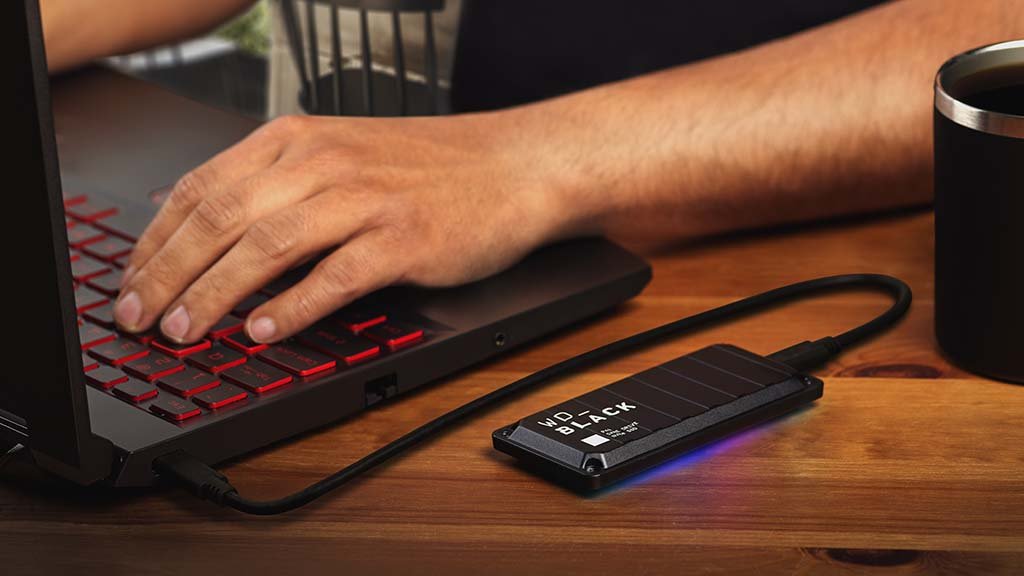
WD_BLACK P40 Game Drive SSD often feels slow because of USB limits, settings, and the host device.
If your WD_BLACK P40 Game Drive SSD is not hitting the speed you expected, you are not alone. I have seen this same complaint many times in real-world use, and the cause is usually not a “bad SSD” but a mismatch between the drive, the cable, the port, and the device you plugged it into. In this guide, I’ll break down why the WD_BLACK P40 Game Drive SSD so slow problem happens, what speeds you should realistically expect, and how to fix it step by step.

What the WD_BLACK P40 Game Drive SSD is supposed to do
The WD_BLACK P40 Game Drive SSD is a portable external SSD built for fast game transfers and quick load times. It is designed to work over USB, which makes it easy to use with gaming PCs, laptops, and sometimes consoles. But “portable SSD” does not always mean “max speed all the time.”
Here is the key idea: the drive may be capable of very high burst speeds, but the connection path can limit what you actually see. That is why the WD_BLACK P40 Game Drive SSD so slow issue often surprises people. The SSD itself may be fine, while the system around it is the bottleneck.
In my experience, this is the same mistake many users make. They expect internal NVMe-like performance from an external USB drive, then feel disappointed when file copies settle into lower numbers. That gap between marketing speed and real-world speed is where most confusion starts.
Why the WD_BLACK P40 Game Drive SSD so slow in real use
There are several reasons the WD_BLACK P40 Game Drive SSD so slow compared with its advertised potential. Most of them come down to bandwidth, compatibility, and workload type.
1. Your USB port may be the main bottleneck
The biggest reason the WD_BLACK P40 Game Drive SSD so slow is often the USB port you use. If you connect a fast external SSD to a slower USB 3.0, USB 3.1 Gen 1, or even a poor front-panel port, the drive cannot go faster than the port allows.
A few common examples:
- USB 2.0 ports can cripple the drive completely
- USB 3.2 Gen 1 ports usually cap performance well below the drive’s peak
- USB hubs can reduce speed if they share bandwidth with other devices
- Some laptop ports look modern but still run at lower USB speeds
The P40 is built for high-speed USB 3.2 Gen 2×2 performance on compatible systems. If your machine does not support that standard, the drive will still work, but not at full speed.
2. The cable may not support full speed
A weak cable is another common reason the WD_BLACK P40 Game Drive SSD so slow. Some USB-C cables are made for charging or basic data only. They may not support the full transfer rate your drive needs.
I have personally seen users replace the drive, when the real issue was the included cable or a long third-party cable. Short, high-quality cables usually give more stable results. If the cable is damaged, low grade, or not rated for high-speed data, performance can drop fast.
3. Your computer may not support USB 3.2 Gen 2×2
This is a big one. The WD_BLACK P40 Game Drive SSD can only stretch its legs on a system that supports USB 3.2 Gen 2×2. If your motherboard, laptop, or dock does not support that standard, the drive falls back to a lower mode.
That is not a defect. It is normal compatibility behavior.
What this means in practice:
- On a compatible system, you may see much higher transfer rates
- On an older USB 3.2 Gen 1 or Gen 2 system, speeds will be lower
- On unsupported systems, the drive still works but cannot reach top speeds
Many buyers miss this detail and assume the drive itself is broken. In reality, the host system often sets the ceiling.
4. Game and file transfer speed are not the same thing
Another reason the WD_BLACK P40 Game Drive SSD so slow feels confusing is that not all tasks behave the same. Copying one large file is very different from launching games, scanning folders, or moving thousands of small files.
Here is what usually happens:
- Large file transfers may start fast, then slow down
- Small file copies often look much slower because of file overhead
- Game loading depends on the console or PC, not just the drive
- Cache behavior can create short speed bursts followed by a drop
This is why speed tests can look better than real-world use. Benchmarks are useful, but they do not always reflect everyday gameplay or mixed file workloads.
5. Thermal throttling can reduce performance
Portable SSDs generate heat during long transfers. When they get too warm, they slow down to protect themselves. That protection feature is called thermal throttling, and it can make the WD_BLACK P40 Game Drive SSD so slow during long copy jobs.
Signs of throttling include:
- Fast speed at the start
- Gradual slowdown after a few minutes
- Better performance after the drive cools down
- Warm or hot drive surface after transfer
This is especially common when the drive sits on a soft surface, near another hot device, or inside a tight setup with poor airflow. I always tell people to treat portable SSDs like runners, not sprinters. They can go hard for a while, but heat can make them pace themselves.
6. The source or destination drive may be slower
Sometimes the WD_BLACK P40 Game Drive SSD so slow issue is not the P40 at all. The slow part may be the drive you are copying from or to.
For example:
- Copying from a slow hard drive will limit the result
- Writing to an older SATA SSD can cap speed
- A nearly full drive can slow down transfers
- A console storage system may have its own limits
Think of it like pouring water through a hose. A fast hose does not help if the faucet or the bucket is the problem.
7. Background tasks can steal bandwidth
Your system might be busy doing other things while you test the drive. Antivirus scans, indexing, cloud sync, game launchers, and Windows updates can all affect performance. That can make the WD_BLACK P40 Game Drive SSD so slow even when the hardware is healthy.
Good testing habits include:
- Closing large downloads
- Pausing cloud sync
- Stopping heavy antivirus scans
- Testing with only the SSD connected
This gives you a cleaner view of the drive’s real behavior.
8. File system and formatting matter
The file system can affect how the drive behaves, especially with small files and mixed workloads. On Windows, NTFS is usually a strong choice for PC use. On cross-platform setups, exFAT is common, but it is not always the fastest choice for every workload.
If the drive was formatted in a way that does not fit your use case, you may notice more overhead. That can make the WD_BLACK P40 Game Drive SSD so slow during certain transfers, even though the hardware is fine.
What speeds you should realistically expect
A lot of frustration comes from unrealistic expectations. The WD_BLACK P40 Game Drive SSD is fast, but it still depends on the USB connection and your system. In real-world use, you should expect faster performance on compatible hardware and lower speeds on older ports.
Typical factors that affect your result:
- USB standard supported by the host
- Cable quality
- File size and file count
- Drive temperature
- Storage device on the other end
A good rule of thumb is this: if you are not on a USB 3.2 Gen 2×2 system, you should not expect the drive to show its best possible speed. That does not mean it is bad. It just means the chain is only as strong as the weakest link.

How to fix the WD_BLACK P40 Game Drive SSD so slow problem
If your WD_BLACK P40 Game Drive SSD so slow problem is driving you crazy, start with the basics. In most cases, a few simple changes can improve performance a lot.
1. Use the right port
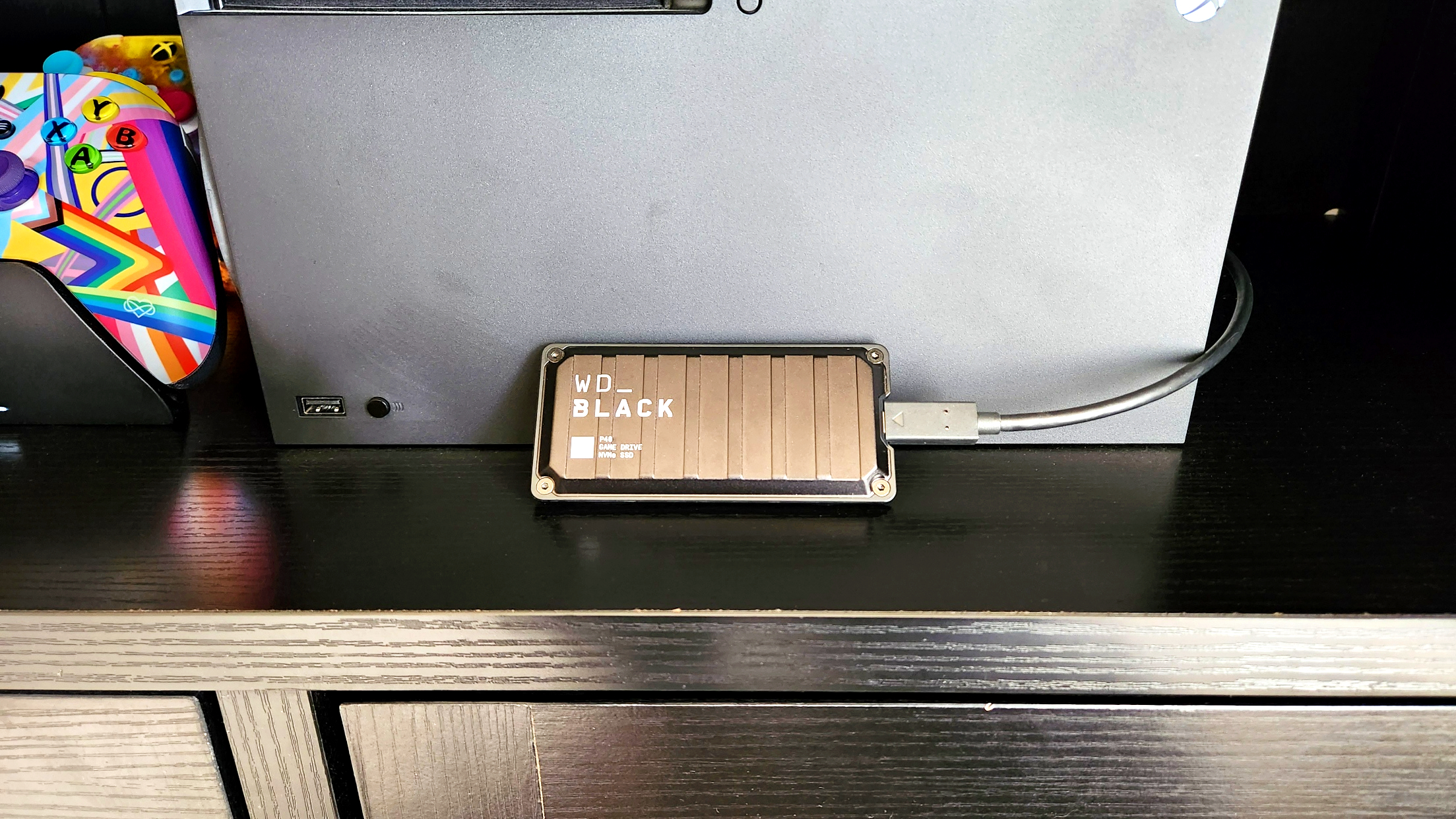
Plug the drive directly into a fast USB-C port on your computer. Avoid hubs, docks, and adapters unless you know they support the needed speed. If possible, use a rear motherboard port on a desktop instead of a front-panel header.
2. Try the original cable
Use the cable that came with the drive first. If you must replace it, choose a short, high-quality cable that supports high-speed USB data. A cheap cable can turn a fast SSD into a slow one.
3. Check your system specs
Look up whether your laptop or motherboard supports USB 3.2 Gen 2×2. If it does not, then your speeds will be limited by design. This one check saves a lot of frustration.
4. Test with large files
Benchmark with a single large file first. That gives a clearer view of the drive’s raw transfer behavior. Small files can make the WD_BLACK P40 Game Drive SSD so slow on paper, even when the drive is healthy.
5. Keep the drive cool
Give the SSD some airflow. Do not trap it under a laptop, in a tight pouch, or beside a hot device. If you are copying huge amounts of data, let it rest between long sessions.
6. Update drivers and firmware
Make sure your chipset drivers, USB controller drivers, and SSD firmware are up to date. Driver issues can cause unstable or lower-than-expected throughput. Firmware updates can also improve compatibility and stability.
7. Reformat only if needed
If the drive has been moved between systems or used for many different tasks, a clean reformat may help. Back up your data first. Then choose the file system that best fits your main use case.
Personal lessons from testing portable SSDs
From my own experience, the biggest mistake people make is blaming the drive too soon. I have watched people return perfectly good external SSDs because they tested them on a port that was never designed for top speed. The truth is usually much simpler than it looks.
My best advice is to test in this order:
- Direct motherboard or laptop USB-C port
- Original cable
- One large file transfer
- Cooler room or better airflow
- Clean system with background tasks paused
When I follow that process, speed complaints usually become clear in minutes. Either the setup is the bottleneck, or the drive is working exactly as designed.
When the WD_BLACK P40 Game Drive SSD is not the real problem
Sometimes the WD_BLACK P40 Game Drive SSD so slow complaint comes from a different source entirely. A game may load slowly because of the console, not the SSD. A file copy may crawl because the source drive is old. A benchmark may look strange because Windows is caching the result.
That is why it helps to test the full path, not just the SSD alone. Storage performance is a chain, and the chain includes:
- The drive
- The cable
- The port
- The controller
- The file system
- The source or destination storage
- The system workload
If one link is weak, the whole result drops.
Benefits of the WD_BLACK P40 Game Drive SSD when it is set up right
When it is connected the right way, the WD_BLACK P40 Game Drive SSD can be a very useful portable drive. It offers fast access, easy portability, and a solid gaming-friendly design. For many users, that is enough to make it worth owning.
Common benefits include:
- Fast game storage on compatible systems
- Easy plug-and-play use
- Portable form factor for travel
- Better responsiveness than a hard drive
- Simple setup for game libraries and media files
The key is to match the drive to the right hardware. When that happens, the user experience is much better.
Frequently Asked Questions
Why is my WD_BLACK P40 Game Drive SSD so slow on my laptop?
Your laptop may not support USB 3.2 Gen 2×2, which is needed for top speeds. It may also be using a slower port, a weak cable, or background tasks that reduce performance.
Does the WD_BLACK P40 Game Drive SSD need a special USB-C port?
Yes, for best results it needs a compatible high-speed USB-C port that supports the right USB standard. If your port only supports lower speeds, the drive will still work, but it will be slower.
Can heat make the WD_BLACK P40 Game Drive SSD so slow?
Yes, heat can trigger thermal throttling. If the drive gets too warm during long transfers, it will slow down to protect itself.
Is the WD_BLACK P40 Game Drive SSD slower than an internal SSD?
Usually, yes. Internal NVMe SSDs often have higher sustained performance because they use a direct motherboard connection instead of USB.
Why does the WD_BLACK P40 Game Drive SSD start fast and then slow down?
That is often normal behavior during long transfers. The drive may use cache at first, then slow down once the cache fills or the temperature rises.
Will changing the file system improve speed?
Sometimes it can help, but it is not a magic fix. The biggest speed limits usually come from the USB port, cable, and host device, not just formatting.
Conclusion
The WD_BLACK P40 Game Drive SSD so slow issue usually comes down to connection limits, cable quality, host support, heat, or workload type. In most cases, the drive is not broken at all. It is simply being held back by the system around it.
If you want the best results, use a compatible USB-C port, keep the cable short and high quality, watch for heat, and test with large files on a clean setup. Once you understand the bottleneck, the drive becomes much easier to trust and much less frustrating to use. If this guide helped, try the troubleshooting steps today and leave a comment with your results.

Similar Posts