Why Is Apple AirPods Pro 2 Making Static Noise: Fixes
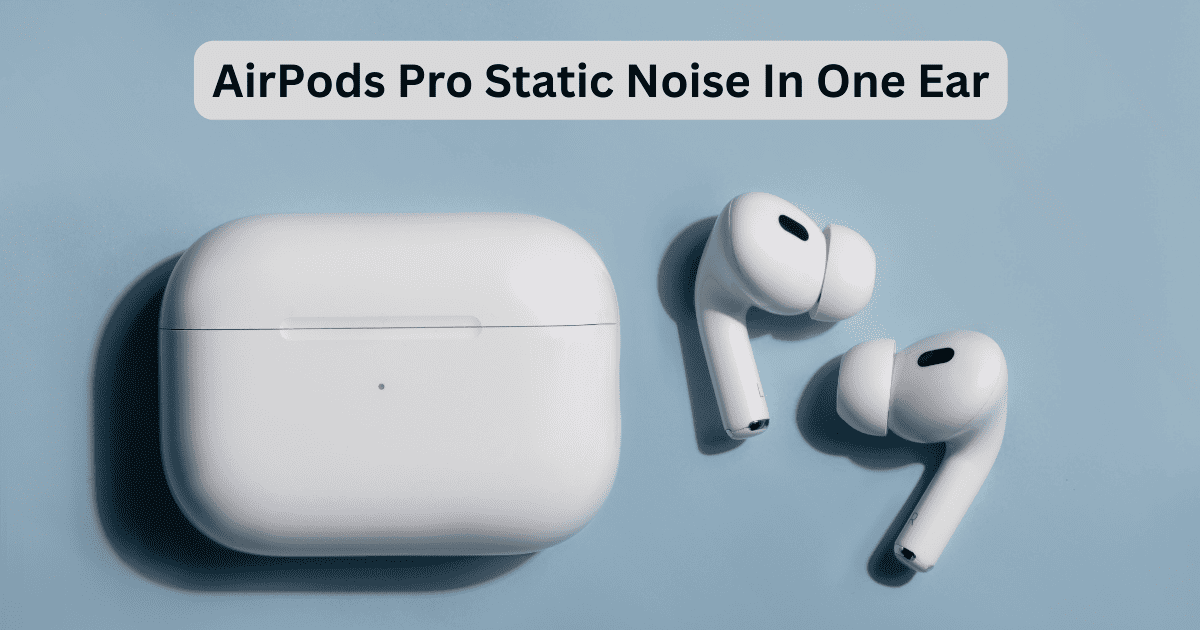
Apple AirPods Pro 2 static noise often comes from ANC glitches, dirt, Bluetooth issues, or hardware faults.
Apple AirPods Pro 2 are known for great sound, strong noise canceling, and a smooth fit. But when static noise starts showing up, it can feel frustrating fast. In my experience, this problem usually points to a small fixable issue, not always a dead pair of earbuds. Let’s walk through the real causes, how to test them, and what you can do to get clean sound back.

Why Is Apple AirPods Pro 2 Making Static Noise?
When people ask why is Apple AirPods Pro 2 making static noise, the answer usually falls into a few common buckets. It may be a software bug, a Bluetooth connection problem, mic or speaker blockage, or a hardware issue tied to Active Noise Cancellation.
I have seen this happen most often during calls, in noisy places, or right after a firmware update. The good news is that many cases are temporary and can be fixed at home with a few careful steps.
Common Causes of Static Noise in AirPods Pro 2
Static noise can sound like crackling, hissing, popping, or faint buzzing. Each sound can point to a different issue, so it helps to narrow down the pattern first.
Active Noise Cancellation or Transparency Mode issues
AirPods Pro 2 use microphones and software to manage outside sound. If those mics pick up interference, dust, moisture, or a software glitch, you may hear static.
This is one of the most common reasons people search why is Apple AirPods Pro 2 making static noise. The noise may get louder when ANC or Transparency Mode is turned on.
Bluetooth interference
Wireless signals do not always travel cleanly. Wi-Fi routers, crowded public spaces, other Bluetooth devices, and even certain USB accessories can disrupt the signal.
When the connection stutters, the audio can crackle or briefly break up. That can make the AirPods Pro 2 sound like they are making static, even when the earbuds themselves are fine.
Dirt, earwax, or moisture
Tiny blockages can affect the microphones and speaker mesh. If the vents are clogged, the earbuds may produce odd sounds, poor bass, or a static-like hiss.
Sweat and humidity can also cause temporary audio problems. I have noticed this after workouts and on hot days, when the earbuds were fine after a full dry-down.
Firmware or iOS bugs
AirPods Pro 2 depend on firmware updates and iPhone software to work well. A bad update or temporary glitch can create strange sound behavior.
If the static started after a system update, that is a strong clue. Many users first notice the issue when Apple rolls out a new AirPods firmware version or iOS release.
Hardware damage
If the earbuds were dropped, exposed to water, or used heavily for a long time, the speaker or microphone parts can wear down. In that case, static noise may stay even after resets and cleaning.
This is less common than software problems, but it does happen. If one earbud is worse than the other, hardware damage becomes more likely.
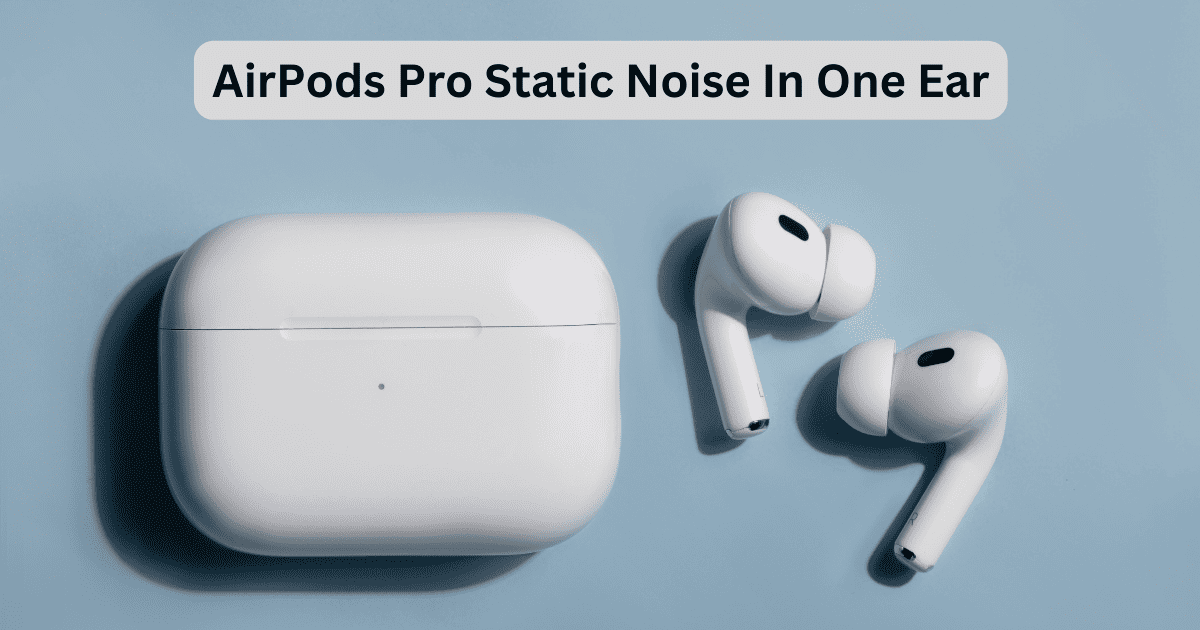
How to Tell What Kind of Static Noise You Have
The type of sound matters. A careful listen can save time and help you fix the right thing.
Here are some simple clues:
• Crackling during calls only suggests mic or call-processing issues.
• Hissing when ANC is on often points to noise control or mic problems.
• Popping when moving your head may suggest a loose fit or sensor issue.
• Static on one side only can indicate dirt, moisture, or a damaged driver.
• Constant noise even when idle may point to hardware or firmware trouble.
A simple test I like to use is switching between ANC, Transparency, and Off. If the noise changes with each mode, the issue is usually tied to the microphones or software, not the speaker alone.
Fixes You Can Try at Home
Before booking service, try a few practical steps. These often solve the problem, especially if the static started recently.
1. Clean the AirPods Pro 2 carefully
Use a soft, dry, lint-free cloth to wipe the earbuds. Clean the speaker mesh and microphone areas gently.
If earwax or debris is visible, use a soft brush or dry cotton swab. Avoid liquids, sharp tools, or compressed air, since they can push dirt deeper or damage the mesh.
2. Turn ANC and Transparency Mode off and on
Switch between noise control modes to see whether the static changes. If the noise disappears in Off mode, the issue may be tied to the microphones or processing system.
This simple test gives you useful clues. It also helps confirm whether you are dealing with an audio output problem or a noise-control problem.
3. Reconnect the AirPods to your device
Forget the AirPods from Bluetooth, then pair them again. This can clear a broken connection that is causing audio artifacts.
A fresh pairing is often worth trying before anything more advanced. I have seen it fix random crackles that looked much worse than they really were.
4. Reset the AirPods Pro 2
Place both earbuds in the case, close the lid, wait about 30 seconds, then reopen it. Hold the setup button on the case until the light flashes amber and then white.
After that, pair them again with your iPhone or other device. If the static was caused by a software or pairing glitch, this step may clear it.
5. Update iPhone and AirPods firmware
Make sure your iPhone is on the latest stable iOS version. AirPods firmware updates usually install automatically when the earbuds are in the case, charging, and near your iPhone.
If the issue began after an update, check whether Apple has released a follow-up fix. Firmware-related audio bugs are not rare in wireless audio gear.
6. Test on another device
Try your AirPods Pro 2 with a different iPhone, iPad, or Mac. If the static disappears, your original device may be the problem.
If the noise stays the same across devices, the earbuds themselves are more likely at fault. This is one of the best ways to rule out Bluetooth or phone-side issues.
7. Check fit and seal
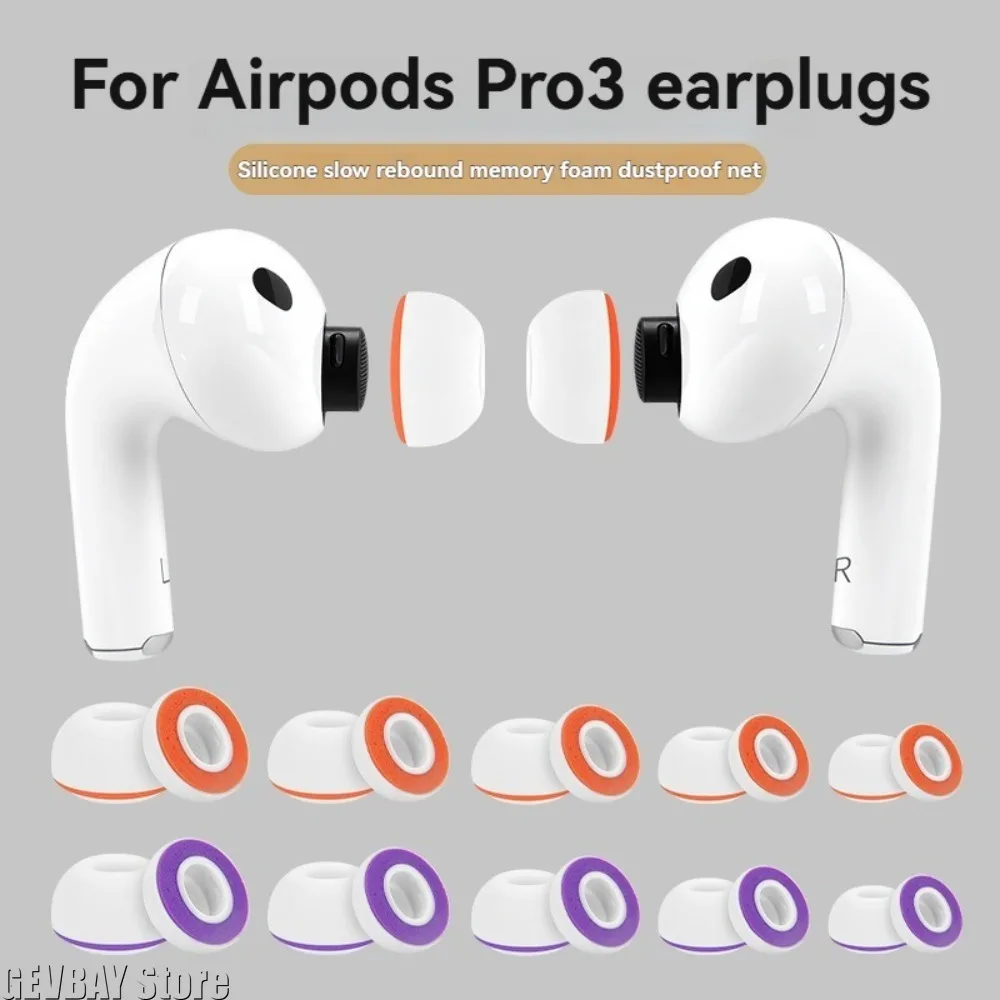
A poor seal can make audio seem thin, noisy, or unstable. Try different ear tips and run the Ear Tip Fit Test in iPhone settings.
A loose fit can also make the microphones work harder, which sometimes adds to the hiss or crackle you hear. A better seal often improves both sound quality and noise control.
When Static Noise Means a Hardware Problem
If you have cleaned the earbuds, reset them, updated software, and tested different devices, but the static still remains, hardware damage may be the cause. At that point, the question of why is Apple AirPods Pro 2 making static noise becomes less about settings and more about repair.
Here are signs that point to hardware trouble:
• Static stays on one side no matter what device you use.
• The noise continues in all modes, including Noise Control Off.
• Audio sounds distorted at normal volume.
• Tapping or moving the earbud changes the noise.
• One earbud gets much worse after moisture exposure or a drop.
In my experience, persistent one-sided crackling is a strong red flag. That usually means the speaker, mic, or internal connection is failing.
Why This Happens More in ANC Earbuds
AirPods Pro 2 are more complex than basic earbuds. They use external and internal microphones, pressure vents, and software-driven audio processing.
That extra tech gives you better sound, but it also adds more places where things can go wrong. Think of it like a car with more sensors: it runs smarter, but a small sensor issue can create a strange warning that feels bigger than the actual damage.
This is why static noise is often tied to ANC, Transparency Mode, or environmental changes. The system is always listening and adjusting, so it can be sensitive to interference.
Real-World Lessons From Troubleshooting AirPods Pro 2
From testing and helping people with wireless audio issues, I have learned a simple rule: start with the easy fixes first. A surprising number of “broken” AirPods are just dirty, mispaired, or stuck after an update.
The biggest mistake I see is assuming the earbuds are ruined right away. That can lead people to replace them before checking the basics like fit, cleaning, reset, and firmware.
Another lesson is to test one variable at a time. If you change the device, the mode, and the environment all at once, you lose the clue that could have led to the real cause.
How to Prevent Static Noise in the Future
A little care goes a long way. AirPods Pro 2 work best when they are kept clean, dry, and updated.
Here are some simple habits that help:
• Wipe the earbuds after workouts or humid weather.
• Keep the charging case dry and closed when not in use.
• Store them away from dust, lint, and loose pocket debris.
• Update your iPhone regularly so firmware can sync properly.
• Avoid exposing the earbuds to water, steam, or rough handling.
These steps will not prevent every issue, but they reduce the odds of hearing that annoying crackle again.
Frequently Asked Questions
Why Is Apple AirPods Pro 2 Making Static Noise only in one ear?
If the static is only in one ear, the most likely causes are dirt, moisture, or a hardware issue in that earbud. Try cleaning the mesh, resetting the AirPods, and testing them on another device before assuming the unit is damaged.
Can low battery cause static noise in AirPods Pro 2?
Yes, low battery can sometimes make wireless audio less stable. If the static appears when the battery is nearly empty, charge both earbuds and the case fully, then test again.
Does resetting AirPods Pro 2 fix static noise?
A reset can fix static noise if the problem comes from a pairing glitch, firmware bug, or temporary software issue. It will not help much if the earbud has physical damage or blocked microphones.
Why does static noise happen more with Noise Cancellation on?
Noise Cancellation uses microphones and signal processing, so it depends on clean audio input. If the mics are blocked, dirty, or glitching, ANC can make the static more noticeable.
When should I contact Apple for repair?
Contact Apple if the static remains after cleaning, resetting, updating, and testing on another device. Persistent noise, especially on one side, often points to hardware service or replacement.
Conclusion
Static noise in AirPods Pro 2 can be annoying, but it usually has a clear cause. In many cases, the issue comes down to ANC behavior, Bluetooth interference, dirt, a firmware glitch, or a hardware fault.
If you are dealing with this problem now, start with cleaning, resetting, and testing different modes. If that does not help, move on to updates and device testing before calling it a hardware issue. A calm step-by-step approach will save you time, money, and a lot of frustration.
If this guide helped, try the fixes today and share your results with others who may be facing the same issue.

Similar Posts
































