Why Is Govee RGBIC LED Strip Lights Not Connecting: Fix It Fast
Govee RGBIC LED strip lights usually fail to connect because of Wi-Fi issues, Bluetooth limits, app setup errors, or power problems.
If your Govee RGBIC LED strip lights are not connecting, you are not alone. I have seen this happen many times during setup and troubleshooting, and the fix is often simpler than people expect. In most cases, the issue comes down to the network band, app permissions, or a weak pairing process, and once you narrow that down, the lights usually come back fast.

Why Govee RGBIC LED Strip Lights Not Connecting
Govee RGBIC LED strip lights are smart LED lights that use the Govee Home app and, in many cases, Wi-Fi or Bluetooth to link with your phone and home network. When the connection fails, the problem is usually not the strip itself. It is often the setup path between the app, the router, the phone, and the light controller.
From my own troubleshooting experience, the biggest mistake people make is assuming the lights are defective right away. More often, the strip is fine, but one small detail blocks the connection. That could be a 5 GHz Wi-Fi band, a router security setting, outdated app firmware, or even a phone permission issue.
How Govee RGBIC LED Strip Lights Connect
Before fixing the issue, it helps to know how the connection works. Govee RGBIC LED strip lights typically depend on one of these methods:
• Bluetooth connection, which lets your phone communicate directly with the lights nearby
• Wi-Fi connection, which allows remote control and smart home features
• App pairing through the Govee Home app, which completes the setup process
• Account login and device sync, which helps store settings and link automation
If any one of these steps breaks, the lights may show as offline, fail to pair, or not respond at all. Think of it like a chain. If one link is weak, the whole thing feels broken.

Common Reasons Govee RGBIC LED Strip Lights Are Not Connecting
There are a few common reasons Govee RGBIC LED strip lights not connecting becomes such a headache. The good news is that most of them are easy to test one by one.
Wrong Wi-Fi band
Many Govee devices work best on 2.4 GHz Wi-Fi, not 5 GHz. If your phone is on one band and the lights are trying to pair on another, the setup may fail.
This is one of the most common reasons I see. Home routers often blend both bands under one network name, which sounds convenient but can confuse smart devices during setup.
Weak Bluetooth signal
If you are using Bluetooth pairing, your phone must stay close to the controller. A weak signal, interference from other devices, or too much distance can stop the lights from connecting.
Bluetooth is like a hallway conversation. If you walk too far away, the message gets lost.
App permission problems
The Govee Home app may need location, Bluetooth, and local network permissions to work correctly. If those permissions are off, the app may not detect the lights.
On iPhone and Android, this can happen after an update or if you skipped a permission prompt during install. It is a small detail, but it can block the whole setup.
Outdated app or firmware
If the app is old or the strip firmware is behind, pairing problems are more likely. Smart devices often rely on current software to stay stable.
I have fixed connection issues just by updating the app before doing anything else. It is a simple step, but it saves time.
Router security settings
Some routers use settings that smart home devices do not like, such as certain security modes, guest networks, or multicast restrictions. If your router is too strict, the lights may not show up.
This is especially common in newer home networks that have a lot of advanced settings turned on by default.
Power or controller issues
If the strip is not getting steady power, the controller may not boot properly. Loose plugs, bent pins, damaged adapters, or a bad power source can all cause connection failures.
A light strip cannot pair if it is not fully awake. It is like trying to call someone whose phone is dead.
Step-by-Step Fixes for Govee RGBIC LED Strip Lights Not Connecting
When Govee RGBIC LED strip lights not connecting becomes the problem, the best approach is to work from the simplest fix to the more technical ones.
1. Check the power connection
Start with the basics.
• Make sure the adapter is firmly plugged in
• Check that the controller light is on
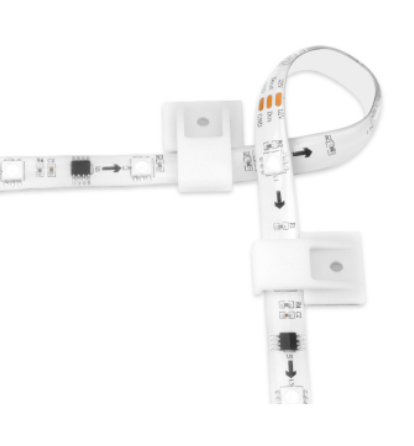
• Inspect the strip for loose connections at each joint
• Try a different outlet if the strip seems unresponsive
If the controller never powers up, the app cannot connect to anything.
2. Restart your phone and the light strip
Power cycling often helps more than people expect.
• Turn off the strip
• Close the Govee Home app
• Restart your phone
• Turn the strip back on
• Try pairing again
This clears small glitches that can happen after an app freeze or a failed setup attempt.
3. Confirm you are on 2.4 GHz Wi-Fi
If the strip uses Wi-Fi, make sure your network is 2.4 GHz. Many smart home devices do not support 5 GHz during setup.
If your router combines both bands into one name, try splitting them temporarily or placing your phone on the 2.4 GHz network before pairing. This one change solves a lot of Govee RGBIC LED strip lights not connecting issues.
4. Turn on all required app permissions
Check your phone settings and allow the permissions the app needs.
• Bluetooth
• Location
• Local network access
• Nearby devices, if your phone uses that option
Without these, the app may not find the lights even if the strip is working perfectly.
5. Reinstall or update the Govee Home app
If the app is buggy, updating or reinstalling can help. A fresh install clears old files that may be causing the pairing problem.
After reinstalling, sign in again and try the setup from scratch. I have had cases where this alone fixed the issue instantly.
6. Move closer during setup
Keep your phone close to the controller and lights during pairing. Try to stay within a few feet of the strip.
Walls, metal shelves, and other electronics can weaken the signal. A short setup distance makes the process much smoother.
7. Reset the strip to factory settings
If the device still will not connect, reset it.
• Check the product manual for the correct reset method
• Hold the reset button or use the power cycle method if your model requires it
• Wait until the strip enters pairing mode again
• Try reconnecting in the app
This step often clears hidden pairing errors. If you are not sure how your exact model resets, it is worth checking the instructions that came with it.
8. Check router settings
If the network still blocks the connection, look at your router settings.
• Disable guest network access during setup
• Turn off MAC filtering if enabled
• Make sure the router allows new smart devices
• Try a standard WPA2 security mode if your router is using a mixed or unusual setup
Some routers are simply less friendly to smart home devices. If you have ever fought with a printer on Wi-Fi, this feels similar.
Govee RGBIC LED Strip Lights Not Connecting on Wi-Fi vs Bluetooth
The fix depends a lot on how the lights are trying to connect. Govee RGBIC LED strip lights not connecting through Wi-Fi usually points to router or band issues. Bluetooth problems are more often about distance, permissions, or signal interference.
Wi-Fi connection problems
Wi-Fi setup usually fails because of:
• 5 GHz instead of 2.4 GHz
• Weak router signal
• Wrong password
• Router security settings
• App permissions or account sync issues
If the lights connect by Bluetooth but fail on Wi-Fi, the device itself is probably fine. The network is usually the weak spot.
Bluetooth connection problems
Bluetooth pairing usually fails because of:
• Phone too far from the strip
• Bluetooth turned off
• App permissions denied
• Too many nearby devices causing interference
• Device already paired to another account or phone
Bluetooth is usually easier to test, which is why I often recommend starting there before moving to Wi-Fi.
How to Prevent Future Connection Problems
A little setup care goes a long way. Once the lights are working, these habits can keep them stable.
• Keep the app updated
• Use a strong 2.4 GHz Wi-Fi signal
• Avoid moving the controller after setup
• Keep the strip away from heavy interference sources
• Do not switch phones or routers without checking device settings first
• Label the network if you use separate 2.4 GHz and 5 GHz names
I have noticed that most repeat connection problems come from router changes or app updates. If your setup stays stable, the lights usually do too.
When the Problem May Be the Hardware
Sometimes the issue is not software or Wi-Fi. The strip, controller, or power adapter may be damaged.
Signs of a hardware problem include:
• The strip never powers on
• The controller gets hot
• Lights flicker even before pairing
• The app never detects the device after a reset
• There are visible cracks, bent pins, or burn marks
If you see those signs, troubleshooting may not be enough. At that point, support or replacement is the more practical path.
What I Learned from Real Troubleshooting
One of the most useful lessons I have learned is to avoid jumping straight to advanced fixes. People often blame the app, but the real problem is something simple like the router band or a denied permission. The fastest wins usually come from checking power, permissions, and Wi-Fi band first.
Another lesson is to reset only when needed. A reset can help, but if you do it too early, you may lose time and make the issue harder to track. Start with the easy stuff, then move step by step.
Frequently Asked Questions of Why Is Govee RGBIC LED Strip Lights Not Connecting?
Why are my Govee RGBIC LED strip lights not showing up in the app?
This usually happens because Bluetooth, location, or local network permissions are turned off. It can also happen if the strip is not in pairing mode or the phone is too far away.
Do Govee RGBIC LED strip lights need 2.4 GHz Wi-Fi?
Yes, many Govee smart lights work best on 2.4 GHz Wi-Fi during setup. If your router is set to 5 GHz only, the lights may not connect.
Why do my Govee lights connect by Bluetooth but not Wi-Fi?
That usually means the strip is working, but the network setup is the problem. Check your router band, password, and security settings, then try pairing again.
Can I use Govee RGBIC LED strip lights without Wi-Fi?
Yes, many models can still work through Bluetooth and basic app control. However, Wi-Fi is needed for remote access, voice assistants, and some automation features.
What should I do if resetting the strip does not help?
If a reset does not fix it, check the power supply, app permissions, and router settings next. If the lights still do not connect, the controller or adapter may be faulty.
Conclusion
When Govee RGBIC LED strip lights not connecting becomes frustrating, the fix is usually closer than it seems. In most cases, the problem comes down to Wi-Fi band choice, app permissions, signal strength, or a simple reset that was not done in the right order.
If you take the troubleshooting steps one at a time, you can usually get the strip working without much stress. Start with power, then permissions, then network settings, and only then move to more advanced fixes. If this guide helped, try the steps on your setup today and share your results or questions so you can keep building a smoother smart home experience.