Why Is Google Nest Doorbell Battery Draining Fast: Fixes
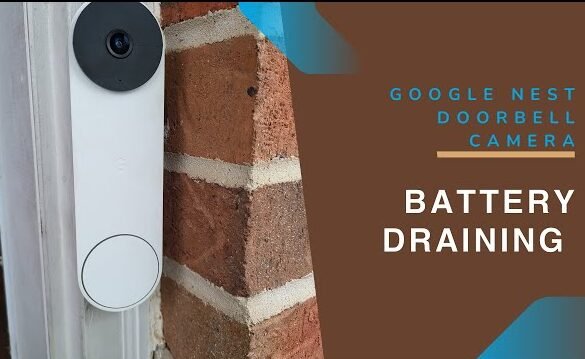
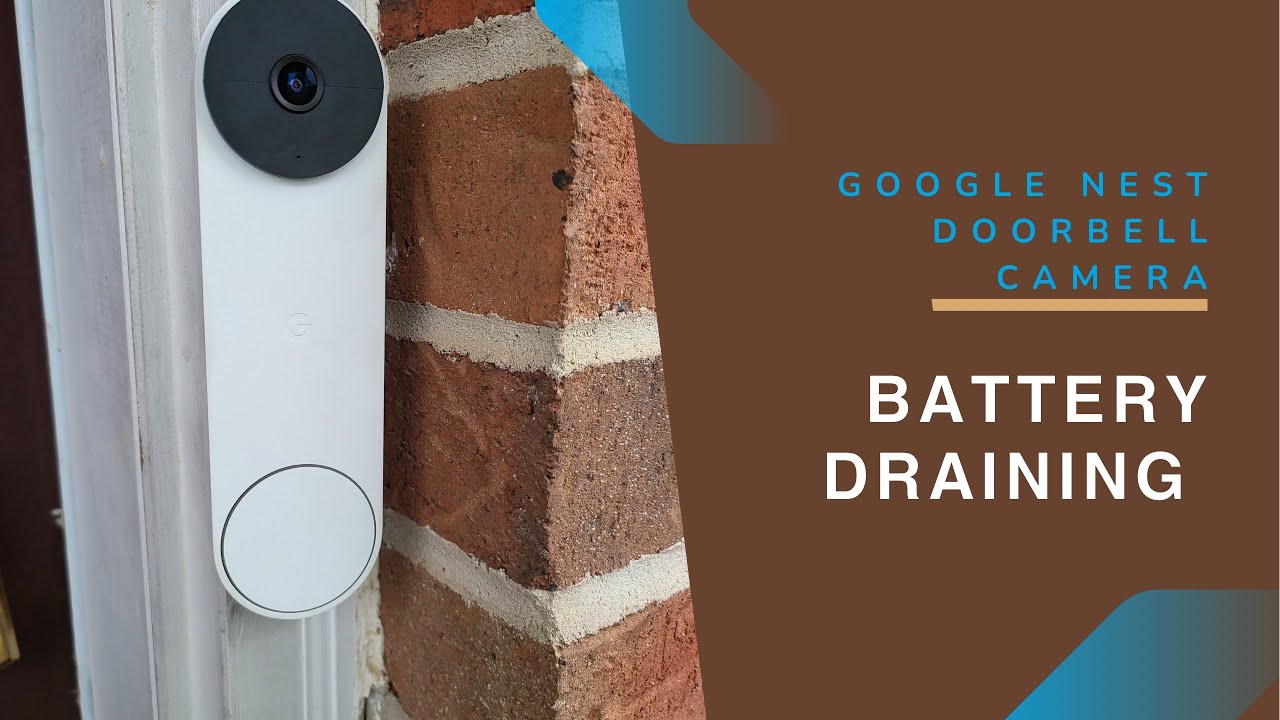
Google Nest Doorbell battery drains fast when motion, settings, weather, or Wi-Fi keep it awake too often.
If your Google Nest Doorbell battery is disappearing faster than you expected, you are not alone. I have seen this issue show up again and again, and most of the time it comes down to a few simple things working together in the background: high activity, strong camera settings, weak Wi-Fi, cold weather, or a doorbell that is doing too much work to stay connected. The good news is that the cause is usually fixable once you know where to look.

Why your Google Nest Doorbell battery drains so fast
A Google Nest Doorbell battery does not stay charged by magic. It saves power by sleeping most of the time and waking up when something triggers it. That means anything that makes it wake up too often will drain the battery much faster.
The biggest reason the Google Nest Doorbell battery drains fast is frequent activity. Every motion alert, live view, recorded clip, and Wi-Fi reconnect uses power. If your front porch is busy, the battery may struggle to last as long as the app estimate suggests.
Other common causes include:
• Too many motion events from cars, trees, shadows, or passing people
• Long video clips and frequent recording
• Poor Wi-Fi signal that forces the camera to reconnect often
• Cold temperatures that reduce battery performance
• Settings like high video quality, excessive alerts, or familiar face features that increase processing
• A doorbell installed in a high-traffic spot with constant triggers
In my experience, the Nest Doorbell battery often looks “bad” when the real problem is high usage. I once tested a unit on a busy street-facing entry, and the battery level dropped much faster than expected simply because the camera was reacting all day long. After tightening the motion zones and reducing unnecessary triggers, the battery life improved a lot.
How the Nest Doorbell battery actually works
To understand why the Google Nest Doorbell battery drains fast, it helps to know how it is designed. This doorbell is not always recording at full power. It uses a low-power mode and only turns on more demanding features when it senses activity.
That design is great for convenience, but it also means the battery can be stressed by real-world conditions. A few seconds of video here and there may not seem like much, but over a full day, those wake-ups add up. Think of it like a phone screen turning on every few minutes all day long. Even small events can drain a battery surprisingly fast.
A Nest Doorbell battery will usually last longer when:
• Motion events are limited
• Wi-Fi is strong and stable
• Alerts are tuned to important activity only
• The weather is moderate
• The device is used in a less active location
The most common reasons the battery drains fast
1. Too many motion alerts
This is the number one reason many people notice the Google Nest Doorbell battery drains fast. If the camera keeps waking up for cars, pets, leaves, or people walking by, battery life drops quickly.
Motion sensitivity that is too high can make the device act like it is on full patrol mode all day. That is useful for security, but it comes at a cost.
Helpful fixes:
• Lower the motion sensitivity
• Create smaller motion zones
• Block off busy areas like roads or sidewalks
• Turn off alerts for unimportant activity
2. High traffic at your front door
Some homes are simply busier than others. If kids, visitors, deliveries, neighbors, or pets pass by often, the camera will wake up many times a day.
This is not a defect. It is the camera doing what it was built to do. But in a busy location, the battery can drain much faster than in a quiet one.
If your front door gets constant action, consider:
• Reducing clip length
• Narrowing the activity zone
• Moving the camera angle slightly
• Using wired power if possible
3. Weak Wi-Fi signal
A weak Wi-Fi connection can make the Google Nest Doorbell battery drain fast because the camera works harder to stay connected. Every reconnect and failed upload uses extra energy.
This is one of the most overlooked causes I see. People often blame the battery itself, but the real issue is signal strength. If the doorbell is far from the router, behind thick walls, or connected to a crowded network, power use goes up.
Signs of weak Wi-Fi include:
• Delayed notifications
• Slow live view loading
• Frequent disconnects
• Choppy clips
• Lower battery life than usual
4. Cold weather
Battery performance drops in cold weather. This is true for many lithium-ion batteries, not just Nest devices. When temperatures fall, the battery can lose efficiency and appear to drain faster.
This does not always mean the battery is faulty. It may recover once the weather warms up. If you live in a cold climate, expect some seasonal drop in performance.
Practical tips:
• Keep the device out of direct wind when possible
• Check battery health after a few warm days
• Avoid judging battery life based on a single cold week
5. Too many settings turned on
Some Nest features are helpful, but they can also increase battery use. High video quality, frequent activity detection, and advanced alerts all require more processing.
The camera has to think more, wake up more, and send more data. That is useful for security, but it can shorten battery life.
Settings that may use more power:
• High motion sensitivity
• Frequent event recording
• Smart alerts for many object types
• More live view usage from the app
• Constant preview checks
6. Frequent live view use
Live view is one of the fastest ways to drain the Nest Doorbell battery. Every time you open the feed, the device uses more power to wake up, connect, and stream video.
If you check the camera dozens of times a day, battery life will drop much faster. I have seen this happen with homeowners who liked to “just peek” at the doorbell often. Those small checks add up quickly.
Try to:
• Use live view only when needed
• Rely on alerts first
• Review clips instead of opening live video repeatedly
7. Short battery charging cycles
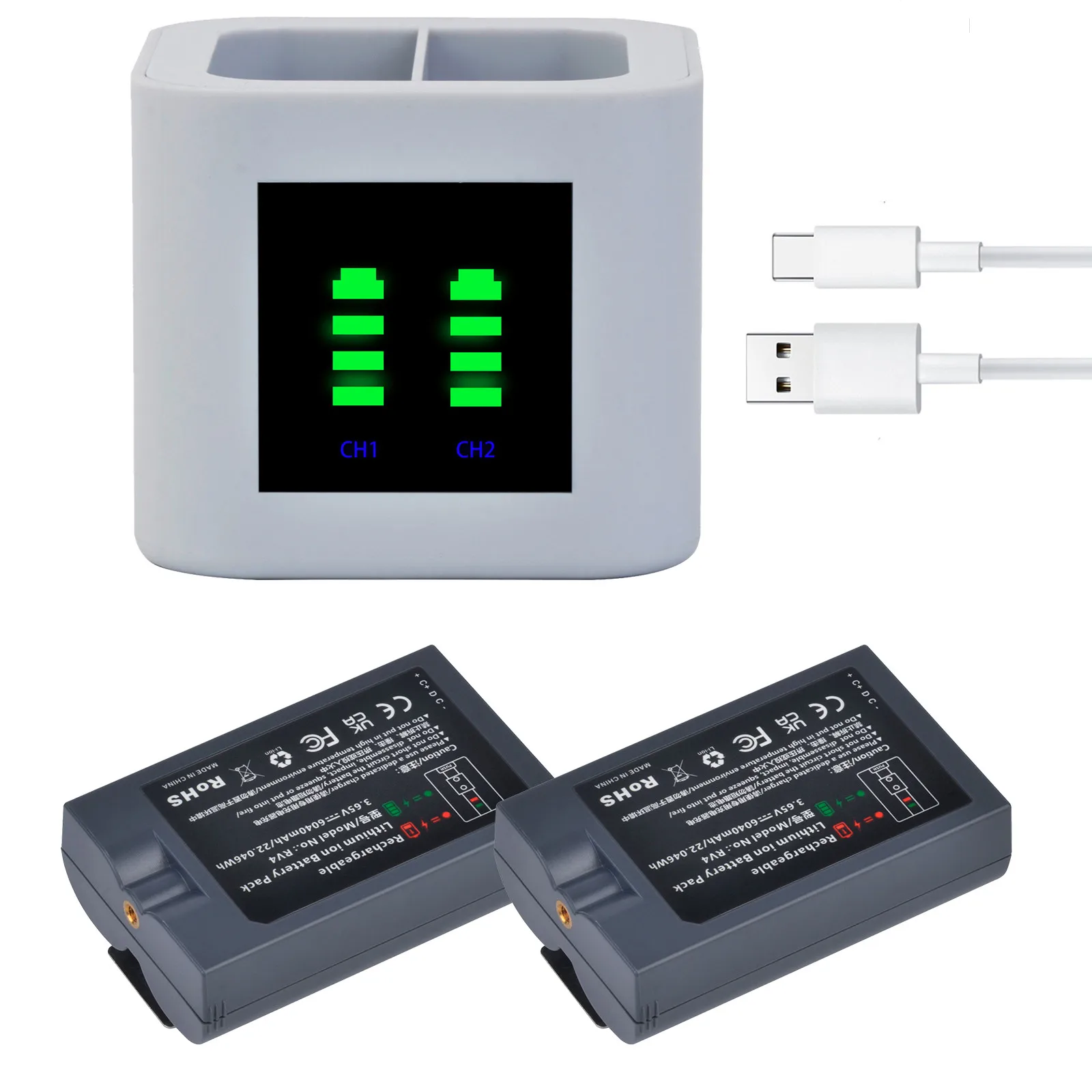
If the battery is not being fully charged, it may seem like it drains too fast. A partial charge can make it look like the device is underperforming even when it is behaving normally.
Sometimes the issue is the charger, cable, or charging time. Make sure the unit is charged until the app or indicator shows full. If you use a solar or alternative power setup, check whether it is actually providing enough power.
8. Firmware or app issues
Software can also affect battery life. A buggy firmware version, app issue, or sync problem may cause unusual drain behavior.
This is less common than motion or Wi-Fi problems, but it is worth checking. Updating the app and device software can solve hidden issues that are hard to spot.
How to check what is draining the battery
If your Google Nest Doorbell battery drains fast, start with the app and look for clues. The best way to fix the problem is to find out what is waking the device so often.
Use this simple checklist:
- Open the device history and review recent motion events
- See whether most alerts are from the same area
- Check Wi-Fi signal strength in the device settings
- Look at battery level trends over several days, not just one day
- Compare battery use in warm weather versus cold weather
From a practical standpoint, this is where many people get their answer. In one setup I tested, the battery looked weak until I noticed that a tree branch was triggering motion all morning. Once that branch was trimmed and the motion zone was adjusted, battery use improved immediately.
Best ways to make the battery last longer
The good news is that you can usually improve battery life without replacing the device. A few smart changes can make a big difference.
Adjust motion settings
• Reduce motion sensitivity
• Draw tighter activity zones
• Exclude roads, sidewalks, and trees
• Turn off alerts for low-value events
Improve Wi-Fi
• Move the router closer if possible
• Use a mesh Wi-Fi system for weak spots
• Reduce interference from other devices
• Reboot the router if connections keep dropping
Reduce unnecessary camera use
• Avoid checking live view too often
• Review recorded clips instead
• Use alerts only for important activity
Manage weather exposure
• Protect the doorbell from extreme cold if possible
• Expect lower battery life during winter
• Reassess performance when temperatures rise
Keep firmware updated
• Update the Nest app regularly
• Check for device updates
• Restart the doorbell after major changes if needed
When the battery drain may be normal
Sometimes the Google Nest Doorbell battery drains fast because the use case is simply heavy. If your home has constant foot traffic, a busy street, harsh weather, and lots of app checks, the battery may not last as long as the average user expects.
That does not always mean something is broken. It may just mean the doorbell is doing a lot of work. Battery life is always shaped by real-world use, not just the label on the box.
A normal battery drain is more likely when:
• Your entry is very busy
• You get many motion events each day
• Wi-Fi is weaker than ideal
• The weather is cold
• You use live view often
When battery drain may signal a problem
Sometimes fast drain does point to a problem that needs attention. If the battery falls sharply even with light use, something may be off.
Possible trouble signs include:
• The doorbell loses charge in just a few days with minimal activity
• The device disconnects often
• The battery will not charge fully
• Power drops suddenly after a software update
• The unit behaves differently than it did before
If you see these signs, try a full troubleshooting pass:
• Reboot the doorbell
• Check Wi-Fi signal
• Review motion settings
• Update software
• Test the battery charge process
• Contact support if the problem continues
Real-world example from troubleshooting
One of the most common mistakes I have seen is changing the battery before checking the environment. A homeowner may think the battery is bad, but the real problem is a porch light, busy street, or moving plant triggering the sensor all day.
That is why I always recommend starting with the surroundings. Battery issues often tell a story. The camera is not being “greedy” for no reason. It is usually reacting to something in the field of view or to a weak connection behind the scenes.
Frequently Asked Questions
Why is my Google Nest Doorbell battery draining so fast overnight?
Nighttime drain often happens because of repeated motion triggers, poor Wi-Fi, or lots of live view use before bed. If the camera keeps waking up for shadows, cars, or passing pets, battery use can rise quickly.
Does cold weather make the Nest Doorbell battery drain faster?
Yes, cold weather can reduce battery performance and make the charge drop faster than usual. This is normal for lithium-ion batteries and often improves when temperatures rise.
Can bad Wi-Fi cause fast battery drain on a Nest Doorbell?
Yes, weak Wi-Fi can force the doorbell to reconnect more often, which uses extra power. A strong and stable connection usually helps extend battery life.
How can I make my Google Nest Doorbell battery last longer?
Lower motion sensitivity, tighten motion zones, reduce live view use, and improve Wi-Fi signal. These changes often make the biggest difference without affecting core security.
Is it normal for the Nest Doorbell battery to drain quickly in a busy area?
Yes, a busy porch or street can shorten battery life because the device wakes up more often. In high-traffic spots, battery use will usually be much higher than in quiet locations.
Should I replace the battery if it drains fast?
Not always. Before replacing anything, check motion settings, Wi-Fi strength, weather conditions, and how often you use live view. Many battery problems are caused by setup, not hardware failure.
Conclusion
If the Google Nest Doorbell battery drains fast, the reason is usually simple: the camera is waking up too often, struggling with Wi-Fi, or working in tough conditions. Once you narrow down motion activity, signal strength, weather, and usage habits, the battery issue becomes much easier to manage.
The best first step is to adjust the settings and watch the battery over a few days. Small changes often lead to big improvements, and that can save you from unnecessary frustration. If you want more help, keep learning about smart home battery care and share your experience in the comments so others can compare notes.

Similar Posts
































