Xerox B235 Troubleshooting: Quick Fixes That Work
Xerox B235 troubleshooting usually comes down to paper, connection, toner, or firmware issues.
If you use a Xerox B235 day to day, you already know how reliable it can be when everything is set up right. But when it jams, goes offline, or refuses to print, the frustration can feel bigger than the problem itself. In this guide, I’ll walk you through Xerox B235 troubleshooting in a clear, practical way, using the same step by step approach I’d use if I were standing next to the printer with you.

Common Xerox B235 troubleshooting problems and what they mean
Most Xerox B235 troubleshooting starts with a simple pattern: the printer is trying to tell you what is wrong, but the message is easy to miss. Some issues are physical, like paper jams or low toner. Others are software based, like Wi Fi drops, driver errors, or outdated firmware.
From my experience, the fastest fix is usually the simplest one. I have seen people assume a machine failure when the real problem was a curled sheet of paper or a loose cable. Think of the printer like a car dashboard: the warning light matters, but the cause may be small.
Common signs include:
- Paper jams or repeated feeding problems
- Printer not found on the network
- Slow printing or jobs stuck in the queue
- Blank pages, faded print, or streaks
- Error codes on the display
- Toner or drum warnings
- Scanner not responding or poor scan quality
A smart Xerox B235 troubleshooting plan starts by identifying the symptom first. Once you know the symptom, the cause becomes much easier to isolate.

Start with the easiest Xerox B235 troubleshooting checks
Before you dig into settings, always begin with the basics. In many office environments, 80 percent of printer problems come from simple setup issues, not hardware failure. I learned this the hard way early in my career, when a “dead” printer turned out to be powered off at the wall.
Try these first:
- Check that the printer is powered on
- Make sure the power cable is fully seated
- Confirm the display is active and not sleeping
- Reseat the USB or Ethernet cable
- If using Wi Fi, confirm the router is online
- Restart the printer and your computer
- Check the paper tray and toner door are fully closed
If the printer still fails, note the exact message or error code. That little detail can save a lot of time because Xerox B235 troubleshooting often depends on the specific alert shown on the screen.
Fix paper jams and paper feed issues
Paper jams are one of the most common Xerox B235 troubleshooting issues. They usually happen when the paper path has a snag, the paper is too curled, or the tray is overloaded. Even high quality printers can struggle if the paper stock is poor.
Here is the best way to handle it:
- Turn off the printer if a jam feels severe.
- Open the front cover and remove the toner cartridge if needed.
- Gently pull jammed paper in the direction of the paper path.
- Check the tray, rollers, and output area for torn scraps.
- Fan the paper stack before reloading it.
- Use only supported paper sizes and weights.
Helpful paper feed tips:
- Do not overfill the paper tray
- Keep paper dry and flat
- Avoid wrinkled or damaged sheets
- Adjust the paper guides snugly
- Use the recommended paper type for labels or envelopes
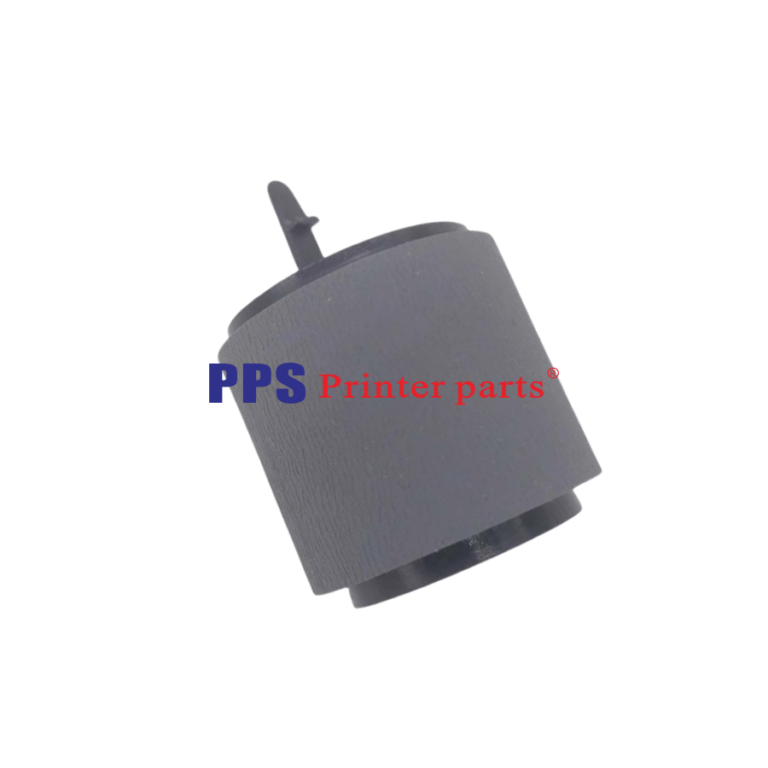
If jams keep happening, the rollers may be dirty or worn. In that case, clean them carefully with a lint free cloth and inspect for wear. In my experience, paper jams often repeat when the paper tray guides are too loose, so that small adjustment matters more than people expect.
Resolve Xerox B235 troubleshooting for Wi Fi and network printing
Network problems are another big Xerox B235 troubleshooting area. The printer may be fine, but the connection between the printer, router, and computer can break. This is especially common in offices with weak Wi Fi or crowded networks.
Try these steps:
- Verify the printer is connected to the correct Wi Fi network
- Print a network configuration page
- Check that the router is broadcasting normally
- Move the printer closer to the router if the signal is weak
- Restart the router, printer, and computer
- Remove and re add the printer on your device
- Confirm the printer IP address has not changed
If you use static IP settings, make sure the address does not conflict with another device. I have seen Xerox B235 troubleshooting fail simply because the printer got a new IP after a router reboot. That kind of issue feels confusing, but it is very common.
For best results, assign the printer a stable address in the router or use a reserved IP if your network allows it. That makes future printing much more reliable.
Fix print quality problems on the Xerox B235
Print quality complaints can look dramatic, but the cause is often straightforward. Xerox B235 troubleshooting for print quality usually involves toner, drum condition, paper type, or printer settings. Before replacing parts, test the basic checks.
Common print quality issues include:
- Faded print
- Streaks or lines
- Spots or smudges
- Ghosting
- Blank pages
- Uneven text density
What to do:
- Remove the toner cartridge and reinstall it
- Shake the cartridge gently if allowed by the manufacturer guidance
- Check toner level and replace if low
- Run the printer cleaning or calibration option
- Confirm you are using the correct paper type setting
- Clean the interior if toner dust has built up
A fading print issue can also happen when the printer is set to a draft mode or the wrong media type. That is why Xerox B235 troubleshooting should always include a quick check of print settings. I once spent time chasing a “toner problem” that was really a low density setting in the driver.
If lines continue after cleaning and toner replacement, the drum or imaging parts may need inspection by service support.
Handle toner, drum, and supply warnings
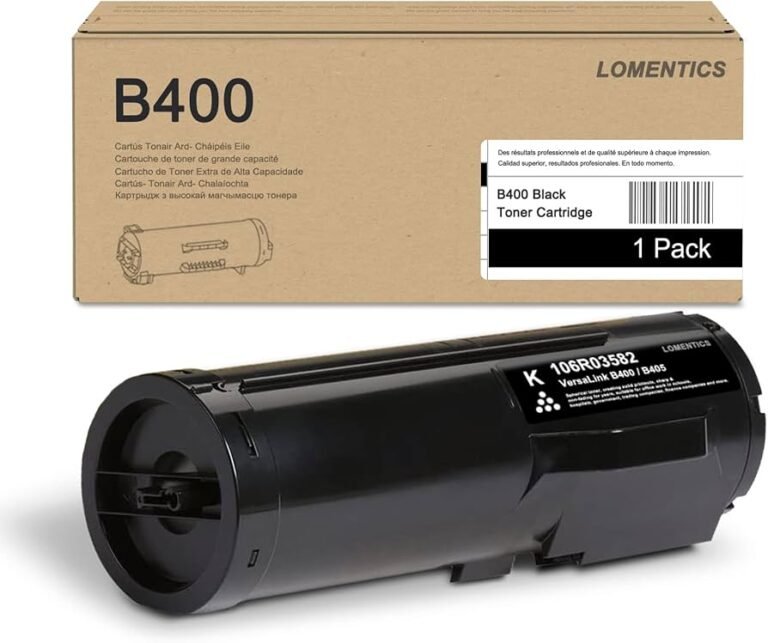
Supply warnings are another frequent part of Xerox B235 troubleshooting. Sometimes the printer is truly low on toner, but other times the cartridge is not seated properly or the chip is not being read correctly. That is why a warning does not always mean the supply is empty.
Good next steps:
- Remove the toner cartridge and reseat it
- Check for damaged packaging or seal issues
- Make sure the cartridge is the correct model
- Verify the cartridge chip and contacts are clean
- Replace the toner if the warning persists
Useful habits that prevent supply issues:
- Store toner in a cool, dry place
- Avoid exposing it to direct sunlight
- Keep spare cartridges sealed until needed
- Use genuine or compatible supplies that match the device specs
If you use third party supplies, be aware that compatibility can vary. That does not mean they always fail, but it does mean Xerox B235 troubleshooting may take longer because the printer can react differently to cartridge chips or drum recognition.
Solve slow printing and stuck print jobs
A printer that is “working” but painfully slow can be just as annoying as one that is offline. In Xerox B235 troubleshooting, slow output often points to a heavy document, a bad driver, network lag, or a queue problem. Sometimes the printer itself is fine, but the computer is sending too much data too fast.
Try this:
- Cancel all print jobs and restart the queue
- Print a simple test page
- Reduce image resolution if possible
- Use the correct driver for your operating system
- Avoid sending extremely large PDF files all at once
- Reboot the printer and computer
If jobs get stuck, clear the queue on your computer and restart the spooler service if you know how to do that safely. I have found that Xerox B235 troubleshooting often gets easier when you isolate whether the delay happens on every file or only large, graphic heavy files.
Fix scanning and copying issues
Many people focus on printing and forget scanning, but Xerox B235 troubleshooting often includes scan and copy errors too. A scanner issue can come from software permissions, connection errors, or a dirty scanner glass.
Check these points:
- Clean the scanner glass and lid
- Confirm the scan app or driver is installed
- Test scan to computer and scan to email separately
- Make sure the document is placed correctly on the glass or feeder
- Restart the scanner software
- Confirm the destination folder has permission
If scans come out blurry, the glass may have smudges or fingerprints. If the document feeder pulls pages crooked, inspect the rollers and guide rails. In real use, a tiny dust spot can create a bigger scan problem than people expect.
Update firmware and drivers for better stability
Outdated firmware or drivers can cause repeated Xerox B235 troubleshooting problems. These updates often improve network stability, print compatibility, and error handling. If your printer has strange behavior that keeps returning, software updates are worth checking.
Best practice steps:
- Check the Xerox support page for your exact model
- Update the printer firmware if a newer version is available
- Install the latest print driver for your operating system
- Remove old drivers before installing new ones if needed
- Restart the printer after updates
I always recommend one rule here: only update when you can do it carefully. Firmware updates are helpful, but they should not be rushed. If power fails during an update, that can create a bigger problem than the one you started with.
Understand error codes during Xerox B235 troubleshooting
Error codes can look intimidating, but they are useful clues. In Xerox B235 troubleshooting, the code usually points to a category such as paper path, toner, scanner, or network. Writing down the exact code helps you narrow the fix fast.
When you see an error code:
- Note the exact number or message
- Restart the printer and see if it returns
- Check the manual or support notes for the code
- Inspect the area linked to the error
- If the code persists, document when it appears
Some codes are temporary and clear after a restart. Others point to hardware issues that need a closer look. The key is not to guess wildly. Good troubleshooting is like detective work: evidence first, conclusions second.
When to reset the Xerox B235
A reset can solve stubborn Xerox B235 troubleshooting cases, especially when settings are corrupted or the device keeps returning to the same error. But resets should be used carefully because they can remove custom settings such as network details or saved preferences.
Types of resets may include:
- Soft reset: simple restart
- Network reset: clears Wi Fi or Ethernet settings
- Factory reset: restores default device settings
Use a reset when:
- The printer keeps freezing
- Network settings are broken
- Errors return after every restart
- Configuration changes do not save
Before a deeper reset, write down your Wi Fi name, IP details, and custom settings. That small step saves time later. I have watched people reset a device and then spend an hour rebuilding what they could have saved in two minutes.
Prevent future Xerox B235 troubleshooting problems
The best Xerox B235 troubleshooting is the kind you never need to do again. A few simple habits can cut down on jams, offline errors, and print quality issues. Maintenance does not need to be complicated.
Good prevention habits:
- Use quality paper that matches the printer specs
- Keep the printer in a clean, dry space
- Restart the printer after major updates
- Replace toner before it runs completely dry
- Clean rollers and glass on a regular schedule
- Keep firmware and drivers current
- Reserve a stable IP address for network printing
Think of the printer like a kitchen tool. If you clean it, store it well, and use the right material, it performs better and lasts longer. That same idea applies to Xerox B235 troubleshooting in the long run.
Frequently Asked Questions
Why is my Xerox B235 not printing even though it is on?
This usually means the printer has a connection, queue, or driver issue rather than a power problem. Check the cable or Wi Fi connection, clear the print queue, and restart both the printer and computer.
How do I clear a paper jam on the Xerox B235?
Open the covers carefully and remove any paper in the direction of the paper path. Be sure to check for torn scraps in the tray, rollers, and output area, since small pieces can trigger another jam.
Why is my Xerox B235 print quality faded?
Faded output often points to low toner, the wrong print setting, or a cartridge that is not seated correctly. Try reseating the cartridge, checking toner levels, and confirming the media settings in the driver.
How do I fix Xerox B235 Wi Fi connection problems?
Restart the printer and router first, then confirm the printer is on the correct network. If the issue continues, remove and re add the printer on your computer and check whether the IP address changed.
Should I reset my Xerox B235 if problems keep coming back?
Yes, but only after you try the basic fixes first. A reset can help with stubborn software or network issues, but it may erase custom settings, so save your network details before you do it.
Conclusion
Xerox B235 troubleshooting becomes much easier when you work step by step and focus on the most likely causes first. Paper jams, Wi Fi drops, print quality problems, and supply warnings are all common, but they are usually fixable without panic. With the right checks, you can solve many issues quickly and avoid repeat problems later.
If you remember one thing, let it be this: start simple, observe the symptom, and make one change at a time. That approach saves time, reduces stress, and gives you a better shot at a clean fix. If this guide helped, keep it handy for your next printer issue, explore more printer maintenance tips, or leave a comment with the Xerox B235 problem you want to solve next.