How To Reset Oral B Io Toothbrush
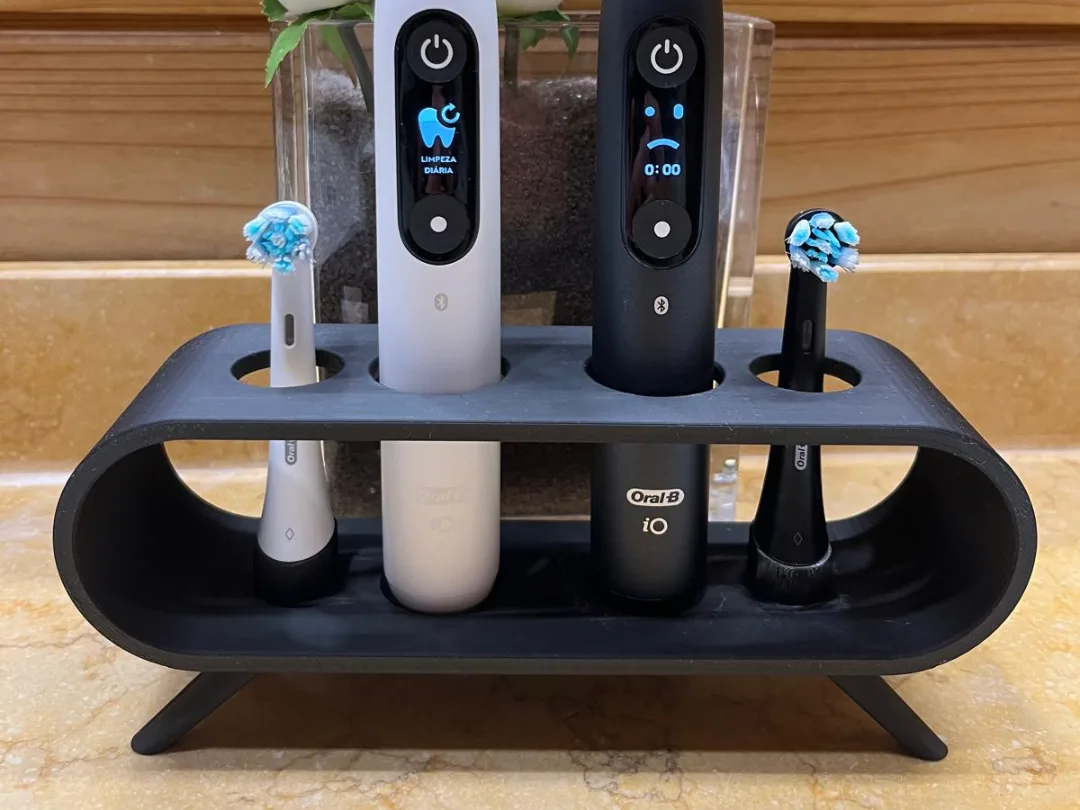
Your Oral-B iO toothbrush isn't responding, and you're staring at a blinking light you can't make sense of. That's exactly when you need to know how to reset an Oral B iO toothbrush. The good news is that the fix is usually simple.
But the right steps depend on your specific model and what's actually going wrong.
Oral-B's internal documentation officially recognizes three reset procedures, each tied to a different iO model group. These vary from a five-second soft wake to a 15-second full factory wipe. Choosing the wrong one can waste your time or leave you thinking the brush is broken when it's just in sleep mode.
Let's walk through the exact conditions and steps so you get it right the first time.
Image source: Bing (Web (fair-use with source credit))
Quick Answer
Press and hold the power button for 10 seconds. For iO2 and iO3 models, hold for 15 seconds. The smart ring will flash blue and beep.
That completes a factory reset. For a soft reset, hold the button for 5 seconds.
When Your Oral-B iO Needs a Reset
Your toothbrush does not have a visible reset button. The power button handles everything. You only need to reset it in three specific situations.
The brush is completely unresponsive. You press the power button and nothing happens. The screen or smart ring stays dark. This usually means the brush is in deep sleep mode, not broken.
The brush won't connect to the Oral-B app. You open the app and it says "toothbrush not found." The Bluetooth light blinks endlessly. A reset clears the pairing data so the brush can find your phone again.
The smart ring is stuck on a blinking light. Some users report a blinking red or blue light that will not stop. It drains the battery and keeps the brush from working normally. A full factory reset gets it back to a stable state.
If your brush works fine but you are selling it or giving it away, a factory reset is still a good idea. It wipes your personal brushing data and returns the brush to out-of-box condition.
Soft Reset vs. Factory Reset: What Each One Does
These two resets serve completely different purposes. Mixing them up is the most common mistake people make.
A soft reset wakes the brush from sleep mode. Think of it as pressing snooze on an alarm. The brush gets confused if it sits unused for a while or if the battery drains completely. A short button press tells it to wake up.
No settings are lost. No data is erased.
A factory reset clears everything. It wipes your personalized brushing modes, intensity settings, and Bluetooth pairing data. The brush returns to exactly how it left the factory. You have to set it up again from scratch.
Here is what each reset does and does not erase:
| What happens | Soft reset | Factory reset |
|---|---|---|
| Brushing mode settings | Preserved | Deleted |
| Bluetooth pairing data | Preserved | Cleared |
| Brushing history in the brush | Preserved | Deleted |
| Time and date settings | Preserved | Reset to default |
| Smart ring color preferences | Preserved | Reset to default |
For most everyday problems, start with a soft reset. You have nothing to lose. Only move to a factory reset if the brush is still unresponsive or stuck after the soft reset.
How to Reset Your Oral-B iO (Steps for Every Model)
The exact button hold time changes based on your model. Oral-B groups its iO lineup into two categories for reset purposes.
Group 1: iO2 and iO3. These entry-level models lack a smart ring and have a simpler interface. They need longer hold times to trigger a reset.
Group 2: iO5 through iO10. These premium models have a smart ring that gives visual feedback during a reset. They respond faster to button holds.
Soft reset for iO2 and iO3
Place the brush on the charging cradle. This is critical. These models will not wake from sleep mode unless they sense power.
Press and hold the power button for 5 seconds. Release when the LED flashes once and the brush vibrates briefly. The brush should turn on normally after that.
Soft reset for iO5 through iO10
These models can often wake without the charger. Press and hold the power button for 5 seconds. Watch the smart ring.
It should flash blue briefly and then go solid. If nothing happens, place the brush on the charger and try again. Press and hold for 5 seconds.
The brush should vibrate and turn on.
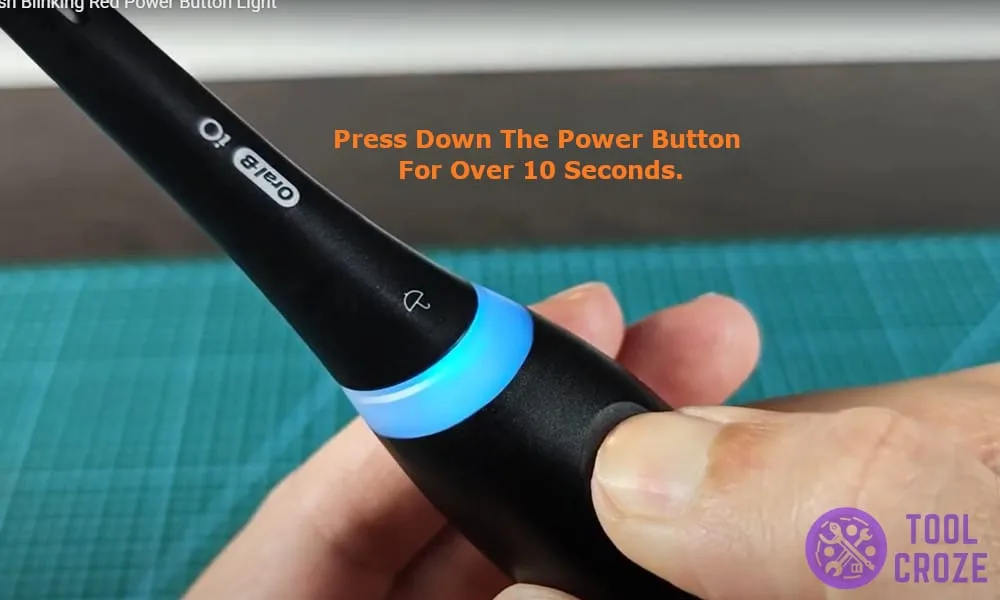
Image source: Bing (Web (fair-use with source credit))
Factory reset for iO2 and iO3
Place the brush on the charger. Press and hold the power button for 15 seconds. The LED will flash three times.
The brush will vibrate or beep three times. Release the button. The LED goes off.
Wait 3 seconds and press the power button once. The brush should turn on in factory default mode.
Factory reset for iO5 through iO10
Place the brush on the charger. Press and hold the power button for 10 seconds. The smart ring will turn blue, then flash, and then turn off completely.
The brush may beep or vibrate once. Release the button. Wait 2 to 3 seconds.
Press the power button once. The brush boots up with all settings cleared.
Visual cues that confirm a reset worked
- The smart ring turns blue and then off completely.
- The LED on the handle goes dark.
- The brush vibrates or beeps once.
- Pressing the power button after the reset causes the brush to start in its default brushing mode.
If you do not see or feel any of these cues, the reset did not work. Try again with the brush firmly seated on the charger. Check that the charger is plugged into a working outlet.
What to Do After a Factory Reset
A factory reset leaves your brush in a blank state. You have a few steps to complete before it is ready for daily use again.
Re-pair with the Oral-B app. Open the app and go to the toothbrush pairing screen. Press and hold the power button on your iO until the smart ring starts flashing blue. The app should find the brush within 10 seconds.
Follow the on-screen prompts to complete pairing.
Restore your brushing mode and intensity. The brush defaults to standard daily clean mode at normal intensity. If you prefer sensitive mode, whitening mode, or a different intensity, change it through the app or by pressing the mode button on the handle.
Charge fully before first use. The reset process uses some battery power. Plug the brush into the charger and let it charge for at least 30 minutes before brushing. A full charge takes about 12 hours.
Oral-B recommends leaving the brush on the charger when not in use.
If you had custom smart ring colors, you need to set those again in the app. The factory reset returns the ring to the default blue color.
Common Reset Mistakes (And How to Avoid Them)
Holding the button too briefly or too long. The most common error is releasing the button too early. Count out the seconds. Do not guess.
For iO2 and iO3, count 15 full seconds. For iO5 through iO10, count 10 full seconds. Holding it longer than 20 seconds rarely causes damage but may not trigger the reset either.
Trying to reset without the brush on the charger. Many users try to reset a dead brush without plugging it in. The brush must sense charging power to wake from deep sleep. Even if the battery shows a partial charge, place it on the charger first.
Refer to the official Oral-B support page for model-specific charging guidance.
Confusing soft sleep wake with a permanent reset. A soft reset only wakes the brush. It does not clear any data. If your brush was working fine and then stopped responding, try the soft reset first.
Only proceed to factory reset if the soft reset does not work.
Using the wrong hold time for your iO model. The iO2 and iO3 require 15 seconds for a factory reset. The iO5 through iO10 need only 10 seconds. Using the shorter time on an iO3 will not trigger a reset.
Using the longer time on an iO7 wastes time but does not cause harm.
Quick Decision Guide: Which Reset and When
You now have the steps for both soft and factory resets. The real question is which one to pick. The answer depends on what your toothbrush is actually doing.
The brush does nothing when you press the power button. Start with a soft reset. Place it on the charger. Hold the power button for 5 seconds.
If the LED lights up or the smart ring glows, you are done. If nothing happens, move to a factory reset.
The brush turns on but will not connect to the app. Try a factory reset first. The Bluetooth pairing data is likely corrupted. A soft reset will not fix that.
A factory reset clears the pairing and lets you start fresh.
The brush works fine but you are selling or gifting it. Use a factory reset. This wipes your personal brushing history and returns the brush to out-of-box condition. The new owner can pair it with their own phone without seeing your data.
The smart ring is stuck on a solid or blinking light. Try a soft reset first. If the light stays on after waking the brush, proceed to a factory reset. Stuck lights often indicate a firmware glitch that a full reset can resolve.
You just replaced the battery or the brush was stored for months. Use a factory reset. The brush may have lost its internal clock and mode settings during storage. A factory reset restores everything to a known good state.
Image source: Bing (Web (fair-use with source credit))
When a reset will not help
A reset fixes software issues. It will not fix hardware problems. If your brush still does not respond after a factory reset, consider these possibilities.
The battery may be completely dead. Leave the brush on the charger for 24 hours. If it still does not turn on, the battery may need professional replacement.
The charger or cable may be faulty. Try a different outlet. Try a different USB adapter if you use one.
The charger base itself can fail. Oral-B sells replacement chargers separately.
Water damage can cause permanent failure. If the brush was submerged or dropped in water, the electronics may be corroded. A reset will not fix that.
Physical damage to the power button is another cause. If the button feels loose or does not click, the internal switch may be broken. Contact Oral-B support for repair options under warranty.
Frequently Asked Questions
Will a factory reset delete my brushing history in the app?
No. Your brushing history is stored in the Oral-B app on your phone, not on the toothbrush handle. A factory reset only clears data stored on the brush.
Your app history remains intact after you re-pair the brush.
How long does a factory reset take?
The actual reset process takes about 10 to 15 seconds depending on your model. The entire process from starting the reset to re-pairing with the app takes about 2 to 3 minutes. Most of that time is spent waiting for the app to find the brush.
What if the brush still will not turn on after a factory reset?
First confirm that the reset actually completed. You should have felt a vibration and seen the LED go off. If the brush is still unresponsive, leave it on the charger for at least 6 hours.
A completely drained battery may need time to recover enough power to turn on.
Does resetting the toothbrush void the warranty?
No. Resetting the brush using the power button is a normal user procedure. It does not void the warranty.
Oral-B explicitly documents the reset process in the user manual. Any damage from disassembling the brush or using sharp objects on the button would void the warranty, but pressing the button will not.
How do I know which iO model I have?
Check the bottom of the brush handle. The model number is printed on the label. It will say IO2, IO3, IO5, IO6, IO7, IO8, or IO9.
You can also check the box the brush came in. The model is clearly marked on the packaging.
Can I reset the brush without the charger?
A soft reset may work without the charger on iO5 through iO10 models. A factory reset requires the charger on all models. The brush needs external power to complete the full reset cycle.
Attempting a factory reset without the charger will not work.

Similar Posts