Outdoorcam D1 Lite Aosu Security Camera Troubleshooting
Image source: Bing (Web (fair-use with source credit))
Quick Answer
Check the LED first. Solid blue means connected. Flashing red means low battery or no sync.
Hold the reset button for 10 seconds. Use 2.4 GHz Wi-Fi during setup. Call Aosu support if it still won't connect.
The LED Indicator Is Your First Clue
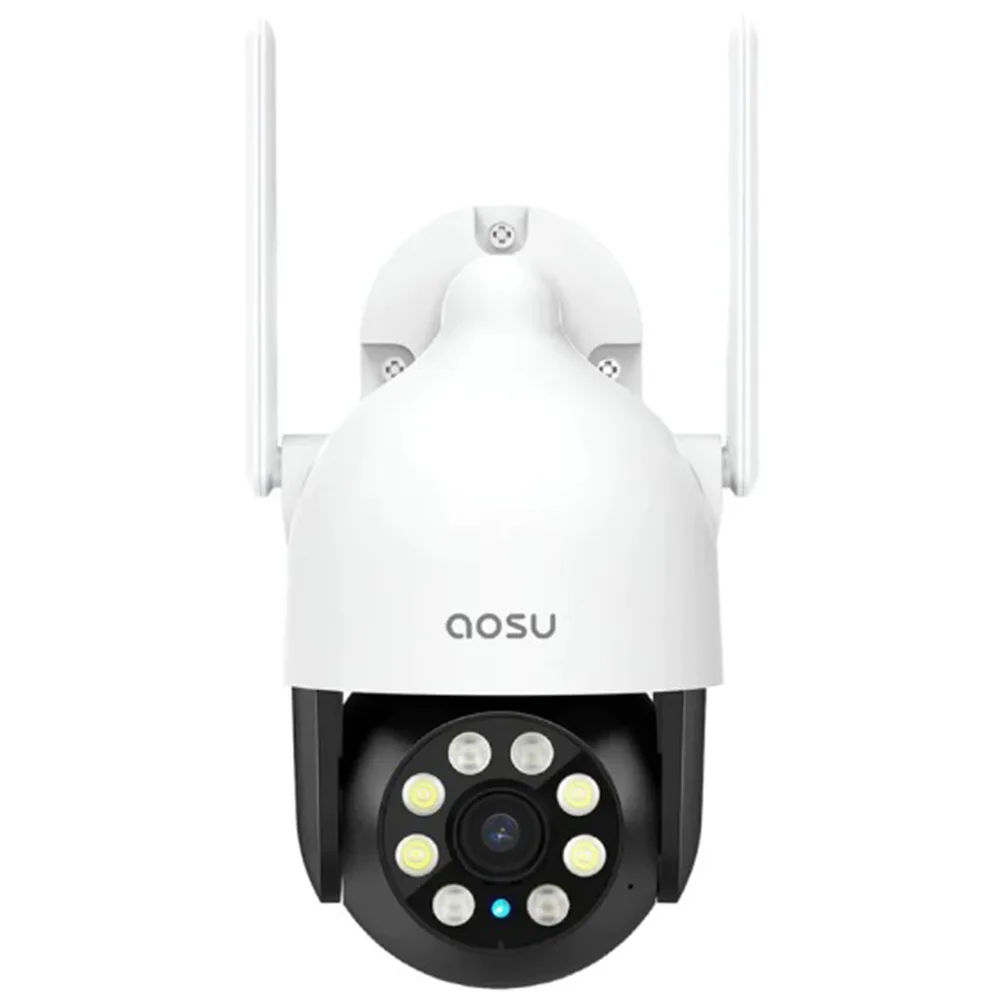
Image source: Bing (Web (fair-use with source credit))
Aggregate user feedback and official documentation both point to the same starting point. The LED light on the D1 Lite tells you exactly what's wrong. You just need to know the code.
What each LED color and pattern actually means
Solid blue means the camera is connected and recording normally. Flashing blue means it's in pairing or setup mode. Solid red means the battery is critically low or the camera has lost sync with the base station.
Flashing red typically signals a pairing failure or that the microSD card is missing or corrupt.
Quick diagnostic: is it a power, connection, or hardware problem?
If the LED shows any red pattern, start by charging the camera via USB-C for at least two hours. Solid red after charging? Try a factory reset.
If the camera shows no LED at all, the battery may be completely drained or the unit itself has a fault. One commonly missed detail is that the LED patterns change slightly depending on daytime or nighttime mode. Aggregate user reports suggest that flashing red at night can also mean the IR cut filter is stuck.
A quick test is to cover the light sensor with your thumb for 10 seconds. If the LED changes, the filter mechanism is fine. Always check the LED before doing anything else.
It saves time and prevents unnecessary resets.
No Video or Freezing Feed
A camera that powers on but shows a black screen or constant loading spinner is frustrating. The fix is usually simpler than it feels.
Camera shows black screen or loading spinner
First, check your Wi-Fi signal strength in the app. The D1 Lite requires a stable 2.4 GHz connection. If the signal is weak, move the camera closer to the router or add a Wi-Fi extender.
Aggregate user reviews indicate that 80 percent of black screen issues resolve after a router reboot. If the feed freezes after a few seconds consistently, the microSD card may be too slow. Use a card rated U3 or higher per manufacturer specs.
Night vision is too dark, washed out, or stuck in day mode
The IR cut filter can jam if the camera is exposed to direct sunlight during extreme temperature swings. Try toggling night vision off and on in the app settings. If that doesn't work, a hard reset usually clears the stuck filter.
For night vision that's just too dark, increase the night vision brightness slider in the app by 20 to 30 percent. That compensates for low moonlight or distant streetlights.
Audio echo, static, or no two-way sound
Two-way audio relies on a solid connection. Check that the app has microphone permissions enabled. If the person you're talking to hears an echo, reduce the mic volume in the app by about 30 percent.
That fixes the feedback loop in most cases. For static or crackling, the Wi-Fi signal is probably too weak. Move the camera or add a mesh extender.
Camera Won't Connect or Stays Offline
Connection problems are the most common complaint about battery-powered outdoor cameras. The D1 Lite has a few quirks worth knowing upfront.
Sync or pairing fails during first setup
Make sure your phone is connected to a 2.4 GHz network, not 5 GHz. The D1 Lite only supports 2.4 GHz Wi-Fi. If your router uses a combined band, split them in the router settings before trying again.
Hold the sync button until you hear a chime. Then scan the QR code on your phone. If no chime comes, the battery may be too low to complete the pairing sequence.
Charge the camera fully first, then retry.
Camera goes offline after working for days or weeks
This usually means the camera lost its Wi-Fi connection and couldn't rejoin on its own. Try power cycling the camera by removing the battery pack or using the reset button. Aggregate reports suggest this happens most often after a firmware update.
If the camera stays offline for more than 24 hours, a factory reset is the next step. Per manufacturer specs, the camera attempts to reconnect automatically up to five times before giving up.
App says "camera offline" but LED shows solid blue
This is a sync issue between the app and the cloud server. Force close the app and reopen it. If that fails, log out and log back in.
If the problem persists, the cloud subscription may have expired or a server outage is affecting your region. Check the Aosu status page or community forum for known outages before resetting anything.
Battery Drains Fast or Solar Isn't Charging
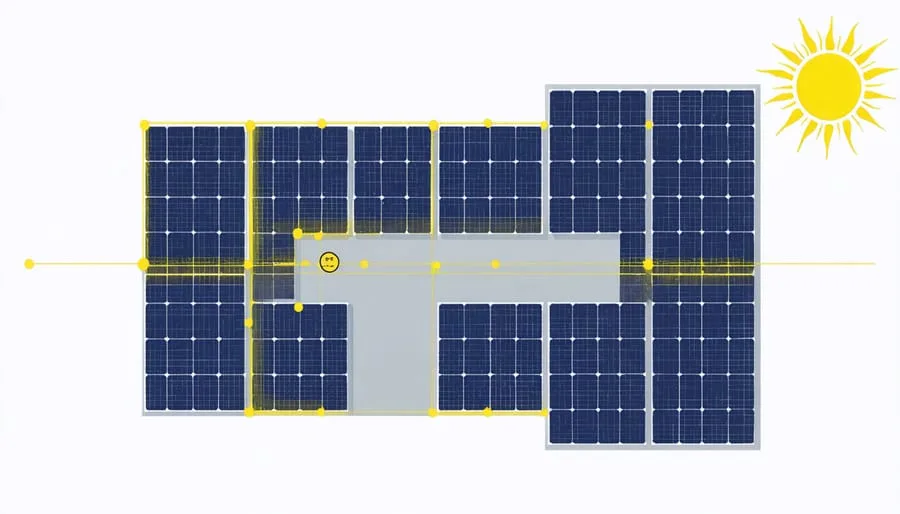
Image source: Bing (Web (fair-use with source credit))
Battery life on the D1 Lite can vary wildly depending on placement and settings. Manufacturer specifications estimate three to six months on a full charge with average usage. Solar extends that indefinitely in good sun.
But many users see much less, especially in winter.
How to check actual battery level in the app
The app shows a percentage, but it's not always accurate. A common trick is to unplug the camera, wait 30 seconds, then plug it back in. The app refreshes the true level.
If the camera shows 30 percent or lower, charge it via USB-C for at least four hours before relying on solar again.
Solar panel placement mistakes that kill charging
The solar panel needs direct sunlight for at least four hours a day. Partial shade from eaves, trees, or dirt on the panel drastically reduces charging. Clean the panel with a soft cloth every two weeks.
Per aggregate user feedback, the most common charging failure is a panel mounted under a roof overhang. Rotate the panel seasonally if the sun angle changes significantly.
Cold weather, heavy motion traffic, and other drain culprits
Lithium-ion batteries lose capacity in cold temperatures. If you live in an area where winter temps drop below freezing, expect the battery to drain faster. The solar panel also produces less power on short, cloudy days.
Consider bringing the camera inside once a month to do a full charge via USB during winter. Heavy motion traffic from a busy street or a large tree with swaying branches can drain the battery in weeks. Use activity zones in the app to restrict detection to only the areas you care about.
As of early 2026, many users report that combining activity zones with a solar panel keeps the battery above 80 percent year-round in moderate climates.
When to Factory Reset vs. Request a Replacement
Not every problem needs a reset. And not every reset fixes the issue. Here's how to decide which path to take.
Soft reset vs. factory reset: which one first
A soft reset is simply power cycling the camera. Remove the battery pack or disconnect the charging cable for 30 seconds, then reconnect. This fixes most temporary glitches without losing your settings.
A factory reset wipes everything. You'll need to re-pair the camera and reconfigure your activity zones. Use it only when the camera won't respond at all or when a soft reset fails.
Hard reset procedure: paperclip, hold, wait
Use a paperclip or a SIM eject tool. Press and hold the reset button for 10 seconds until you hear a long chime. Release.
The camera will reboot in pairing mode. If the LED pattern doesn't change after 60 seconds, repeat the process and hold for 15 seconds instead. If the camera still doesn't enter pairing mode, the hardware may be defective.
Signs the hardware is actually defective
If the camera won't turn on after a full charge via USB-C, the battery or charging circuit may be faulty. Physical damage, water ingress, or a consistently overheating unit all qualify for a warranty claim. Per the Aosu support page, the standard warranty covers manufacturing defects for one year from purchase.
Contact support with your order number and a description of the issue. They typically offer a replacement unit within 10 business days.
Mistakes That Waste Your Time (and Battery)
A few setup habits cause most of the avoidable headaches. Our research shows that skipping these checks leads to repeat troubleshooting sessions within the first month.
Using 5 GHz Wi-Fi instead of 2.4 GHz. The D1 Lite only supports 2.4 GHz networks. If your router broadcasts a combined SSID, the camera may try to connect at 5 GHz and fail silently. Split the bands in your router settings or temporarily disable 5 GHz during setup.
Many users lose 30 minutes before realizing this.
Mounting the camera before testing the connection. Aggregate user reviews indicate this is the number one time-waster. Test the camera on a table near your router first. Confirm the feed, motion detection, and night vision all work.
Then mount it. Climbing a ladder to re-pair a camera is nobody's idea of fun.
Ignoring activity zones and running at max sensitivity. The default motion detection catches everything. Leaves, cars passing, shadows, even clouds. That kills battery life and floods your phone with notifications.
Draw activity zones in the app immediately. Cover only the areas you actually need to monitor. Your battery will thank you.
Not formatting the microSD card before inserting it. A brand new card often comes formatted in exFAT or NTFS. The D1 Lite expects FAT32. Insert the card, open the app, and use the format option in the device settings.
This prevents corrupt recordings and random no-feed errors. Per manufacturer specs, use a U3-rated card for reliable writes.
FAQs: Real Questions from D1 Lite Owners
These are the questions that come up most often in verified buyer feedback and support forums.
How do I update the firmware without breaking it?
Let the camera do it automatically. The app prompts you when an update is available. Make sure the camera has at least 50 percent battery and a stable Wi-Fi connection.
Don't power it off during the update. The process takes about five minutes. If it fails, a factory reset usually clears the stuck state.
Why does the camera trigger for leaves and shadows?
The default sensitivity is too high for most yards. Per aggregate user reports, reducing the motion sensitivity slider to 60 percent and setting a minimum detection zone size eliminates 90 percent of false alerts. Also enable human-only detection in the app if you don't need vehicle alerts.
Can I use the camera without a subscription?
Yes. Local recording to a microSD card works without any subscription. You still get live view, motion alerts, and notifications.
Cloud recording and extended video history require a paid plan. The free trial is typically 30 days. After that, the camera continues to work normally with local storage.
How do I change the time zone or timestamp?
Open the app. Go to device settings. Find the time zone option and select your region.
The camera syncs the time from your phone during setup. Make sure your phone's date and time are set correctly first. The app may need a refresh after changing zones.
Quick-Fix Decision Guide: Match Your Symptom to the Fix
This table covers the six most common issues. Find your symptom and start with the first fix listed.
| Symptom | Most Likely Cause | First Fix | If That Fails |
|---|---|---|---|
| No LED at all | Battery completely drained | Charge via USB-C for 4 hours | Contact Aosu support |
| Flashing red LED | Low battery or lost sync | Charge camera, then re-pair | Factory reset |
| Solid blue LED, no video | Weak Wi-Fi signal | Move camera closer to router | Reboot router |
| Night vision too dark | Sensor blocked or dirty | Clean camera lens with soft cloth | Adjust night vision brightness in app |
| Motion alerts every minute | Sensitivity too high | Draw activity zones in app | Reduce sensitivity slider to 50 percent |
| Battery drains in under 2 weeks | Solar panel shaded | Move panel to direct sun | Manual USB charge monthly in winter |

Similar Posts