Why Is Spigen Arcfield Wireless Charger Blinking: Fixes
A blinking Spigen ArcField charger usually means power, alignment, or device compatibility trouble.
If your Spigen ArcField Wireless Charger is blinking, you are not alone. I have seen this happen in real use, and in most cases it is the charger’s way of saying something simple is off, not that the unit is broken. In this guide, I’ll walk you through what the blinking means, the most common causes, and the exact fixes that usually solve it fast.
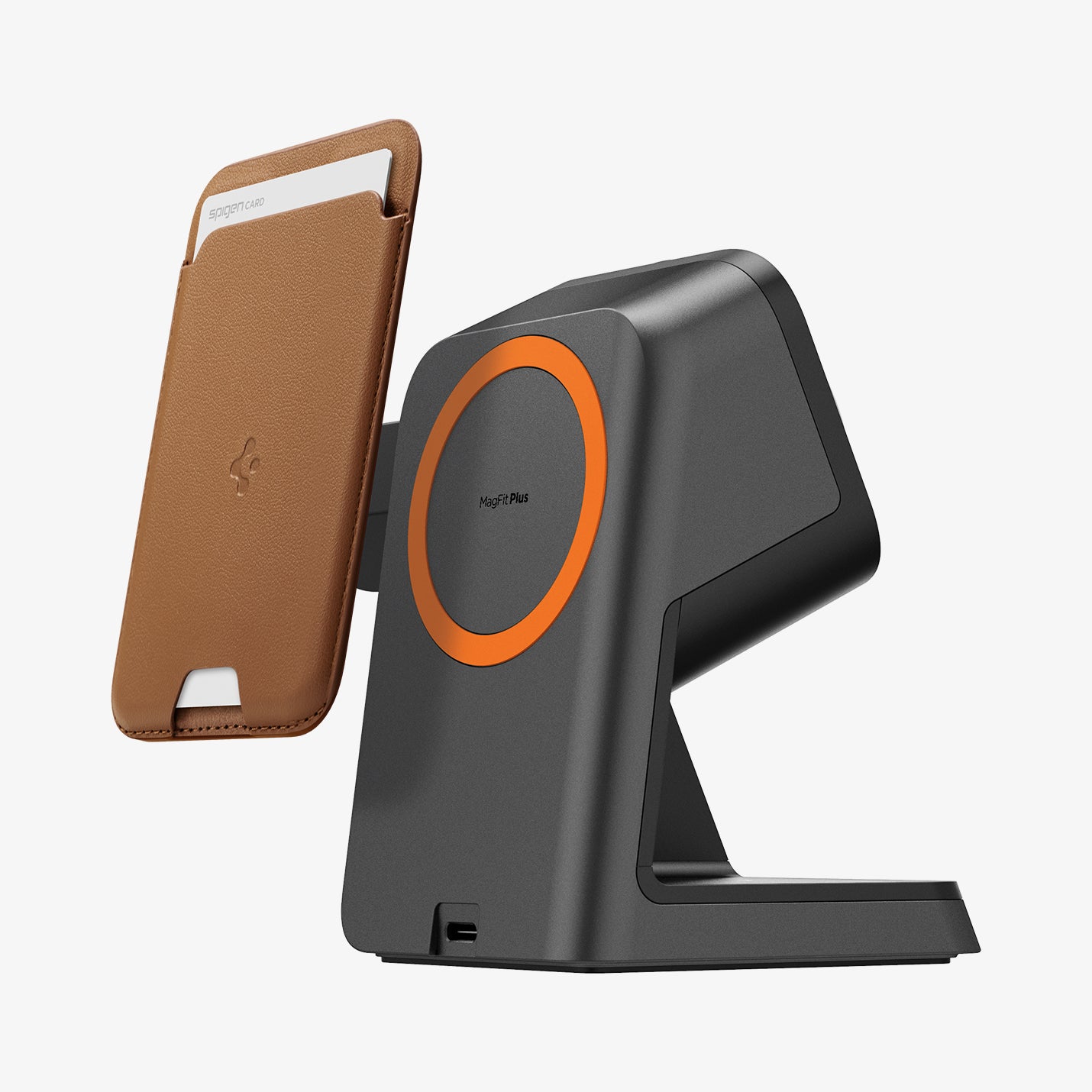
Why Is Spigen ArcField Wireless Charger Blinking?
A blinking light on the Spigen ArcField Wireless Charger is usually a warning signal. It often means the charger is not getting stable power, your phone is not lined up correctly, or something is interrupting wireless charging.
Wireless charging depends on a clean connection between the charger, the cable, the power adapter, and the phone. If any part of that chain is weak, the ArcField may blink instead of charging normally. The good news is that most blinking issues are easy to fix at home.
What the Blinking Light Usually Means
The ArcField light is there to help you spot a charging problem quickly. A blinking pattern often points to one of these issues:
• The charger is not receiving enough power
• The phone is not centered on the charging pad
• A phone case is too thick or has metal parts
• The device is not fully compatible with wireless charging
• There is a temperature or safety issue
• The cable or wall adapter is faulty
In my experience, poor power delivery is the first thing to check. I have seen many wireless chargers act strange when paired with a weak adapter or a low-quality cable. It is a small detail that causes a lot of confusion.
Common Reasons Your Spigen ArcField Wireless Charger Is Blinking
1. Weak or incompatible power adapter
The ArcField needs enough wattage to work properly. If you plug it into a low-power USB port or an old adapter, the charger may blink because it cannot draw steady power.
A wireless charger is a bit like a water pump. If the supply line is too thin, the pump keeps stuttering. The same thing happens with power delivery.
2. Faulty or low-quality charging cable
Even if the adapter is strong, a damaged or poor cable can break the power flow. That can make the Spigen ArcField Wireless Charger blink, disconnect, or charge very slowly.
I once tested a setup that seemed fine on paper, but the cable had an internal break. Swapping the cable solved the blinking instantly. That is why the cable should always be part of the troubleshooting process.
3. Phone is not aligned correctly
Wireless charging is very sensitive to placement. If your phone sits too high, too low, or off-center, the charger may blink and fail to start charging.
This is especially common with MagSafe-style alignment. A slight shift can be enough to interrupt the connection.
4. Case interference
Some phone cases block wireless charging. Thick cases, cases with metal rings, credit card holders, pop sockets, and magnetic accessories can all create problems.
If the charger blinks only when the case is on, that is a strong sign the case is the problem. Try charging with the case removed and see if the light stabilizes.
5. Overheating or temperature protection
Wireless chargers generate heat. If the charger or phone gets too warm, the ArcField may blink to protect the device.
This is a built-in safety feature, not a defect. Heat can come from direct sunlight, a soft surface like a bed, or charging for a long time in a warm room.
6. Foreign object detection
Many wireless chargers stop charging if they detect metal objects between the phone and the pad. Coins, keys, magnetic plates, and even some case accessories can trigger blinking.
This feature protects your phone and charger from overheating. It is useful, but it can be annoying if you are not expecting it.
7. Device compatibility issues
Not every phone or accessory works the same way with every wireless charger. Some phones support standard Qi charging, while others need a more exact alignment or stronger power input.
If the Spigen ArcField Wireless Charger is blinking with only one device, compatibility is worth checking. The charger may be fine, but the device may need a different setup.
8. Power source problems
The wall outlet, power strip, or USB port can also be the issue. A loose outlet or overloaded power strip can cause unstable charging behavior.
I always recommend testing a charger in a different outlet before assuming the unit is bad. It saves time and clears up a lot of guesswork.

How to Fix a Blinking Spigen ArcField Wireless Charger
Step 1: Check the power adapter
Use a compatible adapter with enough output for the charger. If you are using an old phone charger, try a higher-quality wall adapter that supports stable power delivery.
A simple adapter swap solves the issue more often than people expect.
Step 2: Replace the cable
Test the charger with a different cable. Look for a good-quality USB cable that is not frayed, bent, or loose at the connector.
A cable may look fine outside and still fail under load. That is why a fresh cable is one of the best test tools.
Step 3: Reposition your phone
Place your phone carefully in the center of the charger. If it is a MagSafe-style model, let the magnets guide the phone into place.
If the light stops blinking and charging begins, the issue was just alignment.
Step 4: Remove the phone case
Take off the case and test again. If the charger works without the case, the case is likely blocking the coil or adding too much distance.
This is one of the easiest ways to confirm the cause.
Step 5: Let the charger cool down
If the charger feels hot, unplug it and let it rest for a while. Move it to a cooler, open spot and try again later.
Wireless charging works best when it can breathe. Soft blankets, pillows, and hot desks are not its friends.
Step 6: Remove metal or magnetic accessories
Check for coins, cards, rings, or magnetic mounts near the charging area. Even small objects can confuse the charger’s safety system.
Clean the surface before placing the phone back on it.
Step 7: Test another device
If possible, try a different phone or wireless charging device. This helps you tell whether the issue is with the charger or the phone.
When I troubleshoot charging gear, I always try to isolate the problem. That way, you do not waste time replacing the wrong part.
Step 8: Reset the setup completely
Unplug everything for 30 seconds, then reconnect it in this order:
- Plug the cable into the adapter
- Plug the adapter into the wall outlet
- Connect the charger
- Place the phone on the pad
A full reset can clear a temporary glitch and restore normal charging.
When the Blinking Is Normal vs. When It Is a Problem
Not every blink means a serious issue. Sometimes the charger blinks briefly when you first place the phone on it, then settles into normal charging.
That can happen during the handoff between idle mode and active charging. A short blink is often normal. Repeated blinking, rapid flashing, or blinking with no charging usually means there is a real problem.
Here is a simple rule of thumb:
• Short initial blink, then steady charging = usually normal
• Constant blinking with no charging = troubleshoot it
• Blinking after the charger gets hot = likely temperature protection
• Blinking only with one phone or case = likely compatibility or alignment
Best Practices to Prevent the Spigen ArcField Wireless Charger From Blinking
A few habits can prevent the problem from coming back.
• Use a quality wall adapter with the correct power output
• Keep the charging area clean and free of metal objects
• Avoid charging on soft or hot surfaces
• Center the phone carefully every time
• Use a slim, wireless-charging-friendly case
• Inspect cables regularly for wear
These small steps make a big difference. Wireless chargers work best when everything is neat, cool, and stable.
What I Learned From Testing Wireless Chargers
From hands-on use, the biggest mistake people make is blaming the charger too quickly. In many cases, the real issue is a weak adapter, a cheap cable, or a case that looks harmless but blocks the coil.
I have also learned that wireless charging is less forgiving than wired charging. With a cable, the connection is direct. With wireless charging, the margin for error is smaller, like trying to balance a coin on a spoon instead of setting it on a table.
That is why troubleshooting needs to be methodical. Change one thing at a time, and you will find the cause faster.
Frequently Asked Questions of Why Is Spigen ArcField Wireless Charger Blinking?
Why does my Spigen ArcField Wireless Charger blink but not charge?
It usually means the charger is not getting stable power, the phone is misaligned, or something is interfering with the charging coil. Start by checking the adapter, cable, and phone case.
Is blinking on the Spigen ArcField charger a sign it is broken?
Not always. In many cases, blinking is a safety or status signal rather than a hardware failure. If it keeps blinking after you test different cables, adapters, and devices, then the charger may need replacement.
Can a thick phone case cause the Spigen ArcField Wireless Charger to blink?
Yes, a thick or metal case can block wireless charging and trigger blinking. Remove the case and try again to see if the charger starts working normally.
Why does the charger blink more when my phone gets hot?
Wireless chargers often stop or blink when they detect too much heat. This protects your phone and battery from damage, so it is usually a safety feature.
What should I do first if my Spigen ArcField Wireless Charger starts blinking?
Check the power adapter and cable first, then remove the phone case and realign the device on the pad. Those steps solve most blinking issues quickly.
Does blinking mean the charger is incompatible with my phone?
It can, especially if your phone has special charging needs or if the accessories are interfering. Try another compatible phone if you can, because that helps confirm whether the issue is the charger or the device.
Conclusion
If your Spigen ArcField Wireless Charger is blinking, the cause is usually simple: weak power, bad alignment, case interference, heat, or a cable problem. The fix is often just a matter of testing each part of the setup one by one and watching for the charger to stabilize.
Wireless charging should feel easy, not frustrating. Once you know how to read the blinking light, you can solve problems faster and keep your charger working the way it should. If this guide helped, try the troubleshooting steps today and share your experience or questions in the comments.