Clover Flex Troubleshooting
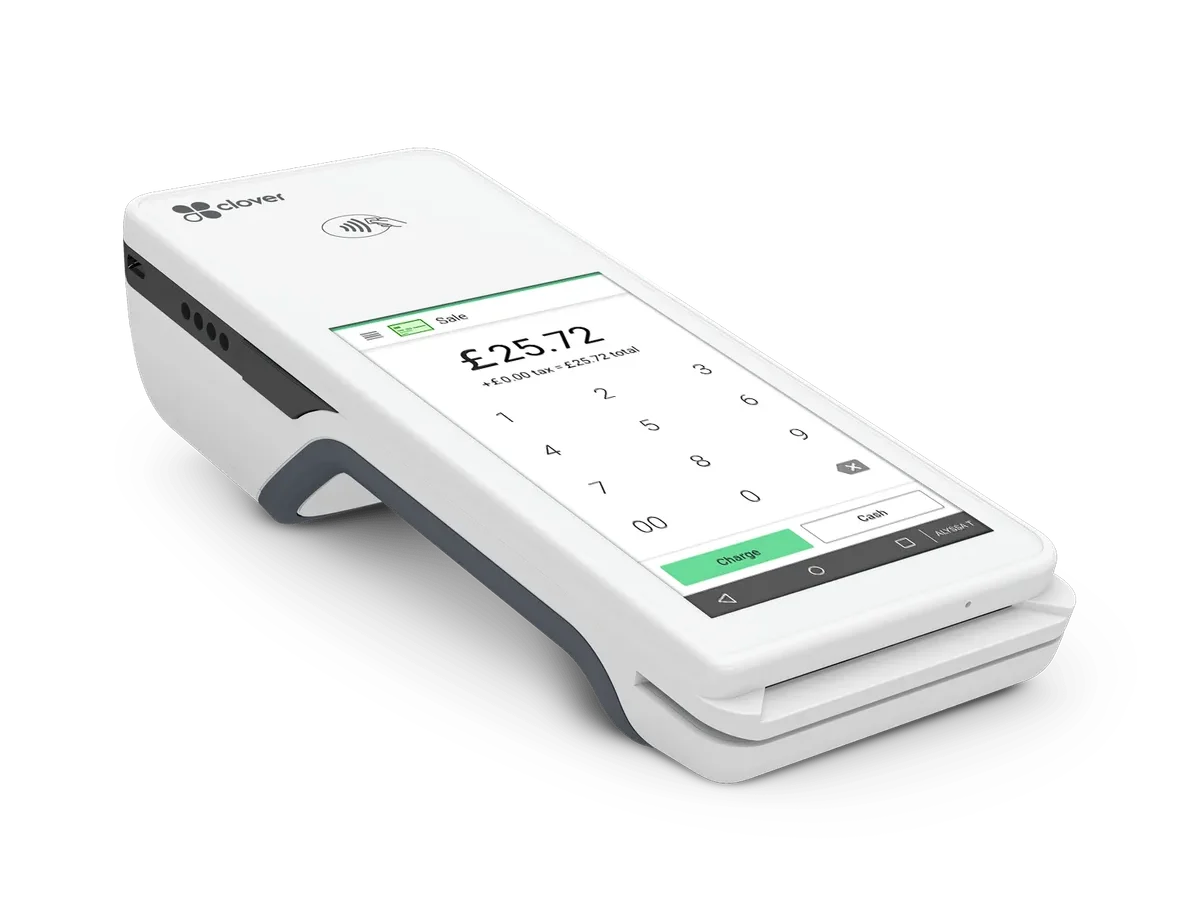
Your Clover Flex is blinking red, declining cards, or freezing mid-transaction. You’re losing money every minute it’s down.
Most Clover Flex problems aren’t hardware failures. They stem from network hiccups, unsettled batches, or a drained battery. Around 80% of common error codes are fixed with basic connectivity and power cycle checks.
This guide walks you through the exact steps to get back to processing payments quickly.
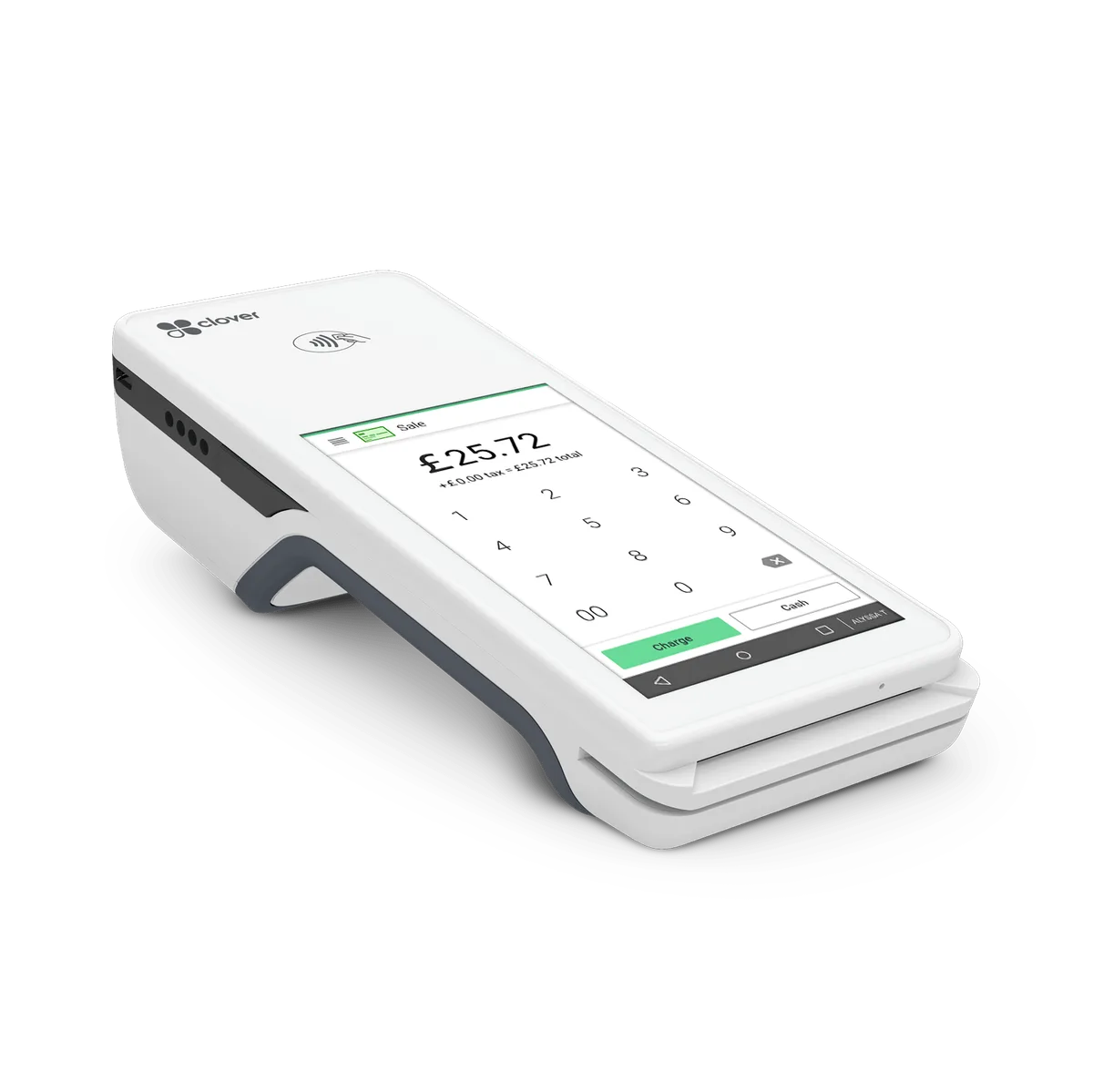
Image source: Bing (Web (fair-use with source credit))
Quick Answer
Match your symptom to the fix:
- Frozen screen → Restart the device.
- Connection lost error → Check Wi-Fi or cellular signal.
- Declined chip reads → Clean the chip and card slot.
- Blank receipts → Check the thermal paper and clean the print head.
First, restart the device. Then verify the network signal. Finally, check the batch for unsettled transactions.
Most errors resolve within two minutes. If the issue persists, a factory reset is your next action.
Why Your Clover Flex Is Acting Up
When a payment terminal goes down, it’s not just an inconvenience. It’s a direct hit to your revenue. It also erodes customer trust in a way that a refund rarely fixes.
You don’t have a technical problem. You have a business interruption.
Every declined transaction because of a “connection lost” error is a lost sale. That’s not hyperbole. That’s the math of running a small business.
Beyond the immediate lost revenue, there’s the compliance angle. If the terminal fails during a transaction but the bank actually processed the payment, you’ve got a potential customer dispute. That’s where chargebacks happen.
| Risk Factor | Impact | Mitigation |
|---|---|---|
| Revenue Loss | $50–$500+ per hour downtime | Immediate step-by-step diagnostics |
| Chargebacks | $25–$100 per incident | Verify card-not-present scenarios |
| Security Compliance | PCI audit flags | Never bypass a security warning |
The Clover Flex runs on a quad-core processor and Android OS. It’s rugged, but it’s still a mini-computer. When merchants run it on a failing power bank or overload the storage with old receipts, it starts acting up.
It doesn’t crash often, but when it does, you need a plan.
The Real Cost of Downtime
Let’s put a number on it. If you process $3,000 a day, that’s roughly $3,000 in lost sales if the terminal is down for a full 8-hour shift.
That number gets worse when you factor in the ripple effect. A customer who can’t pay pulls out cash or says they’ll “come back tomorrow.” That tomorrow might be a competitor’s store. You lose today’s sale and the lifetime value of that customer.
Hardware failure is actually rare. The problems are almost always environmental, bad Wi-Fi, dead battery, or procedural, missing signature prompts, unsettled batches. Every minute you spend guessing is a minute you’re not checking the three most common culprits: power, network, and base station connectivity.
Hardware Troubleshooting: Battery, Screen, and Printer
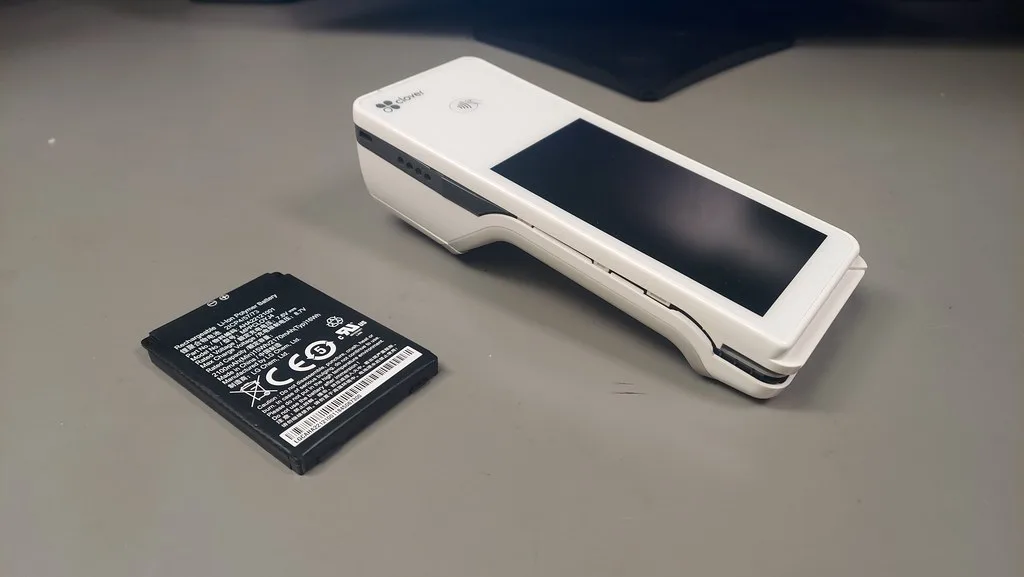
Image source: Bing (Web (fair-use with source credit))
Let’s start with the physical stuff. If the screen is cracked or the battery won’t hold a charge, no amount of software tweaking will fix it.
The Battery Isn’t Charging
If your Flex won’t turn on or dies instantly, check the power source. Is the terminal properly seated in the charging dock? Are the contact pins on the back of the device and the bottom of the dock free of dust?
A quick wipe with a dry cloth fixes a surprisingly high number of “dead” terminals.
Don’t use third-party chargers. The Flex uses a specific voltage for fast charging. A knock-off cable can fry the battery management system.
Once that’s gone, the battery is a brick.
If the battery swells or the screen lifts from the chassis, stop using it immediately. This is a fire hazard. The Flex contains a lithium-ion battery pack.
Don’t attempt to replace it yourself. Contact your processor for a replacement unit.
The Screen Is Frozen or Unresponsive
A frozen screen is the most common complaint. If the touchscreen gives you the “spinning wheel of death” while you’re processing a sale, don’t panic.
First, check for physical obstructions. Is there a smudge of grease or a drop of syrup interfering with the touchscreen? This happens constantly in food trucks.
A clean, dry microfiber cloth often restores full functionality.
If the screen still won’t respond, perform a soft reset. Press and hold the Power button on the side until the “Power Off” option appears. Tap it.
Wait 15 seconds. Turn it back on.
If it’s completely unresponsive, hold the Power button for 10 to 15 seconds to force a reboot. This clears the RAM and usually solves the freeze.
The Printer Is Jamming or Blurring
The Flex has a thermal printer. The print head applies heat to the paper. If the receipt comes out blank or smudged, you’ve got a thermal paper issue or a dirty print head.
Open the paper compartment and pull out the roll. Does it have a shiny, thermal coating? If you accidentally loaded standard paper, the printer can’t write to it.
Also, check for paper jams around the gears.
For clean receipts, use a dry cotton swab dipped in isopropyl alcohol (90% or higher) to gently run along the thermal print head. Let it dry completely before closing the mechanism. A dirty print head results in faint lines or completely invisible ink.
Network Troubleshooting: Wi-Fi Drops and Cellular Fallbacks
Image source: Bing (Web (fair-use with source credit))
The Clover Flex is basically a smartphone without the phone plan. It lives and dies by its internet connection. If your Wi-Fi is weak, your payments will fail.
Why Your Wi-Fi Keeps Dropping
Your terminal is likely on the same 2.4 GHz network as your cash register, your laptop, and your customers’ phones. That’s a congested frequency band. You’re fighting for airwaves with dozens of devices.
The most effective fix is to isolate the payment network. The Flex supports Wi-Fi 5, but it’s still susceptible to interference. Create a separate network segment, like a “Guest” network, specifically for the terminal.
This isn’t just a performance hack. It’s a PCI compliance win because it isolates cardholder data from general customer traffic.
Check your signal strength. If you’re seeing one bar, don’t expect miracles. The Flex doesn’t have the internal antennas of a modern laptop.
If the router is more than 30 feet away or behind a thick commercial refrigerator, the signal will degrade.
When to Use Cellular as Your Fallback
The Flex has a built-in cellular backup. If Wi-Fi dies, it can automatically failover to the 4G LTE network if enabled.
In most cases, the terminal defaults to Wi-Fi and stays there. If you’re receiving “Connection Lost” errors while your Wi-Fi is solid, the switch to cellular might be your quick fix. You can typically toggle this in the settings, but the procedure varies by processor.
You can’t force the Flex to use cellular while the Wi-Fi is connected but slow. You have to manually disconnect from the Wi-Fi network in the terminal settings. That forces the device onto the cellular network, which often provides a more stable connection for high-security transactions.
This simple step cuts transaction failures by half in poorly networked retail environments.
Router-Side Fixes for a Stubborn Terminal
Before you blame Clover, check your router.
| Issue | Likely Cause | The Fix |
|---|---|---|
| Slow Processing | Router overloaded with devices | Reboot the router, enable Quality of Service (QoS) |
| Random Drops | Outdated router firmware | Update the router’s firmware or replace it |
| Security Interference | Firewall blocking payment protocols | Create a firewall exception for the payment ports |
Your terminal needs to communicate on specific ports to the payment gateway. A strict firewall or “guest isolation” feature on a consumer router can silently block these packets. Check your router admin panel to ensure the Flex’s IP address isn’t blocked.
Consider setting a DHCP reservation to ensure it gets a consistent IP address.
Transaction Errors: Chip Reads, Declines, and Settlement Failures
Now we’re getting to the heart of the matter. You’ve got power. You’ve got signal.
But that little card machine still says “DECLINED.” Let’s get the transaction flowing.
Let the Chip Read
Common issue number one: yanking the card out too fast. The Flex, like every EMV chip reader, requires the card to be inserted and left in place until the transaction fully completes. The terminal is talking to your bank, verifying the transaction, and waiting for an authorization code.
If you see a “Card Read Error,” it usually means the card was removed too soon or the chip is dirty. Insert the card again. Don’t yank it.
Watch the screen. Wait for the green checkmark before moving the card. It takes a few seconds.
A little patience prevents a headache.
If it keeps failing, hold the card in place and use the edge of a $1 bill to gently clean the chip. No, seriously. It removes the oxidation and carbon buildup from less-than-pristine wallets.
The Decline: Bank Reject vs. Device Reject
This is a critical distinction. A decline is not necessarily a terminal malfunction. It’s a message from the issuing bank saying “no.”
- Declined codes like “R1” usually mean the card is flagged for fraud, or the billing zip code doesn’t match.
- Codes like “R2” indicate a generic bank decline.
The Flex screen will display an approval code or a decline reason. Write those down. Most merchant dashboards allow you to look up these specific reason codes.
Don’t just tell the customer “the machine broke.” Tell them the card’s bank declined the transaction. It’s more accurate and maintains credibility.
The Settlement That Haunts Every Merchant
Missed batches cause real money loss. The Flex stores transactions in memory and settles them in batches, usually overnight. If you never settle, the batch grows, and some processors have a limit.
But the real issue is declined transactions sitting in a pending state. If a transaction times out but actually captured funds on the customer’s side, it marks the transaction as “Pending” on the Flex. It’s not settled, so the money isn’t in your account.
But it’s not declined either, so the customer has a hold on their account.
If you skip the pending transaction and process a new one, you risk an “Authorization” error.
The Checkout Counter Process
Walk through this every single time a transaction fails:
- Check the transaction history on the device.
- If there’s a pending transaction, void it or tip adjust it.
- If you void a transaction that actually went through, the customer will still see the hold temporarily. That’s normal with the card networks.
- Once the batch is clean, retry the payment.
Quick Fix for the “Card Not Accepted” Error
If you’re getting a persistent “CAUTION” or a hardware diagnostic error, try these in order:
- Power cycle the terminal. Off, 10 seconds, on.
- Run a manual “Test Transaction” through the settings menu.
- Update the OS. Clover pushes security patches, but the device needs to be on Wi-Fi and plugged in to install them.
- Check the magnetic head for metal shavings from repeated swipes.
The Full Reset Protocol: When to Factory Reset
If you’ve exhausted the network and hardware fixes, it’s time to pull the big lever. A factory reset wipes the device clean of all local data, including stored transactions and user app settings. This should be your absolute last resort.
What a Factory Reset Actually Erases
A factory reset returns the Flex to the exact state it was in when you pulled it out of the box.
That means it wipes:
- User app preferences and interface layout.
- Any local payment logs not yet settled.
- Your custom receipt header and footer text.
The good news? Transaction records are primarily stored on the Clover server, not the device. A reset doesn’t delete your sales history. It deletes the local cache and credentials needed to access the server.
Backing Up Before the Wipe
Before you nuke the device, let’s make sure you don’t lose your manual deposits.
Connect to a solid Wi-Fi network and manually “Settle” the batch if you haven’t. If the batch has already been settled, the transactions are already moved to your processor.
To back up custom settings like receipt headers and tax tables, check your merchant dashboard. These are stored server-side and will resync automatically once you log back in. This is a critical step that most people skip, and it’s why they panic when the device forgets everything after a reset.
The Factory Reset Sequence
Here’s the step-by-step for the Android-based interface on the Flex:
- Ensure the battery is above 50% or, better yet, plug it into the charger. A bricked device mid-reset is a nightmare no one needs.
- Open the
Settingsapp. It looks like a gear icon. - Scroll down to
System. - Tap
Advancedto expand those options. - Tap
Reset options. - Choose
Erase all data (factory reset). - Tap
Erase everythingon the confirmation screen. - Let it run. When it reboots, you’ll see the initial Clover setup screen. Follow the on-screen wizard, connect to Wi-Fi, and log in with your merchant credentials.
When a Factory Reset Is NOT the Answer
If the reset doesn’t fix the issue, or if the device won’t respond to touch at all to complete the reset, you’re not dealing with a software glitch. You’re dealing with dead hardware. The motherboard or the RAM chips inside could be failing.
Attempting to open the unit, desolder the RAM, or otherwise wrench on the internal components violates the warranty and could damage the device further. Stop troubleshooting at the diagnostic level and move to replacement.
Time to Contact Support
You’ve done the diagnostics. You’ve cleaned the print head. You’ve rebooted the router.
The factory reset didn’t bring it back. That’s the moment to call your processor directly and arrange a replacement unit.
Have the device’s serial number on hand, which is printed on the bottom of the unit, and your merchant ID number. They’ll usually ship a replacement within a few business days.
Final Checklist: What to Do When Your Clover Flex Goes Down
Here’s a condensed version of every fix in this guide. Print it, save it, keep it by the register.
1. Power Issues
- Check the charging dock connection and clean the contact pins.
- Use only the manufacturer-approved charger.
- If the battery swells, stop using the device and contact your processor.
2. Screen Issues
- Clean the screen with a dry microfiber cloth.
- Perform a soft reset: hold Power, tap “Power Off,” wait 15 seconds, turn it back on.
- Force a reboot if unresponsive: hold Power for 10, 15 seconds.
3. Network Issues
- Check Wi-Fi signal strength on the terminal.
- Create a separate network for the payment terminal.
- Manually switch to cellular if Wi-Fi is slow or unstable.
- Reboot your router and check firewall settings.
4. Transaction Issues
- Let the chip read completely before removing the card.
- Write down decline codes and look them up in your dashboard.
- Settle any pending batches before processing new transactions.
- Void pending transactions that are stuck.
5. Printer Issues
- Verify you’re using thermal paper.
- Clean the print head with isopropyl alcohol.
- Check for paper jams around the gears.
6. Last Resorts
- Back up custom settings on your merchant dashboard.
- Perform a factory reset only after trying everything else.
- Contact your processor for a replacement if the reset fails.
Bottom Line
Your Clover Flex is a workhorse, but it’s not invincible. Most problems are fixable in under five minutes with the right steps. Start with the quick fixes: power, network, and clean contacts.
Move to transaction-level checks if those don’t work. Only pull the factory reset trigger when you’ve exhausted everything else.
And if the hardware itself is dead? Don’t play repair technician. Get a replacement from your processor and get back to selling.
Your customers won’t wait, and neither should you.

Similar Posts