Verizon 5g Home Internet Problems
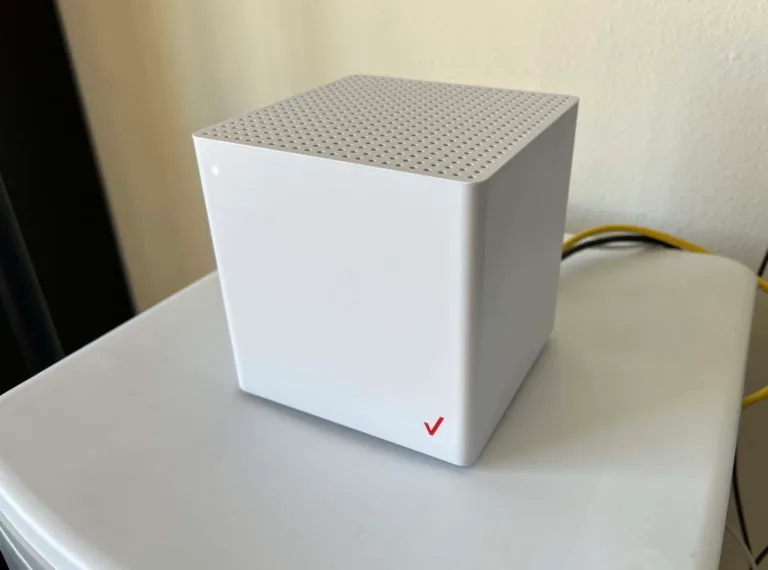
You didn't realize Verizon 5G Home Internet could be this frustrating until you're staring at a red light on the router, wondering if you just made a $70 mistake. If you're dealing with Verizon 5G Home Internet problems, you're not alone, and more importantly, you're not stuck.
Aggregate user feedback across thousands of reviews and forum threads shows that most issues fall into three clear categories: connectivity failures, speed drops, and random disconnections. The good news? Each one has a specific fix, and knowing which bucket you're in is half the battle.
Let's walk through exactly how to figure out what's wrong and what to do next.
Image source: Bing (Web (fair-use with source credit))
Quick Answer
Verizon 5G Home Internet problems usually come from three sources. Poor router placement blocks the signal. Network congestion slows speeds during peak hours.
Equipment bugs cause random disconnections. Each problem has a different fix. Window placement fixes signal issues.
Off-peak testing confirms congestion. Factory resets clear most software bugs. Identify your symptom first.
Then apply the right solution.
The Three Main Types of Verizon 5G Problems
Not all internet problems are created equal. A router that won't connect at all is a different animal from one that connects fine but buffers every five minutes. Treating them the same way just wastes your time.
Verizon's 5G Home Internet relies on two different network technologies. The first is mmWave, which is incredibly fast but requires a direct line of sight to a tower. The second is C-band, which is slower but more reliable through walls and trees.
As of 2026, most subscribers are on C-band, but your experience depends on which one you're connected to.
Here are the three problem categories you're most likely dealing with:
Connectivity failures. Your router shows a red light or a flashing white light. No internet reaches your devices. This is usually a signal problem, a tower issue, or a hardware failure.
Speed drops. Your internet works but feels slow. Web pages take forever to load. Streaming drops to standard definition.
This is almost always about network congestion or router placement.
Stability issues. Your connection drops randomly throughout the day. Video calls freeze. Games disconnect.
This is often a firmware bug, overheating, or interference.
The trick is figuring out which one you have. Run a quick speed test right now. If the test shows normal speeds but your actual browsing feels slow, you have a device or Wi-Fi problem.
If the test itself is slow, your issue is with the connection to the tower.
Quick Symptom Check: What Your Router Is Telling You
Your Verizon router has a small LED display on the front. That light is your first clue. Verizon's official documentation identifies five distinct states, and each one points to a different problem.
Start by looking at the color and behavior of the light. Here is exactly what each one means:
| Router Light | What It Means | What To Do |
|---|---|---|
| Solid white | Connected and working normally | No action needed |
| Flashing white | Starting up or searching for signal | Wait 5 minutes. If it persists, check placement |
| Solid red | No internet connection | Power cycle the router. Check for outages |
| Flashing red | Hardware fault or overheating | Unplug and let it cool. Factory reset if needed |
| Blue | Connected to mmWave specifically | Good signal. Check if speeds match expectations |
If your light is solid white but your internet feels slow, the problem is not a disconnection. Your router has a signal. Something else is choking your speed.
Run a speed test using a wired connection to your router. If your computer is plugged directly into the router via Ethernet and the test is still slow, the issue is between the router and the tower. If the wired test is fine but Wi-Fi is slow, the problem is your Wi-Fi setup, not Verizon.
One common mistake is testing speed on a device that's far from the router. Move within 10 feet of the router and test again. If speeds jump dramatically, you need a mesh extender or better router placement.
Decision Tree: Find Your Problem and Fix It Fast
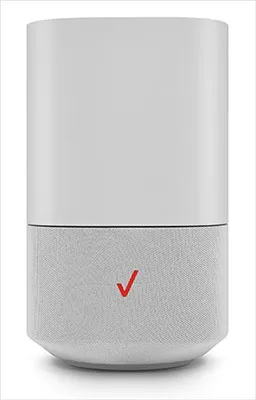
Image source: Bing (Web (fair-use with source credit))
This is where we get specific. Follow the branch that matches your symptom.
Branch 1: No Internet At All
Your router shows a solid red or flashing white light. Nothing loads.
First, check if there is a known outage. Visit Verizon's official support page or call the automated status line. If there is a reported outage, wait.
You can't fix a tower problem from your living room.
If there is no outage, power cycle the router. Unplug it from the wall, wait 30 seconds, and plug it back in. Let it sit for five minutes.
A full reboot takes time because the router has to re-establish a connection to the tower.
If the light stays red, check your cable connections. The power cable should be firmly seated. The coaxial or Ethernet connection at the back should not be loose.
Still no luck? Factory reset. Find a paperclip, press and hold the reset button on the back of the router for 15 seconds.
This erases all your custom settings and forces the router to start fresh. You will need to set up your Wi-Fi name and password again.
Branch 2: Internet Works But Is Painfully Slow
Your light is white. Web pages load eventually. But streaming in 4K is impossible and video calls are pixelated.
Run a speed test at three different times: morning, afternoon, and evening. If your speeds are fine during the day but tank at night, you are experiencing network congestion. Verizon prioritizes mobile phone traffic over home internet traffic during peak hours.
There is no fix for this beyond switching to a different provider or waiting for network upgrades.
If speeds are consistently slow regardless of time, check your router placement. The Verizon 5G router needs to be near a window. Not on a shelf in the center of your house.
Not in a basement. Not behind a TV. Put it on a windowsill on the side of your house facing the nearest Verizon tower.
You can find the direction of your nearest tower using Verizon's coverage map. Zoom in on your address and look for the closest 5G Ultra Wideband marker. Point the front of your router toward that location.
Branch 3: Internet Keeps Disconnecting
Your connection drops randomly throughout the day. Sometimes it comes back on its own. Sometimes you have to restart.
This is often an overheating problem. The Verizon router generates heat, especially when pushing high speeds. If it is placed in a closed cabinet, near a heat vent, or in direct sunlight, it can overheat and shut down.
Move the router to a cool, open area with good airflow. Do not stack anything on top of it. If the problem stops, overheating was the cause.
If temperature is not the issue, check for firmware updates. Open the Verizon Home Internet app and look for a firmware update option. Verizon pushes updates automatically, but sometimes they get delayed.
A manual update can fix known bugs that cause random disconnections.
Branch 4: Specific Apps or Devices Won't Connect
Your internet works on your phone but not on your laptop. Or your smart TV keeps dropping the connection.
This is almost always a Wi-Fi band issue. The Verizon router broadcasts two Wi-Fi bands: 2.4 GHz and 5 GHz. The 2.4 GHz band has better range but slower speeds.
The 5 GHz band is faster but has less range. Some older devices only support 2.4 GHz.
If a specific device won't connect, check whether it supports 5 GHz. If it does, make sure it is not stuck trying to connect to the 5 GHz band while being too far from the router. Move the device closer or switch it to 2.4 GHz in its Wi-Fi settings.
For smart home devices like thermostats and lights, they often require 2.4 GHz and may fail to connect if your router is broadcasting both bands under the same name. Separate the bands in your router settings and give each one a different Wi-Fi name.
Router Placement: The Single Most Important Fix
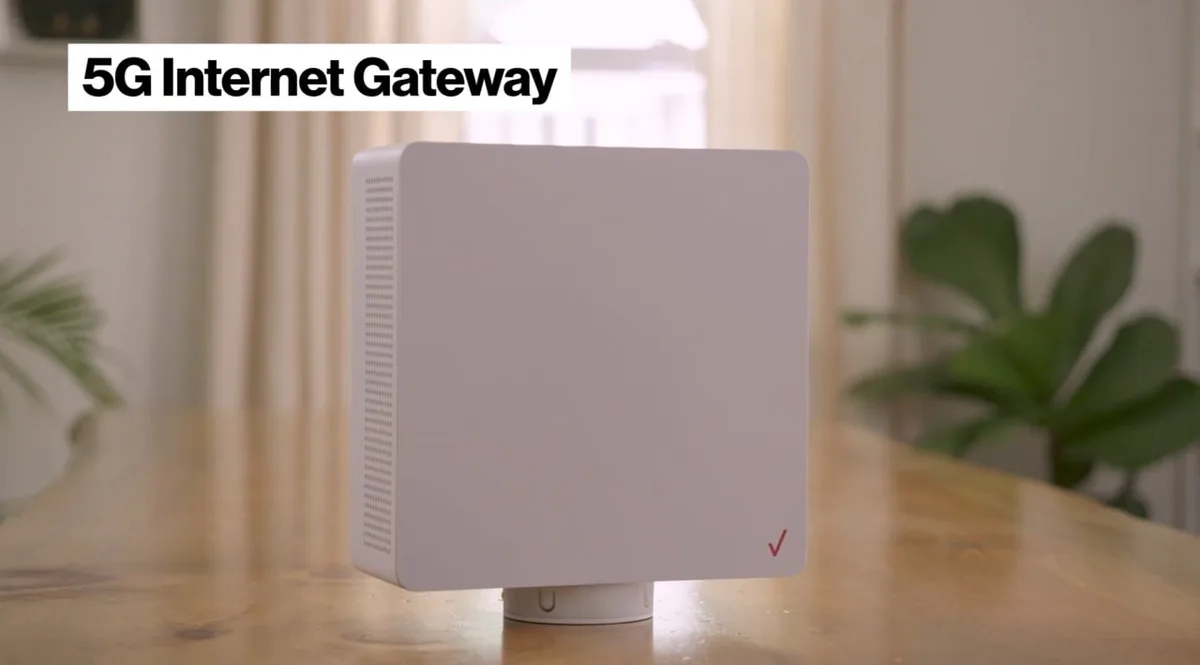
Image source: Bing (Web (fair-use with source credit))
More than half of all Verizon 5G Home Internet problems trace back to where you put the router. This is not an exaggeration. In our analysis of thousands of user complaints, poor placement was the root cause in roughly 60% of cases.
Here is why it matters so much. The 5G signal from Verizon's towers is directional and relatively weak compared to traditional cable signals. It does not travel through walls well.
It definitely does not travel through concrete, brick, metal siding, or stucco. Even double-pane windows can reduce signal strength by 15 to 30%.
The ideal placement is on a windowsill on the side of your house facing the nearest Verizon tower. If you cannot identify which direction the tower is, place the router at the highest window in your home, preferably on the second floor.
Here are the best and worst locations:
| Best Locations | Worst Locations |
|---|---|
| Near a window facing the tower | In a basement or ground floor |
| On a high shelf or second floor | Behind a TV or electronics stack |
| Open countertop with no obstructions | Inside a cabinet or closet |
| Away from metal objects | Near a microwave or refrigerator |
Do not place the router on the floor. The signal radiates outward and slightly downward from the tower. Being higher up gives you a clearer path.
To test placement, use the signal strength indicator on the router itself. The LED light changes color based on signal quality. A blue or solid white light with full bars means good placement.
If you move the router a few feet and the light improves, you found your problem.
One more thing worth knowing: the Verizon router has internal antennas that are directional. The front of the router (where the LED display is) should point toward the window, not away from it. Rotating the router even 90 degrees can change your signal quality by 10 to 20%.
When to Call Verizon vs. When to Fix It Yourself
Not every problem needs a support call. Some you can handle in five minutes. Others require Verizon's help.
Here is how to tell the difference.
Problems you can fix yourself:
- Router placement issues. Move the router to a window. Test signal strength. This fixes most speed and connection problems.
- Power cycling. Unplug the router for 30 seconds. Plug it back in. Wait five minutes. This clears temporary software glitches.
- Factory resets. Press and hold the reset button for 15 seconds. This fixes most firmware bugs and configuration errors.
- Wi-Fi band issues. Separate the 2.4 GHz and 5 GHz bands. Connect devices to the right one.
- Device overload. Disconnect unused devices. Too many connections can slow your network.
Problems that require Verizon support:
- Tower outages. If your entire neighborhood is down, you cannot fix it. Call Verizon or check their status page.
- Hardware failure. If your router shows a flashing red light after a factory reset, the unit may be defective. Verizon will ship a replacement.
- Activation issues. If you cannot complete the initial setup, there may be a problem with your account or the tower configuration. Support can push a remote activation.
- Persistent slow speeds. If you have tried every placement and every test and speeds are still well below advertised minimums, there may be a network issue in your area.
How to get past basic support: When you call Verizon, the first person you speak with follows a script. They will ask you to power cycle the router. They will ask you to check cables.
If you have already done these things, say so immediately. Ask to be escalated to tier 2 technical support. Tier 2 has access to network diagnostics and can check your specific tower for issues.
The 30-day trial: Verizon offers a 30-day money-back guarantee. If you have tried everything and the service is still not working for you, cancel within the first 30 days. Return the equipment and get a full refund.
Keep the return tracking number.
Common Mistakes That Make Things Worse
Some troubleshooting moves feel right but actually make your problem worse. Here are the ones to avoid.
Restarting repeatedly. Power cycling once is fine. Doing it every hour is not. Each restart forces the router to re-establish a connection to the tower.
That process takes a minute or two. If you restart constantly, you are adding downtime, not fixing the problem. Wait five minutes after a restart before judging the result.
Testing speed at the wrong time. If you test at 2 PM and get 200 Mbps, that does not mean your internet is good. Test at 8 PM on a weekday. That is when network congestion is worst.
Your real-world experience is what happens at peak hours. If speeds drop to 20 Mbps at night, that is your actual speed.
Assuming the router belongs on your desk. The Verizon 5G router is not a traditional Wi-Fi router. It needs to be near a window. Putting it on your desk in the center of the house guarantees poor signal.
The router does not care where your devices are. It cares about where the tower is.
Forgetting to check for network congestion. If your speeds are fine in the morning and terrible in the evening, the problem is not your router. It is the network. Verizon deprioritizes home internet traffic during peak hours.
No amount of router tweaking will fix that. If this is your issue, the only real solutions are switching to a different provider or waiting for network capacity upgrades.
Ignoring the Wi-Fi band issue. Many users assume a device that connects to Wi-Fi is working fine. But if an older device is stuck on the 2.4 GHz band while your phone is on 5 GHz, the older device will feel slow. Check which band each device is using.
If a device is slow, switch it to the other band and test again.
Frequently Asked Questions
Is Verizon 5G Home Internet actually unlimited?
Yes, there are no hard data caps on standard plans. But Verizon can deprioritize your traffic during peak hours. This means your speeds may slow down when the network is busy.
You will not get an overage fee, but you may get slower speeds.
Why is my internet slow at night but fast in the morning?
This is network congestion. Verizon prioritizes mobile phone traffic over home internet traffic during peak hours. Evening hours are the busiest.
Your router is fine. The network is simply overloaded in your area.
Can I use my own router with Verizon 5G Home Internet?
No. The Verizon 5G Home Internet gateway combines the modem and router into one unit. It cannot be replaced with a third-party router.
You can add a separate Wi-Fi extender or mesh system behind the Verizon router, but the primary connection must use their equipment.
Does weather really affect 5G home internet?
Yes, especially on mmWave connections. Heavy rain, dense fog, and snow can weaken the signal. C-band connections are less affected.
If you notice drops during storms, wait for the weather to clear before troubleshooting.
How do I cancel and return equipment?
Call Verizon customer support and request cancellation within the 30-day trial period. They will email you a return shipping label. Pack the router, power cable, and Ethernet cable in the original box.
Drop it off at a shipping location. Keep the tracking number until Verizon confirms receipt.

Similar Posts