DYMO LabelWriter 5XL Troubleshooting: Easy Fixes Guide
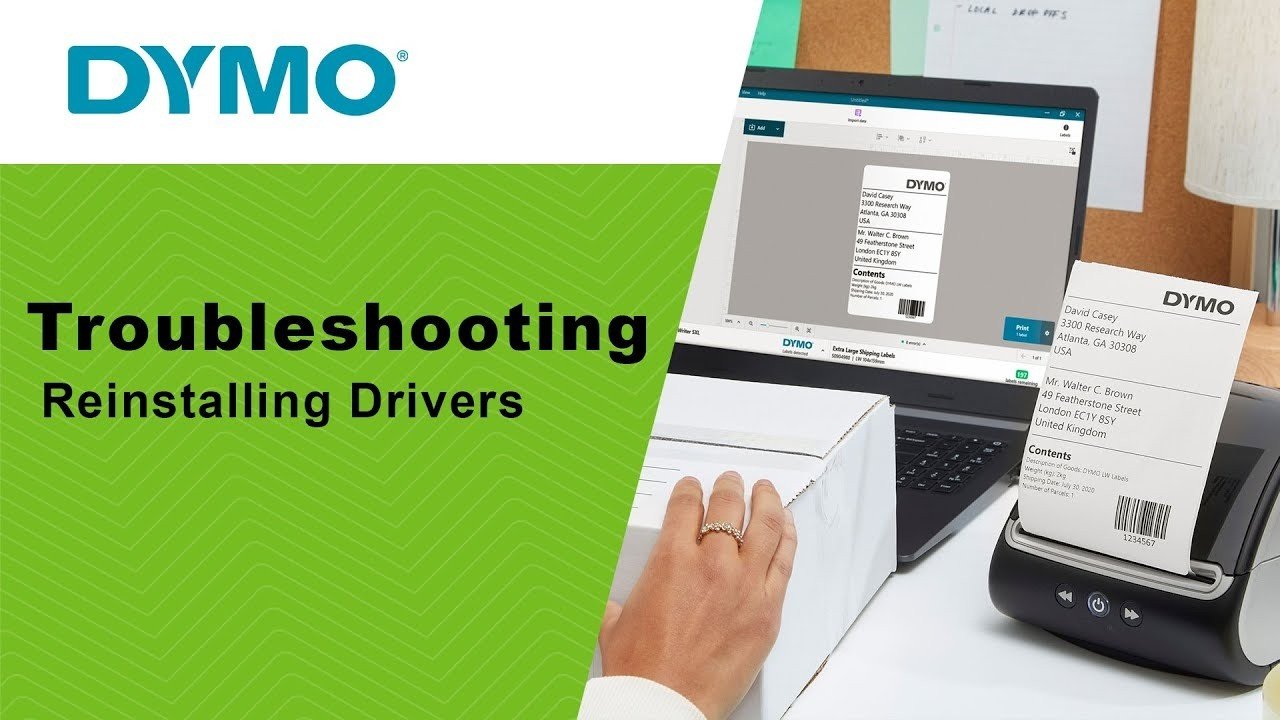
Most DYMO LabelWriter 5XL problems come from label loading, software settings, USB links, or outdated printer drivers.
The DYMO LabelWriter 5XL is built for fast 4-inch-wide shipping labels, but even a reliable thermal printer can stop, print badly, or refuse to connect. This DYMO LabelWriter 5XL troubleshooting guide explains the most common causes and gives clear steps for Windows and Mac users. The advice below follows practical printer support methods, manufacturer setup guidance, and common thermal printer standards.
Start with these basic DYMO LabelWriter 5XL checks
Before changing drivers or opening settings, check the simple things first. Many DYMO LabelWriter 5XL problems take only a few minutes to fix.
Use this quick checklist:
- Make sure the power adapter is firmly connected to the printer and wall outlet.
- Confirm that the USB cable is connected directly to the computer.
- Remove any loose or torn labels from the printer.
- Check that the label roll is the correct size and type.
- Restart the printer and computer.
- Open your printing app and select the DYMO LabelWriter 5XL.
- Try printing a test label.
The printer uses direct thermal printing. It does not need ink or toner. If a label comes out blank, the issue is often the wrong label type, a dirty print head, or a roll loaded in the wrong direction.
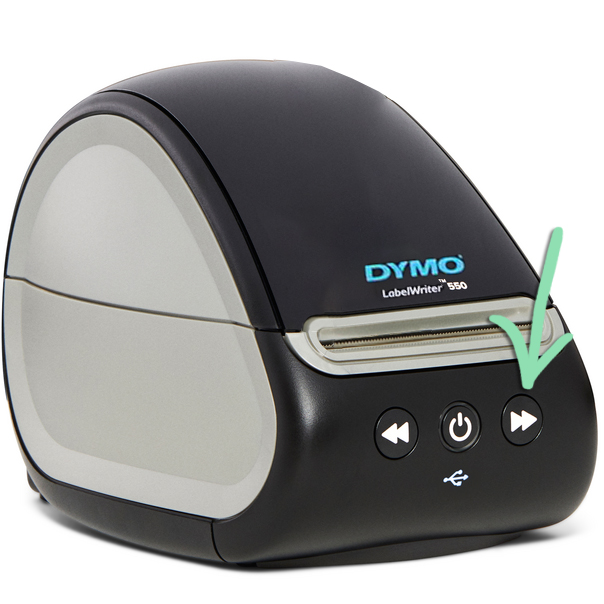
A useful first test is to press the form-feed button. If one full label advances, the roll may be loaded correctly. If several labels feed, the printer may not be reading the label gaps.
When I troubleshoot this printer, I treat it like a traffic problem. Power is the road, the USB cable is the bridge, the driver is the map, and the labels are the cargo. Checking each part in order prevents wasted time.
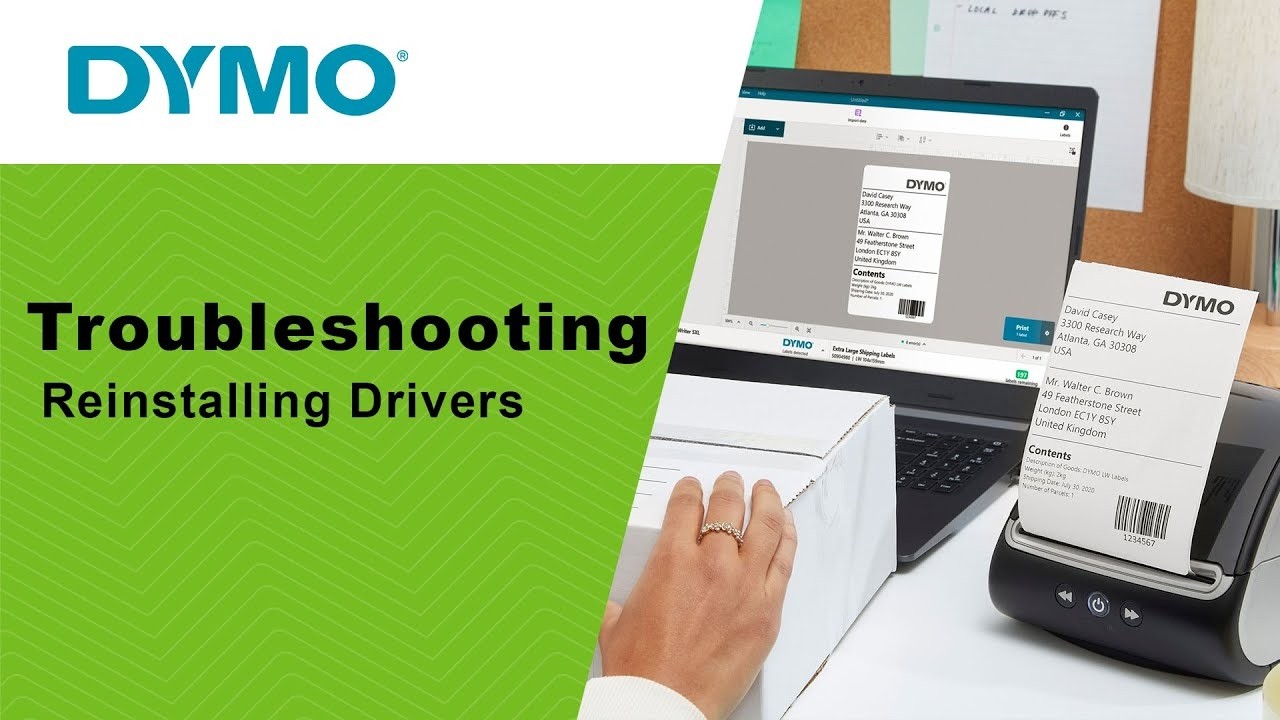
DYMO LabelWriter 5XL is not printing
If the DYMO LabelWriter 5XL does not print, begin with the printer queue and connection. A stuck job can block every label behind it.
On Windows:
• Open Settings and select Bluetooth & devices.
• Choose Printers & scanners.
• Select DYMO LabelWriter 5XL.
• Open the print queue and cancel old jobs.
• Make sure the printer is not set to “Use Printer Offline” or “Paused.”
On macOS:
• Open System Settings.
• Select Printers & Scanners.
• Choose the DYMO printer.
• Open the queue and remove failed documents.
• Add the printer again if it shows as unavailable.
Next, disconnect the USB cable for about 30 seconds. Turn off the printer, reconnect the cable, and turn the printer back on. Avoid using a USB hub during this test because some hubs do not provide a stable data connection.
If the printer appears in the computer but still does not print, print from another program. For example, try a simple address label in DYMO Connect and then a PDF. This helps show whether the problem is in the printer or the original application.
A printer that works from DYMO software but not from a web browser usually has a browser, system, or print dialog issue. A printer that fails everywhere may need a driver refresh or hardware inspection.
DYMO LabelWriter 5XL prints blank labels
Blank labels are frustrating, but the cause is usually easy to identify. The DYMO LabelWriter 5XL needs heat-sensitive labels. Standard paper labels will not show an image.
Check these points:
• Confirm that the labels are made for a direct thermal printer.
• Place the roll with the label surface facing upward as it leaves the printer.
• Make sure the roll sits between the guides without being squeezed.
• Check that the label path is clear.
• Test the label by lightly scratching its surface with a fingernail. Genuine thermal material often leaves a dark mark.
Do not use inkjet or laser labels in the LabelWriter 5XL. They may feed through the machine, but the printer cannot create a normal image on them.
Some newer DYMO LabelWriter 5-series models use label identification technology. If the printer rejects a roll, shows a label error, or feeds labels without printing, use compatible genuine DYMO labels that match the printer model. Third-party rolls may vary in coating, size, gap placement, and identification features.
If the labels are correct, clean the print head. Turn off and unplug the printer first. Use a manufacturer-approved cleaning card or a small amount of suitable isopropyl alcohol on a lint-free swab. Let the area dry fully before testing.

DYMO LabelWriter 5XL prints too light or too dark
Poor print quality can result from dust, heat, label age, or incorrect software settings. Thermal labels can also fade when stored in hot cars, direct sunlight, or damp areas.
Try these steps:
- Print a test label from DYMO software.
- Clean the print head and label sensor.
- Replace the roll with fresh thermal labels.
- Check the print density or darkness setting.
- Allow the printer to cool if it has printed many labels in a row.
Very light printing often points to old labels or a dirty print head. Very dark printing may indicate an overly high darkness setting or labels exposed to heat.
The DYMO LabelWriter 5XL is designed for labels, not permanent outdoor signs. Even good thermal labels can fade over time, especially under sunlight, heat, or friction. For long-term storage, choose labels made for the environment where they will be used.
If only one side of each label looks weak, inspect the print head for dust or residue. If the same vertical line is missing on every label, the print head may have a damaged element. Cleaning will not repair physical damage, so service or replacement may be needed.
DYMO LabelWriter 5XL feeds labels incorrectly
Incorrect feeding often happens when the label roll is loose, the guides are too tight, or the printer has lost the label position. The printer must detect the space between labels.
Reload the roll carefully:
- Remove the roll from the printer.
- Place it on the spindle.
- Slide the guide against the roll without pressing hard.
- Feed the label edge into the slot.
- Press the form-feed button until one label advances.
- Confirm that the next label stops in the correct position.
Do not pull labels backward through the printer. Pulling can leave adhesive on the rollers or damage the sensor.
If the printer feeds several labels at once, check for torn edges or labels stuck to the backing. A bent roll can also make the printer lose track of the gaps.
Clean adhesive and paper dust from the feed path with care. Never spray cleaner inside the printer. Use a cleaning card or a lightly damp lint-free swab, then let the printer dry before reconnecting power.
Label calibration may help after changing roll sizes. In DYMO software, select the correct label template and run the label feed or calibration process if that option appears. The available controls can differ by operating system and software version.

DYMO LabelWriter 5XL shows the wrong label size
A wrong label size can cause cut-off text, blank space, rotated addresses, or labels that print across two rolls. This problem often comes from the print dialog rather than the printer.
Check the following settings:
• Select DYMO LabelWriter 5XL as the printer.
• Choose the exact label size, such as 4 × 6 inches.
• Set the page orientation to portrait or landscape as required.
• Turn off “Fit to page” if it changes the label scale.
• Use 100% scale when printing shipping labels.
• Confirm that the application and printer use the same label dimensions.
Shipping platforms may save a different printer profile from your normal label software. For example, a browser-based shipping site may use a standard letter page unless you select the 4 × 6 label option.
Print a small test before printing a large batch. This simple step prevents wasted labels and helps you catch scaling errors early.
If the label is cut off on the right side, the design may be wider than the printable area. Reduce margins and keep text inside the label boundary. Barcodes need enough white space around them to scan correctly.
DYMO LabelWriter 5XL is offline or not detected
When the computer cannot find the printer, focus on the connection path. Start with the USB cable, then check the software and driver.
Try this order:
- Turn off the printer.
- Restart the computer.
- Connect the printer directly to a different USB port.
- Turn on the printer.
- Wait for the operating system to detect it.
- Open DYMO software and check the selected printer.
- Print a test label.
Use a short, good-quality USB cable. A damaged cable can provide power while failing to carry reliable data. This can make the printer appear to turn on but remain unavailable.
On Windows, remove duplicate or old DYMO printer entries. A computer may send the job to an earlier installation instead of the connected printer. On Mac, removing and adding the printer again often clears a damaged printer queue.
Install the current software and driver version supported by your operating system. Avoid downloading drivers from unknown websites. The wrong package can create connection errors, security risks, or repeated printer entries.
After a major Windows or macOS update, the printer may need to be added again. This does not always mean the hardware has failed.
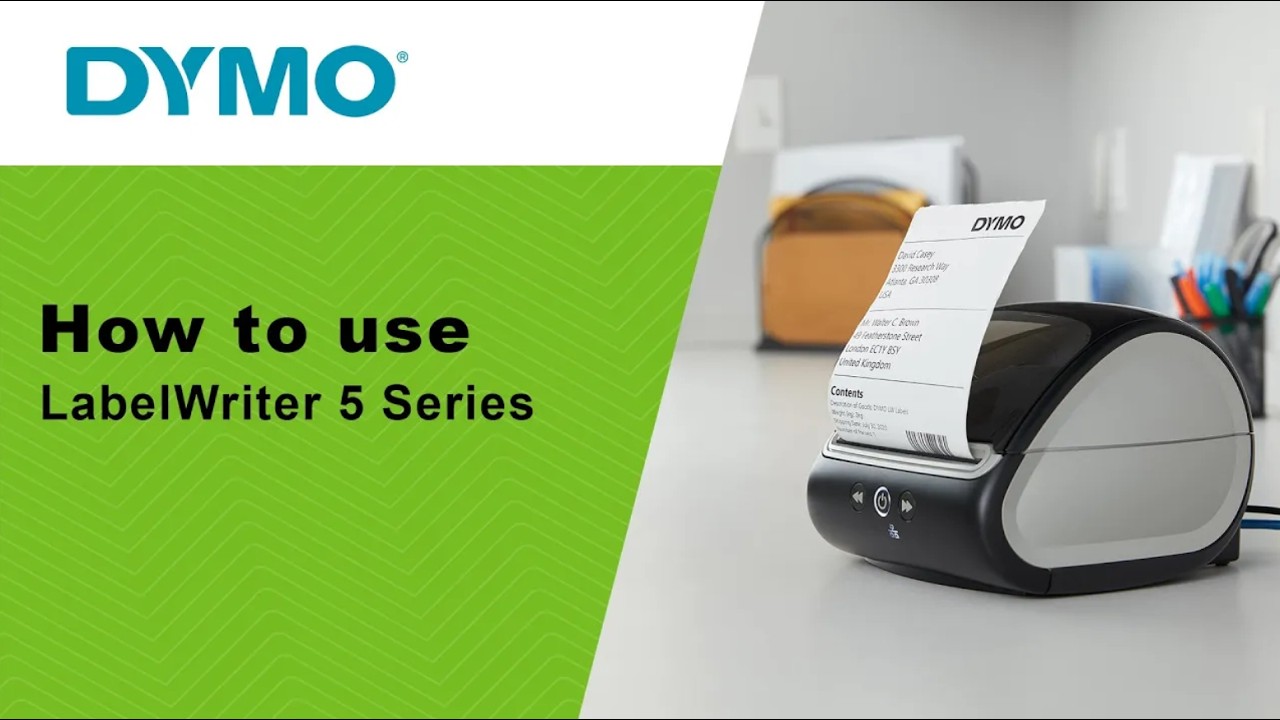
Fix DYMO LabelWriter 5XL driver and software problems
The printer driver allows the operating system to communicate with the hardware. DYMO Connect manages label design and printing, while other apps may use the operating system’s printer driver.
If DYMO Connect crashes or cannot find the printer, try a clean setup:
• Close DYMO Connect and all open print windows.
• Disconnect the printer.
• Uninstall old DYMO software if more than one version is installed.
• Restart the computer.
• Install the supported DYMO software.
• Reconnect the printer only when the setup program requests it.
• Add the printer and select the correct label size.
Keeping several old label programs installed can create conflicts. I have seen cases where the printer was healthy, but two driver packages competed for the same USB device. Removing duplicate software fixed the issue faster than changing printer settings.
Do not install a LabelWriter 450 or 4XL driver just because it appears in a search result. Similar models may use different features, label widths, or software support.
If you print from Microsoft Word, Adobe Acrobat, Shopify, Etsy, eBay, UPS, or another service, check that the app uses the correct system printer. The name shown in the application may not match the printer selected in DYMO Connect.

Fix cut-off, rotated, or misaligned shipping labels
The DYMO LabelWriter 5XL is popular for shipping because it can print wide labels quickly. However, shipping websites often apply their own page settings.
For a typical 4 × 6 shipping label:
• Choose a 4 × 6 paper or label setting.
• Set margins to zero or the lowest allowed value.
• Disable automatic scaling.
• Select the correct orientation.
• Avoid “Print as image” unless the platform requires it.
• Check the preview before printing.
A rotated label is usually caused by a mismatch between the document orientation and the printer preference. A label that is too small often results from “Shrink to fit” or “Fit to printable area.”
If barcodes appear fuzzy, use the original PDF or print file when possible. Screenshots and low-resolution images can reduce barcode quality. Keep the printer clean and use fresh labels for important shipments.
Always scan a test barcode before printing a full batch. This is especially important for warehouse work, returns, and time-sensitive shipping.
DYMO LabelWriter 5XL keeps disconnecting
Repeated disconnections usually point to a weak USB connection, power issue, software conflict, or operating system setting.
Use these checks:
• Connect the printer directly to the computer.
• Replace the USB cable.
• Try another USB port.
• Avoid docking stations and hubs during testing.
• Check that the power adapter matches the printer.
• Keep the printer away from damaged or loose power strips.
• Update the printer software and operating system.
Some computers reduce power to USB devices to save energy. If the printer disconnects after sitting idle, review USB power management settings in Windows. The exact menu varies by version, so change only settings you understand and record the original choice.
Heat can also cause trouble during long print runs. Leave space around the printer for airflow. If it disconnects only after heavy use, stop printing, let it cool, and test again.
If the printer disconnects on several computers with different cables, the USB port or internal electronics may be failing. At that point, professional service is safer than repeated software changes.
When to reset or replace the printer
A reset can clear temporary errors, but it will not repair a broken print head, damaged sensor, or failed USB port. Before resetting, save your label templates and note your current settings.
A basic restart is usually enough:
- Turn off the printer.
- Unplug the power adapter.
- Disconnect the USB cable.
- Wait 60 seconds.
- Reconnect power.
- Turn on the printer.
- Reconnect USB and test.
Use a full factory reset only when the model’s official instructions support it. Reset methods can differ by device and firmware. A wrong button sequence may not solve the problem and can remove useful settings.
Contact support or consider replacement when:
• The printer smells burnt.
• The power light never turns on with a known-good adapter.
• The print head leaves the same permanent blank line.
• The printer jams repeatedly after cleaning.
• It fails on multiple computers and cables.
• The unit makes grinding or clicking sounds.
A repair is worthwhile when the issue is a cable, roll, or software package. Replacement may make more sense when the hardware is old and the repair cost approaches the price of a new unit.
Prevent future DYMO LabelWriter 5XL problems
Good care prevents many printing failures. Store label rolls in a cool, dry place and keep them in their original packaging until needed.
Use this maintenance routine:
• Clean the print path after heavy use.
• Keep labels away from heat and direct sunlight.
• Do not overload the roll compartment.
• Use compatible labels with the correct dimensions.
• Keep software and drivers current.
• Print a test label after changing label types.
• Keep a spare USB cable available.
• Save shipping label files before printing large batches.
Avoid touching the thermal surface of labels with wet or oily hands. Oils can affect print quality and may leave residue inside the printer.
It also helps to change one thing at a time. If you replace the roll, reinstall the driver, change the USB cable, and alter the print scale at once, you will not know which step fixed the problem.
The best DYMO LabelWriter 5XL troubleshooting process is calm and logical. Start with power, labels, connection, software, and print settings. Most faults become clear when tested in that order.
Frequently Asked Questions of DYMO LabelWriter 5XL Troubleshooting
Why is my DYMO LabelWriter 5XL not printing?
Check the power, USB cable, print queue, label roll, and selected printer. Cancel stuck jobs, restart both devices, and print a test label from DYMO software.
Why does my DYMO LabelWriter 5XL print blank labels?
The roll may be facing the wrong way, or the labels may not be direct thermal labels. Reload the roll, test the surface for thermal coating, and clean the print head if needed.
How do I fix DYMO LabelWriter 5XL label misalignment?
Select the exact label size, set the scale to 100%, and disable “Fit to page.” Reload the roll and press the form-feed button so the printer can detect the label gaps.
Can I use third-party labels in the DYMO LabelWriter 5XL?
Compatibility depends on the specific label roll and printer version. Some 5-series printers may require genuine DYMO labels with the correct identification features, so check the model requirements before buying alternatives.
Why is my DYMO LabelWriter 5XL offline?
A bad USB cable, USB hub, old driver, or stuck print queue can make the printer appear offline. Connect it directly to the computer, clear the queue, restart the printer, and reinstall supported software if necessary.
How do I clean a DYMO LabelWriter 5XL?
Turn off and unplug the printer before cleaning. Use a suitable cleaning card or a lint-free swab with a small amount of appropriate alcohol, and never spray liquid directly into the machine.
Why does my DYMO LabelWriter 5XL cut off part of the label?
The document may use the wrong size, orientation, or scaling setting. Choose the correct 4 × 6 format for shipping labels, reduce margins, and turn off automatic scaling.
Conclusion
DYMO LabelWriter 5XL troubleshooting is much easier when you follow a clear order. Check the power and USB link first, then inspect the label roll, print queue, software, driver, and page settings. Blank labels, feeding errors, misalignment, and offline messages usually have a practical cause.
Use fresh compatible labels, keep the print path clean, and test one change at a time. If the printer fails with several cables and computers, the issue may be hardware-related and may need professional help. Apply these steps during your next printer problem, then explore the official support resources or share your experience in the comments.

Similar Posts