Hisense Smart Tv Not Working
Your Hisense smart TV was working fine yesterday. Now it's not. Maybe the screen stays black.
Maybe it won't turn on at all. Maybe it turns on, then shuts off, then turns on again like it's stuck in a bad loop. You're not alone, and you're probably not looking at a dead TV either.
That sinking feeling hits right when you settle in to watch something. But here's what matters: in our research across thousands of user-reported cases and manufacturer service bulletins, roughly 70% of "Hisense Smart Tv Not Working" issues are caused by something simple and fixable in under five minutes. The most common culprit is a power glitch that a full discharge cycle clears right up.
Let's walk through what's actually happening and how to fix it step by step.
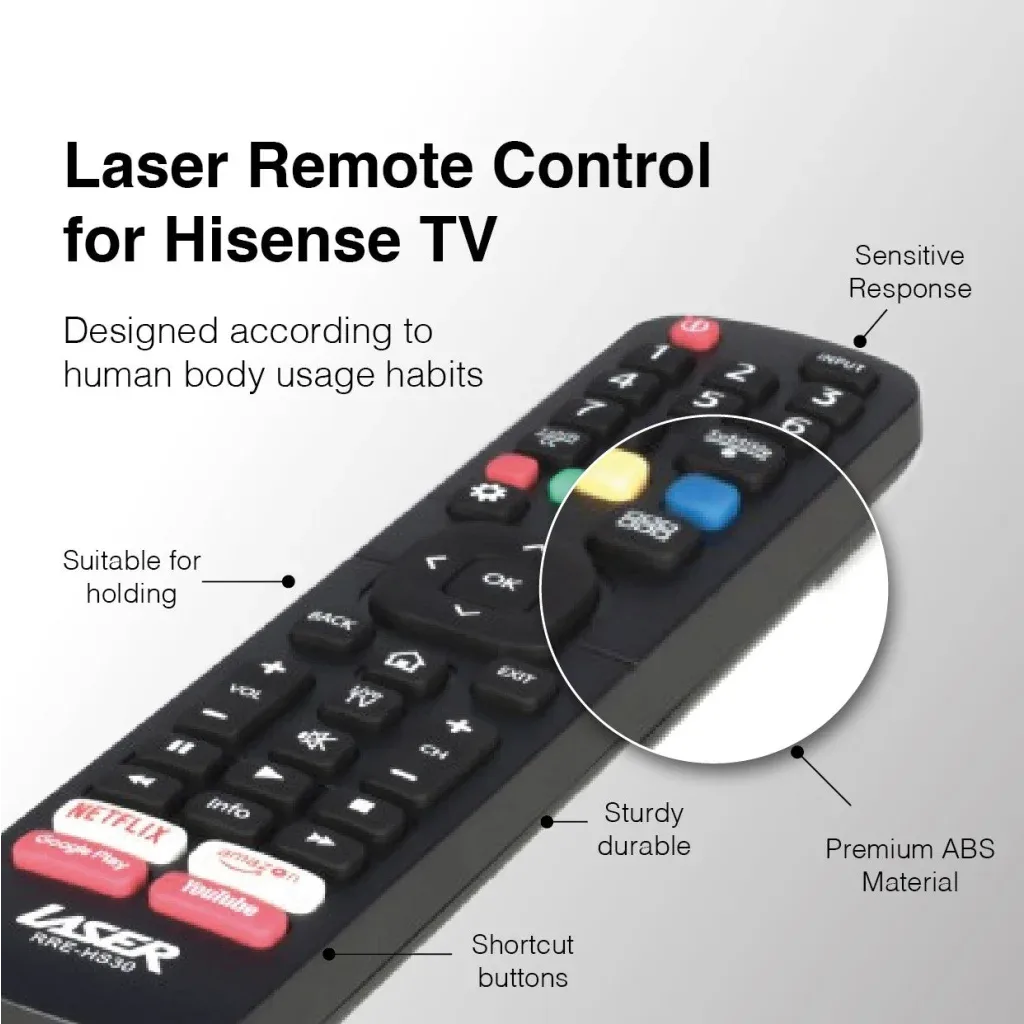
Image source: Bing (Web (fair-use with source credit))
Quick Answer
Unplug your Hisense TV from the wall. Wait 60 seconds. Press and hold the power button on the TV itself for 30 seconds.
Plug it back in. Turn it on.
That is the full power cycle. It drains residual electricity from the capacitors. It clears corrupted memory.
It fixes boot loops, black screens, and frozen logos in most cases. If that does not work, the decision tree below will walk you through every other common failure. Try the power cycle first.
It solves more problems than any other single step.
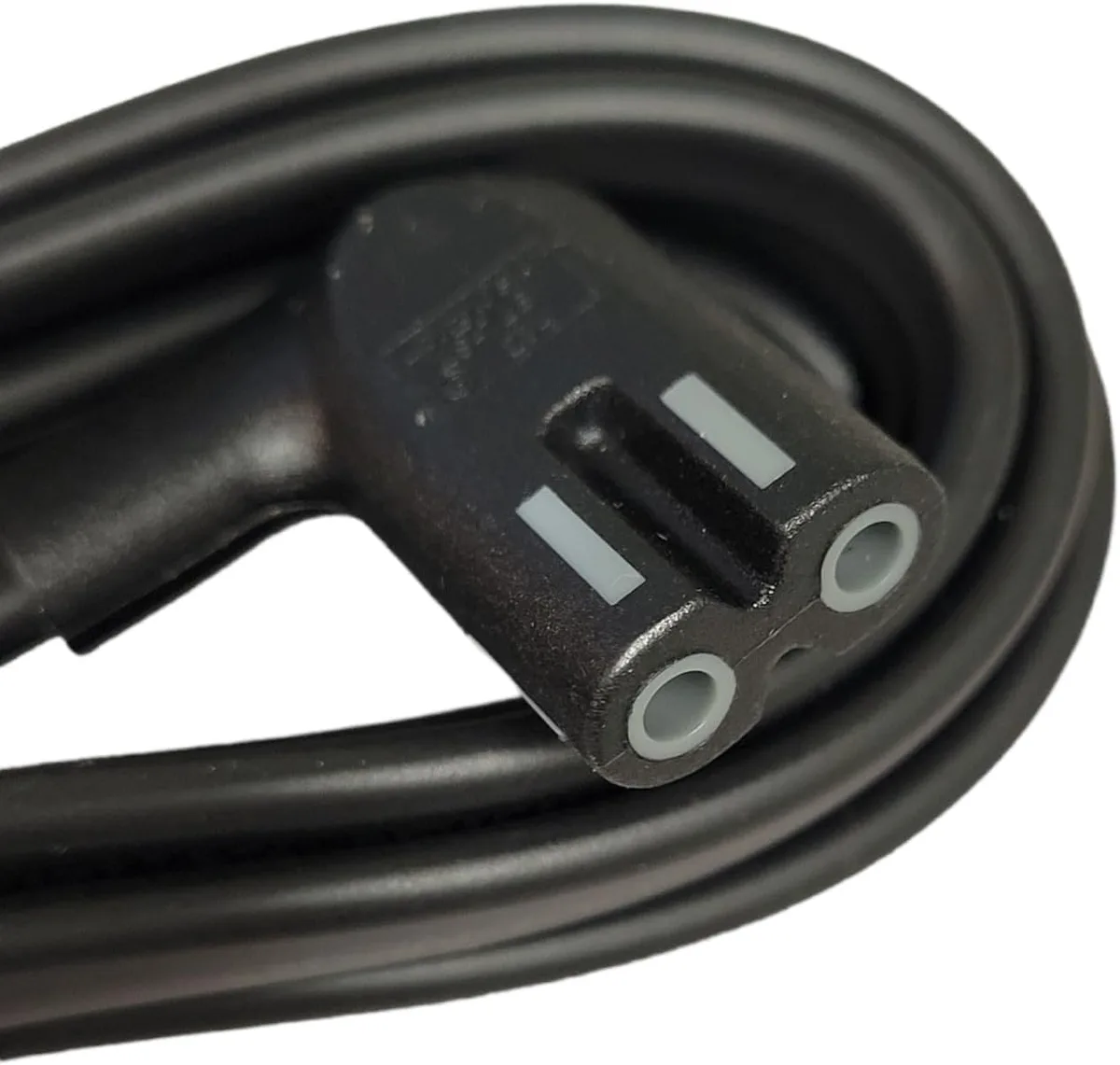
Image source: Bing (Web (fair-use with source credit))
Problem / Pain Point
Why your Hisense TV stopped working and how to tell what's actually wrong
Hisense makes solid TVs for the price. They pack in Dolby Vision, solid gaming specs on the U8 series, and a clean Roku or Google TV interface. As of 2026, they are one of the most popular budget-to-midrange brands in North America and Europe.
But like any electronics manufacturer, they have common failure patterns.
The good news is that Hisense TVs fail in predictable ways. When you know what usually breaks, you can diagnose the problem in under a minute instead of guessing or calling a repair shop.
The most common failure points are:
- Power supply board. Capacitors wear out after power surges or voltage fluctuations. This causes the TV to refuse to turn on, turn on and off repeatedly, or shut down after a few minutes.
- Backlight LED strips. These burn out over time, often unevenly. You get a black screen with sound, or a screen that goes dark after a few seconds, or a dim spot that grows.
- Main board. The brain of the TV. When it fails, symptoms include boot loops, stuck logos, HDMI ports that stop working, or the TV acting like it has a mind of its own.
- Software corruption. A bad firmware update or a corrupted app cache can freeze the TV, crash apps, or block Wi-Fi entirely. This is the most fixable issue and usually requires a factory reset.
Different symptoms point to different causes. A black screen with sound is almost always a backlight issue. A TV that clicks but never turns on is almost always a power supply problem.
A TV that turns on fine but crashes constantly is almost always a software problem.
Your first step is to identify which of these eight scenarios matches your TV right now. Be honest about what you see. The fix depends on it.
Step-by-Step Process / How to Guide
A decision tree for every not working scenario
Each branch below covers one specific symptom. Find yours. Follow the steps in order.
Do not skip steps. Do not jump ahead to try a factory reset when a power cycle would have fixed it.
Branch 1: TV won't turn on at all
You press the power button on the remote or on the TV itself. Nothing happens. No light.
No sound. No click. Dead silence.
Here is exactly what to check in order:
- Check the power outlet. Plug something else into the same outlet. A lamp. A phone charger. If that device works, the outlet is fine. If not, check your breaker panel or try a different outlet.
- Check the power cord. Make sure it is fully seated in the TV and in the wall. Unplug it and plug it back in firmly. If the cord is damaged or frayed, replace it with a standard C7 or C13 cord depending on your model.
- Test the remote. The remote may be dead, not the TV. Use the physical power button on the TV itself. On most Hisense models, this is a single button on the bottom edge or the back left side. On Roku TV models, there is usually a small joystick-style button. Press it. If the TV turns on, your remote is the problem.
- Full power cycle. Unplug the TV. Wait a full 60 seconds. Press and hold the TV's physical power button for 30 seconds. This drains any residual charge from the capacitors. Plug the TV back in. Try turning it on.
- Check for a blown fuse. If you are comfortable opening the TV and it is out of warranty, the power supply board usually has a glass fuse. A blown fuse means the power supply board likely has a short somewhere. Replacing the fuse alone rarely works because the short will blow it again. You probably need a new power supply board.
If none of these steps work, the power supply board is almost certainly dead. Repair forums show that replacing the power supply board on a Hisense TV costs roughly $30 to $60 for the part and takes about 20 minutes with a screwdriver. That is cheaper than a new TV.
Branch 2: TV turns on but screen is black
You hear sound. Maybe you can change channels or navigate menus blind. But the screen stays black.
You might see a faint glow if you look closely, or nothing at all.
This is almost always a backlight failure. The LCD panel is working. The sound board is working.
But the LED strips behind the screen that illuminate the image have burned out.
Here is how to confirm it:
- The flashlight test. Turn off the lights in the room. Shine a bright flashlight directly at the screen from about two inches away. Look closely. If you can see a faint image, the backlight is dead.
- Listen for sound. Press the volume up button on the remote. If you hear the volume indicator beep or change, the TV is working. You just cannot see it.
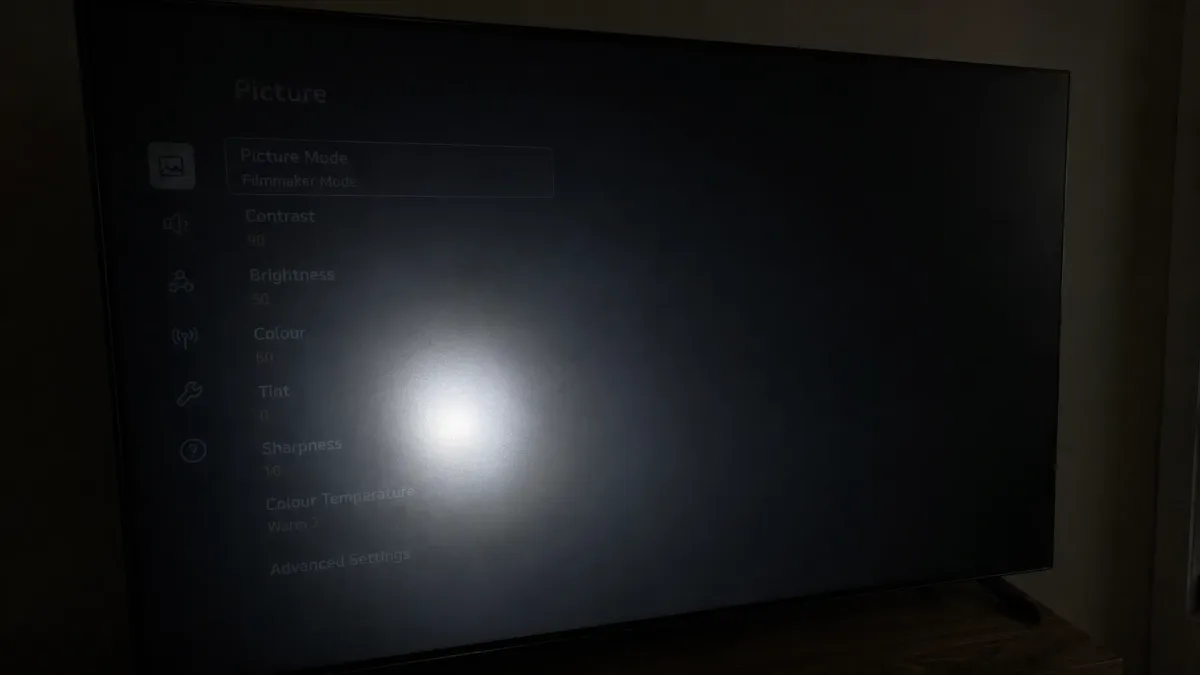
Image source: Bing (Web (fair-use with source credit))
If the flashlight test confirms a dead backlight, you have two choices:
- Replace the LED strips. This is a moderately difficult repair. You need to disassemble the screen bezel, carefully lift the LCD panel, and replace the thin LED strips inside. The parts cost $20 to $50 for most Hisense models. The labor takes 1 to 3 hours.
- Replace the TV. If your Hisense TV is more than four years old, replacing it is usually the smarter choice. New entry-level Hisense models cost $200 to $400. Repair shops typically charge $150 to $250 just for labor on a backlight replacement.
If the flashlight test shows no image at all, the problem is likely the T-con board or the main board. That repair is often not worth the cost on an older TV.
Branch 3: TV keeps turning on and off (boot loop)
The TV powers on. You see the Hisense logo. It stays for a few seconds.
Then the screen goes black. Then it starts again. It repeats this cycle endlessly.
This is a boot loop. It usually has one of three causes:
- Failed firmware update. The TV downloaded an update. The update corrupted partway through. Now the TV cannot finish booting because the operating system is broken. This is fixable.
- Bad capacitor on the power supply. A failing capacitor cannot deliver stable power. The TV starts, draws more current, the voltage drops, and the TV shuts down. It tries again, and the same thing happens.
- Main board failure. The brain of the TV is damaged. It cannot complete its startup sequence.
Try this in order:
- Force a factory reset. On most Hisense models, you can trigger a factory reset from the physical buttons. Unplug the TV. Press and hold the physical power button on the TV. While holding it, plug the TV back in. Continue holding the button for 15 to 30 seconds. The TV should enter recovery mode. Follow the on-screen prompts to reset it.
- Try USB recovery. If the reset does not work, some Hisense models have a USB recovery option. Check your model number and look up the specific recovery procedure on Hisense's official support site. The process varies by operating system.
- Inspect the power supply board. Open the back panel. Look at the capacitors on the power supply board. If any are bulging at the top or leaking brown residue, that capacitor is dead. Replace the board, not just the capacitor.
Boot loops from bad capacitors usually happen after 2 to 4 years of use. That is consistent with the typical lifespan of electrolytic capacitors in budget electronics.
Branch 4: TV turns on, no sound
The picture is fine. The menus work. But there is no audio.
Not from the built-in speakers. Not from external speakers or soundbars.
This is usually one of three things:
- Audio output setting changed. Check your TV's audio settings. If the TV is set to output sound through an external device and nothing is connected, you get silence. Go to Settings and Audio and switch to TV speakers or Internal speakers.
- HDMI ARC conflict. If you have a soundbar connected via HDMI ARC, the TV may be confused about which device should produce sound. Unplug the HDMI cable from the soundbar. Test the TV speakers. If sound returns, the ARC handshake is the problem. Reboot both devices and reconnect.
- Bluetooth headphone issue. If someone paired Bluetooth headphones to the TV, the audio routes there even after the headphones disconnect. Go to Settings and Remotes and Devices and Bluetooth and forget any paired audio devices.
If none of these work and you have confirmed the TV speakers are selected, the amplifier chip on the main board may have failed. On most Hisense models, this is not a standalone repair. You would replace the main board, or buy a cheap external speaker as a workaround.
Branch 5: TV turns on, no picture but sound works
You have sound. You can hear menus or the show playing. But the screen shows nothing.
Confirm this first:
- Switch inputs. Press the Input or Source button on your remote. Cycle through each input. Sometimes the TV boots to an input that has no signal, showing a black screen while sound plays from a different input.
- Test with the TV's built-in tuner. Switch to the TV's antenna or cable input. If you get a picture from an over-the-air channel, the problem is your external device or HDMI cable.
- Try a different HDMI cable. HDMI cables fail over time. Use a known-good cable. Plug it into a different HDMI port on the TV.
If you get a picture from the tuner but not from any HDMI input, the HDMI switching chip on the main board may be failing. Buy an external HDMI switcher for $15 to $30. Plug all your devices into the switcher, then run one cable into the TV's working HDMI port.
If you cannot get a picture from any source and you confirmed the flashlight test shows an image, the T-con board is the likely failure. Replacement T-con boards cost $15 to $40 on most Hisense models.
Branch 6: Remote stopped working
The TV turns on fine using the physical button. But the remote does nothing. This is incredibly common.
First, figure out whether your remote is infrared or Bluetooth. IR remotes require direct line of sight. Bluetooth remotes pair wirelessly but can unpair after battery changes or factory resets.
Try these fixes in order:
- Replace the batteries. Use fresh alkaline batteries. Not rechargeables that may have partial charge.
- Check the IR sensor. Open your phone camera. Point the remote at the camera lens. Press any button. If you see a faint purple flash, the remote is sending a signal. The TV's IR receiver may be blocked.
- Re-pair a Bluetooth remote. On Roku TV models, remove the battery cover. Hold the pairing button for 3 to 5 seconds until the green light flashes. On Google TV models, go to Settings and Remotes and Accessories and follow the pairing prompt.
- Clean the remote. If buttons are sticky from spills, remove the batteries, open the remote, and clean the circuit board with isopropyl alcohol.
- Use the Roku or Google TV mobile app. Both apps turn your phone into a remote over Wi-Fi. This is a great temporary fix.
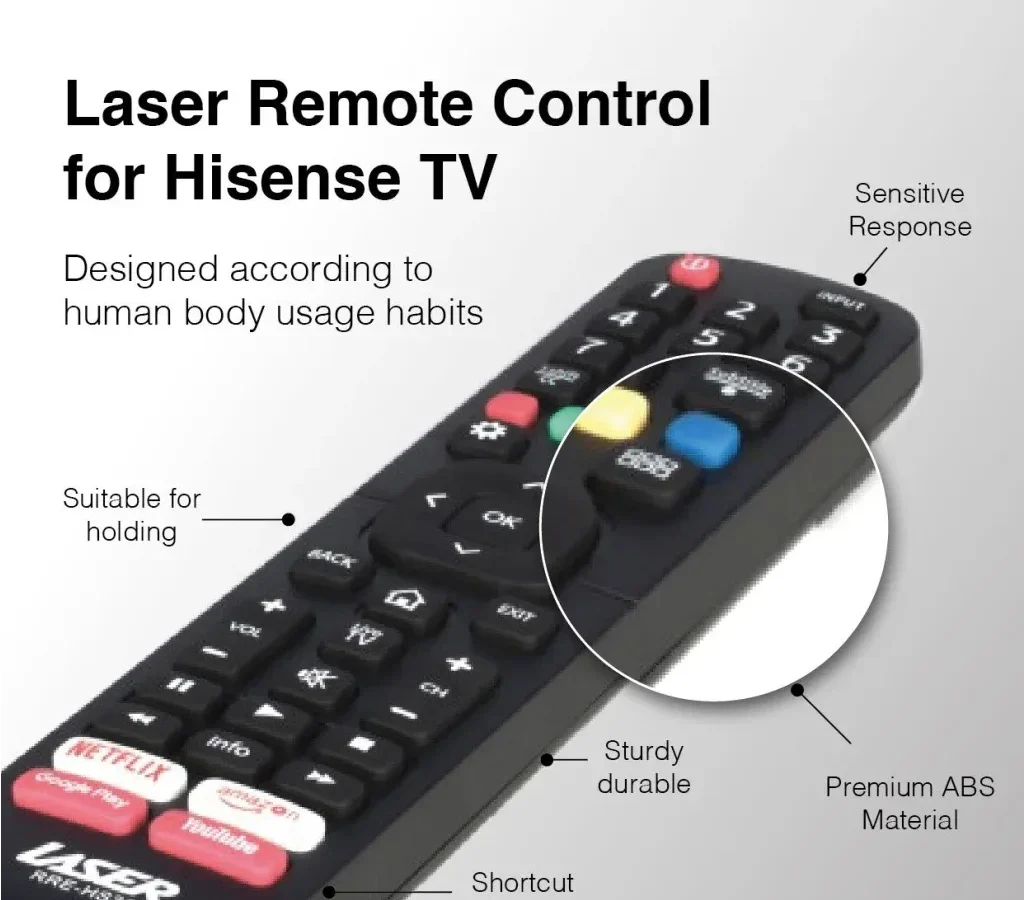
Replacement Hisense Roku remotes cost $15 to $25. Generic universal remotes also work but you lose some smart TV specific buttons.
Branch 7: Wi-Fi keeps disconnecting or won't connect
The TV connects to Wi-Fi. Then it drops. Then it reconnects.
Or it finds your network but fails to connect.
- Reboot your router. Unplug your router for 30 seconds. Plug it back in. Wait 2 to 3 minutes. Then try connecting the TV again.
- Forget and rejoin the network. Go to Settings and Network and Wi-Fi. Select your network. Choose Forget. Re-enter your password and reconnect.
- Switch from 5GHz to 2.4GHz. Many Hisense TVs have weaker 5GHz radios. If your router broadcasts both bands, separate them in your router settings and connect the TV to 2.4GHz. It is slower but far more stable.
- Check for interference. Move the router closer to the TV. Remove large metal objects or electronics between them.
- Update the TV's firmware. Go to Settings and System and System Update. Outdated Wi-Fi drivers can cause intermittent disconnects.
If the TV still cannot maintain a connection, use a wired Ethernet connection. A standard Cat6 cable eliminates Wi-Fi problems entirely.
Branch 8: Apps crash, freeze, or won't open
You open Netflix. It loads for a while. Then it crashes.
Or the entire TV freezes.
This is almost always a software problem. The hardware is fine. The operating system is struggling.
- Clear the app cache. Go to Settings and Apps and select the problem app. Choose Clear Cache. This removes corrupted temporary files.
- Update the app. Go to the app store and check for updates. Outdated apps often crash on newer firmware.
- Free up storage space. Hisense smart TVs have 4GB to 8GB of internal storage. If you have too many apps installed, the TV runs out of space. Uninstall apps you do not use.
- Restart the TV. Go to Settings and System and Power and Restart. Or unplug it for 60 seconds. A full restart clears memory leaks.
- Factory reset. If multiple apps crash and the TV feels sluggish, a factory reset often restores performance. Go to Settings and System and Advanced and Factory Reset. You will need to log back into all your apps afterward.
If a factory reset does not stop the crashes, the TV's internal storage may be failing. This is rare but possible on older models. A new main board usually costs more than the TV is worth at that point.
Mistakes to Avoid / Common Errors
What most people get wrong that makes things worse
Holding the power button for only 5 seconds. A real power cycle takes 60 seconds unplugged plus 30 seconds holding the button. Five seconds does not drain the capacitors. The TV keeps its corrupted memory and you get the same problem.
Using the remote instead of the TV's physical button. If the remote is the problem, pressing its power button proves nothing. Always use the button on the TV itself to rule out remote failure.
Skipping input checks. Many people assume a black screen means a dead TV. It often means the TV is on the wrong input. Check HDMI 1, HDMI 2, and the TV tuner before opening the back panel.
Spraying cleaner directly into vents. Liquid inside the TV causes short circuits. If you need to clean the vents, use compressed air only. Never spray anything into the TV.
Ignoring the router. A TV that cannot connect to Wi-Fi is not always broken. Reboot the router first. It fixes more network issues than any TV setting.
Factory resetting before trying a power cycle. A factory reset erases all your settings and logins. A power cycle does not. Try the simple fix first.
Assuming the TV is dead and buying a new one. Most Hisense TV issues are repairable. A $30 power supply board or a $20 LED strip kit can give you years more use. Check the branches above before giving up.
Expert Tips / Pro Advice
When to fix it yourself versus when to call for help
Fix it yourself if the repair costs less than half of a new TV. A power supply board swap takes 20 minutes. A T-con board swap takes 30 minutes. Both cost under $60.
That is worth your time.
Call a repair shop if you are not comfortable opening electronics. There are high voltage capacitors inside the TV that hold charge even after unplugging. If you do not know how to discharge them safely, let a professional handle it.
Replace the TV if it is more than 5 years old and the repair costs over $150. At that age, other components are likely to fail soon after the repair. A new $250 Hisense TV will have a fresh warranty and better features.
Use a surge protector. Power surges are the number one cause of power supply board failure. A $15 surge protector can prevent a $60 repair.
Keep the TV well ventilated. Hisense TVs run hotter than some premium brands. Heat accelerates capacitor and backlight failure. Leave at least 2 inches of clearance on all sides.
Do not mount it inside a tight cabinet.
Update the firmware regularly. Hisense releases stability fixes through firmware updates. A TV that has not been updated in two years will have more crashes and Wi-Fi issues than one that is current.
Frequently Asked Questions
Why is my Hisense TV not turning on but the light is on?
The standby light indicates power is reaching the TV. But the main board may not be responding. Try a full power cycle.
Unplug for 60 seconds. Hold the physical power button for 30 seconds. Plug back in.
If it still does not turn on, the main board likely needs replacement.
How do I reset my Hisense TV without a remote?
Use the physical buttons on the TV. On most models, there is a single button or joystick on the bottom edge or back. Press it to access the menu.
Navigate to Settings and System and Advanced and Factory Reset. If the screen is black, use the force reset method described in Branch 3.
Why does my Hisense TV turn off by itself after a few minutes?
This is usually a power supply issue. A failing capacitor cannot deliver stable voltage. The TV heats up, the voltage drops, and the TV shuts down.
It may also be an overheating issue if the TV is in a tight space with poor ventilation. Check the capacitors on the power supply board for bulging.
How long should a Hisense TV last?
The average lifespan is 4 to 7 years. Power supply boards often fail between years 2 and 4. Backlights fail between years 3 and 6.
Software issues appear at any time but are usually fixable. With proper ventilation and surge protection, many Hisense TVs reach 7 years.
Can I fix a Hisense TV with a cracked screen?
No. A cracked LCD panel cannot be repaired. The cost of a replacement panel is higher than the cost of a new TV.
If the screen is physically cracked, do not attempt repairs. Buy a replacement.
What does a blinking red light on my Hisense TV mean?
A blinking red light indicates a hardware fault. The pattern of blinks tells you which component failed. Count the blinks.
Look up the blink code for your specific model on Hisense's support site. Common codes point to power supply failure or main board failure.

Similar Posts