How To Connect Smart Lights To Alexa: Easy Setup Guide

You can connect smart lights to Alexa through the Alexa app, then control them by voice in minutes.
If you have ever stood in a dark room waving at a lamp like it might understand you, this guide is for you. I have set up plenty of smart bulbs and smart switches over the years, and the process is usually simple once you know the right order. In this article, I’ll walk you through how to connect smart lights to Alexa, avoid the common setup mistakes, and get smooth voice control that actually works day to day.

What You Need Before You Start
Before you try to connect smart lights to Alexa, it helps to check a few basics. A lot of setup problems happen because one small step was missed, like the bulb is not on the right Wi-Fi band or the Alexa app has not been updated.
Here is the simple checklist:
- A compatible smart light, such as a smart bulb, smart plug, or smart switch
- An Amazon Echo device or the Alexa app on your phone
- A stable Wi-Fi network
- The smart light’s own app, if the brand requires one
- Your Amazon account signed in on Alexa
In my experience, the biggest mistake is assuming all smart lights connect the same way. Some pair directly in Alexa, while others must be added in the manufacturer’s app first. That small difference can save you a lot of frustration.

How to Connect Smart Lights to Alexa Step by Step
Connecting smart lights to Alexa is usually a two-part job: first you set up the light itself, then you link it to Alexa. Once both pieces are in place, voice control feels almost automatic.
1. Install the smart light
Start by screwing in the smart bulb, plugging in the smart lamp, or turning on the smart switch. Make sure the light has power and is ready for setup.
If the light has a reset mode, follow the brand’s instructions. Many bulbs blink or pulse when they are ready to pair.
2. Set up the light in the manufacturer’s app
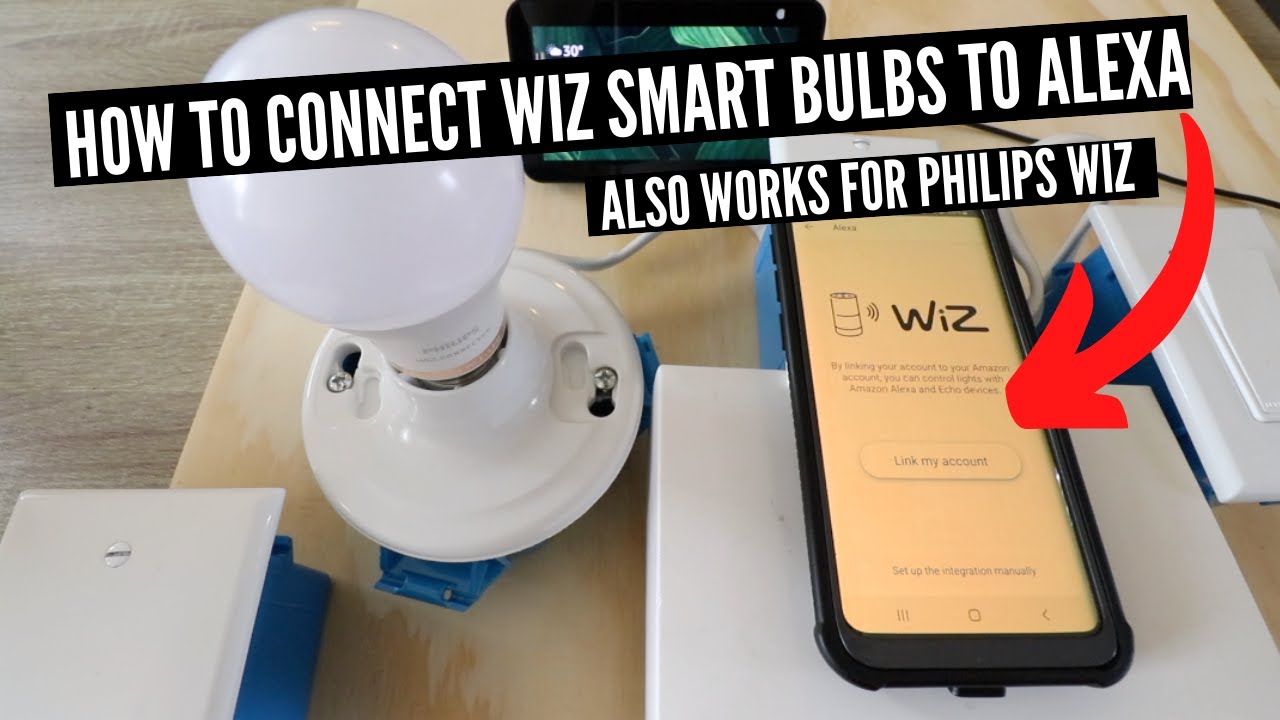
Most smart light brands use their own app first. This may be required before Alexa can find the device.
Typical steps include:
- Download the brand app
- Create or sign in to your account
– Add the light through the app - Connect the light to your home Wi-Fi
- Rename the light if needed
I always recommend giving the light a clear name right away. “Living Room Lamp” is much easier for Alexa than something vague like “Bulb 7.”
3. Open the Alexa app
Now open the Alexa app on your phone or tablet. Make sure you are signed into the same Amazon account linked to your Echo device.
From the Alexa app:
- Tap Devices
- Tap the plus sign or Add Device
- Choose Light
- Pick your smart light brand if it appears in the list
4. Enable the smart light skill if needed
Some brands connect through an Alexa skill. This is basically a bridge between Alexa and the light brand’s service.
You may need to:
- Search for the brand skill in the Alexa app
- Tap Enable to Use
- Sign in to your smart light account
- Allow Alexa access to your devices
This step is common with brands like Philips Hue, TP-Link Kasa, Govee, and others. If Alexa does not find the bulb right away, the skill is usually the missing piece.
5. Discover devices
Once the skill or device setup is complete, ask Alexa to find the light. You can also do it manually in the app.
Try:
- “Alexa, discover devices”
- Or in the app, tap Devices, then Add Device, then Discover
This part usually takes less than a minute. If the light is online and connected correctly, Alexa should show it in the device list.
6. Test the voice command
After the light appears in Alexa, test it right away.
Try commands like:
- “Alexa, turn on the bedroom light”
- “Alexa, dim the kitchen lights to 50 percent”
- “Alexa, set the living room lamp to warm white”
If the command works, you are done. If it does not, the light name, Wi-Fi connection, or skill setup is usually the first thing to check.

Smart Light Setup Options and What They Mean
Not every smart light works the same way, and that matters when you connect smart lights to Alexa. Some use Wi-Fi, some use a hub, and some use Bluetooth only for setup.
Wi-Fi smart lights
These connect directly to your home Wi-Fi. They are often the easiest to set up because you do not need extra hardware.
Good for:
- Simple homes
- Easy voice control
- Fast setup
Possible downside:
- Too many Wi-Fi devices can slow your network
Hub-based smart lights
These need a bridge or hub between the bulb and your router. Philips Hue is a common example.
Good for:
- More stable connections
- Larger smart home systems
- Better automation in some cases
Possible downside:
- One more device to install
Bluetooth smart lights
Some lights use Bluetooth for local control or first-time setup. They may still work with Alexa, but setup rules vary by brand.
Good for:
- Small setups
- Quick start in one room
Possible downside:
- Limited range and features
From my own testing, Wi-Fi bulbs are the easiest for most people, but hub-based systems often feel more solid over time. It is a little like choosing between a quick shortcut and a more built-out highway.
How to Use Alexa With Smart Lights
Once you connect smart lights to Alexa, the fun part starts. You can use your voice, routines, and groups to make the lights feel more natural in everyday life.
Common voice commands
Here are a few useful commands:
- “Alexa, turn on the lights”
- “Alexa, turn off the bedroom lamp”
- “Alexa, dim the office light”
- “Alexa, set the lights to 30 percent”
- “Alexa, change the light to blue”
Grouping lights by room
Room groups make life easier. If you group several lights into one room in the Alexa app, you can control them all at once.
For example:
- Living room lamp
- Living room floor light
- Living room accent light
Then you can say, “Alexa, turn off the living room,” and everything in that room goes dark.
Using routines
Routines are one of the best parts of Alexa. You can automate smart lights based on time, motion, sunrise, or another command.
Useful routine ideas:
- Turn on hallway lights at sunset
- Set bedroom lights to warm white at 10 p.m.
- Dim the lights when movie night starts
- Turn all lights off when you say “good night”
This is where smart lighting starts to feel less like a gadget and more like part of your home.
Troubleshooting Common Problems
Even when you follow the steps correctly, smart lights sometimes act stubborn. The good news is that most problems are small and fixable.
Alexa cannot find the light
Try these fixes:
- Make sure the light is powered on
- Confirm the light is connected to Wi-Fi
- Check that the brand skill is enabled
- Run device discovery again
- Restart the Alexa app and the smart light
The light shows up but will not respond
This usually means Alexa can see the device, but the connection is not healthy.
Try:
- Unplugging the light for 10 seconds
- Reconnecting the light in the brand app
- Checking your internet connection
- Rebooting your Echo device
Alexa hears the wrong room or bulb
This often happens when the light name is too similar to another device name.
Use clear names such as:
- Kitchen ceiling light
- Guest room lamp
- Hallway bulb
Avoid names that sound alike, especially if you have many lights.
The app says the light is offline
This may happen if:
- Your Wi-Fi changed
- The bulb lost power
- The hub is unplugged
- The router is too far away
If this keeps happening, your Wi-Fi signal may be the real issue, not Alexa.
In my own setups, weak Wi-Fi has caused more problems than Alexa ever did. Smart lights are a lot like runners: they need a steady track to perform well.

Best Practices for a Smooth Alexa Smart Light Setup
If you want fewer problems later, a little setup care goes a long way. The best smart home systems are the ones built with simple habits from the start.
Keep these tips in mind:
- Use short, clear device names
- Place the router close enough for a strong signal
- Update the Alexa app and smart light app regularly
- Set up lights one at a time
- Group lights by room for easier control
- Keep your Amazon and brand app accounts organized
I also suggest testing each light before adding the next one. When something breaks, it is much easier to find the cause if you did not set up ten devices at once.
Benefits of Connecting Smart Lights to Alexa
There is a reason so many people want to connect smart lights to Alexa. The setup is not just about convenience. It can make daily routines feel easier and more natural.
Some key benefits include:
- Hands-free control when your hands are full
- Better accessibility for older adults or people with mobility limits
- Easy mood changes with dimming and color options
- Automation that saves time
- Added comfort and security when you are away from home
A smart light that turns on before you walk into the room feels small, but the comfort adds up. That is often the moment people realize why smart lighting is worth the effort.

Frequently Asked Questions of How to Connect Smart Lights to Alexa
Why won’t Alexa find my smart lights?
Alexa may not find your smart lights if the bulb is not paired in the brand app, the skill is not enabled, or the Wi-Fi connection is unstable. Check those basics first before trying discovery again.
Do smart lights need Wi-Fi to work with Alexa?
Most smart lights need Wi-Fi, but some use a hub or bridge instead. Alexa usually needs a stable connection to communicate with the light and carry out your voice commands.
Can I connect multiple smart lights to Alexa at once?
Yes, you can connect several smart lights and control them together. Grouping them by room in the Alexa app makes it much easier to manage them with one command.
Why does Alexa turn on the wrong light?
This often happens when device names are too similar or the lights are grouped incorrectly. Rename each light with a clear location, like “Bedroom Lamp” or “Dining Room Light.”
Do I need the smart bulb brand app if I use Alexa?
In many cases, yes. The brand app is often required for setup, firmware updates, and linking the light to Alexa through a skill or account connection.
Conclusion
Learning how to connect smart lights to Alexa is easier than it first appears. Once the light is installed, paired correctly, and named clearly, Alexa can take over the routine work with simple voice commands and helpful automations.
The real win is not just turning lights on and off. It is making your home feel calmer, easier, and more responsive to your day. Start with one light, test the setup carefully, and build from there so your smart home works the way you want it to.
If this guide helped, try setting up one room today, and share your experience or questions in the comments so others can learn from it too.

Similar Posts