Netgear Wifi Extender Troubleshooting
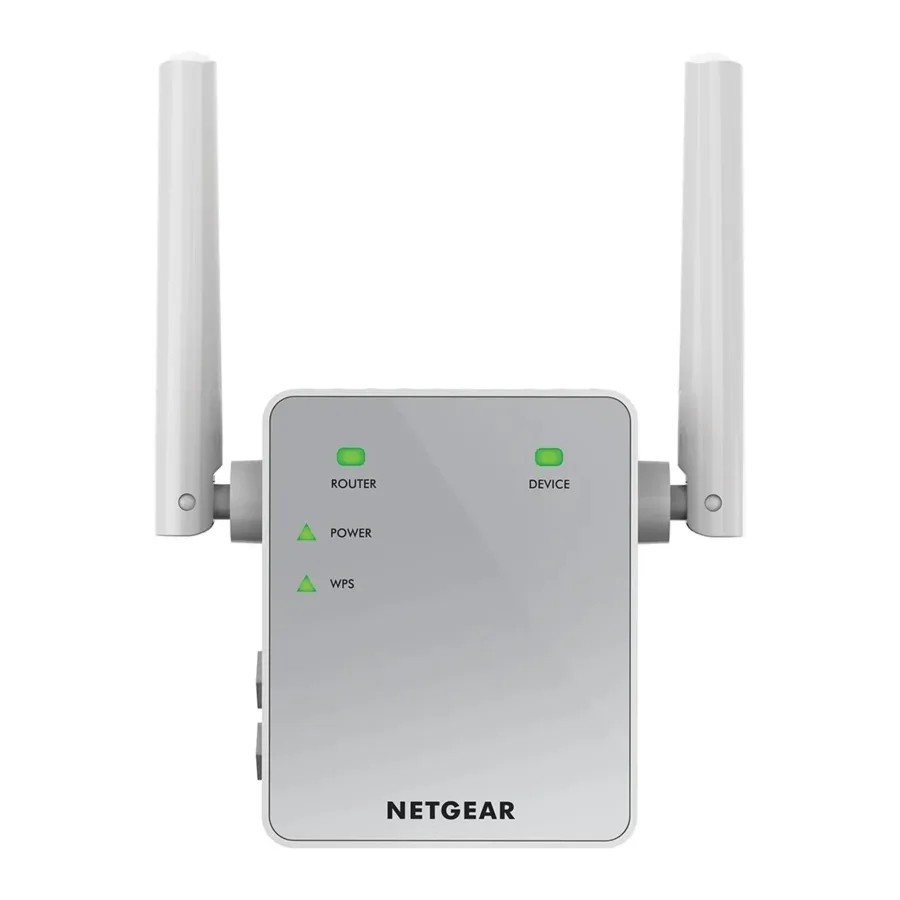
Image source: Bing (Web (fair-use with source credit))
You plug in your Netgear WiFi extender, wait for the lights to settle, and nothing happens. Or maybe it connects but your internet crawls. You are not alone.
"Netgear Wifi Extender Troubleshooting" is one of the most searched home networking topics for a simple reason: these devices are picky about placement and setup.
Most problems come down to four root causes: bad positioning, failed pairing, outdated firmware, or a configuration conflict with your main router. Almost every issue has a fix you can do in under ten minutes. Let's walk through the most common ones step by step.
Quick Answer
Four steps fix most Netgear extender problems. Reset the extender. Move it closer to the router.
Re-pair using WPS. Update the firmware. If the light stays orange, the signal is weak.
Move it halfway between your router and dead zone. If you cannot access mywifiext.net, connect directly to the NETGEAR_EXT network first. Still stuck?
Factory reset by holding the recessed button for 10 seconds.
First, Let's Pin Down the Problem — How to Read Your Extender's Lights Like a Pro
Before you touch any cables or buttons, look at the lights on the front of your extender. Netgear designed them to tell you exactly what is wrong. You just need to know the code.
Power LED. Solid green means the extender has power and is booted up. Blinking means it is still starting. No light at all means the outlet is dead or the extender is faulty.
Try another outlet before anything else.
Link Rate LED. This is the most important light for troubleshooting. Solid green means a strong connection to the router. Solid amber means the signal is weak but usable.
No light means the extender cannot find your router at all. This light is your placement guide. If it is amber or off, move the extender closer to the router.
Client Device LED. Solid green means a phone, laptop, or other device is connected to the extender. No light means nothing is using it yet. That is normal right after setup.
Many people skip this step and start randomly resetting or moving things. Do not do that. Take ten seconds to read the lights.
It saves you from guessing.
Here is the simple logic:
- Power LED off: check the outlet and power adapter.
- Link Rate LED amber or off: move the extender closer to the router.
- Client LED off: your device is not connected to the extender's network yet.
If you see a blinking amber light on the Link Rate LED, your extender is actively trying to pair with the router via WPS. Give it up to two minutes. If it never goes solid, you have a pairing problem.
Extender Not Showing Up or Can't Find NETGEAR_EXT — What to Do When Setup Goes Blank
This is the number one frustration people report. You plug in the extender, look for its WiFi network named NETGEAR_EXT, and it is nowhere in your phone's list. Or you type mywifiext.net into your browser and get a "page not found" error.
Here is why that happens and how to fix it.
You Are Connected to the Wrong Network
During setup, your phone or laptop must be connected to the extender's default network. That network is named NETGEAR_EXT. Open your WiFi settings and look for it specifically.
It will not appear on the same channel as your home WiFi.
If you see NETGEAR_EXT but it says "secured" with a padlock, you may have an older extender that defaults with a password printed on the label. Check the bottom or side of the extender for a sticker with the default SSID and password.
Your Browser Is Caching the Wrong Page
Even if you are connected to NETGEAR_EXT, mywifiext.net might redirect you to a generic "cannot connect" page. This happens because your browser remembers an old DNS entry.
Try this: open a private or incognito window. Type http://192.168.1.250 directly into the address bar. That is the default IP address for most Netgear extenders as of 2026.
If that works, bookmark it so you never have to use the web address again.
Your Phone's Mobile Data Is Interfering
Your phone is connected to NETGEAR_EXT, but it keeps using mobile data for internet because the extender has no internet connection yet. The mywifiext.net page cannot load because your phone is bypassing the extender.
Turn off mobile data on your phone during setup. Or put your phone in airplane mode and then turn WiFi back on manually. This forces it to use the extender's network exclusively.
The Extender Is Too Far from the Router
The NETGEAR_EXT signal might be too weak to reach your phone if you are sitting far away from the extender. During initial setup, plug the extender into an outlet in the same room as your router. Yes, it defeats the purpose temporarily.
But you need a strong signal to complete the setup wizard. Once configured, you can move it to its final location.
Orange Light That Never Turns Green — Placement, WPS Failures, and How to Fix Both
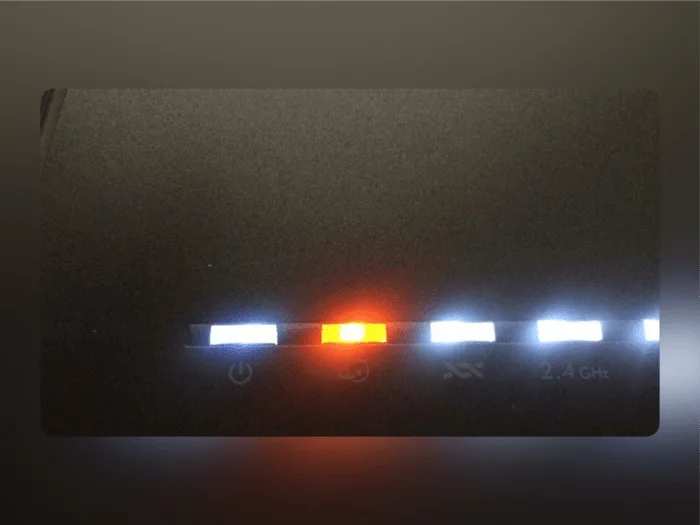
Image source: Bing (Web (fair-use with source credit))
You followed the setup steps. The extender connected. But the Link Rate LED glows solid orange or amber.
It never turns green. This means your extender hears the router, but the signal is weak. Your internet will work, but it will be slow and prone to drops.
Placement Is the Real Problem
Most people put the extender in the dead zone itself. That makes sense intuitively. "I need WiFi in the back bedroom, so I put the extender there." But here is how extenders actually work.
The extender must be close enough to the router to get a strong signal. Then it rebroadcasts that signal to the dead zone.
If you put the extender in the dead zone, it is trying to catch a faint signal and amplify it. You just get a louder version of a weak signal.
The correct placement is halfway between your router and the dead zone. If your router is in the living room and your office has no signal, put the extender in the hallway or dining room between them. The Link Rate LED should turn green within a minute.
WPS Pairing Failed
If you used the WPS button to pair the extender and the orange light never changes, the WPS handshake may have timed out. You only have about two minutes after pressing the WPS button on both devices. If it fails, restart the process:
- Press and hold the WPS button on your router until its WPS light starts blinking.
- Within two minutes, press the WPS button on your extender.
- Wait up to two minutes for the Link Rate LED to go solid.
If it fails three times in a row, use the manual setup method instead. Connect to NETGEAR_EXT, open mywifiext.net, and enter your WiFi password by hand. This bypasses WPS entirely and often works when WPS will not.
Your Router Is Too Old
Some older routers do not support the same WiFi standards as newer extenders. A Netgear Nighthawk AX extender may struggle to pair with a router that only supports 802.11n. In that case, you may need to change your router's wireless mode to "mixed" in its settings.
Check the router's admin panel under Wireless Settings and set the mode to "802.11 b/g/n mixed" or "legacy compatible mode."
Extender Connected but Internet Is Slow — Bandwidth, Overlap, and Channel Congestion Fixes
The Link Rate LED is green. Your phone shows full WiFi bars. But everything loads like dial-up.
This is the second most common complaint, and it has a few distinct causes.
You Are Losing Half Your Bandwidth
Every WiFi extender cuts your bandwidth by roughly 50 percent. That is not a defect. It is physics.
The extender uses one radio to talk to the router and the same radio to talk to your device. It has to switch back and forth, halving the available airtime.
Some newer extenders use FastLane technology or tri-band designs to reduce this penalty. If you have a dual-band extender and need faster speeds, try using the 5GHz band for the backhaul connection to the router. Keep the 2.4GHz band for client devices.
You can set this in the extender's advanced settings.
The Extender Is Too Close to the Router
This sounds backwards, but it happens. If the extender is within a few feet of the router, both devices compete for the same airspace. The extender picks up a strong signal, but interference from the router's own radio reduces throughput.
Move the extender at least 10 to 15 feet from the router. If the Link Rate LED stays green, you have found the sweet spot.
Channel Congestion from Neighbors
In apartment buildings or dense neighborhoods, dozens of WiFi networks compete on the same channels. Your extender may be using a channel that is crowded. Most extenders auto-select a channel, but they do not always pick the best one.
Log into your extender's settings at mywifiext.net or the Nighthawk app. Look for "WiFi Settings" or "Channel Selection." Change it to a less crowded channel. For 2.4GHz, channels 1, 6, and 11 are the only ones that do not overlap.
For 5GHz, try channels in the higher band like 149 or 157.
Your Device Is Still Connected to the Router
Sometimes your phone or laptop stubbornly stays connected to the main router even when you are in the extender's coverage area. This is called "sticky client" behavior. The fix is to turn WiFi off on your device and back on.
It should re-connect to whichever network has a stronger signal. If it keeps grabbing the router, rename the extender's network to something different from the router's SSID so you can manually connect.
WiFi Keeps Dropping Every Few Minutes — Firmware, DHCP Conflicts, and Hidden Culprits
An extender that connects fine but drops every few minutes is maddening. The connection dies for no obvious reason, then comes back. This is almost never a hardware defect.
It is almost always a config issue.
Outdated Firmware Is the Most Common Cause
Netgear releases firmware updates to fix connectivity bugs and security issues. If your extender has not been updated in a year or more, it may have a known bug that causes periodic disconnects.
Open the Nighthawk app or log into mywifiext.net. Look for "Firmware Update" or "Router Update" in the settings. Run the check.
If an update is available, install it. Do not unplug the extender during the update. It takes about three to five minutes.
DHCP Conflict with Your Router
Every device on your network gets an IP address from your router's DHCP server. If your extender is set to hand out IP addresses too, the two devices can clash. This causes some devices to lose their connection randomly.
The fix is to make sure your extender is in "DHCP client" mode, not "DHCP server" mode. You can find this setting in the extender's advanced network settings. Set it to "Obtain an IP address automatically from the router." Do not disable DHCP on your router.
IP Address Conflict
Sometimes your extender gets assigned the same IP address as another device on your network. This causes intermittent drops as the two devices fight for the same address.
Log into your router's admin panel. Look at the list of connected devices. Check the IP address of your extender.
If it is the same as another device, change it. You can set a static IP for the extender in your router's DHCP reservation settings. Use an address outside your router's default DHCP pool, for example 192.168.1.250 if your router uses 192.168.1.1 to 192.168.1.200.
Interference from Other Electronics
Cordless phones, baby monitors, microwave ovens, and even some LED lights operate on the 2.4GHz frequency. If your extender is using 2.4GHz and sitting near one of these devices, you will see random drops.
Move the extender away from other electronics. If you have a dual-band extender, try setting it to use 5GHz for the connection between the extender and your router. 5GHz is much less crowded and less prone to interference from household appliances.
Flashing Lights, No Lights, and Other Scary Symptoms — What's Broken vs. What's Normal
Different light patterns mean different things. Some are normal. Some signal a real problem.
Fast Blinking Power LED
If the power LED blinks rapidly and never stops, the extender may be stuck in a boot loop. Unplug it. Wait 30 seconds.
Plug it back in. If it still blinks, try a factory reset. Use a paperclip to press the reset button on the side or bottom for 10 seconds.
The lights should go dark, then boot up normally.
If the fast blinking continues after a factory reset, the extender may have a hardware failure. Contact Netgear support.
All Lights Flashing at Once
This usually happens during a firmware update or a factory reset. If you did not intentionally start either process, unplug the extender and plug it back in. If all lights flash again immediately, the extender may be corrupted.
Try a hard reset: hold the reset button for 30 seconds while the extender is powered on. If that does not clear it, the unit may need replacement.
No Lights at All
Check the outlet with another device. If the outlet works, check the power adapter. Netgear extenders use specific voltage and amperage adapters.
Using a third-party adapter with different specs can prevent the extender from powering on. Look for the model number on the extender and match it to the adapter.
If the adapter is original and the outlet works, the extender's internal power supply may have failed. This is rare but happens, especially on older units. Replacement is the only fix.
Link Rate LED Blinking Green
A blinking green Link Rate LED means the extender is in the middle of pairing or data transfer. If it blinks constantly and never goes solid, the extender may be stuck in a transfer loop. Reboot both the extender and your router.
If the blinking continues, check for firmware updates.
The Big Comparison: Extender vs. Powerline vs. Mesh — When Fixing Isn't Worth It Anymore
Sometimes no amount of troubleshooting will fix the problem. The extender just cannot do what you need. It is worth knowing your alternatives.
| Option | How It Works | Best For | Main Drawback |
|---|---|---|---|
| WiFi Extender | Captures router signal and rebroadcasts it | Small areas with weak signal | 50% bandwidth loss |
| Powerline Adapter | Sends internet through your home's electrical wiring | Rooms far from router but near outlets | Speed depends on wiring quality |
| Mesh System | Multiple nodes create one seamless network | Whole-home coverage | Higher cost |
When to Switch to Powerline
If your extender keeps dropping connection and you have tried every placement option, powerline adapters may work better. They use your home's electrical wiring instead of WiFi. They are not affected by distance or walls the same way.
The catch: powerline speed depends on your home's wiring. Older homes with aluminum wiring or multiple breaker panels may see slow speeds. But for a stable connection in a far room, it often beats an extender that refuses to cooperate.
When to Switch to Mesh
If you own a larger home, more than 2,500 square feet, or have multiple floors, a mesh system is a better investment. Mesh networks use multiple nodes that talk to each other on a dedicated wireless channel. There is no bandwidth penalty like with extenders.
The cost is higher. A basic mesh system starts around $150. But the reliability and speed are significantly better.
If you have spent more than an hour troubleshooting your extender and still have issues, a mesh system may save you time and frustration in the long run.
When to Stay with the Extender
If your home is under 2,000 square feet and you just need WiFi in one or two dead spots, a properly placed extender works fine. The key is correct placement and updated firmware. Most people who give up on extenders are placing them in the dead zone instead of halfway between the router and the dead zone.
Mistakes Everyone Makes (And Why Your Extender Is Fighting Back) — Placement Sins, Power Strips, and Setting Traps
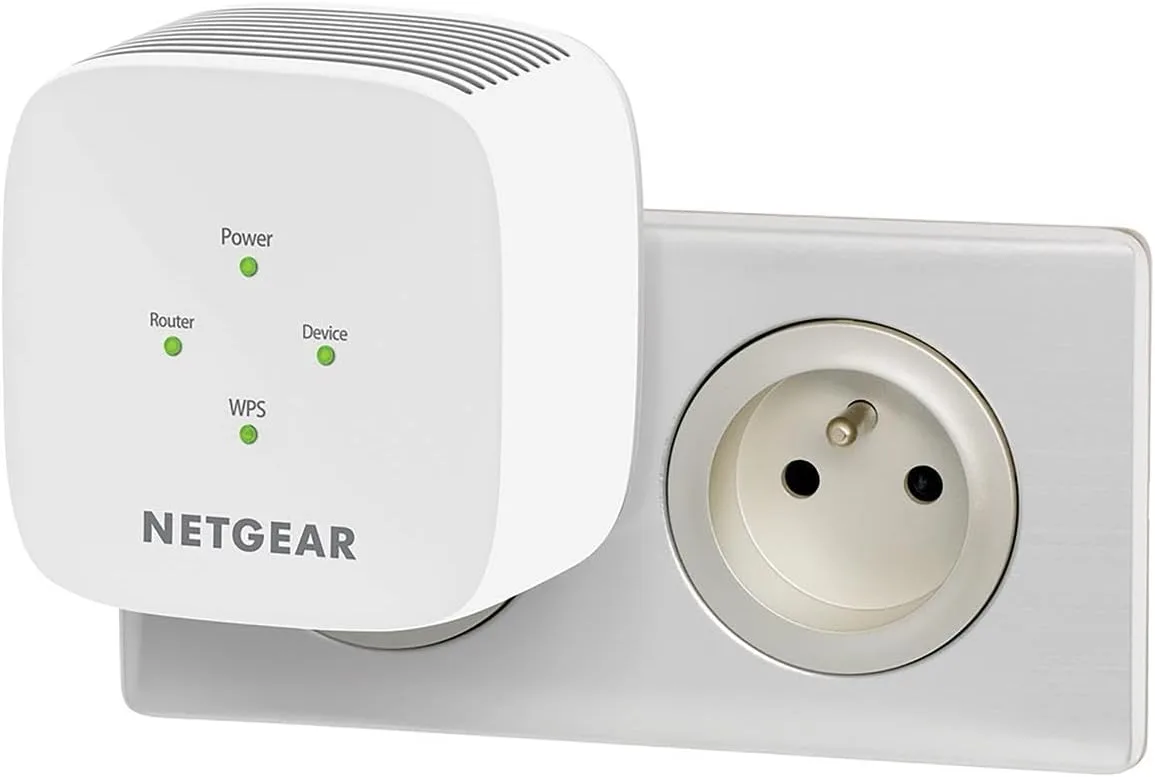
Image source: Bing (Web (fair-use with source credit))
After working through hundreds of user reports, a few mistakes keep coming up again and again. Avoid these and you will save yourself hours of frustration.
Plugging the Extender into a Power Strip
Power strips introduce electrical noise that interferes with WiFi signals. Netgear specifically warns against this in their manuals. Plug the extender directly into a wall outlet.
If you need more outlets, use a power strip for other devices but keep the extender in the wall.
Placing the Extender Behind a TV or Metal Object
TVs, metal filing cabinets, mirrors, and thick furniture all block WiFi signals. If your extender is sitting behind a television, you are cutting its range by half or more. Place it in the open, at least a foot away from large metal objects.
Using the Same SSID for Both Bands
Some people set the extender to use a different network name for 2.4GHz and 5GHz. This is fine if you want to manually choose bands. But if you set both bands to the same SSID, your devices may get confused and connect to the weaker band.
The better approach: give the extender a slightly different SSID from your main router. For example, "HomeWiFi" for the router and "HomeWiFi_Ext" for the extender. This lets you control which network you connect to.
Forgetting to Update Firmware
This is the most overlooked fix. Many people set up their extender, get it working once, and never update it. A year later, bugs cause random drops or slow speeds.
Set a reminder to check for firmware updates every three months.
Using the Wrong Login Credentials
The default login for most Netgear extenders is "admin" for the username and "password" for the password. If you have changed it in the past and forgotten it, you are not alone. A factory reset clears the credentials back to default.
Press the reset button for seven seconds, then log in with the default.
Frequently Asked Questions
Why is my Netgear extender not connecting to my router?
The most common causes are weak signal due to bad placement, WPS pairing failure, or outdated firmware. Move the extender closer to the router, try manual setup instead of WPS, and update the firmware through the Nighthawk app or mywifiext.net.
How do I reset my Netgear WiFi extender?
Use a paperclip to press the reset button on the side or bottom of the extender for 7 to 10 seconds. The lights will flash, then the extender will reboot. This clears all settings and returns the extender to factory defaults.
Why is my Netgear extender blinking orange?
A blinking orange Link Rate LED means the extender is trying to pair with your router via WPS. Give it up to two minutes. If it never goes solid green, the signal is too weak or the WPS handshake failed.
Move the extender closer to the router and try again.
How do I access my Netgear extender settings?
Connect to NETGEAR_EXT or your extender's network name. Open a browser and go to mywifiext.net. Alternatively, use the Nighthawk app on your phone.
If neither works, type 192.168.1.250 directly into the address bar.
Should I use the same SSID for my extender and router?
You can, but it can cause devices to switch back and forth between networks. Using a slightly different SSID, like "HomeWiFi_Ext" instead of "HomeWiFi," gives you more control over which network your devices connect to.
How far should my extender be from my router?
The ideal distance is roughly halfway between your router and the dead zone. The Link Rate LED should be solid green. If it is amber, move the extender closer to the router.
If it stays green at 15 feet, that is a good spot.
Final Recommendation: When to Keep Fighting and When to Move On
Most Netgear extender problems are fixable with better placement, a manual setup instead of WPS, and a firmware update. If you have tried all the steps in this guide and the Link Rate LED still shows amber or your connection keeps dropping, you have a hardware limitation, not a configuration problem.
For homes under 2,000 square feet with one or two dead zones, the extender will likely work once you fix the placement. For larger homes, homes with concrete walls, or homes where you need consistent speed for gaming or streaming, consider upgrading to a mesh system. It costs more, but it saves you the ongoing hassle of troubleshooting a device that was never designed for that scenario.
One last tip: before you give up entirely, factory reset the extender and set it up from scratch using the manual method. Many people find that a clean start fixes problems that accumulated over months of tweaking settings. Good luck.

Similar Posts