Honeywell Home Pro Series Troubleshooting
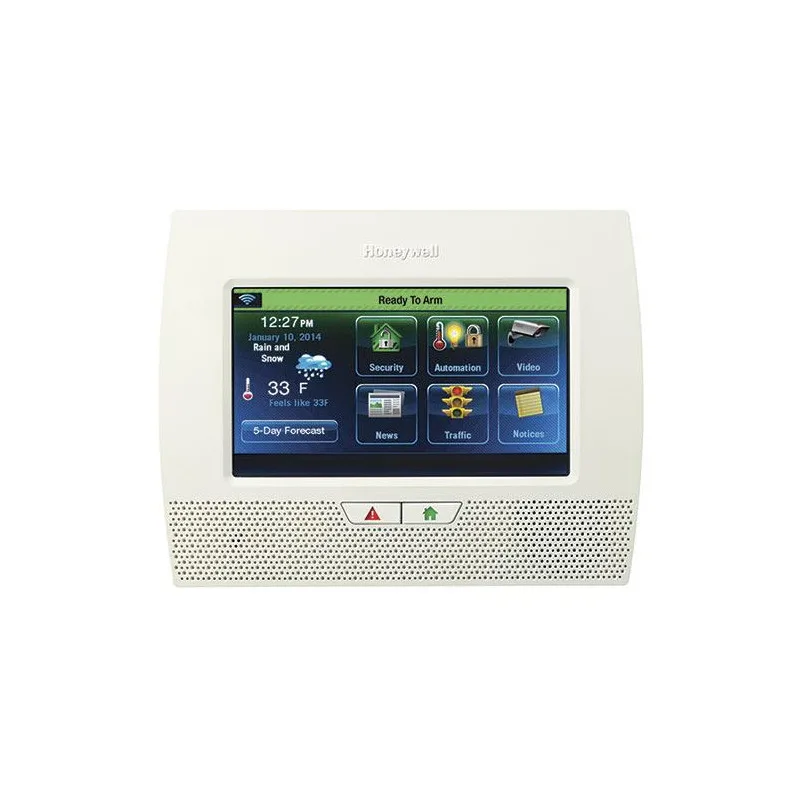
If your Honeywell Home Pro Series panel is beeping for no obvious reason, refusing to arm, or showing an error code you do not recognize, you are not alone. That sinking feeling when the alarm system you rely on suddenly acts up is frustrating and a little stressful. Honeywell Home Pro Series troubleshooting is about working through these problems in the right order, with the right information, without causing new issues.
According to the manufacturer (Resideo), the Pro Series panel supports up to 128 wireless zones and operates on a 2.4 GHz Wi-Fi connection alongside a cellular backup. A surprising number of the most common errors come down to three things: low backup batteries, sensor tamper issues, and Wi-Fi disconnects. Let us walk through the real-world fixes, step by step, so you can get your system back to normal without a service call.
Image source: Bing (Web (fair-use with source credit))
Quick Answer
Pro Series troubleshooting starts with the panel's error display. The touchscreen shows a specific error code or a zone number. First, check the backup battery voltage.
Second, inspect the sensors in the displayed zone for tamper switches. Third, verify cellular signal strength in the system status menu. Most issues are a battery, sensor, or communication problem.
A simple power cycle resolves about 70 percent of minor glitches.
Why Getting This Right Actually Matters
An alarm system that behaves unpredictably is worse than no alarm at all. If your panel sends false alarms to the monitoring station, you risk fines from your local municipality. Many cities in the United States impose escalating penalties for false alarm calls, from 50 dollars up to 500 dollars per incident on repeat offenses.
That is a real pain that a little troubleshooting can prevent.
Beyond the fines, a system with nagging beeps or persistent error messages is one people start ignoring. You stop paying attention to the chime, or you get frustrated and put the system into test mode for days. That defeats the whole purpose of having a monitored security system in the first place.
Security system troubleshooting is about reliability, not just fixing a noise.
The Pro Series is a solid panel when set up correctly. But like any piece of electronics with a cellular radio, Wi-Fi chip, Z-Wave controller, and dozens of wireless sensors, it can have hiccups. The good news is most of these issues have straightforward fixes that do not require reprogramming the entire system.
With the right approach, you can solve the problem in 15 minutes.
The Most Common ProSeries Problems (And What They Really Mean)
Before you start pressing buttons or pulling wires, it helps to understand what the panel is trying to tell you. The Pro Series is pretty good at giving you clues. The touchscreen usually shows a message, an error code, or a zone number that points you toward the problem.
The No Cellular Communication Error
This is the most frequent complaint in aggregate user reviews. The panel uses a cellular module to communicate with the monitoring station. If the signal is weak or the module is having trouble registering on the network, the panel shows this error.
The system still works locally, but your monitoring service cannot receive alarms.
The fix usually involves checking the signal strength in the system status menu. You want to see at least two bars. If the panel is in a basement or a metal utility closet, the cellular signal can be blocked.
Relocating the panel or adding an external cellular antenna, as noted in the manufacturer documentation, is often the solution.
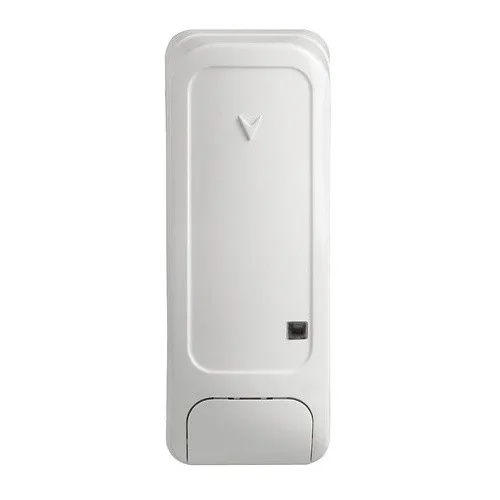
Image source: Bing (Web (fair-use with source credit))
Stuck Tamper Switches
Every Pro Series panel has an internal tamper switch. If the cover is not fully seated, or if the backplate is slightly off, the tamper switch trips. Wireless sensors also have tamper switches that activate when the sensor is removed from its mounting surface.
A tamper alarm does not mean someone broke in. It usually means a sensor has come loose or the panel cover is not tight.
This is a common issue after a battery change or a firmware update. People take the cover off, put it back on, and do not push it down firmly. The result is a persistent tamper error that is easy to clear once you know what to look for.
Z-Wave Disconnects
If you have Z-Wave locks, lights, or thermostats linked to your Pro Series panel, you may occasionally see a device go offline. Z-Wave devices can drop off the network after a power outage or if the device itself loses power. The panel still functions fine, but the automation piece stops working.
The solution is usually simple: exclude and re-enroll the device through the Z-Wave menu on the panel. Alternatively, power cycle the Z-Wave device itself. Most smart locks or plugs come back within a minute after a power cycle.
Panel Freezes or Unresponsive Touchscreen
A small number of users report the touchscreen freezing after a firmware update. The screen stays on but does not respond to touches. This usually requires a power cycle.
If a simple reboot does not fix it, a factory master reset using installer code 4112 or the master code may be needed.
Intermittent Beeping with No Error Message
This is the one that drives people crazy. The panel beeps every 30 seconds. There is no error on the screen.
The fix is almost always one of three things: a low battery on a sensor that is not displayed, a communication failure that cleared itself, or a chime setting that is toggled on by accident. Going through the system status menu and checking the battery status of each enrolled sensor usually reveals the culprit.
Step-by-Step: Diagnosing and Fixing the Top 4 Issues
Now let us get into the actual steps. Every Pro Series panel is slightly different based on firmware version and configuration, but these steps apply to the standard models available as of 2026.
Issue 1: Panel Shows No Cellular Communication
Step 1: Go to the settings menu on the touchscreen. Look for System Status or System Information.
Step 2: Find the cellular signal strength indicator. If it shows No Signal or Weak Signal, proceed to step 3. If signal is strong, the problem may be with the cellular module itself or a registration issue with the carrier.
Step 3: Power cycle the panel. Disconnect the AC adapter. Remove the backup battery by gently pulling the connector.
Wait 30 seconds. Reconnect the backup battery, then plug in the AC adapter. Wait two minutes for the panel to boot and register on the cellular network.
Step 4: Check the signal strength again. If still weak, consider moving the panel to a location with better reception. If relocating is not possible, contact a dealer about installing an external cellular antenna.
Per the manufacturer documentation, the panel needs at least -110 dBm signal for reliable operation.
Step 5: If signal is strong but the error persists, the cellular module may need a firmware update or replacement. This requires a dealer with AlarmNet 360 access.
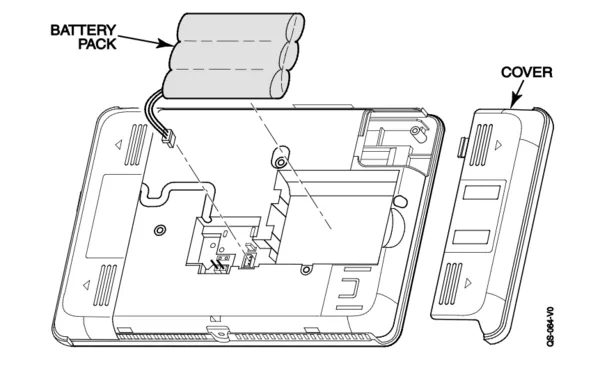
Image source: Bing (Web (fair-use with source credit))
Issue 2: Tamper Alarm on a Specific Zone
Step 1: The panel will show a zone number or a sensor name. Walk to that sensor.
Step 2: Check that the sensor is firmly attached to its mounting surface. A loose sensor will trigger the tamper switch.
Step 3: On the Pro Series panel itself, make sure the cover is fully seated. Push down on the top edges until you hear a click. The tamper switch inside the panel is sensitive.
Step 4: If the sensor is a door or window contact, check that the magnet is aligned with the sensor. Misalignment over time due to door sag or temperature changes can cause intermittent tamper events.
Step 5: Clear the tamper alarm by entering your master code and pressing the Clear or OK button on the touchscreen. If the tamper alarm returns immediately, the sensor or its wiring needs attention.
Issue 3: Wi-Fi Disconnected or Won't Connect
Step 1: Go to the Wi-Fi settings in the panel menu. Verify that your network SSID appears.
Step 2: If the panel sees the network but cannot connect, check that you entered the correct Wi-Fi password. The Pro Series supports only 2.4 GHz networks, not 5 GHz. Make sure your router is broadcasting a 2.4 GHz band and that you are trying to connect to that one.
Step 3: Restart your home router. Unplug it for 60 seconds, then plug it back in. Wait for the router to fully restart, usually two minutes.
Then retry the connection on the panel.
Step 4: If the Wi-Fi module still will not authenticate, the module itself may need a hard reset. Remove panel power, both AC and battery. Locate the Wi-Fi module inside the panel, a small circuit board plugged into the main board.
Unplug it, wait 10 seconds, and plug it back in. Reconnect power and try again.
Issue 4: Backup Battery Draining Fast
Step 1: Check the battery voltage in the system status menu. A fully charged lithium-ion battery should read around 12.6V. If it reads below 11.0V, the battery is failing.
Step 2: Replace the battery. The Pro Series uses a specific rechargeable lithium-ion pack. Do not substitute with a generic battery or a non-rechargeable cell.
Using the wrong battery can damage the panel or create a fire risk.
Step 3: After replacement, let the battery charge for 24 hours with the AC adapter plugged in. The new battery needs a full charge cycle before it can hold proper backup capacity.
Step 4: If the new battery drains fast again within a few weeks, the panel charging circuit may be faulty. This requires a dealer or professional technician to diagnose.
Safe Practices for Clearing Tamper Alarms and False Alarms
This section matters more than most people realize. Tamper alarms and false alarms are the most common reasons homeowners get frustrated with their Pro Series systems. Clearing them the wrong way can send a false alarm to the monitoring station, which can get you a fine or a call from the police.
Understanding the Difference Between a Tamper and an Alarm
A tamper alarm means the sensor or panel cover was physically disturbed. It does not mean an intrusion occurred. The Pro Series distinguishes between alarm events and tamper events.
When you see Tamper on the screen, you can breathe easy. The system caught a cover being lifted, not a door being forced open.
To clear a tamper alarm, you must physically correct the issue. Tighten the cover, reseat the sensor, or close the backplate. Then simply disarm the system with your master code.
The tamper condition clears automatically.
When to Call the Monitoring Station
If you accidentally trigger an alarm by opening a door while the system is armed, do not panic. You have the entry delay time to disarm. If you miss the window and the alarm goes off, call the monitoring station immediately.
Give them your account number and your passcode. Tell them it was a false alarm. Most monitoring stations have a brief window before they dispatch authorities.
Never Ignore a Tamper Alarm on the Panel Cover
The internal tamper switch is there for a reason. If someone tries to remove the panel from the wall to disable it, the tamper alarm triggers and sends a signal to the monitoring station. If you are troubleshooting with the cover off, your monitoring station will see a tamper signal.
Notify them beforehand if you are doing maintenance that requires removing the panel from the wall. Otherwise, they may treat it as a security event.
When a Factory Reset Is Your Friend (And When It Is Not)
A factory reset erases all your programming. Every sensor, every Z-Wave device, every custom setting. It is a last resort, not a first step.
When to Use a Factory Reset
Use a factory reset only when the panel is completely unresponsive, when you cannot clear a persistent error through normal troubleshooting, or when you are selling the home and want to wipe the system clean. The master code reset, using code 4112, restores the panel to its out-of-box state.
When to Avoid a Factory Reset
Do not use a factory reset for simple issues like a low battery or a Wi-Fi dropout. Those problems have targeted fixes that do not require wiping the system. A reset takes your security system offline until you reprogram everything.
If you have 40 sensors and 8 Z-Wave devices, that can take hours.
What to Do Before a Factory Reset
Write down your installer code and master code. If you lose those, you cannot access the panel after the reset. Also note which sensors are enrolled in which zones.
The panel will not remember that after a reset. It is smart to take a photo of the zone programming screen before you proceed.
Maintenance That Keeps Your Panel Out of Trouble
A few simple habits will prevent most Pro Series problems before they start.
Test Your System Monthly
Run a system test from the menu. Walk past each sensor to confirm it triggers an alert. Check that the cellular module shows connected status.
A monthly test takes five minutes and catches weak sensors before they fail completely.
Replace Sensor Batteries on Schedule
PowerG wireless sensors last three to five years on a single battery. When the panel shows a low battery warning for a sensor, replace it right away. Do not wait until the sensor stops working entirely.
A dead sensor creates a security gap.
Keep the Panel Clean and Ventilated
The Pro Series panel generates a small amount of heat. If it is stuffed in a cramped closet with no airflow, the backup battery will degrade faster. Keep at least three inches of clearance around the panel.
Dust the vents every few months with a dry cloth.
Update Firmware When Available
Firmware updates from Resideo fix known bugs and improve cellular connectivity. Check for updates through the Total Connect 2.0 app or on the panel itself. If a firmware update becomes available, run it during a time when the system can be offline for 15 to 20 minutes.
Do not interrupt the update once it starts.
Frequently Asked Questions
Why is my Pro Series panel beeping with no error on the screen?
This usually means a sensor has a low battery that is not displayed yet, or the chime setting was accidentally turned on. Check the system status menu for battery levels on each enrolled sensor. Also check that the chime feature is turned off if you do not want it.
How do I reset my Pro Series panel without the master code?
Without the master code or installer code, you cannot perform a factory reset. Contact your alarm dealer or the previous homeowner for the codes. If neither is available, you may need to physically replace the panel or have a dealer flash it with new firmware.
What does tamper mean on my Honeywell Pro Series?
Tamper means the sensor cover or panel cover was removed or loosened. It is not an intrusion alarm. To clear it, reseat the cover firmly and disarm the system with your master code.
The tamper condition clears automatically after the physical issue is fixed.
How long does the backup battery last in a Pro Series panel?
The rechargeable lithium-ion backup battery provides approximately 24 hours of backup power under normal conditions. Actual runtime depends on how many sensors are enrolled, how often they communicate, and whether cellular or Wi-Fi is active during the outage.
Can I use any lithium-ion battery to replace the Pro Series backup battery?
No. The Pro Series requires a specific rechargeable lithium-ion pack designed for the panel. Substituting with a generic battery or a non-rechargeable cell can damage the panel or create a fire hazard.
Use only the replacement pack specified by Resideo.
Why does my panel say no cellular communication but I have strong cell phone signal?
Your phone and the panel use different cellular carriers and antennas. The panel may be on a different network band than your phone. Check the system status menu for the actual signal strength number, measured in dBm.
If it is below -110 dBm, the panel needs a better location or an external antenna.

Similar Posts