How to Turn on DSLR Camera WiFi
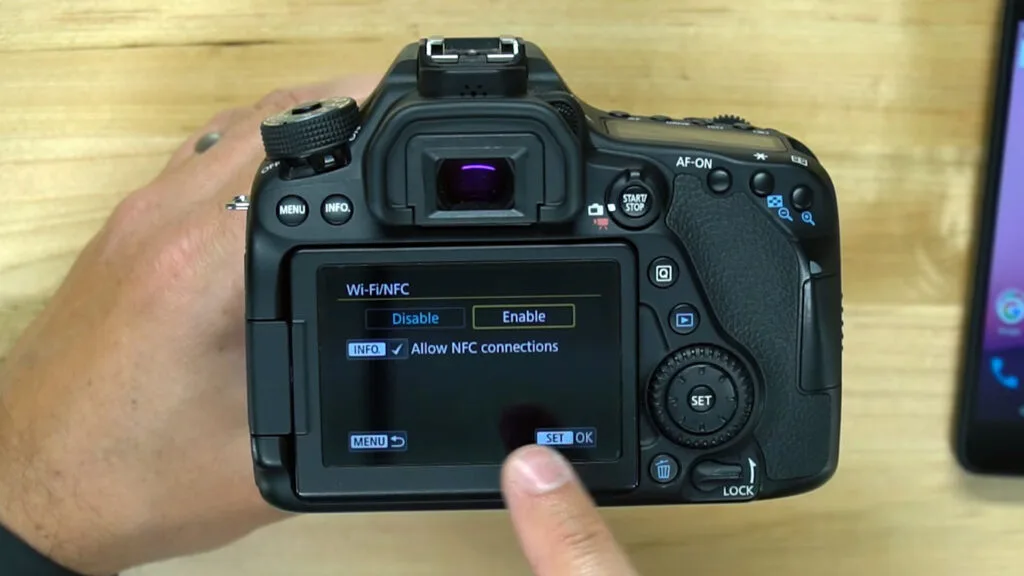
If you've ever fumbled through a camera menu trying to figure out how to turn on DSLR camera WiFi, you're not alone. The process varies wildly between brands and even between models from the same manufacturer. One button press might work on your friend's Canon, while your Nikon requires a deep menu dive.
It's frustrating, but it doesn't have to be.
Manufacturer documentation shows that most DSLRs with built-in WiFi operate on the 2.4 GHz band, a standard that's been around since 2012. As of 2026, that's still the most common frequency for camera-to-phone connections. The good news is the setup process follows a predictable pattern once you know which branch of the decision tree your camera sits on.
Let's start with the fastest path to a working connection.
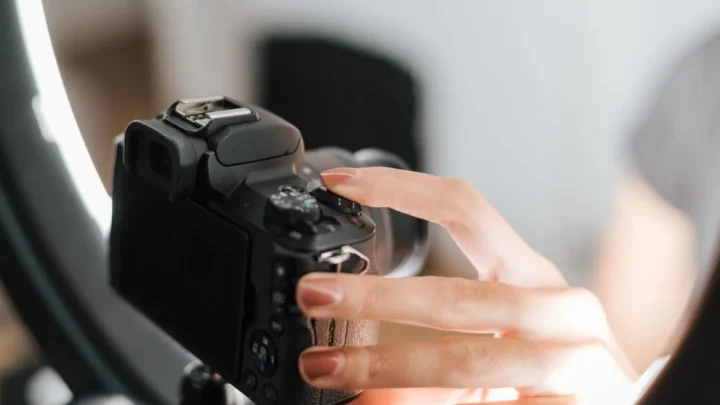
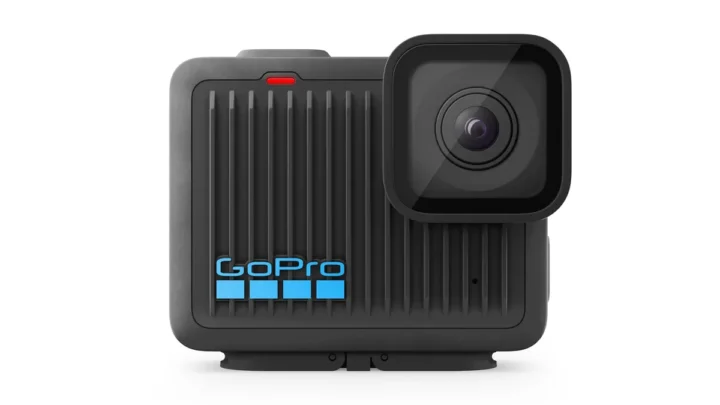
Image source: Web (Bing) / ditchauto.com (Web image (fair-use with source credit))
Quick Answer
Turn on your DSLR's WiFi. Press the dedicated WiFi button. Or navigate to the WiFi section in the menu.
Select "Connect to Smartphone." The camera shows a network name and password. Connect your phone to that network. Open the brand's app.
Pair the two devices. That's it.
The Catch with DSLR WiFi (It's Not One-Size-Fits-All)
The biggest frustration is that there's no universal "on" switch. Some cameras, like many Canon DSLRs, have a dedicated WiFi button. Press it, and the menu pops up.
Others, like most Nikon DSLRs, bury the WiFi option three menus deep. You'll need to dig through the setup menu to find it.
Then there's NFC. If your camera has an NFC logo near the grip, you can tap your phone to it. This works on many Sony and Fujifilm models.
But NFC isn't always reliable. Misalignment or a thick phone case can kill the connection.
How do you know which method your camera uses? Look for a WiFi icon on the camera body. A button with a wireless symbol means a dedicated press.
No button means you're in menu territory. An NFC logo means you've got the tap-to-connect option.
Step-by-Step Guide by Brand
Canon: WiFi button + Canon Camera Connect app
Press the WiFi button on the camera body. The LCD will display a network name and password. Open the Canon Camera Connect app on your phone and select your camera's network.
The app will guide you through pairing. You can download the app from the official Canon support site. If you spend a lot of time shooting outdoors, Canon's WiFi button makes transfers quick and easy.
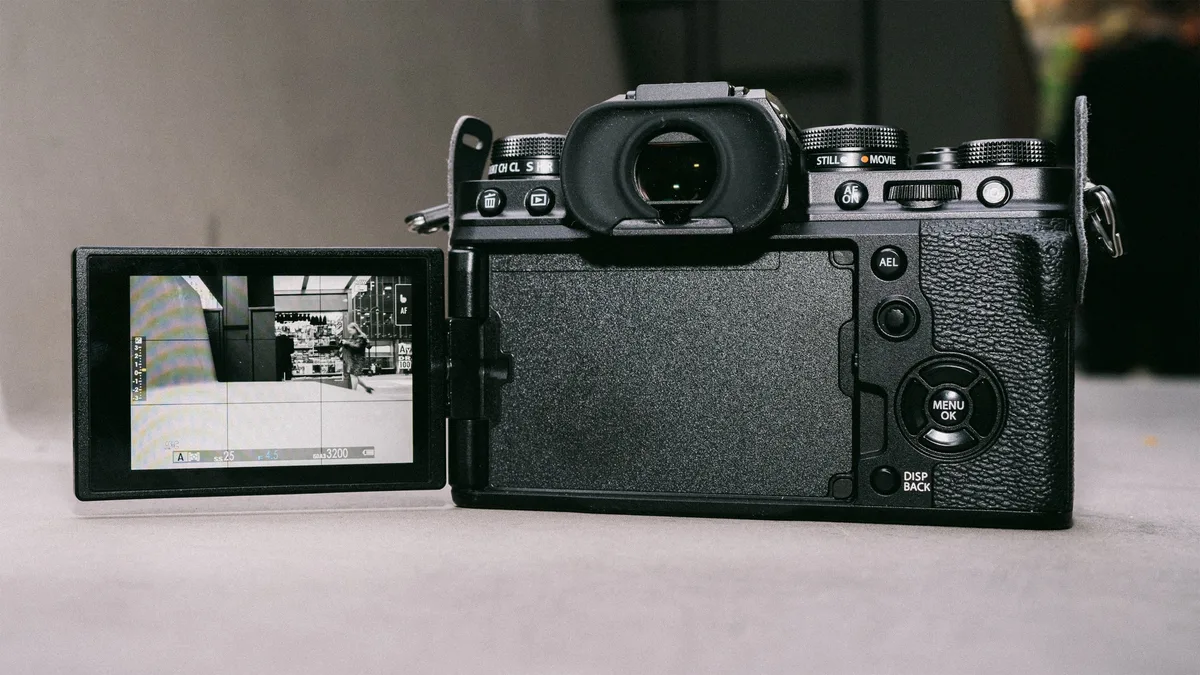
Image source: Web (Bing) / au.pcmag.com (Web image (fair-use with source credit))
Nikon: SnapBridge (Bluetooth first, then WiFi)
SnapBridge uses Bluetooth for the initial handshake. Make sure Bluetooth is on in both devices. Open the app and follow the pairing prompts.
The app will switch to WiFi for transfers. The SnapBridge app is available on the Nikon support page.
Sony: Imaging Edge Mobile + NFC or QR code
Most Sony cameras use NFC or QR code pairing. Tap your phone to the NFC logo on the camera grip. Or display the QR code on the camera screen and scan it with the Imaging Edge Mobile app.
Fujifilm, Panasonic, Olympus: Menu-based connections and QR pairing
These brands rely on menu-based WiFi. Go to the WiFi section, select "Connect to Smartphone", and choose QR code or manual SSID. The camera will display a QR code.
Scan it with the brand's app. Fujifilm cameras are popular for candid shots, and their WiFi setup is straightforward once you know the menu.
Older DSLRs: What to do if your camera has no built-in WiFi
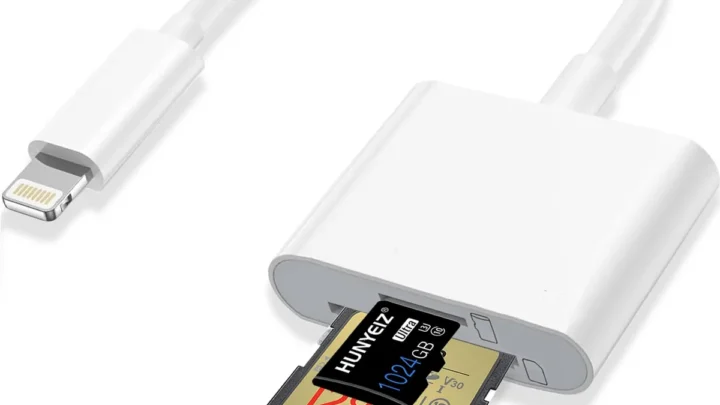
If your camera has no built-in WiFi, use a WiFi-enabled SD card. Insert the card, install the app, and follow the card's instructions.
Common Mistakes That Kill the Connection
Forgetting to enable "Remote Control" mode. Many cameras default to "Transfer" mode when you turn on WiFi. If you want to use your phone as a remote shutter, you need to switch to "Remote Control" or "Remote Shooting" in the WiFi menu. This is a common oversight.
Remote shooting is especially useful for evening shoots, where pressing the shutter can cause camera shake.
Trying to connect while the app is in the background. The app needs to be active and in the foreground. If you switch to another app, the connection may drop. Keep the app open until the transfer is complete.
Wrong password, outdated firmware, or NFC misalignment. Double-check the password displayed on the camera. Update your camera's firmware to the latest version. For NFC, remove any thick case and tap the exact spot marked on the camera.
Image source: Web (Bing) / etsy.com (Web image (fair-use with source credit))
Why your camera might not show up in the app. First, make sure the camera's WiFi is enabled and in the correct mode. Then check that your phone's WiFi is on and connected to the camera's network. The app should detect it automatically.
Frequently Asked Questions
Can I use WiFi while shooting?
Yes, but with limitations. Most cameras allow remote shooting and live view. The connection may introduce a slight delay, typically 100 to 300 milliseconds.
For fast-moving subjects like birds in flight, a wired connection is more reliable. For static subjects, WiFi works fine.
Why does my connection keep dropping?
Common causes include distance, obstacles, and interference. Stay within 10 meters and keep a clear line of sight. Check that your phone's WiFi is not switching to a different network.
Also, make sure your camera's WiFi is set to access point mode, not infrastructure mode.
Does WiFi drain the battery fast?
Yes. Continuous WiFi usage can drain the battery 15 to 25 percent per hour. Turn off WiFi when not in use.
Carry a spare battery for extended shoots. If you are new to photography and want a camera with easy WiFi setup, look for models with a dedicated WiFi button and a simple app.
Can I connect to multiple phones at once?
No. Most DSLRs only support one WiFi connection at a time. You can disconnect one phone and connect another, but not simultaneously.
Some cameras allow multiple Bluetooth pairings, but not for WiFi. For group sharing, transfer images to one phone and share from there.

Similar Posts