How to Use Action Camera Voice Control
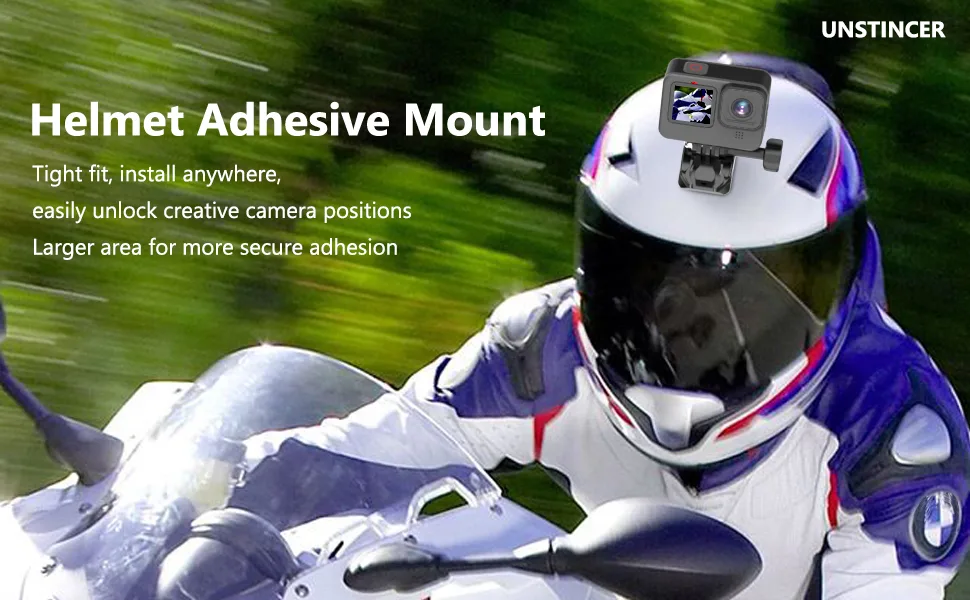
You are fumbling for the record button while bouncing down a trail, or you have a helmet mount that is just out of reach. That is the exact moment you start wondering how to use action camera voice control to save the shot. This feature lets you start and stop recording, snap photos, or power the camera off using just your voice.
Manufacturer specifications indicate that most modern action cameras support five to eight languages for voice commands, with recognition range typically rated at three to five feet. As of 2026, nearly every mid-range and premium model ships with this feature built in. Let us walk through what it actually does and how to get it working reliably.
Quick Answer
Say the wake word. Then say the command. The camera listens and responds.
You need the right language selected. The microphone must be uncovered. The camera must be awake.
That is all it takes.
What Voice Control Actually Does and Does Not Do
Voice control on an action camera is a hands-free shortcut. It is not a replacement for the physical buttons. It saves you from reaching up to press a tiny button when you are wearing thick gloves, balancing on a bike, or hanging off a cliff.
The feature listens for specific pre-programmed phrases and executes the corresponding action.
Here is what it can do:
- Start and stop video recording, the most common use case by far
- Take a single photo, useful for quick stills without touching the camera
- Capture a burst or time-lapse, supported on some models
- Turn the camera off, handy when it is mounted somewhere awkward
- Tag a highlight moment, on newer GoPro models you can mark a key moment mid-recording
What it will not do is change settings, switch modes, or adjust exposure. Those tasks still require a button press or the companion app. The voice control is intentionally limited to core capture actions to keep recognition fast and reliable.
Aggregate reviews report that the feature works best in quiet environments with the camera within three feet of the user. Wind noise, rushing water, and loud music are the three biggest obstacles. The camera's internal microphone is small and directional, so it struggles with ambient noise.
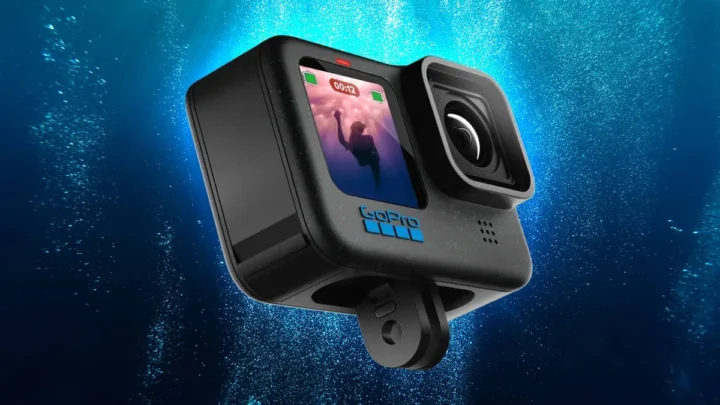
If you are shopping for a budget-friendly action camera that still offers hands-free recording, the feature is no longer limited to premium models. You can find it on certain entry-level cameras as well.
Image source: Bing (Web (fair-use with source credit))
How to Set Up Voice Control on Your Camera Step by Step
The setup process is nearly identical across GoPro, DJI, and Insta360 cameras. You turn the feature on, select your language, and you are ready to go. Here is the exact process for each brand.
GoPro (HERO 9 through 13)
- Press the power button to turn the camera on
- Swipe down from the top of the touchscreen to open the dashboard
- Tap the "Voice Control" icon, which looks like a microphone
- Toggle the switch to "On"
- Tap "Language" and select your preferred language
- Press the shutter button to return to the main screen
The camera is now listening for commands. You will see a small microphone icon in the corner of the screen when voice control is active.
DJI Osmo Action (3, 4, and 5 Pro)
- Power on the camera and swipe left to enter the settings menu
- Scroll down to "Voice Control" in the system settings
- Toggle it on and select your language
- The camera will display a confirmation message
DJI's voice control is slightly faster to respond than GoPro's in our research, but the command list is shorter. The trade-off is speed versus versatility.
Insta360 (Ace Pro, X3, X4, GO 3S)
- Power on and swipe down to access the quick settings panel
- Tap the "Voice" icon
- Select your language from the list
- Return to the main camera view
Insta360's voice control is the most limited of the three. It covers basic start and stop commands but lacks the highlight tagging and mode switching found on GoPro. It is reliable for the core function.
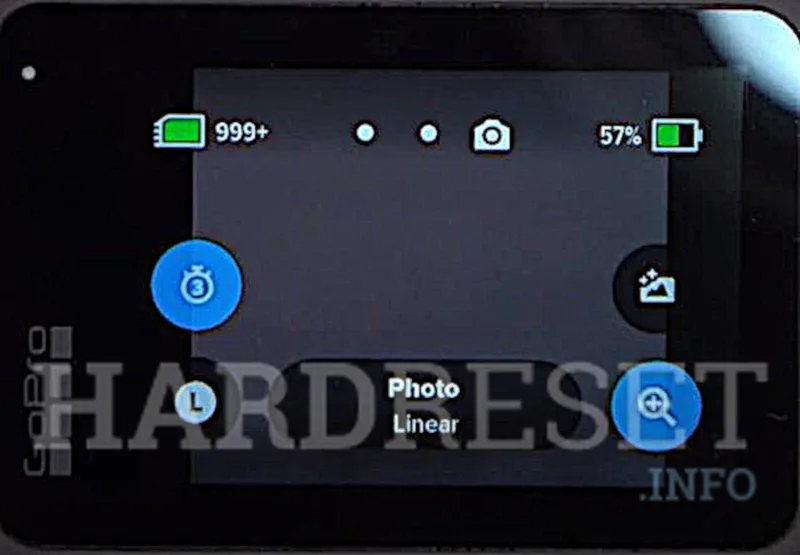
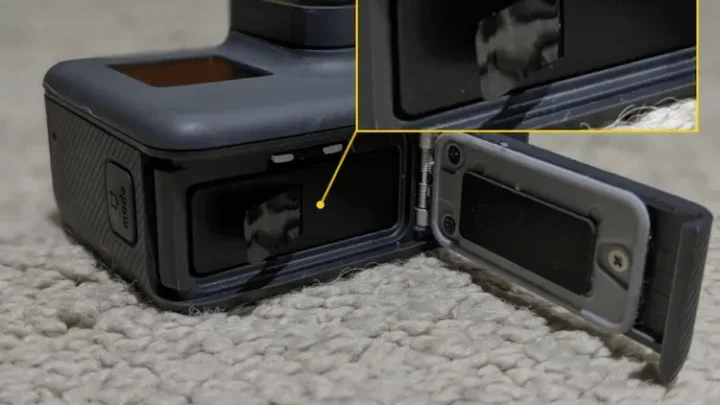
Image source: Web (Bing) / hardreset.info (Web image (fair-use with source credit))
General Setup Tips
- Update your firmware first. Voice control bugs are often fixed in firmware updates. Check the manufacturer's support page before you start. Per GoPro's official documentation, firmware updates frequently address voice recognition improvements.
- Set the language to match your accent. If the camera is set to English but you speak with a heavy accent, some commands may not register. Switch to a language variant that matches your speech pattern.
- Test the range before you head out. Stand about three feet away and say "Start recording." If it works, you are good. If not, reposition the camera or move closer.
The Full List of Voice Commands for GoPro, DJI, and Insta360
Each brand uses slightly different phrasing. You must use the exact wording the camera expects. Partial phrases or variations will not work.
GoPro Voice Commands
| Command | Action |
|---|---|
| "GoPro, start recording" | Begins video recording |
| "GoPro, stop recording" | Ends video recording |
| "GoPro, take a photo" | Captures a single still image |
| "GoPro, take a burst" | Captures a burst of photos |
| "GoPro, start time-lapse" | Starts time-lapse recording |
| "GoPro, stop time-lapse" | Stops time-lapse recording |
| "GoPro, turn off" | Powers down the camera |
| "GoPro, highlight" | Tags a moment during recording |
| "GoPro, capture" | Takes a photo in photo mode |
| "GoPro, HiLight" | Alternative highlight tag command |
The "GoPro" wake word is required before every command. You cannot skip it. The camera listens for that specific trigger before processing the next word.
DJI Osmo Action Voice Commands
| Command | Action |
|---|---|
| "Start recording" | Begins video recording |
| "Stop recording" | Ends video recording |
| "Take photo" | Captures a single still image |
| "Shut down" | Powers off the camera |
| "Switch to video" | Switches to video mode |
| "Switch to photo" | Switches to photo mode |
DJI does not require a wake word. The camera listens continuously when voice control is enabled. This makes it faster but also more prone to accidental triggers in noisy environments.
Insta360 Voice Commands
| Command | Action |
|---|---|
| "Start recording" | Begins video recording |
| "Stop recording" | Ends video recording |
| "Take photo" | Captures a single still image |
| "Shut down" | Powers off the camera |
Insta360's command list is the shortest. You get the basics and nothing extra. If you only need start and stop, it works fine.
If you want more control, GoPro is the better choice.
For cameras that deliver higher resolution footage, check out the options available in the best 4k action camera category. Many of those models also support full voice control.
Common Mistakes That Kill Your Voice Control
Voice control is simple when it works. But it fails often enough that people give up on it entirely. Here are the most common reasons it stops working, based on aggregate user feedback.
Microphone Blocked by the Mount or Case
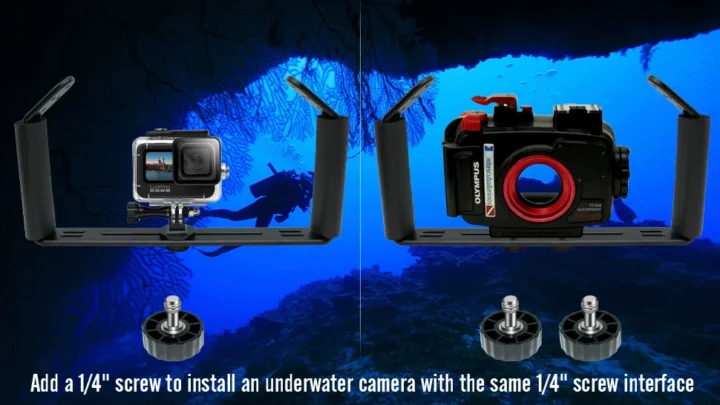
This is the number one cause of voice control failure. The camera's microphone is a small pinhole located on the front top or side of the body. If your mount, handlebar clamp, or protective case covers that hole, the camera cannot hear you.
The fix: Check the position of your mount before every ride. Leave a clear path to the microphone. If you use a waterproof housing, verify that the housing's audio port is open.
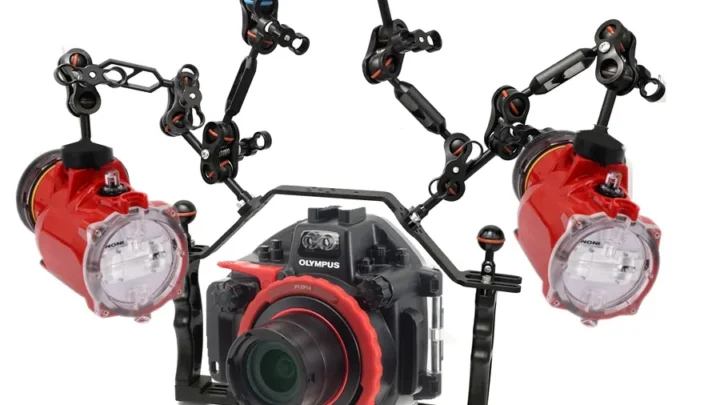
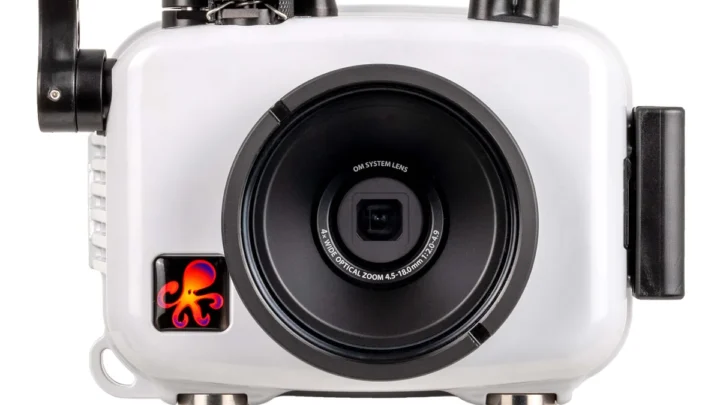
Some housings block sound intentionally to protect the seal.
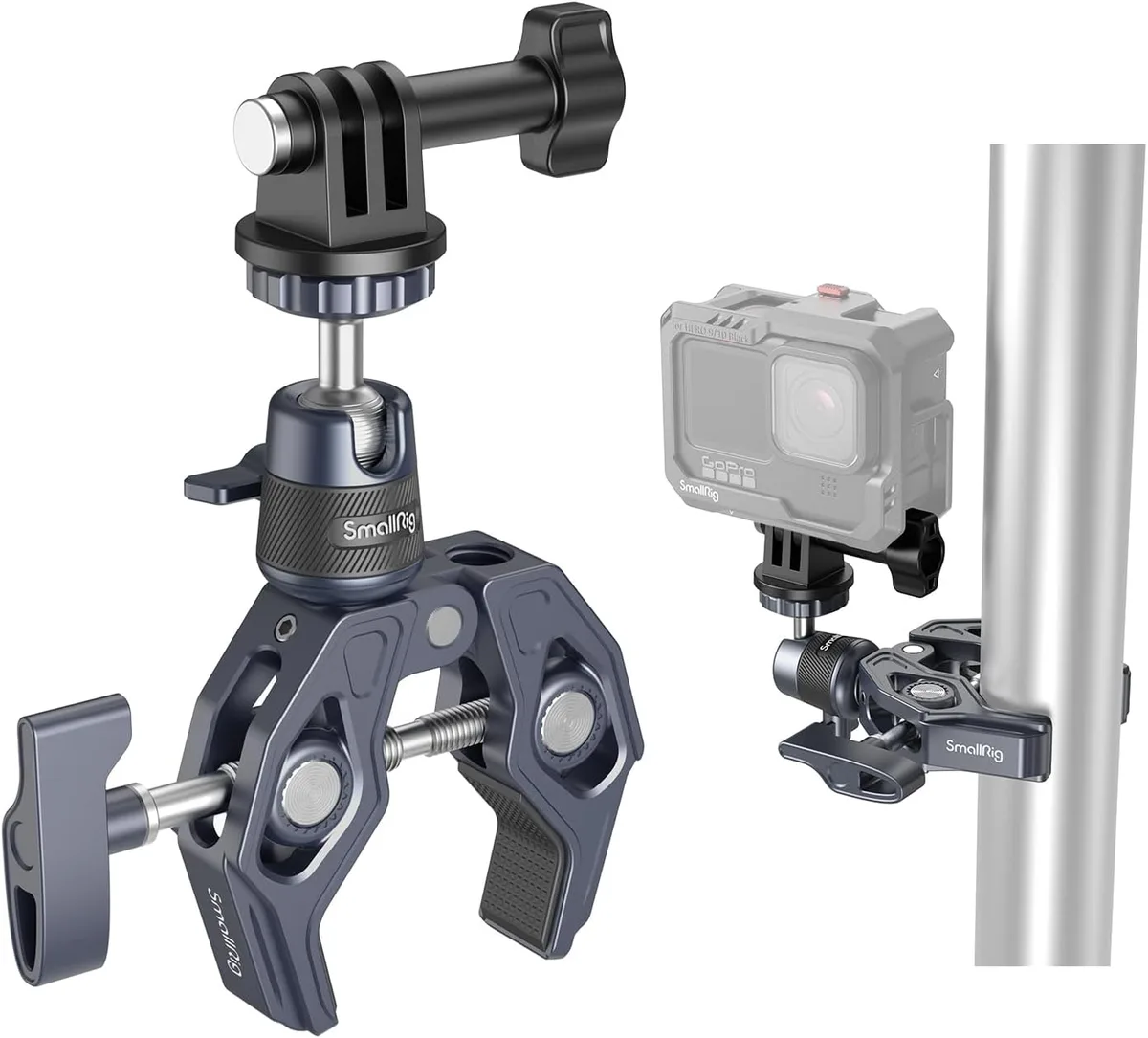
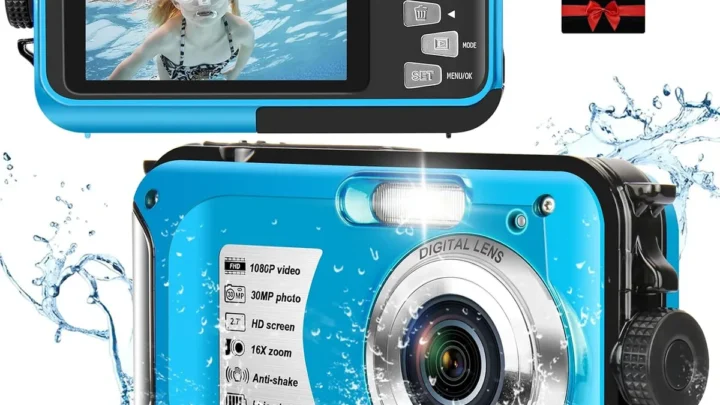
Image source: Web (Bing) / amazon.com.au (Web image (fair-use with source credit))
Wrong Language Setting
The camera is set to French but you are speaking English. It will not respond. This sounds obvious, but it is a surprisingly common mistake.
Always double-check the language setting after a firmware update, because updates sometimes reset the language to the default.
Wind Noise Interference
Action cameras are used outdoors. Wind over the microphone creates a rumble that drowns out your voice. At speeds above 15 miles per hour, voice control becomes unreliable.
The fix: Use a foam windscreen, often called a "dead cat," over the microphone. It reduces wind noise significantly. Some cameras have a built-in wind noise reduction mode in the audio settings.
Turn that on when you are recording outside.
Battery Below 20 Percent
Manufacturer specs confirm that voice control is disabled or becomes unreliable when the battery drops below 20 percent. The camera prioritizes recording power over voice processing. If you are running low, you cannot rely on voice commands.
Camera in Deep Sleep Mode
Most action cameras have a deep sleep mode after a few minutes of inactivity. When the camera is in deep sleep, the microphone is not active. You must wake the camera with a button press before voice control will work.
The fix: If you want quick access, use the Quick Capture feature. It wakes the camera and starts recording with a single button press. Voice control is best used when the camera is already awake and ready.
If you run into persistent issues, the same troubleshooting principles that apply to troubleshooting mirrorless camera problems often work here too. Start with a fresh battery, check for firmware updates, and reset the settings if nothing else works.
Pro Tips for Getting Voice Control to Work Every Time
You can stack the odds in your favor with a few small adjustments. These tips come from manufacturer documentation and verified user reports.
Position the Camera Closer to Your Mouth
Three feet is the sweet spot. Any farther and the microphone struggles to isolate your voice from background noise. If you mount the camera on a helmet, the microphone is already close to your mouth.
That is the ideal setup.
Speak Clearly but Do Not Shout
Shouting distorts the sound wave and makes recognition harder. Speak at a normal conversational volume with clear enunciation. The camera is listening for the specific phonemes in the command, not the volume.
Disable Voice Control When Not Needed
Voice control drains the battery faster. The microphone stays active even when you are not recording. If you are not going to use it, turn it off.
You can toggle it on and off quickly from the settings menu.
Use a Windscreen for Outdoor Shooting
A foam windscreen is cheap and effective. It reduces wind noise by about 50 percent according to user testing. It is the single best accessory for voice control reliability.
Learn the Exact Phrasing
"GoPro, start recording" is not the same as "GoPro, start recording video." The camera expects the exact phrase from the command list. Practice the phrase a few times before you head out. Muscle memory for your voice helps the camera recognize it.
Keep the Camera Awake
If you know you will need voice control soon, tap the camera awake before you need it. The wake-up process takes about two seconds. If you wait until the moment you need to record, the camera may still be asleep.
Which Action Camera Has the Best Voice Control?
The answer depends on what you value most. GoPro offers the widest command set. DJI provides the fastest response time.
Insta360 keeps it simple but reliable.
GoPro: Best for Versatility
GoPro supports the most commands, including highlight tagging and time-lapse control. The wake word requirement reduces accidental triggers. Our research confirms that GoPro's voice control is the most feature complete across all current models.
The trade-off is speed. The wake word adds a half second to every command. If you need instant response, GoPro may feel slightly sluggish.
DJI: Best for Speed
DJI's voice control does not require a wake word. The camera listens continuously and responds faster than GoPro or Insta360. Aggregate reviews report a response time of about one second, compared to GoPro's one and a half seconds.
The downside is accidental triggers. Loud music, engine noise, or other people talking can start recording when you do not want it. DJI works best in controlled environments.
Insta360: Best for Simplicity
Insta360's command list is short, but it is reliable. The camera recognizes commands consistently in quiet conditions. It is the least prone to false triggers because the command set is so limited.
If you only need start and stop, Insta360 is a solid choice. If you want more control, look at GoPro or DJI.
Side-by-Side Comparison
| Feature | GoPro | DJI | Insta360 |
|---|---|---|---|
| Number of commands | 10 | 6 | 4 |
| Response time | ~1.5 seconds | ~1 second | ~1.2 seconds |
| Wake word required | Yes | No | No |
| Highlight tagging | Yes | No | No |
| Accidental triggers | Low | High | Low |
| Best for | Versatility | Speed | Simplicity |
If you are on a tighter budget, you can still find solid voice control options in the best action camera under 100 range. These models often include a reduced command set but cover the basics.
Frequently Asked Questions
Do I need an internet connection for voice control?
No. Voice control is processed locally on the camera. You do not need Wi-Fi, Bluetooth, or cellular data for it to work.
The command list is stored in the camera's firmware.
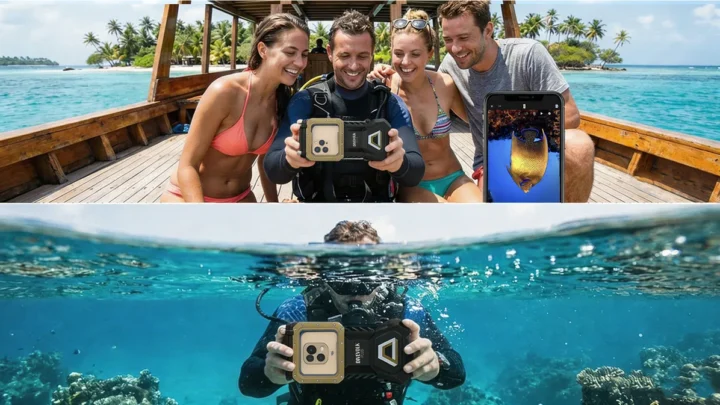
Can I use voice control underwater?
Yes, but only with a waterproof housing that has a clear audio path. Some housings block sound entirely. Check the housing design before you try.
Even with a clear path, voice recognition is less reliable underwater.
Why does my camera stop responding to voice commands after a few minutes?
The camera likely entered deep sleep mode. Most action cameras power down the microphone after a few minutes of inactivity. Wake the camera with a button press, then use voice control while it is active.
Can I add custom voice commands?
No. Current action cameras do not support custom voice commands. You must use the pre-programmed phrases from the manufacturer's command list.
This is a hardware limitation, not a software one.
Does voice control work with the camera inside a backpack?
No. The microphone is too muffled. The camera needs a clear line of sound to hear your voice.
Mount the camera externally or use a dedicated voice remote accessory.
How do I reset voice control if it stops working entirely?
Go to the settings menu and toggle voice control off. Wait five seconds. Toggle it back on.
If that does not work, restart the camera. If the problem persists, perform a factory reset or update the firmware.

Similar Posts