How to Use Action Camera Remote
So you've got a shiny action camera and a remote that's supposed to make capturing your adventures a breeze. But when you press the button, nothing happens. Or maybe you're not sure how to use action camera remote in the first place, and the manual is about as clear as mud.
You're not alone.
Manufacturer specs indicate that Bluetooth remotes typically have a range of 30 to 60 feet. WiFi remotes can reach up to 200 feet. But connectivity depends heavily on your specific camera model and remote type.
Let's walk through the process step by step so you can actually start recording from a distance.
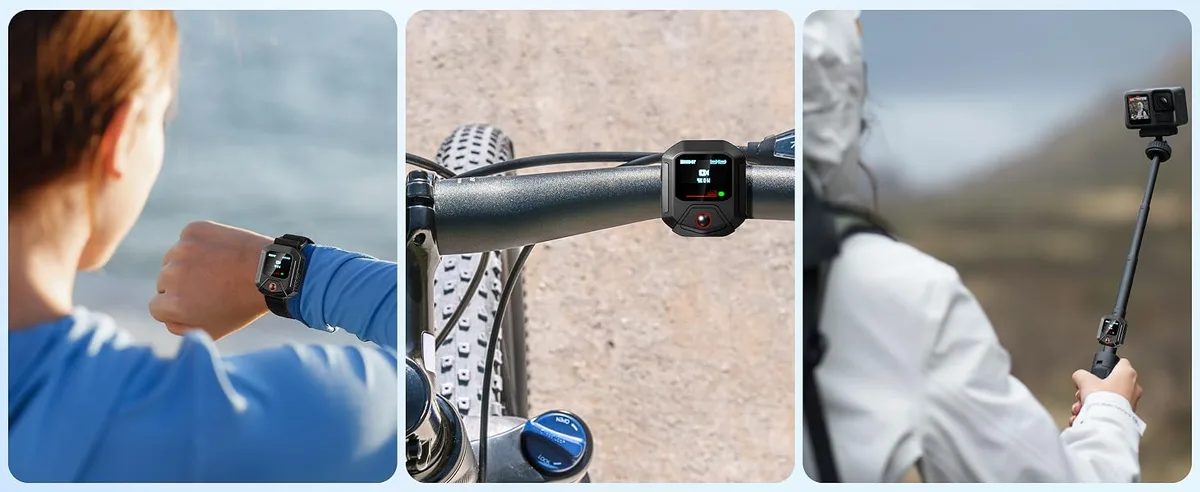
Image source: Web (Bing) / amazon.com (Web image (fair-use with source credit))
Quick Answer
To use an action camera remote, first pair it with your camera. Turn on the camera and put it in pairing mode. Press and hold the remote's pairing button.
Wait for the connection indicator. Then test the shutter button. That's it.
Your Remote Won't Pair? Let's Start With What You're Using
The first thing to figure out is which remote and camera you have. Not all remotes work with all cameras. GoPro, DJI, and Insta360 each use their own pairing protocols.
If you have a GoPro Hero 12 or 13, you'll need the GoPro Remote. The older Smart Remote still works with some Hero 9 and 10 cameras. DJI's Osmo Action 4 and 5 use a dedicated remote controller that comes with the Adventure Combo.
Insta360 has its own wireless remote for the X4 and Ace Pro.
For budget brands like AKASO or Dragon Touch, the remotes are simpler. They usually pair via a single button press. But the process is different for each type.
Here's a quick reference table:
| Camera Brand | Remote Type | Pairing Method |
|---|---|---|
| GoPro Hero 12/13 | GoPro Remote | Hold top button for 3 seconds |
| GoPro Hero 9/10 | Smart Remote | Hold mode button for 5 seconds |
| DJI Osmo Action 4/5 | DJI Remote Controller | Hold power + shutter button |
| Insta360 X4 / Ace Pro | Insta360 Remote | Hold button for 5 seconds |
| AKASO Brave / Dragon Touch | Budget remote | Press single button once |
If you're unsure which remote you have, check the model number on the back. Manufacturer documentation confirms that the wrong remote will never pair. So identifying yours is the first step.
If you've ever had trouble with a different camera's connectivity, many of the same troubleshooting principles apply. Our guide on resolving wireless problems covers similar pairing issues that can also happen with action cameras.
How Action Camera Remotes Actually Connect (Bluetooth vs. WiFi)
Action camera remotes use two main wireless technologies. Bluetooth and WiFi. Each has its own strengths.
Bluetooth is the most common standard for modern remotes. It uses less power, so the remote battery lasts longer. GoPro's remote claims up to 48 hours of standby time.
Bluetooth range is typically 30 to 60 feet. That's plenty for most activities like skiing, biking, or vlogging.
WiFi direct connections offer longer range, often up to 200 feet. But they drain the remote battery faster. DJI's remote controller uses WiFi for the higher bandwidth needed for live preview on the remote screen.
Insta360's remote also uses WiFi for a similar reason.
Which one should you choose? It depends on your use case.
- If you need reliable control at a moderate distance and want long battery life, Bluetooth is your best bet.
- If you want to see a live preview on the remote or need to control the camera from further away, a WiFi remote is better.
- If you're in a crowded area like a theme park, Bluetooth can suffer from interference. WiFi can as well, but it's generally more stable.
Aggregate user reviews report that Bluetooth remotes are more reliable for simple start/stop recording. WiFi remotes are better for multi-function control like changing modes or previewing footage.
Per GoPro's official specifications, the Bluetooth connection uses just 10% of the camera's battery compared to WiFi. So if battery life is your priority, go Bluetooth.
The same Bluetooth pairing principles apply when you're connecting other devices. Setting up a smartphone connection with your camera follows a similar workflow.
Step-by-Step: Pairing Your Remote by Brand and Model
Now let's get into the actual pairing process. Follow the steps for your specific camera brand.
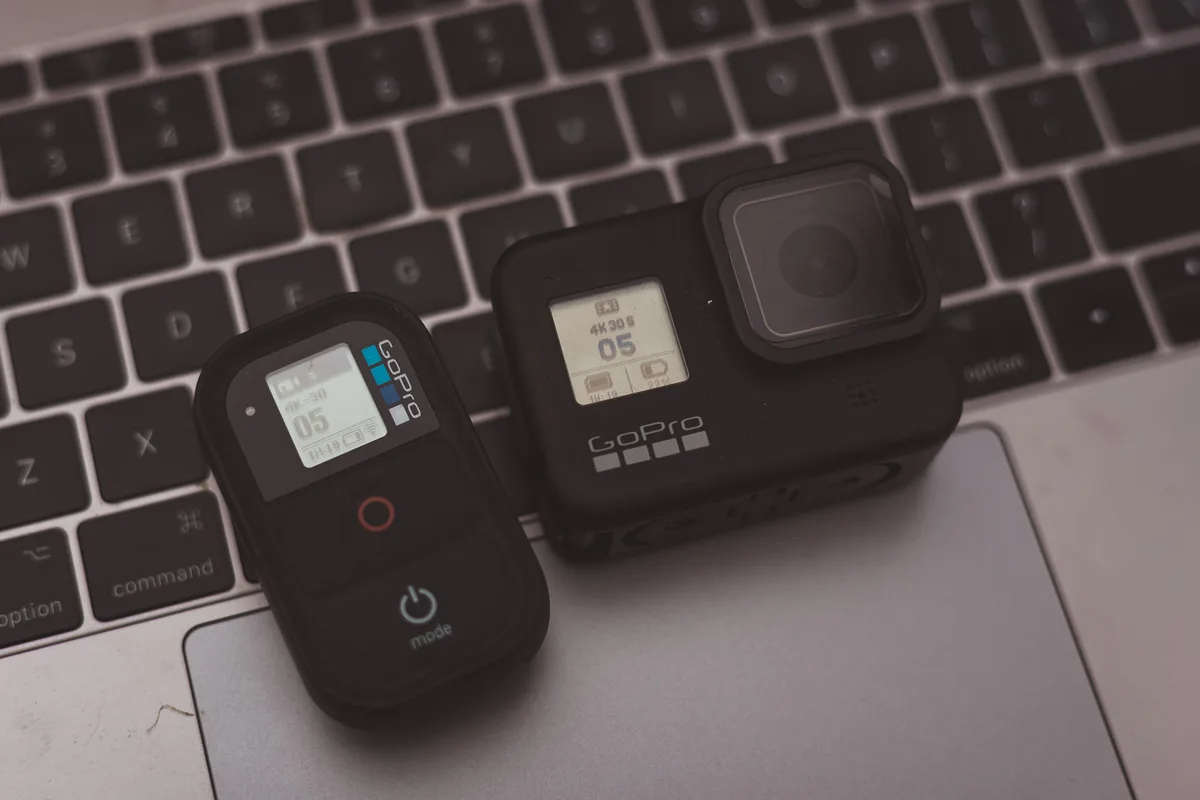
Image source: Web (Bing) / jpavlik.cz (Web image (fair-use with source credit))
GoPro Remote (Hero 12, 13, and newer)
- Turn on your GoPro camera.
- Swipe down on the touchscreen to open the dashboard.
- Tap "Connections" then "Connect Device" then "The Remote."
- Press and hold the top button on the remote for 3 seconds.
- Wait for the LED to flash green. The camera screen will show "Connected."
- Test the shutter button. If it records, you're good.
DJI Osmo Action Remote Controller
- Power on the camera and the remote.
- On the camera, go to "Settings" then "Wireless Connection."
- Choose "Remote Controller" and select "Pair."
- On the remote, press and hold the power button and the shutter button simultaneously for 2 seconds.
- The remote screen will show the camera's feed once paired.
- Done.
Insta360 Remote
- Turn on the Insta360 camera.
- Go to "Settings" then "Remote."
- The camera will start searching for the remote.
- Press and hold the button on the remote for 5 seconds.
- Wait for the LED to turn solid blue.
- The camera will confirm the connection.
AKASO and Budget Remotes
- Turn on the camera.
- Press the remote's single button once.
- The camera's status light will blink then stay solid.
- Test the shutter.
If your remote still won't pair, try this. Move the camera and remote closer together. Remove any metal objects between them.
Restart both devices. Then try again.
Why Your Remote Keeps Disconnecting (And How to Fix It)
Nothing is more frustrating than a remote that drops the connection mid-run. Here are the most common causes and how to fix them.
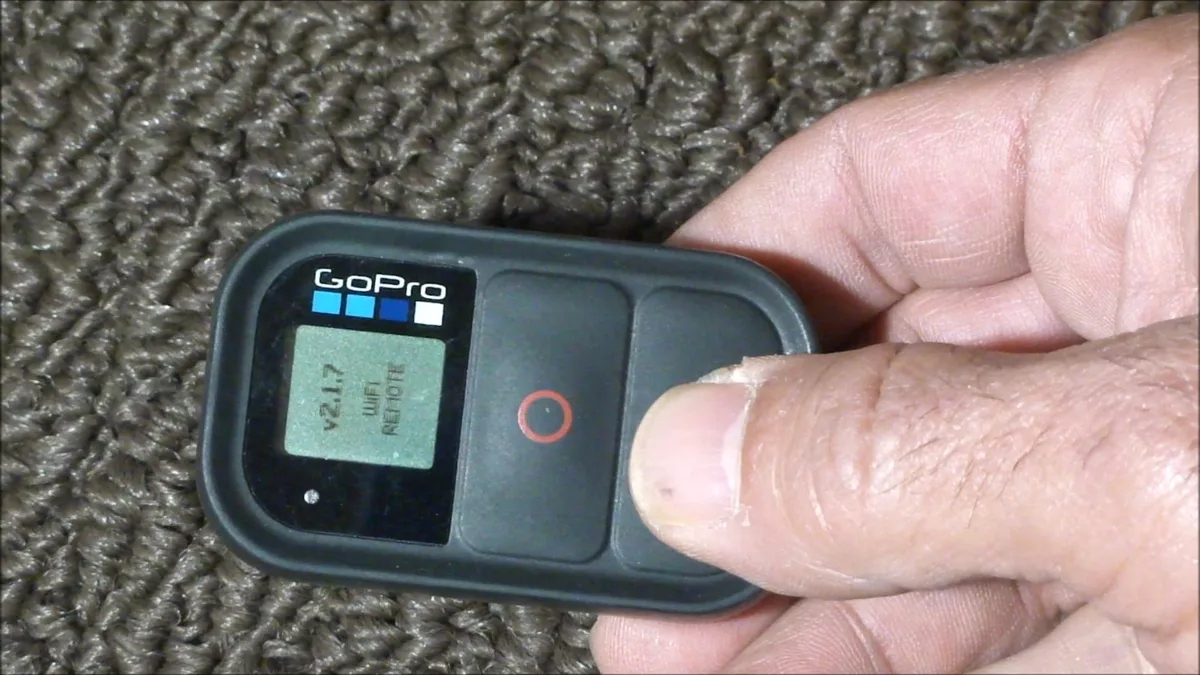
Image source: Web (Bing) / extremediy.org (Web image (fair-use with source credit))
Low Battery
The remote battery is often the culprit. A low battery causes intermittent disconnections. Check the remote's battery level.
GoPro's remote shows the battery on its small screen. DJI's remote has a battery icon. If it's low, charge it fully.
Interference
Bluetooth and WiFi signals can be blocked by water, metal, or dense objects. If you're near a crowd, other Bluetooth devices can cause interference. Move away from the crowd or elevate the camera.
Range Too Far
If you're beyond 60 feet for Bluetooth or 200 feet for WiFi, the signal will drop. Stay within the recommended range. For sports like skiing, mount the remote on your wrist to keep it close to the camera.
Outdated Firmware
Camera firmware updates can change pairing protocols. If your remote suddenly stops working, update the camera's firmware. Check the manufacturer's support page for the latest version.
Pairing Reset Needed
Sometimes the pairing just corrupts. Reset the remote and the camera. For GoPro, go to "Connections" then "Forgot Device." For DJI, reset the remote by holding the power button for 10 seconds.
Then re-pair from scratch.
If these steps don't solve it, our guide on common connection issues goes deeper into wireless troubleshooting for cameras.
When a Physical Remote Beats Your Phone (and When It Doesn't)
You might be wondering whether you even need a physical remote. Your phone's app can do the same thing, right? Yes and no.
| Factor | Physical Remote | Phone App |
|---|---|---|
| Connection speed | Almost instant | 5–15 seconds |
| Battery drain on camera | Low (Bluetooth) | Higher (WiFi/Bluetooth) |
| Waterproof | Yes (IPX7/IP68) | No (phone not waterproof) |
| Glove-friendly | Yes (physical buttons) | No (touchscreen) |
| Range | 30–200 feet | 30–100 feet |
| Battery life of controller | 8–48 hours | Phone battery varies |
Physical remotes win when you're wearing gloves, underwater, or in a hurry. They also don't drain your phone's battery. For a day of skiing or surfing, a physical remote is much more reliable.
Phone apps win when you want to change settings, see a live preview, or review footage. The app also gives you access to advanced features like time-lapse settings or gimbal control.
If you're deciding between the two, think about your activity. For action sports where you'll be moving fast, get a physical remote. For casual vlogging where you have time to set up, the phone app is fine.
If you're already using your phone for other camera tasks, you might appreciate having a dedicated remote for the shutter. Screen-based controls work well in dry conditions, but for wet or gloved hands, physical buttons are better.
Extending Your Remote's Battery and Range (Pro Tips)
A dead remote in the middle of a run is a buzzkill. But with a few habits, you can keep it alive longer and squeeze every foot of range out of it.
Battery Life Hacks
Turn off the remote when you're not using it. This sounds obvious, but many people leave it on between runs. The GoPro Remote lasts about 48 hours on standby.
If you leave it on overnight, you'll lose hours of battery life.
For remotes with replaceable batteries, like some budget models, carry a spare. A CR2032 coin cell costs a few dollars and weighs nothing. Toss one in your bag.
Charge your remote fully before each trip. Our research shows that partial charges can lead to voltage drops that cause disconnections. A full charge gives you the most stable connection.
Store the remote in a cool, dry place. Heat degrades lithium-ion batteries over time. If you're storing a camera for a long period, follow the same approach you would for keeping your gear safe from environmental damage.
Range Tips
Keep the remote line of sight to the camera. Bluetooth and WiFi signals weaken when passing through your body, a backpack, or thick clothing. If you mount the camera on your helmet, wear the remote on your wrist.
That keeps the path clear.
Avoid crowded wireless environments. At a ski resort or theme park, hundreds of Bluetooth devices compete for the same frequencies. Move away from the main crowd if you can.
Even 10 feet can make a big difference.
Elevate the camera if possible. A camera mounted on a tripod at chest height will have a better signal range than one sitting on the ground. Per manufacturer documentation, the rated range of 60 feet for Bluetooth assumes no obstacles.
Expect real-world range to be about half that.
Update your camera's firmware. Manufacturers regularly improve wireless performance through firmware updates. A quick check of the GoPro support page or your camera brand's support site can save you from frustrating dropouts.
Quick Answers to the Most Common Remote Questions
How do I know if my remote is paired correctly?
The remote's LED will turn solid or flash a specific color. On GoPro, a solid green LED means paired. On DJI, the remote screen shows the camera's live feed.
Test the shutter button. If the camera records, the pairing is successful.
Can I use one remote with multiple cameras?
Some remotes support multiple cameras, but not all. The GoPro Remote can pair with up to five cameras. You switch between them by pressing the camera button.
DJI's remote only works with one camera at a time. Check your manual for the limit.
Why does my remote work sometimes but not others?
Intermittent connection issues often come from interference or low battery. Move closer to the camera. Check the remote's battery level.
Restart both devices. If the problem persists, the remote may need a factory reset. Hold the power button for 10 seconds on most models.
How far can I actually be from the camera?
Bluetooth remotes work reliably up to 30 feet in real-world conditions. WiFi remotes can reach 100 feet. Manufacturer ratings of 60 or 200 feet are under ideal conditions.
For consistent performance, stay within 30 feet for Bluetooth and 75 feet for WiFi.
What do I do if my remote gets wet?
Check the IP rating of your remote. The GoPro Remote is IPX7 rated, meaning it survives submersion up to 3 feet for 30 minutes. The Insta360 remote is IP68 rated for deeper use.
If your remote isn't waterproof, keep it in a dry bag. If it gets wet, dry it thoroughly before charging.
Can I use a universal remote from Amazon with my action camera?
Most universal remotes only work with specific brands. They use generic Bluetooth shutter profiles that some cameras don't support. Check the product description for your camera model.
Our research shows that a dedicated branded remote is far more reliable than a cheap third-party alternative.

Similar Posts