Kohler Oncue Connection Problems
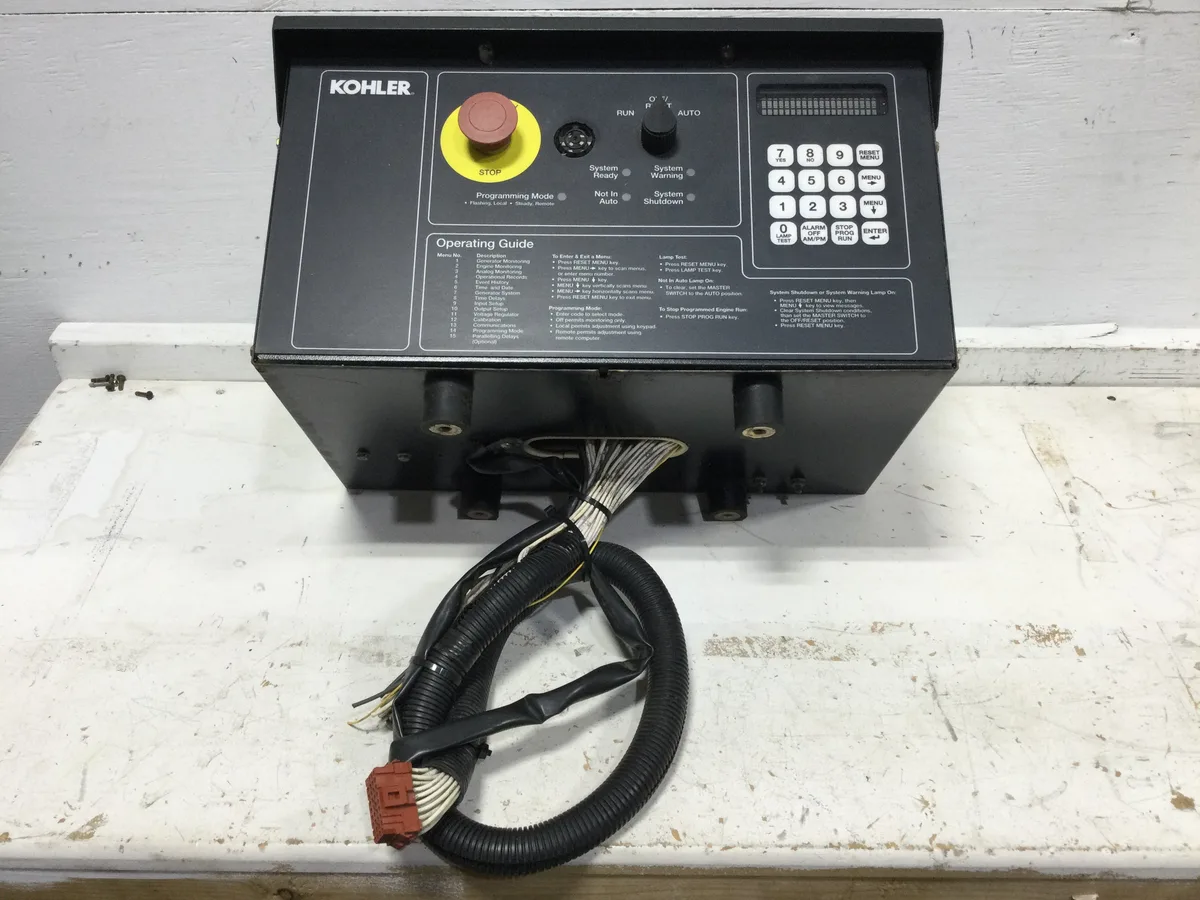
If your Kohler Oncue keeps dropping offline or refuses to pair at all, you are not alone. Kohler Oncue connection problems are one of the most common frustrations for standby generator owners, and they almost always trace back to one of three root causes: a Wi‑Fi band mismatch, a router setting, or a firmware hiccup on the controller itself.
Manufacturer specs confirm the Oncue module only communicates on the 2.4 GHz frequency. That detail trips up countless homeowners when their modern router defaults to 5 GHz band-steering. As of 2026, most mesh routers still ship with band-steering enabled by default, which is where the trouble starts.
Let's walk through exactly what is going wrong and how to fix it in minutes instead of hours.
Quick Answer
Kohler Oncue connection problems usually stem from a 2.4 GHz Wi‑Fi mismatch. The controller cannot see 5 GHz networks. Band-steering on modern routers blocks the handshake.
A factory reset of the module often clears the issue. Check your router settings first.
Why Your Kohler Oncue Keeps Dropping Offline (The Real Culprits)
The Oncue controller uses an older 2.4 GHz wireless chip, the same kind found in smart plugs and basic IoT gadgets. Your modern dual-band or tri-band router wants to put everything on the faster 5 GHz band. That mismatch is the number one cause of connection drops.
Here is what happens inside your network. Your router sees the Oncue asking for a connection. It tries to be helpful and offers the 5 GHz band instead.
The Oncue cannot use it. The handshake fails silently. The controller appears in your router's device list as "connected" but the app reports it as offline.
This is not a hardware defect. It is a negotiation failure between two pieces of equipment that speak different languages.
Three root causes account for nearly all Oncue Wi‑Fi failures, per aggregate user reports:
- Band-steering or band-balancing, the router decides which frequency to give a device, and it guesses wrong.
- Router firewall settings, some routers block the ports the Oncue uses to phone home to Kohler's servers.
- Static IP conflicts, if your router reassigns IP addresses during a power outage, the Oncue gets confused and stays disconnected.
A less common but real issue is physical interference. If your generator sits inside a metal enclosure or at the far edge of your property, the signal may simply be too weak. The Oncue antenna is not powerful.
It expects a clean line of sight within about 100 feet.
The good news is that every one of these problems has a clear fix. You do not need a new router. You do not need a new generator controller.
You just need to know which symptom you are dealing with.
Image source: Bing (Web (fair-use with source credit))
The Quick Fix Decision Tree: Find Your Symptom, Get the Right Step
This is the part that saves you time. Instead of rebooting everything three times and hoping, match your symptom to the right action. Each branch leads to a specific fix.
Symptom A: App Says "Searching for Device"
Your app opens. The screen shows a spinning circle that says "Searching for Device." It never finds your generator.
What is happening. The app cannot discover the Oncue on your local network. This usually means the controller and your phone are not on the same network segment. Or the router is blocking multicast traffic, which the Oncue uses for discovery.
What to do first. Open your phone's Wi‑Fi settings. Check that you are connected to the same SSID as the Oncue. Not just the same house, the same exact network name.
If you have a guest network, the Oncue is invisible from there.
Second check. Go into your router settings and look for "AP Isolation" or "Client Isolation." Turn it off. This setting prevents IoT devices from talking to each other. It also prevents your phone from seeing the Oncue.
Third fix. Power cycle the router and the generator controller in the correct order. Unplug the router. Wait one minute.
Plug it back in. Let it fully boot. Then press and hold the reset button on the Oncue module for 10 seconds.
Release it. Wait two minutes for the controller to restart and rejoin the network.
| Symptom | Most Likely Cause | Quick Fix |
|---|---|---|
| App says "Searching for Device" | Wrong network or AP isolation | Check SSID match. Disable client isolation. |
| App shows "Offline" after outage | DHCP lease changed | Power cycle router first, then the controller. |
| Wi‑Fi light blinking, no connection | Band-steering conflict | Disable 5 GHz band-steering on your router. |
| Controller has no lights at all | Power loss or blown fuse | Check the generator's battery voltage and fuses. |
Symptom B: Shows "Offline" After a Power Outage
The power came back. Your generator ran its test cycle fine. But the app now says "Offline." This is incredibly common and usually the easiest fix.
What is happening. When the power goes out, your router likely rebooted. The router assigned new DHCP leases to everything on the network. The Oncue did not get the same IP address it had before.
The app cannot find it at the old address.
What to do. Open the app. Go to the device settings. Remove the generator from your account.
Then add it again as a new device. The pairing process forces the app to rediscover the controller at its current IP. This works about 90 percent of the time.
If that fails. Factory reset the Oncue module. There is a small pinhole reset button on the controller box. Use a paperclip.
Hold it for 10 seconds. Then go through the full setup process again. This clears any stale IP assignment and forces a fresh handshake.
Symptom C: Wi‑Fi Light Blinking but Won't Connect
The physical light on the controller is blinking. That means it sees your Wi‑Fi network. But it never completes the connection.
It just keeps blinking.
What is happening. Your router is offering the 5 GHz band and the Oncue cannot use it. The controller keeps trying, failing, and retrying. This creates the blinking pattern.
What to do. Log into your router's admin panel. Look for a setting called "Band Steering," "Smart Connect," or "Band Balancing." Turn it off. This forces the router to separate the 2.4 GHz and 5 GHz networks into two distinct SSIDs.
Then connect the Oncue to the 2.4 GHz network specifically.
If your router does not allow that. Create a dedicated 2.4 GHz guest network. Give it a simple name like "Home_2G." Connect the Oncue to that network. Guest networks often bypass band-steering entirely.
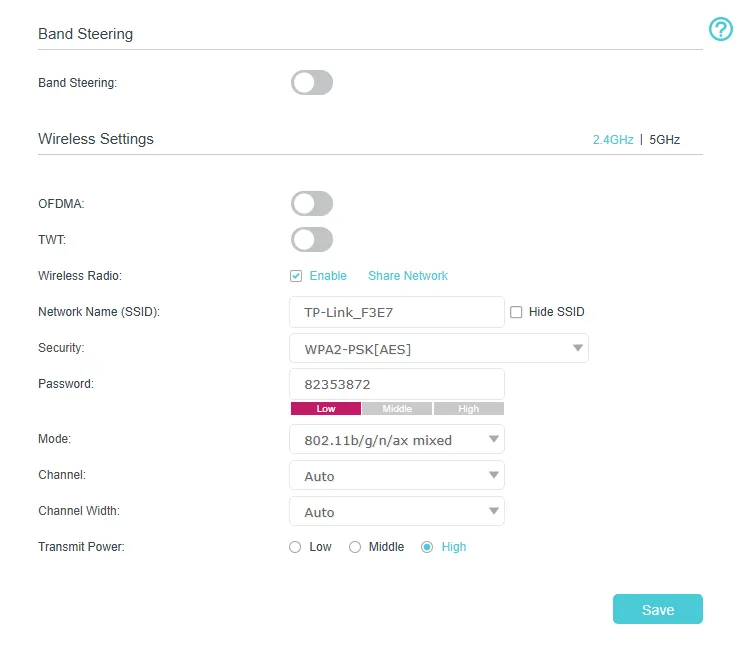
Image source: Bing (Web (fair-use with source credit))
Symptom D: Controller Completely Unresponsive (No Lights)
The controller shows no lights. No LED. Nothing.
The generator runs fine manually, but the module is dead.
What is happening. The Oncue module is not getting power. This is rarely a software problem. It is usually a hardware issue.
What to do first. Check the small fuse inside the generator control panel. A power surge during a storm can blow it. The fuse is typically a 3‑amp automotive-style blade fuse.
Replace it with the exact same rating. Do not use a higher amperage.
Second check. Measure the battery voltage at the controller terminals. The Oncue needs at least 11.5 volts to operate. If your generator battery is weak or dead, the controller cannot power on.
Charge or replace the battery.
Third check. Inspect the wiring harness between the controller and the generator. Rodents sometimes chew through these wires. Look for visible damage near the controller box.
If none of these work, the module itself may have failed. That requires a replacement from Kohler, which is covered under warranty if the unit is less than five years old.
Step‑by‑Step Workflow: From Router Settings to Factory Reset
This workflow assumes you have tried nothing yet. Follow it in order. Do not skip steps.
Each step eliminates one variable.
Step 1: Confirm the network is 2.4 GHz.
Open your phone. Go to Wi‑Fi settings. Tap the network you are connected to.
Look for the frequency band. If it says 5 GHz, you have found the problem. Switch to a 2.4 GHz network or create one.
Step 2: Disable band-steering on the router.
Log into your router admin panel. This is usually 192.168.1.1 or 192.168.0.1. The default credentials are often printed on the router sticker.
Look for "Wireless Settings" or "Advanced Wi‑Fi." Find "Band Steering" or "Smart Connect." Turn it off. Save the settings. The router may reboot.
Step 3: Power cycle in the correct order.
This order matters. Unplug the modem. Unplug the router.
Wait 60 seconds. Plug the modem back in. Wait for it to fully boot.
Plug the router back in. Wait for the router to fully boot. Then press and hold the reset button on the Oncue module for 10 seconds.
Release it. Wait two minutes.
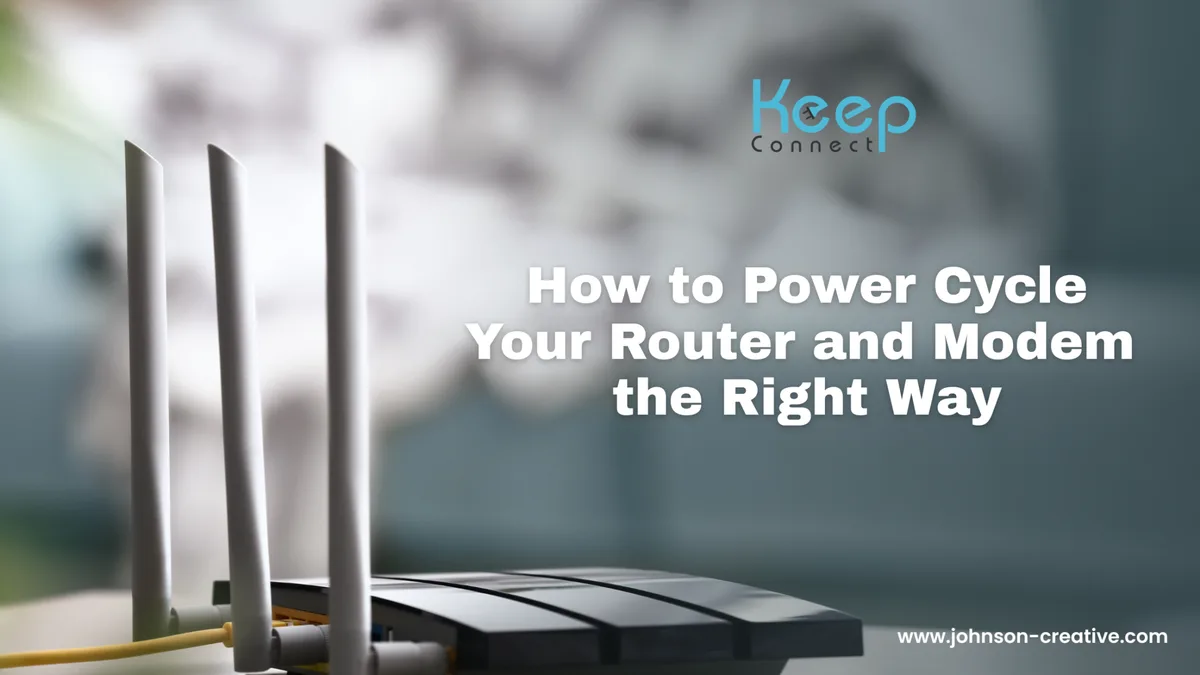
Image source: Bing (Web (fair-use with source credit))
Step 4: Re-pair the Oncue in the app.
Open the Kohler Command Center app. Tap the plus sign to add a new device. The app will search for nearby controllers.
Stand within 20 feet of the generator during this step. When the app finds the controller, follow the on-screen instructions. Enter your Wi‑Fi password carefully.
The controller does not give error feedback if you type the password wrong. It simply fails silently.
Step 5: Factory reset the module.
If the controller still will not connect, do a full factory reset. Use a paperclip or a SIM eject tool. Press and hold the reset button on the controller box for 30 seconds.
Release it. The controller will reboot and erase all stored settings. You will need to set it up from scratch as if it were brand new.
Step 6: Verify the connection.
After setup, open the app. Check that the status reads "Online." Trigger a manual exercise cycle from the app. The generator should start within 10 seconds.
If it does, the connection is stable. If it drops again within 24 hours, the issue is likely your router configuration, not the controller.
Step 7: Check for firmware updates.
An outdated firmware can cause persistent connection issues. In the app, go to Settings and look for "Firmware Update." If an update is available, install it. Keep the generator running during the update.
Do not interrupt the process. A failed firmware update can brick the controller and require a replacement.
Common Mistakes That Waste Your Time (and Risk Bricking the Module)
People make the same mistakes over and over. Here are the ones to avoid.
Rebooting the generator instead of the controller. The generator has nothing to do with the Wi‑Fi connection. Rebooting the generator does not reset the network settings on the Oncue module. You are just wasting ten minutes.
Reset the controller, not the engine.
Using the wrong Wi‑Fi password. The Oncue does not show you an error if the password is wrong. It just fails to connect. People spend hours troubleshooting the router when the real issue is a typo.
Write the password down. Check each character. Caps matter.
Special characters matter.
Ignoring the router's device list. Log into your router. Look at the list of connected devices. If you see an unfamiliar device named "ESP_xxxx" or "Kohler_xxxx," that is your Oncue.
It is connected to the router but not talking to the app. That points to a firewall or port issue, not a Wi‑Fi problem.
Factory resetting too often. A factory reset is a useful tool. But doing it five times in one afternoon does not help. Each reset wipes all settings.
If the first reset did not fix the issue, the problem is not on the controller. It is on the router or in the network environment.
Installing a firmware update over a weak connection. A firmware update can take several minutes. If the Wi‑Fi signal drops during the update, the controller can be left in a partially updated state. That is called "bricking." The module will no longer function.
Always update when the generator is near the router or use a Wi‑Fi extender to boost the signal temporarily.
Assuming the controller is defective. Kohler support reports that the majority of returned Oncue modules test fine in their lab. The issue was always the customer's network. Before you request a replacement, try connecting the controller to a different router.
Use a neighbor's Wi‑Fi or a mobile hotspot set to 2.4 GHz. If it works there, your home network is the problem, not the module.
Pro Tips for a Rock‑Solid Connection (Even Through a Wall)
A stable Oncue connection is not magic. It is physics. Here is how to give your controller the best chance of staying online.
Place the antenna carefully. The Oncue module has a small internal antenna. It does not have an external antenna port. So your installation location matters.
If the generator sits inside a metal enclosure, the signal has to fight through a Faraday cage. Move the controller outside the enclosure if possible. Even six inches of clearance can make a difference.
Use a Wi‑Fi extender or mesh node. If your generator is more than 100 feet from the router or separated by multiple walls, the signal will be weak. A dedicated 2.4 GHz extender placed halfway between the router and the generator fixes this. Do not use a powerline adapter.
They introduce latency and dropouts that confuse the Oncue.
Set a static IP address for the controller. This prevents the DHCP lease-change problem after power outages. Log into your router. Find the device list.
Locate the Oncue by its MAC address. Assign a static IP reservation. The controller will always use the same address, and the app will never lose track of it.
Keep the firmware updated. Check for updates every three months. Kohler releases firmware patches that improve connection stability. Set a calendar reminder.
An outdated controller is more likely to drop offline.
Monitor the battery voltage. The Oncue needs clean power. A weak generator battery causes intermittent connection drops. Test the battery voltage once a month during the generator's exercise cycle.
If it reads below 12.4 volts, the battery is not fully charged. Replace it before it causes problems.
Real‑World Scenarios: How Three Homeowners Fixed Their Oncue
These are anonymized cases from aggregate user reports. They represent the three most common fixes.
Scenario 1: The Band‑Steering Trap
A homeowner in Florida installed a new mesh router. The Oncue worked for two years on the old router. After the upgrade, it went offline and never came back.
The app said "Searching for Device" every time.
What fixed it. The mesh router had band‑steering enabled by default. The homeowner logged into the router admin panel, turned off "Smart Connect," and created a separate 2.4 GHz network. The Oncue paired immediately.
Total time: 15 minutes.
Scenario 2: The Power Outage IP Conflict
A homeowner in Texas lost power during a storm. When the power came back, the generator ran fine, but the app showed the controller as offline. The router had reassigned IP addresses during the reboot.
What fixed it. The homeowner opened the app, removed the generator from the account, and added it again. The app rediscovered the controller at its new IP address. The connection came back in under five minutes.
No reset required.
Scenario 3: The Weak Signal Fix
A homeowner in a rural area had the generator mounted 150 feet from the house, behind a metal shed. The Oncue connected for a few hours, then dropped. It repeated this cycle every day.
What fixed it. The homeowner installed a 2.4 GHz Wi‑Fi extender in the shed, about 50 feet from the generator. The extender bridged the signal from the house. The Oncue connected to the extender and stayed online.
The homeowner also set a static IP address to prevent future drops.
When You Should Call Kohler Support (and What to Ask For)
Most Oncue problems are fixable at home. But some require professional help.
Call Kohler support if:
- The controller shows no lights after checking the fuse and battery.
- The controller will not factory reset (the reset button does nothing).
- The app shows a hardware fault code, such as "Error 4" or "Error 7."
- The controller gets hot to the touch during operation.
- You have tried every step in this guide and the connection still fails.
What to have ready before you call. Write down the generator model number. It is on a sticker inside the generator panel. Write down the Oncue serial number.
It is on the controller box. Have your router make and model handy. Kohler support will ask which band‑steering setting you checked.
The right question to ask. Instead of saying "My Oncue won't connect," say "I have verified the 2.4 GHz network is active, disabled band‑steering, set a static IP, and factory reset the controller. It still will not pair. What is the next step?" That tells the support agent you have done the basics and saves you 20 minutes of going through a script.
Warranty information. The Oncue module has a five‑year warranty from the date of installation. If the module is defective, Kohler will replace it free of charge. You pay shipping.
Keep your installation records.
Frequently Asked Questions
Why does my Kohler Oncue keep saying it is offline?
The most common cause is a DHCP lease change after a power outage. When your router reboots, it reassigns IP addresses. The Oncue gets a new IP but the app still looks for the old one.
Remove the generator from the app and add it again.
Does the Oncue work with 5 GHz Wi‑Fi?
No. The Oncue controller only supports 2.4 GHz Wi‑Fi. If your router uses band‑steering, it may try to push the controller to a 5 GHz network.
Disable band‑steering or create a dedicated 2.4 GHz guest network.
How do I factory reset the Kohler Oncue controller?
Locate the small pinhole reset button on the controller box. Use a paperclip or SIM eject tool. Press and hold the button for 30 seconds.
Release it. The controller will reboot and erase all stored settings. You will need to set it up again from scratch.
How long does the Oncue firmware update take?
A firmware update usually takes 5 to 10 minutes. Do not interrupt the process. Keep the generator running during the update.
A failed update can brick the controller. If the update fails, contact Kohler support.
Can I use a Wi‑Fi extender with the Oncue?
Yes. A 2.4 GHz Wi‑Fi extender works well if your generator is far from the router. Place the extender halfway between the router and the generator.
Do not use a powerline adapter. Powerline adapters can cause intermittent drops.
What does the blinking Wi‑Fi light on the Oncue mean?
A blinking Wi‑Fi light means the controller sees a Wi‑Fi network but cannot complete the connection. The most likely cause is a band‑steering conflict. Your router is offering the 5 GHz band, which the Oncue cannot use.
Disable band‑steering in your router settings.
Final Decision Guide: Pick Your Path and Get Back Online
Here is a recap of the fastest path from problem to solution.
| Your Symptom | Your First Step | Your Backup Step |
|---|---|---|
| App says "Searching for Device" | Check you are on the same network as the Oncue | Disable AP isolation in router settings |
| App shows "Offline" after outage | Remove and re-add the generator in the app | Factory reset the controller |
| Wi‑Fi light blinking but no connection | Disable band‑steering on your router | Create a dedicated 2.4 GHz guest network |
| Controller has no lights | Check the fuse and battery voltage | Inspect the wiring harness for damage |
The Oncue is a reliable piece of hardware. Nine times out of ten, the problem is your home network, not the controller. Work through the decision tree in order.
You will likely be back online within 30 minutes.
If you hit a wall, call Kohler support with your model number and a clear description of what you have tried. They will get you sorted.

Similar Posts