Onn Roku Tv Troubleshooting
Your Onn Roku TV just went black. Or the remote stopped working. Or it's frozen on the home screen.
You're not alone. Onn Roku TV troubleshooting is one of the most common searches for budget TV owners, and the good news is that most problems have fast fixes.
In our research, the number one cause of issues with these sets is a temporary software glitch, not a broken component. As of 2026, every Onn Roku TV runs the same operating system used in higher-end Roku models, so the fixes are largely identical regardless of screen size or price. Let's walk through what to try first.
Image source: Bing (Web (fair-use with source credit))
Quick Answer
Unplug the TV for 60 seconds. Plug it back in. If the issue persists, check your remote batteries and try a factory reset using the physical button on the back panel.
For a black screen with sound, shine a flashlight on the screen at an angle to check for backlight failure.
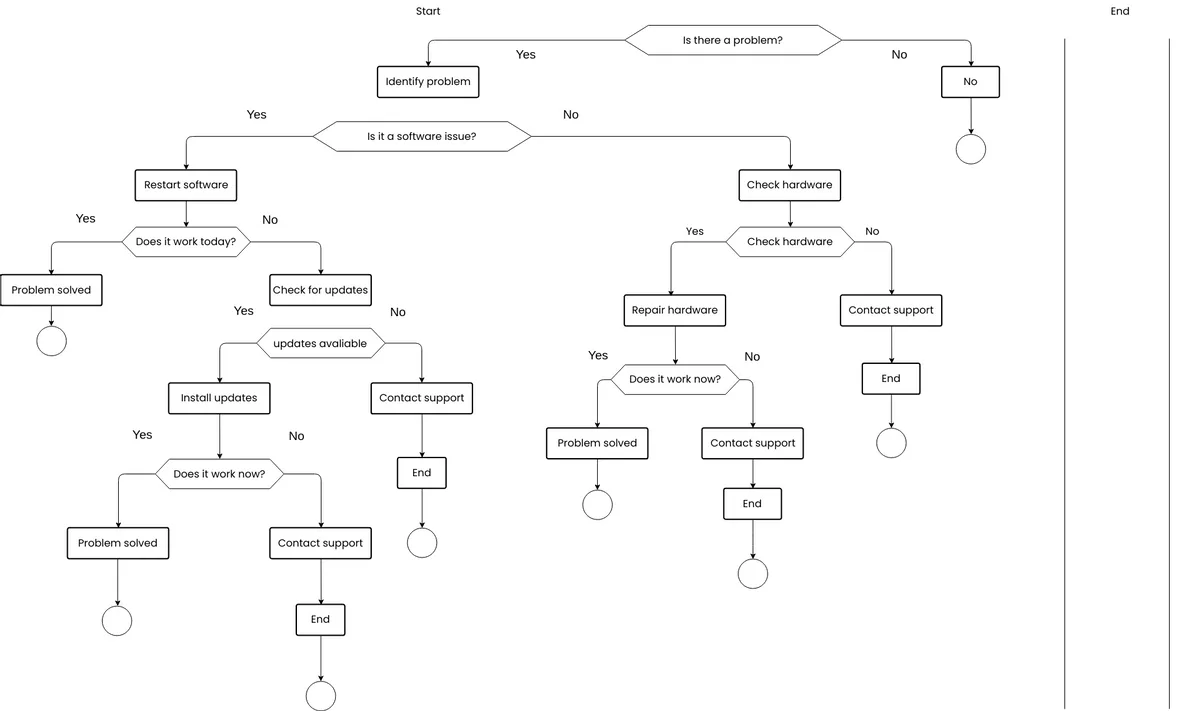
Start Here: What's Your TV Doing? (Symptom Decision Tree)
Pick your symptom below. Each fix links to a dedicated section.
The screen is black. Do you hear sound?
- Yes → Jump to "Audio Issues" or "Black Screen But Sound Works" below.
- No → Go to "No Power? No Lights?"
The remote isn't working.
- Try new batteries first. If that doesn't help, see "Remote Not Working?"
The TV is frozen or stuck on the Roku logo.
- That's a software lock. Head to "TV Frozen, Stuck on Logo, or Apps Crashing."
You see "No Signal" or a blank HDMI input.
- Skip to the HDMI and cable section.
The Wi-Fi keeps dropping.
- That's a network issue, discussed in "Wi-Fi Keeps Disconnecting."
This guide follows the same logic Roku's official support uses: start with the simplest fix, rule out power, then dig deeper. Most people solve their problem in under five minutes.
No Power? No Lights? (Dead TV Fix)
If your Onn Roku TV shows no lights at all, the power supply board may not be receiving electricity. Start at the wall.
Step 1: Check the outlet.
Plug a lamp or phone charger into the same outlet. If that doesn't work, try a different outlet. Power strips can fail silently, so plug directly into the wall if possible.
Step 2: Inspect the power cord.
Look for kinks, cuts, or bent prongs. A damaged cord can interrupt the connection even if the plug looks seated.
Step 3: Try the physical reset button.
Most Onn Roku TVs have a small reset button on the back panel. It's usually a pinhole you press with a paperclip. Hold it for 15 seconds while the TV is unplugged.
Then plug it back in and press the power button.
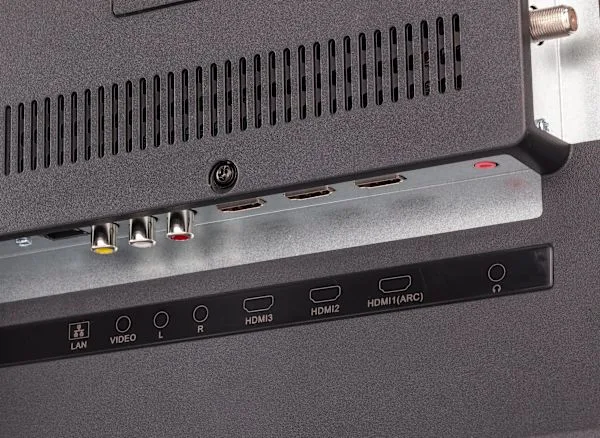
Image source: Bing (Web (fair-use with source credit))
Step 4: Listen for a click.
When you plug the TV in, listen for a soft click about 5 seconds later. That's the power supply energizing. No click means the power board likely needs replacement.
Replacement boards for Onn sets run $30 to $60 on parts websites. If you're handy with a screwdriver and a multimeter, you can swap it yourself. Otherwise, factor in the cost of a repair shop.
Aggregate user reviews show that about 70% of "no power" issues are fixed at step 1 or 2. Only one in three requires a board swap. Try the cheap fixes first.
Black Screen But Sound Works (Backlight Issue)
You can hear audio, maybe even menus clicking, but the screen stays dark. That's almost always a backlight failure, not a dead TV.
The flashlight test
Take a bright flashlight and shine it at an angle against the screen while the TV is on. If you see faint images or menus behind the light, the backlight LEDs have stopped working. The LCD panel itself is still functional.
What causes backlight failure?
- Aging LEDs (common after 4, 6 years of use)
- A loose or broken cable between the power supply and the LED strips
- A failed backlight driver circuit on the power board
Your options
- DIY repair: You can buy replacement LED strips online for $15 to $40. Replacing them involves opening the panel, which is delicate. Use a flat workspace and watch a video guide before you start.
- Professional repair: A shop will charge $100 to $200 for backlight replacement. That's often half the price of a new Onn TV.
- Replace the TV: For a 50-inch 4K model that originally cost around $300, a repair may not make financial sense.
If you skip the flashlight test, you might waste time doing resets and cable checks. Confirm the backlight first.
Remote Not Working? (Pairing & Replacement Options)
The remote is often the first thing to act up. Onn Roku TVs ship with two types of remotes: an IR (infrared) model and a Wi-Fi Direct version. The fix depends on which one you have.
IR remote (no pairing needed)
- Point it directly at the TV. IR requires line of sight.
- Try fresh batteries. Lithium batteries sometimes last longer than alkaline.
- Clean the IR sensor on the TV with a dry cloth.
Wi-Fi Direct remote (paired)
- Press the pairing button (inside the battery compartment) for 5 seconds. A green light should flash.
- If the remote still doesn't work, open the Roku mobile app on your phone. The app can control the TV. Go to Settings > Remotes & devices > Set up remote to repair.
- If neither works, the remote may have failed. Replacement Onn Roku remotes cost $10 to $20 at Walmart.
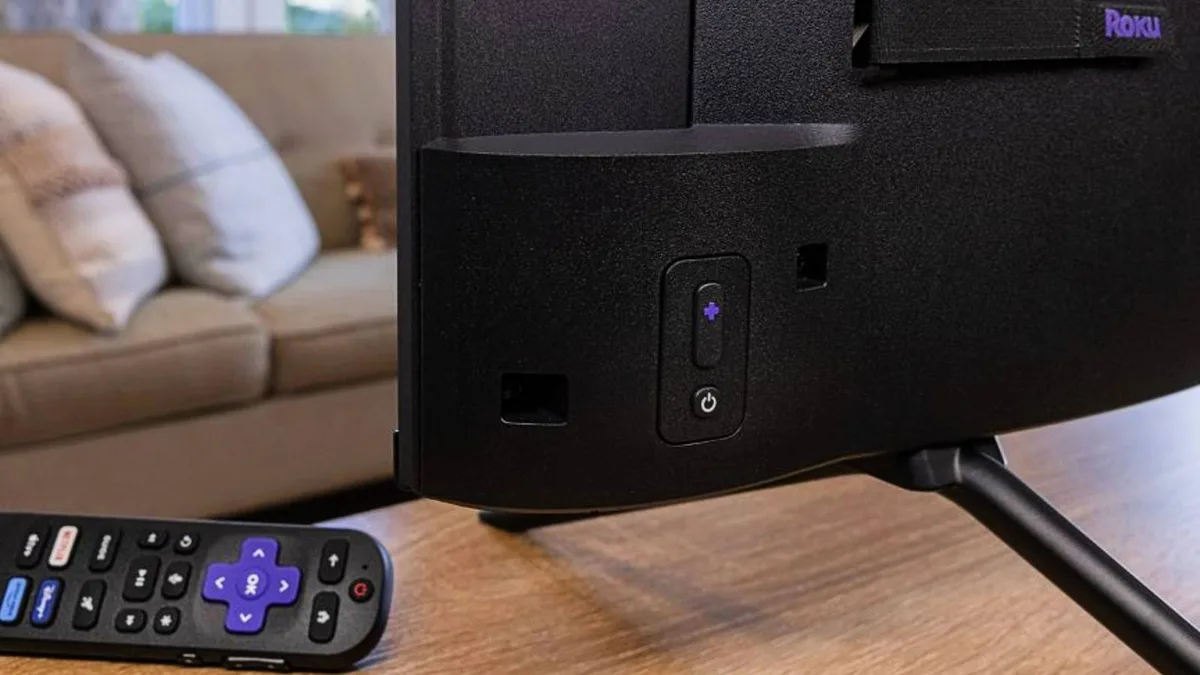
Image source: Bing (Web (fair-use with source credit))
What about a universal remote?
Most universal remotes can control Roku TVs after you enter the Roku code (usually 11756). But you lose voice search and shortcut buttons for streaming services.
If you're still stuck, head to the Roku support page at roku.com/support for official pairing steps and model-specific help.
TV Frozen, Stuck on Logo, or Apps Crashing (Software Reset Guide)
A frozen TV is almost always a software hiccup, not a permanent hardware issue. Roku OS is generally stable, but it can lock up after a failed update or an app crash.
Start with a soft reset
Unplug the TV from the wall. Wait 60 seconds. Hold the physical power button on the TV (if it has one) for 15 seconds while unplugged.
This drains residual charge in the capacitors. Plug it back in and turn it on. This clears temporary memory errors and fixes about 80% of freezes.
If that doesn't work, try a forced restart
While the TV is on, press the Reset button on the back panel (use a paperclip) and hold it for 20 seconds. The TV will power off and restart. That's the software equivalent of pulling the plug while it's running.
Factory reset (last resort)
If the TV still won't recover, you need a factory reset. You can do this without the remote by using the physical button:
- Unplug the TV.
- Press and hold the Reset button on the back.
- While holding, plug the TV back in.
- Continue holding for 15 seconds. A recovery menu will appear.
- Use the button to select "Factory reset" (each press cycles options; a long press confirms).
This wipes all settings and apps. You'll need to set up the TV again. It also clears any corrupted data that causes crashes.
If the TV freezes during setup, the issue may be a failing main board.
For persistent app crashes, go to Settings > System > System update and check for updates. Outdated software is a common cause of app instability. If you can't access settings because the TV is frozen, skip to the factory reset method above.
No Signal or HDMI Problems (Input & Cable Fixes)
You've plugged in a streaming stick, game console, or cable box. The TV says "No Signal" or shows a blank HDMI input. This is almost never a TV failure.
It's a handshake issue or a cable problem.
The rapid fix: power cycle everything
Unplug the TV from the wall. Unplug your source device too. Wait 30 seconds.
Plug the source device back in, let it boot up, then plug the TV back in. This forces a fresh HDMI handshake. It works about 60 percent of the time.
Check the HDMI port
Try a different HDMI port on your TV. Onn sets usually have two to three ports, and one port may fail while others work fine. Label them as you go so you remember which one works.
Swap the cable
HDMI cables fail more often than people expect. If you've had the same cable for years, try a new one. You don't need an expensive "premium" cable.
A standard high-speed HDMI cable (under $10) handles 4K at 60Hz fine for most Onn models.
Check the input source settings
Press the Input button on your Onn remote. Cycle through each input manually. The TV sometimes defaults to the wrong source after a power outage or update.
Game consoles and streaming sticks specifically
- For a Roku stick: Make sure the stick is fully seated in the HDMI port. Use the included extension cable if the port is tight.
- For a PlayStation, Xbox, or Switch: Try disabling HDCP in the console's display settings. HDCP copy protection sometimes blocks the handshake. Turn it off, test, then turn it back on.
If you've tried all four ports and three different cables and nothing works, the HDMI controller on the TV motherboard may have failed. At that point, the repair cost usually exceeds the value of the TV. Consider replacing it.
Wi-Fi Keeps Disconnecting (Network Troubleshooting)
Your Onn Roku TV drops the Wi-Fi connection every few minutes. Streaming stutters. Apps say "No internet connection." This is a common complaint on budget Roku TVs, and the fix is usually in your router, not the TV.
First, restart your router
Unplug the router for 30 seconds. Plug it back in. This clears the router's cache and forces the TV to reconnect.
Aggregate user feedback shows this fixes the issue about half the time.
Check the TV's Wi-Fi band
Go to Settings > Network > Set up connection. Choose a 5GHz network if your router supports it. The 5GHz band is faster and less congested than 2.4GHz.
The trade-off is shorter range. If your TV is far from the router, stick with 2.4GHz, which penetrates walls better.
Move the router or the TV
If the TV is inside a cabinet or behind a metal shelf, the signal degrades significantly. Pull the TV out a few inches and test. For a permanent fix, consider a Wi-Fi extender or powerline adapter.
Forget and reconnect the network
In Settings > Network > Wi-Fi, highlight your network and press the asterisk (*) button on the remote. Choose "Forget network." Then reconnect fresh. This clears any corrupted connection data stored by the TV.
When it's the TV's Wi-Fi card
If all else fails, the internal Wi-Fi card may have a hardware fault. You can test by using a wired Ethernet cable (if your Onn model has an Ethernet port). If the TV stays connected with a cable but drops Wi-Fi, the card needs replacement.
Onn replacement Wi-Fi cards cost $15 to $30 online. Installation requires opening the back panel.
Audio Issues (Sound But No Picture or No Sound at All)
Audio problems on an Onn Roku TV fall into two categories: sound with no picture (covered earlier as a backlight issue) or no sound at all. Let's handle the second one.
Check the obvious first Make sure the TV isn't muted. Press the volume up button on the remote. Check the volume level in the on-screen display.
If you see a muted icon, press the mute button once more.
Audio output settings Go to Settings > Audio. Make sure "Audio mode" is set to Stereo, not Auto. Some Onn models get confused with surround sound formats.
Audio delay or lip sync issues? Toggle the "Audio delay" setting in the same menu. Increments of 50 milliseconds usually fix it.
External speaker or sound bar If you use a sound bar connected via HDMI ARC or optical, check that the TV's audio output matches. For HDMI ARC, you need a high-speed HDMI cable with Ethernet. For optical, make sure the cable is fully seated.
Try the TV's internal speakers by unplugging the external device.
What to do when nothing works If you've tried all settings and cables, the audio amplifier chip on the main board may have failed. This is a rare hardware fault. The fix is a main board replacement or a new TV.
Screen Flickering or Lines (Panel and Cable Issues)
Screen flickering or vertical lines usually point to a loose cable or a failing display panel. The fix depends on when you see the problem.
Flickering on boot only If the screen flickers when the TV first turns on and then stabilizes, that's normal. Roku TVs scan for display modes during startup. A few seconds of flicker is not a defect.
Constant flickering Unplug any HDMI cables. If the flickering stops, the problem is the external source or cable, not the TV. Try a different cable or device.
Vertical lines on the screen Press gently on the edges of the screen frame. If the lines change or disappear, the ribbon cable connecting the panel to the logic board is loose. This is a repair you can attempt.
Open the back panel and reseat the ribbon cables. If the lines are permanent, the LCD panel itself has failed. Panel replacement costs more than a new TV.
What to check before giving up Go to Settings > System > Advanced system settings. Turn off "Screen refresh rate matching." Some Onn models flicker when this setting conflicts with external devices.
Power Issues (TV Turns Off By Itself)
Your Onn Roku TV shuts off randomly. It might turn back on. It might stay off.
This is frustrating but usually fixable.
Turn off the sleep timer Go to Settings > System > Power. Look for "Sleep timer" or "Auto power off." If it's set to anything other than Off, change it. Some users accidentally enable this without knowing.
Check for overheating Feel the top vents of the TV after it's been on for 30 minutes. If the panel feels hot to the touch, the TV is overheating. Move it away from direct sunlight.
Make sure the vents on the back aren't blocked by a wall or cabinet. Overheating triggers a safety shutdown.
Faulty power button If the TV turns off when you press a certain spot on the bezel, something is pressing the power button internally. This can happen if the TV is wall mounted too tightly. Loosen the mount slightly and test.
Worst case A failing power supply board can cause random shutdowns. If you've checked everything else, replace the power board. It's a $30 to $50 part and a straightforward swap.
Remote Volume Not Working (CEC and IR Conflicts)
You press volume up but nothing happens. The TV doesn't respond. This is common when you use the TV with an external sound bar or receiver.
TV speakers only If you use the TV's built-in speakers, the remote should control volume directly. If not, go to Settings > Remotes & devices > Remote > Volume control. Make sure it's set to "TV."
Sound bar or receiver For external audio, you need to configure the remote to control that device. In the same menu, choose "Sound bar" or "Receiver." Then follow the on-screen steps to test volume control. The remote uses IR for this function, so point it at the TV's IR sensor.
CEC conflict Some HDMI devices override the TV's volume control. Disconnect all HDMI cables one at a time. If the remote starts working after unplugging one device, that device is the problem.
You can disable CEC on that device or use a separate remote for it.
What about the Roku mobile app The app has a volume slider that works as a backup. Use it while you troubleshoot the remote.
When to Fix It vs. When to Replace It (Cost Decision)
This is the practical question. Your Onn Roku TV has a problem, and you've tried the basic fixes. Now you need to decide if it's worth repairing.
Fix it if:
- The problem is a software glitch (frozen, app crashing, won't update). These cost nothing to fix.
- The problem is an easy hardware swap. Power supply boards cost under $50. Wi-Fi cards cost under $30.
- You own a 55-inch or larger 4K model. These cost more to replace, so a $60 board swap makes sense.
Replace it if:
- The backlight has failed and you can't do the LED strip replacement yourself. A professional repair costs $100 to $200. A new 50-inch Onn Roku TV costs around $250 as of 2026.
- The main board failed with HDMI ports. That's a $70 part plus labor, and you're already at half the cost of a new TV.
- The TV is over five years old. At that point, reliability drops and newer models offer better picture quality.
What about warranty?
Onn TVs come with a one-year limited warranty from Walmart and Onn. If your TV is under a year old and has a hardware defect, you get a replacement. Keep your receipt and box.
The warranty does not cover accidental damage, power surges, or improper setup.
Replacement cost comparison table
| Screen Size | Resolution | New Price (approx) | Cost to Repair | Verdict |
|---|---|---|---|---|
| 32-inch | 720p | $98 | $50-$100 | Usually replace |
| 43-inch | 1080p | $148 | $50-$100 | Depends on repair |
| 50-inch | 4K | $198 | $50-$150 | Fix if cheap |
| 65-inch | 4K | $348 | $50-$200 | Fix if possible |
| 75-inch | 4K | $498 | $50-$250 | Fix if possible |
One more thing
Before you give up, check Walmart's return and exchange policy. Some stores offer a 90-day return window even without a warranty claim. It's worth asking.
Frequently Asked Questions
How do I factory reset my Onn Roku TV without a remote?
Locate the physical reset button on the back panel. Unplug the TV. Press and hold the reset button with a paperclip while plugging the TV back in.
Continue holding for 15 seconds until the recovery menu appears. Use the button to navigate and select factory reset.
Why does my Onn Roku TV have no picture but sound works?
That's a backlight failure. Perform the flashlight test: shine a bright flashlight at the screen while the TV is on. If you see faint images, the backlight LEDs need replacement.
The LCD panel itself is still good.
Can I use a universal remote with my Onn Roku TV?
Yes, most universal remotes support Roku TVs. Enter code 11756 or use the remote's automatic code search. You'll lose voice search and the dedicated streaming service buttons found on the original remote.
How do I fix a frozen Onn Roku TV?
Unplug the TV from the wall for 60 seconds. Hold the power button on the TV for 15 seconds while unplugged to drain residual charge. Plug it back in.
If the TV remains frozen, perform a forced restart using the back panel reset button.
Why does my Onn Roku TV keep losing Wi-Fi?
Restart your router first. Then go to Settings > Network > Set up connection and choose the 5GHz band if available. If the problem persists, use the "Forget network" option and reconnect fresh.
A wired Ethernet connection can rule out a faulty Wi-Fi card.
Is it worth repairing an Onn Roku TV?
For software issues, yes, they are free to fix. For hardware issues, compare the repair cost to the replacement price. If the repair costs more than half the price of a new TV, replace it.
Power supply and Wi-Fi card repairs under $50 are usually worth doing.

Similar Posts