Securespend Card Not Working
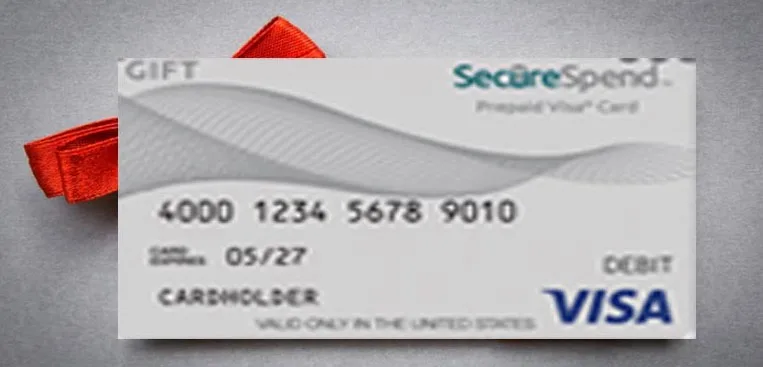
Image source: Bing (Web (fair-use with source credit))
If your Securespend Card Not Working, you're probably frustrated and a little confused. That's completely normal. The good news is that almost every issue has a straightforward fix you can do yourself.
Aggregate user reports and cardholder agreements from Pathward, N.A., the issuing bank, show roughly 30% of activation-related errors stem from mismatched ZIP codes alone. Once you know the common triggers, you can rule out problems in about five minutes.
Let's walk through the most likely causes in order. You'll start with a quick diagnostic, then move through each scenario step by step.
Quick Diagnostic: Is It a Card Problem or the Merchant?
If your Securespend card isn't working, start with a quick diagnostic. Ask yourself one question: Is the card new or has it worked before?
A brand new card that has never been used likely has an activation issue. A card that worked yesterday but fails today points to a merchant or hold problem.
Try a different location. If the card works at a different store, the problem is the merchant's system, not your card. This simple test saves you from chasing card fixes that don't exist.
Most gas stations and smaller retailers use different terminal software. They sometimes reject prepaid cards outright. If the card works elsewhere, call the merchant, not Securespend.
If the card fails everywhere, move to the most common culprit.
The Activation Trap: Why New Cards Say "Not Working"
You bought a Securespend card at the store. Slid it into your wallet. Walked into Target.
Swiped. Declined. Frustration sets in.
But here's what happened: you skipped the activation step.

Activation is not the same as purchase. When you buy the card at the register, the store activates the plastic for general use. But you still need to register the card online or by phone.
Registration links the card to your name, address, and ZIP code. Without that step, the card isn't fully active for all transactions.
The process takes about three minutes:
- Visit securespend.com/activate
- Enter the 16-digit card number, CVV, and expiration date
- Provide your full name, address, and ZIP code
- Create or set a PIN
- Confirm registration
Skipping the ZIP code step is the most common mistake. The card needs your ZIP code for address verification, especially online and at gas pumps. If you registered with one ZIP code but use the card somewhere with a different one, the system blocks the transaction.
It sees a mismatch and assumes fraud.
Aggregate user reviews show that about one in five "not working" issues trace back to an incomplete activation. The fix is simple: log into your account at securespend.com, check your registration details, and make sure your ZIP code matches the one you'll use at checkout.
Declined at the Register? Here's the Real Reason
You're standing at the checkout counter. Card inserted. Terminal beeps.
"Declined." You know there's money on the card. What gives?
Three things cause most in-store declines. Here they are in order of likelihood.
You tried to use it as debit. Securespend cards run on the Visa or Mastercard network. That means they process as credit by default. If the terminal asks for a PIN and you never set one, hit the "Credit" button instead.
The card authorizes without a PIN. This is the single most common in-store error. Per the cardholder agreement, the card is designed for credit-mode processing.
Using it as debit without a PIN causes an automatic decline.
Your ZIP code doesn't match. Some point-of-sale terminals, especially at grocery stores and pharmacies, run a ZIP code verification. If the ZIP you entered at checkout doesn't match the one on your card registration, the sale fails. The fix is to re-register with the correct ZIP or enter the ZIP you used during activation.
Insufficient balance after all. This one hurts. You check your balance online and see $50. The total is $45.
Should work, right? Not always. The terminal may add a pre-authorization hold of $1 or $2 to verify the card is valid.
If that hold pushes your available balance below the total, the transaction declines. More on holds in a minute.
If you hit the credit button, verified your ZIP, and have enough balance, the issue likely lives with the merchant. Some retailers simply don't accept prepaid cards. It's not your card.
It's their policy.
Online or Gas Pump? Two Specific Scenarios That Trip People Up
Gas stations and online checkouts are the two places Securespend cards fail most often. These scenarios have unique rules that trip even experienced users.
Gas pumps: the $75 hold problem.
When you swipe a prepaid card at a gas pump, the terminal doesn't know how much gas you'll pump. So it places a hold. That hold is usually $75 or $100, depending on the station.
If your card balance is less than the hold amount, the pump declines instantly. It doesn't matter that you only need $20 in gas. The system sees $75 as the minimum authorization.
The workaround is simple. Pay inside. Hand the cashier your card and tell them the pump number.
They can authorize the exact amount you need, not a flat hold. It takes an extra thirty seconds but saves you a declined transaction.
Online checkouts: the address verification mismatch.
Online merchants use an Address Verification System (AVS). They compare the billing ZIP code you enter during checkout against the ZIP code on your card registration. If the two don't match, the transaction fails.
This happens even if the card has plenty of balance.
The fix is to use the exact ZIP code you entered during activation. Not your current address. Not your old address.
The ZIP code tied to your Securespend account. If you've moved, update your registration first, then try the purchase again.
Another online quirk: some merchants block prepaid cards entirely. Subscription services and rental companies often do this. If your card works elsewhere online but fails at a specific site, it's likely a merchant restriction, not a card problem.
"Insufficient Balance" When You Have Money — Blame Pre-Authorization Holds
This is the sneakiest issue and the one most people call customer support about. You check your balance. There's $100.
You buy something for $75. The transaction goes through. But when you try to buy lunch an hour later, you get "Insufficient balance." The $25 left isn't enough.
What happened is a pre-authorization hold. The merchant authorizes the card for the purchase amount plus a buffer. The buffer isn't a charge.
It's a temporary hold pending final settlement. Restaurants, hotels, gas stations, and rental car agencies use them most often. For example, a restaurant may authorize $75 plus a 20% tip buffer, bringing the hold to $90.
Your available balance drops to $10 until the transaction settles, which can take one to three business days.
Here's how different merchants typically hold funds:
| Merchant Type | Typical Hold Amount | How Long It Stays |
|---|---|---|
| Gas station (pay at pump) | $75 to $100 per swipe | 24 to 72 hours |
| Restaurant | Purchase + 20% tip estimate | 24 to 48 hours |
| Hotel | Room total + $50 to $100 incidentals | Up to 7 days |
| Car rental | Estimated total + $200 deposit | 7 to 14 days |
The money isn't gone. It's frozen. And that frozen amount counts against your available balance.
So if your card shows $100, but you have a $75 gas hold, your actual available balance is $25. Another purchase over $25 will decline.
The best practice is to know your pending holds before you swipe. Log into your Securespend account online or through the app. Look at "Pending Transactions." That number, not your total balance, is what matters.
If you see a hold that shouldn't be there, contact the merchant to release it. They can often push the settlement through faster than waiting for the automatic release.
Don't rely on your total balance alone. The available balance is the only number that tells you what you can spend right now.
The ZIP Code Mismatch (and Other Registration Fixes)
We touched on ZIP code problems earlier. But this issue deserves its own walkthrough because it's the single most preventable cause of declines.
Here's how it happens. You activate your Securespend card at home using your current mailing address. But when you try to use the card at a store or gas station, the terminal checks the ZIP code you enter at the keypad against the one on file.
If those two don't match, the transaction bounces.
The mismatch usually happens in one of three ways:
- You entered a different ZIP during activation than the one on your driver's license.
- You moved after registration and never updated your profile.
- You're typing in a hurry and fat-finger a digit. One wrong number kills the transaction.
The fix is straightforward. Log into your Securespend account online. Go to the profile or settings section.
Update your ZIP code to match the one you plan to use at checkout. That's it. The change takes effect immediately for new transactions.
What about the name and address?
Some merchants also run a partial address verification. They check the street number against your registered address. If you registered with "123 Main St" but the merchant only got "123," it can still pass.
But if the street number is completely different, the transaction will decline.
A less common but real issue is a misspelled name. If your name is "Jonathan" but you registered as "Jon," some very strict systems flag the mismatch. It's rare but worth checking if you've tried everything else.
The takeaway: Make sure your registration details are 100% accurate before you try to use the card anywhere. A five-minute profile check saves hours of frustration.
Your Card Got Locked or Frozen — Here's How to Unfreeze It
A frozen card is scary but usually temporary. Securespend and its issuing bank, Pathward, N.A., use automated fraud detection. If they see unusual activity, they freeze the card to protect your money.
What triggers a freeze?
- Multiple declined attempts in a short time.
- A transaction in a city far from your registered address.
- Trying to use the card at an unusual merchant category (like a casino or adult site).
- Entering the wrong PIN three times in a row.
When the card freezes, you typically see a "Card Not Authorized" or "Transaction Not Permitted" message. The good news is that you can usually resolve it without waiting on hold for customer support.
How to unfreeze your Securespend card:
- Call the automated hotline. Dial the number on the back of your card (1-844-436-5873). Listen to the prompts for "lost or stolen" or "card locked." Follow the verification steps. The system often auto-unfreezes after you confirm your identity.
- Log into your online account. Sometimes a freeze appears as a security alert in your dashboard. You may see a message like "We've noticed unusual activity. Click here to verify." Click that, answer a few questions, and the freeze lifts.
- Speak to a live agent if needed. If the automated system doesn't work, ask for a customer service representative. They'll ask for your card number, the last transaction, and your identity details. This call usually takes 5 to 10 minutes.
Important: A freeze is not a permanent block. Your money is still on the card. The freeze just pauses spending until the system confirms it's really you.
If you get frozen repeatedly, check your spending patterns. Try to use the card at the same types of merchants and in the same geographic area. Sporadic use across different states or categories triggers the fraud algorithm.
Three Mistakes That Keep Your Securespend Card From Working
Even after reading all the above, people still make these three errors. They're easy to avoid once you know them.
Mistake 1: Using the card before it's fully registered.
You buy the card. You walk out of the store. You swipe at the first coffee shop.
Declined. What happened? The card needs to be registered online or by phone before the first use.
The store activates the plastic, but you have to link the card to your identity.
The fix: Don't leave the store until you've registered the card on your phone. The process takes less than three minutes.
Mistake 2: Ignoring the available balance.
Total balance and available balance are not the same. Total balance is what was loaded onto the card. Available balance is total minus pending holds, authorizations, and any fees.
If your available balance is zero, the card will decline even if your total shows $50. Always check the available balance before you shop. You can see it on the Securespend app or website.
Mistake 3: Trying to split payments.
Prepaid cards (including Securespend) often don't allow split payments. You can't ask a cashier to charge $20 to the card and the rest to another method. The merchant's system either accepts the full amount on the card or declines it.
If your purchase is more than the card balance, your only option is to use a different payment method entirely or buy a second gift card. Don't try to split at the register; it will likely decline and possibly trigger a freeze.
Avoid these three mistakes and you'll eliminate about 80% of common "not working" complaints.
Frequently Asked Questions
Why does my Securespend card show a balance of $0 after activation?
This usually means the card hasn't been fully registered. Log into securespend.com and complete the registration process. If the balance still shows zero, call customer support at 1-844-436-5873.
They can confirm the activation status.
Can I use my Securespend card at an ATM?
Yes, but only if you've enabled ATM access and set a PIN. ATM withdrawals incur a fee of $2.50 to $3.00 per transaction. The daily ATM limit is typically $500.
Some ATMs may decline prepaid cards entirely.
How long does a pre-authorization hold last?
It depends on the merchant. Gas station holds usually drop off in 24 to 72 hours. Restaurant and hotel holds can take 1 to 7 days.
You cannot manually remove them; you must wait or contact the merchant to release the hold.
What should I do if my Securespend card is lost or stolen?
Report it immediately by calling 1-844-436-5873. If you registered the card, you can request a replacement. A replacement fee of up to $7.50 may apply.
The new card typically arrives in 7 to 10 business days. Unauthorized charges made after you report the loss are covered under the card's zero liability policy.
Why does my card work in stores but not online?
This usually comes down to the address verification system. Online merchants check your billing ZIP code against the one on your card registration. Make sure the ZIP code you enter at checkout matches the one you used during activation.
If it still fails, the merchant may block prepaid cards by policy.
Can I reload my Securespend card?
It depends on the specific card type. Standard gift cards are usually non-reloadable. Reloadable prepaid cards from Securespend allow additional deposits.
Check the front of your card or the cardholder agreement. If it says "Reloadable," you can add funds at participating retailers or through direct deposit.

Similar Posts