Signia Hearing Aid Troubleshooting
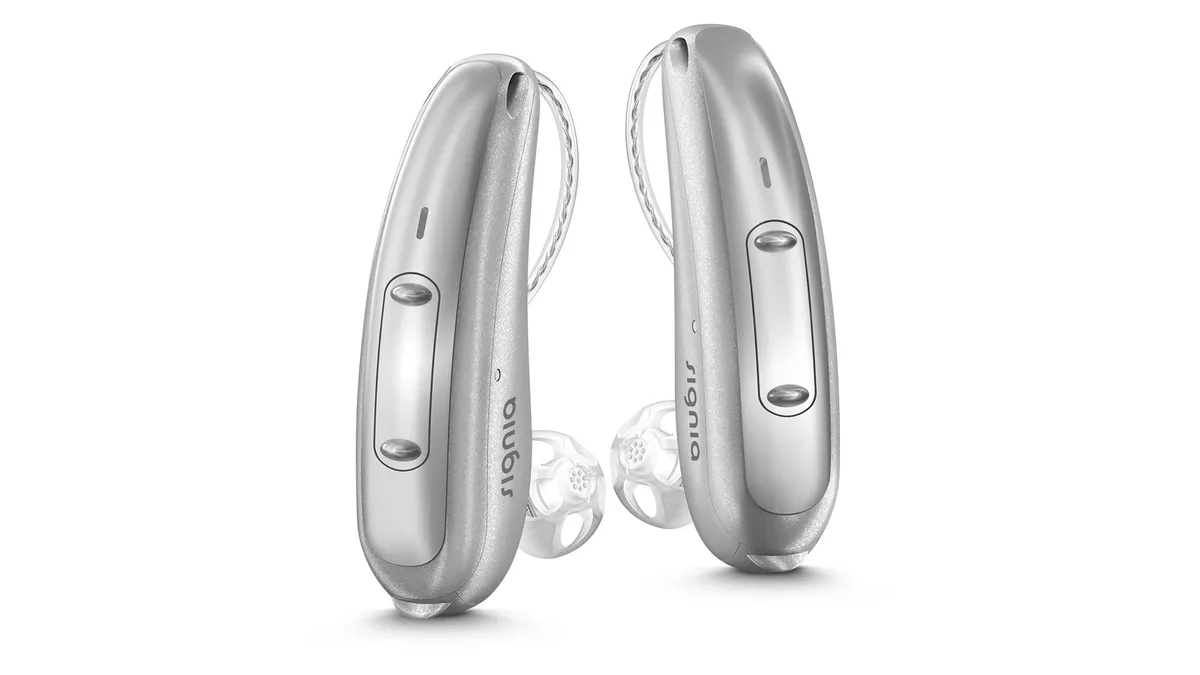
Your Signia hearing aid is quiet, or it's whistling, or it's flashing a light you don't recognize. You're not sure if it's broken, clogged, or just having a bad day with your phone. That's exactly where Signia Hearing Aid Troubleshooting needs to start.
Not with a panic call to your audiologist, but with a calm, systematic check of the handful of things that cause most problems.
Service data indicates that most hearing aids sent in for repair turn out to have simple blockages or battery issues. These can usually be fixed at home in under two minutes. The devices themselves are remarkably durable.
Most faults happen at the user-serviceable interfaces. Before you assume a hardware failure, let's walk through the real culprits in order of likelihood. We'll start with the most common and work down to the rare stuff.
Quick Answer
No sound is the most frequent Signia complaint. Check the wax guard first. If it's clogged, replace it.
If that's clean, check the battery level. Rechargeable models need three full hours on the charger. Disposable battery models need the battery door shut firmly.
If sound returns, you're done. If not, clean the microphone ports with the brush. Still nothing?
Restart the hearing aid. Bluetooth problems are almost always a phone issue, not a hearing aid issue. Forget the device in your phone's Bluetooth menu, then re-pair from scratch.
Is Your Signia Hearing Aid Broken or Just Blocked?
When a hearing aid goes silent, your first thought is probably that it broke. Sometimes it does. Electronics fail, receiver wires get pulled, moisture gets inside.
Those are real hardware problems that need a professional.
But here's what the data shows. Hearing care professionals report that the vast majority of hearing aids sent in for repair have no electronic defect at all. They're returned because the user couldn't clear a wax blockage, didn't realize the battery was dead, or accidentally left the device in a low-power state.
That's not a knock on users. The manual is dense, and the LED codes aren't intuitive. Signia uses a blink pattern system.
One slow green pulse every five seconds means normal operation. Two quick green flashes means a program change is active. A red blink means low battery or a charging error.
Checking the manual on Signia's official support page clears up the confusion.
The key distinction is simple. If the device powers on and the LED works, but sound is missing or distorted, it's likely a blockage or battery issue. If the device won't power on at all after a full charge on a verified working charger, you have a hardware problem.
Before doing anything else, look at the sound outlet. That's the tiny hole where the receiver wire meets the ear. If you see wax or debris, start there.
A simple wax guard swap fixes most "dead" hearing aids.
Image source: Bing (Web (fair-use with source credit))
No Sound? Start Here Before You Do Anything Else
This is the section that will save you a trip to the clinic and a week without your hearing aids. Follow this exact order. Each step takes less than thirty seconds.
Step 1: Check the Wax Guard
The wax guard sits at the tip of the receiver. It's a tiny white or clear cap with a membrane inside. Earwax and skin oils coat that membrane over time.
Sound can't get through, even though the device seems to work. The LED lights up, the app shows battery, but you hear nothing.
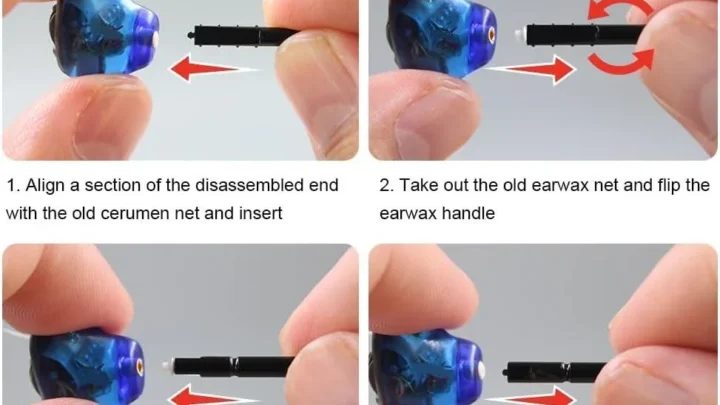
Pop off the wax guard using the tool from your kit. Replace it with a fresh one. If you don't have the tool, a gentle fingernail can work.
Be careful not to damage the receiver housing. Test the device. Sound back?
Done. If not, move on.
Step 2: Clean the Microphone Ports
Signia hearing aids have two or three tiny microphone openings on the outside. Dead skin cells, hair product, or plain dust can clog them completely.
Use the brush from your kit. Sweep it gently across the openings. Do not poke anything into the holes.
Do not use compressed air. Compressed air forces debris deeper into the microphone, where it gets stuck permanently. Just a light sweep with the brush is all you need.
Step 3: Verify the Battery
Rechargeable models: place the hearing aid in the charger. Look for the LED to confirm it's seated correctly. A blinking red light means dirty contacts or poor seating.
Wait a full three hours. A completely drained battery can't revive in thirty minutes.
Disposable battery models: open the battery door. Remove the battery. Check for corrosion or blue-green crust on the contacts.
Clean with a dry cotton swab if needed. Insert a fresh battery. Close the door firmly.
You should hear a chime or feel a slight vibration.
Step 4: Restart the Hearing Aid
Yes, hearing aids need rebooting just like your phone. For most Signia models, press and hold the volume rocker button on both hearing aids for about fifteen seconds. The LED will flash.
Release when it stops. Wait ten seconds. Test the device.
Step 5: Check the Sound Settings
Open the Signia App on your phone. Make sure the volume isn't muted or turned all the way down. Check that you haven't accidentally switched to a silent program like a tinnitus masker.
If the app shows connected and volume is up, but you hear nothing, the issue is hardware-side.
If you've done all five steps and still have no sound, the receiver wire may be damaged. That's a repair shop issue. But these five steps resolve the vast majority of no-sound cases on the first attempt.
Whistling, Feedback, and Muffled Audio — What's Causing It
Whistling is acoustic feedback. It happens when sound from the receiver leaks back into the microphone. The microphone amplifies that sound, creating a loop.
The result is that high-pitched squeal everyone in the room can hear.
The Most Common Cause: Bad Fit
Your ear changes shape over time. Weight loss, weight gain, aging, or allergies can slightly alter your ear canal. The dome that used to fit perfectly may now have a small gap.
Sound escapes through that gap, and you get feedback.
Try reinserting the hearing aid. Make sure the dome is seated deep enough. Twist slightly as you push.
If the whistle stops when you press on the device with your finger, the fit is the issue. You may need a larger dome or a closed dome instead of an open one. Your audiologist can help with sizing.
The Second Most Common Cause: Earwax Buildup
Sometimes the feedback isn't the hearing aid at all. It's your ear. A chunk of wax near the eardrum can cause sound to bounce back more than usual.
If you've changed the wax guard and the whistle persists, have someone look in your ear with an otoscope. A professional ear cleaning might be the fix.
Muffled or Distorted Sound
If the audio sounds like you're hearing through a blanket, the wax guard is dirty. That's the single most likely cause. Replace it and test again.
If that's clean, check for moisture in the receiver wire. This is common in humid climates or after heavy sweating. Place the hearing aid in a dry aid kit for a few hours.
Do not use a hairdryer or oven. A standard dehumidifying jar with desiccant beads works best.
If distortion continues, the receiver may be failing. Receiver wires have tiny internal wiring that can break from repeated bending. This is a repair shop issue.
But Signia receivers are replaceable and usually cost less than a full device.
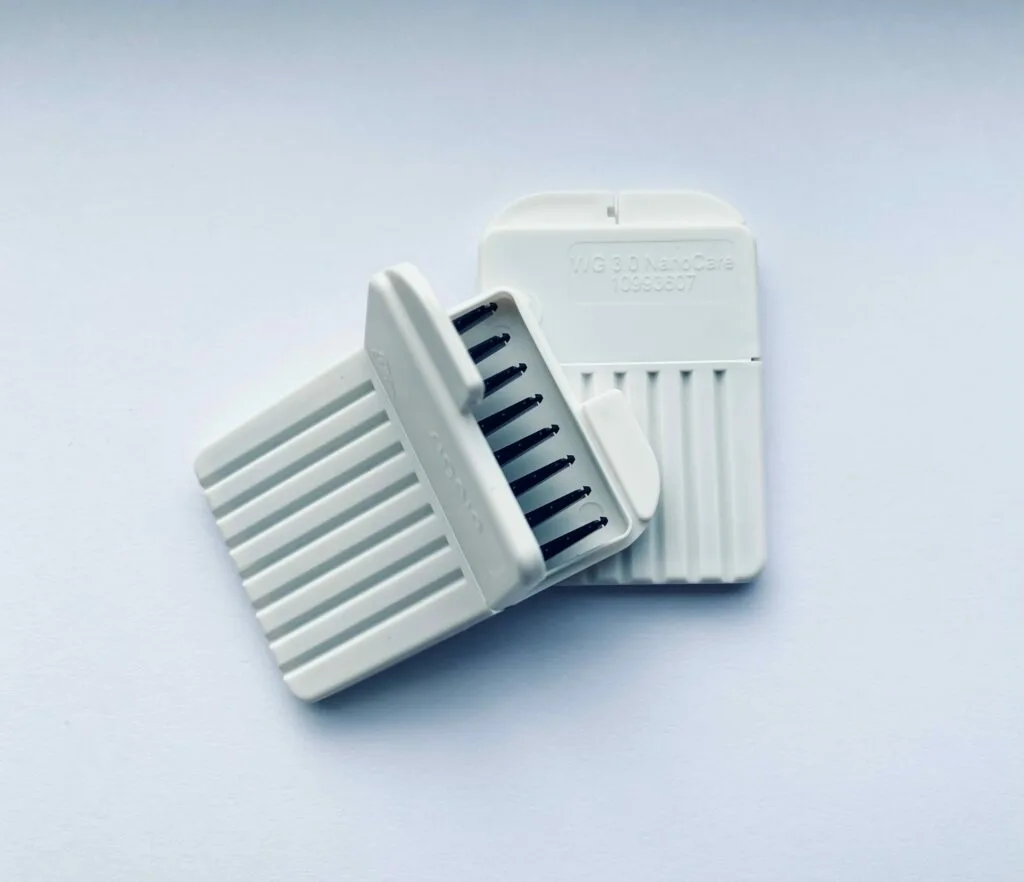
Image source: Bing (Web (fair-use with source credit))
Bluetooth and App Connection Problems That Look Like Hardware Failure
Bluetooth issues are frustrating because they mimic a dead hearing aid. The device powers on. The LED blinks.
But you can't stream music, take calls, or adjust settings. Most times, the problem is on the phone side, not the hearing aid side.
Signia uses Bluetooth Low Energy. This protocol works differently than standard Bluetooth audio streaming. Sometimes the two protocols conflict.
The most effective fix is to restart your phone completely. Toggling Bluetooth alone often doesn't clear the cache.
Forget the hearing aid in your phone's Bluetooth settings. Go to Settings, Bluetooth, find your Signia device, tap "Forget This Device." Turn off Bluetooth. Turn off the phone.
Wait thirty seconds. Turn the phone back on. Turn Bluetooth on.
Open the Signia App and re-pair from scratch.
This single sequence resolves the majority of Bluetooth connection failures in aggregate user feedback. It's a phone cache issue, not a hearing aid defect.
Operating system updates can also break pairing. If your hearing aids worked yesterday and stopped after an update, that's likely the cause. Apple and Google occasionally change Bluetooth profiles.
Hearing aid manufacturers push firmware updates to catch up. Check the Signia App for firmware updates, or visit Signia's official support site for compatibility notes.
Phone calls streaming to only one ear? Signia uses mono-streaming for calls. One ear receives the audio, then transmits to the other ear wirelessly.
Both hearing aids must be turned on and near each other. If you keep one hearing aid in your pocket, you'll only hear from the one in your ear. That's not a defect.
That's how the system was designed.
App not finding the hearing aids? Check your permissions. On Android, the Signia App needs "Always" location permission to scan for Bluetooth devices.
On iPhone, it needs Bluetooth permission enabled. Turn these on, close the app fully, and reopen it.
Battery and Charging Issues That Mimic a Dead Hearing Aid
Battery problems are the second most common reason people think their hearing aid is broken. The symptoms are identical to hardware failure. No sound, no LED, no app connection.
But the fix is usually simple.
Rechargeable models: if one or both aids won't light up when placed in the charger, the charger is the first suspect. The charging contacts on both surfaces get coated with earwax, skin oil, or dust. A thin film of oil is enough to break the connection.
Clean both sets of contacts with a dry cotton swab. Rubbing alcohol works for stubborn residue, but let it dry completely before recharging. Wipe the charger contacts the same way.
Then re-seat the hearing aid. The LED should light up solid.
If the charger's own LED isn't lit, check the power cable. Signia chargers use a standard USB-C cable. Try a different cable.
Try a different wall plug. If the charger still won't power on, it may have failed. Chargers are user-replaceable.
Here's a quick reference for common battery issues:
| Symptom | Likely Cause | Fix |
|---|---|---|
| LED won't light up in charger | Dirty charging contacts | Clean contacts with dry swab |
| LED blinks red | Poor seating in charger | Re-seat hearing aid firmly |
| Charges for hours but still red | Degraded battery | Needs service replacement |
| Dies in under 6 hours | Heavy streaming or battery age | Reduce streaming; check battery health |
| Device flickers on and off | Loose battery door | Tighten hinge or replace door |
Rechargeable Signia aids take about three hours for a full charge. If the battery was fully drained, the device may not power on after a short charge. Wait until the LED turns solid green before testing.
If it stays red after several hours, the battery has degraded and needs replacement from Signia service.
Disposable battery models have their own quirks. Battery doors that won't close firmly cause intermittent power. The hinge pin can loosen over time.
Try squeezing the door gently to tighten the hinge. If that fails, a door replacement takes about five minutes at any dispensing clinic.
Battery leaks are serious. If you see white or blue-green crust around the contacts, remove the battery immediately. Clean contacts with a dry cotton swab.
Do not use water. Then insert a fresh battery. Leaks can corrode internal electronics if left untreated.
Fast battery drain? Streaming uses more power. If you leave Bluetooth streaming active all day, the battery drains faster.
Also, rechargeable cells lose capacity after about two years of daily use. If your aids are older and draining quickly, battery replacement from Signia is the answer. This is a known limitation of lithium-ion technology, not a device defect.
Battery issues beyond contact cleaning and cable swaps are not user-repairable. If you've tried the basics and the device still won't charge, it's a hardware failure. Don't risk damaging the casing trying to force it.
Cleaning Your Signia the Right Way (And What Damages It)
Cleaning a hearing aid is simple, but the wrong method can destroy it. Household cleaners, alcohol wipes, and compressed air are fast routes to the repair bench. Here's what actually works.
The wax guard needs replacing every four to six weeks. That's the single most important maintenance task. The microphone ports need a light brush sweep every few days.
The charging contacts need wiping once a week. Use only the tools from your Signia cleaning kit. If you lose the kit, order a replacement from Signia directly.
Now, what damages a hearing aid. Compressed air blasts debris into the microphone. It gets stuck permanently.
Never use it. Alcohol wipes degrade the casing and dome material over time. Use a dry cloth for the exterior.
Water is risky, even with IP68-rated models. Don't submerge them intentionally.
Heat is another danger. Never put a hearing aid in the microwave, oven, or direct sunlight to dry it. Use a proper drying kit with desiccant beads.
These kits cost about twenty dollars and extend the device's life significantly.
A two-second visual check every morning prevents most failures. Hold the hearing aid up to the light. Look at the sound outlet.
If you see wax, change the guard. Look at the microphone ports. If they look cloudy, brush them.
That's all it takes.
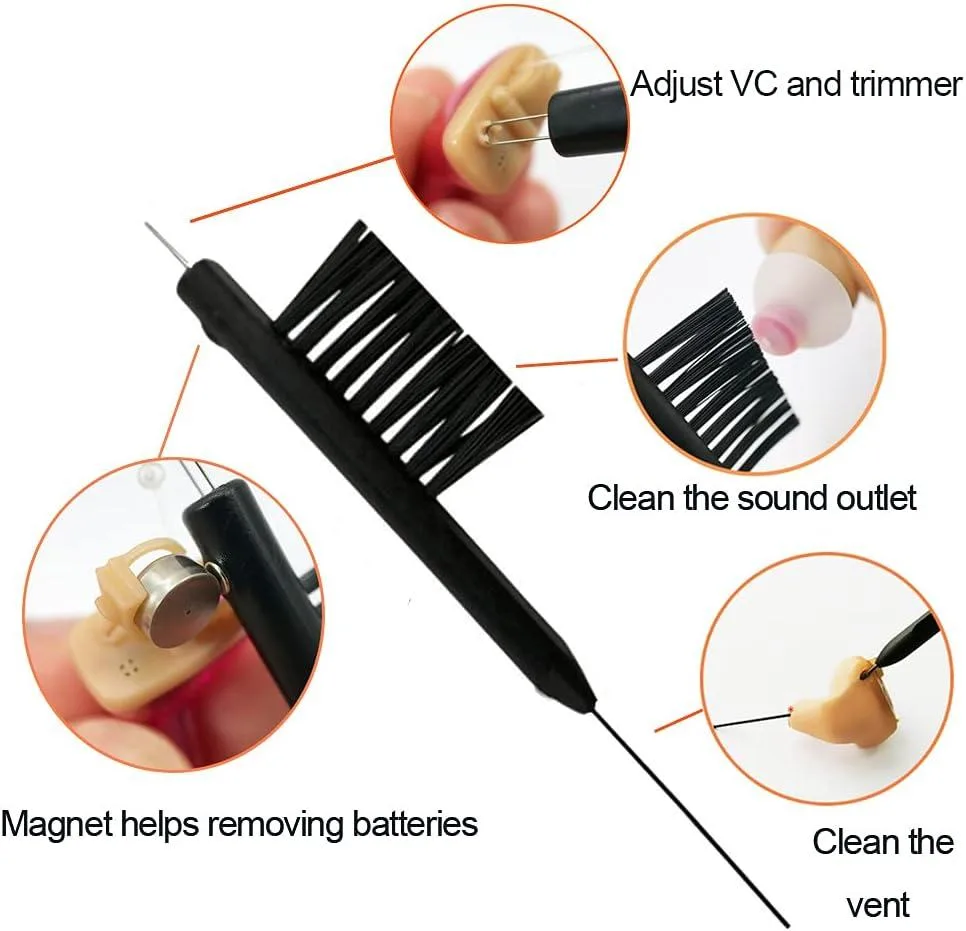
Image source: Bing (Web (fair-use with source credit))
Here's a quick reference for cleaning tools:
| Tool | Use | Don't Use For |
|---|---|---|
| Brush | Microphone grilles | Poking inside openings |
| Wax guard tool | Replacing wax guards | Cleaning electronic parts |
| Dry cloth | Exterior casing | Internal components |
| Dry aid kit | Moisture removal | Quick drying (takes hours) |
Mistakes That Void Your Warranty or Cost You a Receiver
Some mistakes are expensive. A receiver wire replacement costs between fifty and one hundred dollars. A full device replacement costs thousands.
Avoiding these mistakes saves money and keeps your hearing aids working.
Don't pull the receiver wire. It's the thin plastic tube that goes into your ear. Never use it to remove the hearing aid.
Grip the body of the device and twist gently. Pulling stretches the internal wiring. Over time, that causes intermittent sound or complete silence.
If the wire catches on clothing, free it carefully. Yanking it can snap the internal connection.
Don't skip the dry aid kit. Moisture is the silent enemy. Sweat, humidity, and rain creep inside the casing.
Even IP68-rated devices aren't immune over time. If you exercise with your hearing aids or live in a humid climate, use a dry aid kit every night. It costs about twenty dollars and prevents costly corrosion.
Don't ignore LED warning patterns. Signia communicates through these lights. A fast red blink means low battery.
A slow amber blink means charging error. A double green flash means a program change. Look up the pattern in the manual before calling for service.
It might be a two-second fix.
Don't use non-Signia chargers. Third-party chargers can deliver the wrong voltage or current. That damages the battery and can void the warranty.
Use only the charger that came with your device or a direct replacement from Signia. The same goes for USB cables. Cheap cables don't always deliver consistent power.
Don't attempt internal repairs. Opening the casing yourself is the fastest way to void the warranty. Signia devices are sealed and require specialized tools.
If troubleshooting doesn't fix the problem, send it to a professional. DIY repair attempts almost always make the problem worse.
When to Call Your Audiologist vs. When to DIY
This is the most important decision in troubleshooting. Call too soon and you waste time and money. Wait too long and you risk permanent damage.
Here's how to decide.
DIY situations: you can handle these safely at home. Wax guard replacement is the most common. Cleaning microphone ports and charging contacts is DIY.
So are battery swaps, Bluetooth re-pairing, and device restarts. If the problem resolves after cleaning or restarting, you don't need a professional. These steps handle the vast majority of issues.
When to call: you've done all the DIY steps and the problem persists. No sound after a fresh wax guard and a clean microphone? Call.
One hearing aid works but the other doesn't? Call. The LED doesn't light up after a full charge on a known working charger?
Call. The receiver wire is visibly frayed or broken? Call.
Also call after a hard drop. Internal components can crack even if the casing looks fine. A clinic can confirm functionality in minutes.
For general hearing health guidance, the National Institute on Deafness and Other Communication Disorders offers useful consumer resources on hearing loss and device care.
Emergency situations: if the hearing aid gets wet beyond normal humidity, remove the battery immediately. Place the device in a dry aid kit for at least 24 hours. Do not use heat.
Do not try to turn it on. If it works after 24 hours, you're lucky. If not, it needs professional repair.
If a pet crushes or bites the device, it's likely a total loss. Pet damage is not covered under warranty.
The 24-hour rule: most fixable problems resolve within 24 hours of the correct intervention. If you've tried troubleshooting and the issue persists past 24 hours, it's time to call. Don't wait a week.
A professional can diagnose the issue in minutes. The cost of a service visit is far less than the frustration of living without hearing aids.
Frequently Asked Questions
Why is my Signia hearing aid making a whistling sound?
Whistling is acoustic feedback. It happens when amplified sound leaks back into the microphone. The most common causes are a loose dome fit or earwax buildup in your ear canal.
Try reseating the device deeper. If the whistle stops when you press gently on the hearing aid, the fit is the problem.
How often should I change the wax guard on my Signia hearing aid?
Replace the wax guard every four to six weeks. Heavy wax producers may need a new one every two weeks. If sound becomes muffled sooner, change it sooner.
The guard protects the receiver from earwax. Skipping swaps leads to clogged receivers and unwanted repair visits.
Why won't my Signia hearing aids connect to the Signia App?
Start by restarting your phone fully. Forget the hearing aids in your Bluetooth settings, then re-pair from scratch. Check that location permissions are set to "Always" on Android.
On iPhone, confirm Bluetooth permission is enabled for the app. A stale Bluetooth cache causes most connection failures.
How long do Signia rechargeable hearing aid batteries last?
A full charge provides 15 to 20 hours of typical use. Constant audio streaming reduces that to about 10 to 12 hours. A 30-minute quick charge delivers around six hours of power.
After two years of daily use, battery capacity naturally declines and may need service from Signia.
Can I clean my Signia hearing aid with alcohol wipes?
No. Alcohol degrades the outer casing and can damage internal components over time. Use a dry soft cloth on the exterior.
For microphone ports, use the brush from your cleaning kit. For charging contacts, use a dry cotton swab. Keep all liquids away from the sound openings.

Similar Posts