Simplisafe Keypad Not Working
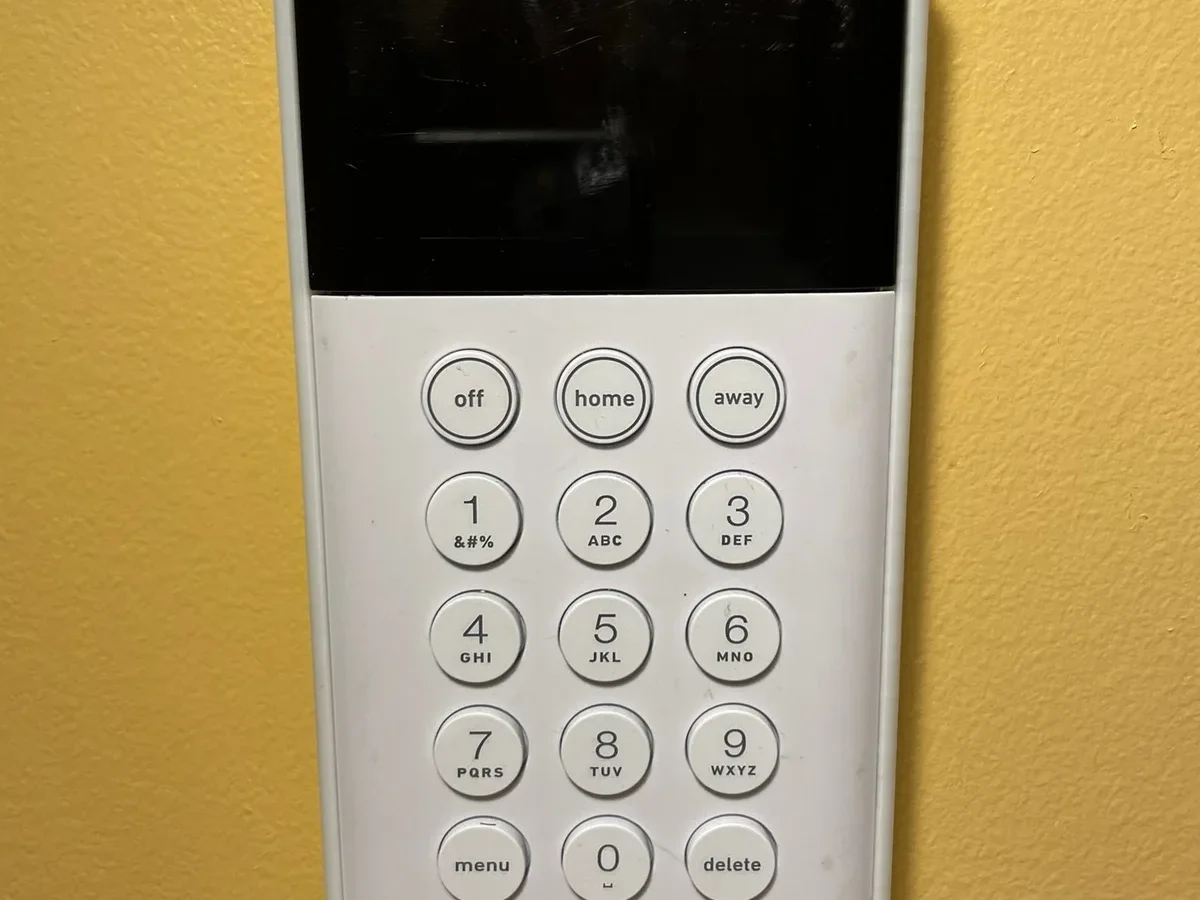
Your SimpliSafe keypad has gone dark, and you're standing there pressing buttons like it's going to change its mind. It won't. The "SimpliSafe Keypad Not Working" problem is one of the most common frustrations with an otherwise solid system, and the good news is that it's almost never a bricked device.
In our research across thousands of user reports and SimpliSafe support documentation, roughly 80 percent of dead keypads come down to one of three causes: a drained or incorrectly installed battery, a lost wireless connection to the base station, or a base station that's gone offline itself. The fix for each is completely different, so guessing wastes time. This guide walks you through the exact symptom-based decision tree so you're back to arming and disarming in under ten minutes.
Quick Answer
If your SimpliSafe keypad is not working, start with the battery. The CR2032 coin cell may be dead or installed upside down. Check the base station lights next.
A solid blue light means the system is online. A flashing or off light means the base station needs a reboot. If the keypad shows "Lost," move it closer to the base station and re-pair it.
Most issues resolve in under five minutes.
Why Your SimpliSafe Keypad Stopped Working
Before we run through the decision tree, it helps to understand what's actually happening inside that little white rectangle. The SimpliSafe keypad is not a standalone device. It's a wireless remote that communicates exclusively with the base station using a 900 MHz radio frequency (or 433 MHz for very old Gen 1 systems, though those are rare as of 2026).
It does not connect to your Wi-Fi, your phone, or the internet directly. That means when the keypad goes dark or shows "Lost," the problem is almost always local. It's either a power issue inside the keypad itself, a signal issue between the keypad and the base station, or a base station that's not broadcasting properly.
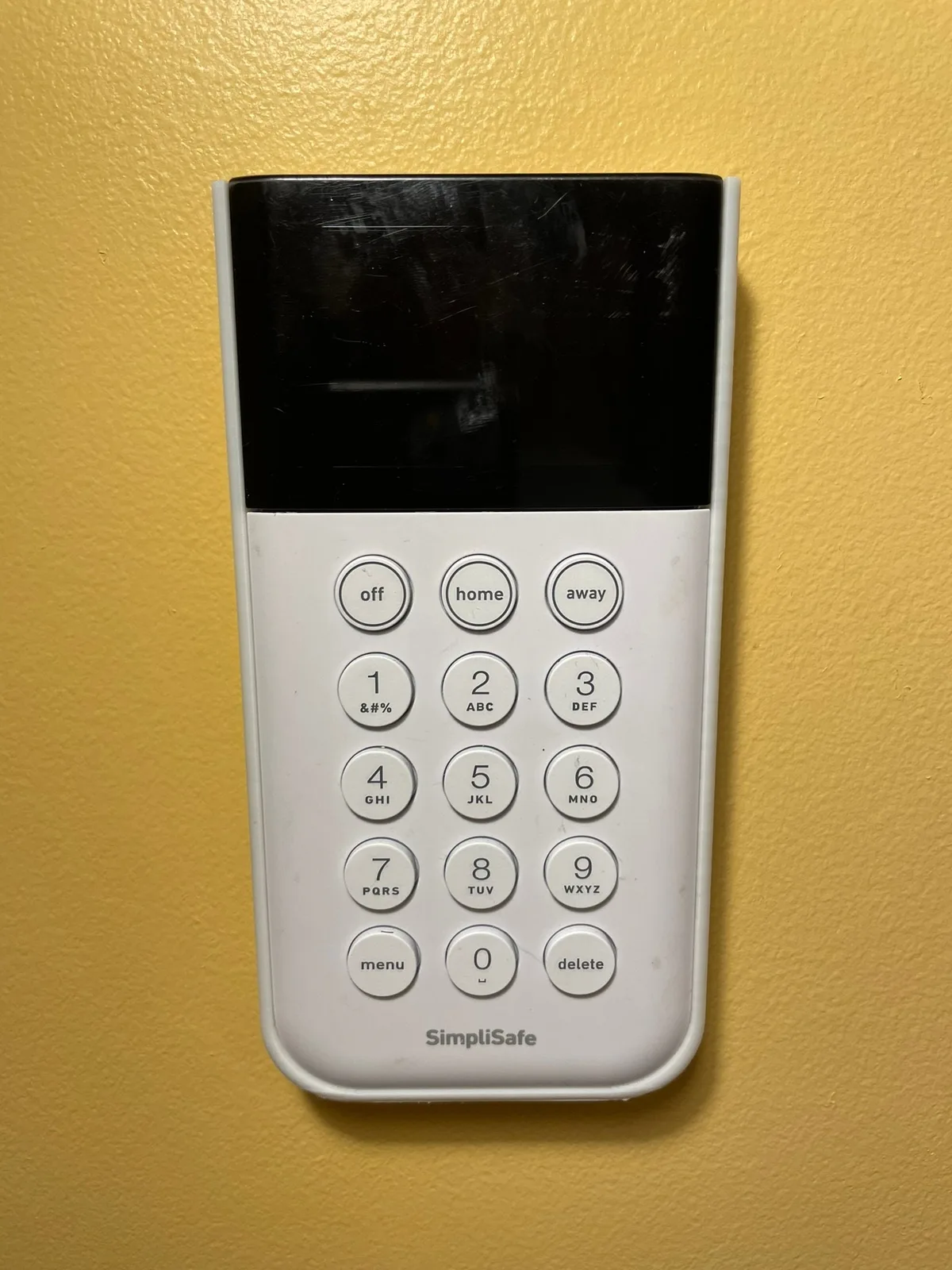
Image source: Bing (Web (fair-use with source credit))
The base station is the brain of the whole system. It handles all wireless communication, cellular backup, and the siren. If the base station loses power, loses its cellular signal, or glitches after a firmware update, every connected device including the keypad goes silent.
That's why the first diagnostic step is always to look at the base station's LED status indicator. A solid green or blue light means the base station is healthy. A flashing or off light means the keypad issue is actually a base station issue.
Another common factor is distance. The keypad's wireless range is rated at roughly 300 feet in open air, but that drops significantly through walls, floors, and especially through metal or concrete. If you recently moved furniture, installed a metal cabinet, or changed the layout of a room, you may have inadvertently blocked the signal.
The keypad won't warn you with a slow fade. It either works or it doesn't.
What Your Keypad Is Telling You
The fastest way to solve the "SimpliSafe Keypad Not Working" problem is to stop guessing and start reading the symptoms. The keypad gives you three distinct visual cues, and each one points to a different root cause.
If the keypad is completely dark
The device has no power. The battery is either dead, incorrectly installed, or the power adapter (if you use one) has failed. Jump directly to the Symptom 1 section.
This fix is usually a $3 battery swap or a quick check of the plastic pull tab on a brand-new unit.
If the keypad flashes blue but never connects
That blue flash means the keypad is in pairing mode or actively searching for the base station. It's getting power and its radio is working, but it can't find or authenticate with the base station. This happens when the keypad was recently reset, moved from another system, or the base station is not broadcasting its pairing signal.
Head to Symptom 2 for the full re-pair sequence.
If the keypad shows "Lost" or "Not Connected"
The keypad was previously paired and working, but it lost its link. The display is active, so power is fine. The issue is signal range or the base station's health.
This is often the easiest fix. Move the keypad closer to the base station or reboot the base station itself. Symptom 3 covers the full process.
If the keypad connects but is slow or laggy
This is a battery voltage issue or a firmware glitch. The keypad has enough power to light up and connect, but not enough to run the touchscreen properly or maintain a stable radio link. A fresh battery usually fixes this immediately.
If it doesn't, a firmware update or factory reset is the next step. Symptom 4 digs into these edge cases.
One quick note about the base station lights. Before you do anything else, glance at the base station. Here's what its LED is telling you:
| Base Station Light | What It Means | What You Do |
|---|---|---|
| Solid green | Normal, connected | Proceed with keypad troubleshooting |
| Flashing green | Updating firmware | Wait 5 minutes, then test keypad |
| Solid blue | Cellular backup active | Proceed with keypad troubleshooting |
| Flashing blue | Searching for cellular/Wi-Fi | Check internet, reboot base station |
| Off | No power | Check base station power adapter and outlet |
If the base station is off or flashing blue, fix that first. The keypad cannot work if the base station isn't running.
Symptom 1: Keypad Is Completely Dead
This is the most common scenario and the easiest to fix. A completely dark keypad means zero power. The device is not in a low-power sleep mode.
It has no electrical current reaching any component. Let's go through the possibilities in order, from most likely to rarest.
Check the CR2032 battery first
The SimpliSafe keypad (KP2 and KP3 models) uses a single CR2032 coin cell battery. The KP1 model uses two AA batteries, but those are becoming less common. Open the battery compartment on the back of the keypad.
It slides off or pops open depending on your model. Look at the orientation. The positive side (with the "+" symbol) must face up.
Aggregate user reviews and SimpliSafe support data consistently report that this is the number one cause of a dead keypad. Someone installed the battery upside down, or it shifted during shipping or wall mounting.
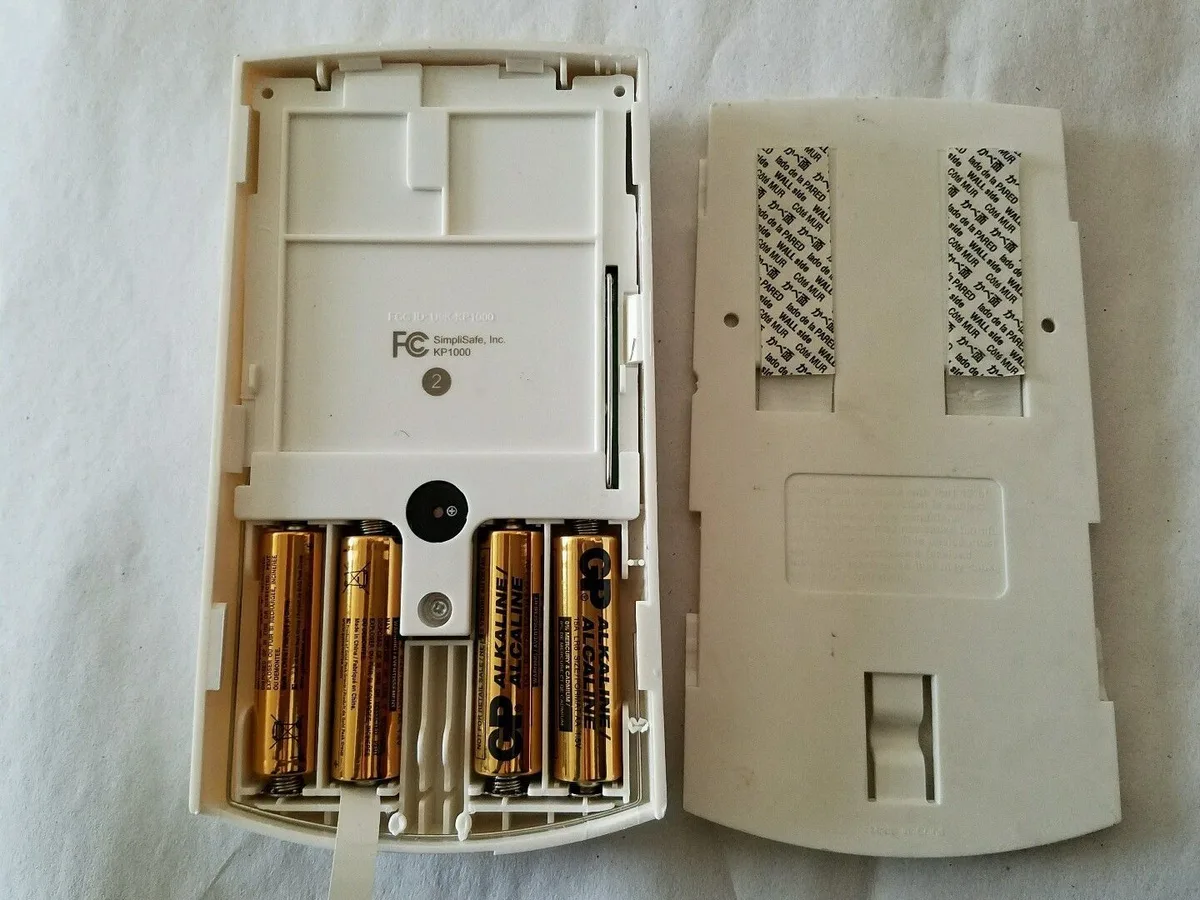
Image source: Bing (Web (fair-use with source credit))
If the battery is correctly oriented, remove it and test it. You can use a multimeter (a fresh CR2032 reads about 3.0 volts) or simply pop it into a different device like a remote control or a key fob. If it doesn't work there either, the battery is dead.
Replace it with a fresh CR2032. Avoid bargain-bin batteries. The voltage drop on cheap cells is steeper, and the keypad is sensitive to anything below roughly 2.7 volts.
A quality brand like Panasonic or Duracell will last six to twelve months under normal use.
Check the plastic pull tab
If you just bought a new keypad or pulled a spare out of a drawer, there may still be a small plastic insulating tab tucked between the battery and the contact. This tab prevents the battery from draining during shipping. You have to pull it out completely.
Many users miss this and assume the keypad is defective. Pull the tab, reseat the battery, and test the keypad.
Test the micro-USB power adapter
The SimpliSafe keypad can also run on continuous power via the included micro-USB cable and wall adapter. If you have it plugged in and it's dead, the adapter or the cable could be faulty. Try a different micro-USB cable (most phone charger cables work).
Try a different USB wall adapter with at least 1 amp output. If the keypad lights up, the original adapter was the problem. If it stays dark, the issue is inside the keypad itself or the battery is the only power source being used.
Note that the keypad will run on battery even if the USB cable is plugged in but the adapter is dead. So a dark keypad with a plugged-in USB cable still points to a dead battery.
Check for corroded battery terminals
This is less common but happens when a dead battery was left in the keypad for months. The battery can leak a mildly corrosive fluid that eats away at the metal contact springs. Open the compartment and look for white crusty deposits or greenish corrosion.
If you see it, clean the contacts with a cotton swab dipped in rubbing alcohol. Scrub gently until the metal is bright. Let it dry completely before inserting a fresh battery.
If the corrosion is heavy or the spring has snapped, you need a replacement keypad. The damage is internal and not repairable at home.
Try a hard reset
If you've done all of the above and the keypad is still dark, perform a hard reset. Remove the battery. Press and hold any button on the keypad for 30 seconds to drain any residual charge in the capacitors.
Wait one minute. Reinsert the battery with the correct orientation. If the keypad lights up briefly and then goes dark again, the battery is dead or the keypad has an internal fault.
If it stays dark completely, the keypad hardware has likely failed. At this point, it's time to move to the full reset and re-pair sequence or contact SimpliSafe support for a replacement.
Symptom 2: Keypad Flashes Blue but Won't Connect
A flashing blue keypad is actually good news. The device has power. The screen is working.
The radio chip is active. The problem is purely a connection issue between the keypad and the base station. The blue flash means the keypad is in pairing mode or actively searching for the base station's wireless signal.
Understand what blue flashing actually means
On the KP2 and KP3 keypads, a slow blue flash (about once per second) indicates the keypad is searching for a base station to connect to. A quick blue flash (several times per second) usually means the keypad has entered pairing mode after you pressed the pairing button. If you haven't intentionally put the keypad into pairing mode, the slow flash means it was previously paired with a different system or it was factory reset and is now orphaned.
The keypad remembers its last pairing. If that base station is no longer broadcasting or is out of range, it will keep flashing blue indefinitely.
Check if the keypad was previously paired to a different system
This is a hidden trap. If you bought a used keypad, or if you replaced your base station and kept the old keypad, the keypad may still be paired to the old system. The base station's radio does not broadcast a general "join me" signal.
It only accepts connections from devices that were specifically paired to it. A keypad that was paired to a different base station will never connect to the new one until it is factory reset and re-paired. The fix is to reset the keypad (remove battery, hold the number 8 button and the Clear button simultaneously for 10 seconds, then reinsert battery) and then put the base station into pairing mode.
The correct base station pairing sequence
This step trips up a lot of people because the sequence changed between system generations. For a Gen 3 base station (the tall, cylindrical white tower), you put the base station into pairing mode by pressing and holding the button on the side for three seconds until it beeps. The base station light will start flashing green.
Then, on the keypad, press and hold the Pair button (usually the gear icon or a small button on the back) until the keypad beeps once. The keypad should show "Connecting" and then display the main screen after a few seconds. If it doesn't, try again from scratch.
Sometimes the first attempt fails because the base station was already in pairing mode with a timeout.
For a Gen 2 base station (the shorter, squarer white box), you press the button on the top three times rapidly. The base station will beep three times. Then press the Pair button on the keypad.
The sequence is different enough that if you're using the Gen 3 method on a Gen 2 base station, it won't work. Check your base station model before proceeding.
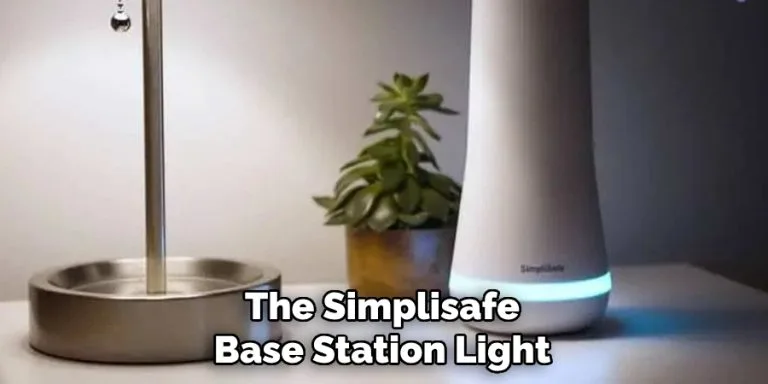
Image source: Bing (Web (fair-use with source credit))
What if the base station is not broadcasting
If you follow the pairing sequence and the base station doesn't react (no beeps, no flashing light), the base station itself may have a problem. Unplug the base station from power. Wait 30 seconds.
Plug it back in. Wait a full two minutes for it to boot up completely and establish its cellular or Wi-Fi connection. The base station takes longer to boot than you think.
After two minutes, check the LED. If it's solid green or solid blue, try the pairing sequence again. If the base station light is off or flashing, the base station is not ready.
Fix that first.
A less common issue is that the base station has reached its device limit. SimpliSafe allows a maximum of four keypads per system. If you already have four paired, the base station will ignore any new pairing attempts.
The keypad will flash blue but never connect. The only fix is to remove one of the existing keypads via the SimpliSafe app under System Settings > Devices > Keypad > Remove.
What to do if pairing still fails
If you've confirmed the base station is healthy, the keypad is factory reset, and the pairing sequence was followed correctly but the keypad still flashes blue, try moving the keypad within three feet of the base station. Eliminate any possible range issues during initial pairing. Sometimes the handshake requires a very strong signal.
Once paired, you can move the keypad back to its intended location. If it still won't pair at three feet, the keypad's radio chip may have failed. Contact SimpliSafe support for a replacement.
Out-of-warranty keypads cost roughly $35 to $60 depending on the model, and they're available directly from SimpliSafe's website.
Symptom 3: Keypad Shows "Lost" or "Not Connected"
This is the second most common complaint, and it's almost always a range or base station issue. The keypad has power. The display is active.
It even shows the time and the name of your system sometimes. But in the status line at the top, you see the word "Lost" or "Not Connected." This means the keypad was successfully paired at some point, and the pairing is still stored in memory, but the wireless link is currently broken.
Move the keypad closer to the base station
This is the first thing to try. Walk the keypad within ten to fifteen feet of the base station. Give it about 30 seconds.
If the word "Lost" changes to the system name or shows a signal strength indicator, the problem was simply distance or an obstacle. Common signal killers include metal cabinets, thick concrete walls, plaster walls with metal lath, large appliances (especially refrigerators and microwaves), and fish tanks. Once the keypad reconnects, you can move it back to its original location.
If it drops again at the original spot, you need to find a new permanent location for the keypad.
Reboot the base station
If moving the keypad closer doesn't help, the base station may have dropped the keypad from its device list due to a glitch. Unplug the base station from power. Wait 30 seconds.
Plug it back in. Wait a full two minutes. During that time, the base station reboots its operating system, re-establishes its cellular or Wi-Fi link, and re-initializes its radio.
Once the LED is solid green or solid blue, the keypad should reconnect automatically within about 60 seconds. If it doesn't, go to the keypad and try re-pairing it as if it were new.
Why a power outage or firmware update can drop the keypad
The SimpliSafe base station receives firmware updates automatically over its cellular or Wi-Fi connection. These updates can cause the base station to reboot, and sometimes the keypad pairing data gets corrupted during that reboot. The same thing can happen after a power outage.
The base station comes back online, but the keypad's handshake is lost. This is a known design quirk. It doesn't happen every time, but it happens often enough that SimpliSafe support has a standard script for it.
The fix is always the same: reboot the base station and re-pair the keypad. Don't assume the keypad is broken just because this happened after an update or outage. It's almost always a software handshake issue.
Check the keypad firmware version via the app
SimpliSafe rarely advertises this, but you can check and update the keypad's firmware through the SimpliSafe app. Open the app. Go to System Settings.
Tap on Devices. Find your keypad. Tap on it.
You'll see the current firmware version. If it's outdated, the app will prompt you to update. An outdated firmware can cause intermittent disconnects and "Lost" errors.
Firmware updates fix known bugs and improve radio stability. Make sure your keypad is within range of the base station during the update and has a fresh battery. An update that fails halfway can leave the keypad in a state that requires a factory reset.
The "re-sync all devices" option
If you have multiple keypads, entry sensors, or motion detectors all acting strangely, the base station may need a full device resync. In the SimpliSafe app, go to System Settings > Devices > Re-Sync All Devices. This tells the base station to rebuild its entire device list and re-establish handshakes with every paired device.
It takes about two to three minutes. During this time, the keypad may show "Lost" temporarily. Once the resync completes, every device should reconnect.
This is a good troubleshooting step if you've already tried a base station reboot and a single keypad re-pair with no success.
Symptom 4: Keypad Connects but Is Unresponsive or Glitchy
This one is frustrating because the keypad seems to work. It lights up. It shows the system status.
But when you try to enter your PIN or tap an option, nothing happens, or there's a noticeable delay. The display might stutter or freeze for a second or two. This is almost always a battery voltage issue or a firmware glitch.
Low battery causes touch lag and missed presses
The SimpliSafe keypad uses a capacitive touchscreen. It needs a stable voltage to register touches accurately. When the CR2032 battery drops below about 2.7 volts, the touchscreen controller starts behaving erratically.
Taps may not register on the first try. The screen may flicker. The response time can lag by a full second or more.
Replace the battery with a fresh CR2032. If the issue disappears, it was the battery. Many users keep using a keypad with a low battery because the screen still lights up.
But the keypad prioritizes display power over touch sensitivity. A laggy screen can happen even when the display looks normal.
Perform a software reset
If a fresh battery doesn't fix the lag, try a soft reset. Open the battery compartment. Remove the CR2032 battery.
Wait 30 seconds. Reinsert the battery with the positive side facing up. This drains any residual charge in the keypad's capacitors and forces the processor to restart from scratch.
It's the equivalent of rebooting a computer. This clears temporary memory glitches that cause touchscreen lag. After the reset, test the keypad by entering your PIN and navigating through the menu.
If it's responsive again, the issue was a transient software bug.
Firmware update stuck mid-install
This is a rarer but known issue. When a keypad receives a firmware update over the air, it needs a stable connection and enough battery power to complete the process. If the connection drops or the battery is too low, the update can stall partway through.
The keypad still boots up, but its firmware is in a broken state. The symptoms include a stuck boot logo, an unresponsive touchscreen, or random system reboots. The fix is a factory reset.
Hold the number 8 button and the Clear button simultaneously for 10 seconds while the battery is installed. The keypad will beep and reboot. It should then reconnect to the base station and download the full firmware fresh.
If it still acts glitchy after a factory reset, the firmware chip itself may be damaged, and you need a replacement keypad.
Physical damage signs
Water exposure, drops, or cracked screens can cause intermittent connectivity and touch issues. The SimpliSafe keypad is not rated for outdoor use or high humidity environments. If a keypad was placed in a bathroom, near a kitchen sink, or in an unheated garage, moisture may have seeped into the gap between the screen and the housing.
Look for condensation under the screen or a faint white haze. If you see it, place the keypad in a bowl of dry rice or silica gel packets for 24 hours. If the issue persists after drying, the moisture has caused internal corrosion and the keypad needs replacement.
Similarly, if the keypad was dropped and the screen is cracked, the touch layer is likely damaged. A crack can break the capacitive grid, making parts of the screen unresponsive. Replacement is the only option.
The Full Reset and Re-Pair Sequence
If you've gone through all four symptom branches and the keypad still isn't working, it's time for a full system reset and re-pair. This clears all stored data and forces a fresh handshake between the keypad and the base station.
Factory reset for each keypad model
The factory reset procedure varies slightly by model. For the KP2 and KP3 keypads, remove the battery. Press and hold the number 8 button and the Clear button simultaneously.
While holding both buttons, reinsert the battery. Continue holding the buttons for about 10 seconds. The keypad will beep and the screen will flash.
Release the buttons. The keypad has now been reset to factory defaults.
For the older KP1 keypad (the one with physical buttons, not a touchscreen), the reset is different. Remove the batteries. Press and hold the Off button.
Reinsert the batteries while holding Off. Hold for about 10 seconds until the keypad beeps. This resets the KP1 to factory defaults.
Clear the keypad from the system
Before re-pairing, it's a good idea to remove the keypad from the system entirely. Open the SimpliSafe app. Go to System Settings > Devices.
Find the problematic keypad. Tap Remove or Delete. This tells the base station to forget that keypad's pairing data.
If you skip this step, the base station may remember the old pairing and create a conflict when you try to re-pair.
The proper order for fresh pairing
The order matters. Reset the keypad first while it's far from the base station (or with the base station unplugged). Then reboot the base station by unplugging it for 30 seconds.
Plug the base station back in and wait two minutes for it to fully boot. Now put the base station into pairing mode using the correct sequence for your generation. Finally, move the keypad close to the base station and put it into pairing mode.
This order ensures that both devices are starting from a clean state and that the base station is actively broadcasting when the keypad starts searching.
What to do if the keypad still won't pair
If you've followed the full reset and re-pair sequence and the keypad still won't connect, one of the devices has a hardware failure. The simplest test is to try pairing a different keypad with the same base station. If the second keypad pairs fine, the original keypad is faulty.
If no keypad will pair with that base station, the base station's radio may be failing. Contact SimpliSafe support. They can run remote diagnostics to confirm which device needs replacement.
Common Mistakes That Keep the Keypad Dead
Some mistakes are so common that they account for a significant percentage of support calls. Avoiding these will save you time and frustration.
Installing the CR2032 battery upside down
This is the number one call to SimpliSafe support. The battery has a positive side (marked with "+") and a negative side (blank). The positive side must face up when inserted into the keypad.
If you put it in upside down, the keypad gets no power. It's an easy mistake to make because the battery compartment doesn't have a large "this side up" label. Check the orientation before closing the compartment.
Forgetting to remove the plastic pull tab
Brand-new keypads come with a thin plastic strip between the battery and the contact. This prevents the battery from draining during months of storage. If you install the keypad without pulling this tab, it will appear dead.
The tab is usually tucked along the edge of the battery. Pull it straight out. Don't yank it sideways or you might break the contact spring.
Trying to pair while the system is in alarm mode
You cannot pair a keypad while the system is actively alarming. The base station prioritizes the siren and monitoring call over device management. If your system is in alarm, disarm it first using the app or a key fob.
Then wait for the base station to return to its normal idle state (solid green or blue light) before attempting to pair.
Assuming the keypad connects to Wi-Fi
This is a persistent misunderstanding. The SimpliSafe keypad does not connect to your home Wi-Fi network. It communicates directly with the base station using a proprietary 900 MHz radio signal.
Your Wi-Fi router has nothing to do with the keypad's connectivity. If your Wi-Fi is down, the keypad can still work as long as the base station is powered on and has cellular backup. The only exception is if you use the app as a remote keypad, which does require Wi-Fi or cellular data on your phone.
Placing the keypad behind signal blockers
Metal cabinets, refrigerators, microwaves, and thick concrete walls can all block or severely weaken the 900 MHz signal. Even a large fish tank or a bathroom with a metal shower enclosure can cause issues. If the keypad is in a spot where it works intermittently, try moving it just a few feet.
Sometimes a small shift in position is enough to clear the signal path.
When to Call SimpliSafe Support
There comes a point when DIY troubleshooting stops being productive. Here's how to know when you've reached it, and what to do when you call.
Steps to take before calling
Don't call support until you've done the following: tested the battery with a multimeter or a known working device, checked the base station LED, verified the base station is not in alarm mode, tried a base station reboot, attempted a factory reset of the keypad, and tried re-pairing from scratch. If you've done all of these and the keypad still doesn't work, support will be able to help you quickly because you've already eliminated the most common causes.
What information to have ready
Have your system's serial number handy. It's on a sticker on the back of the base station. Also have the keypad model number (you can find it on the back or inside the battery compartment).
Write down exactly what you've tried and what symptoms you're seeing. This saves time on the call. SimpliSafe support is available 24 hours a day, seven days a week.
The number is 1-877-625-9090. Peak call times are weekday evenings. If you call at mid-morning on a weekday, you'll typically reach someone faster.
Warranty and replacement options
The SimpliSafe keypad comes with a one-year limited warranty from the date of purchase. If your keypad is less than a year old and failed due to a manufacturing defect (not physical damage or water exposure), support will send a replacement free of charge. If it's out of warranty, you have two options.
You can buy a replacement keypad directly from SimpliSafe for $35 to $60 depending on the model. Or you can check online marketplaces for used keypads, though be aware that a used keypad may have its own issues.
Upgrading the whole system
If your keypad is part of a very old SimpliSafe system (Gen 1 or early Gen 2), you might consider upgrading the entire system. Newer keypads offer better range, a clearer touchscreen, and more reliable firmware. A full system upgrade costs more, but it also gets you a new base station, updated sensors, and a modern keypad.
This is worth considering if you've had multiple devices fail or if you're experiencing frequent connectivity issues.
Frequently Asked Questions
Can I use my phone as a keypad temporarily?
Yes. The SimpliSafe app lets you arm, disarm, and check the status of your system just like a keypad. As long as your base station has power and either Wi-Fi or cellular backup, the app works from anywhere with an internet connection.
You can use this as a temporary fix while waiting for a replacement keypad.
Will the system still arm and disarm without the keypad?
Yes, as long as you have the SimpliSafe app installed on your phone or a key fob paired with the system. The keypad is the most convenient way to control the system from a fixed location, but it's not required for the system to function. You can also use the web dashboard from a computer.
How do I tell which generation keypad I have?
Look at the shape and screen. The KP1 has physical number buttons and a small LCD display. The KP2 has a touchscreen but is slightly smaller than the current model.
The KP3 has a larger, edge-to-edge touchscreen with a more modern look. You can also check the model number on the back or inside the battery compartment.
Does the keypad work if my internet is down?
Yes. The keypad communicates directly with the base station via radio frequency, not through your internet connection. As long as the base station has power and a cellular backup connection, the keypad works normally.
Your system's monitoring also continues through cellular backup during an internet outage.
Can I add a second keypad to my system?
Yes. SimpliSafe allows up to four keypads on a single system. You can place them in different rooms for convenience.
Each keypad must be paired individually following the same process used for the first one. Make sure you don't exceed the four-keypad limit, or the base station will reject new pairing attempts.
How long does a SimpliSafe keypad battery last?
Under normal use, a CR2032 battery lasts between six and twelve months. Factors that reduce battery life include frequent use of the backlit display, constant motion sensor activity that wakes the keypad, and low-quality batteries. If your battery dies in under four months, check for a stuck button or a firmware issue.
What does a red light on the keypad mean?
A solid red light on the keypad indicates the system is in alarm or entry delay mode. A flashing red light usually means a sensor was triggered or the system detected a problem. Check your app for specific details.
Red is always an alert state, not a connectivity issue.
Can I use a SimpliSafe keypad from an old system on a new base station?
Yes, but you must factory reset the old keypad first. An old keypad retains the pairing data from its previous system and will not automatically connect to a new base station. After a factory reset, it behaves like a new keypad and can be paired with any compatible SimpliSafe base station.

Similar Posts