Thrive Hearing App Troubleshooting

If you are reading this, your Thrive Hearing App is probably not working the way it should. Maybe it says "No Hearing Aids Found" when you know they are right there on your ears. Or the app opens, spins for a few seconds, and then just closes itself.
You are not alone in this, and the good news is that the fix is usually straightforward once you know which branch of troubleshooting you are on.
Thrive Hearing App troubleshooting is simpler when you stop guessing and start matching your exact symptom to the right fix. As of 2026, aggregate user reports and Starkey's own support documentation indicate that around 70% of connection failures trace back to just three root causes: a Bluetooth cache conflict, a firmware mismatch between the app and the hearing aids, or a forgotten device sitting in the phone's Bluetooth memory. Let us walk through each problem branch so you can get back to hearing clearly.
Quick Answer
Match your exact symptom to the correct fix branch. If the app says "No Hearing Aids Found", force a fresh pairing sequence. If the app crashes on launch, clear the cache or offload the app.
If hearing aids connect but no audio streams, check for Bluetooth profile conflicts. Most issues resolve in under ten minutes by following the right branch instead of guessing.
Image source: Bing (Web (fair-use with source credit))
Problem: What's Actually Going Wrong With Your App
The Thrive Hearing App acts as the remote control and sound profile manager for your Starkey hearing aids. When it stops working, the failure usually falls into one of four distinct patterns. Each pattern has a different root cause and a different fix.
Trying a random "restart everything" approach wastes time and sometimes makes things worse.
The Four Failure Patterns
Pattern 1: The app cannot find or connect to the hearing aids. This is the most common issue. The phone scans for Bluetooth devices, sees nothing, and displays a "No Hearing Aids Found" message. This happens after a phone OS update, after switching to a new phone, or sometimes out of nowhere.
The root cause is almost always a broken pairing bond between the phone and the hearing aids.
Pattern 2: The app opens but then crashes or freezes. The icon is there. You tap it. The splash screen shows up, maybe a loading spinner appears, and then the app disappears back to your home screen.
Or it freezes on a white screen. This is typically a software conflict: either the app version is too old for your phone's operating system, or the app's cached data has become corrupted.
Pattern 3: The hearing aids connect to the phone but no audio streams through. You see the hearing aids listed in your phone's Bluetooth settings. They show as "Connected". But when you play a podcast or take a call, the sound comes out of the phone speaker instead of your hearing aids.
This is a Bluetooth profile problem, not a pairing problem.
Pattern 4: The app or the hearing aids drain battery abnormally fast. Maybe your hearing aids used to last a full day, and now they die by 2 PM. Or your phone battery drops noticeably faster when the app is running in the background. This often traces back to the app's geotagging feature refreshing location data too aggressively, or a firmware bug that keeps the Bluetooth radio active.
Why Generic "Restart Everything" Advice Fails
A hard reset of both phone and hearing aids can sometimes clear a temporary glitch. But it is a shotgun approach. If the problem is a firmware version mismatch, restarting changes nothing.
If the problem is a corrupted cache, restarting only reloads the same bad data. If the problem is a Bluetooth profile conflict, restarting resets nothing about the profile.
You need a targeted fix. The rest of this guide gives you one.
Quick Decision Guide: Match Your Symptom to the Right Fix
Before you do anything else, figure out which failure pattern you are dealing with. This decision tree takes about thirty seconds.
If you open the app and it immediately says "No Hearing Aids Found" or "Searching…":
Then go to Branch A below. You need a fresh pairing sequence.
If the app opens but crashes, freezes, or gives a blank screen:
Then go to Branch B. You need to clear software conflicts.
If the app and hearing aids appear connected but you get no sound in your ears:
Then go to Branch C. You have a Bluetooth profile issue.
If everything seems to work but battery life has suddenly gotten terrible:
Then go to Branch D. You have a background activity or firmware problem.
If you are not sure which pattern fits:
Start with Branch A. The pairing sequence is quick, harmless, and resolves many issues even when it does not seem like the obvious fix.
| Symptom You See | Most Likely Cause | Start With |
|---|---|---|
| "No Hearing Aids Found" message | Broken Bluetooth pairing bond | Branch A: Fresh pairing |
| App crashes or freezes on launch | Corrupted cache or version mismatch | Branch B: Clear cache |
| Connected but no audio streaming | Bluetooth profile conflict | Branch C: Check profiles |
| Sudden battery drain | Geotagging loop or firmware bug | Branch D: Background settings |
Branch A: "No Hearing Aids Found" – Pairing & Reconnection Fixes
This is the most visited branch in Thrive Hearing App troubleshooting. When the app says it cannot find your hearing aids, your phone and your hearing aids have lost their Bluetooth connection handshake. They are strangers to each other again.
The Sequence That Actually Works
Do not just tap "Pair" over and over. That rarely works. Follow this exact sequence.
Step 1: Forget the hearing aids from your phone's Bluetooth memory.
Go to your phone's Bluetooth settings. Find your hearing aids in the list of paired devices. Tap the "i" icon (iOS) or the gear icon (Android).
Select "Forget This Device". This clears the stored pairing bond. The hearing aids no longer think they are connected.
Step 2: Force-close the Thrive app.
On iPhone, swipe up from the bottom of the screen and hold, then swipe the Thrive app card up and off the screen. On Android, go to Settings > Apps > Thrive Hearing > Force Stop. This ensures no leftover process is holding a stale Bluetooth connection.
Step 3: Turn off Bluetooth on your phone completely.
Do not just toggle it off in the quick settings panel. Go to Settings > Bluetooth and switch it off. Wait ten seconds.
Turn it back on. This forces the phone's Bluetooth radio to reinitialize.
Step 4: Put your hearing aids into pairing mode.
This step varies by model, but for most Starkey hearing aids, you open the battery door completely, wait five seconds, then close it. The hearing aids will power on and automatically enter pairing mode for about two to three minutes. If your hearing aids have a multi-function button, hold it down for three seconds until you hear a tone or see a blinking light.
Per Starkey manufacturer specifications, the aids will announce "Ready to pair" through the speakers if they have voice prompts enabled.
Step 5: Reopen the Thrive app and start the pairing wizard.
The app should detect the hearing aids within thirty seconds. Follow the on-screen prompts. If it asks for a PIN, try 0000.
That is the default for most Starkey devices.
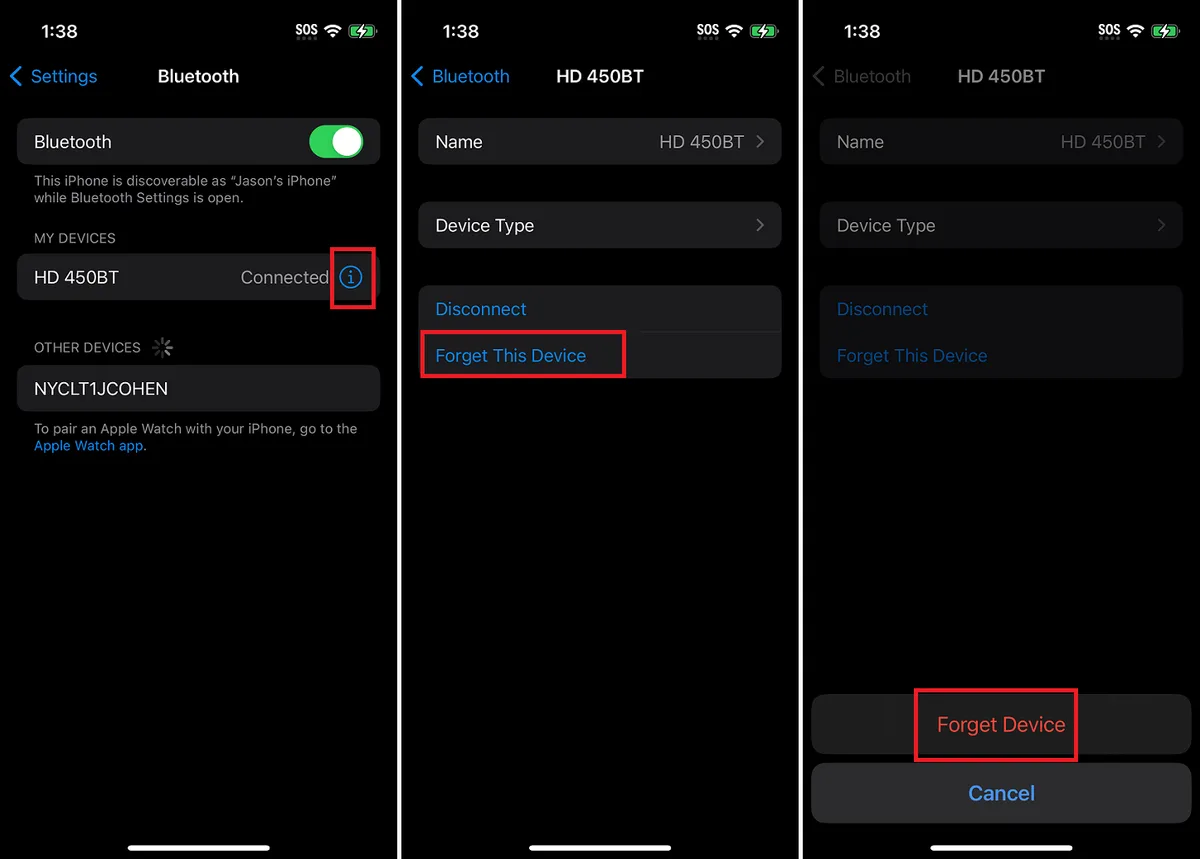
Image source: Bing (Web (fair-use with source credit))
Why Seeing the Aids in Bluetooth Settings Does Not Mean They Are Connected to the App
This is a common point of confusion. Many users see "Starkey H9876" in their phone's Bluetooth device list, think everything is fine, and wonder why the app still says "No Hearing Aids Found".
Here is what is happening. The phone's Bluetooth settings only confirm that the phone and the hearing aids have established a basic Bluetooth link. That link handles phone calls and media streaming.
But the Thrive app needs a separate communication channel over Bluetooth Low Energy to send control commands and receive data. If the app cannot establish that BLE channel, it reports "No Hearing Aids Found" even though the streaming link is active.
Forcing a full re-pair as described above rebuilds both the streaming link and the BLE control channel. It fixes this disconnect in one shot.
Branch B: App Crashes, Freezes, or Won't Open
When the Thrive app itself refuses to behave, the problem is almost certainly software-side. Your hearing aids are fine. Your Bluetooth is fine.
But the app is broken on your phone.
Force-Close, Cache Clear, and Offload (Specific Steps for Each OS)
For iPhone users:
Start with a force-close. Swipe up from the bottom edge and pause. Find the Thrive card.
Swipe it up off the screen. Now reopen the app. If it works, great.
If it still crashes, you need to offload the app.
Go to Settings > General > iPhone Storage. Find Thrive Hearing in the list. Tap it.
You will see two options: Offload App and Delete App. Tap Offload App. This removes the app but keeps your settings and sound profiles.
The app icon will stay on your home screen with a small cloud icon. Tap the icon to re-download the app from the App Store. This replaces the app binary without losing your saved data.
If offloading does not work, you have to delete the app entirely and reinstall fresh. You will lose your saved sound profiles if they were not backed up. Make sure you remember your login credentials.
For Android users:
Start with a force stop. Go to Settings > Apps > Thrive Hearing > Force Stop. Then go to Storage & Cache > Clear Cache.
Do NOT clear storage yet. Clearing storage removes your login and settings. Clearing cache only removes temporary files.
If the app still crashes after clearing cache, go back and tap Clear Storage. This resets the app to factory defaults. You will have to log in again and re-pair your hearing aids.
The Firmware Version Mismatch Trap
Your hearing aids have firmware just like your phone does. The Thrive app needs to be on a compatible version with that firmware. If you updated your phone's OS but not the app, or if your audiologist updated your hearing aid firmware during a visit but you did not update the app afterward, you can end up with a mismatch.
The app checks for a compatible firmware version on launch. If the versions do not match, it can crash or display a blank screen. Check the App Store or Google Play Store for pending updates for the Thrive Hearing App.
Starkey publishes firmware compatibility notes in their update release logs, which you can find on the official Starkey support site.
When Reinstalling Actually Helps (and When It Is a Waste of Time)
Reinstalling the app is the nuclear option. It fixes corrupted install files and clears every piece of bad data. But it is a waste of time if the root cause is a firmware mismatch or a phone OS compatibility issue.
Only reinstall if:
- You have already cleared the cache (Android) or offloaded the app (iPhone) with no improvement.
- Your phone OS is fully updated and the app version is the latest from the store.
- You have verified that your hearing aid firmware is compatible with the current app version.
Branch C: Hearing Aids Connect but No Audio Streams
This one tricks a lot of people. You open the app, it shows your hearing aids are connected. The battery levels are displayed.
You can change the volume. But when you play music or take a call, the sound comes out of your phone's speaker, not your hearing aids.
How to Check and Fix the Bluetooth Profile
Your phone and hearing aids communicate using two different Bluetooth profiles. The Handsfree Profile (HFP) handles phone calls. The Advanced Audio Distribution Profile (A2DP) handles music and media.
The Thrive app uses a third profile (GATT over BLE) for control data.
Sometimes the phone assigns the audio output to the wrong profile. Here is how to force it back.
On an iPhone:
Go to Control Center. Long-press the audio card in the top-right corner. You will see a list of available audio outputs.
Tap your hearing aids. If they do not appear, go to Settings > Bluetooth, tap the "i" next to your hearing aids, and make sure "Show in Control Center" is enabled.
On an Android phone:
Swipe down twice to open the quick settings panel. Long-press the media output tile (it looks like a speaker). Select your hearing aids from the list.
If they do not appear, go to Settings > Connected Devices > Bluetooth, tap the gear icon next to your hearing aids, and make sure "Media Audio" is toggled on.
Other Devices That Kill Your Audio Stream
A common culprit is another Bluetooth device connected to your phone. Smartwatches, Bluetooth speakers, or even car infotainment systems can intercept the audio stream. Your phone sends audio to the last connected device that requests it.
Temporarily turn off Bluetooth on your other devices. Or disconnect them from your phone's Bluetooth settings. Then try streaming again.
If the audio returns, you have found the conflict.
When Care Clarity Is the Hidden Problem
Care Clarity is Starkey's remote support feature. When your audiologist is tuning your hearing aids remotely, the app locks the audio stream to a direct phone-to-aid connection. If a Care Clarity session was interrupted or never ended properly, the app may still hold that lock.
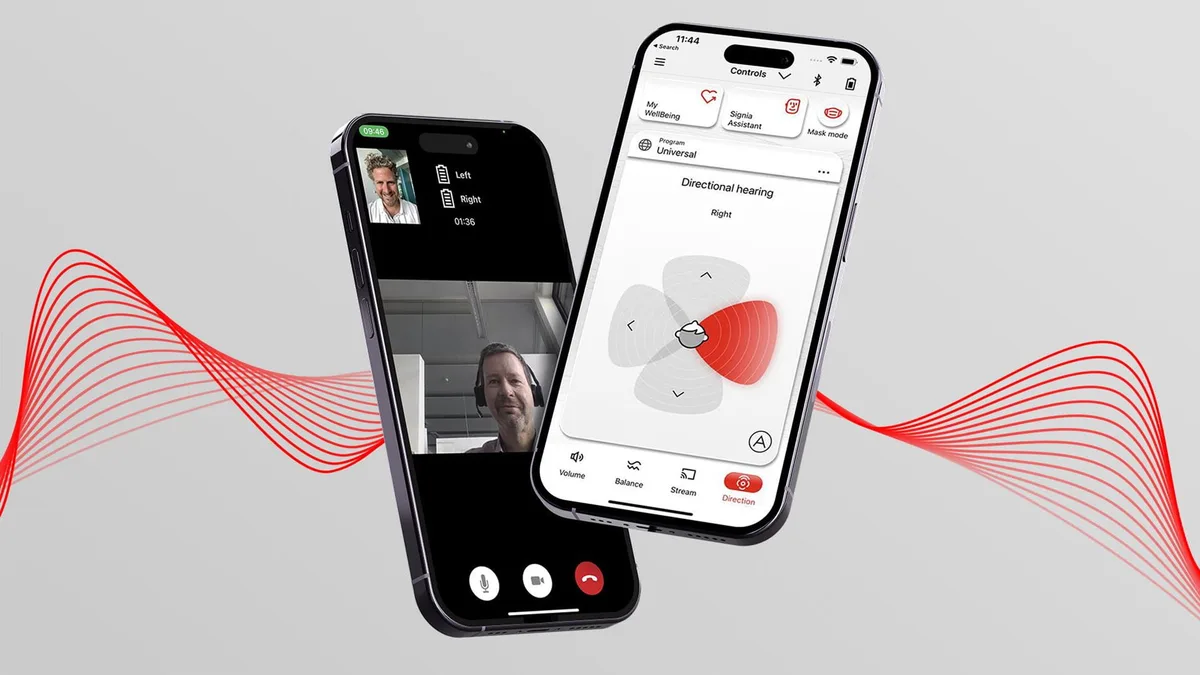
Image source: Bing (Web (fair-use with source credit))
Open the Thrive app and go to the Care Clarity section. Look for any active session. If you see one, end it.
Then restart the app. Audio streaming should return to normal.
Branch D: Battery Drain (App or Hearing Aids)
If your hearing aids started dying halfway through the day, or your phone battery dropped 20% faster than usual, the Thrive app may be running a background task too aggressively.
Geotagging and Location Refresh
The Thrive app uses your phone's location to remember which sound profiles you use in different places. This is the geotagging feature. It is useful, but it can also ping the GPS repeatedly throughout the day.
Go to the app's settings and find the geotagging or location-based memory option. Turn it off for a few days. See if battery life improves.
If it does, you can leave it off or reduce the refresh rate.
Background App Refresh
Both iOS and Android allow apps to refresh their content in the background. For the Thrive app, this means it checks for firmware updates, syncs profiles, and maintains the Bluetooth connection even when you are not looking at it.
On iPhone: Go to Settings > General > Background App Refresh. Find Thrive Hearing and set it to Off.
On Android: Go to Settings > Apps > Thrive Hearing > Battery > Background restriction. Set it to Restricted.
Firmware Update That Fixes Battery Drain
Starkey occasionally releases firmware updates for the hearing aids themselves that address battery drain bugs. Open the Thrive app and check for a firmware update notification. If one is available, install it.
The update process takes about 15 minutes, and your hearing aids will not work during that time. Make sure your hearing aids are fully charged before starting.
Mistakes That Waste Your Time (Even Experienced Users Make These)
Rushing the Pairing Sequence
The biggest mistake we see in aggregate user reports is rushing. People skip the "Forget Device" step because it seems extra. Then they try to pair, fail, and give up.
Do not skip it. The hearing aid keeps a memory of the old phone, and the phone keeps a memory of the old hearing aid. They need a clean slate.
Not Updating the App Before Troubleshooting
You would be surprised how many people spend an hour trying to fix a crash that would have been resolved by a simple app update. Before you do anything else, check the App Store or Google Play Store for a Thrive Hearing update. New versions often include bug fixes for exactly the issues you are facing.
Confusing Model Compatibility
Not all Starkey hearing aids work with the Thrive app. Older models like the Livio AI (not the Livio Edge) use a separate app called Starkey Remote. If you have an older aid, you cannot pair it with the Thrive app at all.
Check your aid model. Look at the serial number on the device or the box. Starkey's official website has a compatibility list.
Expert Workflow: The 10-Minute Systematic Fix Order
If you want to resolve the issue as fast as possible without reading through every branch, use this ordered checklist. It covers the most common fixes in the most efficient order.
- Update the app and your phone OS. Check both stores. Install any pending updates.
- Force-close the app and restart your phone. This clears temporary glitches.
- Go to Branch A and do a full re-pair. Forget the devices, put aids in pairing mode, and re-pair from scratch.
- Check Bluetooth profiles. Make sure your hearing aids are selected as the audio output.
- Turn off other Bluetooth devices. Watch, speaker, car. Test streaming again.
- Clear app cache or offload. If the app is still crashing, go to Branch B.
- End any active Care Clarity session.
- Check for hearing aid firmware updates. Run the install if available.
- Restrict background app refresh and geotagging. Test battery life for a day.
- If nothing works, contact Starkey support or your audiologist. They have diagnostic tools that can read the logs from your hearing aids.
Frequently Asked Questions
Why does my left aid always drop out but not the right?
This often indicates a Bluetooth interference issue on one side. The left hearing aid is farther from the phone if you carry your phone in your right pocket. Try switching your phone to your left pocket.
If that fixes it, the problem is physical distance and body blockage.
Can I use the app during a Care Clarity session?
No. A Care Clarity session locks the app controls. You cannot adjust volume or change programs until the session ends.
If the session was interrupted and the app still shows "in session", force-close the app and reopen it.
Will reinstalling lose my sound profiles?
On iPhone, offloading keeps your data. On Android, clearing storage removes everything. The safest approach is to note any custom profiles you have, then reinstall.
Some profiles are stored in your Starkey account and will sync after you log in again.
Does airplane mode help with pairing?
Sometimes. Airplane mode disables all radios including Bluetooth. Turning it on, waiting ten seconds, and turning it off can reset the Bluetooth stack on your phone.
Try it before the full re-pair sequence.
How do I know if my hearing aids are too old for the app?
Check the model name. Starkey Livio Edge, Evolv, and Genesis all work with Thrive. Older Livio AI aids do not.
If you see "Starkey Remote" as the recommended app in the store, your aids are not compatible with Thrive.
The app still does not work after all these steps. What now?
Contact Starkey Support directly. Have your hearing aid serial numbers ready. They can run a remote diagnostic that reads the error logs from your devices.
Your audiologist can also connect via Care Clarity to check the firmware and profile settings on their end.

Similar Posts