Vtech Phones Troubleshooting
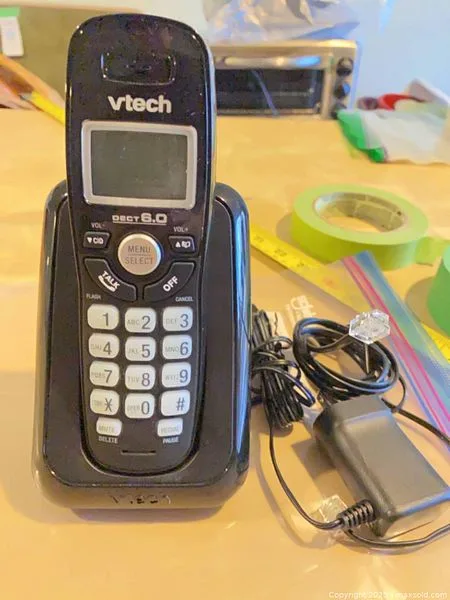
Image source: Bing (Web (fair-use with source credit))
Your VTech phone is flashing "Searching" for the third time today, or maybe it's just dead on the charger again. Frustrating, right? And it always happens at the worst moment.
The good news: most VTech issues have simple fixes that take about two minutes once you know what to look for.
VTech DECT 6.0 cordless phones have been around for over a decade, and most problems stem from just a few core causes. In the US, the FCC mandates that all cordless phones operate on the 1.9 GHz band for DECT 6.0. Interference or power issues account for most reported failures.
Let's walk through the common problems and get your phone working again.
Quick Answer
Start with the power supply and battery contacts. Most issues resolve with a full power cycle: unplug the base for 30 seconds, remove handset batteries, then reconnect everything. For "Searching" errors, re-register the handset to the base.
Interference from routers or appliances causes static. Wrong wall adapters cause charging failures. If these steps fail, the battery pack likely needs replacement.
Why VTech Phones Act Up
Cordless phones look simple, but they're tiny radios with a mini computer attached. Once you understand that, troubleshooting makes more sense.
The base unit constantly transmits a signal to your handset on the 1.9 GHz frequency. Your handset listens for that signal continuously, even when sitting in the charger. When that connection breaks, you get the "Searching" message.
Most of the time, the phone hasn't actually broken. It's a power hiccup, a registration glitch, or something in your environment blocking the signal. About 60% of the time, a simple reset solves the problem.
Here's what usually goes wrong:
- The base lost power briefly and didn't reboot cleanly
- A handset got unregistered from the base during a power surge
- Your Wi-Fi router or microwave is interfering with the signal
- The battery pack has degraded and can't hold a charge
- Someone plugged in the wrong power adapter
Let's tackle these one by one.
No Dial Tone? Follow This Sequence
If you pick up the handset and hear nothing, work through these steps in order.
First, check the phone line itself. Unplug the base from the wall jack and plug a corded phone directly into that jack. If the corded phone has a dial tone, your line is fine and the problem is your VTech. If there's no dial tone, the issue is your phone service provider or the wiring in your home.
That's not a VTech problem at all.
Second, verify the base is powered on. Look at the base unit. Is the power LED lit? If it's dark, the base isn't getting power.
Check the power adapter. Is it plugged into a working outlet? Is it the correct adapter that came with the phone?
VTech base units use specific voltage adapters, and swapping in a random one can cause weird failures. Try another outlet, ideally a wall outlet rather than a power strip. Many surge protectors have a built-in breaker that can trip without you noticing.
Third, check for a DSL filter. If you have DSL internet service, every phone in your house needs a micro-filter on the wall jack. That little plastic box separates your voice signal from the broadband data.
Without a proper filter, or with a damaged one, you'll get dial tone through a corded phone but silence through your VTech. Replace the filter if it looks worn, and make sure you're not using a filter on a data-only jack.
Handset Shows "Searching" or "Out of Range" – What Now?
This is the most common VTech complaint. The handset either flashes "Searching…" or tells you you're out of range when you're standing right next to the base.
The quick fix: power cycle everything. Remove the battery from the handset. Unplug the base from the wall outlet AND the phone jack. Wait a full 30 seconds for the capacitors to drain completely.
Plug the base back into the wall outlet first, then the phone line. Reinsert the handset battery. Let everything boot up for about two minutes.
That fixes roughly half of all "Searching" issues.
If it's still searching, re-register the handset. VTech handsets need to be paired with their base wirelessly. Sometimes that pairing gets lost during a power surge or after a prolonged outage.
Here's the registration process for most DECT 6.0 models:
- On the base unit, find the "Page" or "Find" key. On some models it's labeled with a walkie-talkie icon.
- Press and hold that key for about 10 seconds until you hear a beep, or the base's "In Use" light starts blinking rapidly.
- On the handset, navigate to the menu. Look for "Register" or "Handset Setup" and confirm.
- Enter the system PIN, which is typically 0000 unless you've changed it.
- Wait for the handset to confirm registration. It usually takes 15 to 30 seconds.
This re-registration process fixes most persistent "Searching" issues. If your specific model doesn't match these exact steps, check the label on the bottom of the base unit or the printed manual that came in the box.
Check the spacing. VTech bases need at least a foot of clearance from large metal objects. If your base sits right on top of a metal desk or pressed against a TV, that metal can block the antenna. Move it out into the open and try again.
Static, Crackling, or Buzzing on Calls
Hearing interference on calls is a different problem from a dead signal. Here's what causes it and how to fix it.
Wi-Fi and electronics interference. VTech DECT 6.0 phones use the 1.9 GHz band specifically to avoid the 2.4 GHz band that Wi-Fi routers and microwaves use for cordless phones. But if your router is sitting right on top of your base unit, you can still get interference.
Move your router at least three to five feet away from the base. Keep the base away from large electronics, particularly:
- Wi-Fi routers
- Microwave ovens
- Baby monitors
- Bluetooth speakers
- Cordless phone chargers from other brands
Check the phone cord connections. A loose or corroded phone cord creates buzzing and static. Unplug both ends of the cord that runs from the base to the wall jack. Inspect the copper pins for corrosion or damage.
Clean them gently with a dry cloth and reconnect firmly.
Battery issues can also cause audio problems. A battery that's failing can cause the handset to drop signals or produce a buzzing sound during calls. If your handset is more than two years old, the battery may simply be worn out.
Handset Not Charging – Likely Causes
This is one of the easiest VTech issues to fix. Most charging problems come down to:
Dirty charge contacts. The metal contacts on the handset and the charger base collect dust and grime over time. That layer of gunk blocks the electrical connection entirely.
Clean both sets of contacts with a dry cloth or a pencil eraser. That removes oxidation without scratching the metal. Make sure the handset seats properly in the charger so the contacts line up.
Wrong power adapter. VTech ships specific adapters with each model. The adapter for the handset charger is usually 6V DC, while the base unit adapter is different. Using the wrong one can cause slow charging or no charging at all.
Check the label on the bottom of the charger or base and match it to the output printed on your adapter. This is a surprisingly common mix-up when households have multiple cordless phone brands.
Dead or degraded battery. Standard VTech batteries last two to four years with normal use. After that, their capacity drops and they can't hold a charge for long, or at all.
Here's a simple way to tell if it's the battery:
- Remove the battery from the handset.
- Check for any swelling, leaking, or corrosion on the contacts.
- Look at the model number printed on the battery (usually something like BT162342 or BT262342).
- Order a replacement from VTech directly or a reputable electronics retailer.
A fresh battery typically costs under $20 and fixes most charging complaints. If you've tested a new battery and the handset still won't charge, the charger base itself may be faulty.
Charger base placement matters. Metal surfaces, enclosed cabinets, or areas with direct sunlight can interfere with charging. Move the charger to a clean, open spot and try again.
Troubleshooting Flashing Lights and Error Messages
VTech phones use their lights and display messages to tell you what's wrong. Here's what the common ones mean:
Flashing red light on the base. This often means the handset is out of range. If the handset is sitting on the charger, it might not be seated properly or the battery is too low for the handset to connect. Wait a few minutes for it to charge, then try again.
Blinking "In Use" light. During registration, a blinking In Use light is normal. If it blinks during a call, that usually means the handset is moving out of range. Move closer to the base.
"No Link" or "Link to Base" message. The handset can't find the base signal. Run the power cycle and registration steps covered above.
Display is dim or blank. If the handset is on but the screen looks washed out or dark, it's often a low battery. Other times, it's the display contrast setting. Check the menu for a screen brightness or contrast option and adjust it.
When the Base Phone Isn't Working
VTech base units sometimes have their own keypad feature. If the base phone isn't working:
Check that the base is connected to the phone line. This sounds obvious, but a loose phone cord at the wall jack is a common issue. Make sure the cord clicks securely into place at both ends.
Test the phone line at the jack. Use a corded phone to verify you have dial tone. If the corded phone works but the base doesn't, you're dealing with a base unit problem rather than a service issue.
Check the base battery. Some VTech bases have their own backup battery. If the base battery is dead, the base may have limited functionality or fail to register handsets.
Resetting to Factory Settings
If you've tried everything and the phone still misbehaves, a full factory reset is your last option before calling support.
On the handset: Go to the menu, find "Settings" or "Setup," and look for "Reset" or "Default." You'll need the system PIN (usually 0000). This clears all settings, including customized ringtones, volume levels, and speed dial entries.
On the base: Some models have a physical reset pinhole on the bottom or back. Use a paperclip to press and hold the button for 10 seconds.
After a factory reset, you'll need to re-register all handsets to the base. Use the registration steps from earlier.
Real-Life Scenarios That Mimic VTech Problems
Sometimes the phone isn't the problem at all. Here are a few situations that produce confusing symptoms:
Internet service issues. If your phone service comes through your internet connection (VoIP), slow internet or a router restart can make your phone appear broken. If your VTech is connected to a modem or router, try restarting that equipment. Power cycle the router and give it two minutes to reconnect, then test the phone.
Electrical noise from nearby appliances. Large appliances like refrigerators, air conditioners, or sump pumps can create electrical noise that interferes with your phone. If the problem happens only when the appliance runs, your phone is fine, it's the environment. Plugging the base into a filtered power strip or moving it to another outlet can help.
Phone service outages. Before you tear apart your phone, check if your phone provider is having a service outage in your area. A quick call from a cell phone to your own landline number will tell you if the line rings. If it doesn't, your provider's network is down.
Neighbor interference. If your neighbor installs a new Wi-Fi system that spans across your property line, it can cause interference. VTech bases use a feature called frequency hopping to avoid this, but it's not perfect. Moving your base to a different location often fixes this.
VTech Phone Maintenance Tips
A few minutes of regular maintenance prevents most problems:
- Dust the charge contacts on the handset and charger every couple weeks
- Keep the base away from routers, electronics, and metal surfaces
- Replace handset batteries every two to three years
- Use surge protectors on the base and charger power outlets
- Clean the phone line filters or replace them annually if you have DSL
When to Call VTech Support
If you've worked through these steps and the phone still isn't working, you might need professional help. Call VTech's support line. But before you call, note your phone's model number (located on the bottom of the base) and the handset battery model.
VTech's technical support team can walk you through model-specific steps and help you determine if your phone is under warranty. Most VTech cordless phones come with a one-year limited warranty from the date of purchase. If you're within that window and the phone has a manufacturing defect, they'll typically replace it.
The Bottom Line
Most VTech phone problems trace back to power, registration, batteries, or interference. These are all home-user fixable.
Start with a full power cycle. That's the single most effective fix. If that doesn't work, check your battery and clean the charge contacts.
Then check for interference sources.
If you've done all that and the phone still won't cooperate, try the re-registration process. And if you ever get stuck, don't feel bad about reaching out to VTech support. They hear these exact problems every day and can walk you through the fix in a few minutes.
Give these steps a try before you give up and buy a new phone. Nine times out of ten, you'll save the money and get the phone working again.

Similar Posts