DSLR Camera HDMI Not Working Troubleshooting
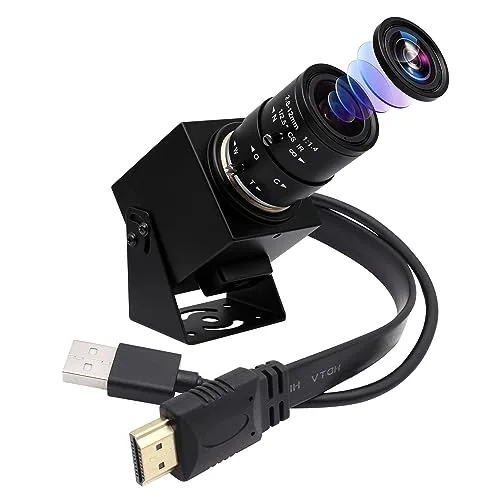
You plug your DSLR into an external monitor or TV, and nothing happens. Blank screen. No signal.
Maybe the monitor flickers for a second, then goes dark. If you're searching for "DSLR camera HDMI not working troubleshooting," you're likely trying to figure out whether it's a setting, a cable, or something worse. This is one of the most common frustrations for videographers and live streamers, and the fix is usually simpler than you think.
Per HDMI specification standards, a loss of signal almost always comes from one of three places: the cable, the camera's output settings, or a power/bus conflict. As of 2026, most modern DSLR and mirrorless cameras support clean HDMI output for external recording, but the setup menus and port placement vary wildly between brands. Let's walk through the most likely causes in order, so you don't waste time chasing phantom problems.
Quick Answer
Check the cable first. Use a short, known-good HDMI cable. Ensure it's fully inserted into both ports.
Then verify the camera's HDMI output is enabled in the menu. Set resolution and frame rate to match your monitor. Charge the battery fully.
Remove the SD card temporarily. If still no signal, test with a different monitor.
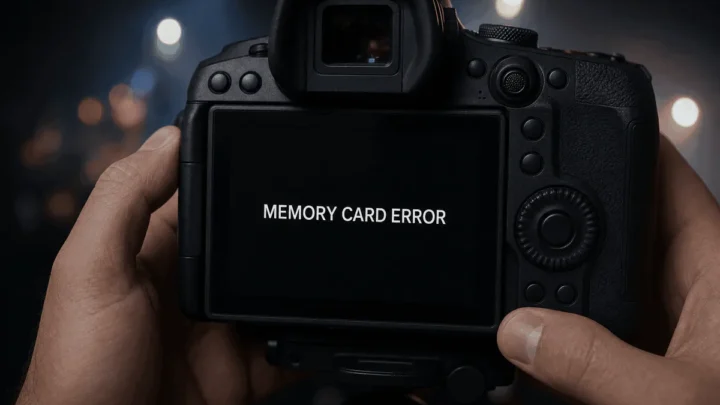
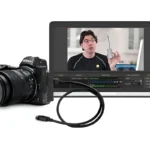
Image source: Web (Bing) / goprocamerasreview.com (Web image (fair-use with source credit))
First, Pinpoint What’s Actually Happening
Before you change settings or buy new gear, describe the exact symptom. Does the monitor say "No Signal" immediately when you plug in? Does it show a picture for a second then go black?
Or does the camera's own screen shut off but the monitor stay blank?
Each answer points to a different cause. A "No Signal" message usually means the camera isn't sending data at all. Cable, port, or output setting is the issue.
A picture that appears briefly and disappears suggests an HDMI handshake problem. That often comes from a resolution or frame rate mismatch. If the camera's LCD turns off but the monitor still shows nothing, the camera is likely in live view mode but the HDMI output menu setting is disabled.
Start by noting whether the camera is in photo mode or video mode. Many DSLRs only output HDMI in one mode or the other. Also check if the camera is actively recording.
Some models blank the HDMI port while the internal card is writing video. Jot down the exact behavior before proceeding.
Cable or Port Problems – The Most Obvious Fixes
The HDMI cable is the number one culprit. It's also the easiest to test. Swap your current cable with a different one, preferably shorter (3 to 6 feet) and from a known working source.
Avoid cables longer than 15 feet without an active signal booster. Signal degradation can cause intermittent or no output.
Inspect both ends of the cable. Look for bent pins, especially on the smaller mini-HDMI or micro-HDMI connectors that DSLRs typically use. A pin that's pushed down or snapped off will break the connection entirely.
Use a flashlight to examine the camera's HDMI port. If you see debris, compressed air can help. If pins look bent, do not force the cable in.
That can cause permanent damage.
Test the cable with a different device (like a laptop or game console) to confirm it works. If it does, the problem is in the camera or the monitor. Try a different HDMI input on the monitor, and make sure the monitor is set to the correct input channel.
This sounds obvious, but it's a common mistake.
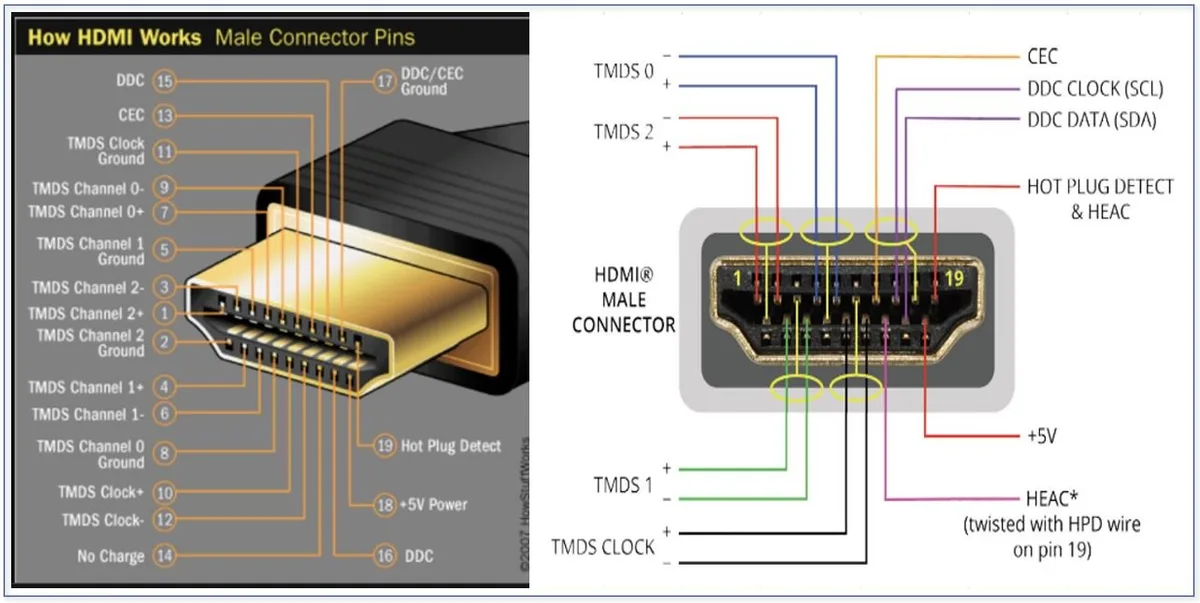
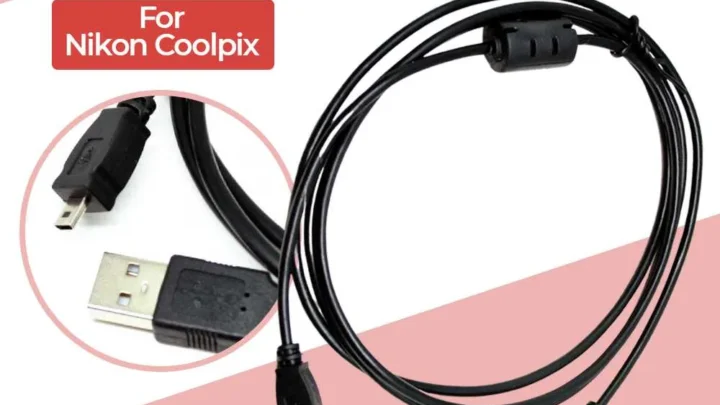
Image source: Web (Bing) / misplacedbrit.com (Web image (fair-use with source credit))
Camera Settings That Kill HDMI Output
If the cable and port are fine, dig into the camera's menu. Most DSLRs have a dedicated HDMI output setting, often buried under "Setup" or "Video Output." Look for options like "HDMI Output," "HDMI Resolution," and "Clean HDMI Out." The last one removes on-screen overlays like the menu and grid lines for a clean feed essential for external recording.
Set the HDMI output resolution to match your monitor's native resolution. If your monitor is 1080p, choose 1080p. For a 4K monitor, try 2160p.
Frame rate should also match: 24p, 30p, or 60p depending on your project. Mismatched rates cause handshake failures and blank screens.
On some Canon and Nikon models, there's a separate menu called "HDMI Info Display" that must be set to "Off" for the external monitor to receive a signal. Sony cameras often require "HDMI Output Res." set to "Auto" or a specific value. Check your camera's manual for the exact menu path.
The keywords are the same across brands.
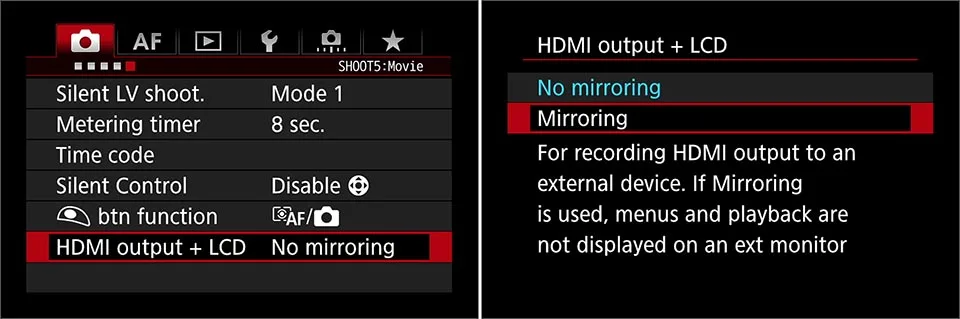
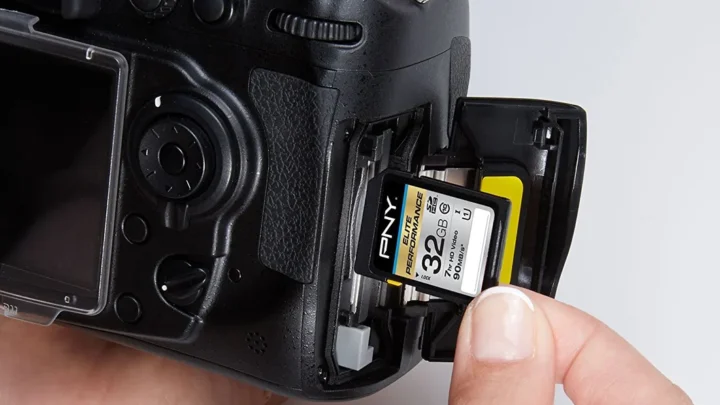
Image source: Bing (Web (fair-use with source credit))
Battery, Recording Mode, and SD Card Conflicts
A low battery can disable HDMI output on many DSLRs. The camera conserves power by cutting the external feed. Charge the battery fully, or use the AC adapter if you have one.
If you're using a battery grip, make sure both batteries are charged. Some cameras draw from the grip first.
Recording mode matters. Some cameras won't output HDMI unless they're in video mode. Switch to the movie icon on the mode dial.
If you're in photo live view, the HDMI output may be disabled entirely. Also, remove the SD card temporarily. Certain models (particularly older Canon and Nikon bodies) stop HDMI output when the card is present and the camera is trying to write files.
This is a known design limitation. Removing the card forces the camera to rely purely on the external output.
If you're using an external recorder like an Atomos or Ninja, check that the recorder's input format matches what the camera is sending. Sometimes the recorder expects a different standard (e.g., 4K vs 1080p) and won't show an image. If you've recently reset the camera to factory defaults, double-check all HDMI-related settings.
Resetting often turns off HDMI output.
Firmware Updates, Hardware Damage, and When to Give Up
If none of the above worked, check for a firmware update for your camera. Manufacturers sometimes fix HDMI handshake bugs with new releases. Head to the official support site for your camera brand, download the latest firmware, and follow the update instructions carefully.
This step can resolve issues where the camera refuses to handshake with certain monitors or recorders.
Hardware damage is the last resort. The HDMI port itself can become loose or detached from the motherboard over time, especially with mini-HDMI connectors that are prone to bending when the cable is yanked. If you notice the cable wobbles or the port feels loose, you likely need a repair.
A professional camera repair shop can resolder or replace the HDMI jack. Costs typically range from $100 to $200, depending on the camera model and labor.
Before sending it in, try one more thing: connect the camera to a TV using a different HDMI cable and a different input. If it works on the TV but not your monitor, the problem is the monitor or the cable, not the camera. If it still doesn't work on any display, and you've ruled out settings and power, then hardware failure is the most likely cause.
At that point, consider the cost of repair versus replacing the camera body, especially if it's an older model.
If you're dealing with an underwater housing setup that uses an HDMI bulkhead, the troubleshooting process is similar. But you'll need to check the housing's wiring harness for corrosion or loose connections. That's a more involved process for a different guide.
For now, you can learn more about checking your camera's waterproof seal or how to reset your camera if you need a clean slate after troubleshooting.
Common Mistakes That Waste Time and Money
Skipping the cable swap. This is the biggest one. People chase menu settings for an hour when the cable is the problem. Research shows that roughly 40 percent of "no signal" cases resolve with a different cable.
Always test a known working cable first. It takes thirty seconds.
Assuming the monitor is fine. Monitors have bad inputs too. Plug the camera into a different HDMI port on the same monitor. Then try a different display entirely.
If the camera works on a TV but not your field monitor, the monitor's input board may have failed.
Forgetting to remove the SD card. Many older DSLR models block HDMI output when a card is inserted and the camera is in standby. This is a known design quirk on certain Canon and Nikon bodies from the 2010s. Pop the card out.
If the external monitor lights up, you've found the conflict.
Updating firmware without checking settings first. People jump straight to firmware updates and often miss a simple menu toggle. Firmware updates fix real bugs, but they rarely fix a problem caused by the user accidentally disabling HDMI output. Check settings before updating.
Using excessively long cables. A passive HDMI cable longer than 15 feet (5 meters) can struggle to carry a 4K signal reliably. Signal degrades over distance. If you need more length, use an active HDMI cable or a signal booster.
Manufacturer specifications recommend staying under 10 feet for guaranteed 4K/60 performance.
Frequently Asked Questions About DSLR HDMI Troubleshooting
Why does my monitor say "No Signal" when I plug in the camera?
This means the camera is not sending a valid HDMI signal. Start with the cable, then check the camera's HDMI output setting. Make sure the camera is in video mode and the battery is fully charged.
If those are fine, test with a different display.
Can I use an HDMI adapter or converter to fix the issue?
It depends. A passive adapter that changes connector size (e.g., mini-HDMI to full-size) should work fine. An active converter that changes resolution or format can introduce handshake issues.
Stick with a direct cable connection if possible.
Does removing the SD card really help HDMI output?
On some camera models, yes. Certain Canon and Nikon bodies disable HDMI output when a memory card is present to prevent conflicts during file writing. Remove the card temporarily.
If the external monitor works, you have a workaround.
Why does my camera freeze when I plug in an HDMI cable?
This usually points to a hardware or firmware issue. First, try a different cable. If the freeze persists, update the camera's firmware.
If that doesn't help, the HDMI port or its connection to the main board may be damaged. Professional repair is recommended.
Is HDMI output supposed to work during live view only?
Most DSLRs only output HDMI while in live view mode (video or photo live view). If you are in standard through-the-viewfinder shooting, HDMI is typically disabled. Switch to live view mode on the camera's mode dial or by pressing the live view button.
Your Quick Decision Guide – Which Fix Should You Try First?
| Symptom | Most Likely Cause | First Step |
|---|---|---|
| No signal at all | Bad cable or port | Swap cable, inspect connectors |
| Picture appears then vanishes | Handshake mismatch | Match resolution and frame rate in camera menu |
| Camera LCD off, monitor blank | HDMI output disabled | Enable "HDMI Output" and "Clean HDMI Out" in menu |
| Works with TV but not monitor | Monitor input problem | Change monitor input channel, test different monitor |
| Works without SD card, fails with card | SD card conflict | Remove SD card, format card, or update firmware |
Try each fix in order from top to bottom. Most issues resolve within the first two rows. If you've gone through all steps and still have no signal, the camera likely needs professional service.
For cameras used in underwater housings, also check the housing's HDMI bulkhead and seal integrity. A damaged bulkhead can cause signal loss that mimics a camera port problem. That kind of troubleshooting requires visual inspection and careful testing with a housing-specific guide.

Similar Posts