GoPro HERO12 Black Troubleshooting
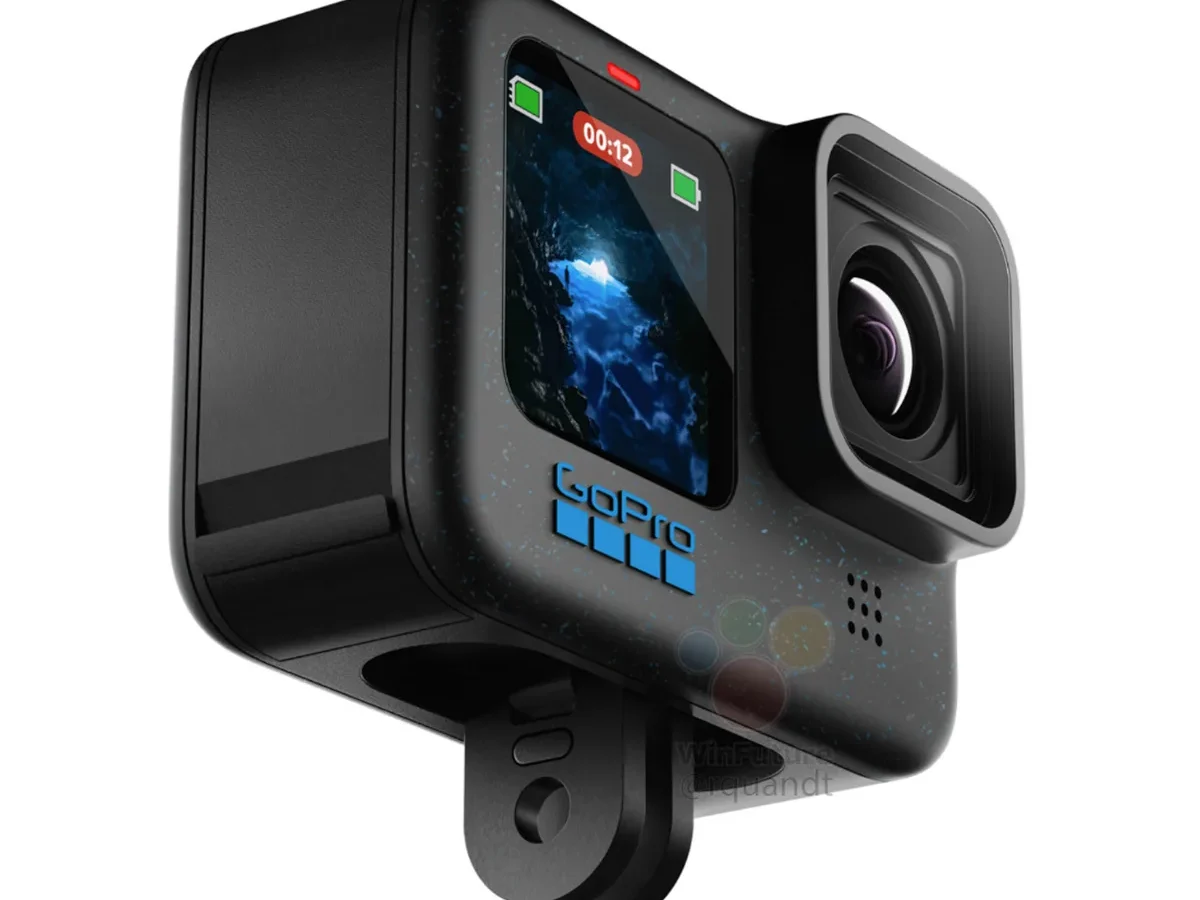
Your GoPro HERO12 Black is a powerful little camera, but it can be a real headache when it suddenly freezes, refuses to turn on, or stops recording mid-clip. GoPro HERO12 Black troubleshooting doesn't have to be guesswork. Most problems boil down to a handful of predictable causes, and a simple step-by-step check can get you back to shooting fast.
According to manufacturer specifications, the HERO12 Black supports microSD cards with a V30 speed class and a maximum capacity of 1TB. It also runs on a 1720mAh Enduro battery and includes a dedicated force-reset combination for stubborn freezes. Understanding these core specs is your first tool for diagnosing issues.
Let's walk through what to do based on what your camera is actually doing right now.
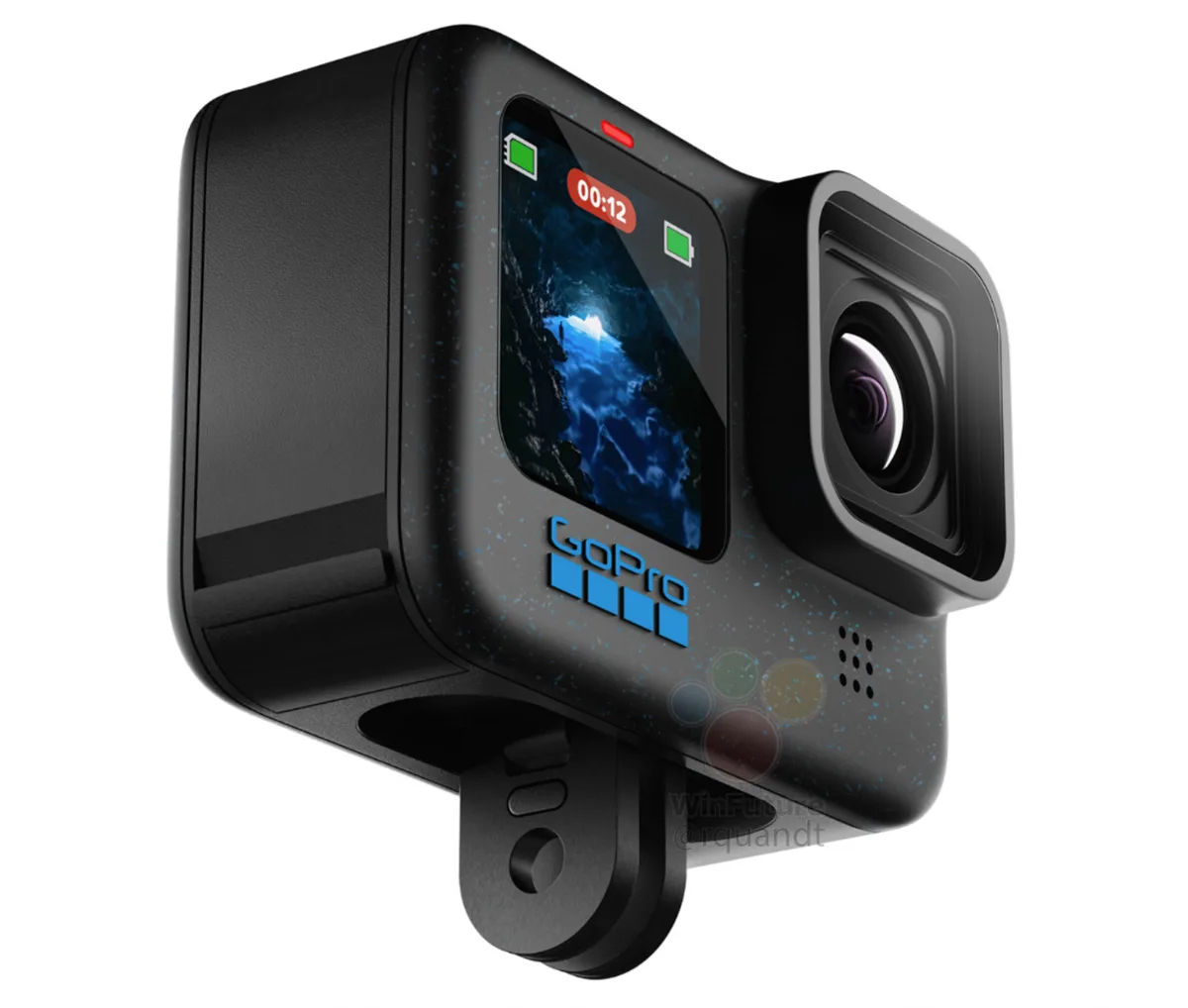
Image source: Bing (Web (fair-use with source credit))
Quick Answer
Most GoPro HERO12 Black problems have a simple fix. Start with a force reset. Hold the power button and the front button for 10 seconds.
If that fails, remove the battery for 30 seconds. Check your SD card meets V30 specs. Format it inside the camera.
For charging issues, try a different USB-C cable and a 5V/2A wall block. Update firmware via the SD card if the camera shows a boot loop or acts erratically.
Start Here: What's Your HERO12 Actually Doing?
Figure out your symptom first. The HERO12 Black has a few key indicators that tell you what is wrong.
Check the front LED. A solid red light means it is recording. A blinking red light could mean the battery is critically low, the SD card is full, or there is a write error. No LED at all usually means a dead battery or a completely frozen camera.
Check the rear touchscreen. Is the screen black but the LED is on? That points to a screen freeze, not a dead camera. Is the screen stuck on the GoPro logo?
That suggests a failed firmware update or a corrupt boot file.
Check for error messages. A message like "SD Error" or "Card Full" points straight to the storage system. A pop-up about overheating or "Camera Too Hot" is exactly what it sounds like and calls for a cooldown period.
Use this simple decision tree:
- Camera unresponsive with black screen, go to "Camera Won't Turn On"
- Camera records then shuts down, go to "Overheating and Unexpected Shutdowns"
- Camera shows "SD Error" or stops recording, go to "SD Card Errors and Recording Stops"
- Camera works but app won't pair, go to "Quik App Won't Pair or Screen Is Frozen"
- Battery drains abnormally fast, go to "Battery Draining Fast"
Pick your branch and dive in.
Camera Won't Turn On — Dead Battery, Bad Contact, or a Hard Freeze?
A completely dead HERO12 Black is rarely a hardware failure. It is almost always one of three things: a depleted battery, poor electrical contact, or a deep freeze that a normal button press cannot wake.
Step 1: The force reset. Press and hold the power button (on the side) and the front button (below the lens) at the same time for exactly 10 seconds. Do not let go early. If the camera responds, you will see the GoPro logo appear.
This is the single most effective fix for an unresponsive HERO12.
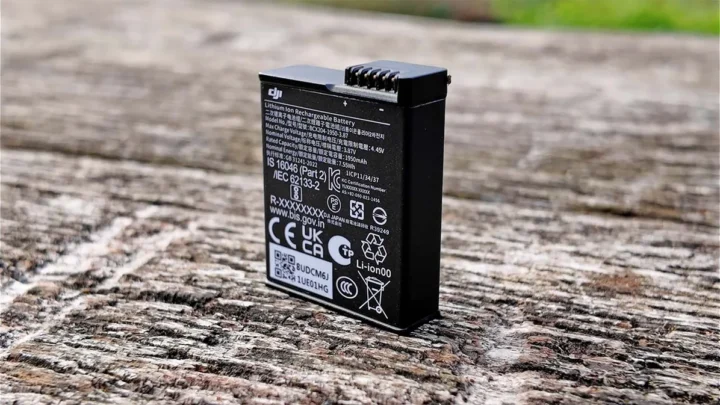
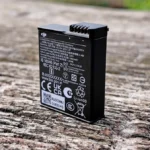
Step 2: Battery removal and inspection. Pop the battery out. Check the gold contact pins on both the battery and the camera body. A tiny speck of dust can break the circuit.
Clean the contacts gently with a dry cotton swab. Reinstall the battery firmly until it clicks.
Step 3: Charge test with known-good equipment. The USB-C port on the HERO12 is picky about cables. Use the cable that came with the camera, or a high-quality USB-C to USB-C cable rated for 5V/2A. Plug into a wall block, not a computer USB port.
Leave it for at least 30 minutes before trying to power on. Some batteries need a short conditioning charge before the camera will recognize them.
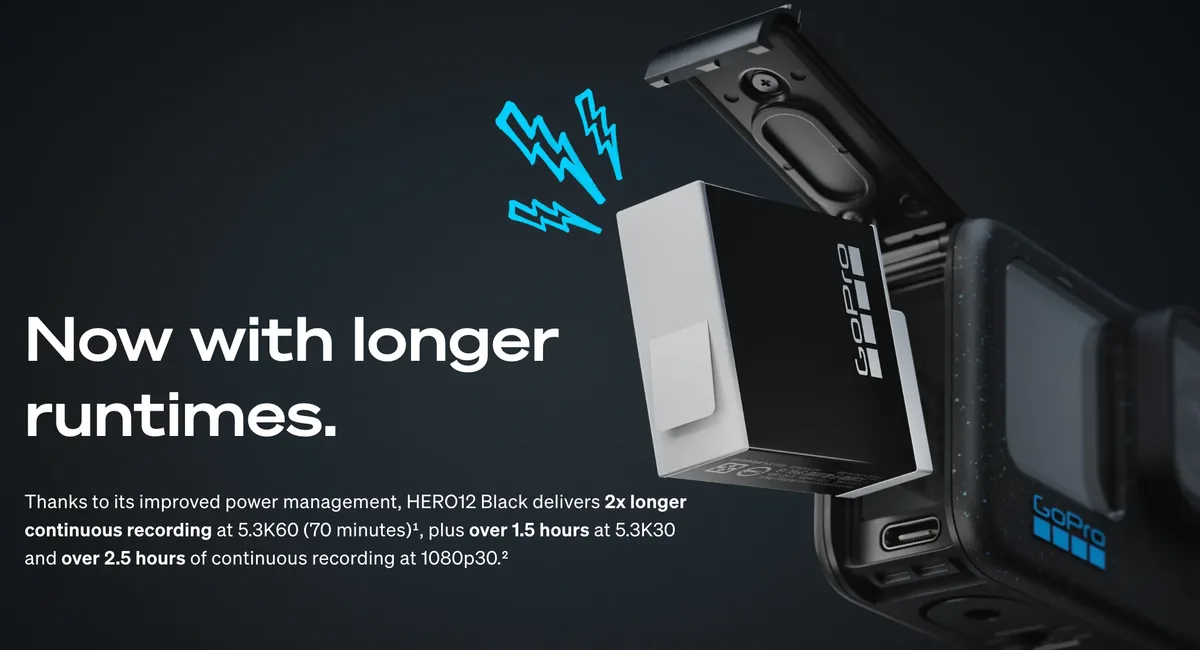
Image source: Web (Bing) / alloutdoor.com (Web image (fair-use with source credit))
Step 4: Try a different battery. If you have access to another Enduro battery, swap it in. A dead cell inside the battery can prevent the camera from booting even if the charger shows a full indicator. For more on power-related failures, similar steps apply to other models that fail to turn on completely.
If the camera still shows no signs of life after these steps, the issue could be a failed firmware update or a corrupted bootloader. That requires a manual firmware reinstall via SD card.
Overheating and Unexpected Shutdowns — Resolution, Frame Rate, or Environment?
The HERO12 Black is a small body crammed with a powerful processor. It generates heat, and when that heat exceeds safe thresholds, the camera shuts itself down. This is not a defect.
It is a protective feature.
What triggers overheating the most? Per our research, the top three culprits are:
- Recording 5.3K at high bitrate (150 Mbps) in direct sunlight. This pushes the processor to its limit. Ambient temperatures above 30°C (86°F) make it worse.
- Using the camera inside the waterproof housing. The housing traps heat. You can often shoot without the housing in non-water situations unless you need extra protection.
- Leaving the GPS and wireless radios on. These generate additional heat. Turning them off reduces thermal load noticeably.
What to do if your camera shuts down from heat? Move it to the shade or point a small fan at it. Let it cool for at least 15 minutes. When you start back up, drop the resolution to 4K/60fps.
That cuts the bitrate roughly in half and significantly lowers heat output.
If you need 5.3K for a critical shot, try these adjustments:
- Disable GPS in the settings menu.
- Turn off Wi-Fi and Bluetooth.
- Lower the bitrate to "Standard" instead of "High."
- Remove the camera from the housing.
- In hot environments, some pro users report that keeping an external power bank connected reduces battery-generated internal heat. This is not an official workaround.
A note on firmware. GoPro has released several firmware updates since launch that improved thermal management. As of 2026, check your camera's firmware version in the settings (Preferences > About). If it is older than version 2.5, updating to the latest release may reduce the frequency of heat-related shutdowns.
SD Card Errors and Recording Stops — Incompatible Card, Formatting, or Corruption?
An SD card error on the HERO12 is almost always a compatibility or formatting issue. The camera writes data at very high speeds. If the card cannot keep up, the camera will stop recording, split clips into short segments, or display an outright error message.
The V30 minimum is real. GoPro's official documentation specifies V30 speed class cards. That means a minimum sustained write speed of 30 MB/s. A card that works fine in a DSLR may fail inside a HERO12.
The reason is simple. It cannot sustain the write rate for 5.3K high-bitrate video. Cards marked UHS-I U3 are usually fine.
U1 cards are too slow.
Always format inside the camera. The HERO12 formats cards to exFAT with a specific allocation unit size. If you format the card in your computer, the cluster size may be wrong. This can cause write errors that only appear under load.
To format in-camera, go to Preferences > Format SD Card. Back up your files first.
What about card corruption mid-shoot? If your camera shows "SD Error" while recording, stop immediately. Power off, remove the card, and read it on a computer. If the computer can see the files, copy them off and reformat the card in-camera.
If the computer cannot see the card, try data recovery software.
File splitting vs. true failure. Some users confuse the HERO12's automatic file splitting (which happens at the 4GB file size limit) with an error. Splitting is normal for long recordings. True failure shows an error message on screen, a blinking red LED, or a corrupted file on the card.
Quik App Won't Pair or Screen Is Frozen — Wi-Fi Glitch or Software Bug?
The Quik app pairing process relies on the HERO12 creating a temporary Wi-Fi network. This process is prone to interference from your phone's existing connections. A frozen screen during pairing usually means the camera and phone are stuck in a handshake loop.
The standard fix: forget and re-pair.
- On your phone, go to Bluetooth settings and "forget" the GoPro device.
- On the camera, go to Preferences > Connections > Wireless Connections and select "Reset Connections."
- Close the Quik app completely.
- Toggle airplane mode on your phone on and off to reset the Wi-Fi radios.
- Open the Quik app and start the pairing process fresh.
If the screen freezes during pairing. Force reset the camera by holding the power button and front button for 10 seconds. Then repeat the forget and re-pair steps. A frozen screen during app interaction is almost always a temporary software lock, not a hardware failure.
Manual firmware update as a fix. If pairing still fails after two or three attempts, the camera's wireless stack may be corrupt due to a failed OTA firmware update. Download the latest firmware from GoPro's official support site onto a computer. Copy the .zip file to a formatted SD card (do not unzip it).
Insert the card into the camera and power on. The camera should recognize the update file automatically and prompt you to install. This re-flashes the entire software suite, including the wireless drivers.
A note on phone compatibility. Some Android phones with aggressive battery optimization settings kill the Quik app in the background during pairing. Disable battery optimization for the Quik app in your phone's settings if you encounter repeated connection drops.
Battery Draining Fast — GPS, Cold Weather, or a Bad Cell?
Three things cause fast battery drain: a setting that keeps the processor awake, cold temperatures, or a battery that has started to degrade.
The biggest hidden drain is GPS. The HERO12 has an onboard GPS receiver that logs your speed and location. This receiver runs constantly while the camera is on. Turning it off can extend battery life by 15 to 25 percent.
Go to Preferences > GPS and set it to Off. You can add location data manually later.
Cold weather hits the Enduro battery hard. The Enduro battery performs better in cold than standard GoPro batteries, but it is still a lithium-ion cell. Below 0°C (32°F), usable capacity drops significantly. Keep the camera and spare batteries close to your body before shooting.
A battery that shows full charge indoors may show only one bar after five minutes in freezing temperatures. This is temporary. Warming it back up restores the charge.
Screen brightness and voice control add up. The rear touchscreen draws noticeable power, especially at maximum brightness. Drop it to 50 percent or lower. Voice control also keeps the microphone active.
If you do not use it, turn it off in Preferences > Voice Control.
What does normal drain look like? Manufacturer specifications indicate roughly 70 minutes of continuous 5.3K/30 recording on a full Enduro battery. Less if you are using GPS, high screen brightness, or wireless connections. If your camera drains from full to empty in under 40 minutes during normal use, something is off.
Try a different battery or look for excessive heat generation.
Battery health check. Lithium batteries lose capacity over time. If a battery that once lasted 70 minutes now dies at 35 minutes and it is more than a year old, it may be reaching end of life. Swollen batteries are a safety hazard and should be disposed of per local regulations immediately.
Force Reset and Recovery — When the Camera Won't Respond
Sometimes the standard buttons do nothing. The screen stays black. The LED stays off.
That is when you need the force reset procedure.
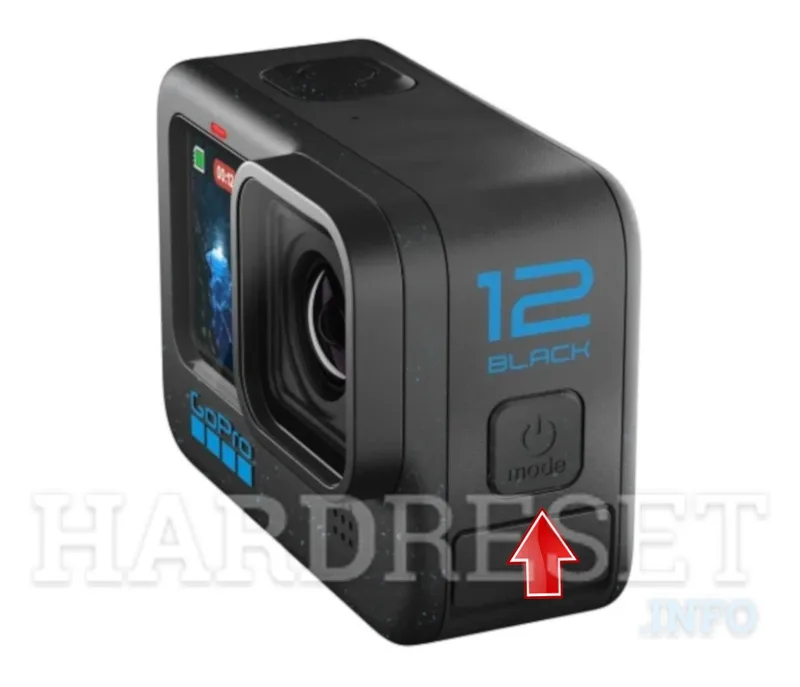
Image source: Web (Bing) / hardreset.info (Web image (fair-use with source credit))
The force reset combination. Press and hold the power button and the front record button simultaneously for exactly 10 seconds. Do not release early. The camera should vibrate briefly and the GoPro logo should appear.
If it does not, remove the battery for 30 seconds, reinsert it, and try again.
When the force reset fails. If you hold both buttons for 10 seconds and nothing happens, the battery may be completely dead. Connect the camera to a charger using a known-good USB-C cable and a 5V/2A wall block. Wait 15 minutes before attempting the force reset again.
If the camera responds to charging but still will not boot, the issue is likely a corrupted firmware or bootloader.
Manual firmware reinstall via SD card. This is the last resort for a camera that boots to a black screen or loops on the logo.
- Download the latest firmware from GoPro's official support site onto a computer.
- Copy the .zip file (do not unzip it) onto a microSD card formatted to exFAT.
- Insert the card into the powered-off camera.
- Hold the front button while pressing the power button.
- Release the power button but keep holding the front button until the update process begins.
The camera will reflash its firmware from the card. Do not interrupt this process. A power loss during firmware installation can brick the camera and require a factory service.
Factory reset via menu. If the camera is functional but acting strangely, go to Preferences > Reset > Factory Reset. This erases all settings, paired devices, and preferences. It does not delete files on the SD card.
A factory reset fixes most software-induced oddities like erratic touch response, GPS failures, or wireless pairing loops.
Frequently Asked Questions
Why is my GoPro HERO12 Black blinking red but not recording?
A blinking red LED usually means the camera is in standby mode or the battery is critically low. It can also indicate the SD card is full or too slow for the selected resolution. Try a lower resolution or swap the card for a V30 rated one.
How do I fix a GoPro HERO12 Black that is stuck on the logo screen?
Stuck on the logo usually means a failed firmware update. Force reset by holding power and front button for 10 seconds. If it still loops, perform a manual firmware reinstall via SD card as described in the Force Reset and Recovery section.
Can I use any USB-C charger for my GoPro HERO12 Black?
Not all USB-C chargers work well. The HERO12 prefers a 5V/2A output. High-speed laptop chargers or cheap cables can cause intermittent charging.
Use the included cable or a high-quality USB-C to USB-C cable rated for 5V.
Why does my HERO12 Black stop recording after 10 minutes?
This is likely the automatic file split at the 4GB FAT32 limit, not an error. In 5.3K high bitrate mode, 4GB fills in about 10 minutes. The camera starts a new file seamlessly.
If there is an error message, check your SD card speed and try formatting in-camera.
How do I transfer files from my HERO12 Black to my phone without the Quik app?
Remove the microSD card from the camera and use a USB-C card reader or an SD card adapter with your phone. This bypasses the Quik app entirely and is faster for large files. You can also connect the camera via USB-C to a computer for direct file transfer.
My HERO12 Black lens fogs up inside the housing. What causes this?
Lens fogging happens when warm, humid air inside the housing condenses on the cold lens in cold environments. Open the housing in a dry indoor space before use. Insert a silica gel packet inside the housing to absorb moisture.
Avoid breathing into the housing before sealing it.

Similar Posts