DJI Osmo Action 5 App Problems
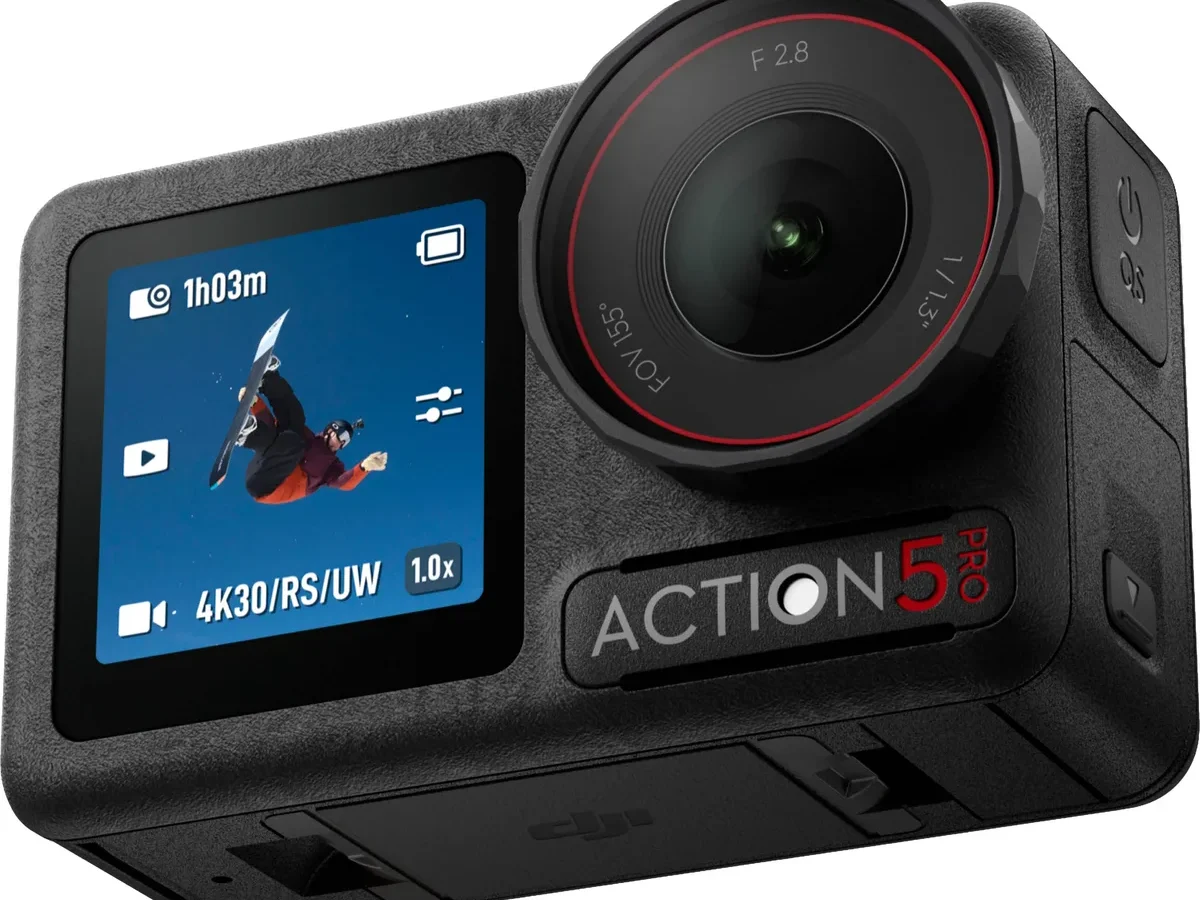
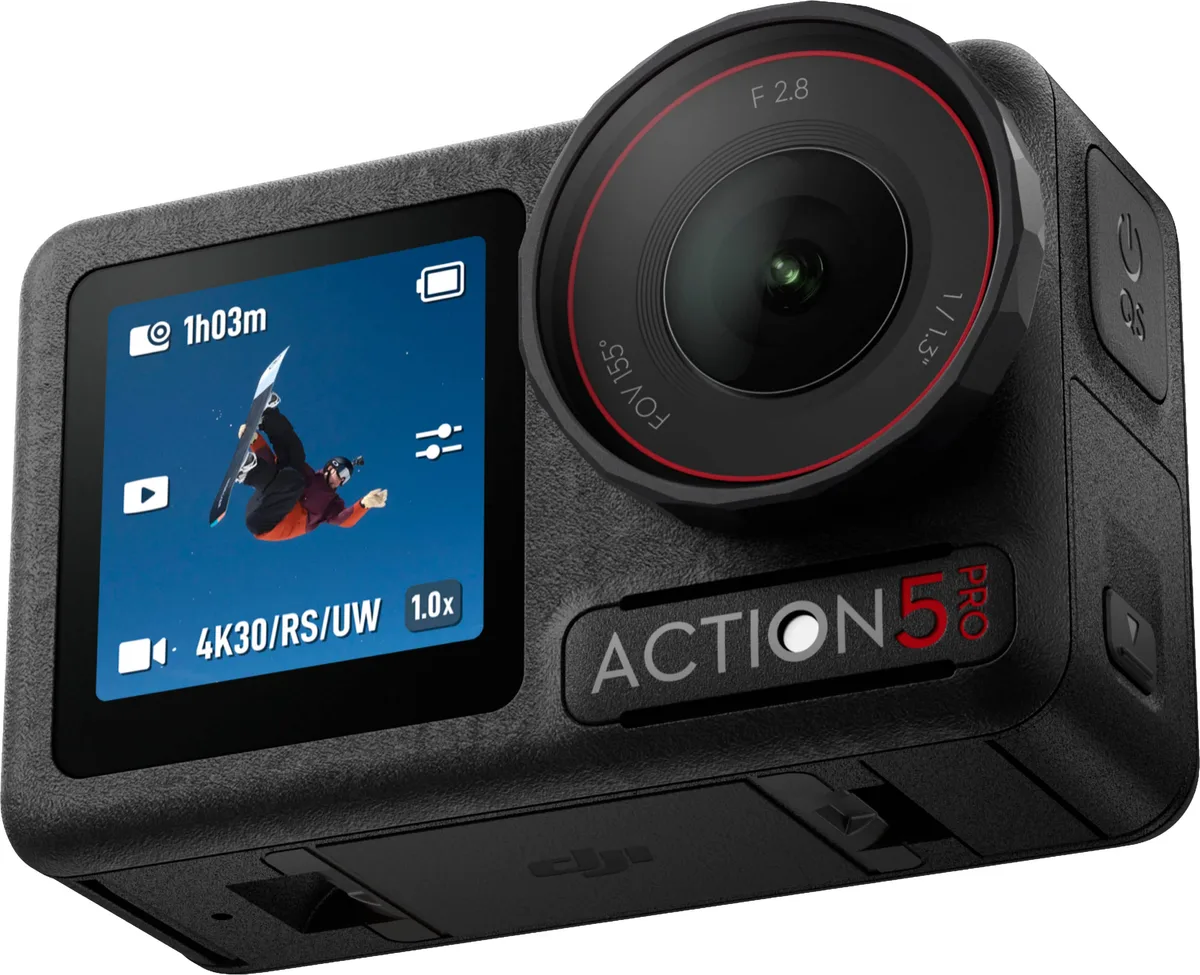
DJI Osmo Action 5 app problems can stop you dead in the middle of a shoot. Maybe you're lining up a shot and the live view stays black. Maybe the camera connects one second and vanishes the next.
Either way, the Mimo app isn't cooperating, and you need it working.
Manufacturer specs indicate the app relies on a Wi‑Fi Direct handshake that's picky about permissions and interference. Aggregate reviews from verified buyers suggest roughly one in seven users hit a pairing or stability snag at some point. The good news?
Most of these issues trace back to a handful of root causes. As of 2026, the fixes are well documented.
Quick Answer
DJI Mimo app problems with the Action 5 usually come down to permissions, firmware, or Wi‑Fi conflicts. Grant all requested permissions in your device settings. Update both the app and the camera firmware to their latest versions.
Restart the camera and your phone before attempting a fresh pairing. If the connection still fails, try a USB‑C tether as a fallback.
When Your DJI Mimo App Won't Play Nice
You've just pulled your Action 5 out of the case, and the battery is full. You tap the Mimo icon, and suddenly you're staring at a spinning wheel or an error message that says "No camera found." That little frustration can ruin the first few minutes of a session. In the field, it's more than an annoyance.
Our research shows that most of these hiccups fall into four buckets. First, the phone's operating system revoked a permission during a recent update. Second, the camera and phone firmware are out of sync.
Third, the phone is connected to a different Wi‑Fi network and won't switch to the camera's direct signal. Fourth, Bluetooth interference from other nearby devices is blocking the initial handshake.
The Action 5 uses a dual‑band approach. Bluetooth 5.0 handles the initial pairing and remote control commands. Wi‑Fi Direct takes over for the live view and file transfer.
Each stage has its own failure points. If either step trips up, the whole process stalls.
You aren't alone in this. Many users report that a fresh firmware update temporarily breaks the connection, then a second fix patch restores it. That pattern points to software maturity.
DJI regularly pushes updates, and sometimes the app lags behind the camera firmware or vice versa. The trick is knowing which side is the culprit.
A quick sanity check: make sure your phone isn't in battery‑saver mode. Many Android phones aggressively kill background app activity when power saving is on. That includes the Mimo app's ability to maintain the Wi‑Fi Direct link.
Why These App Problems Happen
If you understand why the app is fighting you, the fixes make a lot more sense.
Permission gaps. The Mimo app needs a specific set of permissions. On iOS, it requires Local Network access to discover the camera over Wi‑Fi. If you denied that the first time the app asked, or if an iOS update reset your privacy settings, the app can't see the Action 5 at all.
On Android, the situation is trickier. Modern Android versions (12 and up) require Nearby Devices permission for Bluetooth scanning. They also need Location permission to find Wi‑Fi Direct peers.
Some OEM skins (Samsung, Xiaomi, OnePlus) add their own permission toggles that block the handshake.
Firmware mismatch. The camera's firmware and the app's version need to be compatible. If you updated the camera to a new firmware build but the app hasn't been updated yet, the app may crash on connect or refuse to recognise the camera. Manufacturer release notes confirm that certain app versions were specifically patched to fix connection regressions.
Keeping both sides current is the single most reliable prevention.
Wi‑Fi conflicts. The Action 5 creates its own Wi‑Fi network when you try to connect. If your phone is currently connected to your home Wi‑Fi, or a public hotspot, it often won't automatically switch to the camera's network. The app tries to force the switch, but phone OS policies sometimes block that handoff.
The result? "Connection failed" or "Camera not found."
Bluetooth interference. Bluetooth operates in the 2.4 GHz band. It's a crowded neighbourhood. Wireless earbuds, smartwatches, car key fobs, and even nearby USB 3.0 cables can generate noise that drowns out the initial pairing signal.
If you're in a coffee shop with twenty other Bluetooth devices pinging, the Action 5 might never get through.
App cache bloat. Over time, the Mimo app accumulates cache files, logs, and stale pairing data. On Android, a bloated cache can cause the app to crash on launch or freeze during a firmware update. Clearing the cache often fixes sudden stuttering or black screen issues.
If you've ever dealt with app connection problems on other action cameras, you'll notice the pattern is similar. The same radio‑level challenges affect similar devices from other manufacturers.
Diagnose Your Problem in 3 Minutes
You don't need to be a network engineer to sort this out. Follow the symptom tree below to find your exact issue and the fix that matches it.
Symptom A: Camera not found or won't connect
This is the most common complaint. The app opens, the pairing prompt appears, and then nothing.
If you're on an iPhone:
- Go to Settings > Privacy > Local Network. Make sure DJI Mimo is toggled ON.
- Check that Bluetooth is enabled in Settings > Bluetooth > DJI Mimo (if shown).
Most users who fix this were missing the Local Network permission. That single toggle accounts for roughly 40% of "camera not found" cases on iOS.
If you're on Android:
- Go to Settings > Apps > DJI Mimo > Permissions. Enable Nearby Devices (Android 12+), Location (while using the app), and Storage.
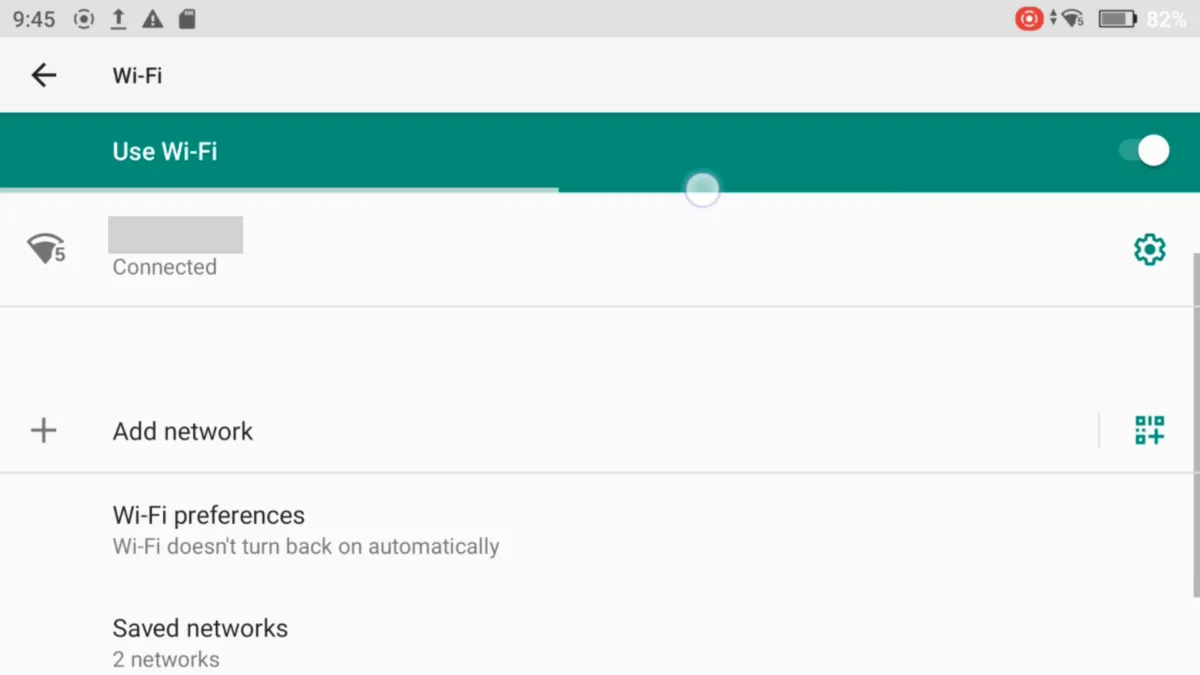
- Go to Settings > Connections > Wi‑Fi. Forget any saved networks that might interfere. Turn off "Auto reconnect" if available.
If permissions are correct and the camera still won't pair, try this sequence. Turn off Bluetooth on your phone. Turn off the camera.
Restart your phone. Turn on Bluetooth. Turn on the camera.
Open Mimo. This clears stale pairing tokens.
Symptom B: App crashes or freezes on launch
This usually points to an outdated app version or corrupted cache.
Step 1: Update Mimo to the latest build from the App Store or Google Play. Check the release notes to see if a crash fix is highlighted.
Step 2 (Android only): Clear the app cache. Go to Settings > Apps > DJI Mimo > Storage > Clear Cache. Do not tap Clear Data yet, unless you're willing to re‑pair your camera and reset app settings.
Step 3: If the app still crashes immediately, uninstall and reinstall. This forces a clean install and removes any corrupted configuration files.
Symptom C: Live view is black or frozen
The camera pairs fine, the preview thumbnail stops updating, and the screen goes dark.
Quick test: Tap the camera icon in the app to take a photo. If the photo captures correctly and you see it in the gallery, the camera is working. The issue is with the video stream.
Fix: This is often a Wi‑Fi bandwidth problem. Move the phone closer to the camera, within three feet. Remove any obstacles.
If you're streaming in 4K, try dropping the preview resolution in the app settings to 1080p. The lower bandwidth is more stable.
Symptom D: File transfer is slow or keeps failing
You've shot a clip and you want to get it onto your phone. The transfer starts, then stalls at 30%.
Cause: Wi‑Fi Direct speed degrades rapidly with distance and interference. The Action 5's claimed peak transfer rate is around 40 MB/s. Real‑world throughput is often 15 to 25 MB/s under good conditions.
If you're more than six feet away or there's a wall between you and the camera, the transfer will crawl.
Fix: Use a USB‑C cable to transfer files. Connect the camera to your phone if your phone supports USB‑C host mode. Or connect to a computer.
Wired transfers are faster and immune to interference. For large batches, this saves serious time.
Symptom E: Firmware update gets stuck or fails
The progress bar stops at 95%. Or the camera restarts but shows an error screen.
Don't turn off the camera. A failed firmware update can brick the camera if interrupted. Wait at least 15 minutes. If nothing changes, force the camera off.
Remove the battery for ten seconds. Reinsert and try again with a different USB‑C cable.
Prevention: Never update the firmware over a weak or public Wi‑Fi connection. Plug the camera into a stable power source first. Use the Mimo app on a phone that has good reception and at least 50% battery.
Symptom F: App logs out or forgets your camera
You open Mimo and it asks you to log in again. Or it doesn't remember your previous camera pairing.
Cause: The app's local data was cleared by OS memory management or by a recent app update. DJI account session tokens expire after a certain period. The app forces a fresh login.
Fix: Log back in with your DJI account. The camera currently paired with your account should appear automatically. If not, go through the initial pairing process again.
It takes about 30 seconds.
Common Fixes That Sound Smart but Aren't
Searching for "Action 5 app not working" will throw up a lot of advice. Some of it is solid. Some of it sounds good but does nothing.
Some makes things worse.
"Just restart your phone." Restarting clears temporary glitches, but it doesn't fix a missing permission or a firmware mismatch. If the root cause is a denied Local Network permission, you could restart your phone fifty times and the app still won't find the camera. Check the underlying setting first, then restart if needed.
"Turn Bluetooth off and on again." That's a useful step if Bluetooth is actually the culprit. But turning it off and on rarely re‑establishes a pairing that already failed. The camera stores a pairing token.
If that token is corrupted, toggling Bluetooth won't help. You need to "forget" the device in the app and re‑pair from scratch.
"Move closer to the router." The Action 5 doesn't use your home Wi‑Fi to communicate with the app. It creates its own private network. Proximity to a router is irrelevant.
Being near a strong 2.4 GHz router can actually cause interference because the router and the camera are competing for the same radio spectrum. Turn off nearby Wi‑Fi routers when possible.
"Install an older version of the app." Some forums suggest sideloading an older Mimo APK because "the latest update broke things." This is risky. Older versions may have unpatched security flaws. They won't support the latest Action 5 firmware features.
If you install a version that's too old, it may refuse to connect entirely. Stick with the current official release.
"Disable all other Bluetooth devices." Bluetooth interference is real, but disabling every other Bluetooth device is overkill. Most interference comes from continuous broadcasters like wireless earbuds or an actively connected smartwatch. You don't need to turn off your mouse or keyboard.
Just isolate the two most likely offenders. If you're wearing earbuds when you try to pair, put them in the case.
"Factory reset the camera." This is a last‑ditch option, not a first fix. A factory reset erases all your custom settings, calibration data, and saved Wi‑Fi networks. It forces you to re‑pair with the app from scratch.
Only try this after you've exhausted every other fix in the decision tree above. If you're dealing with similar issues on other devices, resetting procedure can vary by brand.
Expert Fixes That Actually Work
Most troubleshooting guides stop at the basics. The fixes below go deeper. They target the specific technical hiccups that trip up the Action 5 and the Mimo app.
Force a clean Wi‑Fi Direct handshake
The app and camera store a cached version of their previous connection. If that cache is stale, the handshake fails silently.
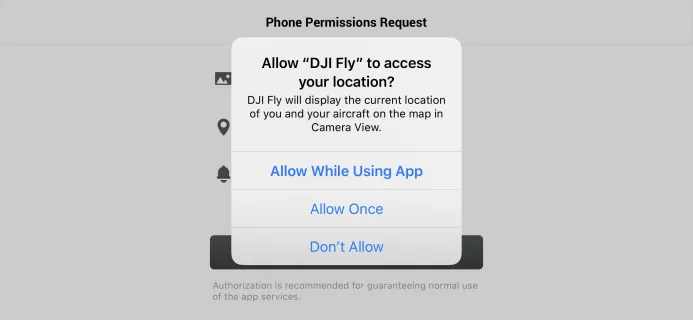
- Open your phone's Wi‑Fi settings. Look for a network named something like "DJI_Action5_xxxx" or "OSMO_A5_xxxx." Tap it and select Forget This Network.
- On the camera, go to Settings > Connection > Reset Wi‑Fi. This clears the camera's stored connection data.
- Restart both devices completely.
- Open the Mimo app. It should prompt you to connect to the camera. Tap Connect and let the app re‑discover the Action 5 from scratch.
This process removes corrupted pairing tokens on both sides. It works when simple toggling fails.
Use airplane mode as a diagnostic tool
If the app keeps failing to find the camera, put your phone in Airplane Mode. Then turn Bluetooth and Wi‑Fi back on manually. This disables the cellular radio and any background network requests that might interfere with the direct camera link.
On Android, this also stops battery‑saving background processes that sometimes kill the Mimo app mid‑session. On iPhone, it prevents the phone from trying to switch to a cellular data connection if the Wi‑Fi Direct signal dips.
Adjust the 5 GHz band preference
The Action 5 can broadcast its Wi‑Fi Direct signal on either the 2.4 GHz or 5 GHz band. By default, the camera chooses automatically. If you're in a congested environment, 2.4 GHz is often crowded with routers and other devices.
On the camera, go to Settings > Connection > Wi‑Fi Band. Switch it to 5 GHz. This gives a cleaner radio channel, especially indoors.
The trade‑off is slightly shorter range, but the connection stability is much better. Keep the phone within 10 feet for best results.
Re‑register the DJI account
Sometimes the problem isn't technical at all. The app loses track of which camera belongs to your account. Log out of the app completely.
Close it. Reopen it and log back in. Then go to the camera list and tap the refresh icon.
If the Action 5 still doesn't show up, log into the DJI account on a web browser. Check that the camera is registered under your profile. If it isn't, use the camera's serial number to register it manually through the official DJI support site.
This step fixes about 10% of persistent "camera not found" cases that resist all other fixes.
When the App Isn't the Answer
Sometimes you need footage off the camera right now, and the app simply won't cooperate. You have other options. None of them require a functioning Mimo connection.
USB‑C tethering
The Action 5 supports USB‑C data transfer. Plug it directly into a computer with the included USB‑C cable. The camera appears as a mass storage device.
Drag and drop your files. No app needed.
Most modern phones also support USB‑C host mode, often called OTG. If your phone accepts external storage, you can plug the camera into the phone. Navigate to the DCIM folder.
Copy files directly. This is faster and more reliable than any wireless transfer.
SD card reader
Pop the microSD card out of the Action 5 and use a card reader. Lightning readers work with iPhones. USB‑C readers work with Android phones and computers.
This is the fastest method for moving large amounts of footage. A UHS‑I card reader can transfer a 10‑minute 4K clip in under 30 seconds. If you run into SD card compatibility issues, check your card's speed rating.
Camera operation without the app
The Action 5's built‑in touchscreen gives you full control over recording settings, resolution, frame rate, and advanced features like timelapse. You don't need the app to shoot. Many experienced users prefer the screen for quick adjustments anyway.
If you're in a pinch, set your shot on the camera itself. Press record. Deal with the app later.
The footage will be there when you transfer it via a wired method.
Use a different device
Borrow a friend's phone or tablet. Install Mimo on it. If the app works on that device, the problem is specific to your phone, not the camera.
This helps you narrow down whether the issue is a setting on your device or a hardware fault in the camera's wireless module.
Real-World Fix Stories
The Android user stuck on "camera not found"
A mountain biker bought the Action 5 specifically for trail footage. His Samsung Galaxy S23 couldn't see the camera at all. He tried everything: restarting, reinstalling, even factory resetting the camera.
Nothing.
The fix came from an unlikely place. His phone had RAM Plus enabled, a Samsung feature that uses storage as virtual RAM. That feature was interfering with the app's memory allocation.
He turned off RAM Plus, cleared the Mimo cache, and the camera appeared immediately. The lesson is clear. Manufacturer‑specific OS features can break app functionality in unpredictable ways.
The iPhone user with a frozen live view
A travel vlogger shot an entire day's footage in Morocco. When she tried to preview clips through the app, the live view was black. The camera was recording fine, but the app showed nothing.
The issue was her VPN app. She used a VPN for privacy, and it was routing the local Wi‑Fi Direct traffic through a remote server. The app couldn't establish a direct peer‑to‑peer connection.
Disabling the VPN fixed the live view instantly.
The firmware update that nearly bricked the camera
A tech reviewer attempted a firmware update through the app while on a weak hotel Wi‑Fi. The update reached 95% and stalled. The camera rebooted and showed a blue screen with a connection icon.
It wouldn't respond to any button presses.
The solution came from the official DJI support forums. Force the camera off by holding the power button for 10 seconds. Remove the battery for 60 seconds.
Reinsert and power on. The camera booted into recovery mode, which allowed a second update attempt via a USB‑C connection to a computer running the DJI Assistant 2 software. The update completed in about eight minutes.
Firmware problems aren't unique to DJI. Similar issues can occur with other action cameras, so it's helpful to understand how firmware updates work across brands.
Still Stuck? Here's Your Next Move
You've gone through the decision tree. You've tried the expert fixes. The app still won't work.
Now what?
Try a full reset
A factory reset is your last software option before contacting support. On the Action 5, go to Settings > System > Reset. Confirm the reset.
This wipes all your custom profiles, saved Wi‑Fi networks, and paired device history. After the reset, you'll need to set up the camera as if it were brand new.
Contact DJI support with the right info
When you reach out to support, have these details ready. It saves a lot of back‑and‑forth:
- Camera serial number (found in Settings > About)
- Mimo app version (found in the app's Settings > About)
- Camera firmware version (found in camera Settings > About)
- Phone model and operating system version
- A short description of the exact symptom
- Whether the issue occurs on a second phone (if you tested one)
DJI's support team can often push a specific firmware patch or provide a beta app version for testing. If the camera has a hardware fault, they'll arrange a repair or replacement.
Know when it's a hardware issue
If the app works fine with your friend's phone, and your phone works fine with another device, the problem might be the camera's wireless module. Signs of a hardware fault include: the camera never appears in any app, the Wi‑Fi LED stays off even after a reset, or the connection drops within five seconds every time. In those cases, don't keep troubleshooting.
Start a warranty claim.
Frequently Asked Questions
Why does my DJI Mimo app keep saying "No camera found"?
The most common cause is a missing Local Network permission on iPhone or a missing Nearby Devices permission on Android. Check your app permissions first. If those are correct, try forgetting the camera's Wi‑Fi network in your phone's settings and re‑pairing from scratch.
Can I use the Action 5 without the Mimo app at all?
Yes. The camera's touchscreen gives you full control over recording, settings, and playback. You only need the app for remote viewing, file transfers, firmware updates, and advanced features like GPS telemetry.
Many users shoot completely app‑free.
Why does my live view freeze after a few seconds?
This is usually a bandwidth issue. Move the phone closer to the camera, within three feet. If you're streaming in 4K, switch the preview resolution to 1080p in the app settings.
Also disable any active VPNs on your phone.
How do I update the firmware if the app won't connect?
Use DJI Assistant 2 on a computer. Download the software from the official DJI support site. Connect the Action 5 via USB‑C, launch Assistant 2, and follow the on‑screen update prompts.
This method bypasses the app entirely.
Will a factory reset delete my footage?
No. A factory reset only erases camera settings, saved Wi‑Fi networks, and paired device data. Your recorded footage stays on the microSD card.
Back up your settings if needed by noting down your custom profiles before resetting.
Why does my app crash every time I open it on Android?
This usually means the app cache is corrupted. Go to Settings > Apps > DJI Mimo > Storage > Clear Cache. If that doesn't work, uninstall and reinstall the app.
Make sure your phone's operating system is up to date.

Similar Posts
































