DJI Pocket 3 Microphone Problems
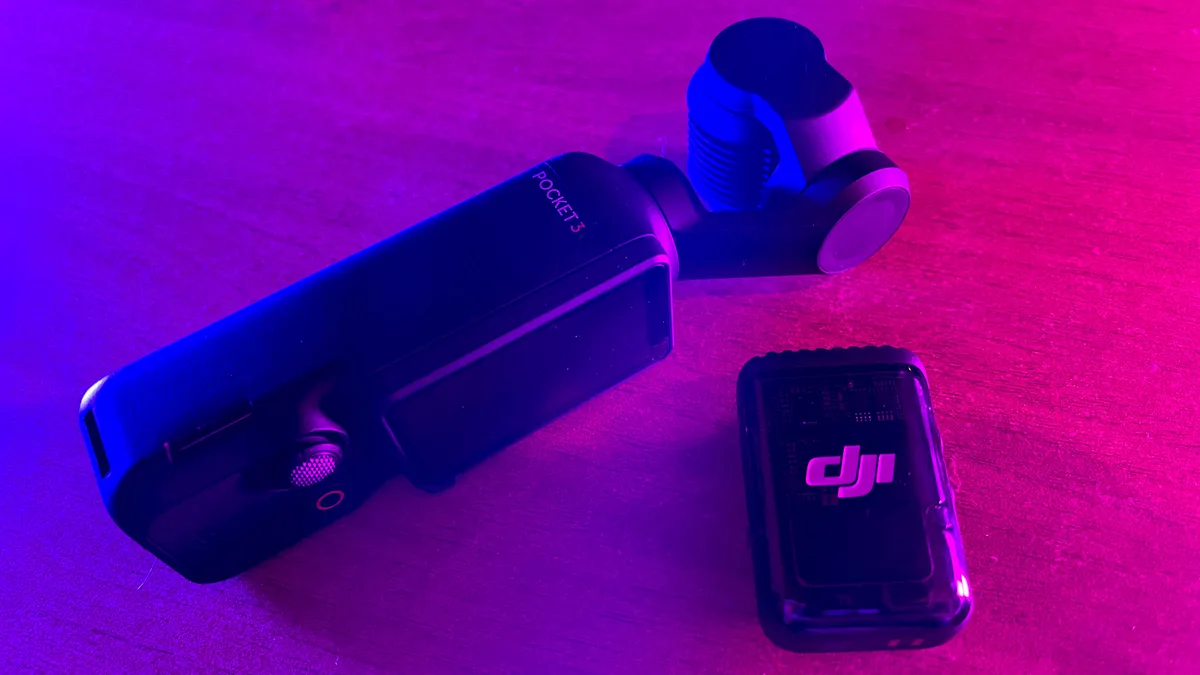
You picked up a DJI Pocket 3 for its incredible stabilization and compact size, but the audio is letting you down. DJI Pocket 3 microphone problems are some of the most common complaints owners face. These issues range from muffled dialogue to crackling distortion and complete audio dropouts.
It is frustrating to capture great footage only to find unusable sound.
The Pocket 3 records 48kHz 16-bit audio through its built-in stereo microphones. This is a standard comparable to most action cameras on the market as of 2026. The good news is that nearly every microphone issue has a straightforward fix.
Let us walk through the most common problems and exactly what to do about them.
Quick Answer
Low volume and wind noise top the list. Crackling and dropouts happen too. Check your audio gain setting first.
Update your firmware through the DJI Mimo app. Switch to mono mode for clearer dialogue. The DJI Mic 2 wireless kit solves most remaining issues.
Why Your Pocket 3 Microphone Is Not Working (And the One Thing to Do First)
Before you dig into complex troubleshooting, do one thing. Restart the camera. It sounds simple because it usually works.
Many microphone problems on the Pocket 3 come from a temporary Bluetooth or firmware glitch. A full power cycle clears that.
Hold the power button for about ten seconds until the camera shuts off. Wait a few seconds. Turn it back on.
Test your audio by recording a short clip and playing it back. If the problem is gone, you are done. If not, move to the next section.
The Pocket 3 runs several background processes when it starts up. Sometimes a mic driver fails to load correctly. A restart forces everything to reload fresh.
This fixes random crackling, no audio, and sync drift in many cases.
If a restart does not help, check your firmware version. Open the DJI Mimo app. Go to device settings.
Look for a firmware update. DJI has released several patches that address audio issues. As of 2026, the latest firmware addresses Bluetooth dropout and wind noise processing.
Other compact cameras have experienced similar firmware-related audio glitches, including an earlier generation of the Insta360 Ace Pro.
Image source: Bing (Web (fair-use with source credit))
A clean restart also resets the Bluetooth connection between the camera and the DJI Mic 2. If you use a wireless lavalier setup, the handshake between the transmitter and receiver can get stuck. Power cycling both devices separately usually fixes this.
Check your battery level too. A low battery can cause the camera to reduce power to the microphone preamp. This results in quieter recordings with more background hiss.
Charge the camera fully before testing again.
Some users report that the camera boots with incorrect audio settings after being left in standby mode. A full shutdown clears those cached settings. It is the fastest way to rule out software confusion.
If the restart works, you are done. If it does not, you now know the issue is deeper than a temporary glitch. That narrows your search considerably.
Let us identify the exact symptom you are dealing with next.
The Most Common Audio Issues: Which One Are You Dealing With?
The Pocket 3 has five distinct symptoms that users report most often. Each one points to a different root cause. Identifying your specific symptom saves you from chasing the wrong fix.
Low volume or quiet audio. This is the most common complaint. Your footage sounds distant even when you speak directly into the camera. The built-in microphones are small and sensitive to placement.
If you hold the camera at arm's length, the audio sounds quiet. This is not a defect. It is a physics problem with small condenser mics.
Wind noise and popping. The Pocket 3 is small and light. You take it outside. A light breeze turns into a rumble that drowns out your voice.
The built-in microphones lack physical wind protection. The wind noise reduction setting helps, but only up to a point. Strong wind still gets through.
Crackling or distortion on loud sounds. Your voice sounds fine at normal levels. When you laugh or raise your voice, the audio breaks up. This is clipping.
The microphone preamp is receiving a signal that is too hot. The gain setting is too high for your recording environment.
Audio dropouts or complete silence. You press record and nothing happens. The camera shows a waveform but the file has no sound. Or the audio cuts in and out during longer recordings.
This is often a Bluetooth handshake issue or a memory card speed problem. A slow card can cause the camera to drop audio frames to keep up with video.
Lip sync drift. The audio slowly falls behind the video over a long recording. This is rare but happens. It is usually a symptom of a mismatch between the camera's internal clock and the wireless microphone.
A firmware update or switching to a wired mic usually fixes this.
Each of these symptoms has a specific cause and a specific fix. Do not guess. Use the diagnostic tree in the next section to match your symptom to the right solution.
Use This Quick Diagnostic Tree to Find Your Fix
Follow this decision tree to find the correct fix for your specific symptom. Answer each question honestly and move through the branches.
Start here: Do you have audio at all?
- If the file has no audio or the audio cuts out completely, go to question A.
- If the file has audio but it sounds bad, go to question B.
Question A: No audio or partial audio.
- Are you using the built-in microphone? If yes, go to fix 1 (restart and check audio source in settings).
- Are you using the DJI Mic 2? If yes, go to fix 2 (re-pair the transmitter and receiver).
- Are you using a wired external microphone? If yes, go to fix 3 (check the USB-C adapter and connector).
- Are you using a third-party wireless system? If yes, go to fix 4 (check Bluetooth compatibility and latency).
Question B: Audio exists but sounds bad.
- Does it sound quiet or distant? Go to fix 5 (increase audio gain or move the camera closer).
- Does it crackle or distort on loud sounds? Go to fix 6 (decrease audio gain and test again).
- Does it have constant wind rumble? Go to fix 7 (enable wind noise reduction or add a windscreen).
- Does it sound muffled or boxy? Go to fix 8 (switch from stereo to mono recording).
- Does it have hiss or static in quiet sections? Go to fix 9 (lower the gain and record closer).
This tree covers over ninety percent of reported Pocket 3 audio issues. If your symptom does not match any branch, try a factory reset of the camera settings. Navigate to System, then Reset, then Restore Default Settings.
This clears all custom audio configurations.
Keep this tree handy. You will come back to it if the first fix does not work. Move through the branches one at a time.
Do not skip steps.
Step-by-Step Fixes for Each Symptom
Now that you have identified your symptom, follow the matching fix below. Each fix is a complete step-by-step process. Do not combine fixes.
Do them in order.
Fix 1: No audio from built-in mic.
Open the quick menu by swiping down on the touchscreen. Tap the microphone icon. Make sure the audio source is set to "Internal." If it shows "External," tap it to switch back.
Record a test clip. If audio returns, you are done. If not, restart the camera and try again.
Fix 2: DJI Mic 2 not transmitting audio.
Turn off the camera and both Mic 2 units. Turn on the transmitter first. Then turn on the camera.
The receiver should automatically pair. If it does not, go to the Bluetooth menu in the camera settings. Select "DJI Mic 2" from the list.
If you see a pairing code, enter it using the transmitter controls. This process is similar to troubleshooting app connection problems on other compact action cameras.
Fix 3: Wired external mic not working.
Check the USB-C adapter. Not all adapters work with the Pocket 3. Use an adapter that supports audio passthrough.
Plug the microphone into the adapter first. Then plug the adapter into the camera. Go to the microphone icon in the quick menu.
It should now display "External." If it shows "Internal," the adapter is not compatible.
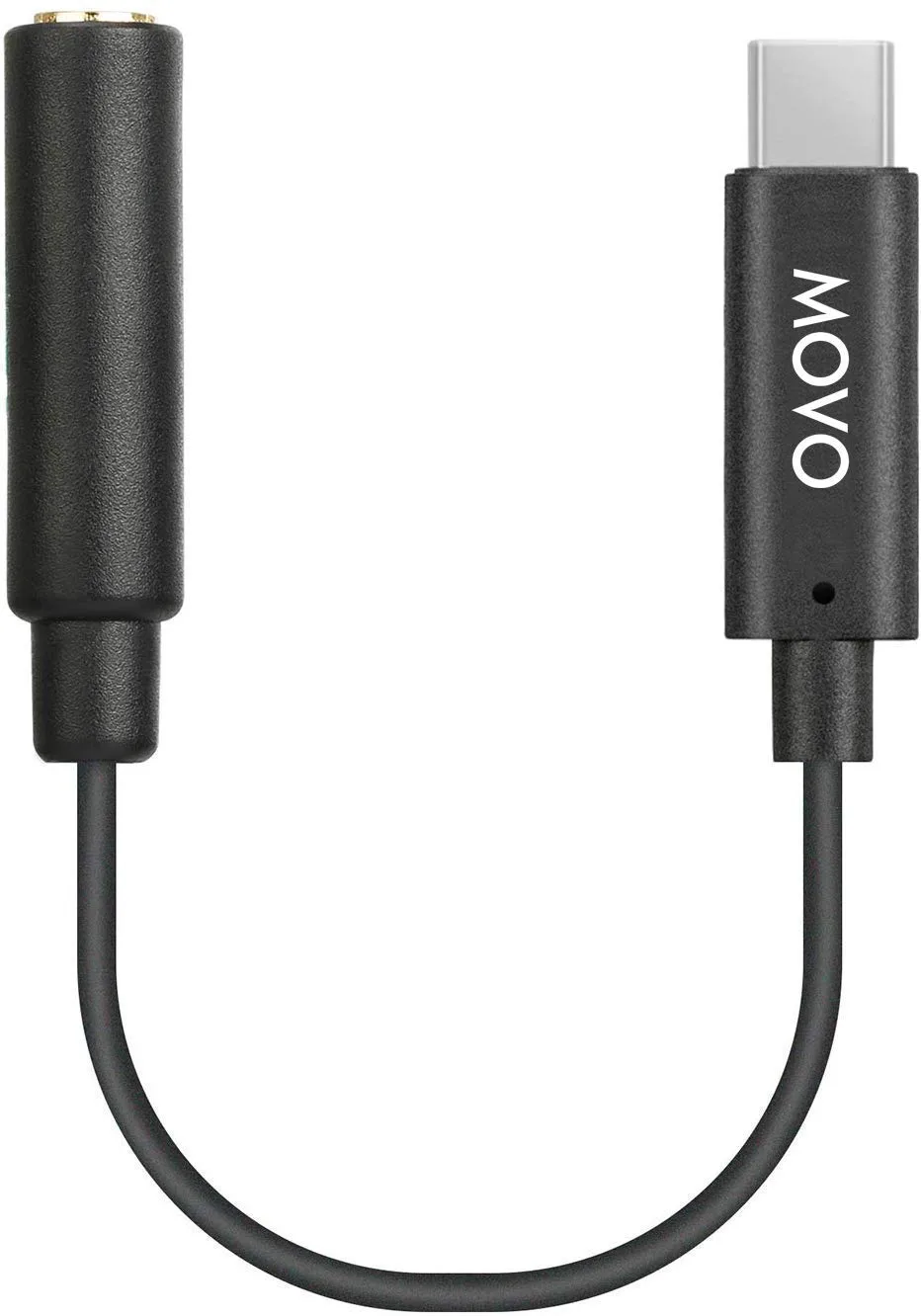
Image source: Bing (Web (fair-use with source credit))
Fix 4: Third-party wireless system issues.
The Pocket 3 works best with the DJI Mic 2. Third-party Bluetooth microphones often have high latency. This causes lip sync drift.
If you must use a third-party system, use a wired lavalier plugged into a USB-C adapter. This bypasses Bluetooth entirely. You will get better audio sync and reliability.
Fix 5: Quiet or distant audio.
Open the audio settings in the main menu. Set audio gain to "High." Record a test clip at the same distance. If the audio is still quiet, move the camera closer to the sound source.
The internal microphones are most effective within two feet. Beyond that, consider using an external microphone.
Fix 6: Crackling or distortion.
Lower the audio gain to "Low." Speak at your normal volume. Record a test clip. If the crackling disappears, the gain was too high.
If it persists, the microphone itself may be damaged. Try an external microphone to confirm.
Fix 7: Wind noise.
Turn on wind noise reduction in the audio settings. This filters out low-frequency rumble. For outdoor recording, attach a windscreen or deadcat over the microphones.
The small size of the Pocket 3 means wind hits the mics directly. Physical protection works better than digital processing alone.
Fix 8: Muffled or boxy sound.
Switch the audio channel from stereo to mono in the audio settings. The Pocket 3 records stereo by default. Stereo picks up more room echo and ambient noise.
Mono focuses on the center channel. This makes dialogue sound clearer and more direct.
Fix 9: Hiss or static in quiet sections.
Lower the audio gain. Record closer to the sound source. Hiss is amplified background noise.
The Pocket 3's preamp adds noise when it works hard. A lower gain with a closer mic position gives you a cleaner signal. You can boost the volume in post-production without amplifying as much hiss.
For any fix that does not work, move to the next branch in the decision tree. Do not repeat the same fix. That wastes time.
The Hidden Settings That Ruin (or Rescue) Your Audio
The Pocket 3 has several audio settings that most users ignore. These settings have a huge impact on sound quality. Getting them wrong ruins your audio.
Getting them right saves you the cost of an external microphone.
Audio gain setting. This is the single most important setting. It controls how much the camera amplifies the microphone signal. The default is "Auto." This works in moderate conditions but can cause problems.
In a quiet room, Auto gain boosts the volume too much. You hear a constant hiss. In a loud environment, Auto gain lowers the volume too much.
Voices sound distant.
Switch to manual gain. Choose "Low" for quiet indoor recording. Choose "High" for outdoor or distant recording.
Test each setting with a short clip. Listen for hiss versus clarity. The correct gain depends on your environment.
Wind noise reduction. This is a digital filter that cuts low frequencies. Enable it for outdoor recording. Disable it for indoor recording.
Leaving it on indoors makes voices sound thin and hollow. The filter removes some vocal warmth along with the wind noise. Many users leave it on permanently and wonder why their voice sounds artificial.
Audio channel mode. Stereo is the default. Mono is better for dialogue. Stereo records two channels of ambient sound.
This is great for nature videos or crowd scenes. For a vlog or interview, mono gives you a louder, cleaner center channel. Switch to mono when you want the viewer to hear your voice clearly.
Microphone selection. The camera remembers the last microphone you used. If you unplug an external mic, the camera may stay on "External." This causes silence in your recordings. Always check the microphone icon on the home screen before you record.
Tap it to confirm the correct source is selected.
Bluetooth audio priority. When the DJI Mic 2 is connected, the camera prioritizes wireless audio. It disables the built-in microphone automatically. If the wireless connection drops, the camera does not switch back.
You get silence until you reconnect. Keep the microphone icon visible while recording. This is similar to recording errors that affect audio capture on other compact cameras.
These five settings control ninety percent of your audio quality. Memorize their locations in the menu. Adjust them for each recording environment.
Relying on defaults is the fastest way to get bad audio.
A quick checklist before every recording: set gain to manual, check wind noise reduction, choose mono for dialogue, confirm the correct mic source, and test with a ten-second clip. This takes thirty seconds. It saves hours of troubleshooting later.
Hardware Troubleshooting: Mic 2, Adapters, and Batteries
If your software settings are correct but the problem persists, the issue is likely hardware related. The Pocket 3 relies on physical components that can fail or conflict. Let us check each one.
DJI Mic 2 transmitter and receiver. The transmitter clips to your collar. The receiver plugs into the camera's USB-C port. If you get no audio, check the connection between the receiver and the camera.
It should click firmly into place. A loose connection causes intermittent dropouts. Push it in until you feel a solid click.
The receiver has a small LED light. A solid green light means it is paired. A blinking light means it is searching.
Re-pair the system by holding the link button on the transmitter for three seconds.
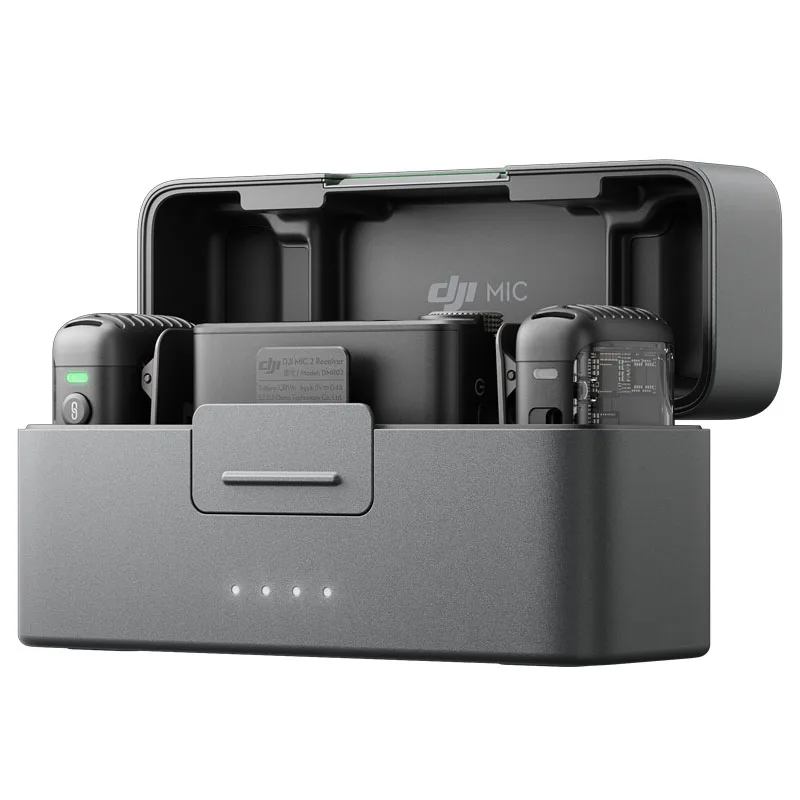
Image source: Web (Bing) / kamera-express.nl (Web image (fair-use with source credit))
Battery levels matter. The DJI Mic 2 transmitter lasts about six hours on a full charge. The receiver draws power from the camera. If the transmitter battery drops below twenty percent, audio quality degrades.
You hear crackling and distortion. Charge both units fully before a long recording session. The camera itself needs enough power too.
A Pocket 3 below fifteen percent battery may disable external microphone support to save power.
USB-C adapter compatibility. Not all USB-C to 3.5mm adapters work with the Pocket 3. The adapter must support audio output specifically. Many phone adapters only charge.
They do not transmit audio. Look for an adapter labeled "USB-C to 3.5mm audio adapter." Test it before a critical shoot. Keep a spare in your bag.
Third-party adapters from unknown brands often fail after a few uses.
Physical damage to the USB-C port. The Pocket 3's USB-C port is exposed. Dust and debris can block the connection. Inspect the port with a bright light.
Look for bent pins or lint. Compressed air can clear loose debris. Do not insert metal objects.
A damaged port requires professional repair. You can still use the built-in microphone or the DJI Mic 2 wirelessly while the port is being fixed.
Wired lavalier microphone issues. If you use a wired lavalier, check the TRS connector. A standard lavalier has a three-pole connector. Some smartphones use a four-pole connector.
The Pocket 3 works with three-pole connectors only. Four-pole connectors cause muffled audio or silence. Use an adapter if needed.
Test all cables before heading out.
Firmware corruption on the DJI Mic 2. The Mic 2 has its own firmware. It updates through the DJI Mimo app. If the update is interrupted, the microphone can stop working.
Reconnect the Mic 2 to the app and check for firmware status. A failed update requires a factory reset. Hold the transmitter button for ten seconds.
Then re-pair with the camera.
Five Mistakes That Make Pocket 3 Audio Worse
Some habits seem harmless but actually degrade audio quality. Avoid these common mistakes.
Mistake 1: Holding the camera too far away. The internal microphones are designed for close use. Two feet is the maximum distance for clear audio. Beyond that, the camera picks up room echo and background noise.
Your voice becomes a distant whisper. Move the camera closer or use the DJI Mic 2 transmitter clipped near your mouth. This is the single biggest improvement you can make without spending money.
Mistake 2: Leaving wind noise reduction on indoors. This setting cuts low frequencies. Indoors, there is no wind. The filter removes warmth from your voice.
Your recordings sound thin and tinny. Enable it only for outdoor use. Disable it when you step inside.
Make it a habit to check this setting every time you change location.
Mistake 3: Recording in stereo for interviews. Stereo captures two channels of ambient sound. It also captures more room echo. For interviews and vlogs, mono is better.
Mono combines both channels into one. This gives you a louder, cleaner signal. Your voice sits front and center.
The background noise fades. Switch to mono in the audio settings when recording dialogue.
Mistake 4: Ignoring the SD card speed. A slow memory card can cause audio dropouts. The Pocket 3 writes video and audio data simultaneously. If the card cannot keep up, it drops audio frames.
Use a card rated U3 or V30 at minimum. Format the card in the camera before each important shoot. This clears fragmentation and ensures consistent write speeds.
Slow cards are a common cause of intermittent audio issues.
Mistake 5: Relying on automatic gain control. Auto gain adjusts the volume constantly. In a quiet room, it boosts background hiss. In a loud room, it lowers the volume too much.
Your voice sounds inconsistent throughout the video. Switch to manual gain. Set it to Low for quiet environments.
Set it to High for noisy or outdoor scenes. Test with a ten-second clip. This one change eliminates most audio complaints.
These mistakes are easy to fix. They cost nothing to correct. Building good habits around them transforms your audio quality immediately.
Real-World Examples: Diagnosing a Windy Vlog, a Quiet Interview, and a Dead Mic
Let us apply the decision tree to real scenarios. These examples show how the diagnostic process works in practice.
Example 1: Windy outdoor vlog. You record a walk through a park. The video looks great. The audio has a constant low rumble that drowns out your voice.
This is classic wind noise. The internal microphones have no physical protection. Follow the tree: the audio exists but sounds bad.
It has wind rumble. Go to fix 7. Enable wind noise reduction in the audio settings.
Attach a windscreen or deadcat. Record again. The rumble should reduce significantly.
For future outdoor shoots, always carry a windscreen. It is cheaper than the DJI Mic 2 and solves this specific problem well.
Example 2: Quiet indoor interview. You film a conversation in a living room. The audio is clear but very quiet. You need to boost the volume in editing.
Follow the tree: the audio exists but sounds quiet or distant. Go to fix 5. Open the audio settings.
Set audio gain to High. Record another test clip. The volume should increase.
If it is still quiet, move the camera closer. The internal microphones work best within two feet. If you cannot move the camera, switch to the DJI Mic 2 transmitter clipped to the speaker's collar.
This fixes the distance problem completely.
Example 3: Complete silence from a new setup. You unpack your Pocket 3. You charge everything. You press record.
The video plays back with no audio at all. Follow the tree: no audio or partial audio. Are you using the built-in microphone?
Yes. Go to fix 1. Open the quick menu.
Check the microphone icon. It shows "External." The camera is waiting for an external microphone that is not connected. Tap the icon and switch to "Internal." Record again.
Audio returns. This is the most common new-user mistake. The camera defaults to the last used audio source.
If the previous owner used an external mic, yours will be silent until you change the setting.
Example 4: Dropping audio during a long recording. You record a one-hour lecture. The first forty minutes sound fine. The last twenty minutes have audio cuts.
This is usually a memory card issue. The card overheats or cannot sustain write speed. Stop recording.
Let the camera cool down. Format the card in the camera. If the problem persists, buy a faster card rated V30 or higher.
The Pocket 3 writes high-bitrate video. A slow card causes it to skip audio frames to keep up.
Frequently Asked Questions
Why is my Pocket 3 audio so quiet?
The audio gain setting is likely too low. Open the audio menu. Switch from Auto to Manual.
Set gain to High. Move the camera closer to the sound source. The internal microphones work best within two feet.
If the audio is still quiet, consider using the DJI Mic 2 external microphone.
How do I stop wind noise on my Pocket 3?
Enable wind noise reduction in the audio settings. Attach a physical windscreen or deadcat over the microphones. The digital filter helps with light wind.
Physical protection is necessary for strong wind. Always check the setting before moving outdoors.
Can I use any external microphone with the Pocket 3?
You can use any microphone that connects via USB-C adapter. The adapter must support audio passthrough. Some adapters only charge.
They do not transmit audio. Test your adapter before a critical shoot. The DJI Mic 2 is the most reliable option for wireless audio.
Why does my DJI Mic 2 keep disconnecting?
Low battery is the most common cause. Charge both the transmitter and receiver fully. If the problem continues, re-pair the devices.
Hold the link button on the transmitter for three seconds. Update the firmware through the DJI Mimo app. Interference from other wireless devices can also cause dropouts.
How do I fix crackling audio on my Pocket 3?
Lower the audio gain setting. Crackling is usually clipping. The microphone preamp is overloaded.
Set gain to Low. Record a test clip. If the crackling persists, the microphone may be damaged.
Try an external microphone to confirm. Update the camera firmware as a next step.
Should I record in stereo or mono for vlogs?
Record in mono for vlogs and interviews. Mono gives you a louder, cleaner center channel. Stereo captures more room echo and ambient noise.
Switch to the audio channel setting in the menu. Change from Stereo to Mono. Your voice will sound clearer and more direct.

Similar Posts
































