How to Update Underwater Camera Firmware
Knowing how to update underwater camera firmware is one of those skills you don't think about until you absolutely need it. You show up at a dive site, pull out your camera, and realize the autofocus is hunting or the white balance looks off. The fix is often a firmware update, but doing it wrong can brick your camera right before a trip.
As of 2026, most underwater cameras from brands like GoPro, OM System, and Sony deliver firmware updates through three methods: a companion app over Wi-Fi, a manual SD card transfer, or a tethered USB connection. Each method has its own risks. The wrong choice for your situation can turn a quick update into a ruined dive day.
Let's walk through which path works for you.
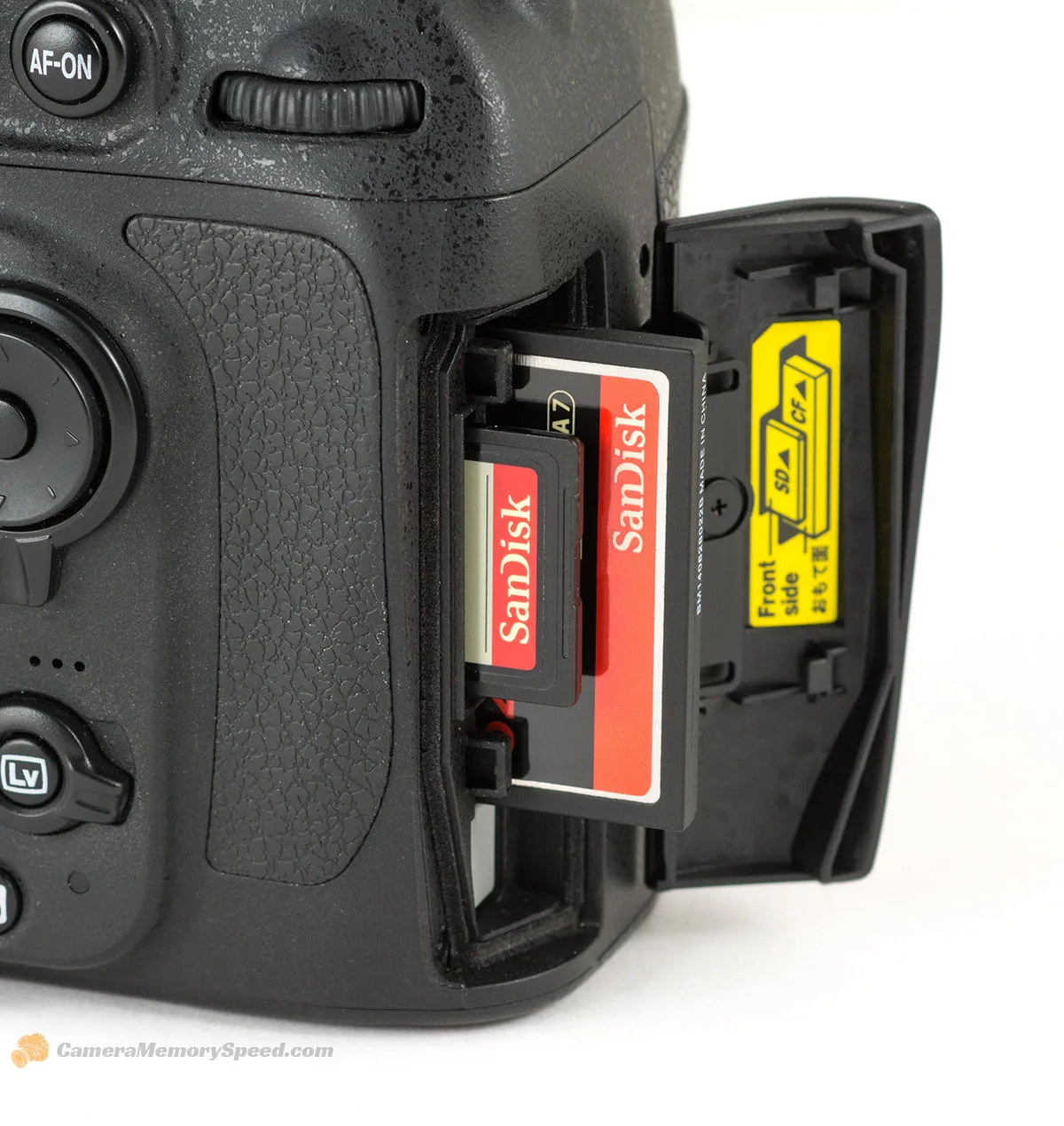
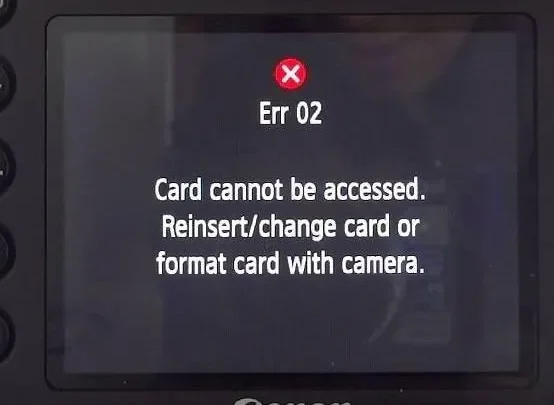
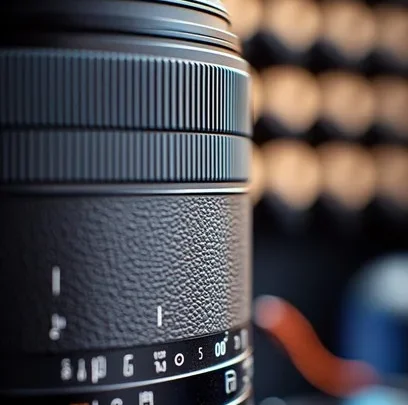
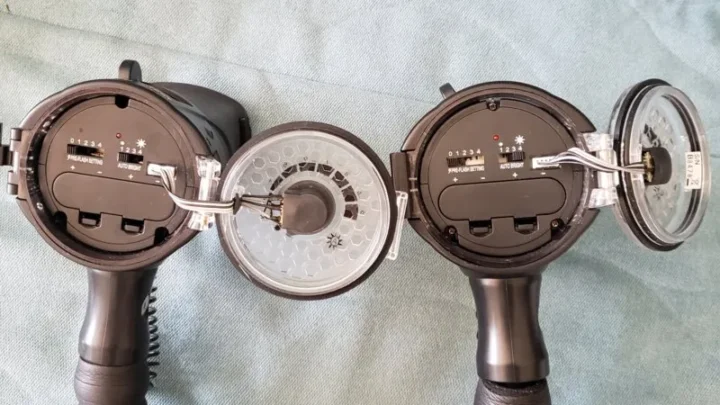
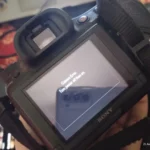
Image source: Web (Bing) / cameramemoryspeed.com (Web image (fair-use with source credit))
Quick Answer
Check your current firmware version in the settings menu. Download the latest file from the manufacturer's support site. Transfer it to a formatted SD card or use the brand's app.
Keep the battery above 50 percent. Never interrupt the update. Verify the new version before your next dive.
Before You Update: Why Firmware Behaves Differently Underwater
Underwater cameras face unique challenges. Water pressure, variable lighting, and color absorption at depth demand precise software tuning. A firmware update can fix underwater white balance profiles, improve strobe sync timing, and patch autofocus hunting that only shows up at depth.
The stakes are higher too. You cannot swap a memory card or change settings underwater. If the update introduces a bug, you might not discover it until you are 30 meters down.
That is why manufacturers release firmware specifically for underwater models, not just generic camera updates.
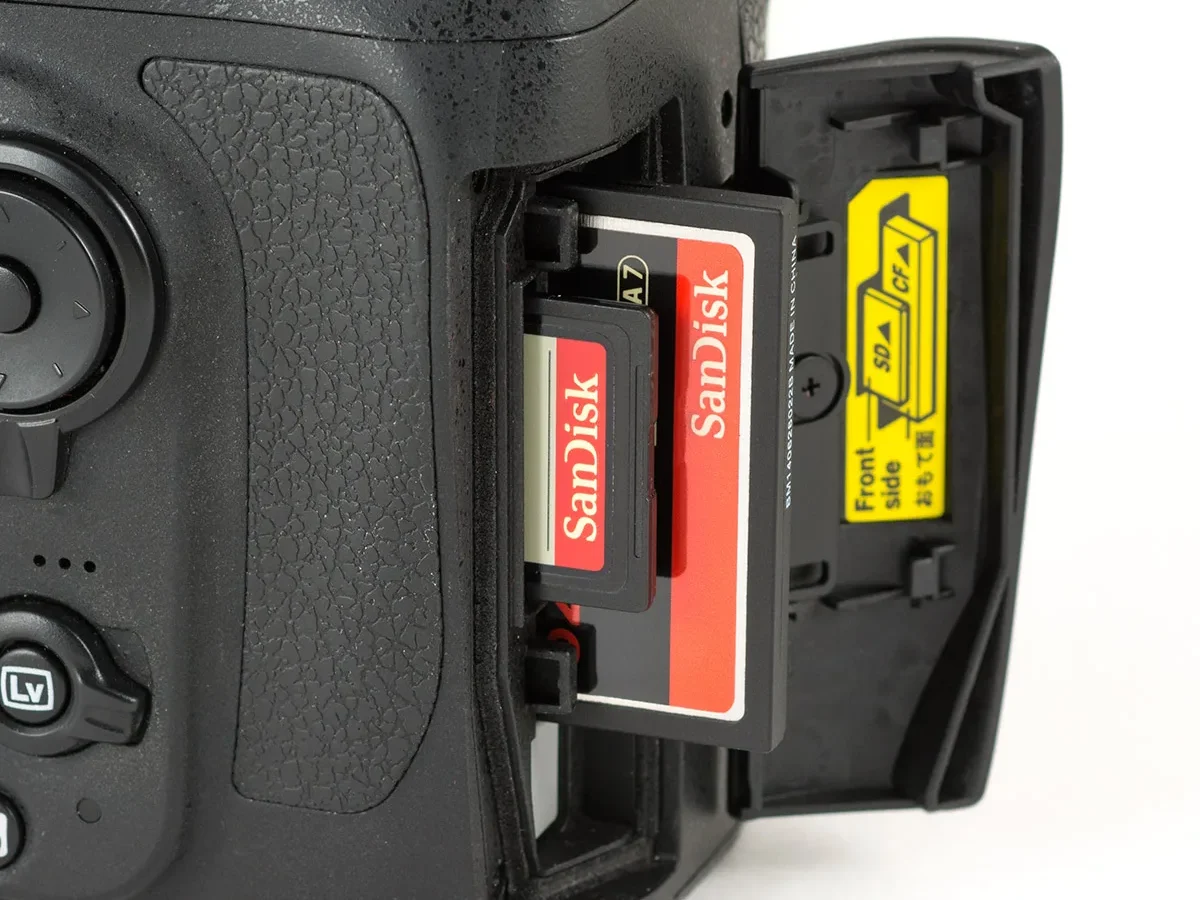
Opening the battery and SD card compartment adds another risk. Water and condensation love an open seal. Do the update in a dry, clean environment.
Check the O-ring and seal before closing it back up. A single grain of sand or a salt crystal can ruin a housing seal. The official GoPro support page for firmware updates explicitly warns about doing updates in a dry area.
Most factory firmware updates work across all lighting conditions. The underwater-specific fixes make these updates worth doing. Color correction for different depth zones and strobe preflash timing are the key improvements.
The trick is knowing which version addresses your exact camera model and housing combination.
The Decision Tree: Which Update Method Fits Your Camera?
Not all firmware updates work the same way on every camera. Your update method depends on your camera brand, model, and what tools you have available. Here is how to decide which path is right for you.
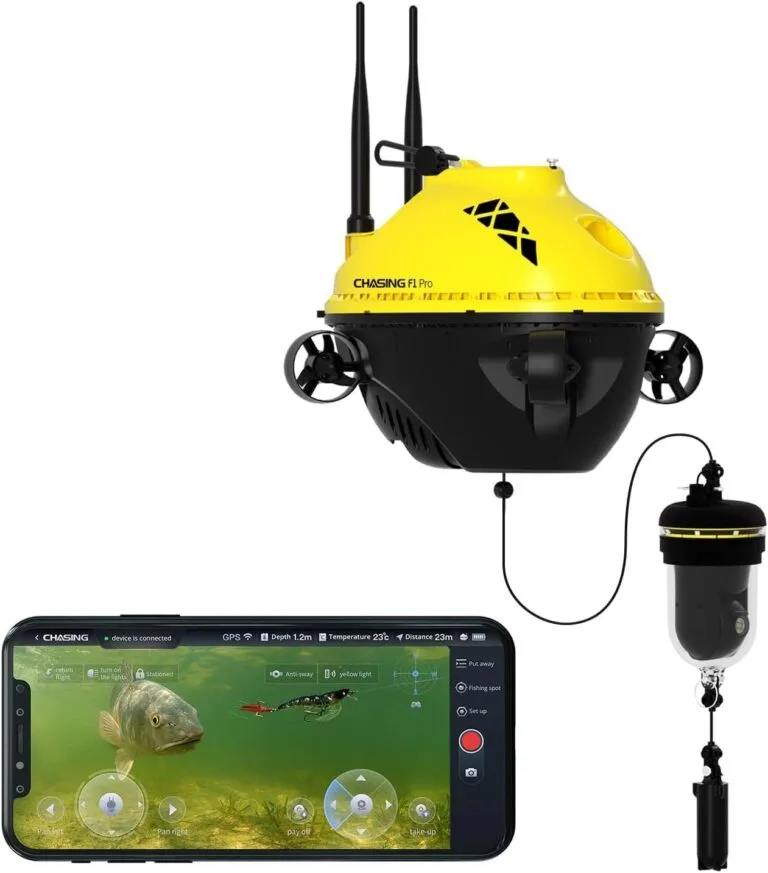
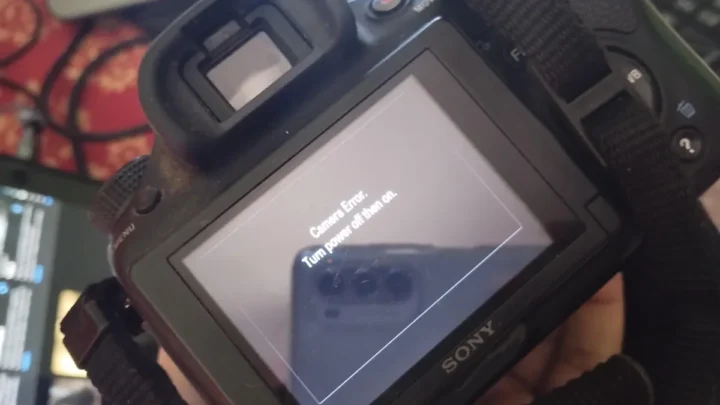
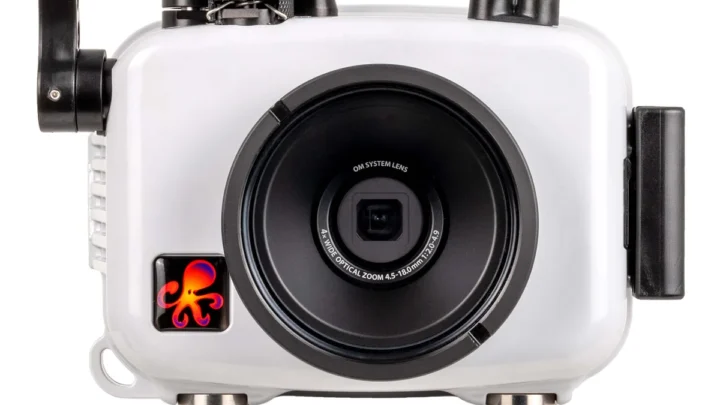
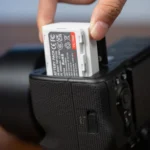
Image source: Web (Bing) / droneaperture.com (Web image (fair-use with source credit))
App-Based Updates (Wi-Fi/Bluetooth)
Best for GoPro HERO series, OM System Tough TG-7, and newer Sony RX0 models. These cameras pair with a companion app like GoPro Quik or OM Image Share. You connect over Wi-Fi or Bluetooth, download the update through the app, and let it transfer wirelessly.
The process is similar to linking a camera to a phone for settings adjustments.
The upside is convenience. No card reader, no file copying. The downside is connection stability.
A weak Wi-Fi signal can drop mid-transfer. That is a risk you do not want underwater. Always do app updates within 3 meters of your router with a direct line of sight.
SD Card Updates (Manual File Transfer)
Best for most waterproof compact cameras, older GoPro models, and any camera that provides a downloadable firmware file. This is the most reliable method.
Download the firmware file from the manufacturer's support site. Copy it to a formatted SD card. Insert the card into the camera.
The camera detects the file and prompts the update. No wireless connection needed. No risk of signal drops.
This is the method we recommend for anyone heading to a remote dive site.
USB Desktop Updates (Tethered to a Computer)
Best for some Sony RX0 models, certain Canon PowerShot cameras, and cameras that do not support SD card updates. Connect the camera to a computer with a USB cable. Run the manufacturer's updater software.
This method is the most reliable for models that support it. But it requires a computer and a data-capable USB cable. Not all USB cables carry data.
A charge-only cable will leave you stuck. Check your cable before you start.
Step-by-Step: The Safe Firmware Update Workflow for Any Brand
These steps work for any camera that supports SD card updates. That is the safest method for underwater cameras.
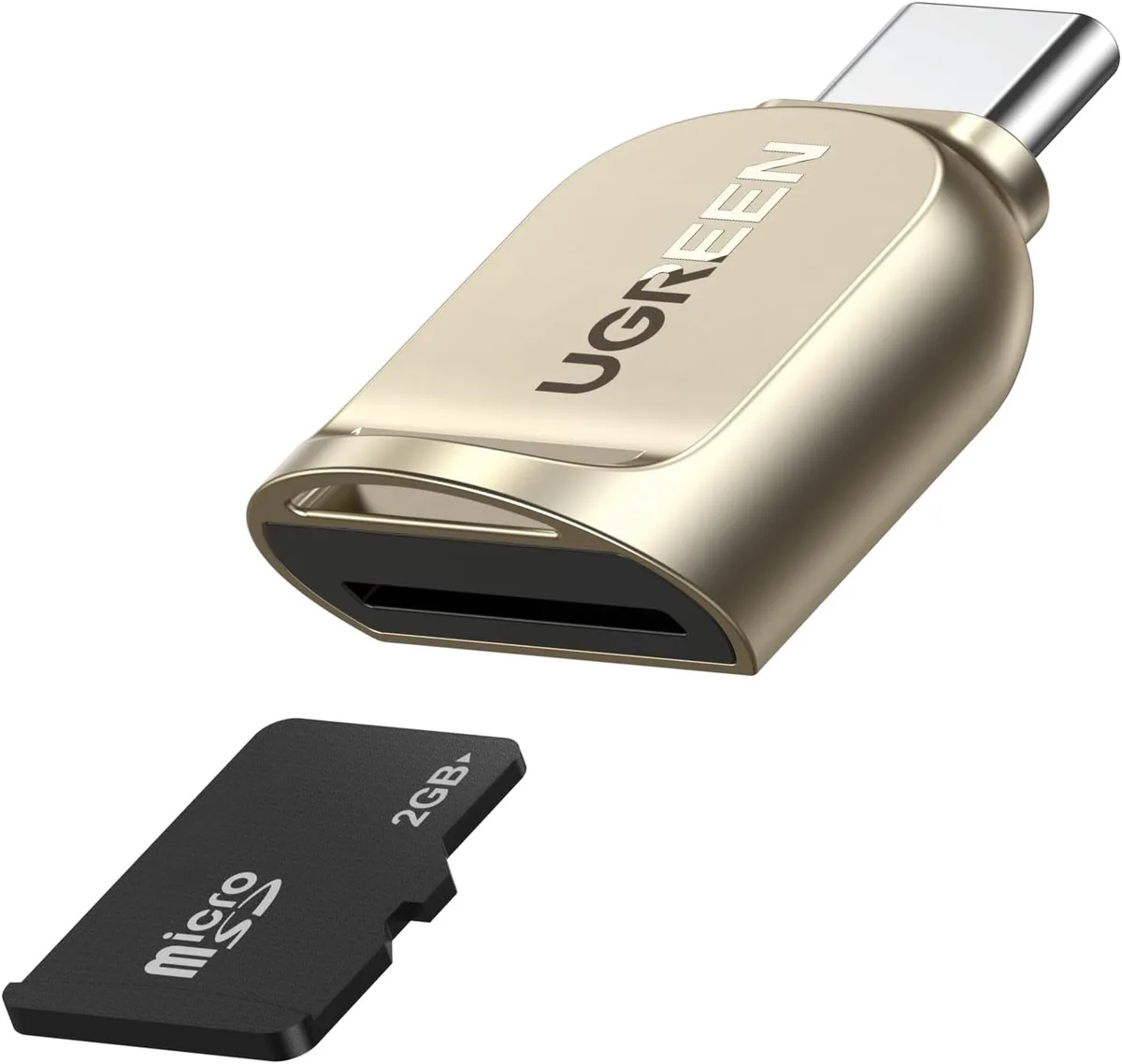
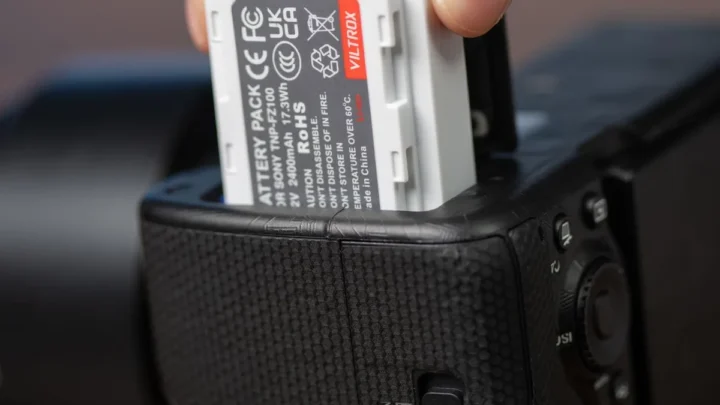
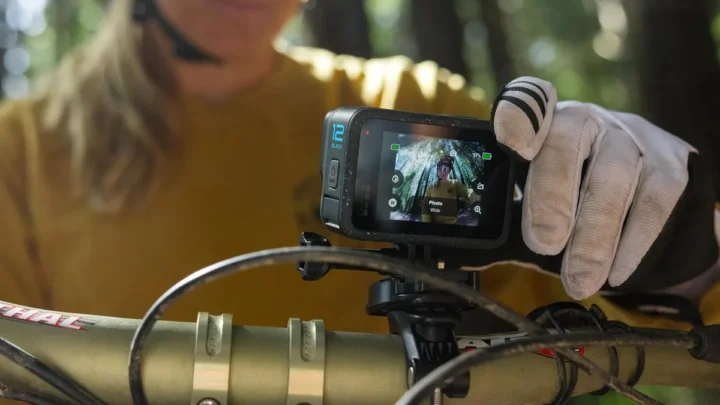
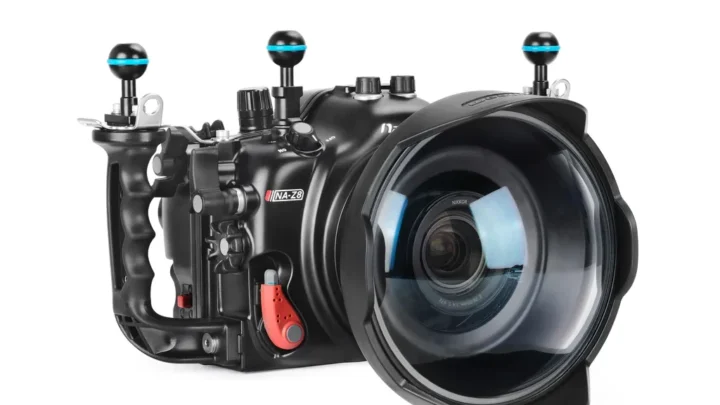
Image source: Web (Bing) / manuals.plus (Web image (fair-use with source credit))
- Charge your battery to 100 percent. Never start an update below 50 percent. A full charge prevents the most common failure point.
- Find your current firmware version in the camera's setup menu. Write it down.
- Visit the manufacturer's official support site. Download the latest firmware for your exact model. Double-check the model number.
- Unzip the downloaded file. You should see a .bin or .fw file.
- Format your SD card to FAT32 inside the camera. This ensures the correct file structure.
- Copy the firmware file to the root directory of the SD card. Do not put it inside any folder.
- Insert the SD card into the camera. Close the compartment carefully. Check the seal.
- Power on the camera. Navigate to the firmware update option in the setup menu.
- Confirm the update. The camera will show a progress bar. Do not touch any buttons.
- Wait for the camera to restart. Go to the setup menu. Confirm the new firmware version.
If you are using an app-based update, the steps are similar. The file transfer happens wirelessly instead. The same rules apply.
Keep the battery full. Stay close to your router. Do not interrupt the process.
Update Failed: Recovery Steps and When to Send It In
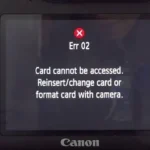
A failed update usually shows up as a frozen screen, a blinking light, or a camera that will not power on. Do not panic. Most failures are recoverable.
First, remove the battery and SD card. Wait 30 seconds. Reinsert the battery.
Try powering on. If the camera boots, check the firmware version. If it shows the old version, the update did not take.
Try again with a freshly formatted SD card and a freshly downloaded firmware file. These recovery procedures are similar to the process for troubleshooting related issues on other camera gear.
If the camera stays stuck on a black screen, check the manufacturer's website for recovery instructions. Many cameras have a recovery mode that loads from a specific SD card file. GoPro cameras use a forced update procedure that loads the firmware file from a specific folder.
If the camera will not respond at all, contact the manufacturer's support. Some can walk you through a hard reset. Others will need to repair the camera.
This is rare, but it happens. The key is to never update firmware the night before a dive trip. Give yourself at least a week to handle any issues.
Firmware Update Mistakes That End Dive Trips
The biggest mistake is updating at the wrong time. Never update firmware the night before a dive. You need time to test the camera after the update.
Shoot a few test frames. Check the autofocus. Verify the white balance in a pool or shallow water first.
The second mistake is using the wrong firmware file. Camera models look similar, but the wrong firmware can brick your camera. Double-check the model number in the camera's battery compartment or on the packaging.
Download the file only from the official manufacturer website.
The third mistake is ignoring the battery level. A dead battery mid-update is the most common cause of bricked cameras. Charge to 100 percent before you start.
If the battery is removable, keep a fully charged spare handy. You can apply the same approach to keeping batteries topped up for any outdoor camera.
The fourth mistake is opening the compartment in a humid environment. Moisture can get inside and cause corrosion. Do the update in an air-conditioned room or a dry space with low humidity.
Check the O-ring for debris before closing the seal. The same principles apply to avoiding moisture problems in any camera housing.
Finally, do not skip the verification step. After the update, confirm the new firmware version in the settings menu. Take a test shot and review it on a computer if possible.
A small bug in the firmware might not show up until you are underwater. Test thoroughly.
When to Skip the Update Altogether
Not every firmware update is worth installing. Manufacturers push updates to fix bugs, but sometimes the new version introduces its own problems. User forum reports and support logs show that some updates have caused autofocus regression, slower burst rates, or compatibility issues with older housings.
Skip the update if your camera is working perfectly right now. If you have been shooting with the current firmware for months and every feature works, there is no urgent reason to change. The old saying applies: if it is not broken, do not fix it.
You can always update later between dive trips.
Skip the update if you are leaving for a trip tomorrow. Firmware updates need testing time. Shoot a few dozen frames in different lighting conditions after the update.
Check that your housing buttons still work properly. Verify that your strobe sync timing has not shifted. A week of testing is ideal.
A few days is the bare minimum.
Skip the update if the release notes do not mention your camera model or your specific issue. Read the changelog carefully. If the fix is for a different housing or a lens you do not own, the update adds no value.
You are taking risk for zero benefit.
Skip the update if you are using a third-party housing that has not been certified for the new firmware. Some housing manufacturers test every firmware version before approving it. Check their website or support page.
An incompatible firmware can cause button mapping errors or communication failures with the housing.
Skip the update if you are in the middle of a multi-dive trip and your camera is working. Wait until you are home. The risk of bricking the camera mid-trip is not worth the marginal improvement.
You can always update before the next trip.
The only exception is a critical security fix or a bug that directly affects your shooting. If the update fixes a problem you have experienced, go ahead. But do it with plenty of time and a fully charged battery.
Frequently Asked Questions
How often should I update my underwater camera firmware?
Check for updates every three to six months. Most manufacturers release firmware patches once or twice a year. Set a reminder to check before the start of dive season.
If you dive year-round, check every quarter.
Can I use a charge-only USB cable for a firmware update?
No. Charge-only cables lack the data wires needed for firmware transfer. Use the cable that came with your camera.
Buy a certified data cable if needed. A charge-only cable will leave the camera unrecognized by your computer.
Will updating firmware erase my photos and settings?
The firmware update itself will not delete your photos or videos. However, custom settings like white balance presets and exposure profiles may reset to factory defaults. Take a photo of your settings menu before updating.
That way you can restore them afterward.
What should I do if the update gets stuck at 50 percent?
Wait at least five minutes. Some updates pause at certain percentages while writing to internal memory. If nothing changes after five minutes, remove the battery and SD card.
Wait 30 seconds. Reinsert the battery. Attempt recovery mode per your manufacturer's instructions.
Can I update firmware on a camera that is inside a housing?
No. You must remove the camera from the housing to access the battery compartment and SD card slot. Never update firmware with the housing assembled.
Moisture or pressure issues can interfere with the update process.
Is it safe to use unofficial or modified firmware?
No. Unofficial firmware can void your warranty. It can damage the camera.
It can cause unpredictable behavior underwater. Always download firmware from the manufacturer's official support site. Modified firmware is not tested for dive conditions and can fail at depth.

Similar Posts