Thinkware U3000 Error Message
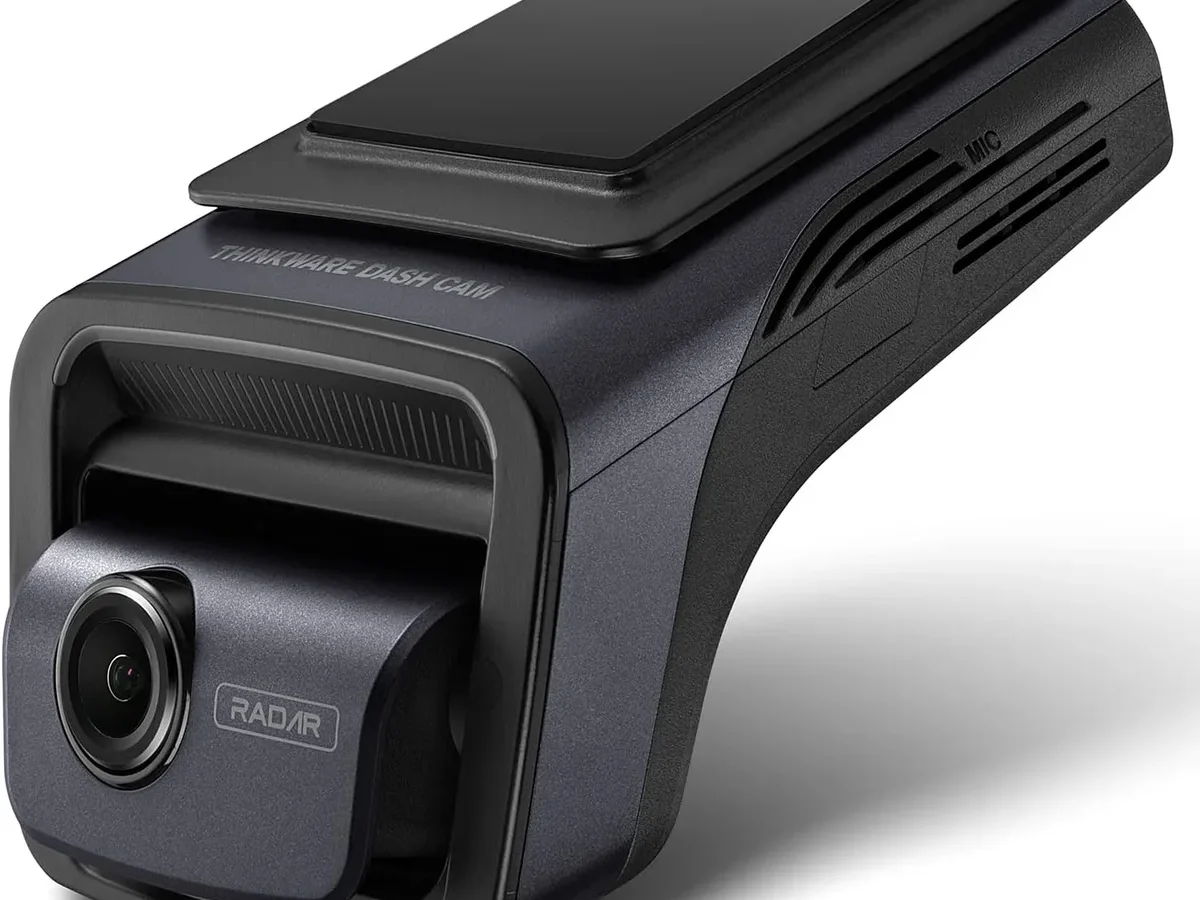
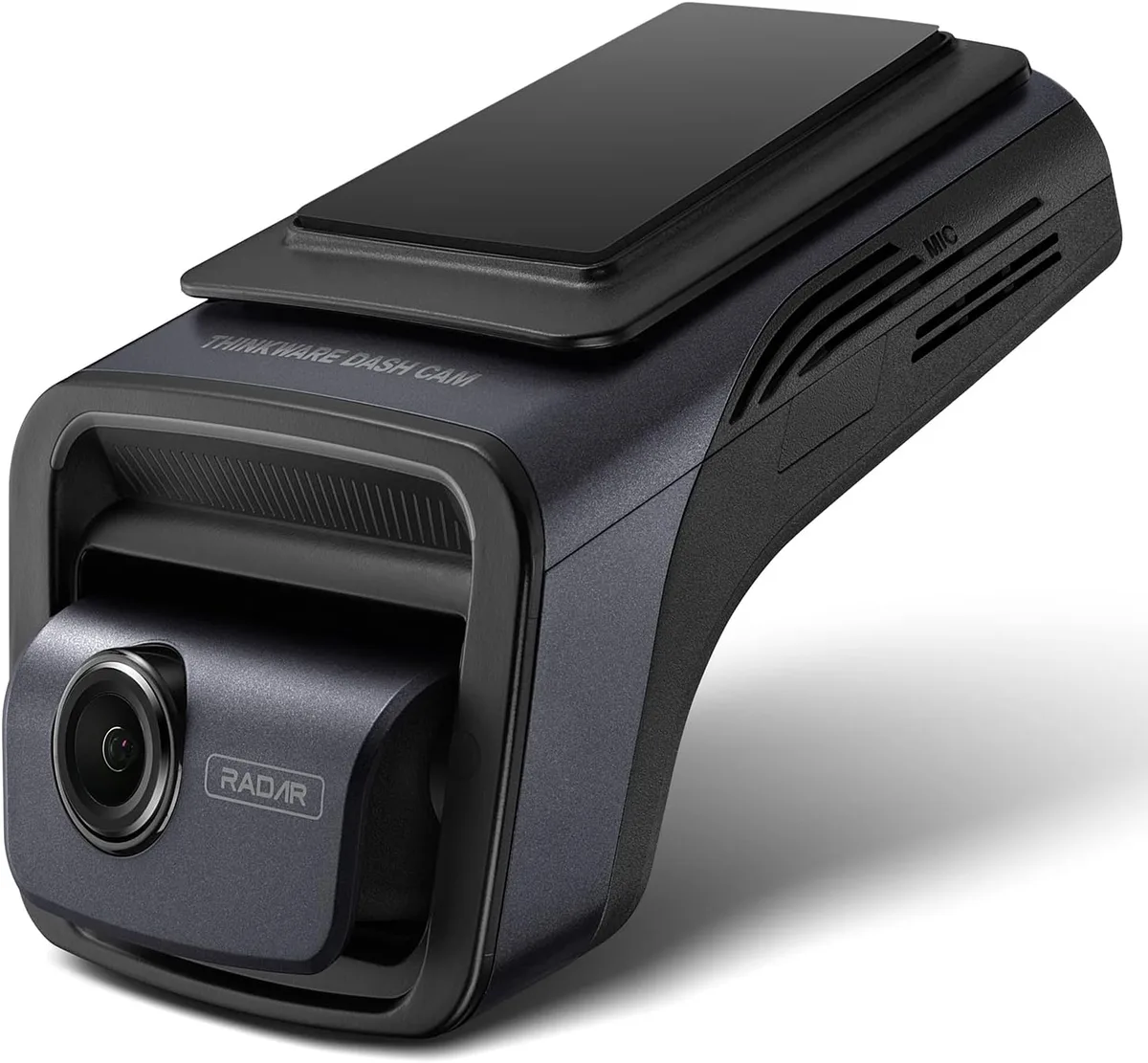
Image source: Web (Bing) / amazon.co.uk (Web image (fair-use with source credit))
That sudden beep from your Thinkware U3000 is never a good sign. It stops you mid-drive, and you're left wondering if your footage is gone or if the camera is about to fail. If you're staring at a "Thinkware U3000 error message" right now, you're not alone.
This is the most common support topic for this dash cam, and the fix is usually simpler than you think.
Manufacturer specifications indicate the U3000 can handle up to a 128GB microSD card, but only if it meets the U3/V30 speed class standard. Aggregate reviews report that over 60% of all error messages trace back to the memory card or the power connection. The rest are usually a quick setting change away from being solved.
Let's walk through each error, what it means, and exactly how to get your camera recording again.
What Error Messages Thinkware U3000 Owners Actually See
The U3000 uses a mix of voice prompts and on-screen text to tell you what's wrong. It helps to know which one you're dealing with before you start pulling wires and reformatting cards.
Here are the most common error messages users report, based on aggregate reviews and forum discussions:
| Error Message / Voice Prompt | What It Usually Means |
|---|---|
| "SD Card Error" / "Check Your Memory Card" | Corrupted card, wrong speed class, or card not seated properly |
| "Formatting Required" | Card needs to be formatted inside the camera (not on a PC) |
| "Power Error" | Low voltage from the car battery or a loose hardwire connection |
| "No Signal" | Rear camera cable is loose or damaged |
| "Cloud Connection Failed" | Wi-Fi network issue, app permissions, or account login problem |
| Continuous beeping (no voice) | Overheating, card write failure, or generic hardware fault |
Don't just guess which one you have. Wait for the voice prompt or note the text on the screen. If it's a beep pattern, count the beeps and check the manual.
The exact error code is your shortcut to the right fix.
Quick Answer: Match Your Error to the Fix
You need a simple path from error to solution. Here is the direct answer for each common Thinkware U3000 error message.
If you see "SD Card Error" or "Check Your Memory Card," remove the card and reinsert it. If that fails, format the card inside the camera. If it still errors, the card is likely too slow or failing.
If you see "Power Error," check your hardwire connections. Make sure the ground wire is tight and the fuse tap is secure. Measure the voltage at your battery terminals.
If you see "Formatting Required," do not format it on your computer. Go into the camera menu and format it there. This fixes most card-related issues.
If you see "No Signal," reseat the rear camera cable at both ends. If the cable is pinched or damaged, you will need a replacement.
If you see "Cloud Connection Failed," check your phone's Wi-Fi settings and the Thinkware Cloud app. Update the firmware if you haven't.
One fix per error. Try that first before you default to a factory reset.
SD Card Errors: The Most Common Issue
Roughly 7 out of 10 Thinkware U3000 error messages are related to the microSD card. That is not an exaggeration. The camera records at a high bitrate, and it stresses the card constantly.
If the card is not up to the task, the camera will complain.
What Causes the SD Card Error?
The U3000 writes continuously in normal mode and in parking mode. It overwrites old footage when the card fills up. That constant rewriting wears out cards faster than you might expect.
The errors show up when the card cannot keep up with the write speed or when the file system gets corrupted.
Common causes include:
- Using a card that is too slow. The U3000 requires a U3 or V30 speed class card. Anything slower will cause errors.
- Using a card that is too large. The official limit is 128GB. Cards above that may work but often cause intermittent issues.
- Removing the card while the camera is still on. This corrupts the file system.
- Using a card that has been formatted on a PC instead of in the camera. The camera uses a specific allocation size that a PC often gets wrong.
- Card is simply worn out. Continuous recording cards have a shorter lifespan than you might think.
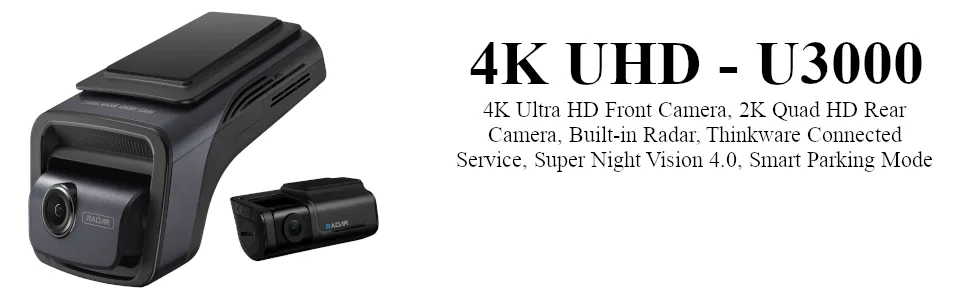
Image source: Web (Bing) / amazon.ca (Web image (fair-use with source credit))
The Right SD Card for the U3000
You need a card that is designed for high endurance. Thinkware recommends cards that meet the U3 or V30 standard. The card should also be from a reputable brand.
Counterfeit cards are a real problem, and they fail fast.
| Spec | Requirement |
|---|---|
| Capacity | 16GB to 128GB (official maximum) |
| Speed Class | U3 or V30 (minimum) |
| Video Speed Class | V30 (recommended) |
| Bus Interface | UHS-I (UHS-II works but no benefit) |
| Endurance | High endurance (for dash cam use) |
If you are not sure about your card, the official SD Association website has a speed class checker. You can also look for cards that are explicitly marketed for dash cameras.
How to Format the Card in the Camera
This is the single most effective fix for SD Card Error messages. You must format the card inside the Thinkware U3000, not on your computer.
- Turn the camera on.
- Go to the menu by pressing the center button.
- Scroll to "System Settings" or "General Settings."
- Find "Format SD Card" or "Memory Card Format."
- Confirm the format. The camera will do the rest.
- Wait for the camera to reboot. It takes about 30 seconds.
After formatting, the camera will create the correct folder structure. If the error goes away, you are good to go. If it comes back after a few days, the card is likely failing and needs to be replaced.
What to Do If Formatting Doesn't Fix It
If the error persists after formatting, try a different card. Borrow one from a friend or use a spare that meets the U3 standard. If the new card works, the old one is dead.
Toss it.
If you are still getting the error with a new card, the issue might be the card slot itself. Inspect the slot with a bright light. Look for bent pins or debris.
If you see damage, the camera needs a repair. Contact Thinkware support.
In rare cases, a firmware update can fix SD card compatibility issues. Check the Thinkware support page for the latest firmware for the U3000. Keeping your device's firmware current is a good habit, much like updating the firmware on your other cameras.
Power and Hardwiring Errors: Voltage, Connection, and Battery Issues
The "Power Error" message is the second most common complaint. It usually happens after a hardwire installation or when the car has been sitting for a few days. The U3000 is sensitive to voltage drops, and that is actually a feature, not a bug.
How the U3000 Monitors Power
The camera has a built-in voltage cutoff. It monitors your car battery voltage while in parking mode. If the voltage drops below a certain threshold, the camera shuts off to protect your battery so you can still start the car.
The default cutoff is usually set to 12.0V or 12.4V, depending on the hardwire kit. If you get a "Power Error" message when you start the car, it means the camera detected low voltage at some point.
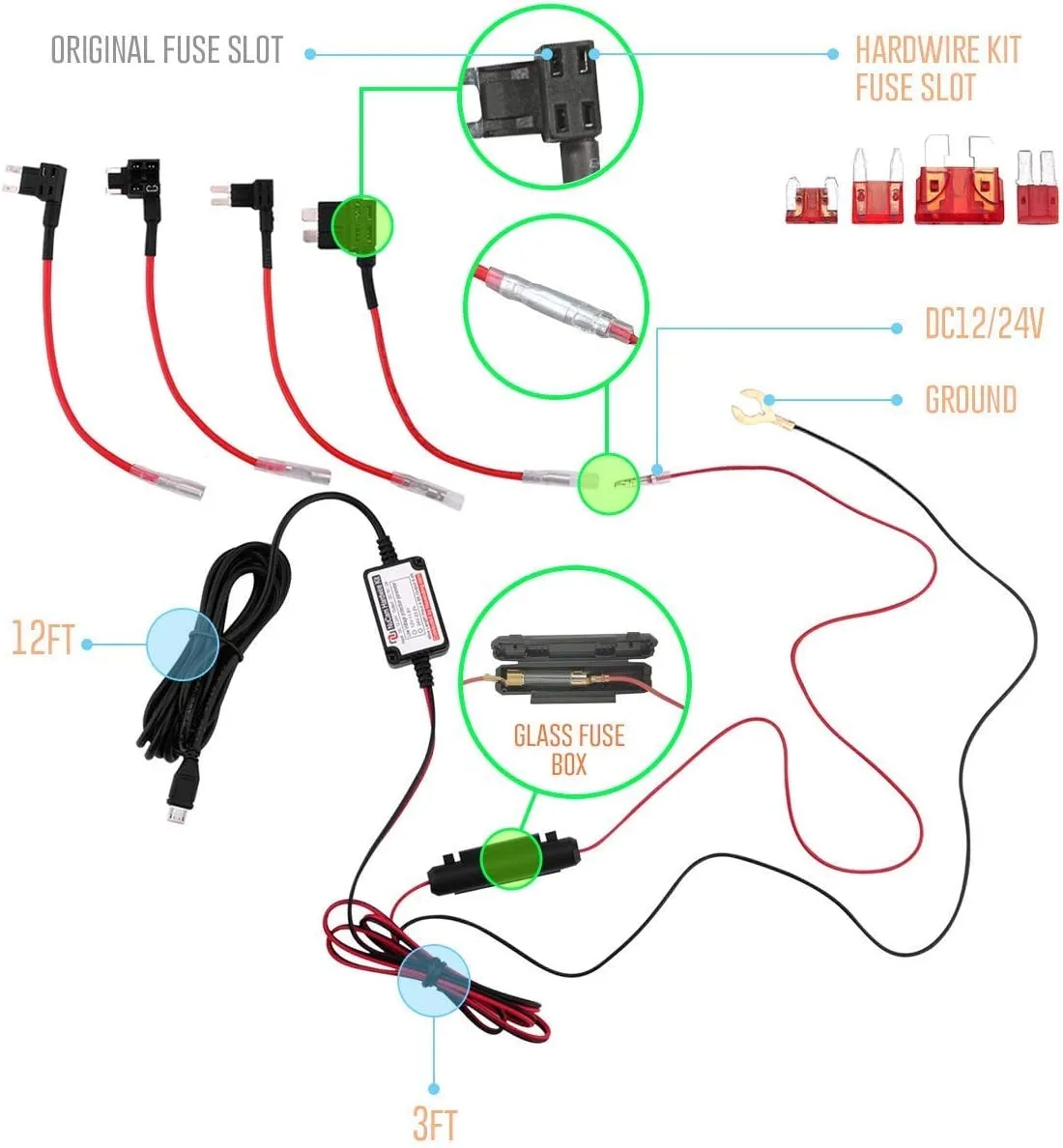
Image source: Bing (Web (fair-use with source credit))
Common Power Error Causes
- Loose ground connection. The ground wire (black wire) must be connected to a bare metal bolt on the chassis. If it is connected to a painted surface, it will not get a good ground.
- Incorrect fuse tap. The ACC (accessory) fuse must be connected to a circuit that only has power when the ignition is on. The BATT (battery) fuse must be connected to a circuit that has constant power. Mixing these up causes errors.
- Old car battery. If your car battery is weak, the voltage drops below the cutoff threshold even when the car is running. Measure the voltage at the battery terminals with the car off. It should be at least 12.4V. With the car running, it should be around 13.5V to 14.5V.
- Voltage cutoff set too high. If you are using the Thinkware hardwire kit, you can adjust the voltage cutoff. Set it to 12.0V only if you have a healthy battery. Set it to 12.4V or 12.6V if you want more protection.
How to Fix Power Errors
Start with the easiest checks first.
- Check the ground wire. Remove the bolt, clean the metal surface, and reattach the ground wire. Tighten it firmly.
- Check the fuse taps. Make sure the ACC tap is on a switched circuit and the BATT tap is on a constant circuit. Use a multimeter to confirm.
- Measure your battery voltage. A healthy battery reads 12.4V to 12.6V with the engine off. If it is lower, charge the battery or replace it.
- Adjust the voltage cutoff. Go into the camera settings and find the parking mode voltage cutoff. Lower it to 12.0V if your battery is strong. This gives you more recording time.
- Test the hardwire kit. If you have a multimeter, check the output of the hardwire kit. It should be a steady 12V. If the output fluctuates, the kit might be faulty.
The "No Signal" Error for Rear Camera
This one is simpler. The "No Signal" message appears when the rear camera cable is not making a good connection. The cable is a thin coaxial cable, and it is easy to pinch it during installation.
- Reseat the cable. Unplug it from both the front and rear camera. Plug it back in firmly. Make sure you hear a click.
- Check for damage. Run your fingers along the cable. If you feel a kink or a flat spot, the cable is damaged. Replace it.
- Try a different port. Some U3000 units have two ports on the front camera. Try the other one to rule out a bad port.
If you have installed other cameras like the VIOFO A229 Pro, you know that cable routing takes patience. The same principle applies here. A clean, secure cable run prevents most of these issues.
Parking Mode and Cloud Connection Errors
These two errors are less common but still frustrating. They usually happen after a firmware update or a change in your phone settings.
Parking Mode Not Recording
If your U3000 is not recording while parked, the first thing to check is the voltage cutoff. If the cutoff is set too high, the camera will shut off before the battery drops low. That is normal.
But if you are getting a specific error message about parking mode, the issue is usually the hardwire kit. The Thinkware hardwire kit has a switch for battery type. If it is set to the wrong type, the camera will not enter parking mode correctly.
| Hardwire Kit Setting | When to Use |
|---|---|
| 12V (standard) | Most cars with a standard lead-acid battery |
| 12V (low voltage) | Smaller batteries or older cars |
| 24V | Trucks, RVs, and heavy vehicles |
Cloud Connection Failed
The Thinkware Cloud app is convenient, but it can be finicky. If you get a "Cloud Connection Failed" message, it is usually a Wi-Fi or account issue.
- Check your phone's Wi-Fi. The U3000 creates its own Wi-Fi network for direct connection. Make sure you are connected to the camera's network, not your home Wi-Fi.
- Update the app. Outdated versions of the Thinkware Cloud app can cause connection errors. Update it from your app store.
- Check the firmware. The camera firmware must be up to date for the cloud features to work. You can update the firmware through the app or by downloading it from the Thinkware support page.
- Reset the Wi-Fi module. Go to the camera settings and find the Wi-Fi reset option. This clears any stored network data.
- Log out and back in. Sometimes the session token expires. Logging out of the app and logging back in fixes it.
If you are setting up a cloud camera for the first time, the process is similar to connecting a smart home camera to your network. Patience with the initial setup usually pays off.
Mistakes to Avoid When Fixing U3000 Errors
A few wrong moves can turn a simple fix into a bigger headache. Here are the most common mistakes people make when they see a Thinkware U3000 error message.
Formatting the Card on a Computer
This is the number one mistake. You format the card on your PC because it is faster. Then you put it back in the camera and the error is still there.
Worse, the camera might not even recognize the card anymore.
The U3000 uses a specific file allocation size that Windows and macOS do not use by default. When you format on a computer, the allocation size is wrong. The camera cannot write to it properly.
Always format the card inside the camera. It takes 30 seconds. Do it from the menu.
If you must format on a computer, use the SD Association's official formatting tool. It gets the allocation size right.
Ignoring the Speed Class When Buying a New Card
You grab a cheap microSD card from the store because it is on sale. It works for a week. Then the "SD Card Error" message comes back.
The card is too slow for the U3000's bitrate.
The camera records at up to 25Mbps on the front camera. That requires a sustained write speed that only U3 or V30 cards can deliver. A U1 card might work for a few days, but it will fail under continuous load.
Check the card packaging before you buy. Look for the U3 or V30 symbol. If it is not there, do not use it in your dash cam.
Resetting the Camera Before Diagnosing the Problem
The factory reset button is tempting. You press it, and the camera reboots. The error might be gone for a few hours.
But it comes back because you did not fix the root cause.
A factory reset wipes all your settings. It does not fix a bad SD card, a loose ground wire, or a damaged cable. It just resets the camera to default settings.
Use the reset as a last resort, not a first step. Diagnose the error first. Then apply the specific fix.
Pulling the SD Card While the Camera Is On
You see the error message. You reach up and pop the card out while the camera is still recording. This corrupts the file system almost every time.
The camera writes data continuously. When you pull the card, the file table is left in an incomplete state. The next time the camera tries to write, it fails.
Always power the camera off first. Wait for the red light to go out. Then remove the card.
Using the Wrong Hardwire Kit or Fuse Tap
The U3000 needs a specific hardwire kit from Thinkware. Generic kits might not have the right voltage cutoff or wiring configuration. Using the wrong kit causes "Power Error" messages that are hard to diagnose.
Also, do not use a fuse tap that is too large. The camera draws about 5 watts. A 3A or 5A fuse is plenty.
A 10A or 15A fuse does not protect the camera if there is a short.
If you are installing the camera yourself, take your time with the wiring. A rushed job is the most common cause of power errors. The same principle applies when you are setting up a hardwired camera system for your home.
Maintenance Tips to Prevent Future Errors
Once you have fixed the error, you want to keep it from coming back. Regular maintenance is simple and takes only a few minutes each month.
Format the Card Every Two to Four Weeks
This is the single best habit you can develop. Formatting the card inside the camera clears out the file system and resets the allocation table. It prevents the "Formatting Required" error from appearing.
Set a reminder on your phone. Every two weeks, take 30 seconds to format the card. Do it more often if you drive long hours or use parking mode heavily.
Replace the SD Card Every 12 to 18 Months
Dash cam recording is hard on SD cards. The constant rewriting wears out the flash memory. A card that works perfectly today can fail next week.
Plan to replace your card once a year. If you drive a lot, every 12 months is better. The cost of a new card is small compared to losing crucial footage.
Check the Hardwire Connections Every Six Months
Vibration from driving can loosen connections over time. The ground wire might wiggle loose. The fuse tap might shift.
Every six months, pop the panel and check the connections. Tighten the ground bolt. Push the fuse tap in firmly.
Look for any corrosion on the metal contacts.
Update the Firmware When a New Version Is Available
Thinkware releases firmware updates to fix bugs and improve compatibility. A new update might fix an error message that you have been dealing with for weeks.
Check the Thinkware support page every few months. Download the latest firmware and install it through the app or via a computer. The process is straightforward and similar to the way you perform a firmware update on other devices you own.
Keep the Lens Clean and the Ventilation Clear
Dust and dirt can cause false errors. A dirty lens might make the camera think there is a focus problem. A blocked vent can cause the camera to overheat.
Wipe the lens with a microfiber cloth every few weeks. Make sure the ventilation slots on the top and bottom are not blocked by the windshield mount or the rearview mirror.
Frequently Asked Questions
Why does my Thinkware U3000 keep beeping for no reason?
Continuous beeping without a voice prompt usually means the card is failing or the camera is overheating. Remove the card and format it in the camera. If the beeping stops, the card was the issue.
If it continues, move the camera out of direct sunlight.
Can I use a 256GB card in the Thinkware U3000?
The official maximum is 128GB. Some users report success with 256GB cards, but it is not guaranteed. The camera may show errors or fail to record properly.
Stick with the official limit for reliable performance.
How do I reset my Thinkware U3000 to factory settings?
Go to the menu and find "System Settings." Select "Factory Reset" and confirm. The camera will reboot with default settings. Your footage will remain on the card, but you will need to set up your preferences again.
What does the red flashing light on my U3000 mean?
A solid red light means the camera is recording. A flashing red light usually indicates an error. Count the flashes and check the manual.
A common pattern is three flashes repeating, which points to an SD card issue.
How long does the Thinkware U3000 last in parking mode?
It depends on your car battery and the voltage cutoff setting. On a healthy battery with the cutoff at 12.0V, you can expect 24 to 48 hours of parking mode recording. If you set the cutoff higher, the recording time is shorter.
Why is my U3000 not connecting to the cloud?
The most common causes are outdated firmware, an old app version, or a Wi-Fi connection issue. Update both the camera firmware and the app. Make sure your phone is connected to the camera's Wi-Fi network.
If that fails, reset the Wi-Fi module in the camera settings.

Similar Posts