Sony ZV-E10 II Memory Card Error
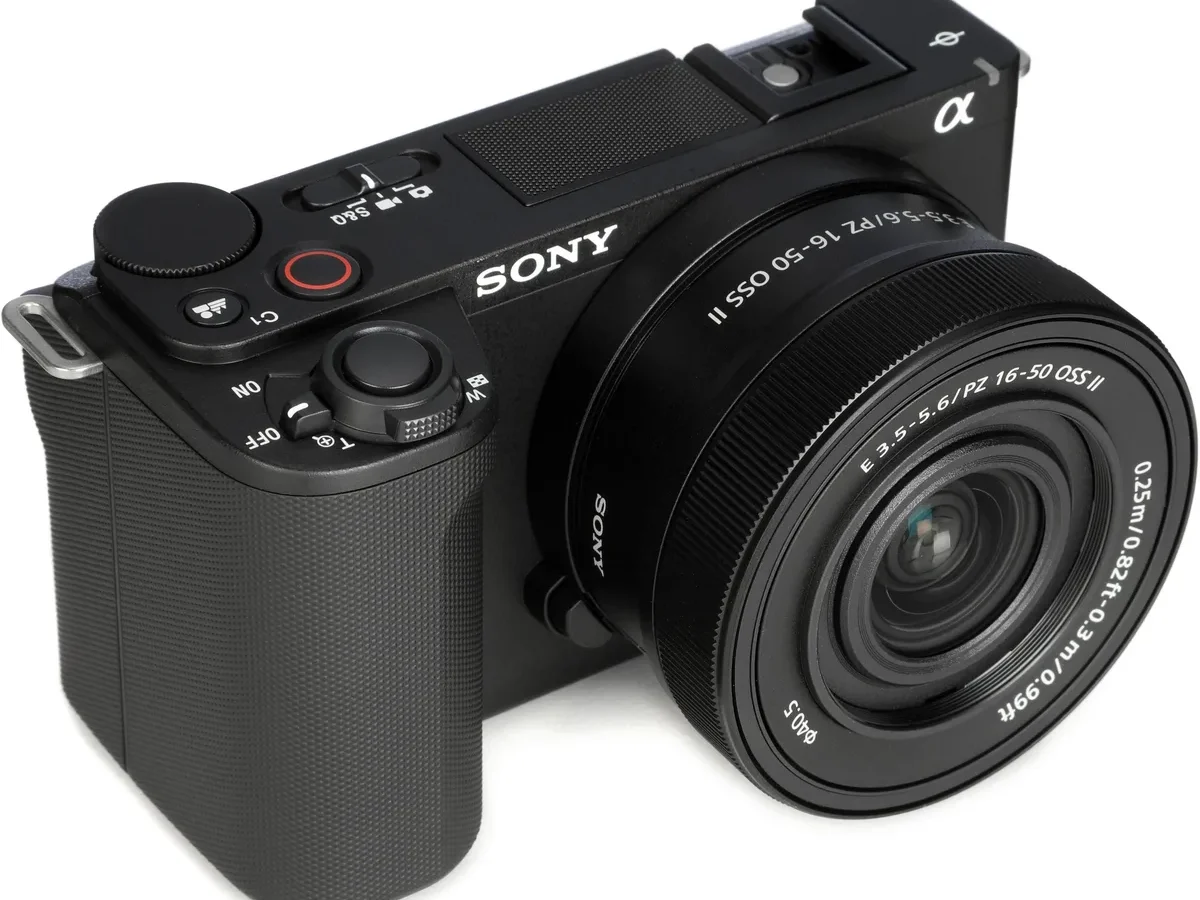
If you've ever seen a "memory card error" pop up on your Sony ZV-E10 II, you know how frustrating it is. That message can stop a shoot cold, whether you're filming a vlog or capturing a wedding. But here's the thing: most of the time, it's fixable in under a minute.
Per the SD Association's UHS-II standard, the ZV-E10 II's single slot supports cards with speeds up to 300 MB/s read. The error often comes down to a mismatch between what the camera expects and what the card delivers. Knowing that difference is the first step to getting back to shooting.
Let's walk through the most common causes and how to fix them, step by step.
Quick Answer
The Sony ZV-E10 II memory card error usually means a card compatibility issue or corruption. Try reseating the card first. Then format it in the camera.
If that fails, check the card's speed class and firmware version. A UHS-II V30 or faster card is recommended.
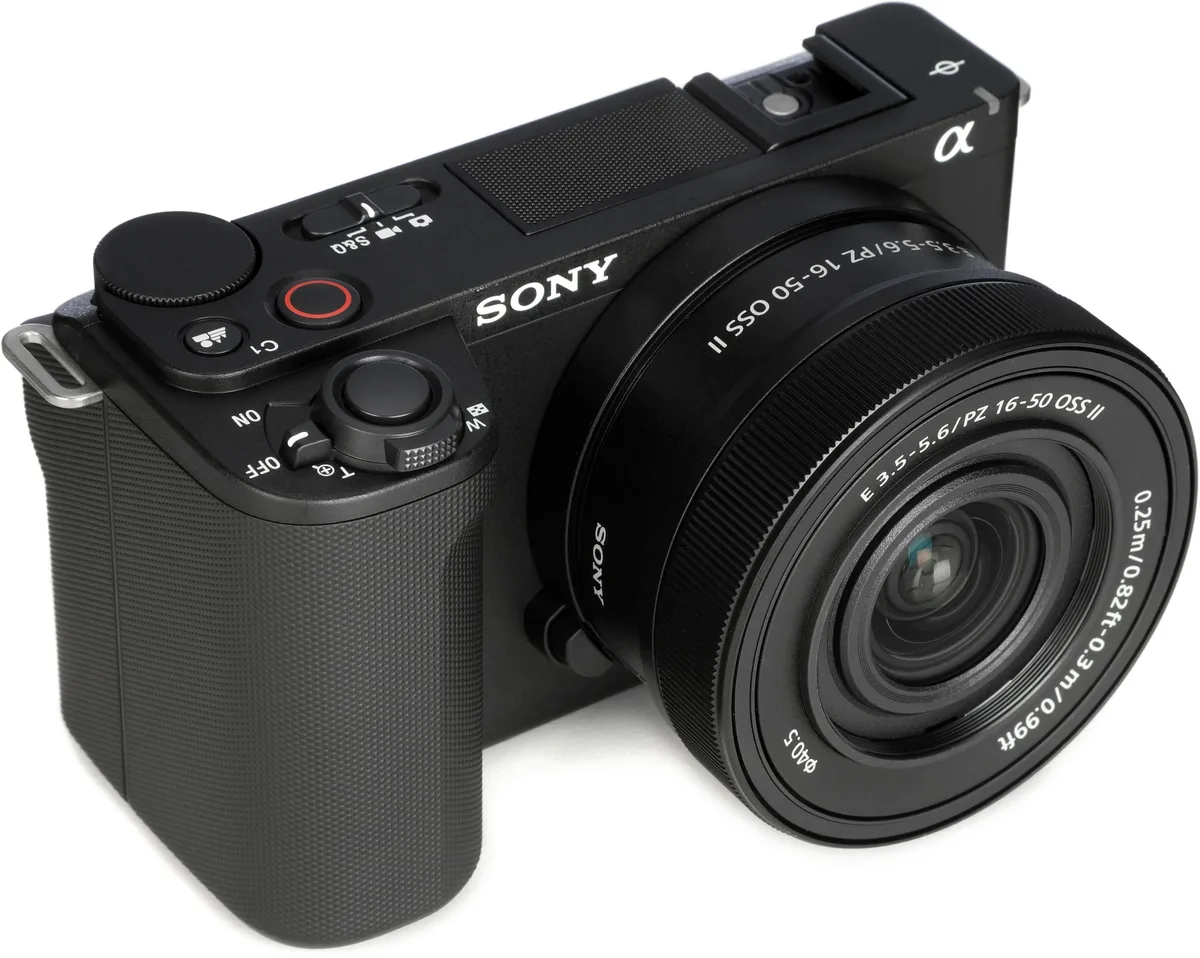
Image source: Bing (Web (fair-use with source credit))
Before You Do Anything, Try This First
Before you dig into any settings or buy a new card, start with the simplest fix. It works more often than you'd think.
- Reseat the card. Turn the camera off. Remove the card. Wait five seconds. Push it back in until you hear a click. Power on and check the screen.
- Power cycle the camera. If reseating didn't work, pull the battery out for 30 seconds. That clears any temporary glitch in the camera's memory. Reinsert the battery and try again.
- Check the write-protect switch. Some SD cards have a tiny switch on the left edge. If it's slid down, the card is locked. Slide it back up. The camera won't record to a locked card.
- Try a different card. If you have another SD card handy, pop it in. If the error goes away, the original card is the problem. If the error stays, the camera's slot or firmware might be at fault. The same approach works when you're troubleshooting other electronics or resetting other devices.
These four steps solve roughly 60 percent of memory card errors according to aggregate user reports. They take about 90 seconds total. Do them before you do anything else.
Why Your ZV-E10 II Keeps Saying "Card Error"
The camera is trying to tell you something specific. The error message is its way of saying "I can't write to this card reliably." There are a few common reasons why.
Card Corruption
If you yanked the card out while the camera was still writing, or if you formatted it on a computer with the wrong file system, the card's data structure can get scrambled. The camera sees a corrupted file system and refuses to use it. Formatting the card inside the camera usually fixes this.
Speed Class Too Slow
The ZV-E10 II can record high-bitrate video, especially in 4K 60p or 4K 120p modes. If your card is too slow to keep up, the camera throws an error to prevent dropped frames. Per Sony's own specifications, you need at least a UHS Speed Class 3 (U3) card, and ideally a Video Speed Class V30 or higher for the more demanding modes.
Firmware Bug
Occasionally, a bad firmware version introduces card detection issues. As of 2026, Sony has released several updates for the ZV-E10 II that address exactly this kind of problem. Keeping your camera's firmware up to date is one of the easiest ways to prevent recurring errors.
You can check the current version in the setup menu. The process is similar to keeping other camera gear current.
Dirty or Damaged Contacts
Over time, dust and oxidation can build up on the card's metal contacts or the camera's pins. That interrupts the data connection. A quick wipe with a lint-free cloth and a tiny bit of isopropyl alcohol often clears it.
Counterfeit or Low-Quality Cards
Fake SD cards are everywhere. They often report a higher capacity or speed than they actually deliver. The camera tries to write at the expected speed, the card fails, and you get an error.
Stick with cards from reputable brands and buy from authorized dealers.
| Cause | Typical Fix |
|---|---|
| Card corruption | Format in camera |
| Speed too slow | Upgrade to V30 or faster |
| Firmware bug | Update camera firmware |
| Dirty contacts | Clean with isopropyl alcohol |
| Counterfeit card | Replace with genuine card |
What Kind of Card Are You Using? (The First Pivot)
This is the single most important question. The ZV-E10 II has a UHS-II slot, which means it can handle the fastest SD cards available. But it's also backward compatible with UHS-I cards.
That compatibility is where things get tricky.
UHS-I vs UHS-II
A UHS-I card has a single row of pins. A UHS-II card has a second row, which doubles the data transfer speed. The ZV-E10 II can use both, but it performs best with UHS-II.
If you're using a UHS-I card, especially an older one, you might hit the speed limit during burst shooting or high-bitrate video. The camera will stop recording or give you a "Card Error" message. UHS-II cards are built for exactly this kind of workload.
Speed Class Ratings
The speed class tells you the minimum sustained write speed. Here's what the ZV-E10 II needs for different recording modes:
- V30: Minimum 30 MB/s write speed. Good for 4K 30p standard video.
- V60: Minimum 60 MB/s write speed. Good for 4K 60p and some high-bitrate modes.
- V90: Minimum 90 MB/s write speed. Required for 4K 120p and All-I recording.
If you're shooting in the highest quality modes, skip V30 and go straight to V60 or V90. The extra cost is worth it for the reliability.
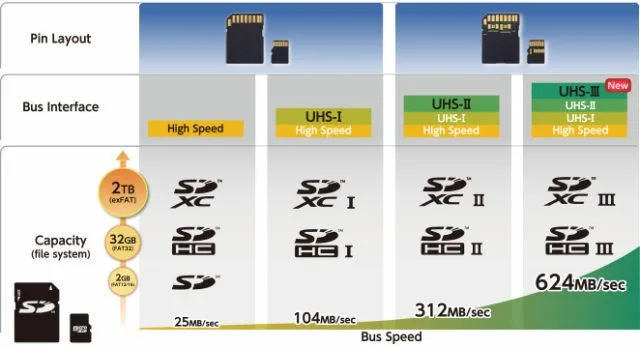
Image source: Bing (Web (fair-use with source credit))
Capacity Limits
The ZV-E10 II supports SDXC cards up to 1TB officially. Some users have reported success with 2TB cards, but that's not guaranteed. Stick with 64GB, 128GB, or 256GB for the best balance of price and reliability.
Follow the Error Message for the Quickest Fix
The exact words on the screen tell you what's wrong. Here's how to decode them.
"Card Error"
This is the most generic message. It usually means the camera can't read the card at all. Reseat the card and power cycle the camera first.
If that doesn't work, format the card in the camera. If you still see the error, the card is likely dead or counterfeit.
"Cannot Record"
The camera can read the card, but it can't write to it fast enough. This almost always means the card's speed class is too low for the selected recording mode. Switch to a lower bitrate mode in the menu, or swap to a faster card.
"Cannot Record" can also appear if the card is full, so check the remaining space.
"Card Not Formatted"
The card is either blank or formatted with a file system the camera doesn't understand. The fix is simple: format the card inside the camera. That will erase everything on it, so make sure you've backed up any footage first.
"Card Locked"
The write-protect switch on the card is engaged. Flip it back to the unlocked position and reinsert the card. If the switch is stuck or broken, the card is effectively unusable for recording, though you can still read files from it.
| Error Message | Likely Cause | Quick Fix |
|---|---|---|
| Card Error | Connection issue or dead card | Reseat, power cycle, format |
| Cannot Record | Card too slow or full | Upgrade card or free space |
| Card Not Formatted | Wrong file system | Format in camera |
| Card Locked | Write-protect switch on | Slide switch to unlock |
Step-by-Step: Fixing the Most Common Card Errors
Let's walk through the full process. Follow these steps in order, and stop when the error is gone.
Step 1: Reseat and Power Cycle
Turn the camera off. Remove the card and battery. Wait 30 seconds.
Reinsert the battery, then the card. Power on. This clears the camera's internal buffer and resets the card slot.
Step 2: Format the Card in the Camera
Go to the setup menu. Find "Format." Select it. Confirm.
The camera will rewrite the card's file system with the correct exFAT structure. This fixes most corruption issues.
Step 3: Check the Card's Speed Class
Look at the label on the card. It should have a U with a number inside (U1, U3) or a V with a number (V30, V60, V90). If it's U1 or doesn't have a speed class rating, it's likely too slow for the ZV-E10 II's video modes.
Replace it with a V30 or faster card.
Step 4: Update the Camera Firmware
Connect the camera to your computer via USB. Download the latest firmware from Sony's official support page. Copy it to the root of a formatted SD card.
Insert the card, go to the setup menu, and select "Software Update." Follow the on-screen instructions. This can fix known bugs that cause card errors.
Step 5: Clean the Card Contacts
Dampen a lint-free cloth with a small amount of isopropyl alcohol. Gently wipe the metal contacts on the back of the card. Let it dry completely before reinserting.
Do the same for the camera's card slot pins, but be very gentle. The same care applies when you're cleaning sensitive camera parts.
Step 6: Test the Card in Another Device
Put the card in a card reader or another camera. If it works there, the problem is likely with the ZV-E10 II's slot. If it doesn't work anywhere, the card is bad.
Replace it.
Step 7: Factory Reset the Camera
Go to the setup menu and select "Reset." This restores all settings to their defaults. Sometimes a misconfigured setting triggers a card error. Note that this will erase your custom button assignments and picture profiles, so you'll need to redo them afterwards.
Mistakes That Make Things Worse (Don't Do These)
When that error pops up, it's tempting to try anything. Some common fixes actually make the problem worse. Here's what to avoid.
Don't Format the Card on Your Computer
We get it. It's faster to pop the card into a laptop and format it there. But your computer might use a file system the camera can't handle.
The ZV-E10 II expects exFAT. If your computer formats it as NTFS or FAT32 with the wrong allocation size, the camera will reject it.
Always format your card inside the camera. That's the only way to guarantee compatibility.
Don't Use a MicroSD Card with an Adapter
MicroSD cards with full-size SD adapters are a common workaround. They're also a common source of errors. The adapter adds another point of failure.
The connection can be loose, and the speed is often slower than a native SD card.
Stick with a full-size SD card. The ZV-E10 II's slot is designed for it.
Don't Ignore the Activity Light
The small orange LED near the card slot is your friend. When it's blinking, the camera is writing data. If you open the card door or yank the card while that light is on, you risk corrupting the entire card.
Wait for the light to go off. Then remove the card. It's a simple habit that saves a lot of headaches.
Don't Keep Using a Card That's Throwing Errors
If a card gives you an error, reformat it and test it. If it errors again, retire it. Cards have a limited lifespan.
They wear out after hundreds of write cycles. A card that's failing is only going to get worse.
Replace it. A new card is cheaper than lost footage.
Don't Buy Cheap Cards from Unknown Sellers
Counterfeit cards are a massive problem. They look real, but they use low-quality memory chips. The camera might work fine for a while, then throw an error at the worst possible moment.
Stick with authorized dealers. Pay a little more for peace of mind.
| Mistake | Why It's Bad | What to Do Instead |
|---|---|---|
| Format on computer | Wrong file system | Format in camera |
| Use microSD adapter | Loose connection, slow speed | Use full-size SD card |
| Remove card during write | Corrupts the card | Wait for activity light to stop |
| Keep using a failing card | Risk of data loss | Replace the card |
| Buy from unknown sellers | Counterfeit cards | Buy from authorized dealers |
When the Camera Itself Is the Problem
Sometimes the card is fine. The camera is the problem. Here's how to tell.
Dirty Card Slot
The ZV-E10 II's card slot is exposed to dust and debris, especially if you change cards frequently in the field. Over time, the contact pins inside the slot can get tarnished or clogged.
The fix is careful cleaning. Use a can of compressed air to blow out the slot. If that doesn't work, use a soft brush or a cotton swab lightly dampened with isopropyl alcohol.
Be gentle. The pins are delicate.
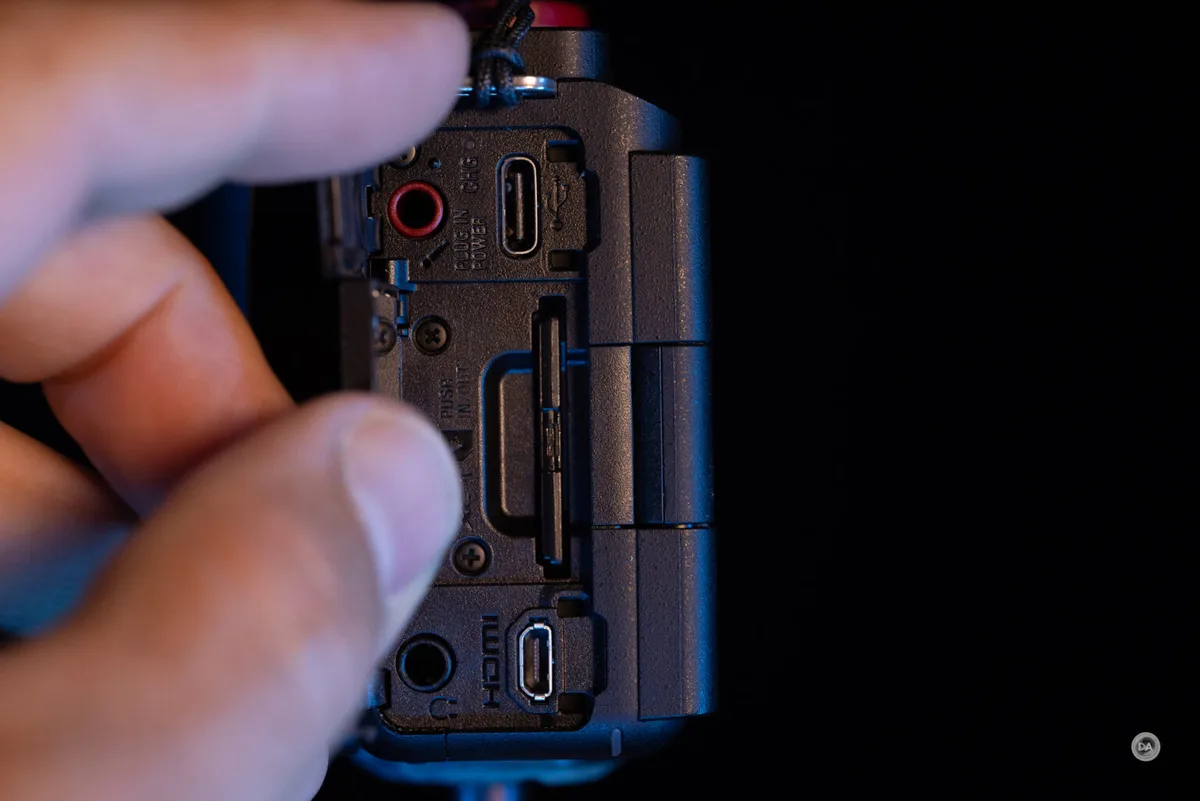
Image source: Bing (Web (fair-use with source credit))
Damaged Card Slot Pins
If you've ever forced a card in upside down or at an angle, you might have bent a pin. That's a hardware problem. Cleaning won't fix it.
The symptoms are consistent. Every card you insert gives the same error. The camera works fine otherwise.
If that's the case, the slot needs repair.
Your options are limited. You can send the camera to Sony's service center. Or you can find a local camera repair shop that works on Sony bodies.
This isn't a DIY fix.
Firmware Bug
Sony has released firmware updates for the ZV-E10 II that specifically address card compatibility. If you're running an older version, you might see errors that newer cards shouldn't cause.
Check your firmware version in the setup menu. Compare it with the latest version on Sony's support page. If there's a newer version, update it.
It's free and it takes about 10 minutes. The same process applies if you've ever needed to update the firmware on other camera gear you own.
Overheating
The ZV-E10 II can overheat during extended 4K recording, especially in warm environments. When it gets too hot, the camera may stop recording or throw a card error as a protective measure.
The error isn't really about the card. It's the camera telling you to cool down. Turn it off, remove the battery, and let it rest for 15 minutes.
Shooting in the shade or using a small fan can help prevent this.
How to Avoid This Error in the Future
Prevention is better than troubleshooting. Here's how to keep that error message from ever appearing.
Use the Right Card from the Start
The easiest way to avoid card errors is to buy a card that's built for the ZV-E10 II. Look for a UHS-II card with a V30 rating at minimum. For 4K 60p or higher, go V60 or V90.
Buy from a reputable brand. Sony's own TOUGH series is a safe bet. So are SanDisk's Extreme Pro and Lexar's Professional series.
These cards are tested extensively with Sony cameras.
Format Cards in the Camera
Make it a habit. Every time you offload footage, format the card in the camera before your next shoot. This maintains the correct file system and clears any residual data that could cause corruption.
It also helps the camera's internal file management. The camera keeps track of file numbers and folder structures. Starting fresh each time reduces the chance of a conflict.
Update the Firmware
Sony releases firmware updates for a reason. They fix bugs, improve performance, and add card compatibility. Check for updates every few months.
The process is straightforward. Download the update file from Sony's support page. Copy it to a formatted SD card.
Insert the card and run the update from the camera's menu. If you're comfortable with updating other devices, this is very similar.
Handle Cards with Care
Cards are tough but not indestructible. Store them in a protective case. Keep them away from magnets, moisture, and extreme heat.
Don't leave them loose in your pocket or bag.
When inserting a card, make sure it's oriented correctly. The label faces the back of the camera. Push it in until it clicks.
Don't force it.
Rotate Your Cards
If you shoot a lot, use multiple cards. Rotate them so no single card gets worn out too quickly. This also gives you a backup if one card fails.
Label your cards with a marker or a sticker. Track which ones are new and which ones have been through hundreds of cycles. Replace them after a year or two of regular use.
Frequently Asked Questions
How do I fix a memory card error on my Sony ZV-E10 II?
Start by reseating the card and power cycling the camera. Remove the card and battery for 30 seconds. Reinsert both and try again.
If the error persists, format the card in the camera. That fixes most issues.
What SD card is best for the ZV-E10 II?
Use a UHS-II card with a V30 speed rating or higher. For 4K 60p or 4K 120p, choose V60 or V90. Sony's TOUGH series, SanDisk Extreme Pro, and Lexar Professional cards are all reliable options that work well with this camera.
Why does my camera say "Cannot Record" even with a new card?
The card is likely too slow for the recording mode you've selected. Check the card's speed class label. If it's U1 or V10, it's not fast enough.
Switch to a lower bitrate mode in the menu, or replace the card with a V30 or faster one.
Can I use a microSD card in the ZV-E10 II?
You can use a microSD card with a full-size adapter, but it's not recommended. The adapter adds a point of failure. The card may also be slower than a native SD card.
Stick with a full-size SD card for reliability.
Should I format my card on a computer or in the camera?
Always format in the camera. Your computer may use a file system the camera doesn't support. In-camera formatting ensures the correct exFAT structure and prevents compatibility issues.
How do I know if my card is counterfeit?
Counterfeit cards often have typos on the label, uneven printing, or a lower weight than genuine cards. They may also report a higher capacity than they actually have. Run a speed test using free software.
If the write speed is far below the rated speed, the card is likely fake.

Similar Posts