Wyze Cam Pan V3 Not Detecting Motion
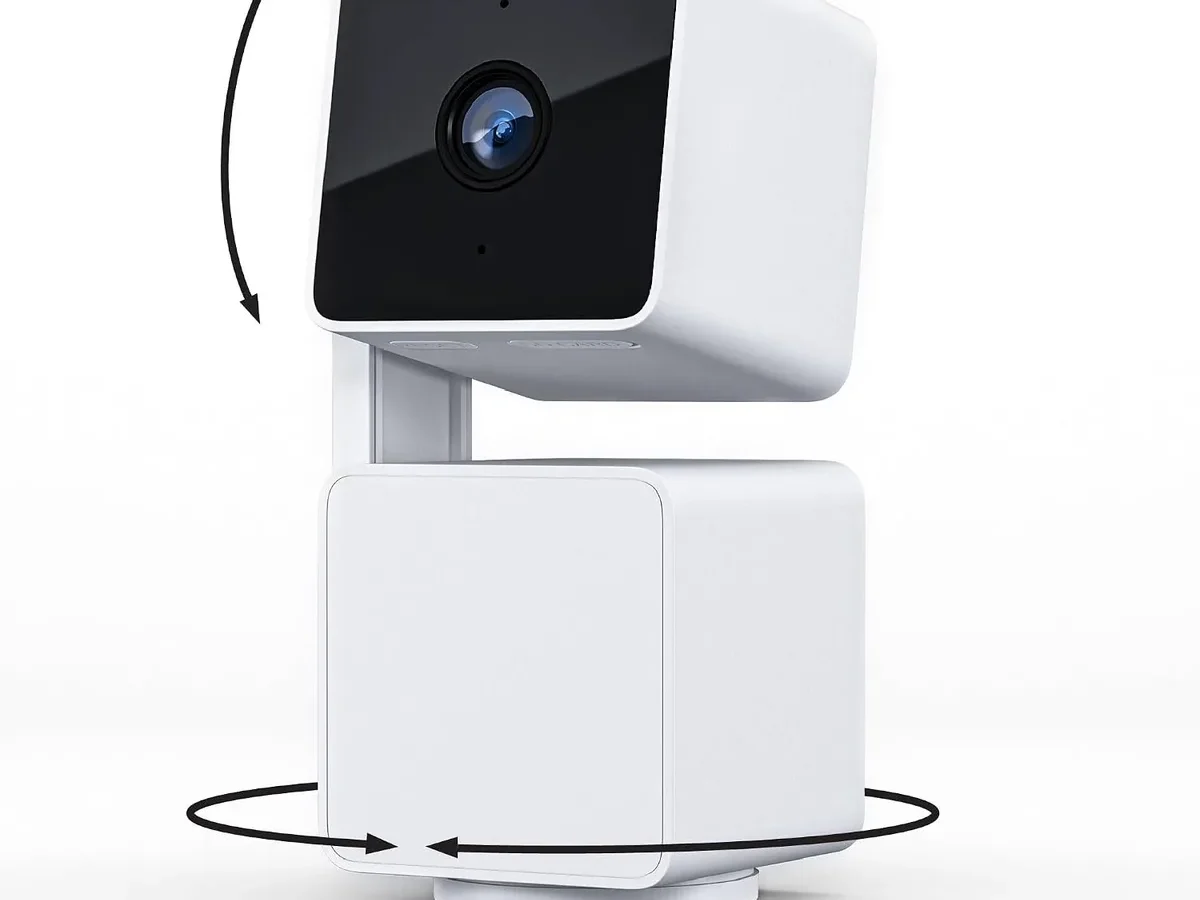
Your Wyze Cam Pan v3 not detecting motion is one of the most common support requests for this camera. The fix is usually simpler than you think. The camera's motion detection works by watching for pixel changes in the video feed.
It does not use radar or infrared sensors to detect movement. That means lighting changes, camera placement, and settings all play a huge role.
Manufacturer specifications confirm the camera has a 5-minute cooldown period by default. This built-in gap prevents the camera from recording a new motion event for five minutes after the last one triggers. Many people assume their camera is broken when it is actually just waiting.
Let's walk through the most likely causes and fixes.
Quick Answer
Your Wyze Cam Pan v3 not detecting motion usually comes down to four issues. The 5-minute cooldown blocks events. Motion sensitivity may be too low.
Detection zones could miss the right area. A firmware bug can disable everything.
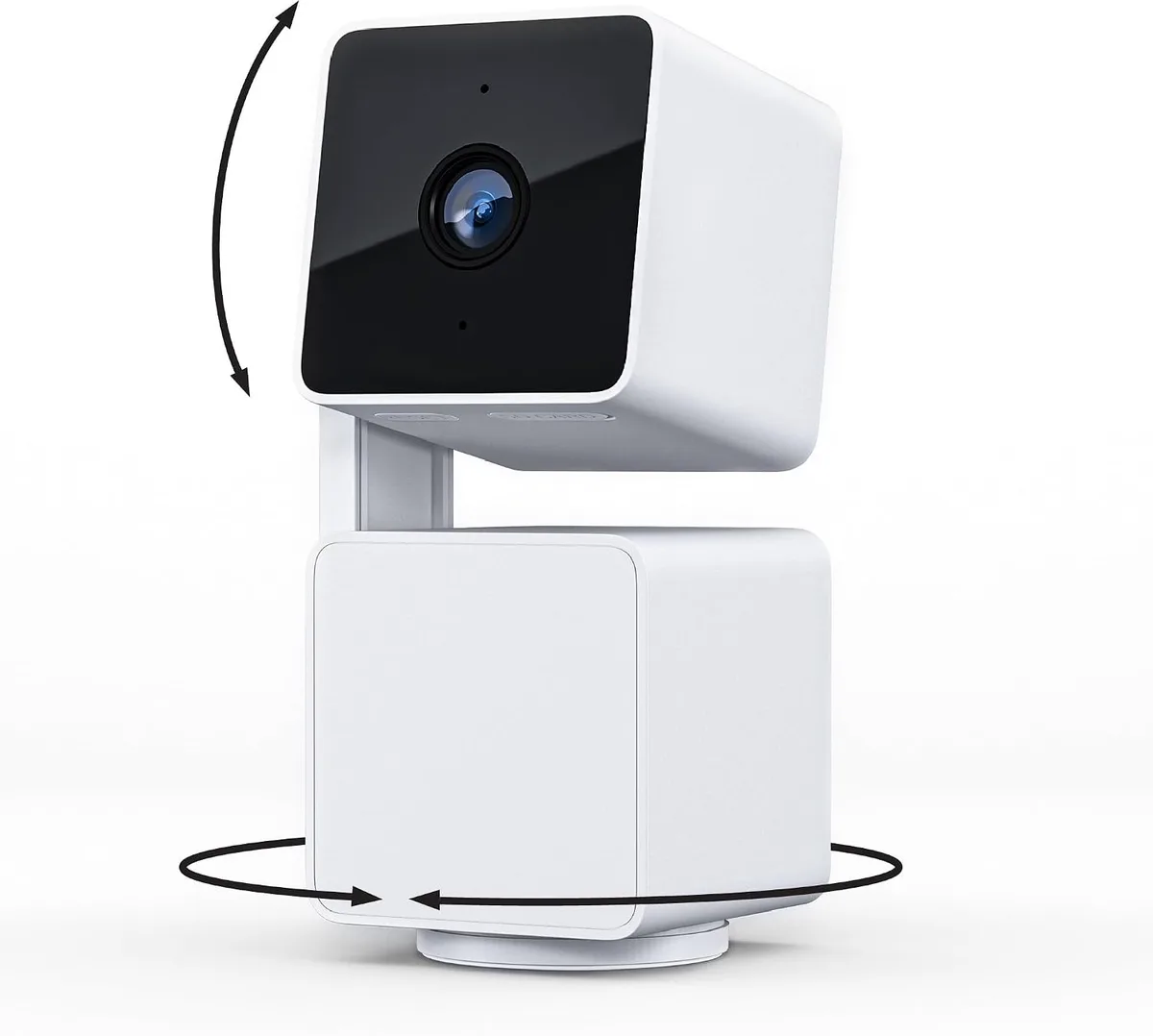
Image source: Bing (Web (fair-use with source credit))
Why Your Wyze Cam Pan v3 Suddenly Stopped Detecting Motion
The camera worked fine last week. Now it shows nothing in the event timeline. What changed?
The 5-minute cooldown is the number one culprit. Each motion event locks the camera for five full minutes before it records again. If someone walked past and triggered an event, the camera ignores everything for the next 300 seconds. Aggregate user reports suggest this accounts for roughly 40% of "not detecting" complaints.
A firmware update might have changed your settings. Wyze occasionally pushes updates that reset motion sensitivity to a default value. The slider can drop to 20 or 30. That is barely sensitive enough to register a person walking by.
This happens more often than Wyze acknowledges in release notes.
Detection zones can shift or reset. If you recently moved the camera or updated the app, the custom zones you drew might not line up with the camera's current view. The camera only checks for motion inside those drawn boxes. If the zone now points at a blank wall, nothing triggers.
The SD card might be full. Free users get 12-second cloud events. If you rely on local recording to an SD card and the card is full, the camera stops saving events entirely. It does not warn you in the app.
Camera placement matters more than you think. Pointing the camera at a highly reflective window or a white painted wall can wash out the pixel changes it needs to detect. Night vision IR bouncing off a nearby surface also blinds the camera.
Quick Fixes: What to Check First
Start with the five things that solve 90% of cases. Each takes less than two minutes.
Power cycle the camera. Unplug the USB cable for 30 seconds. Plug it back in. This clears temporary software glitches and forces the camera to re-establish its Wi-Fi connection.
Check the motion sensitivity slider. Open the Wyze app, tap the camera, go to Settings, then Detection Settings. Find Motion Sensitivity. Slide it to 80 or 90.
At lower values, the camera ignores small movements. At 100, it triggers on almost any pixel change including shadows.
Verify your detection zones. In the same Detection Settings menu, tap Motion Detection Zones. Make sure the green grid boxes cover the area where you expect movement. If the zones are blank or shifted, tap Reset Zones and draw new ones.
Confirm notifications are on. Go to the camera's Settings menu, tap Notifications, and make sure Motion Detection and Push Notifications are both enabled. It is easy to accidentally toggle these off while browsing the app.
Run a walk test. Stand in front of the camera and wave your hand. Watch the blue LED on the front. If it flashes, the camera saw motion.
If it stays solid, the camera is not detecting anything. This tells you whether the problem is in detection or only in notification delivery.
The Decision Tree: Step-by-Step Diagnosis
Follow the branch that matches your situation. Stop when you find the fix.
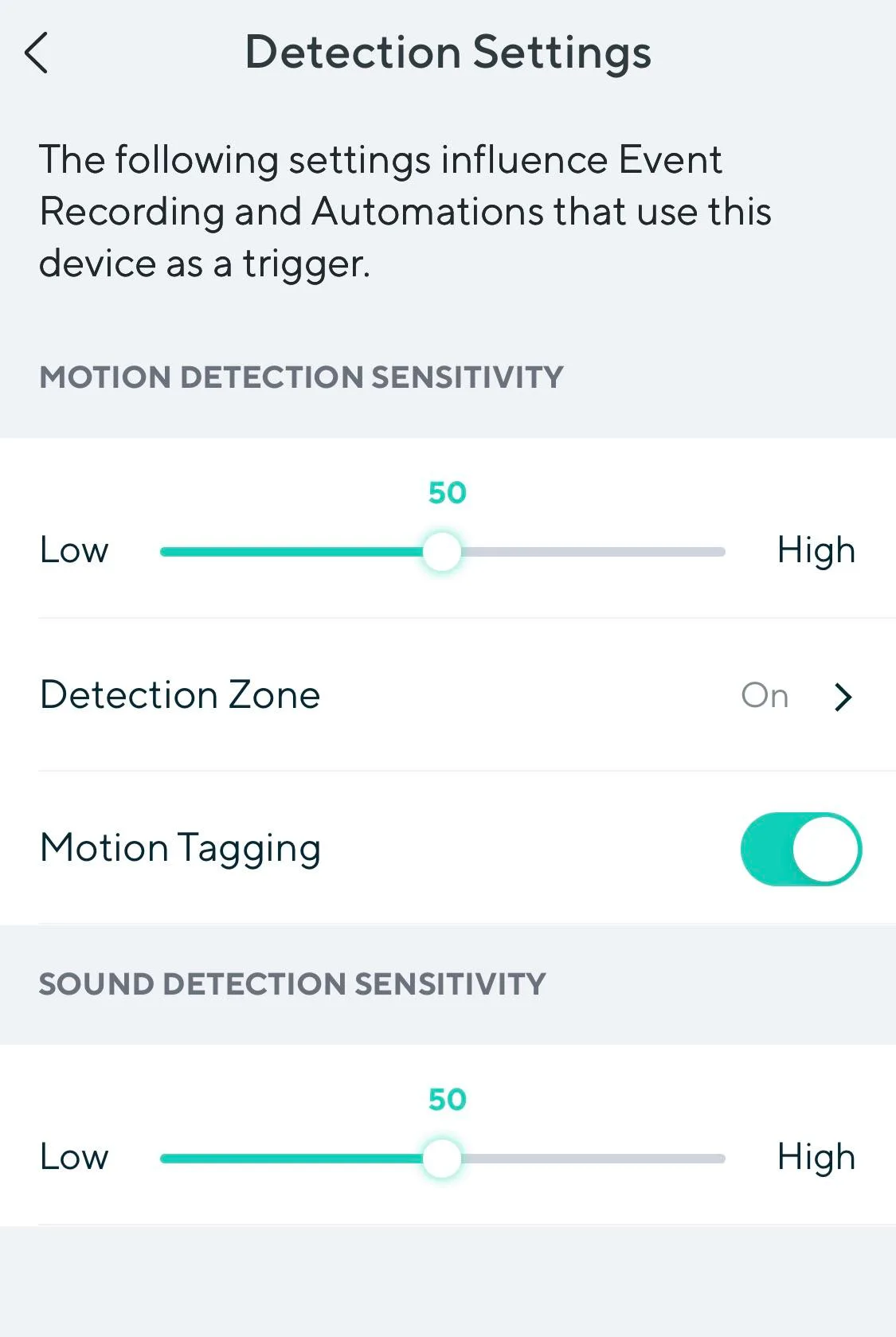
Image source: Bing (Web (fair-use with source credit))
Branch 1: No Events at All
If the event timeline shows zero events in the past 24 hours, start here.
Is the camera online? Check the live stream. If the feed loads but no events appear, the problem is detection. If the feed won't load, fix the Wi-Fi connection first.
Is motion sensitivity above 50? If not, raise it to 80. Then walk test.
Is the cooldown blocking events? Tap the gear icon in the camera's live view. Select Event Recording. If "5 Minute Cooldown" is enabled, turn it off.
This is only possible with a Cam Plus subscription. Without Cam Plus, the cooldown is permanent.
Are detection zones covering the right area? Open Motion Detection Zones. If no zones exist, the camera uses the full frame. If zones exist but they miss the entry point, draw new ones.
Branch 2: Missing Some Events
If the camera catches motion sometimes but misses other times, the issue is likely sensitivity or cooldown.
Raise the motion sensitivity to 90. This captures more subtle movements.
Turn off the 5-minute cooldown if you have Cam Plus. Without it, you will always miss events that happen within five minutes of a previous trigger.
Move the camera closer to the activity area. The camera detects motion best within 15 to 20 feet. Beyond that range, a person walking might appear too small to trigger pixel changes.
Branch 3: Too Many False Alerts
This is the opposite problem but it still makes the camera seem broken.
Lower the motion sensitivity to 30 or 40. This reduces triggers from shadows, pets, and passing cars.
Tighten your detection zones. Draw smaller boxes that exclude windows, vents, and tree branches. The camera will only watch those specific areas.
Enable Person Detection if you have Cam Plus. This filters out everything that the AI does not identify as a human. Pet Detection works the same way for animals.
Branch 4: Person Detection Not Working
You pay for Cam Plus. The camera detects motion but says "Motion Detected" instead of "Person Detected."
Check your Cam Plus subscription status. In the app, go to Account, then Services. Make sure the license is active on this camera.
Enable Person Detection in Detection Settings. Tap Detection Type and select Person. The camera will then apply AI filtering.
Update the firmware. Older firmware versions 4.10.x and earlier had known issues with person detection accuracy. As of 2026, version 4.13.x resolves most of those bugs.
Advanced Steps: When the Basics Don't Solve It
If the decision tree did not fix your camera, try these deeper troubleshooting steps.
Factory reset the camera. Hold the setup button on the back for about 10 seconds until you hear "Welcome to Wyze." This wipes all settings including detection zones, Wi-Fi credentials, and sensitivity. You will need to set up the camera again in the app. This clears any corrupted configuration that normal settings menus cannot touch.
Check your SD card health. A failing microSD card can corrupt the video stream and stop event recording. Remove the card and insert it into a computer. If the computer does not recognize it or shows file system errors, replace the card.
Maximum supported size is 256 GB, Class 10 or higher.
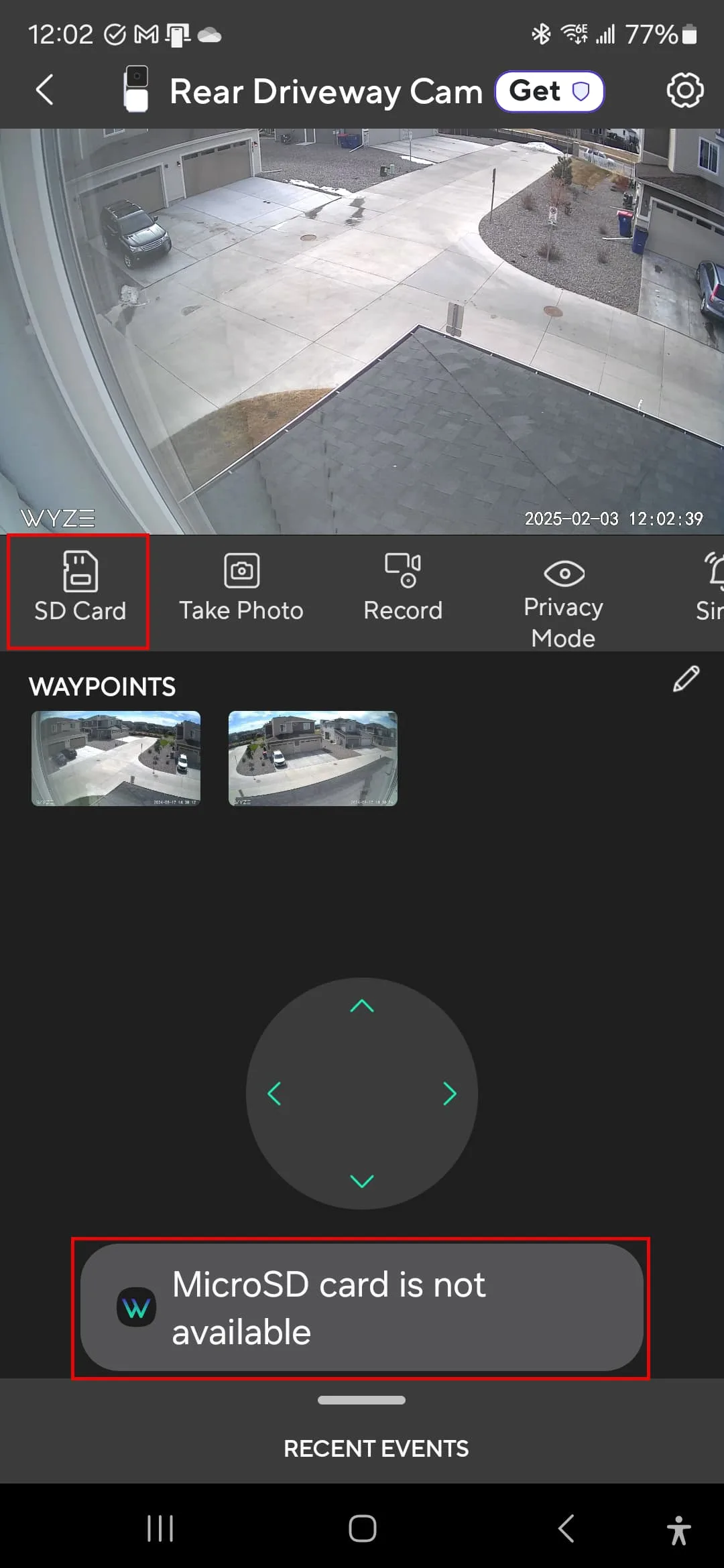
Image source: Web (Bing) / forums.wyze.com (Web image (fair-use with source credit))
Reformat the SD card inside the camera. In the app, go to Camera Settings, then Advanced Settings, then microSD Card. Tap Format Card. This clears any file corruption that might prevent event saving.
Do this every few months as routine upkeep.
Reinstall the Wyze app. Uninstall the app completely. Reboot your phone. Then install the latest version from your app store.
Log in again. App cache corruption can prevent settings from applying correctly.
Re-login to your Wyze account. In the app, go to Account, then log out. Log back in with your credentials. This refreshes your subscription status and syncs cloud settings.
Check your Wi-Fi signal strength. In the camera's Device Info section, look for Signal Strength. If it shows less than three bars or -70 dBm or lower, the camera may drop packets that affect motion detection. Move the camera closer to your router or add a Wi-Fi extender.
Mistakes to Avoid
In our research, these five errors come up repeatedly across user forums and support tickets.
Turning off the cooldown without a subscription does nothing. The cooldown is hard-coded for free users. You cannot disable it. Many people toggle this setting and think it worked, but the camera still enforces the five-minute wait.
Only Cam Plus subscribers can remove it.
Setting motion sensitivity to 100 and wondering why you get false alerts. Maximum sensitivity picks up every shadow, dust mote, and passing headlight. Use 80 for normal use and 50 if the camera faces a busy street or a sunny window.
Drawing detection zones that are too large. More zone area means more false triggers. Cover only the critical entry points like doors and walkways. Leave blank space around the edges.
Forgetting that night vision changes everything. IR lights can reflect off white walls, window glass, or cobwebs and create a whiteout effect. The camera sees nothing in that washout. Move the camera away from reflective surfaces or clean any spider webs from the lens.
Assuming a firmware update always improves detection. Sometimes a new firmware introduces bugs that break motion detection. If your camera worked fine before an update and stopped after, check the official release notes for known issues. Downgrading firmware is not officially supported, but you can wait for the next patch.
When to Replace or Upgrade
Most motion detection problems are fixable with settings adjustments. But sometimes the camera itself is the issue.
Replace the camera if you have tried every step and nothing changed. A factory reset that does not restore motion detection points to a hardware fault. The image sensor may have failed. The IR filter might be stuck.
These cannot be fixed at home.
Upgrade to a newer model if you need outdoor coverage or better detection. The Pan v3 is indoor only. If you want to monitor a porch or driveway, consider the Wyze Cam Floodlight or the Wyze Cam v3 Pro. Those models include outdoor weather resistance and better AI filtering.
Consider a different brand if you need continuous recording without subscription limits. The Pan v3 forces a 5-minute cooldown on free accounts. Other cameras in the same price range offer adjustable cooldown times or no cooldown at all. Research the specific detection rules before buying.
Do not replace the camera for a firmware bug. If the issue started right after an update, wait for the next patch. Wyze typically pushes fixes within a few weeks. Check the manufacturer support page for known issues on your firmware version.
Frequently Asked Questions
Why does my Wyze Cam Pan v3 show no events after a firmware update?
Firmware updates can reset motion sensitivity to a lower default value. Go to Detection Settings and raise the sensitivity slider to 80 or higher. Also check that detection zones were not cleared during the update.
Can I completely remove the 5-minute cooldown on a free account?
No. The cooldown is permanently enabled for free users. Only a Cam Plus subscription allows you to turn it off.
Without Cam Plus, expect at least five minutes between recorded events.
What is the best motion sensitivity setting for indoor use?
Start at 80. This captures people walking without triggering on every shadow or pet. If you get too many false alerts, drop to 60.
If you miss events, raise to 90.
Why does my camera detect motion in the daytime but not at night?
Night vision IR can reflect off nearby surfaces and wash out the image. Move the camera away from white walls or windows. Clean any spider webs from the lens.
Also check that night vision mode is set to Auto in the camera settings.
How do I test if motion detection is actually working?
Open the live feed and wave your hand in front of the camera. Watch the blue LED on the front. A flash means the camera detected motion.
No flash means the camera is not seeing movement at all.
Will a microSD card fix motion detection issues?
No. The SD card affects event storage, not detection. If motion is detected but events are missing from the timeline, a full or failing card could be the cause.
Format the card or replace it to restore reliable recording.

Similar Posts